Clocking Machine (ZKTime.net)
This SOP will show you how to export the hours worked for employees in Team IRL
Overview#
Purpose: This SOP will show you how to export the hours worked for employees in Team IRL to be used to create wage payments.
Scope: This procedure applies to the Payroll Department and those authorized to process payroll .ZKTime.Net V3.0 is a new generation time attendance management software. This will replace IRL manual timecard or clock in clock out time. All day will be supporting documents to Brightpay. With BrightPay Connect, employers have access to an online employer dashboard where they can view payslips, run payroll reports and manage employee leave.
Responsibility: Roles and Responsibilities:
- Employees are responsible for providing all required documentation and clock in and out.
- The Payroll Department is responsible for the verification of payroll details of each employee and making correct payments
- Authorized users is in charge of Smart Card Authorization
Objective: The important objectives of this Payroll SOP are:
- To Streamline Irish Employees Timesheet and replace the manual clock in and out
- To record correct salary record of all the employees in the organization
- To learn how to use and generate Actual work hours and Total Time Card

Procedure#
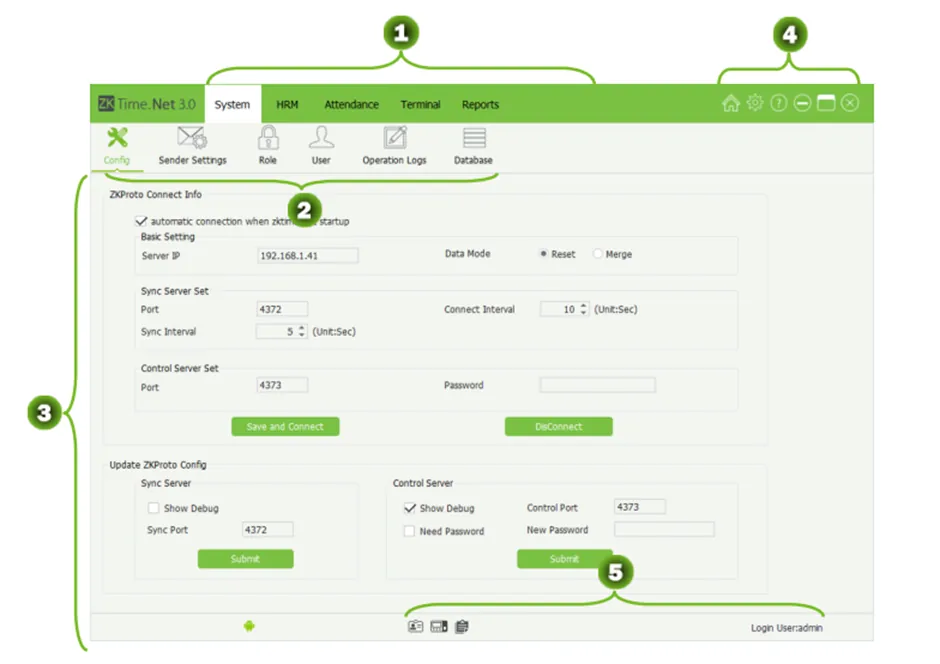
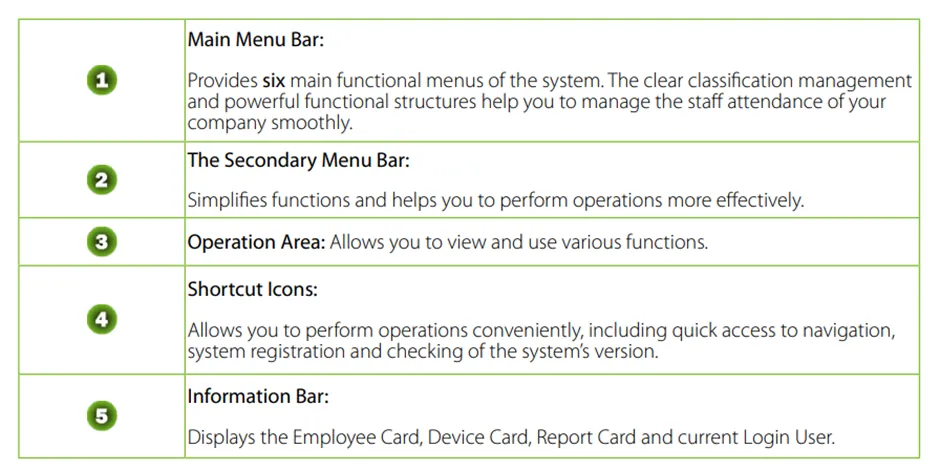
The system is a Windows-based PC application design, to offer simple yet effective employee time and attendance management.
User Interface and Main Menu#
Login#
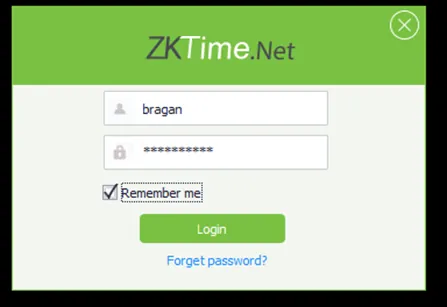
- Open ZKTime.Net and use the login that you have been provided with, if you have not yet been provided with a login please ask management for an account.
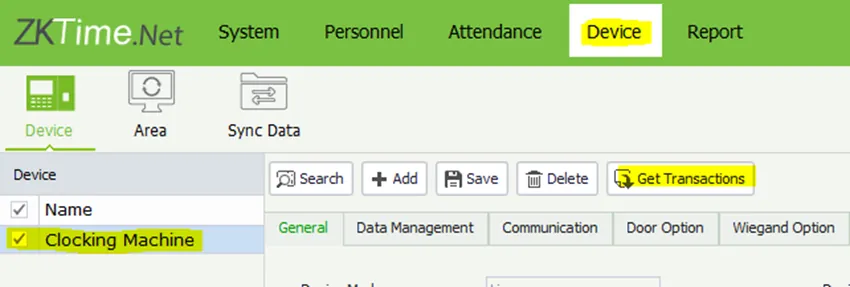
- Once opened click the Device tab and make sure “Clocking Machine” is selected on the left hand side, then click “Get Transactions”
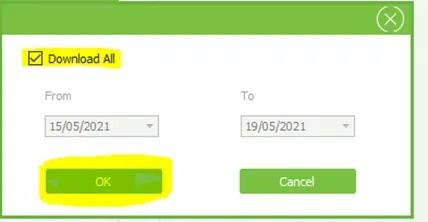
- You will then be prompted with a screen to select which dates to download from the clocking machine, select “Download All” and click OK.
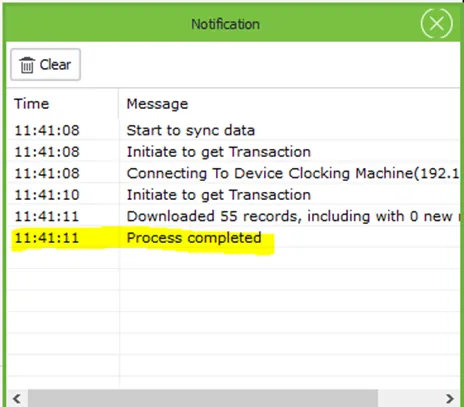
- A Notification screen will appear please wait until you see “Process Completed” before moving to the next step.
Calculate#
- Click on the “Attendance” tab along the top menu then select the “Calculate” tab.
- Choose the right week ending (Monday to Sunday).
Note:
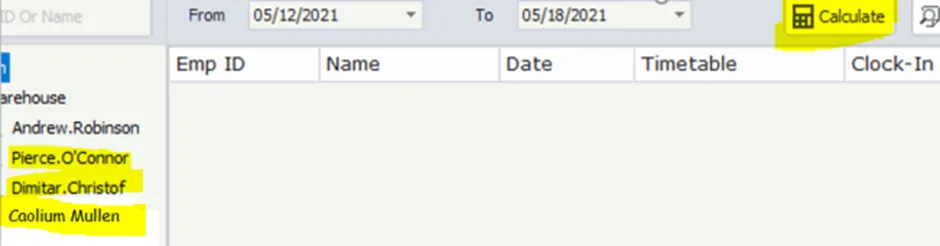
Select only Pierce O’ Connor , Dimitar Christof and Caolium Mullen. Andrew Robinson is on Salary and not using this.

Once on this screen select all the relevant employees on the left hand side then select “Calculate”
Generate Total Time Card#
- Click on the “Report” Tab in the top menu then select the “Attendance Report” in the sub menu

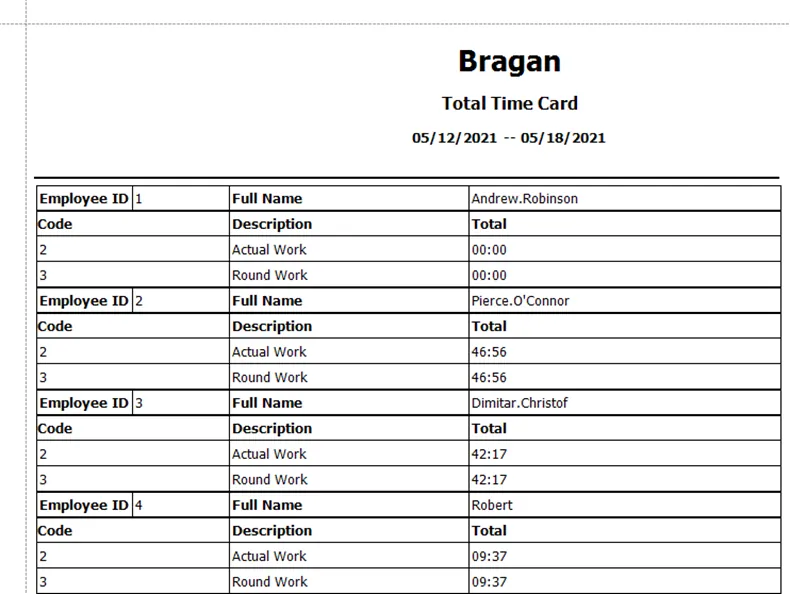
- Half way down the screen you can now select the date range that you are look to report the hours on, select the correct dates then click “Total Time Card”

This will now generate a report of the hours worked in the time frame (Please go off “Actual Work”)
Computing Overtime#
- Please note that ZKtime the working hours is in hours and Minutes format (HH:MM) . Brightpay records working in hourly format.
Example:
ZKTime for Dimitar Christof is 42:17 (42hours and 17mins).
Brightpay will record it as 42.28 hrs. We pay 15mins interval so we round down to nearest 42.5hours.
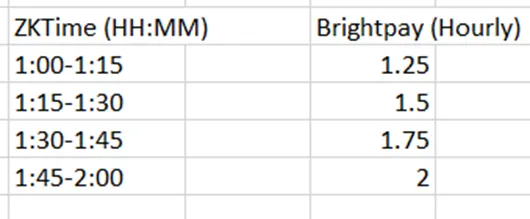
Note: When calculating the overtime you still needs to refer to Payroll Details Excel
Exporting Reports#
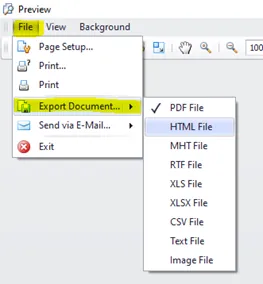
If required, you can now create an export of the time worked by going to File > Export Document
Holiday & Remote Working Days Request#
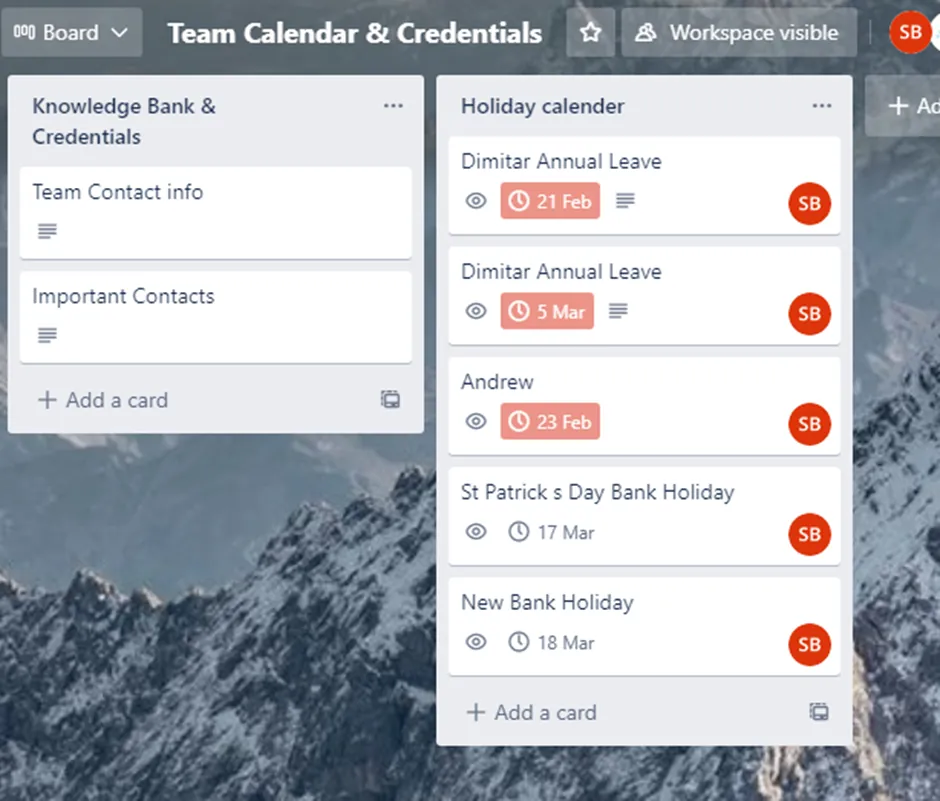
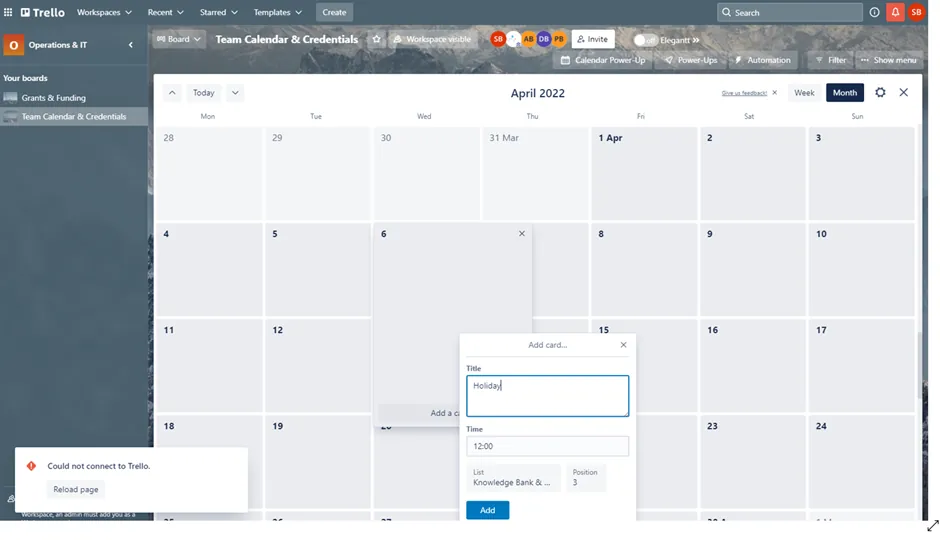
For holiday requests and remote working days please use BrighPay self service options as normal. In addition please use the calendar power up on Trello.
Go to the date on the calendar add a card insert your name of the dates and add.
Notes#
This section is important so Adhoc points and issues can be logged. Also, Q&A can be logged for suggestions for potential issues encountered. Also, log important notes needed for this system. Potential Issues:
1 - ISSUE ENCOUNTERED: Stuck on Loading RESOLUTION: Refresh Browser
2 - ISSUE ENCOUNTERED: Broken Links RESOLUTION: Get the external link as this will allow other people to access the SOP without the need for login credentials and avoid broken links.