Customer Credit Note
Create a credit note to reduce an amount your customer owes.
Overview#
Purpose: Create a credit note to reduce an amount your customer owes. Process a cash refund or offset it against an invoice. This may be due to damaged goods, or a cancellation in the sale agreement.
Scope: This procedure covers the use of Xero to send credit notes to customers. This SOP applies to Operations Team and Accounts.
Responsibility: Only the adviser, standard, invoice only – approve & pay, or invoice only – sales only user role can access Xero and make credit note
It is the responsibility of the Accounts Team to reconcile the payment and outstanding balance of the customer
In case of refund, returns and discount, please advise the management and have it approved.
Objective: Issue a credit note if you need to make a correction to an invoice you’ve sent. This leaves an audit trail for you and your customer.
Procedure#
You can only credit an awaiting payment invoice if it’s in the same currency as the credit note. Any changes made to a credit note will be recorded in the History & Notes section. The details will appear once the credit note is saved. Credit notes have their own numbering sequence You can't credit draft or paid invoices, or invoices created as part of a pay run. Credit is applied to the invoice according to the credit note date, unless the credit note is older than the invoice and then it's applied on the invoice date. If you report on a cash basis, credit note allocations will be treated in the same way as payments. You can apply more than one credit note, or payment to an invoice, but you can only credit up to the amount owing on the invoice.
Create Credit note from Invoice#
Using Classic invoicing#
If you have an awaiting payment invoice to be credited, create a credit note from the invoice. The credit note can be for some or all of the outstanding amount of the invoice.
- In the Business menu, select Invoices.
- Click the Awaiting Payment tab.
- Find and open the invoice you want to credit.
- Under Invoice Options, select Add Credit Note.
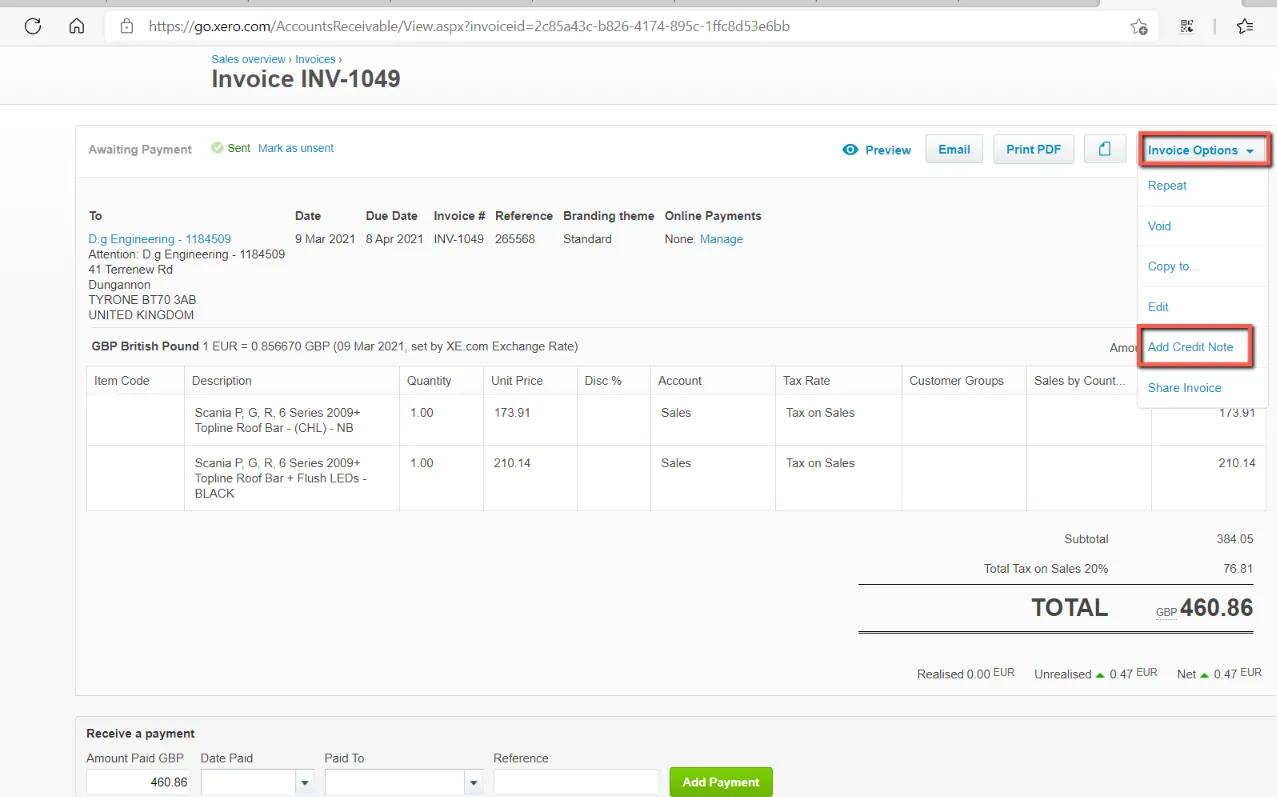
- Confirm the credit note details and edit them if you need. You can click the x to remove a line item
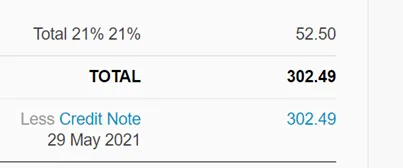
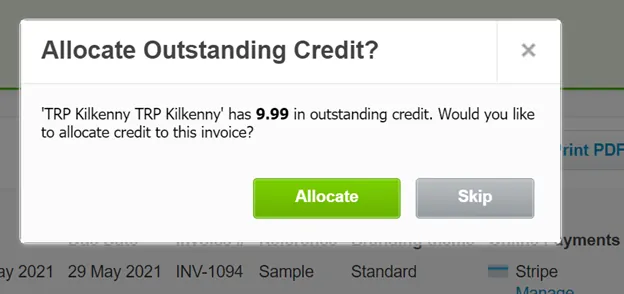
- Click Approve to approve the credit note and automatically allocate the credit to the invoice. Or click Save to allocate the credit later.
Using New Invoicing#
If you have an awaiting payment invoice to be credited, create the credit note from the invoice. The credit note can be for some or all of the outstanding amount of the invoice.
- If the invoice opens in classic invoicing, click Switch to new invoicing at the bottom of the invoice.
- Click the menu icon and select Create and apply credit.
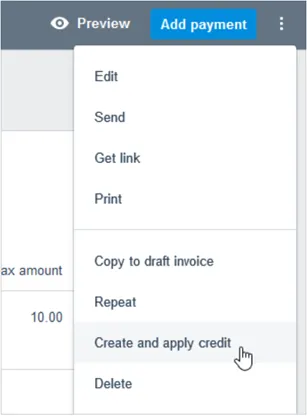
3.Check the details on the credit note, make changes if needed and then click Approve.
Once you've approved the credit note, you'll be taken back to the invoice, showing the amount credited and any remaining balance.
Common Scenarios for credit notes#
Here are a few typical occasions when you might need to use a credit note, and how you'd do this in Xero.
You invoiced a customer, but they noticed a mistake
In this case, the customer hasn’t paid the original invoice because they've noticed a mistake. Eg you raised an invoice for 11,000 against your Sales account, but it was supposed to be for 10,000, then you can raise a credit note for 1,000 against your Sales account. You'll be immediately prompted to apply this credit note to the invoice, reducing the amount owing on the invoice to 10,000. Your Profit and Loss report will now reflect 10,000 of sales and your tax liability will be adjusted.
You invoiced a customer, they paid, then returned goods
In this case, the customer has fully paid the invoice and, as you'll be doing business with this customer in the future, they've agreed for you to hold the credit until next time you invoice them. If, for example, you raised the invoice for 10 items at 1,000 each, you can raise a credit note for 5 items at 1,000 ach. As the invoice is fully paid, you won't be able to apply the credit note against the invoice, so the credit note will remain in an ‘Awaiting Payment’ status. When you next raise an invoice for this customer, you'll be prompted to apply the credit note.
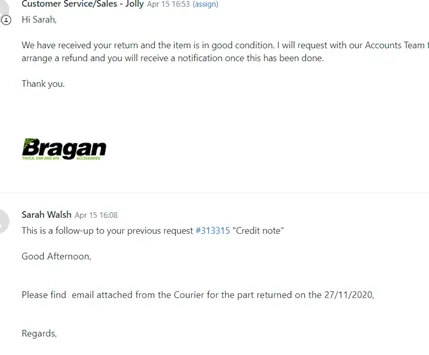
You invoiced a customer, then agreed to apply a discount
For example, you raised an invoice for 10,000 against the Sales account and agreed to give a 15% discount. The customer will pay you 8,500, leaving 1,500 outstanding on the invoice. You can raise a credit note for 1,500 against a discounts account and you'll be prompted to apply the credit note to the invoice, leaving the invoice and the credit note fully paid. Your Profit and Loss report will now reflect 10,000 of sales and 1,500 of discounts.
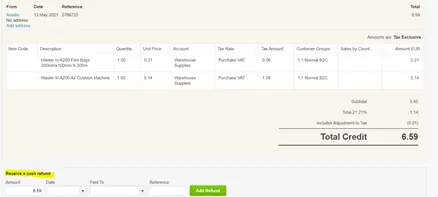
You issued a credit note and want to pay a cash refund
Simply apply the cash refund at the bottom of the credit note. In the Paid to dropdown Select the source (example Paypal account or Bragan Transport Bank account)
You invoiced a customer, but they overpaid you
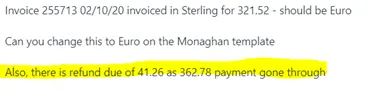
In this case, you haven't reduced what your customer owes; your customer has simply overpaid leaving their account in credit. Let's say you raised an invoice for 321.52 but your customer paid you 362.78. Instead of refunding them the 41.26, you agree to reduce the amount owing on their next invoice. Record the overpayment when you reconcile the bank account, then allocate that credit to the next invoice you issue them.
Other request
Refund of VAT charge or credited and invoiced in wrong currency are among frequent request.
Email Customer in Zendesk#
Take note of the ticket Number in Zendesk to send your response regarding the credit note Please ask for proof of payment if refund In Folder Add from dropdown Xero To be Filed

Video & Media#
Notes#
This section is important so Adhoc points and issues can be logged. Also, Q&A can be logged for suggestions for potential issues encountered. Also, log important notes needed for this system. Potential Issues:
1 - ISSUE ENCOUNTERED: Stuck on Loading RESOLUTION: Refresh Browser
2 - ISSUE ENCOUNTERED: Broken Links RESOLUTION: Get the external link as this will allow other people to access the SOP without the need for login credentials and avoid broken links.