Customer Statement of Account (SOA)
A statement of account can show all invoices and payments for a date range, or just
Overview#
Purpose: A statement of account can show all invoices and payments for a date range, or just the items unpaid. The purpose of this procedure is to provide guidance to authorized users to view, print or email a statement of account to Bragan Trade customers. Find out how prepayments you receive appear on your customer’s statement.
Scope: This SOP covers the process on how to create an account statement for customers who owes you money, how to save to PDF the SOA for printing or email to customer.
Responsibility: Roles and Responsibilities:
- Xero Accounts employees are responsible on keeping the statement of account in order.
- Weekly account reconciliation must be done to keep the account updated.
- Monthly Statement of Account should be sent out to Customers for payment and collections.
Objective: The important objectives of this SOP are:
- To learn the detailed procedure on navigating customer statements in Xero
- To view or print a customer statement
- To email a customer statement
Procedure#
Send SOAs to customers every first week of the month.
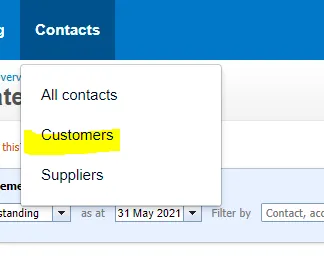
- Log in to Xero using the credentials provided by management. In the Contacts menu, select Customers.
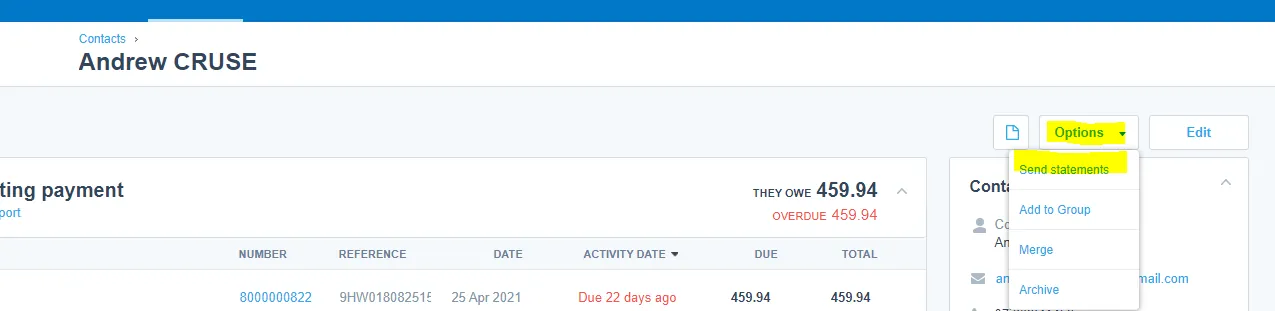
You can also access statements from the Options menu within a customer's contact record.
-
Click Send statements.
-
Click on your customer’s name to open their statement. Use the Filter by field to search for your customer if necessary.
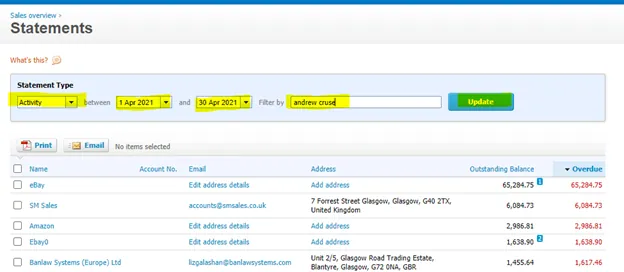
- (Optional) Change the statement type or date and click Update.
There are two types of statement to choose from:
- Activity statements show all activity for that customer within a date range. This includes all:
Sales invoices Payments received Credit notes Prepayments Overpayments
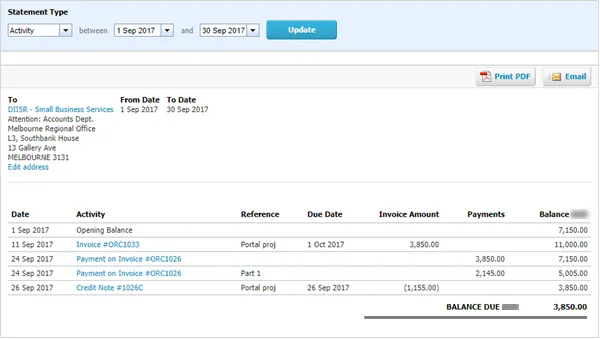
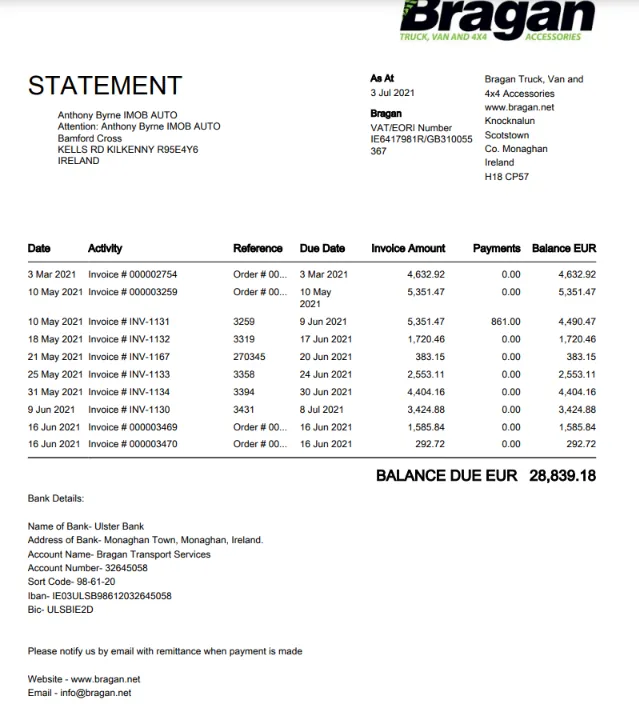
- Outstanding statements show only what's owed by the customer at a certain date. This is the format one that we send to customer. They don't show any transactions that have been fully paid or credited, and never show prepayments.
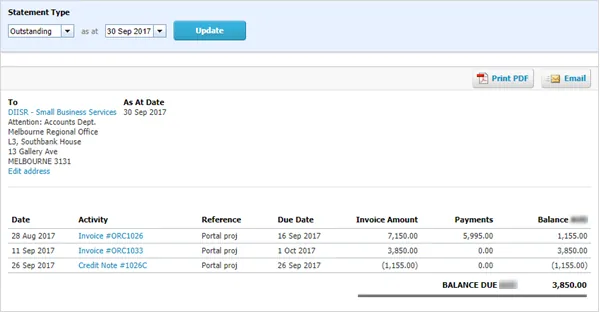
Note: Do not send Activity Statement to Customer. We do not use this.
- Click Print PDF to create a printable PDF of the statement and save it to designated Accounts Dropbox Folder. Request to management to give you access to this folder.
Send SOA to Customers in Bulk#
Sending in bulk is not a recommended process. It is better to do it one by one to avoid errors.
-
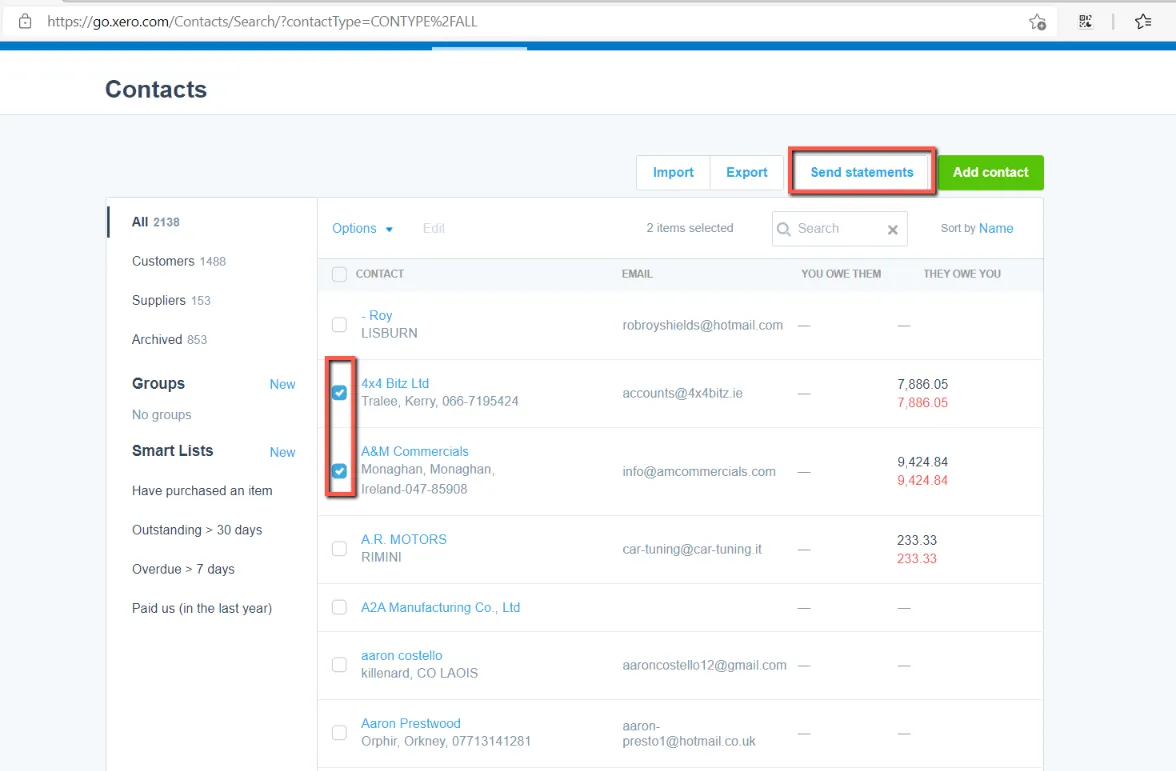
In the Contacts menu, select Customers.
-
Click Send statements.
- Change the statement type to Outstanding and date range and click Update.
- Select the customers you want to email statements to.
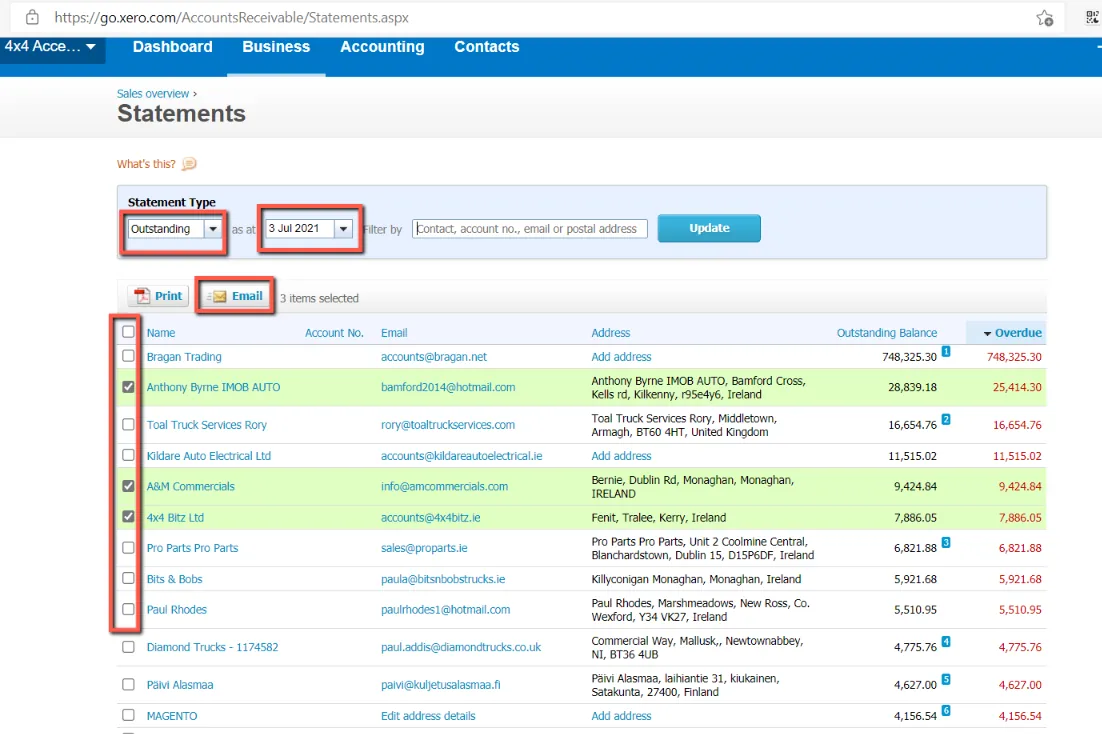
- Click Email.
- Enter or change information in the Send Statement window.
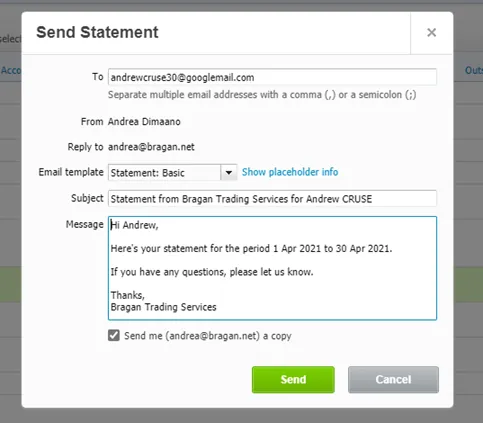
- Click Send.
Send Statement window fields#
| Field name | Description |
|---|---|
| To, Email | You can edit the email address of a contact you’re sending a statement to. If you enter an email address where one didn't exist, this will save to the primary person in the contact. Changing existing email addresses won't update the contact in Xero. You need to update the contact to change an existing email address. |
| From, Reply to | This is the name that will appear on the message you send, and the email address that any replies will be sent to. You can update the email address on emails you send to contacts in Settings. |
| Email template | Select an email template from the list. You can add email templates for emails you send from Xero. |
| Show/hide placeholder info | Click Show placeholder info to show the placeholders you can add to your subject or message for this email type. Click Hide placeholder info to hide the placeholder information. |
| Subject | Xero populates the Subject field with the text and placeholders set up in the selected email template. You can edit these directly in the field, or customise the subject in an email template to reuse later. |
| Branding | If you've set up more than one branding theme, select the theme you want to apply to this statement. |
| Message | Xero populates the Message field with the text and placeholders set up in the selected email template. You can edit these directly in the field, or customise the message in an email template to reuse later. |
| Field name | Description |
|---|---|
| Send me a copy | Select the checkbox if you also want to send yourself a copy of the email. |
Video & Media#
Notes#
This section is important so Adhoc points and issues can be logged. Also, Q&A can be logged for suggestions for potential issues encountered. Also, log important notes needed for this system. Additional Notes:
Send SOAs to customer every first week of the month.
Potential Issues:
1 - ISSUE ENCOUNTERED: Stuck on Loading RESOLUTION: Refresh Browser
2 - ISSUE ENCOUNTERED: Broken Links RESOLUTION: Get the external link as this will allow other people to access the SOP without the need for login credentials and avoid broken links.