Forwarder App: Zendesk to Xero
Bills can be emailed in most document and image formats.
Overview#
Purpose: Bills can be emailed in most document and image formats. Automatically generate a draft bill in Xero when you use forwarder to send your bill from zendesk to your Xero organisation. There are situations when you won't give contractors or external teams direct access to your Zendesk. With the Forwarder app, you can send an entire ticket including attachments to any external email outside Zendesk Support.
Scope: This SOP covers the steps of using Forwarder App in Zendesk and moving drafts bill to awaiting approval tab in Xero. This applies to all Accounts Team and those with Standard and Adviser access in Xero.
Responsibility: It is the responsibility of the Accounts to check existing bills and outstanding accounts. The Accounts should also know which Zendesk tickets and email content is relevant to be forwarded as bills to pay.
Objective: To Streamline bills and expense recording in Xero To account on Supplier Bills to Pay
Procedure#
This feature is a simpler version of Hubdoc and is a good introduction to data capture if you haven't used it before. Once you're comfortable with how it works, learn more about the advanced functionality that Hubdoc provides.
Email bills to your organisation's unique email address to generate a draft bill. The bills must be an email attachment, and not embedded in the body of the email. HTML bills and e-invoices in the body of the email won't be accepted.
Xero will automatically generate and attach the emailed bill to a draft bill.
If Xero can read the emailed bill successfully, some fields, such as the Contact, Date, Total, Due Date, and Reference fields, might automatically populate. Also, if you email multiple bills (up to 10 bills) in a single email and Xero can read the bill successfully, separate bills are created in Xero.
The draft bill is set to Tax Inclusive, which overrides any organisation or contact defaults that are set. The correct tax amount will be calculated once an Account Code and Tax Rate rate are applied.
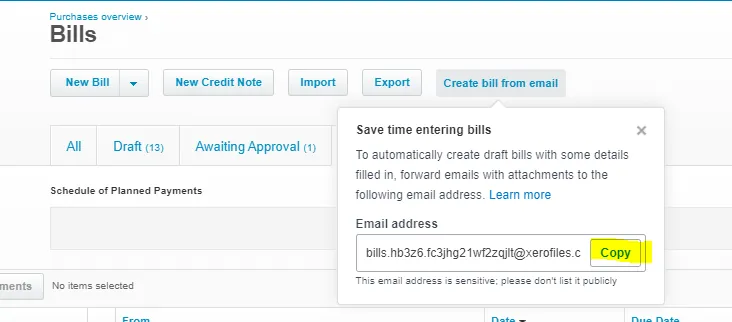
Find and copy your Xero bills email address. You can find the Xero bills email address on any status tab in the Purchases overview page.
- In the Business menu, select Bills to pay.
- At the top of the page, click Create bill from email.
- Click Copy to copy your unique bills email address.
- (Optional) Save the email address to your address book in your email program.
Bragan Trading Services [email protected] Bragan Truck, Van and 4x4 Accessories [email protected]
Forwarder#
Once you've copied your Xero bills email address, forward any bills you've received from your suppliers to Xero.
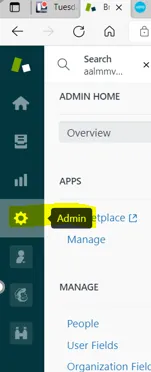
- From Zendesk, Click the Gear Admin icon on left side menu
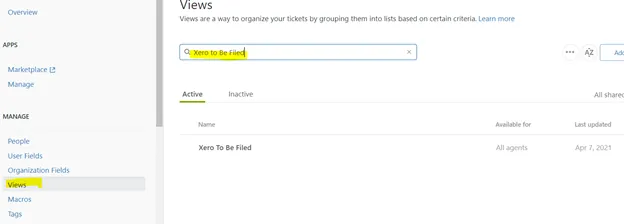
- Select Views under Manage. Search Xero to Be Filed
- Click Open
- Open related tickets you want to forward
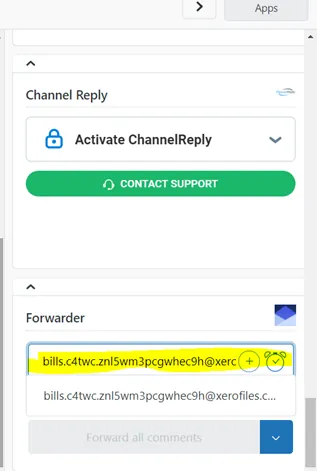
In the App section of Zendesk go the Forwarder and paste the Xero Bills email address and hit Enter to send your bill to your Xero bills
Xero Bills#
- Log into your Xero organisation.
- In the Business menu, select Bills to pay.
- Select the Draft tab.
- Open the bill you’ve just created. Auto-generated bills are labelled forwarded bill and should automatically include the correct contact.
If Xero doesn’t automatically suggest a contact, check that there aren’t any duplicate contacts or spelling errors in their name. Details of the bill can be entered or edited manually, using the side by side view.
- Review the suggested details, indicated with a lightning icon, to ensure the bill is correct.
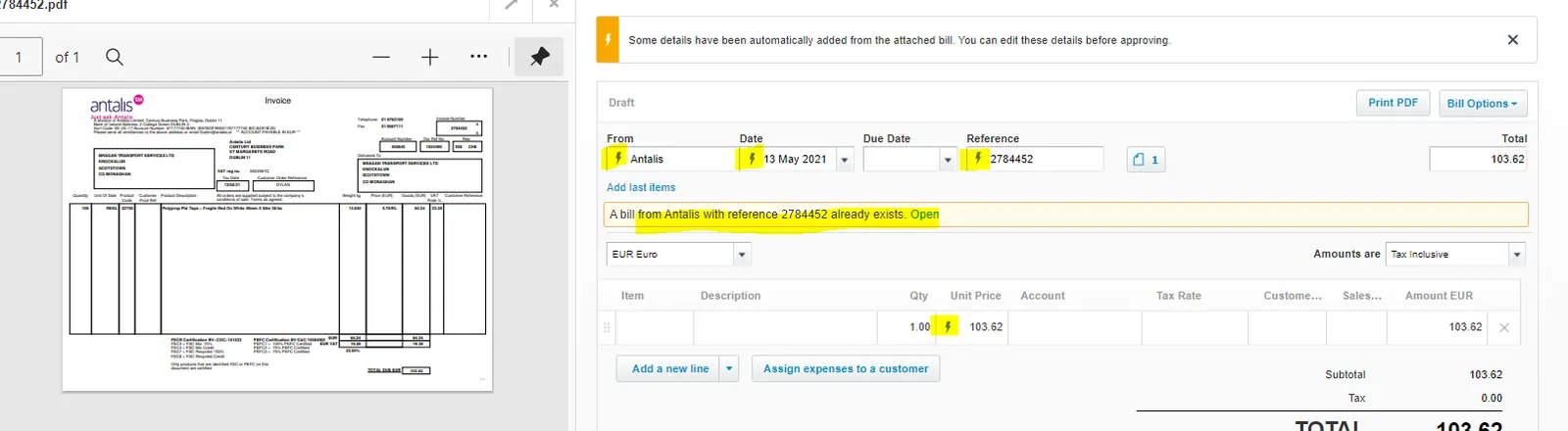
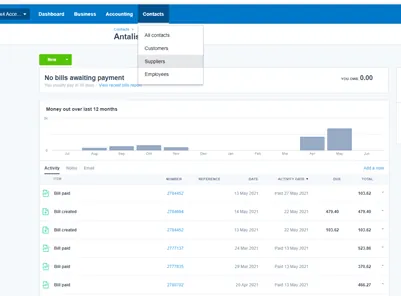
You can also do the following to check for duplicate entries or if the bills was already manually entered
Check the contact details and activity—what invoices was posted, what bills posted,credit note and prepayments/overpayment
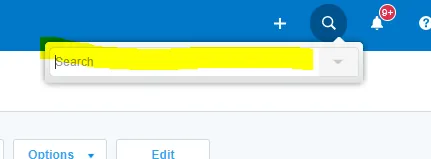
Open Search Xero- Use search to find contacts, invoices, bills, purchase orders, new expenses, quotes, bank transactions and amounts. You can do this from any screen in Xero, except Fixed Assets, Reports and Payroll.
Click the search icon or press the forward slash (/) key on your keyboard while on any screen in Xero (except Fixed Assets, Reports and Payroll).
Video & Media#
🎥 Forwarder app zendesk to xero SOP
Notes#
This section is important so Adhoc points and issues can be logged. Also, Q&A can be logged for suggestions for potential issues encountered. Also, log important notes needed for this system. Potential Issues:
1 - ISSUE ENCOUNTERED: Stuck on Loading RESOLUTION: Refresh Browser
2 - ISSUE ENCOUNTERED: Broken Links RESOLUTION: Get the external link as this will allow other people to access the SOP without the need for login credentials and avoid broken links.