Handling Customer Invoice Request
A copy of the invoice is automatically sent to the customer through email when the
Overview#
Purpose: A copy of the invoice is automatically sent to the customer through email when the item has been dispatched. Sometimes the customer do not receive the invoice, probably because they use different email address or other reasons. This SOP will serve as guide on how to send invoice to the customer (except for eBay customers).
Scope: This process applies to all Customer Service members (Team PH & Team IRL) and Accounts.
Responsibility: It is the responsibility customer service representative to follow the standard operating procedure in sending invoice requests to customers.
Objective: The objective of this procedure is:
- to guide employees on how to handle sending invoice requests to customers.
Handling Invoice Request
Procedure#
If CS receives email from customer asking for their sales invoice, tag the email to Accounts, the name of the account personnel and then add the label -Arrange Invoice. CS agent will no longer be the one to send the invoice. Accounts will then follow the procedure stated below.
Sending Invoice from Xero#
Important Note: this is the preferred and current process but due to new eBay regulation about their VAT process the preferred method of sending invoice for eBay customers is through Linnworks. Please follow this SOP for eBay customers.
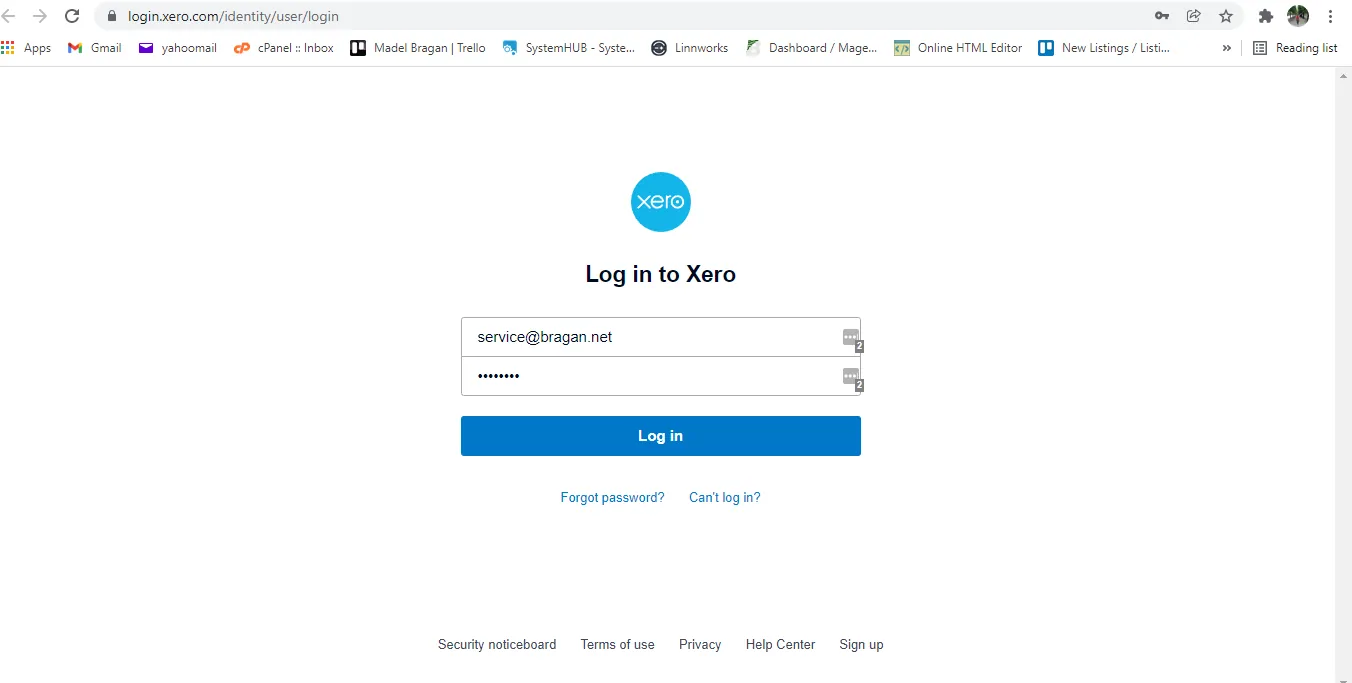
- log-in to Xero using the credentials provided by management.
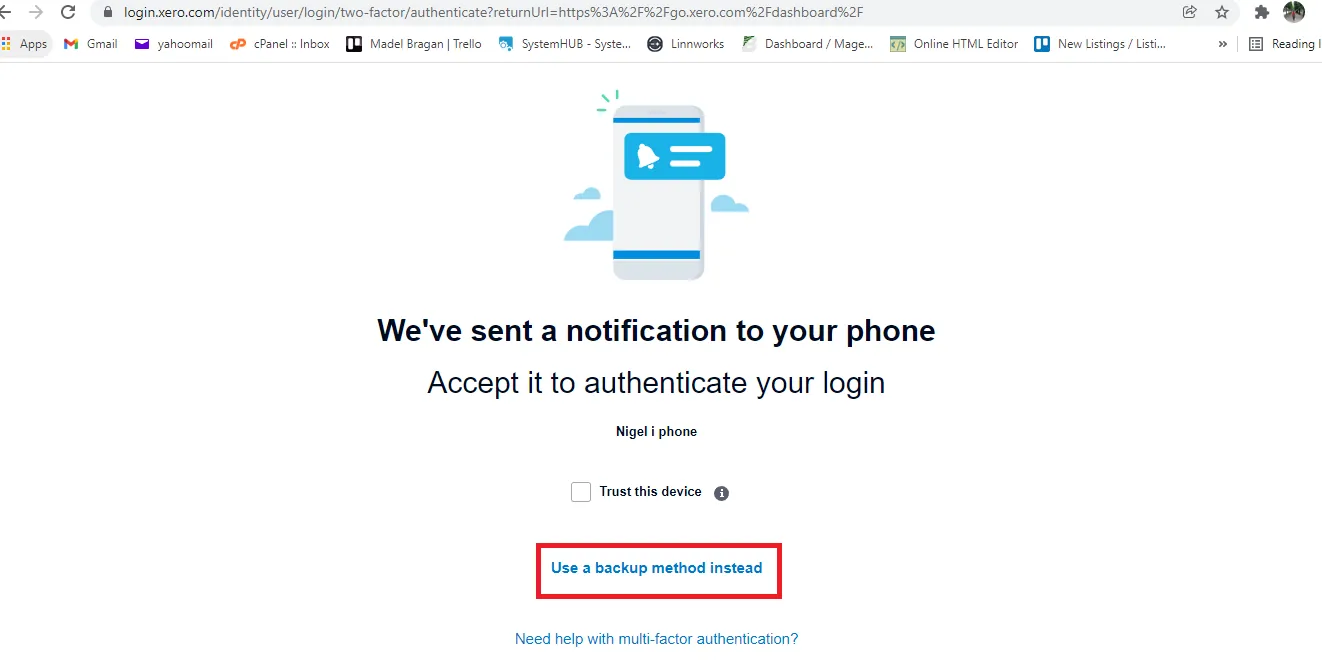
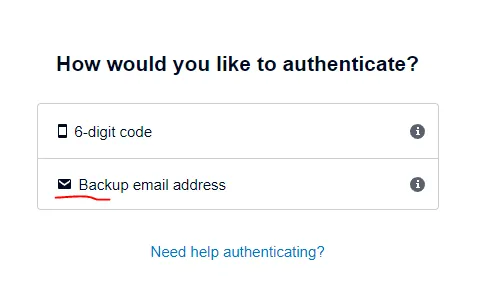
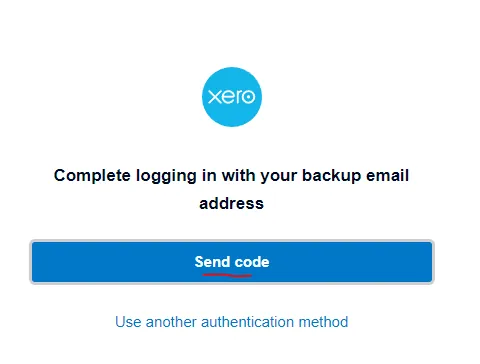
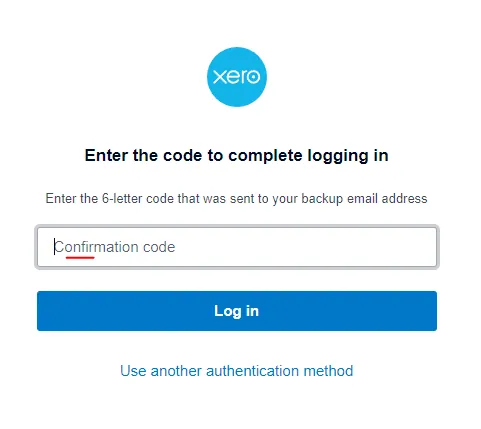
- Once logged-in, click on Use a backup method instead. Then select Backup email address and click Send Code. The confirmation code will be sent to the company's Customer Support Software (Replyco or Zendesk).
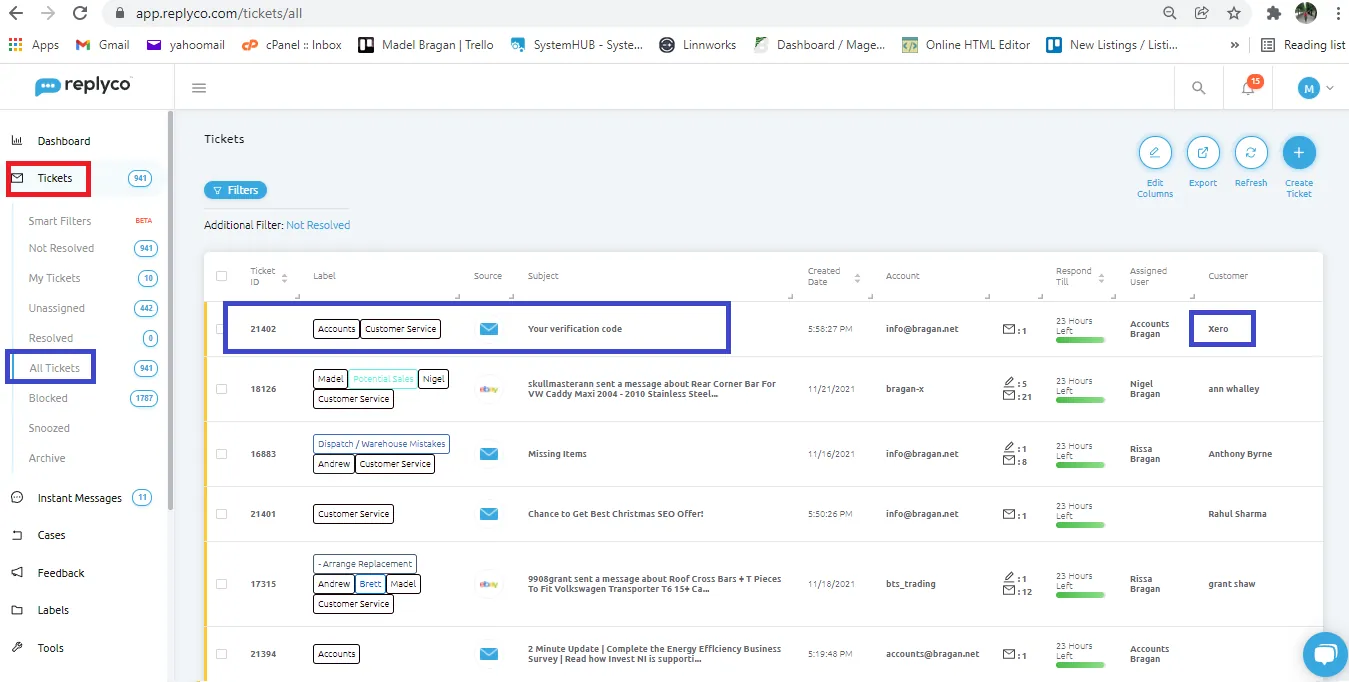
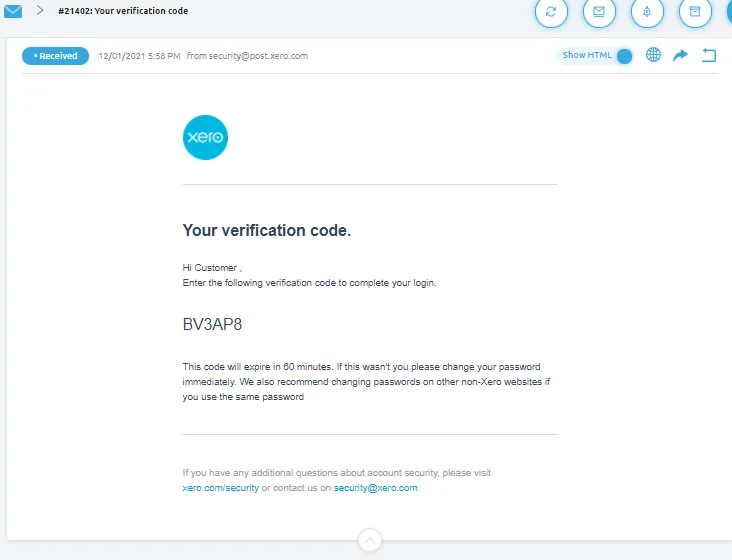
- Log-in to the CS software, go to Tickets and click on All Tickets and search for an email from Xero containing the confirmation code. Note: confirmation code email takes a little while to be received. Copy the confirmation code and type it in Xero, then click Log-in.
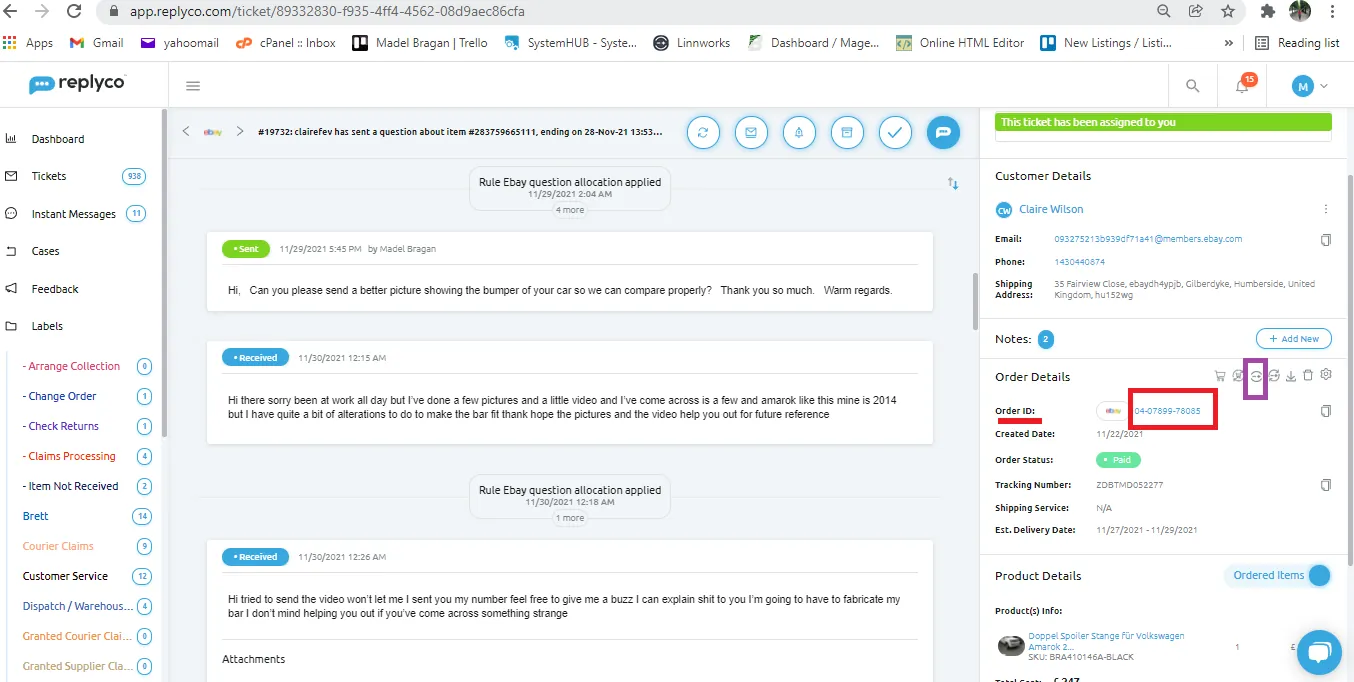
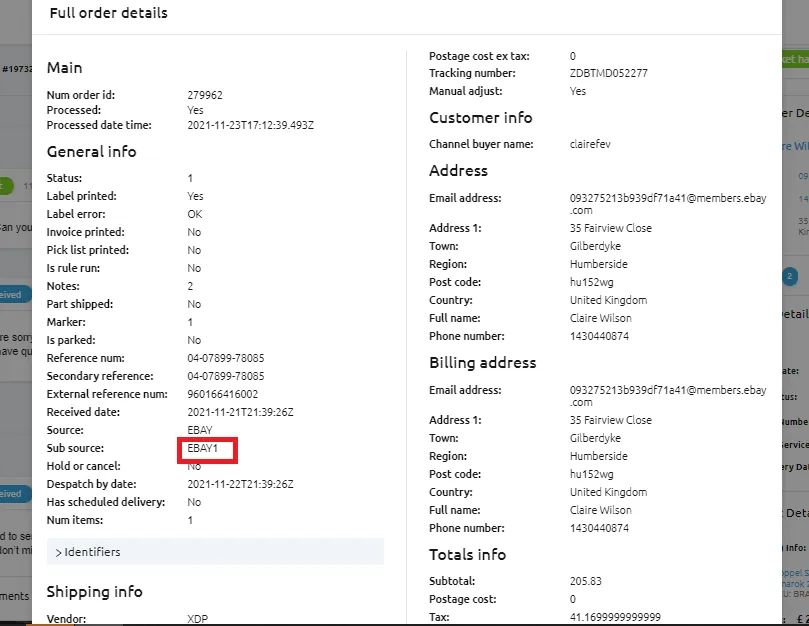
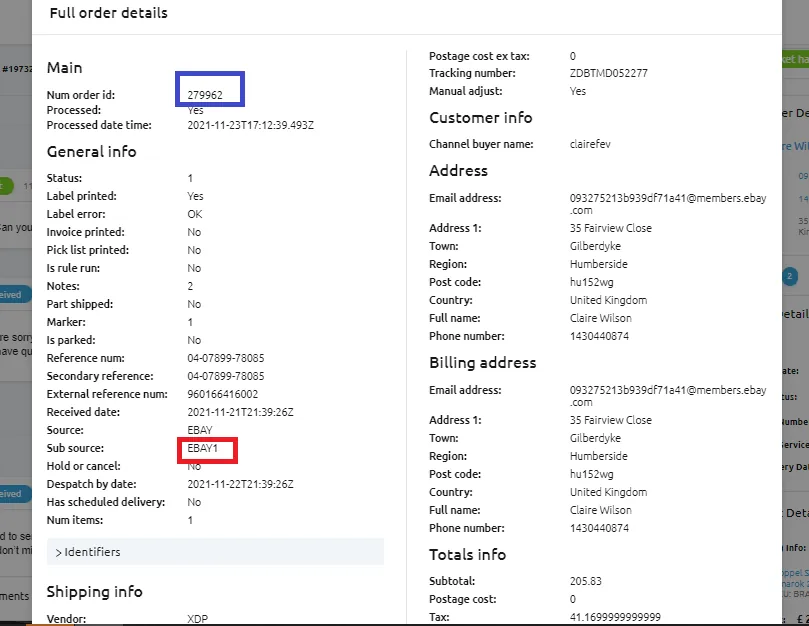
- Go back to the customer's email request for invoice. Copy the eBay Order Number (red box) and take note if it was purchased in Bragan x (Bragan Truck Van & 4x4) or BTS trading. If it is not indicated in the Order Details. Click the Show Full Linnworks Orders icon (violet box) to check if BTS or Bragan x. See Figure 9.
Note:
ebay0 = BTS (for UK customers)
ebay1 = Bragan-x (for Ireland & International Sales)
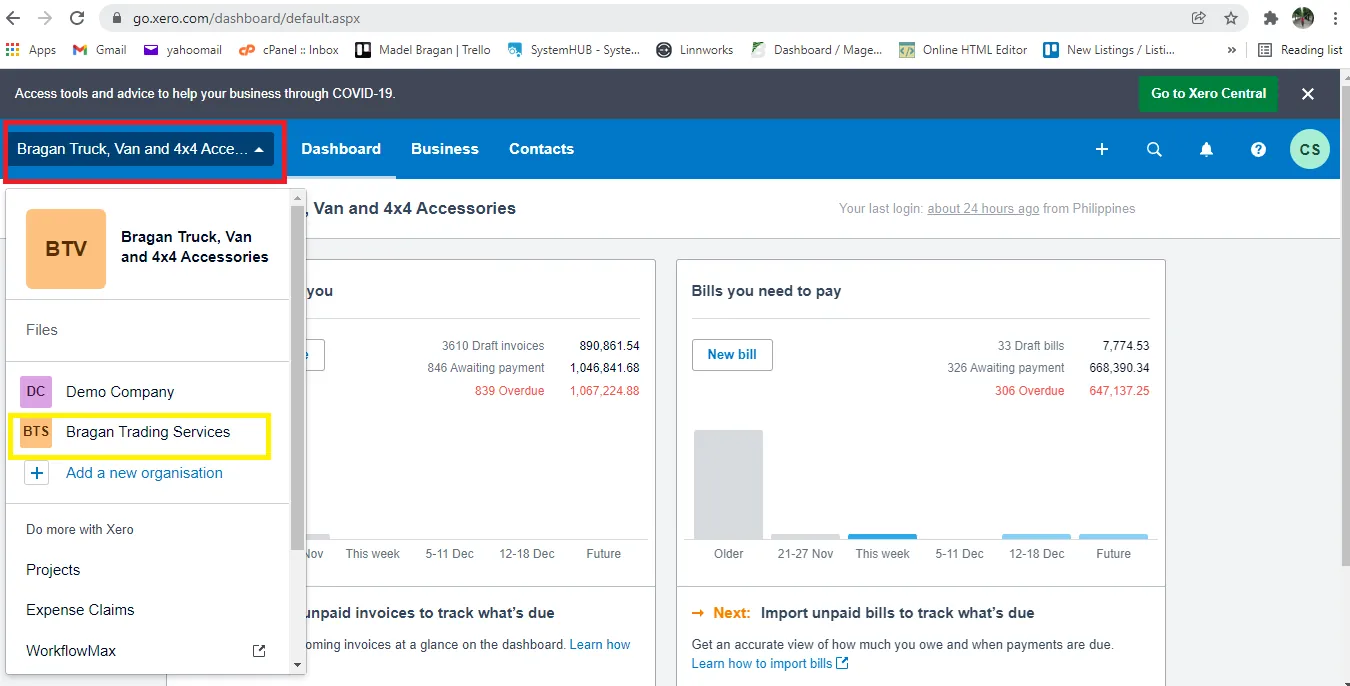
- Once you copy already the eBay Order Number and know the marketplace (Sub source), go back to Xero and choose the correct Company (click on the red box to choose). If the customer bought the item in Bragan-x then choose Bragan Truck, Van and 4x4 Accessories and if it is bought in BTS, then choose BTS Trading Services.
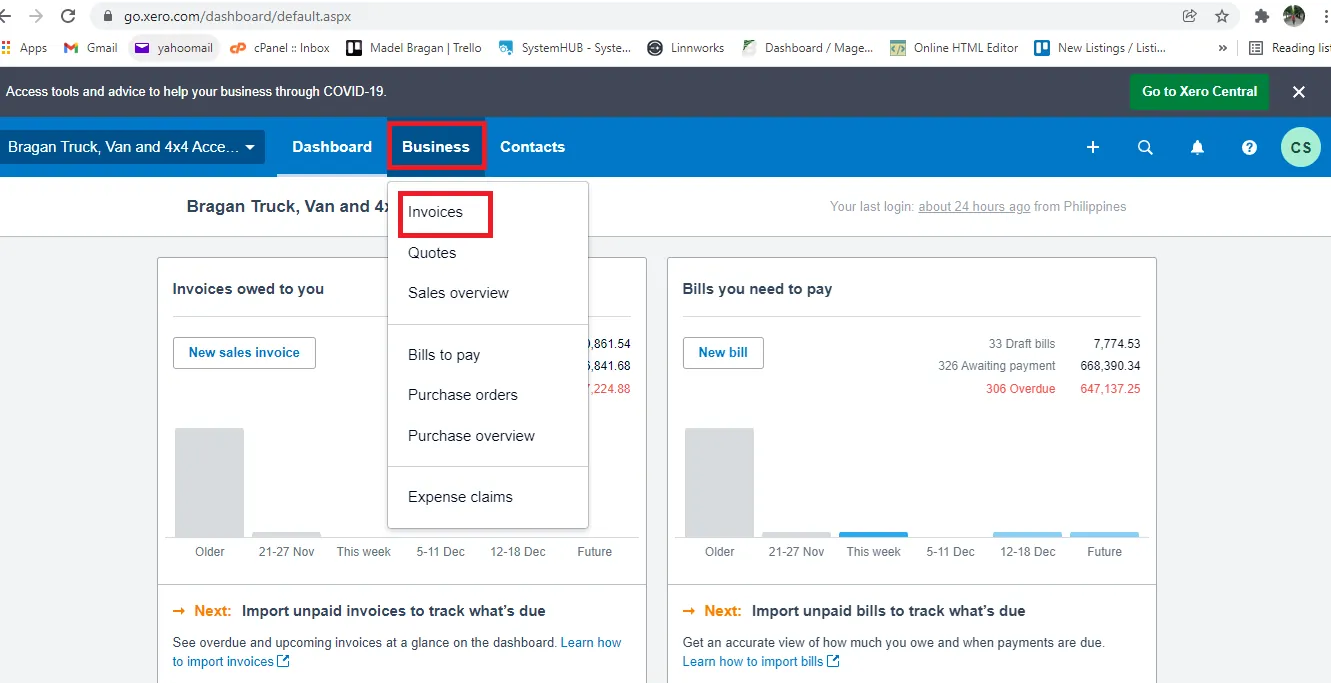
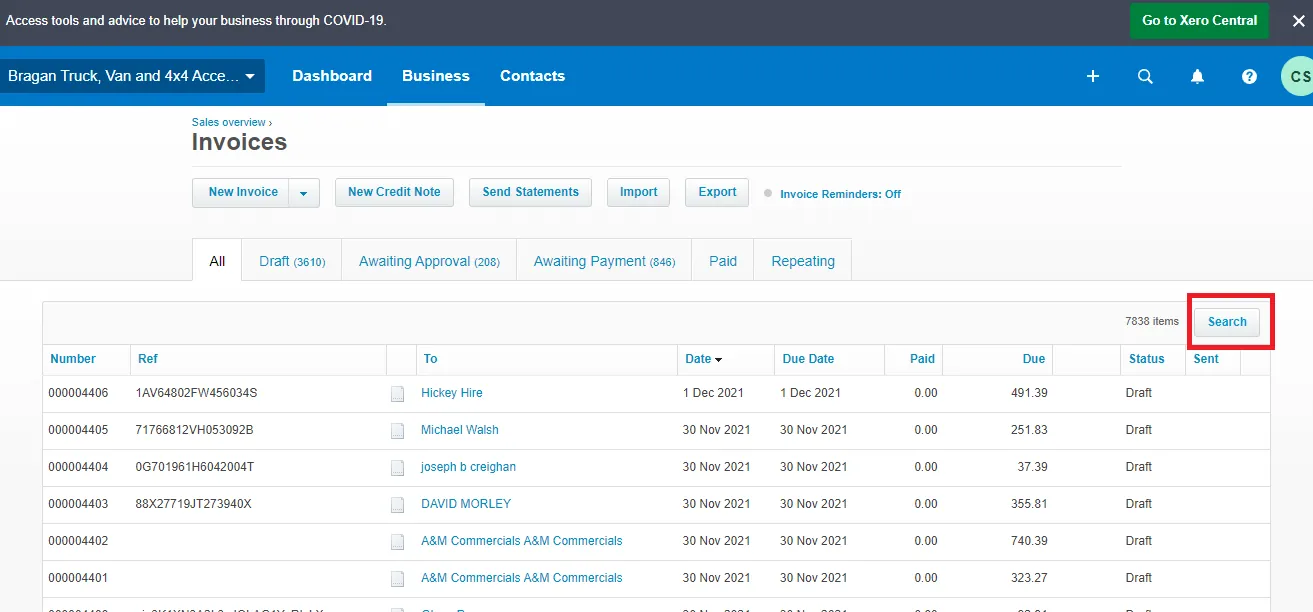
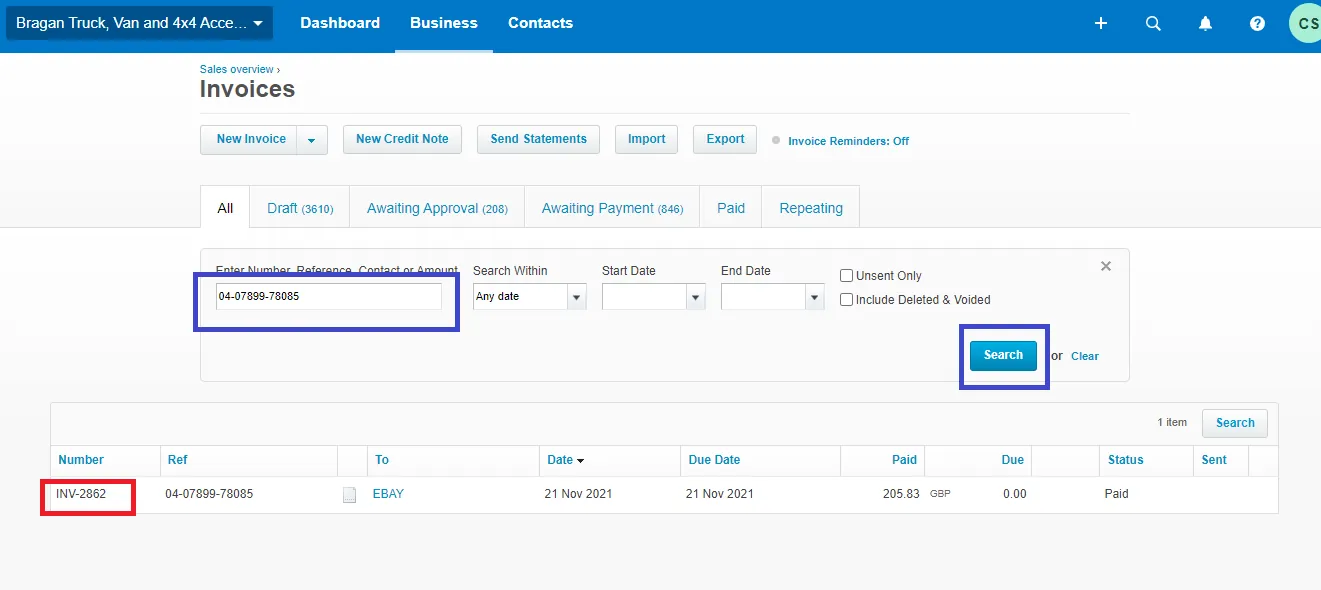
- If you are already in the correct Company in Xero, click on Business and select Invoice. Then click Search (Figure 12).
- Paste the copied eBay Order Number (blue box) and click on Search. The invoice will be shown and click on it (red box).
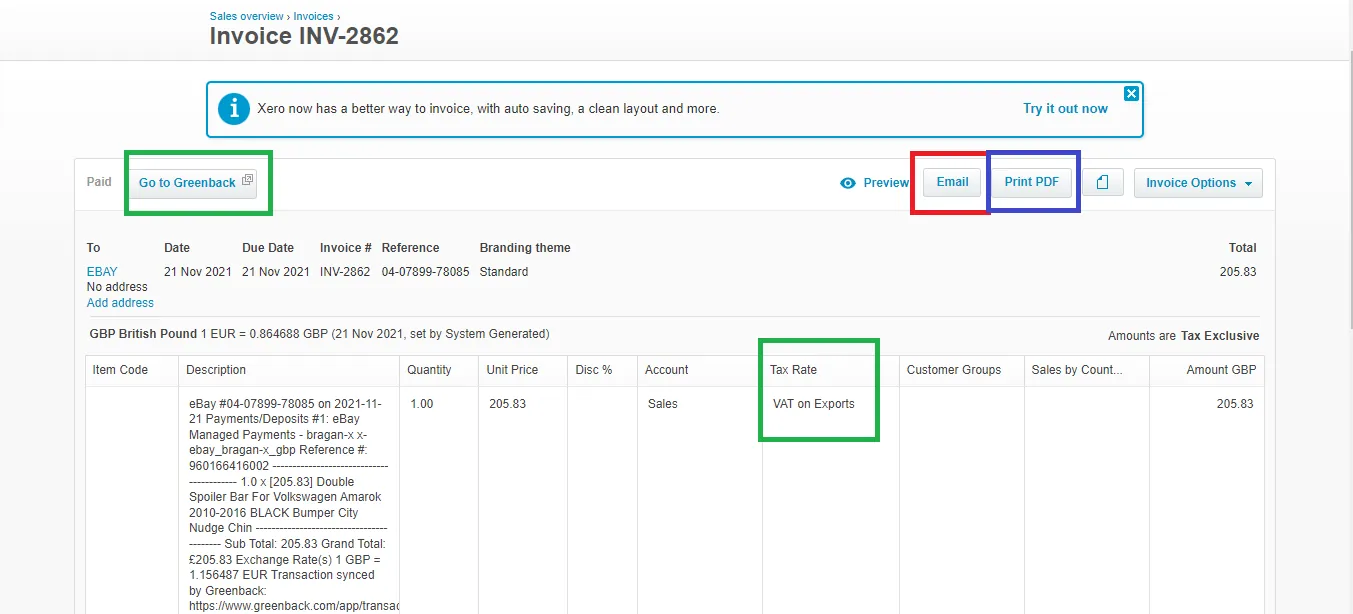
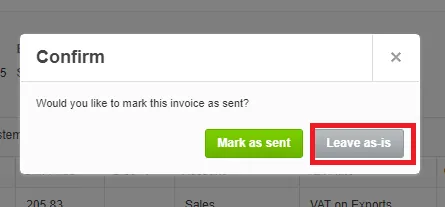
- You can now then email the invoice directly to the customer, just click Email (red box). If you do not have the personal email address of the customer since they are using the eBay generated one. You can click on Print PDF then select Leave as is to download the Invoice.
Note:
Please also spot check the items in the green box. Make sure that it is correct as to the sale location. See SOP on Vat Structure per Country/Channel. this SOP is
not yet created. will insert the link once it is created Even if you already sent the invoice directly from Xero to customer's personal email. You still need to reply to customer's request. Just simply say "Invoice has been sent".
Save it to appropriate Dropbox Folder (ask management to share this with you). Save it to the current year folder (example: if it is year 2021 then save it at the 2021 Folder). Filename should be the Linnworks Order Number. See Figure 16 to know the Linnworks Order Number (blue box).
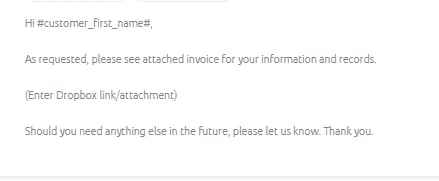
- Then go back to the customer's invoice request, click on the reply button and use Macro 111. And insert the Dropbox link of the saved invoice.
Video & Media#
Notes#
This section is important so Adhoc points and issues can be logged. Also, Q&A can be logged for suggestions for potential issues encountered. Also, log important notes needed for this system. Additional Notes:
We can send external invoice after purchase without issue in eBay. After the purchase has happened, Ebay is less strict. Before the purchase they will kick us off if external links are given
Magento (Bragan website) orders are direct feed to Xero so you can easily see the invoice.
For eBay and Amazon, the invoice needs to be pushed from Greenback software so that the invoice will show in xero. This is done weekly by accounts.
For eBay customers, if they provided their email address where you should send the invoice, do not mention on your reply that the invoice was sent to his email address. Just simply say invoice has been sent.
Do not request for customer’s contact information or provide our contact information on eBay. Transaction should not be taken outside eBay. If customer insist for our contact information, please advise them to see the Seller Business Information.
Potential Issues:
1 - ISSUE ENCOUNTERED: Stuck on Loading
RESOLUTION: Refresh Browser
2 - ISSUE ENCOUNTERED: Broken Links
RESOLUTION: Get the external link as this will allow other people to access the SOP without the need for login credentials and avoid broken links.
Attachments#
Handling_Customer_Invoice_R… 16/12/2025