How to Add New B2B Customer & Change Customer Group
The purpose of this Standard Operating Procedure is to provide the process on how
Overview#
Purpose: The purpose of this Standard Operating Procedure is to provide the process on how to set-up new trade customers and how to change customer group in Magento.
Scope: This SOP covers the process on how to set-up new trade customers and on how to change customer group in Magento. Adding new customer group is a different SOP.
Responsibility: It is the responsibility of the Account personnel to set-up new trade customers in magento.
Objective: The objective of this procedure is to detail the steps on how to set-up and change customer group in Magento.
Procedure#
Adding New B2B Customer#
- Request Business Certification & VAT Number
Potential trade customers will send email inquiry expressing their interest in our product. This emails are tagged to Accounts and Management and will send Macro 800 for customers from Ireland, EU countries and the rest of the world and Macro 801 for UK customers. The two have almost the same content, the difference is the Dropbox link, since for Macro 800 we are sending the Trade File -Euro (it means that the trade price they will see is in euro) while Macro 801 we send the Trade File- Sterling (trade prices are in sterling).
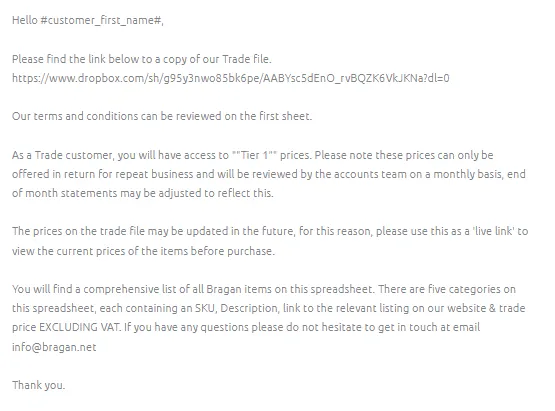
Also request for the Business Certification and the VAT Number. You can add this to the macro before replying to the customer.
- Verify VAT Number
Once customer sends their Business Certification and VAT Number, verify this in VIES website. Please see SOP on VAT Process & Vies Validation to know how to validate VAT number.
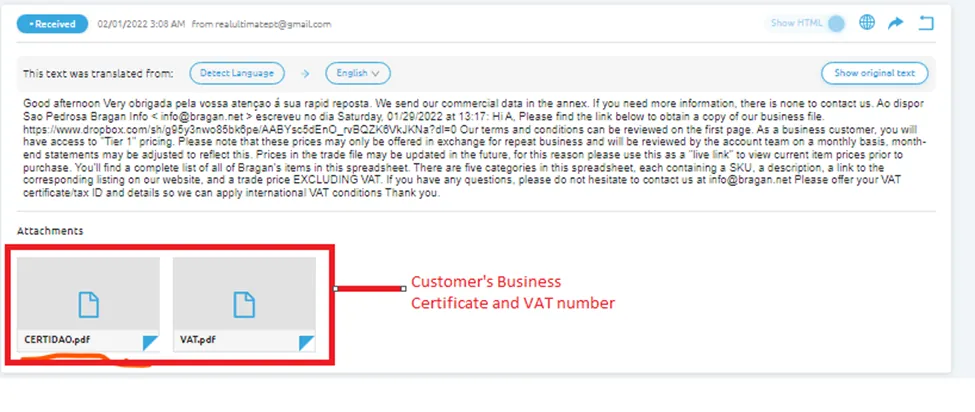
If VAT number is valid, you should see this result. Then compare the name and address that appears here to the name and address that is found on their Business Certificate. It should match. Put an internal note to the Replyco email and tag management so they will be aware that the customer has been checked and verified in VIES.
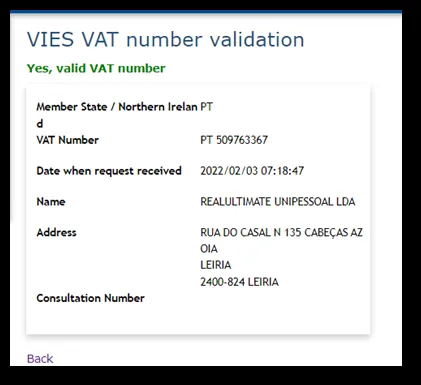
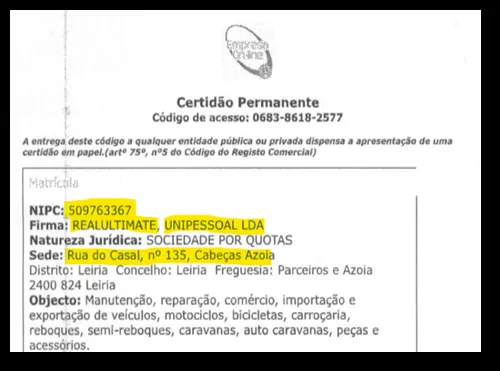
Note: A valid VAT number means that the customer is eligible for 0% VAT.
- Add Customer to Magento
3.1 Log in to Magento Back End using the credentials provided by management.
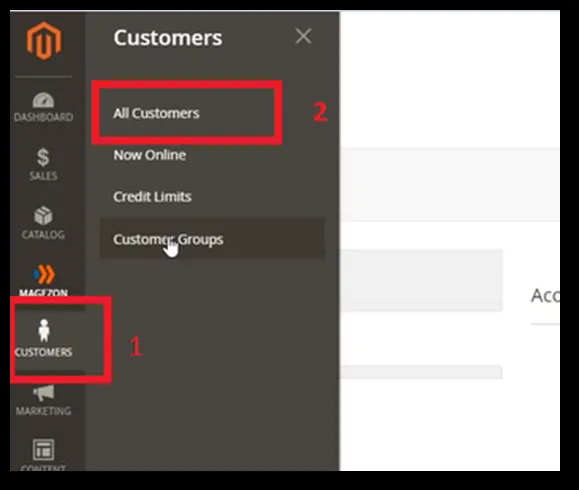
3.2 Click on Customers > All Customers
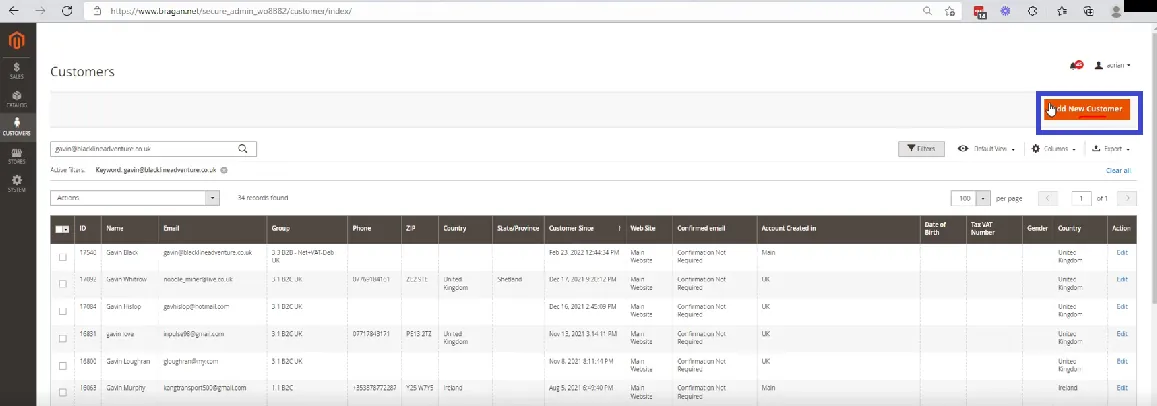
3.3 Click on Add New Customer
3.4 Then fill-out the Account Information page. Always choose Main Website for Associate to Website field. For the Group or the customer group you need to get management's approval on which group the customer will belong. To know more about customer groups please refer to this SOP.
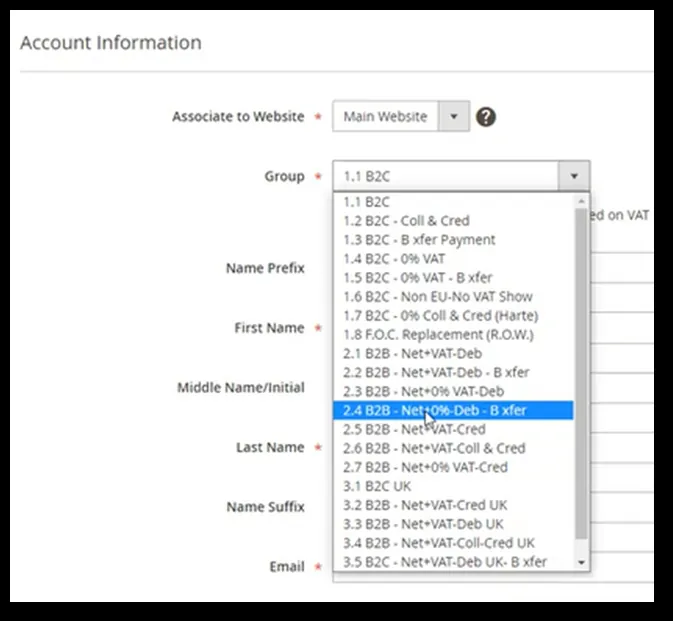
Note: Most of international customers prefers to have bank transfer
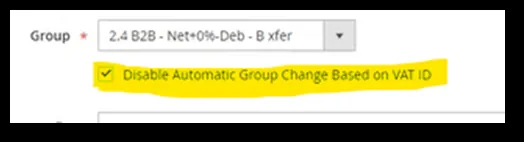
3.5 Tick the box for Disable Automatic Group Change Based on VAT ID. This is very important that you check this otherwise the system won’t pick up the information correctly
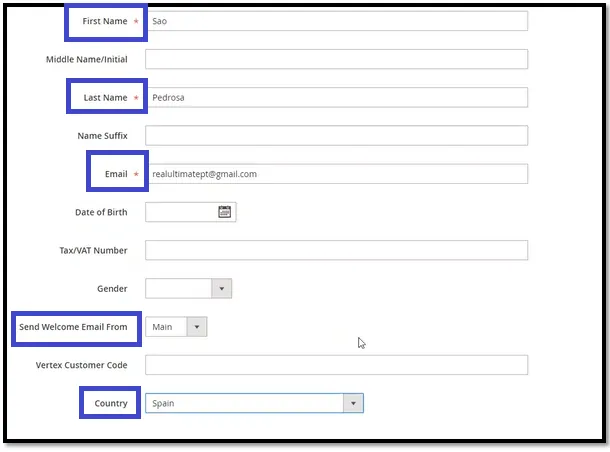
3.6 Fill-out the boxed fields. You can get these information from the email sent by the customer. For the Send Welcome Email From, choose UK if customer is from UK, otherwise choose Main. The rest of the field, let the customer fill it so just leave it blank. Then click Save Customer.
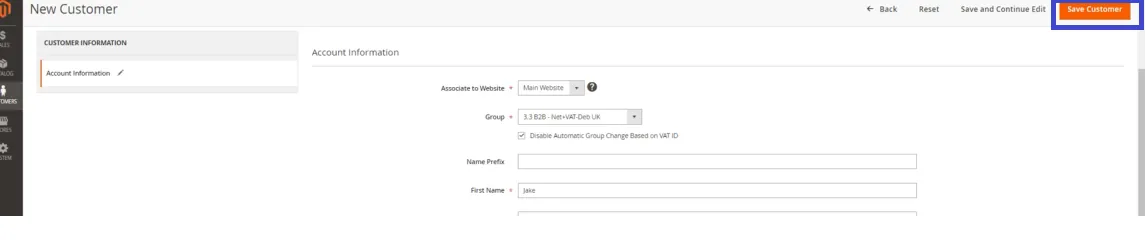
After you click save customer, the customer will receive an invitation email generated by Magento to set up their customer profile data and this includes filling out the rest of the field that you leave blank.
- Update Customer
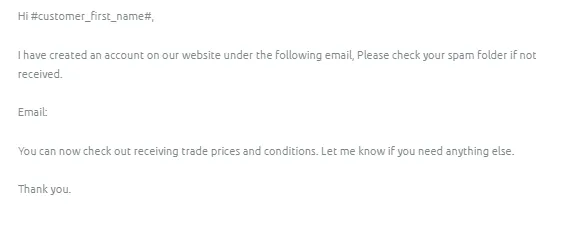
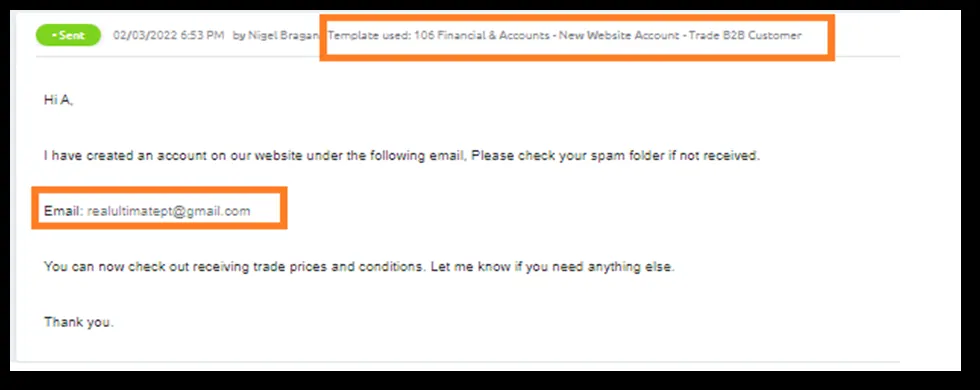
Update the customer by sending Macro 106 or 803. Put the email address that you use for his account set-up
Changing Customer Group#
There are cases wherein a customer will be transferred to another customer group, these instances are mandated by management. Management will inform the account personnel which customer will be removed and change to another customer group.
-
Log in again to Magento Back End > Customers > All Customers
-
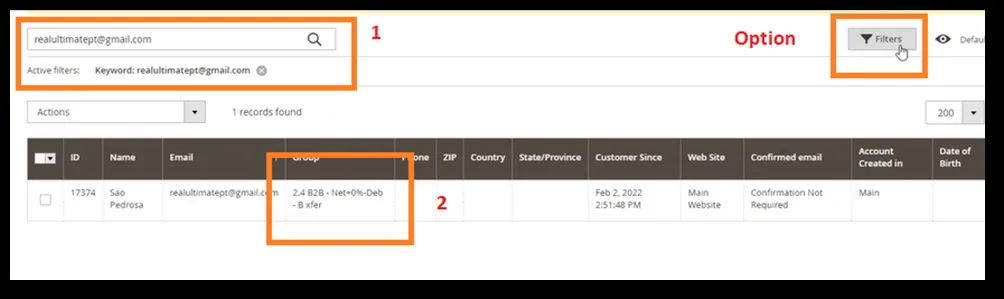
Search the customer you want to change. You can also use Filter function in searching for the customer.
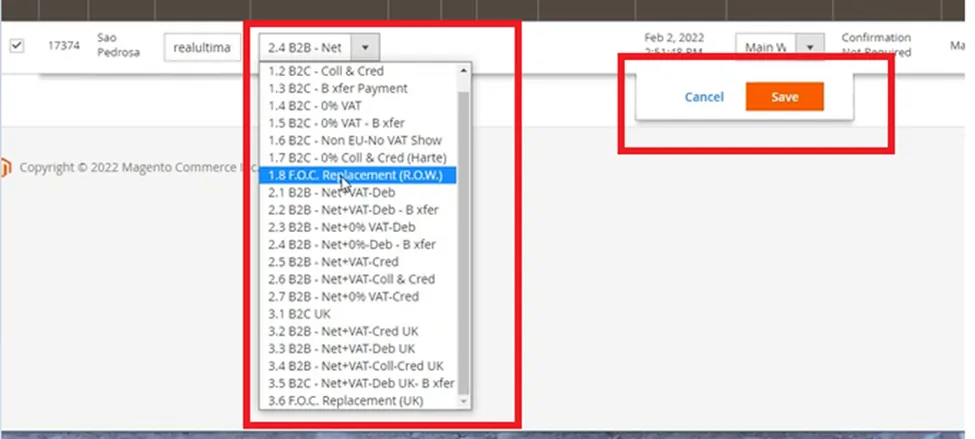
- Click on the group and choose what customer group should the customer be change into. Make sure that it is already confirmed by management, then click on Save.
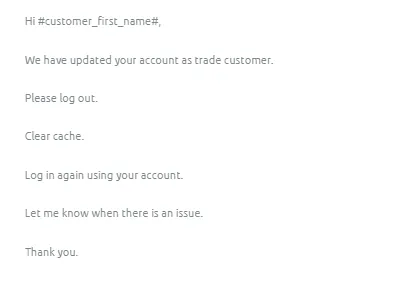
- Update the customer using Macro 804.
Video & Media#
🎥 Editing Magento Customer Group 🎥 magento customer set up
Notes#
This section is important so Adhoc points and issues can be logged. Also, Q&A can be logged for suggestions for potential issues encountered. Also, log important notes needed for this system. Additional Notes:
Make sure to confirm to management the customer group for each trade customer.
When sending the trade file macro to customer, make sure to choose the correct macro. Macro 800 for customers from Ireland, EU countries and the rest of the world and Macro 801 for UK customers. Make sure to request for Business Certification and VAT number before setting up the customer.
Potential Issues:
1 - ISSUE ENCOUNTERED: Stuck on Loading
RESOLUTION: Refresh Browser
2 - ISSUE ENCOUNTERED: Broken Links
RESOLUTION: Get the external link as this will allow other people to access the SOP without the need for login credentials and avoid broken links.