How to Arrange Magento Refund
Refunds should be a last resort for the business, once all other avenues have been
Overview#
Purpose: Refunds should be a last resort for the business, once all other avenues have been explored and offered to the customer. Refunds should be timely once agreed so the customer leaves with a positive experience, however all refunds must be followed up to a resolution with customer/supplier/staff/management.
Scope: Refunds need to be flagged each morning to management for analysis, the finance department is also required to bring all refunds and reasons, sorted by reason code to weekly operations meeting for in depth analysis. Please ensure you check eBay and amazon auto refunds, for instance if a sale is cancelled, these may have been completed by a CS rep and not obvious to you without checking.
This SOP only covers the refund process for customers who buys in our website. Customers from eBay and Amazon has a different refund process.
Responsibility: It is the responsibility of the Accounts, Operations, Warehouse and Customer Service to communicate on the order details and refund offer. Management confirmation is required for eBay Return Requests.
Objective: To process refund correctly and leave positive experience to the customer. For Customer Satisfaction and avoid negative feedback
Procedure#
Refunds are processed either because the customer cancelled his order or there is an issue with the item. If the customer just cancelled the order, the customer service agent can easily request the accounts personnel to arrange the refund even without managements approval. However, for refunds that is due to some issues (either courier or supplier) this needs to have the approval from management.
Five (5) percent partial refunds also do no need managements approval. Customer service agents can offer 5% partial refunds to customer and if customer accepts, they can now request accounts personnel to process it. Once refunds are approved by management follow the steps below.
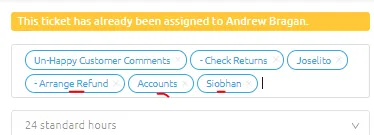
- All emails that are for refunds are tagged with the following labels:
-Arrange refund
Accounts
Name of the account personnel
There is also an internal note from the customer service agent or sometimes the management on how much to refund, reason for the refund, what is the order number and the sales channel (if bought from Amazon, eBay or Magento), so make sure to read it.
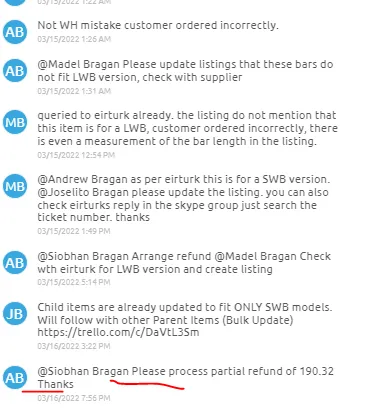
- Sometimes, especially if management will be the one to tag you to arrange the refund they won't give the order number. So accounts personnel should also know how to get the order number.
Get the order number so you will know who to refund. To know the order number, you can check the order details in Replyco. Use the Order ID in searching the order in Magento back end.
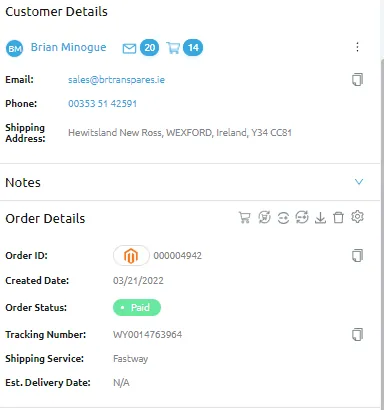
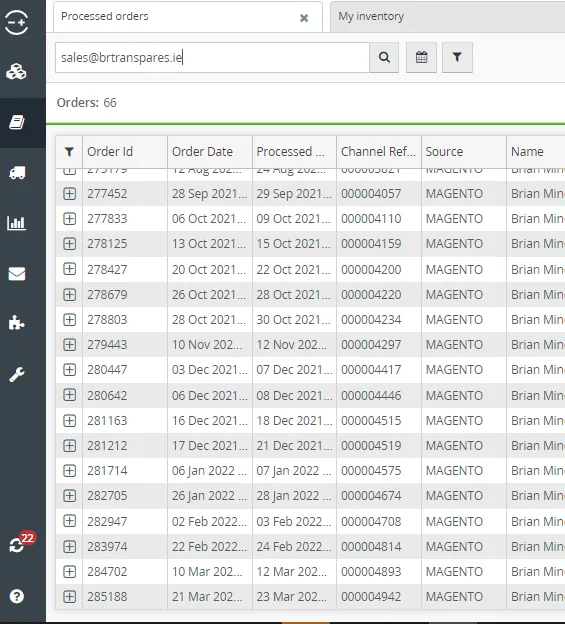
If there is no information in the order details you can use the email address of the customer and search it in Linnworks Processed Order tab. If nothing appears after searching the email address, try the name of the customer or the post code. To do this, go to Linnworks > Orders > Processed Order then search email address or post code.
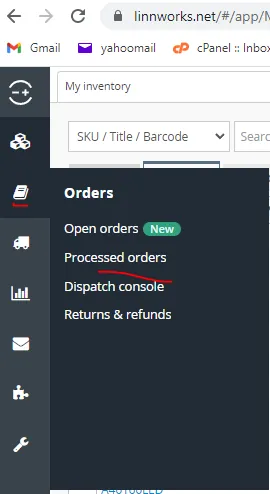
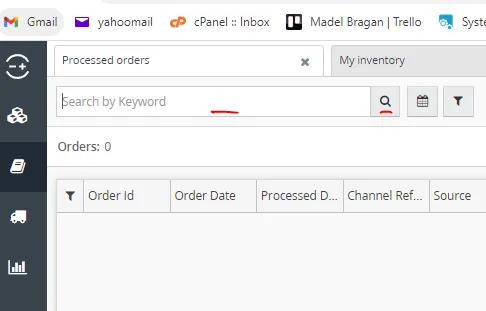
If there are many orders that appear, make sure to choose the correct order by checking the item and the date and compare it to his email.
Note: This step is not usually done by accounts since this is a task for customer service agents. This is just detailed here in case it is needed.
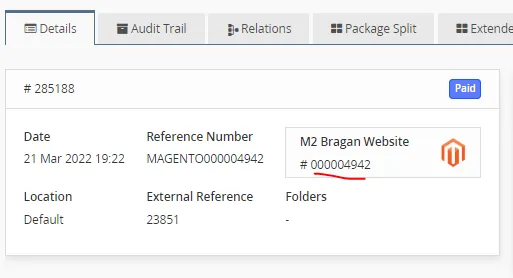
Double click on the order number to open it. Get the Magento Order number (underlined in red) and search this in Magento back end.
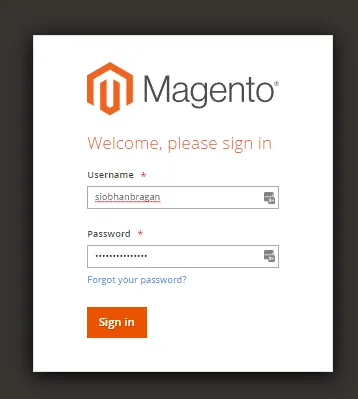
- Once you have the Order ID, log in to Magento using the credentials provided by management
- Search the order number you want to refund then click on it to open (need to ask adrian for snipe picture for this and where to go after logging in this is not shown in the video from vernard )
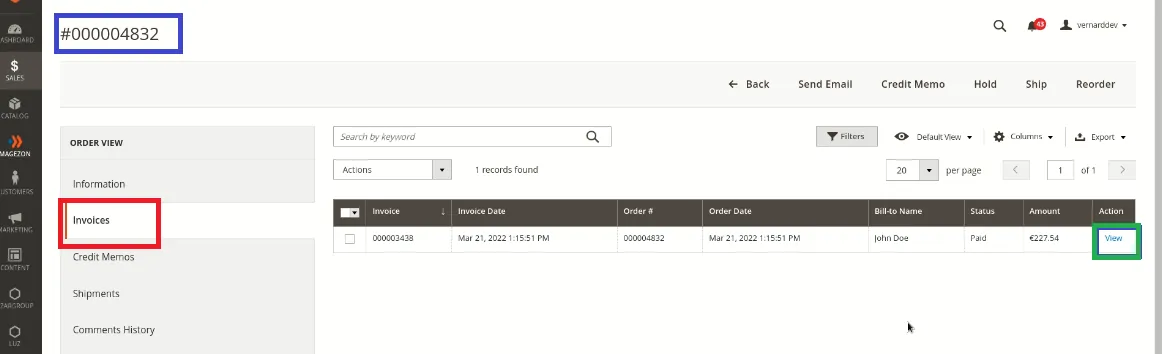
- Go to Invoice then click View (green box). The number at the topmost left (blue box) is the order number.
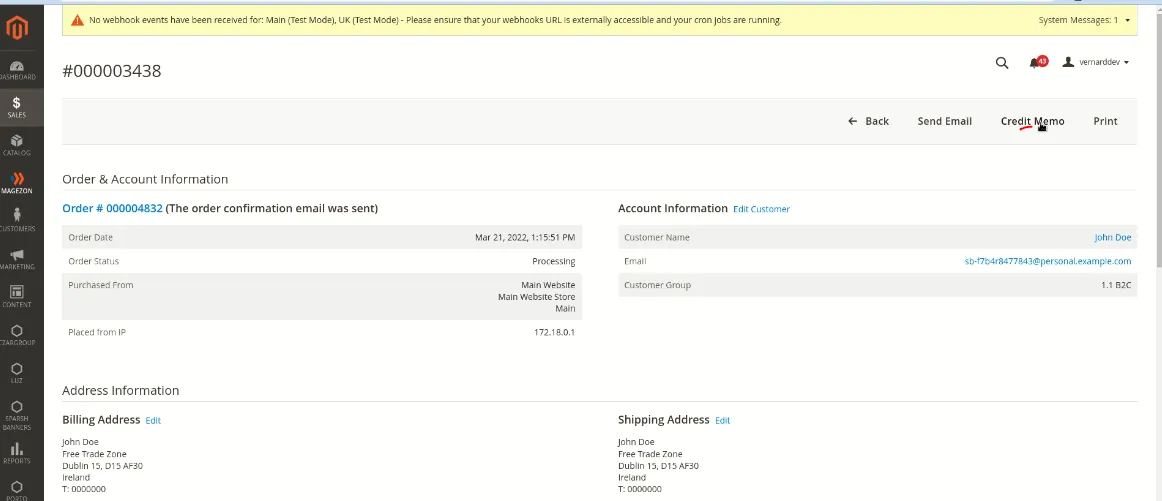
- The invoice will open then click Credit Memo
Note: The number at the topmost left is now the invoice number (that is why it is now different).
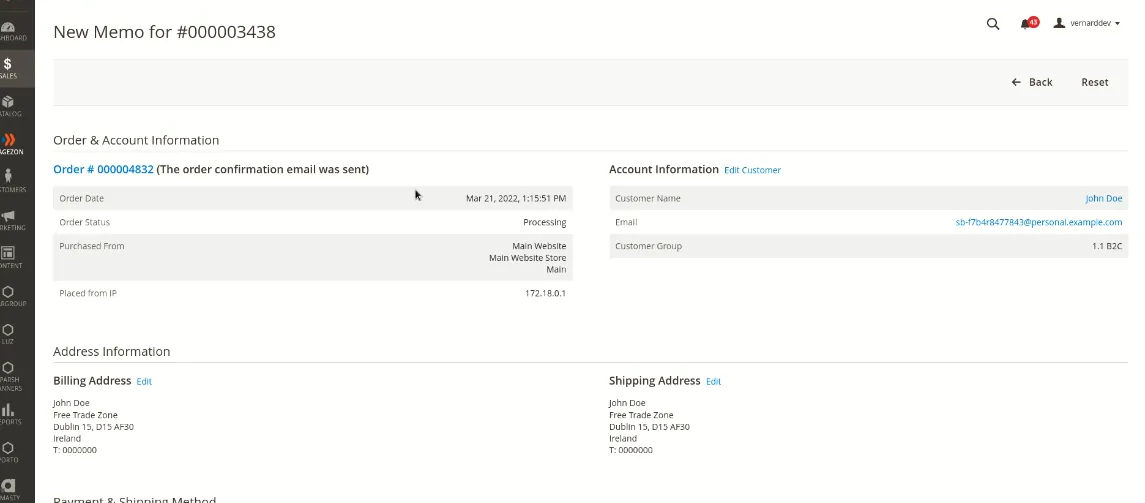
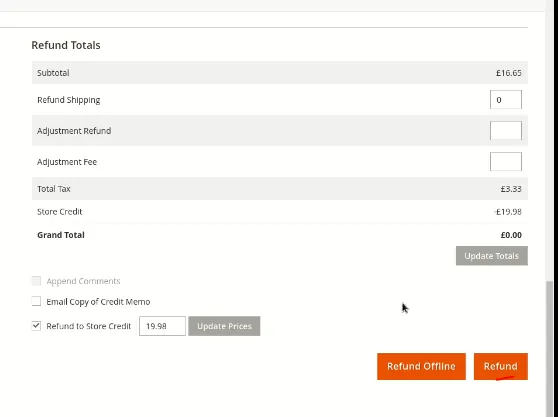
- New Memo page will open, just scroll down and you can see the full refund amount then click Refund. The amount is now refunded to customer's Paypal or Stripe account.
Note: Do not use Refund Offline since it won't do anything to his PayPal or Stripe transaction. Use this for bank transfers.
- If you will only do a partial refund, you need to edit the amount. To edit the amount, scroll back up and then set the quantity to refund to zero (0) then click Update Qty's
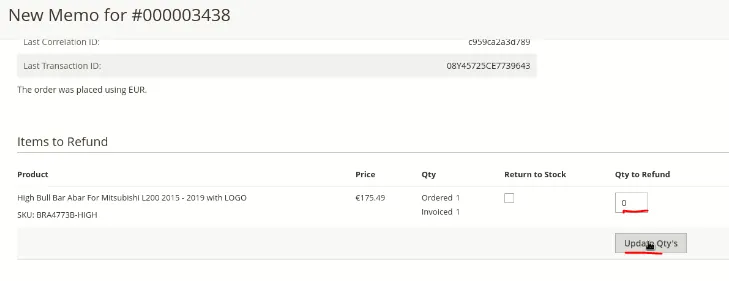
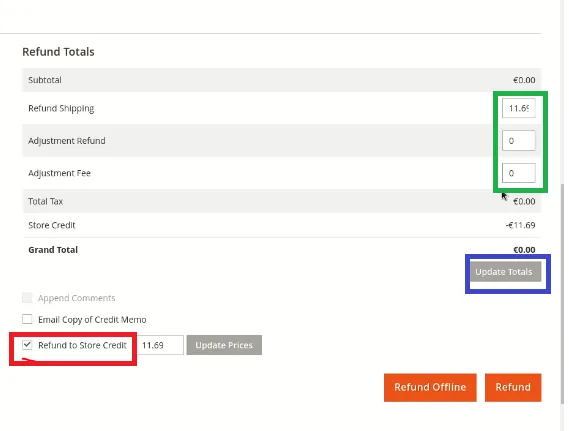
What is left now to refund is the shipping fee. You can edit the amount in the shipping fee box or in the adjustment refund box (green box). Just type the amount you want to refund and click Update Totals (blue box).
Make sure to untick the box for Refund to Store Credit. Because if this is checked, the refund will be in a form of store credit and it won't reflect to the customer's PayPal or stripe account.
Review everything then click Refund. This will now refund the customer to his PayPal or Stripe account.
Video & Media#
🎥 refund video 🎥 partial refund
Notes#
This section is important so Adhoc points and issues can be logged. Also, Q&A can be logged for suggestions for potential issues encountered. Also, log important notes needed for this system. Additional Notes:
Make sure to ask management approval for any refunds higher than 5% partial refund. Make sure to check the order number so that you will refund correct customer. Make sure to review the refund amount.
Potential Issues:
1 - ISSUE ENCOUNTERED: Stuck on Loading RESOLUTION: Refresh Browser
2 - ISSUE ENCOUNTERED: Broken Links RESOLUTION: Get the external link as this will allow other people to access the SOP without the need for login credentials and avoid broken links.