How to Publish Invoice from Dext to Xero
The purpose of this SOP is to guide Accounts Personnel on how to publish invoice,
Overview#
Purpose: The purpose of this SOP is to guide Accounts Personnel on how to publish invoice, receipts and statements of accounts (SOA) from Dext to Xero.
Scope: This procedure applies to Accounts personnel.
Responsibility: It is the responsibility of all Bragan personnel to follow the standard operation procedure on how to publish invoice, receipts and SOA to Xero.
Objective: To be able to know how to publish invoice, receipts, SOA from Dext to Xero.
Procedure#
- Log in to DEXT given the credentials provided by management. There are two log-in credentials, one is for the Bragan Trading Services (BTS) account and the other is for the Bragan Truck Van & 4x4 account. It is very important to be aware of which company your are logged into.
Invoices addressed to the Bragan Truck account are accessed in the DEXT Bragan Truck account, salary invoices from freelancers are also accessed in the Bragan Truck account. Invoices address to BTS are accessed in the DEXT BTS account.
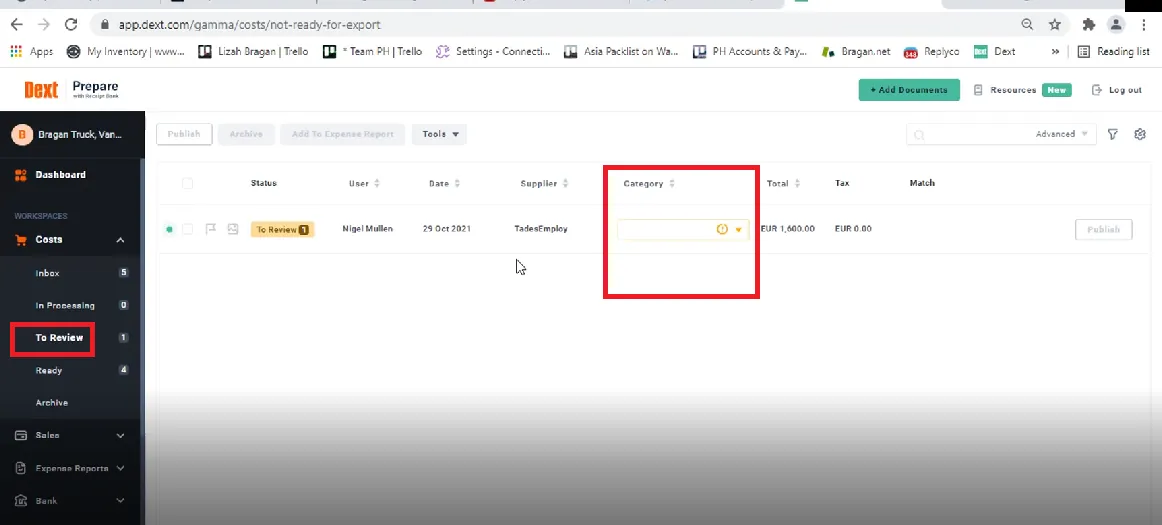
- Check the To Review Folder. All invoices/receipts/SOA with incomplete details like category will go here. Select category for the invoice. If unsure, please confirm with management. For queries about category of suppliers use the Accounts/Xero Group Bragan Skype Group. You can also give suggestion on what category and have management confirm it. Click on the dropdown button to choose the category. Double click on the Supplier Name and follow steps 3-5.
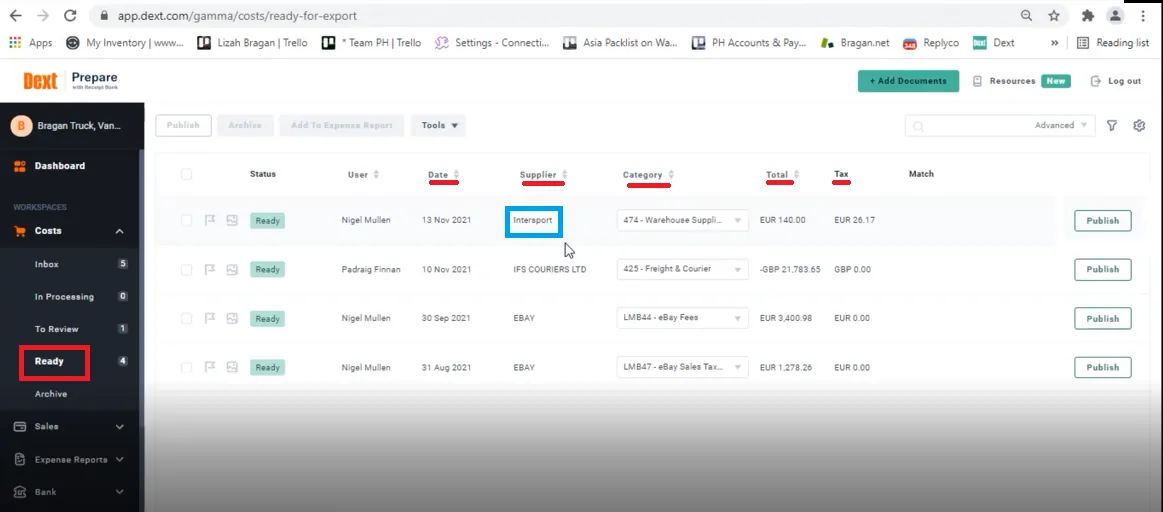
- Check the Ready folder, ensure to check the details including the type, supplier, category, total amount. Double click on the Supplier name (blue box) to check/review the details.
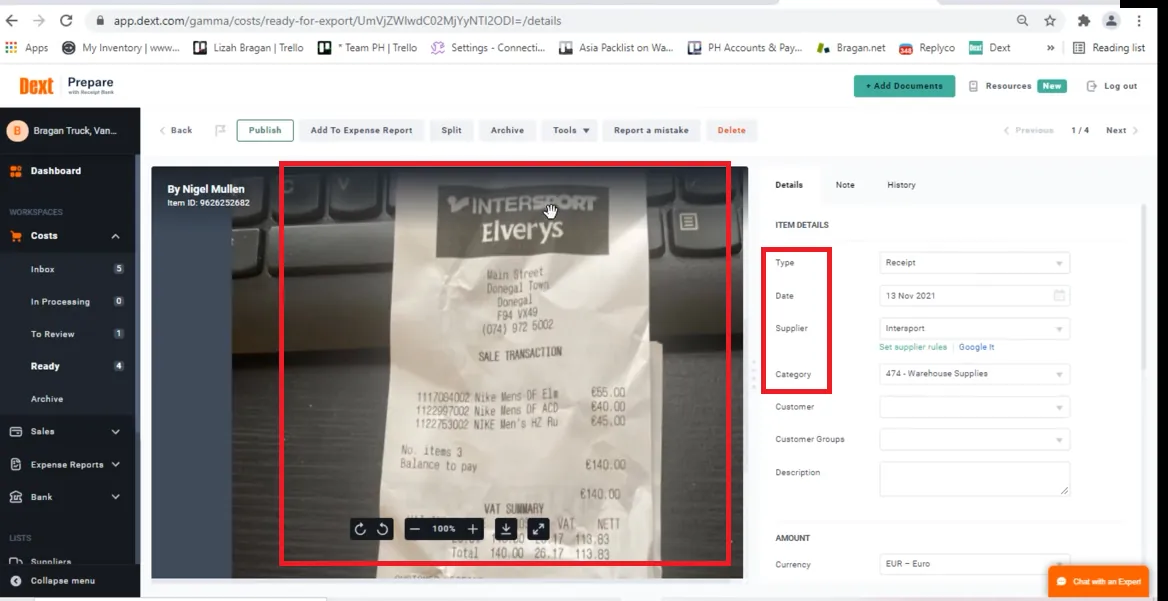
- Check every details. Compare the item details in the right to that of the image of the invoice/receipt/SOA. All details should match. For the category part if unsure, please confirm with management. For queries about category of suppliers use the Accounts/Xero Group Bragan Skype Group.
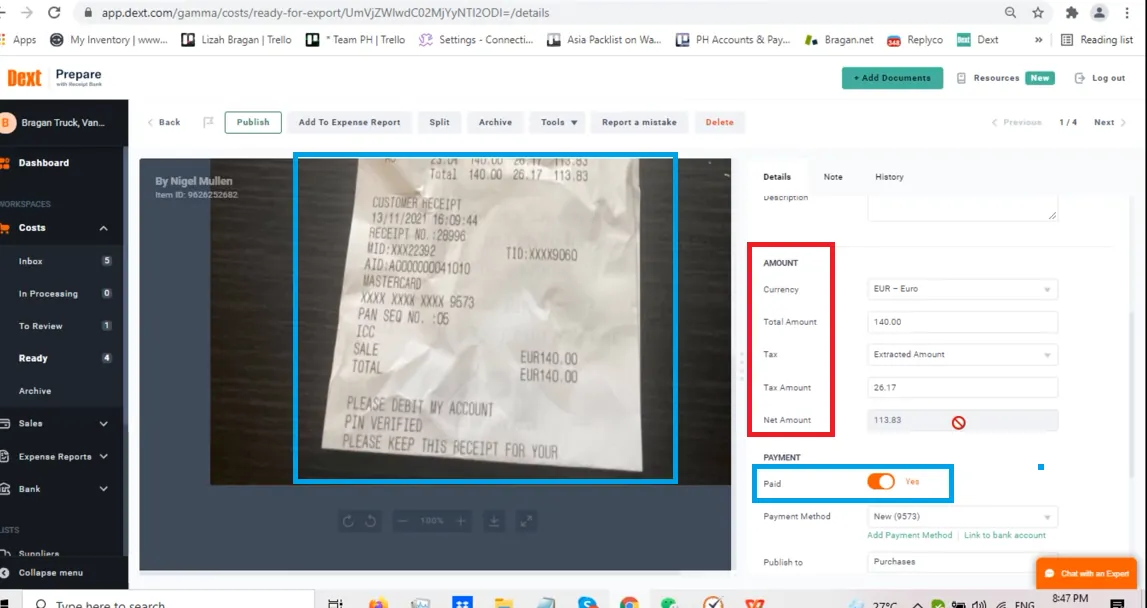
- For the Paid part in Figure 10, if unsure just choose NO.
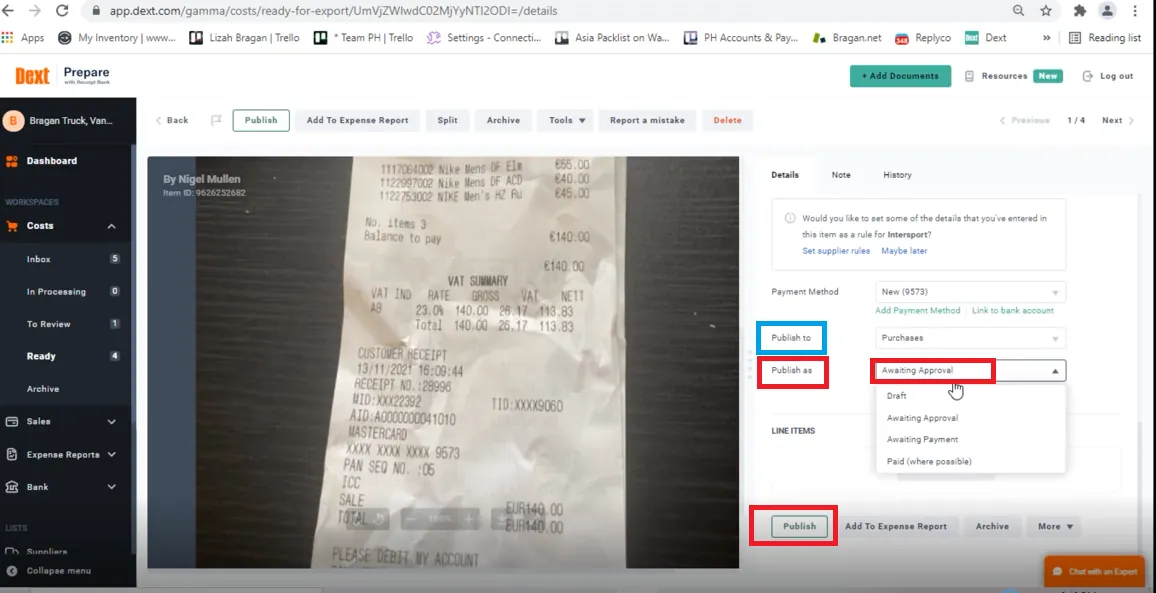
- For Publish to (blue box) always choose Purchases. For Publish as (red box) always choose Awaiting Approval, since final approval will be done in Xero. Review everything then click on Publish.
Video & Media#
Notes#
This section is important so Adhoc points and issues can be logged. Also, Q&A can be logged for suggestions for potential issues encountered. Also, log important notes needed for this system. Additional Notes:
In process folder of Dext will just show invoices being uploaded and processed at the moment but it will save the invoice in either Ready or To Review folder after processing.
Uploaded invoice/receipts/SOA will be saved in Ready folder if all details are complete. If some details like category is missing it will be saved in To Review folder. These folders are common to all, everybody can access it.
Potential Issues:
1 - ISSUE ENCOUNTERED: Stuck on Loading
RESOLUTION: Refresh Browser
2 - ISSUE ENCOUNTERED: Broken Links
RESOLUTION: Get the external link as this will allow other people to access the SOP without the need for login credentials and avoid broken links.