How to Transfer Fund From Bank to TransferMate
Managing international payments, reconciling invoices & dealing with local regulations
Overview#
Purpose: Managing international payments, reconciling invoices & dealing with local regulations can cause huge headaches. How do you manage this? TransferMate is a market leading, globally regulated, B2B payments technology company, enabling organizations to send & receive cross-border payments faster and easier than ever before.
Scope: This SOP covers the detailed process of using TransferMate. This procedure applies to Accounts Department in paying the Suppliers, the Payroll Department and those authorized to payments
Responsibility: Roles and Responsibilities:
- Employees are responsible for providing all required documentation, such as clock-in cards.
- The Payroll Department is responsible for the verification of payroll details of each employee and making correct payments
- Authorized users are in charge of Smart Card Authorization
Objective: 1. To streamline B2B payments enabling organizations to send & receive cross- border payments faster and easier
- To Receive the correct amount every time, eliminating expensive wire fees. AMOUNT BILLED = AMOUNT RECEIVED
- To standardize the process and guide the one holding the accounts

Process Flow#
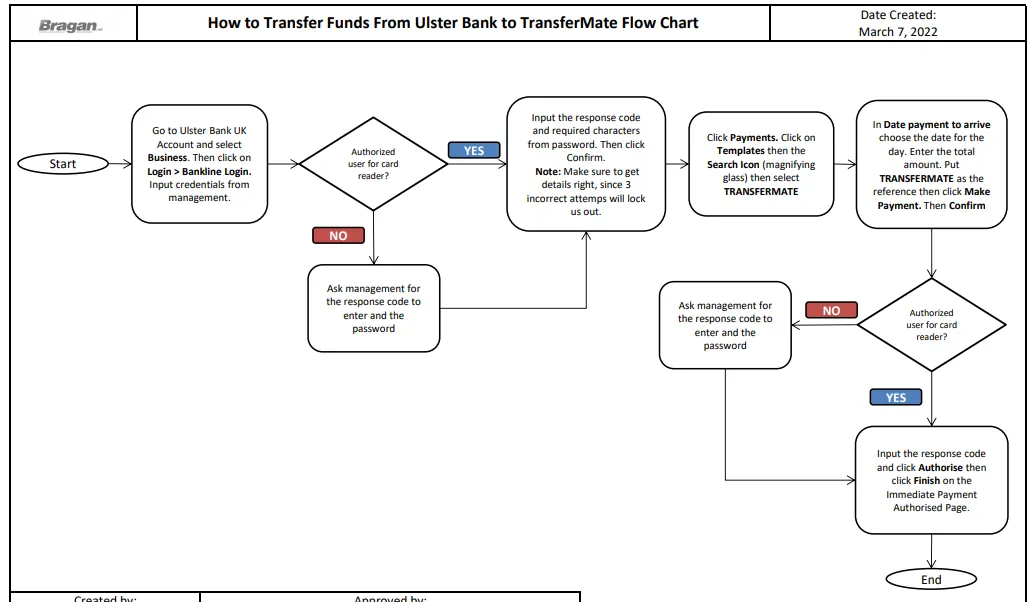
Procedure#
As mentioned, TransferMate do not contain funds so make sure to proceed with this process after you arrange the payments in TransferMate. TransferMate gives us 48 hours to transfers the funds because if you don't, then the payments you arrange
will be cancelled and a fee will be charged. But as policy, we should do this immediately after arranging the payments.
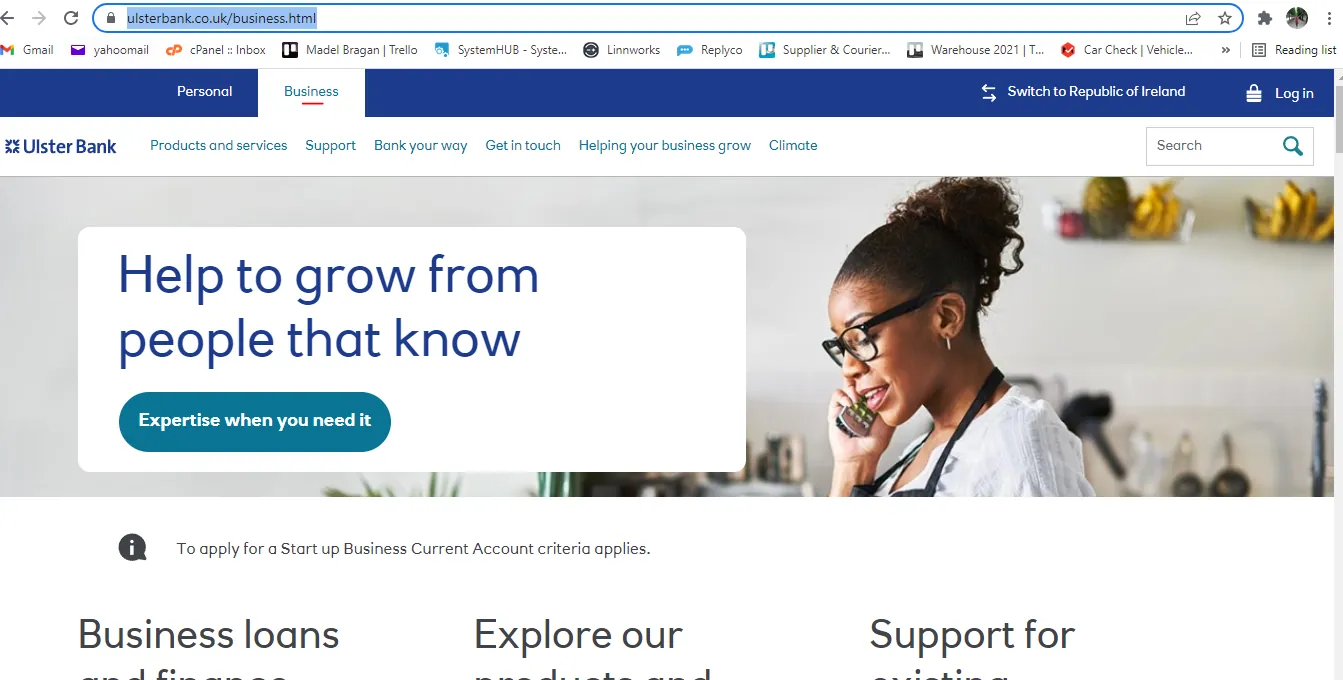
- Go to Ulster Bank and click on Business
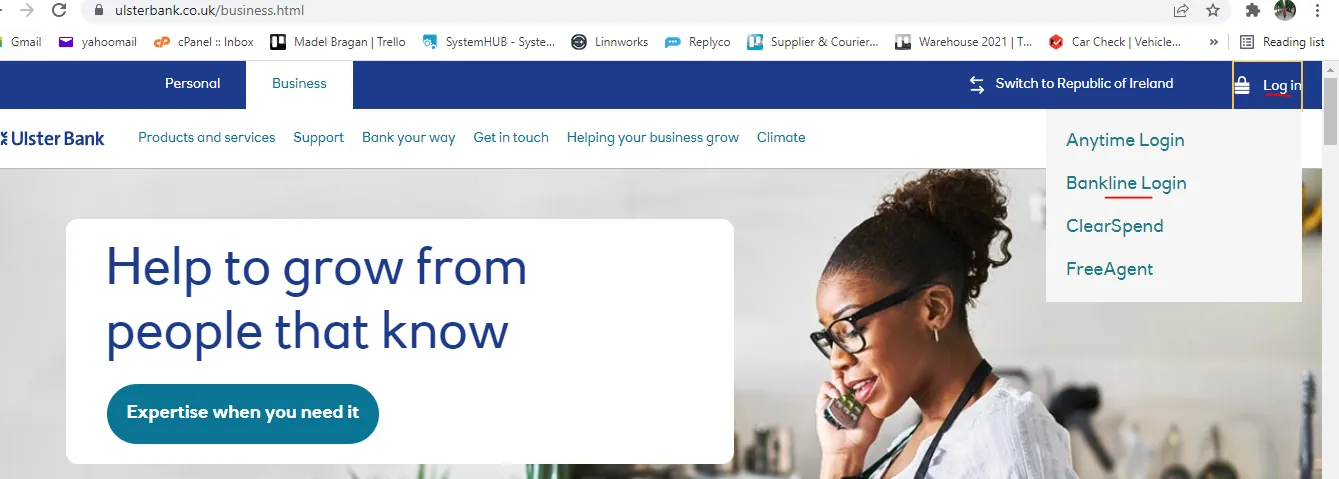
- Then click Login > Bankline login
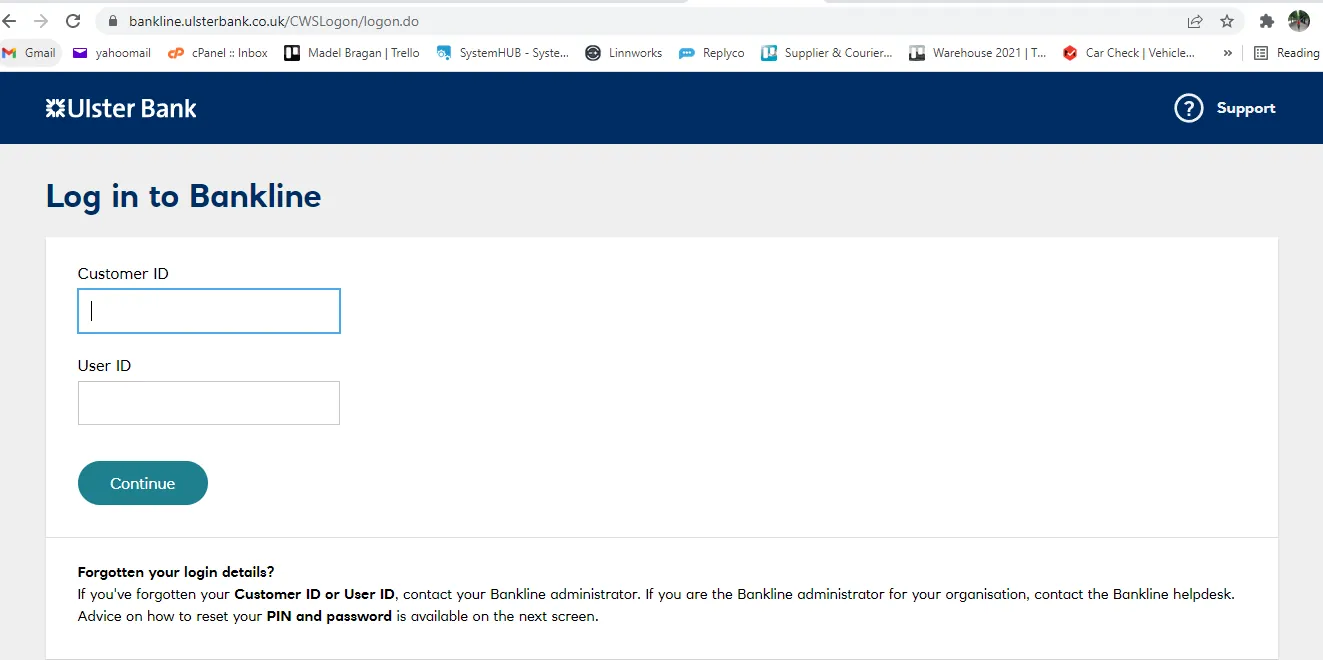
- Enter Customer ID and User ID. Request to management for the Right Login Credentials.
- Management or Authorized User will scan QR with card reader and input the response code that appear in the card reader. It will also ask the requested characters from your password. Then click on Confirm.
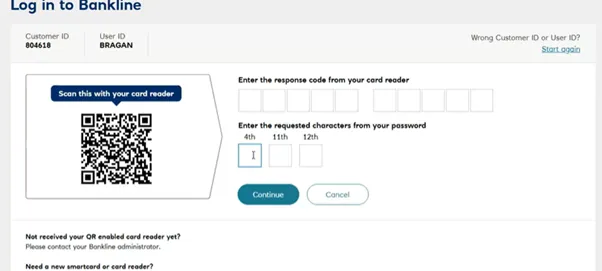
Note: Get the details right or else you’ll be locked out after 3 tries. If you encounter an error on your first try, immediately inform management. Do not do second attempt since once locked out it would take months before the company can log back in again.
-
Click Confirm.
-
Click Payments from left side menu.
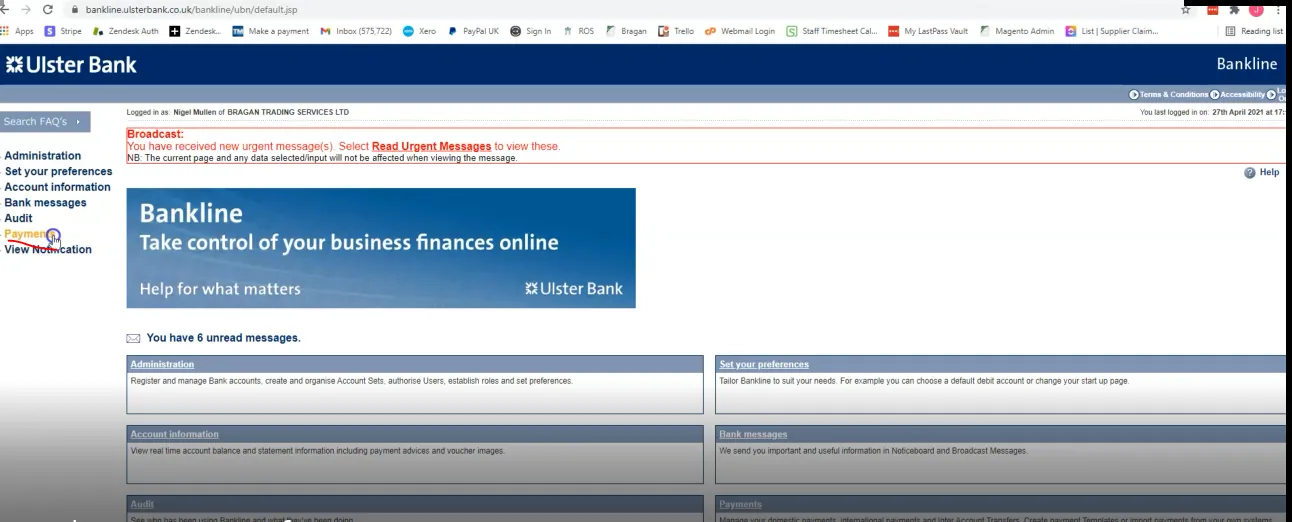
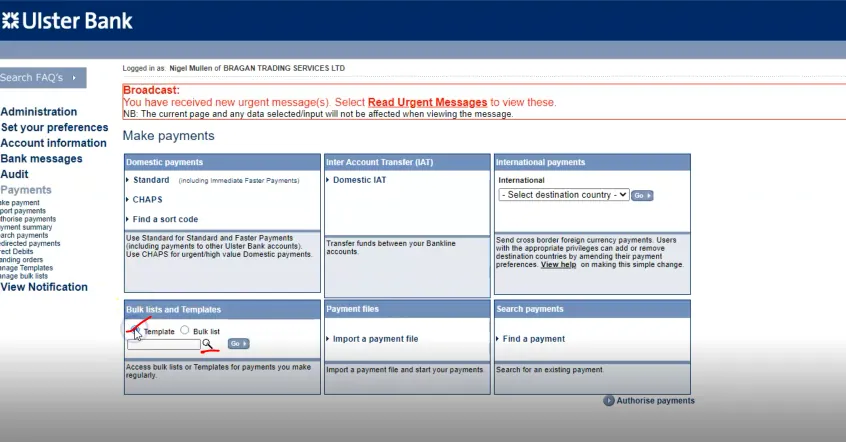
- TransferMate already has a template here, so just click on Templates then click on the search icon (magnifying glass).
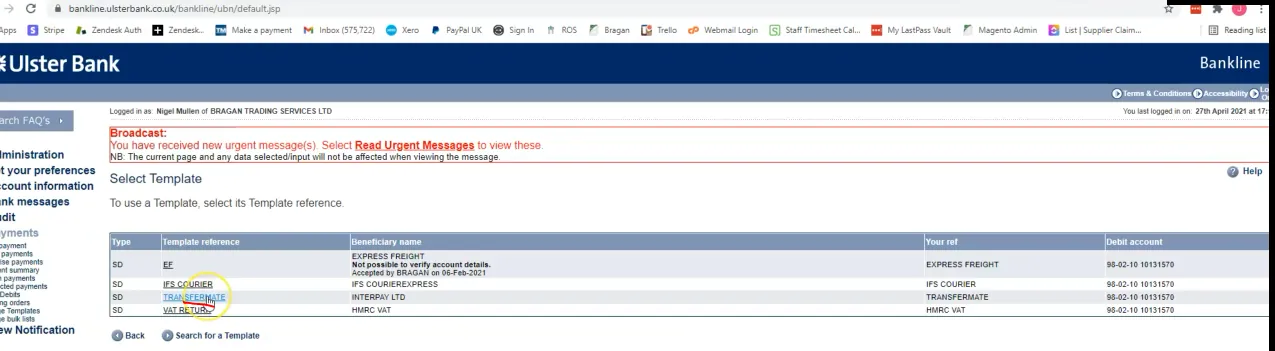
- Stored templates will now appear, select TRANSFERMATE
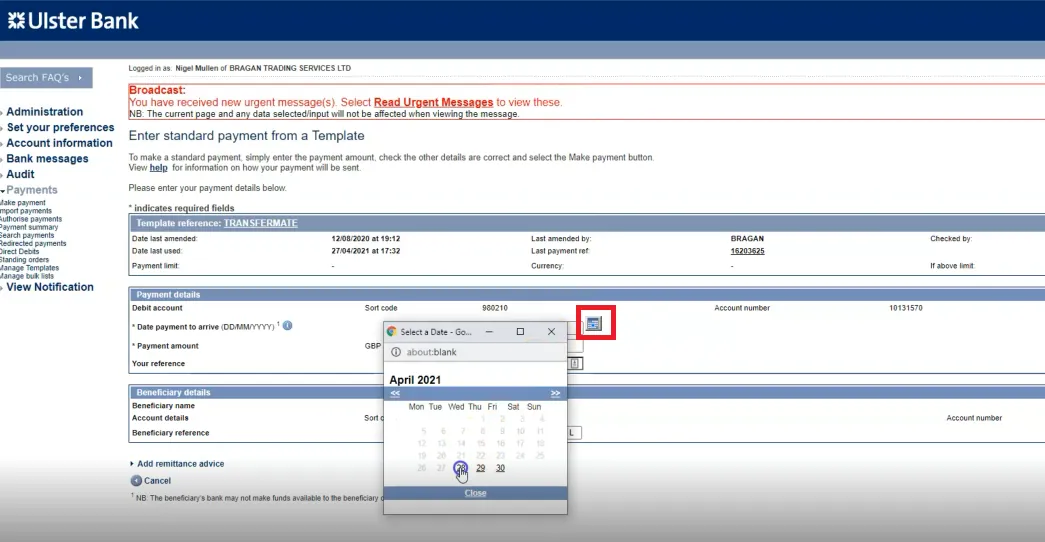
- In Date payment to arrive (DD/MM/YYYY), click on the calendar icon and choose the date for today.
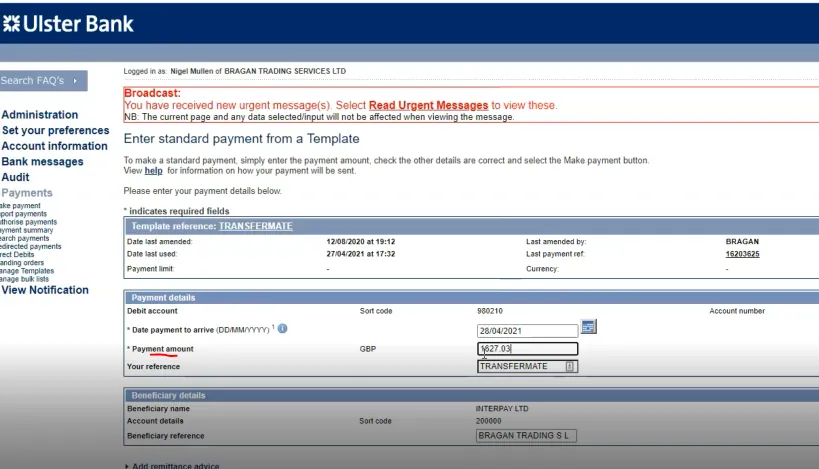
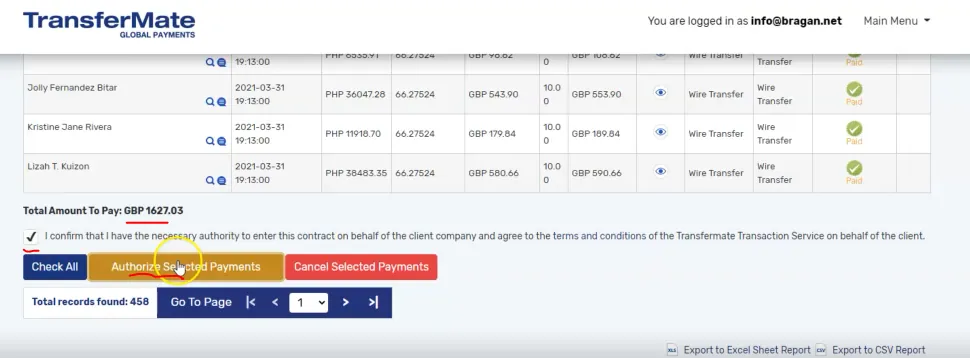
- For the Payment amount, input here the total amount. This should be the amount found in Arrange Payment to Beneficiaries Process step 13 (see Figure 29)
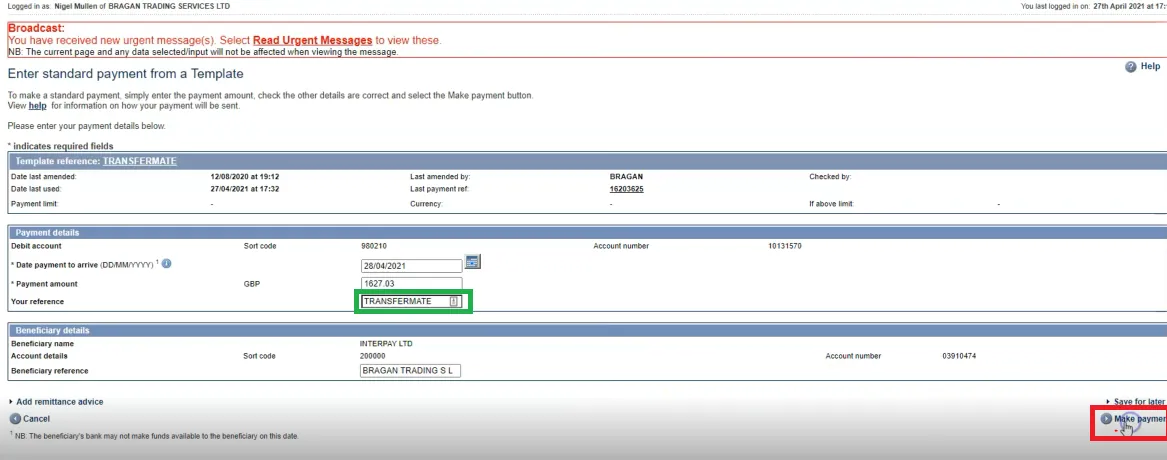
- For Reference put TRANSFERMATE (green box) and then click Make Payment (red box).
- It will show the payment details, review and then click Confirm Payment.
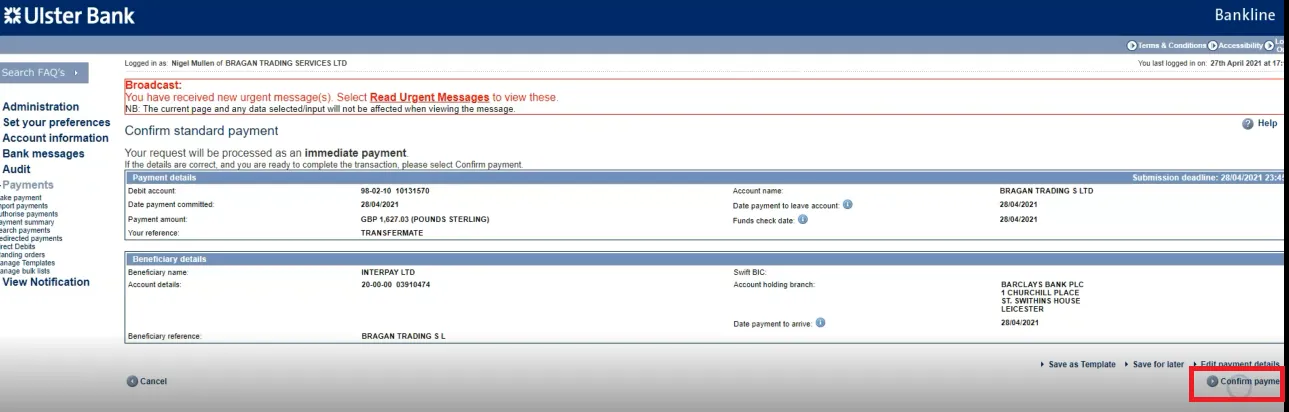
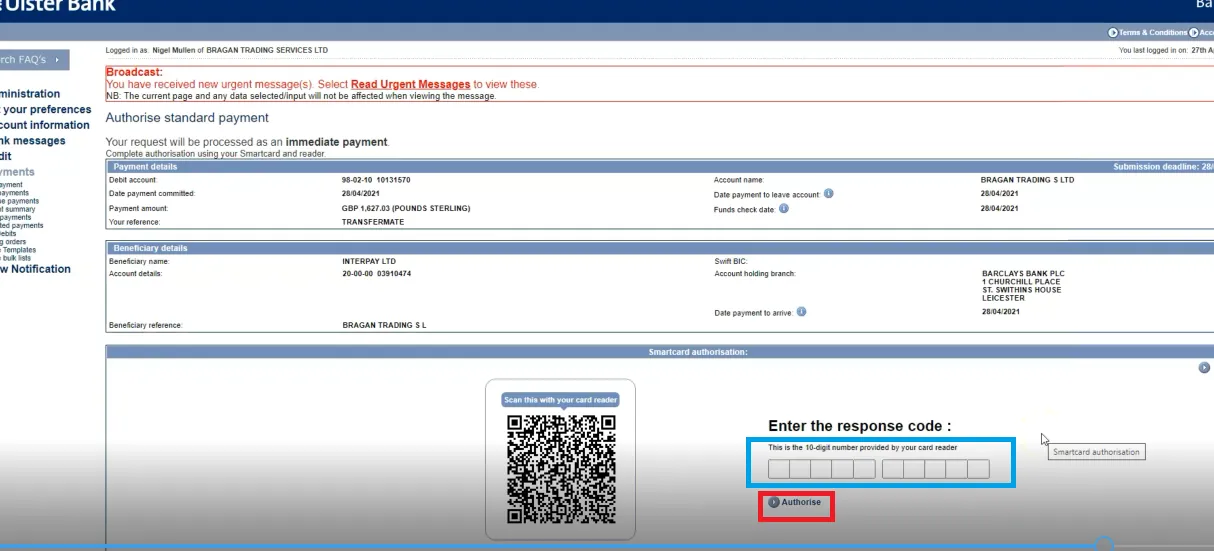
- It will ask again to authorize standard payment. Management will scan QR and give the response code (blue box) or if you have the access to the card reader then do it yourself. Click Authorise (red box).
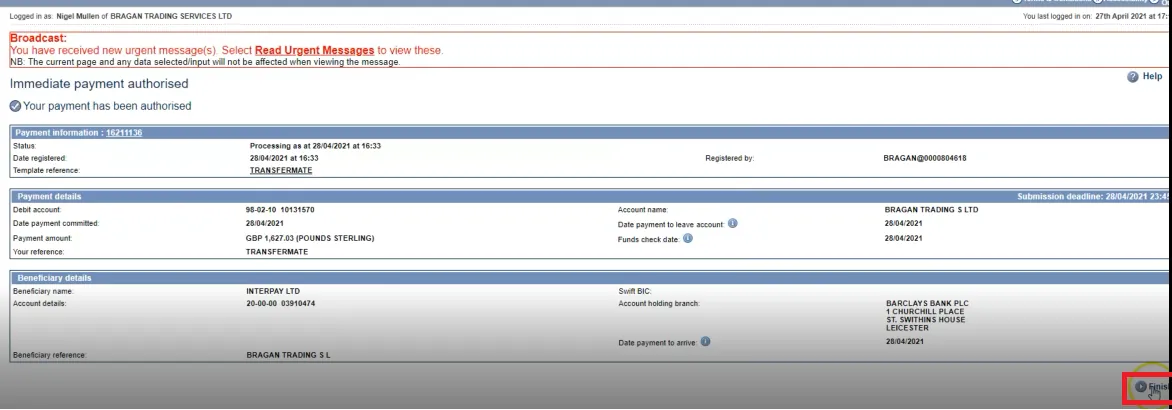
- Immediate Payment authorised. Click Finish
Video & Media#
Notes#
This section is important so Adhoc points and issues can be logged. Also, Q&A can be logged for suggestions for potential issues encountered. Also, log important notes needed for this system. Additional Notes:
If payment not received by supplier within 3 days - need to confirm bank account with supplier and contact Ann Marie Carrigan ([email protected]) thru email. Use Macro 808.
Potential Issues:
1 - ISSUE ENCOUNTERED: Stuck on Loading RESOLUTION: Refresh Browser
2 - ISSUE ENCOUNTERED: Broken Links RESOLUTION: Get the external link as this will allow other people to access the SOP without the need for login credentials and avoid broken links.
Attachments#
How_to_Transfer_Funds_From_… 16/12/2025