How to Upload BrightPay Payroll Journal to Xero
The purpose of this procedure is to provide guidance to authorized users responsible
Overview#
Purpose: The purpose of this procedure is to provide guidance to authorized users responsible for payroll on the steps to be taken on how to upload BrightPay Payroll Journal to Xero, our accounting software.
Scope: This procedure covers only the steps on how to upload BrightPay Payroll Journal to Xero. This does not cover the process on how to process payrolls. We have a separate SOP for this.
Responsibility: It is the responsibility of the payroll department personnel to follow the steps stated in this SOP.
Objective: The objective of this procedure is to show the step by step guide on how to upload payroll journal to Xero,
Procedure#
BrightPay's payroll journal feature allows users to create wages journals from the finalised payslips for upload into specific accounting software, and in our case it is Xero. Do this process after you finish the steps in Payroll SOP.
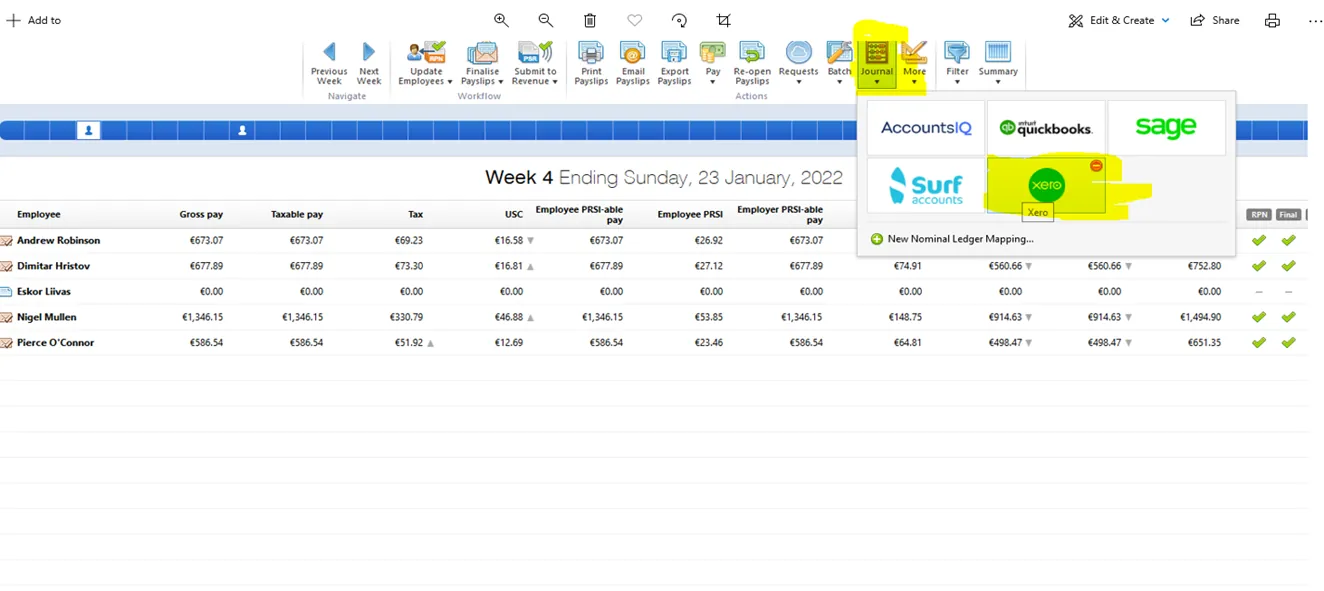
- Open BrightPay software and log in to account provided by management. Click on Journal and select Xero.
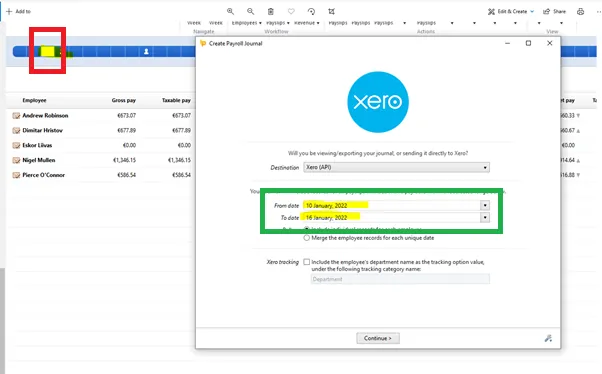
- Select the dates in accordance with the payroll run by clicking the weeks on the blue band (red box) at the top of the screen. This will automatically fill in the from and to date in the Xero box (green box).
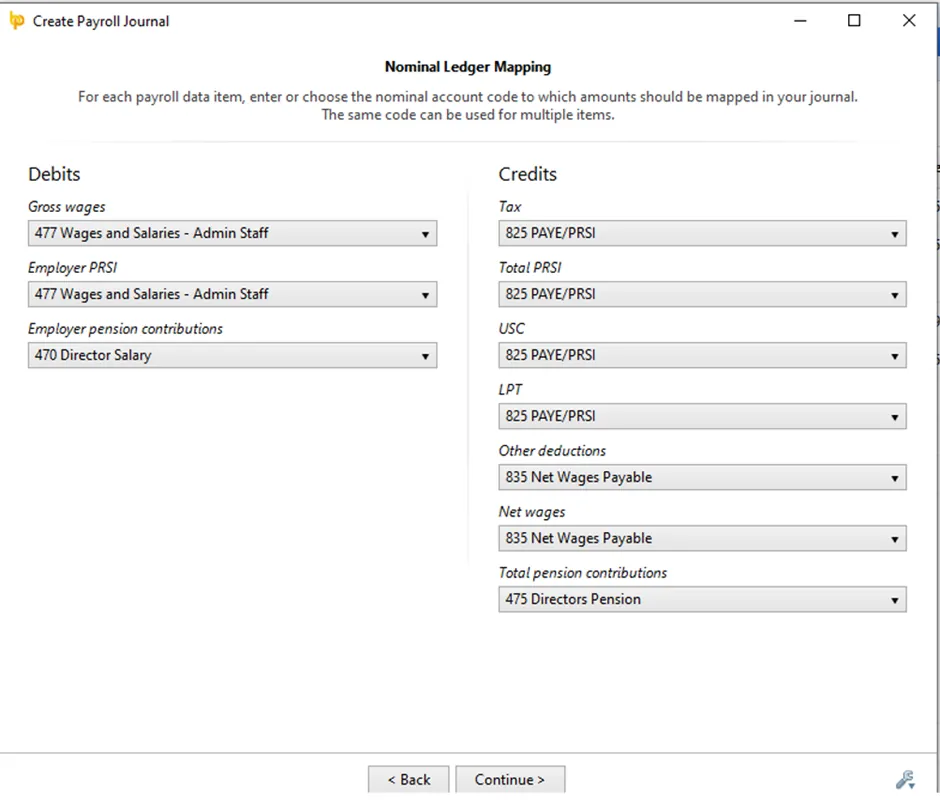
- The nominals that the payroll costs will be mapped into will appear on the next screen. It should look like the figure below. Click on Continue.
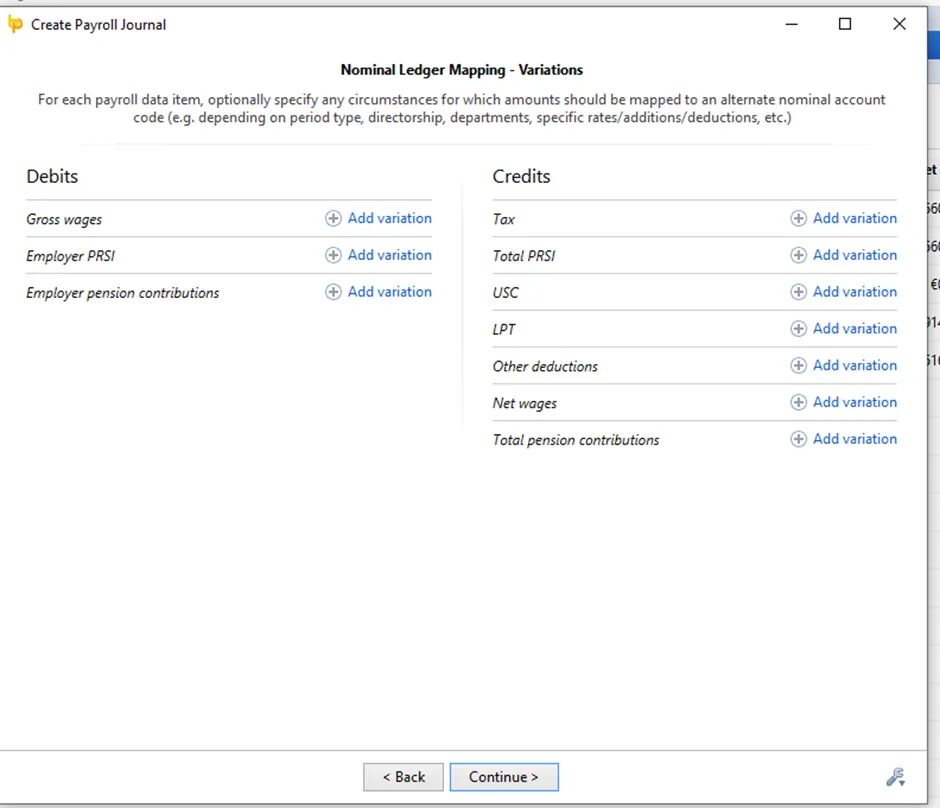
- Just click Continue for this next page.
- Click Print to save your own copy and save to Accounts dropbox folder. See
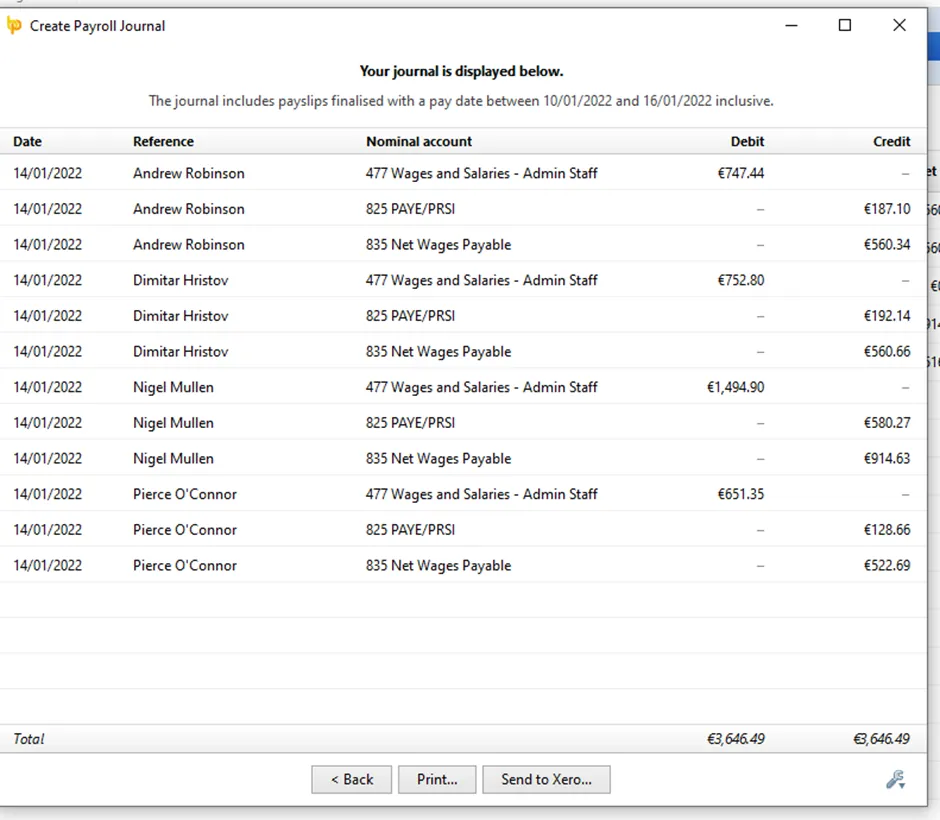
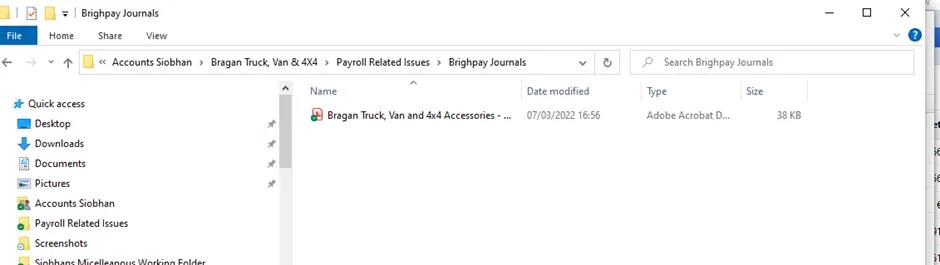
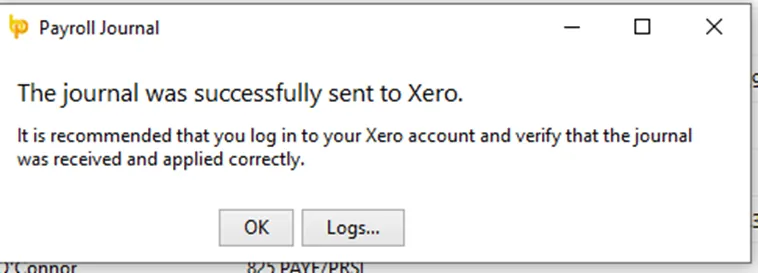
- This message should appear. Go to Xero and check each nominal for correctness. You can compare the journal save into accounts folder against the nominals.
Notes#
This section is important so Adhoc points and issues can be logged. Also, Q&A can be logged for suggestions for potential issues encountered. Also, log important notes needed for this system. Additional Notes:
Make sure to select the correct dates for the payroll journal.
Potential Issues:
1 - ISSUE ENCOUNTERED: Stuck on Loading
RESOLUTION: Refresh Browser
2 - ISSUE ENCOUNTERED: Broken Links
RESOLUTION: Get the external link as this will allow other people to access the SOP without the need for login credentials and avoid broken links.