Importing Sales to Xero from Greenbacks
This SOP describes the process on when and how to export transactions from eBay
Overview#
Purpose: This SOP describes the process on when and how to export transactions from eBay (Bragan-x and BTS) and Amazon to Xero (Accounting Software) using Greenback system.
Scope: This procedure covers the process on how to export transactions from eBay (Bragan-x and BTS) and Amazon to Xero using Greenback system
Responsibility: It is the responsibility of accounts personnel to follow the process set out in this procedure.
Objective: The objective of this procedure is to guide accounts personnel on how to export transactions to Xero using Greenback system
Procedure#
Note: Please make sure that this process is being done daily. Exporting transactions daily will make the export process faster. If you do it after 2 or more days then there would be more transactions to export and it would take longer for it to process.
Sync Transactions#
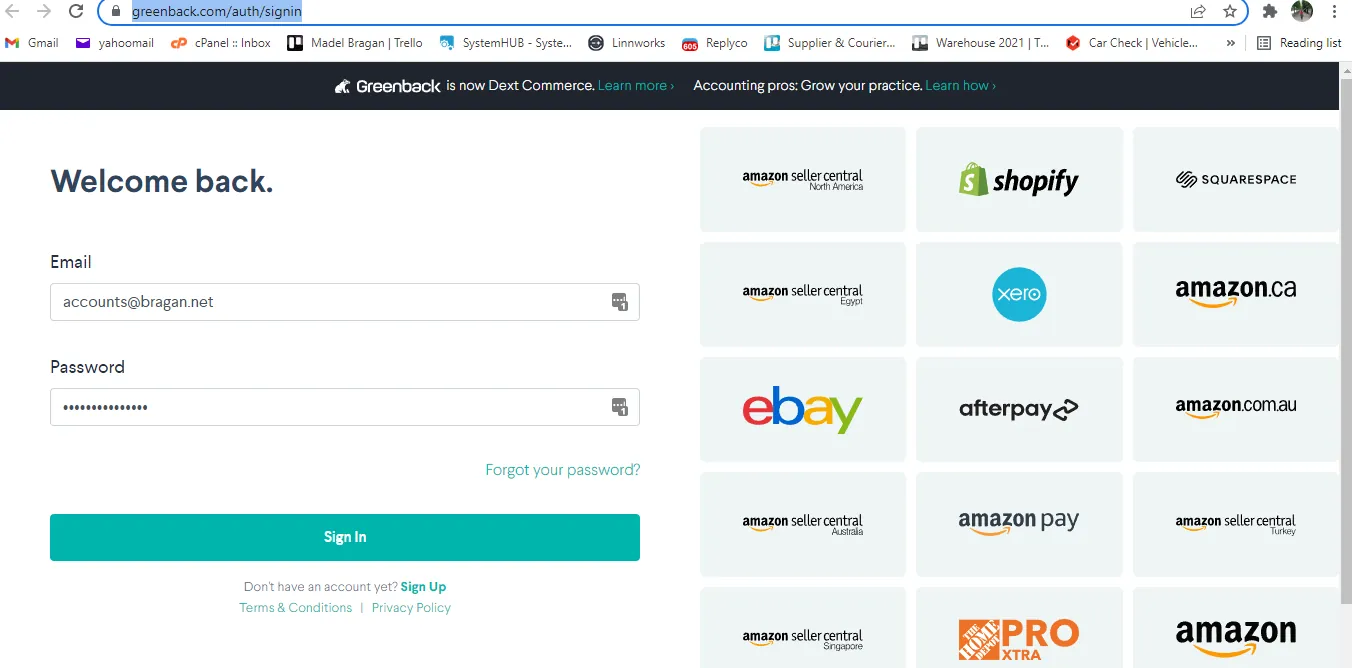
- Go to Greenback site and log in using the credentials provided by management.
- Click on Sales > Choose any of the marketplaces but make sure to do this process to all. For example, let us start with Amazon.
Figur e 2
- Once your in Amazon page click on the refresh button to sync all transactions from Amazon in real time. From the sample snipe below, you can see that it was last sync 18 hours ago. Just wait for it to finish syncing before doing eBay to avoid errors. Syncing also won't take too long so it is better to wait for it to finish before going to the next marketplace.

You will know that it finished syncing when it says 100% fetching transactions. sync
Figur e 4
Do Bulk Export#
-
Once you finished syncing all three marketplaces Amazon, eBay (Bragan-x) and eBay (bts-trading), click on Bulk Export bulk export icon
-
There are two companies in Xero, the Bragan Trading Services (BTS) and Bragan Truck Van and 4x4 Accessories. You can start first with Bragan Truck Van and 4x4 but after exporting to this, you need to repeat the steps for BTS. So for now, select Xero/Bragan Truck Van and 4x4 Accessories.
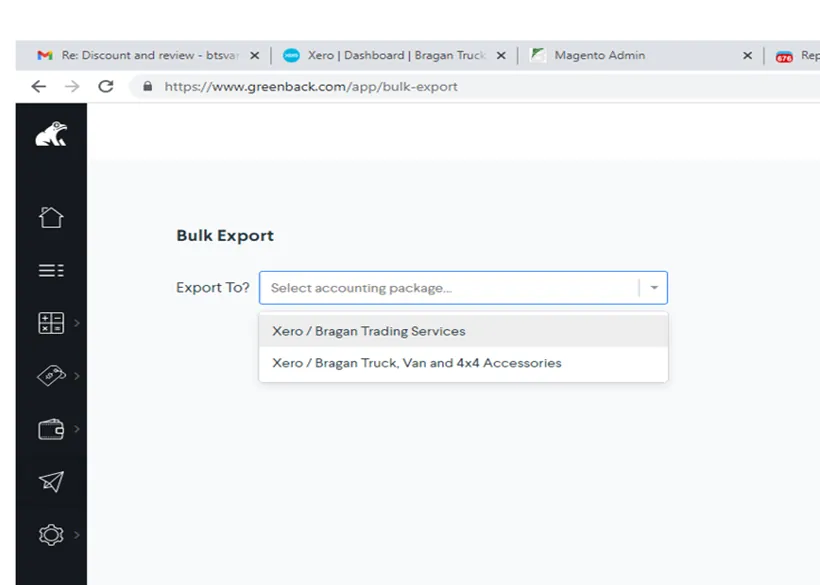
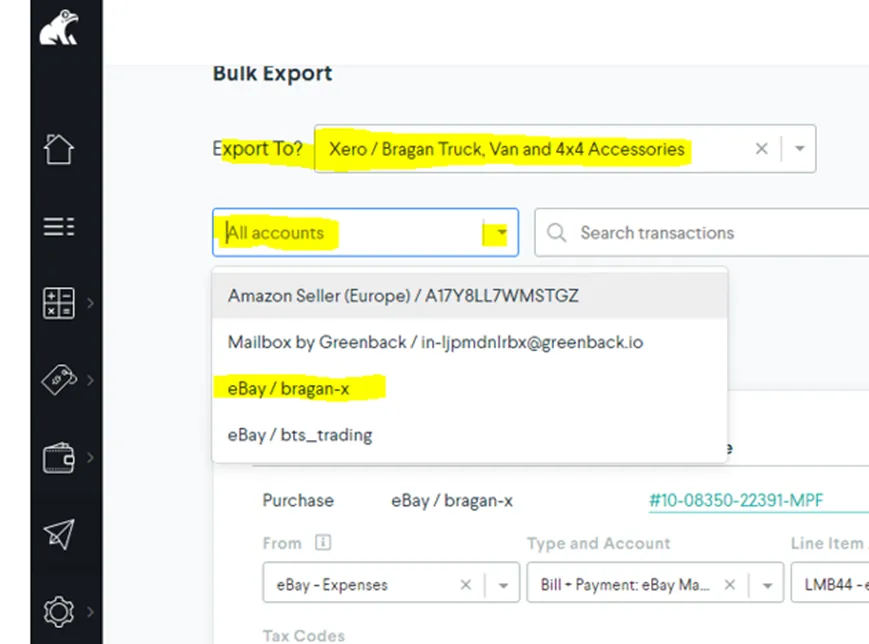
- Then choose what account you will export to Bragan Truck. Just click on the dropdown arrow on All accounts.
Note:
if you are exporting to Bragan Truck Van and 4x4 the account/marketplace should be the eBay (Bragan-x) if you are exporting to Bragan Trading Services account should be eBay/bt_trading Amazon account should be exported to Bragan Trading Services just ignore the Mailbox by Greenback account
For our example, since we are exporting to Bragan Truck Van and 4x4, our account should be eBay/bragan-x.
Important Note:
This step is crucial so make sure you are selecting the correct account to export the sales data to. Do not export Bragan X to BTS, this is the Northern Ireland company for UK sales only. (Xero Bragan Trading Services, Amazon Seller (Europe) and eBay/BTS trading are in the same group.
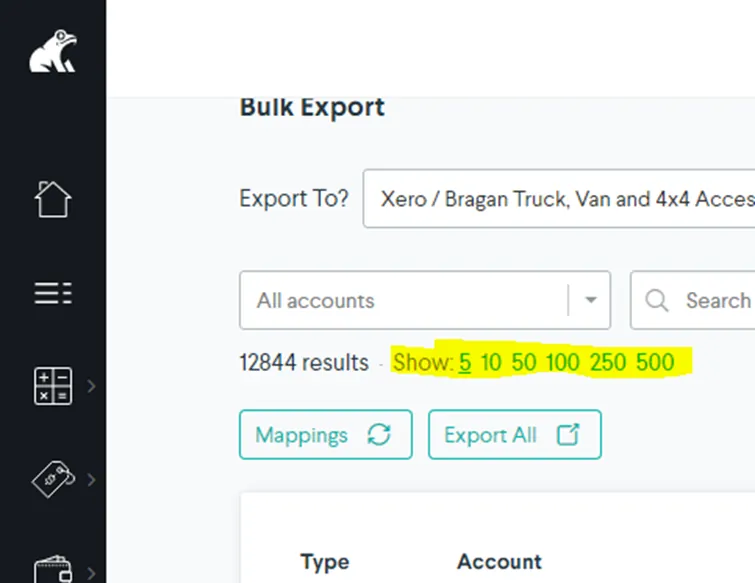
- All transactions now from eBay (Bragan-x) will appear, click on the last transaction. It is the last number that you see in the Show section. In this example it is 500. Click on this.
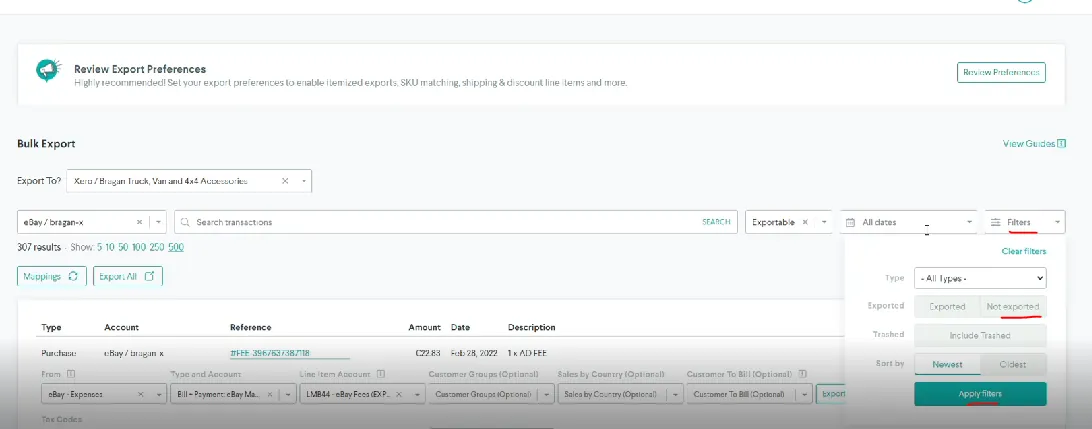
- Click on Filter and select Not Exported then Apply Filter
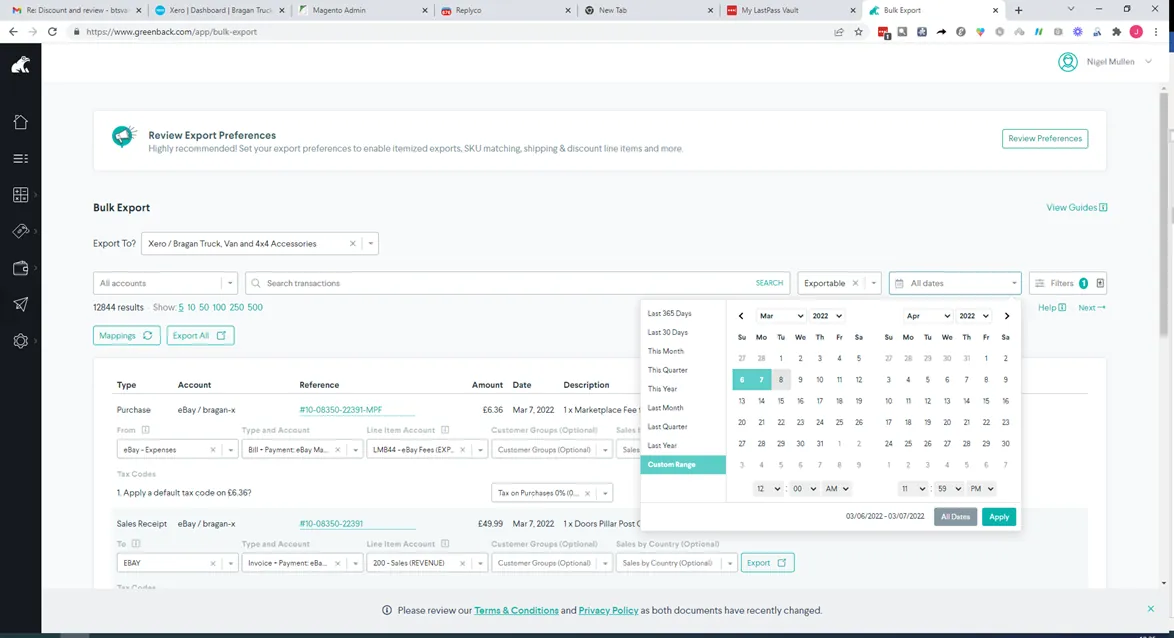
- Then change the date. Select the date of your last transaction up to the date for today. This means that even though you export transactions yesterday you still need to include it for today just to be sure that there are no transactions left from yesterday. Example, today is March 3, dates you should select should be March 2-3 even if you already exported transactions on March 2.
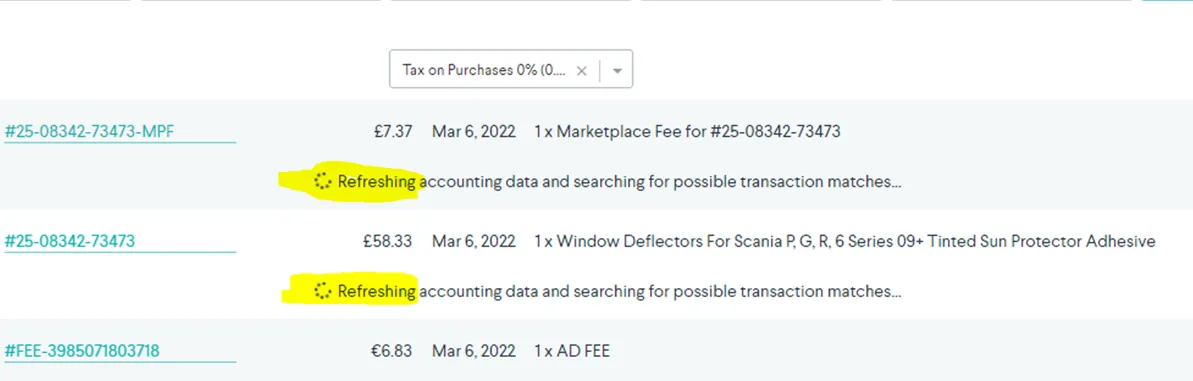
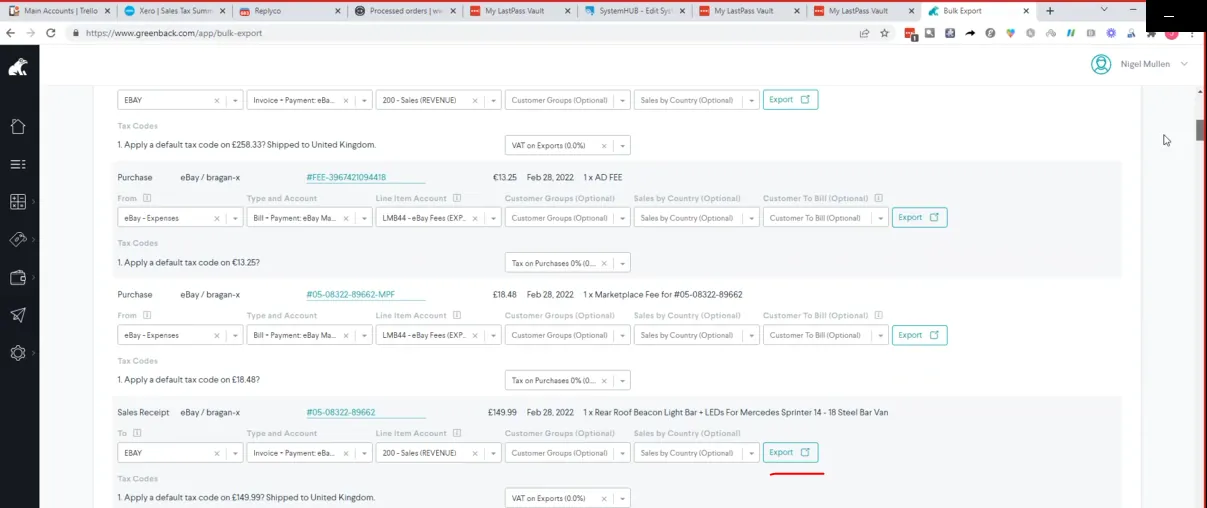
- After this, all transactions using the filters you apply will appear. It will take a while for it load. Do not export while it is still loading or refreshing (Figure 11). Export only until the last transaction loads. You will know that everything is ready when you scroll down to the last transaction and you can see the Export Button (Figure 12).
- Since it would take a while for everything to load depending on how many transactions there are. You can spot check those transactions that finished loading. The important thing to check is the Tax/VAT part. It should corresponds to the address of the customer. It should have the correct VAT per country. Check the part where it is shipped and then check on the VAT if it is correct.
Note:
Since we are in Bragan-x marketplace, remember that VAT or Tax on Purchase for UK address should always be zero (0%)
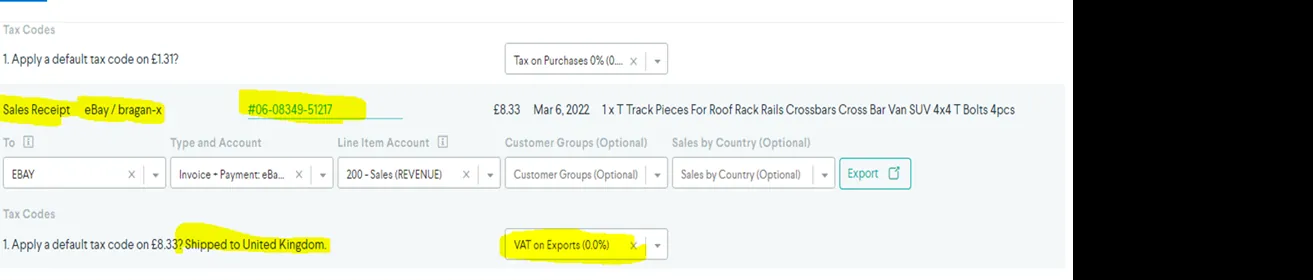
Bragan-x - For International address it would differ like for Germany it is at 19% and if someone from Ireland buys here, tax would be at 23%. If you encounter incorrect VAT please inform management and wait for advice. For the standard VAT rate of other EU member state please refer to Figure 13 & 14 below.
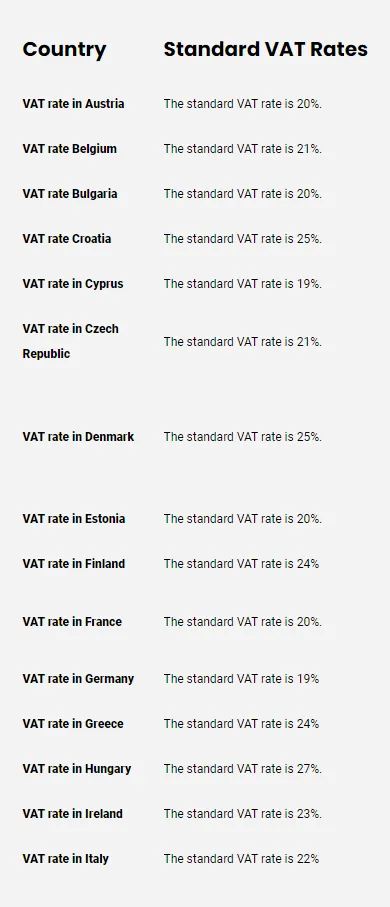
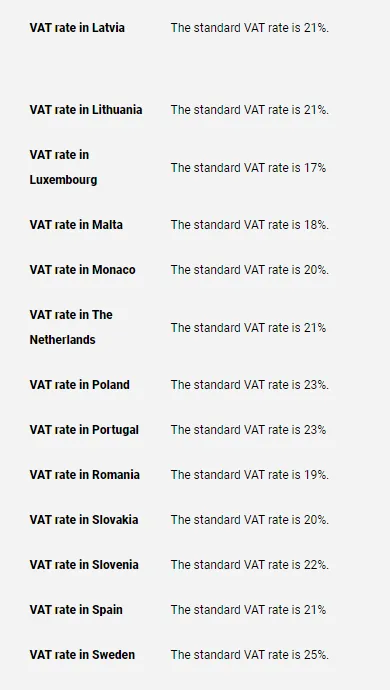
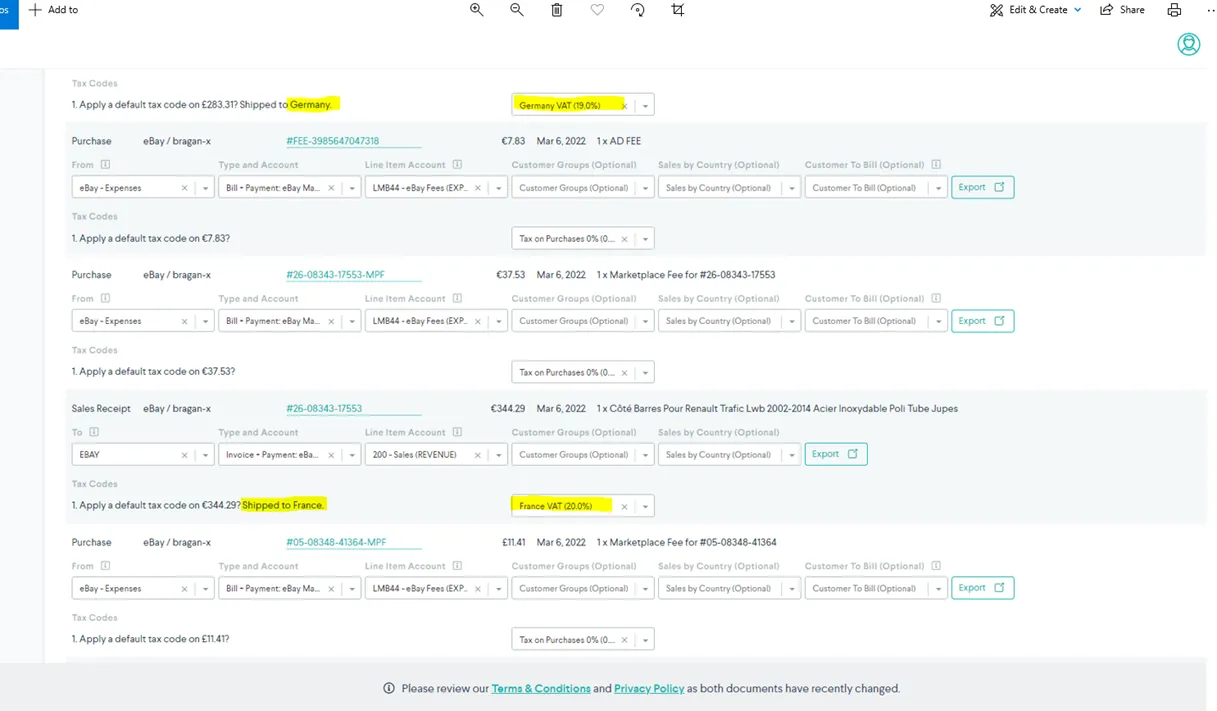
From Figure 15 below. both of these transactions are to Germany and France. Both are in the EU so it will have applicable VAT charges applied. See Figure 14 to confirm the VAT charges.
Sale to United States has VAT rate of 0% as it is outside EU. See sample below.

Exceptions to the 0% Rule with the United Kingdom - The following 6 counties are in Northern Ireland which belongs in the United Kingdom so it may not state Northern Ireland on the invoice it may say Londonderry United Kingdom. When invoicing from Bragan Truck Van &4X4 the Vat rate is 20%
Derry/Londonderry
Tyrone
Fermanagh
Armagh
Down
Antrim
Even though the UK is no longer a member of the EU Northern Ireland is and therefore will be treated the same as France or Germany.
If you are in BTS or Amazon marketplace Tax on purchase of almost all transactions is always at 20%. There are some instances where this is not 20% but it is uncommon, if you encounter something like this you can confirm it with management. ireland vat 23%
eBay collects the VAT on Bragan’s behalf therefore there will be no VAT calculations to be checked. You only have to check that the proper VAT rates are applied to the sales transaction and the address is correct to that country’s VAT Rate.
- Check one out of every 2 to 3 sales transactions for correctness. If the upload is done on a daily basis this should not take too long. Once you finished spot checking, scroll back up and click on Export All. You can see export progress beside this button. (Figure 19). export all
exporting
-
Sometimes you will notice that the transaction result is different to the number of transactions being exported (see Figure 20). In the figure below, it shows 154 results but in the transactions being exported it is only 152. This means that there are 2 transactions not being exported. We can export these remaining 2 after it finish exporting. Do not click anything on the screen while export process is on-going. transaction discrepancy
-
After it finished exporting, you can now export the 2 other transactions that were not included in the first export. In order for these 2 transactions to show, you can click on Exportable or click on Filter again and select Not Exported or click on the Date and select again the dates you selected before. Either of the three will refresh this page and it will show the other transactions not included on the first export. I suggest to just click on Exportable. exportable
-
Once the remaining transactions show, spot check again then click on Export All. There should be no more transactions left for export. no transaction found
-
Repeat Step 5 and do this again for Bragan Trading Services and choose eBay/bt_trading as the account.
- If you finished exporting eBay/bt_trading, repeat Step 6 and choose Amazon as the account. No need to change the company since it is already set to Bragan Trading Services. But just to be sure, make sure to check that you are exporting to Bragan Trading Services for these Amazon transactions.
Video & Media#
🎥 Greenback 🎥 greenback process
Notes#
This section is important so Adhoc points and issues can be logged. Also, Q&A can be logged for suggestions for potential issues encountered. Also, log important notes needed for this system. Additional Notes:
Make sure to sync first before doing exports. Make sure to export transactions to correct company: if you are exporting to Bragan Truck Van and 4x4 the account/marketplace should be the eBay (Bragan-x) if you are exporting to Bragan Trading Services account should be eBay/bt_trading
Amazon account should be exported to Bragan Trading Services Make sure to spot check transactions, check if the VAT is correct per country. It is ideal to export transactions daily.
Potential Issues:
1 - ISSUE ENCOUNTERED: Stuck on Loading
RESOLUTION: Refresh Browser
2 - ISSUE ENCOUNTERED: Broken Links
RESOLUTION: Get the external link as this will allow other people to access the SOP without the need for login credentials and avoid broken links.