Intercompany Transactions
Intercompany accounting is a set of procedures used by a Bragan company to
Overview#
Purpose: Intercompany accounting is a set of procedures used by a Bragan company to recognize transactions occurring between its Bragan Truck, Van and 4x4 Accessories(Bragan4x4) and Bragan Trading Services (BTS). For example, if BTS purchase stock to Bragan4x4 the transaction occurred internally. Intercompany transactions can be flagged in an organization's Xero at the point of origination, so that they can be automatically backed out when the consolidated financial statements are prepared. Intercompany accounting can be one of the key bottlenecks in the process of closing the books, and so should be a focus of management attention to find ways to streamline the process.
Scope: This procedure applies to Accounts Department. This SOP covers intercompany transactions invoicing of stocks, intercompany transactions of stock payment and intercompany transaction account reconciliation.
Responsibility: It is the responsibility of Accounts Team to collaborate with the Operations and Procurement to ensure the process set out in this procedure is followed. Confirmed Supplier Order shall be check by the Procurement. Confirmation with the management must be taken into consideration.
Objective: The objective of this procedure is:
To recognize purchases and stocks in books of Bragan Trading
To record intercompany payments on the invoice of stocks paid to Bragan 4x4 by BTS
To arrive at account reconciliation on books of Bragan Trading and Braga 4x4

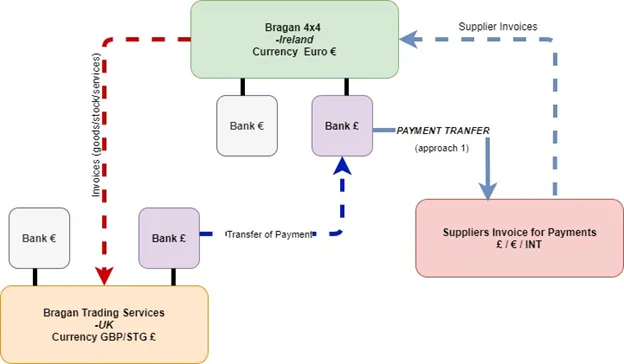
Bragan4x4 and BTS shared only one physical warehouse location. For stock control and intercompany transactions Weekly/Monthly regular invoicing and intercompany payment transfer must recognize in their books of accounts
Bragan 4x4 is the Ireland registered company and our main company. They recognize in their books most of the expense---Operation Expenses, Payroll (warehouse and PH wages), Cost of Goods sold, Overhead Cost, Vehicle Expenses, Tax , Insurance etc.
Each company (Bragan4x4 and BTS) have respective banks accounts one in GBP/STG and one in EUR
RED ARROW- This indicates invoices made by Bragan 4x4 for the goods (usually stock) /services recognizing intercompany Sales
BLUE ARROW- BTS will make payment for this invoices to Bragan4x4
In some cases Supplier payments (other than its trade euro currency) will invoice the main company—Bragan4x4 (LIGHT BLUE DOTTED ARROW). As seen in approach 1, These invoices shall be paid from Bragan4x4 Bank account in GBP/STG (£) through Transfermate (STRONG LIGHT BLUE ARROW)
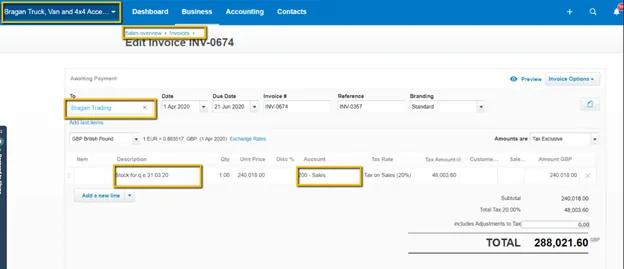
Intercompany Transactions Stock Invoice#
- Bragan 4x4 > Bragan Trading Stock Invoice
Create Invoice in Bragan Truck Van and 4x4 Accessories Xero Organization
- From the header, click the plus icon and select Invoice. Or go to Business menu>>Sales Overview>>New invoices
- In the To field, enter the name of Bragan Trading you're invoicing. If there's a previously approved or paid invoice for the contact, you can add the last item lines from that invoice to the new one.
- Complete the remaining invoice details. You must fill out the Date- Beginning of current month, Due date
- In Description, Enter the month or period of total stock we are invoicing
- Recognize “Sales” income in the Account
- Enter the Tax Rate fields to be able to approve the invoice.
- Click Approve
Intercompany Transactions Stock Payment#
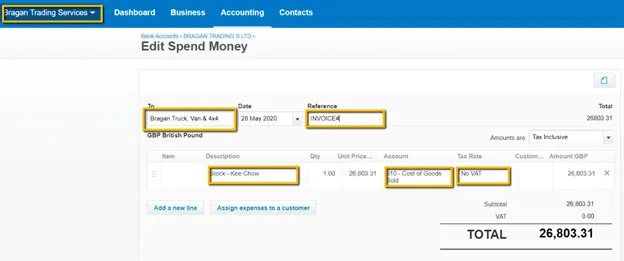
- Bragan Trading > Bragan 4x4 Stock Payment
Track your Stock Supplier payments by creating Bills or Spend Money transaction in Bragan Trading Services Xero Organization
- From the header, click the plus icon and select Bill. Or In the Business menu, click Purchase overview.
- Click the arrow next to New and select Bill.
- Enter the information into the bill fields. In the To select Bragan Truck, Van & 4x4 as contacts
- Date Select the Monthend
- Reference related Supplier Invoices/Bill receipts/ Statement of Account
- In the Description enter the Supplier details
- Enter the lumpsum amount for the Supplier payment in the unit price
- Recognize stock/Cost of Goods Sold Expense in the Account
- Tax Rate shall be zero rated VAT
- Click Approve
- Bragan Trading / Bragan 4x4 Accounts Reconciliation
In some cases we resort to approach 2 to pay Bragan 4x4 Supplier Invoices through transfermate using BTS GBP(£) Bank Account. This NOT our preferred way, thus resulting to account reconciliation
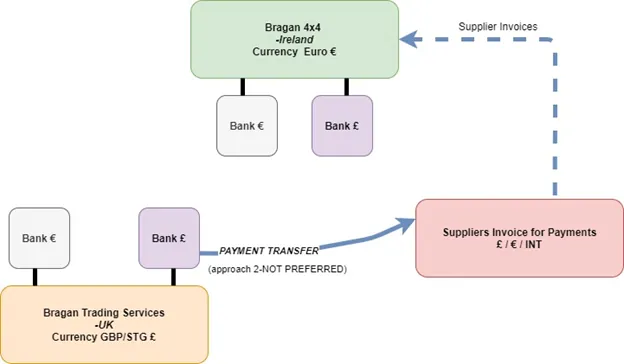
Not preferred approach
When approach 2 happens, both the invoice and payment needs a reference note. Put comment in beneficiary note in Transfermate for the invoice the payment is applied to. And the reference should also be put in the Description Field in the Xero invoice (Bragan4x4) and Xero Bills (Bragan Trading)
Add Comment/ Note- The invoice payment applied to can also be indicated by adding note in the invoice/bills
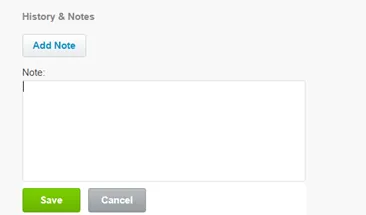
Add Comment/ Note
Procurement Confirmed Orders#
You can secure access to the data in Supplier Procurement & Products>>Select the Supplier folder>>Year(period)>>Confirmed Order Folder>>Month
Xero to Xero Network Key#
Each Xero organisation has a unique and private network key. When you give an organisation your network key, for example Bragan 4x4 send BTS a Xero to Xero sales invoice, it's automatically created as a draft bill in BTS organisation. Add the account code and make any other changes, then approve the bill You can only receive bills through the Xero to Xero network that don't have tax adjustments or credit notes. You can't receive credit notes or any other types of transactions.
To send your network key to another Xero organisation:
Click the organisation name, then select Settings.
- Under Features, click Xero To Xero.
- Click Send Xero Network Invite.
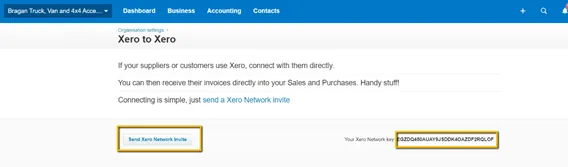
- Enter the email address of the organisation you want to receive Xero invoices from.
- Click Send.
Notes#
This section is important so Adhoc points and issues can be logged. Also, Q&A can be logged for suggestions for potential issues encountered. Also, log important notes needed for this system. Potential Issues:
1 - ISSUE ENCOUNTERED: Stuck on Loading RESOLUTION: Refresh Browser
2 - ISSUE ENCOUNTERED: Broken Links RESOLUTION: Get the external link as this will allow other people to access the SOP without the need for login credentials and avoid broken links.