Payment Run
The purpose of this SOP is to show to process on how to create payment run cards.
Overview#
Purpose: The purpose of this SOP is to show to process on how to create payment run cards.
Scope: This SOP covers only the process on how to create payment run cards. Process of how the payments were done are not covered in this SOP.
Responsibility: It is the responsibility of the Accounts Personnel to follow the steps stated in this SOP.
Objective: The objective is to provide the process on how to create payment run cards and to identify the different templates for payment run cards.
Process Flow#
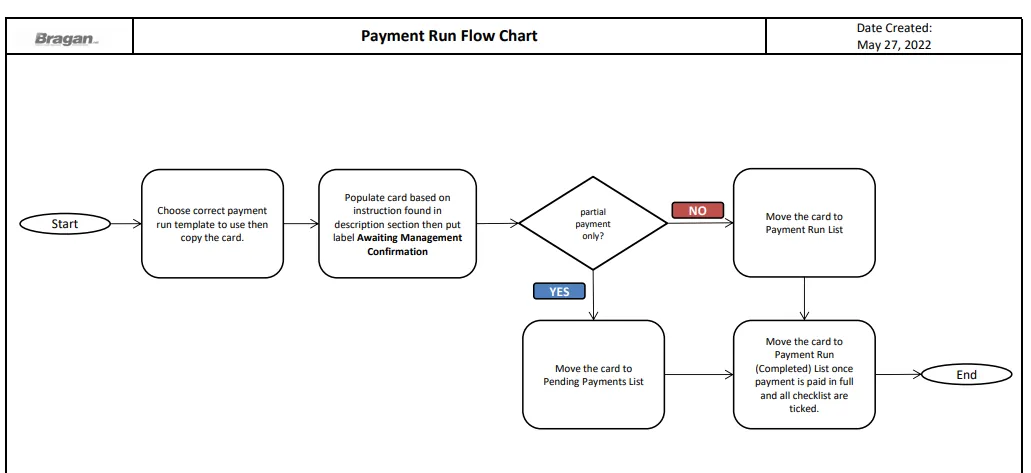
Procedure#
- Choose Correct Payment Run Template to Use
There are different payment run templates. Each supplier (Stock & Regular Supplier) has its own template, PH and IRL payroll has its own template. You can access the templates in the Accounts Trello Board. Please request to management for the access. See below for the available templates.
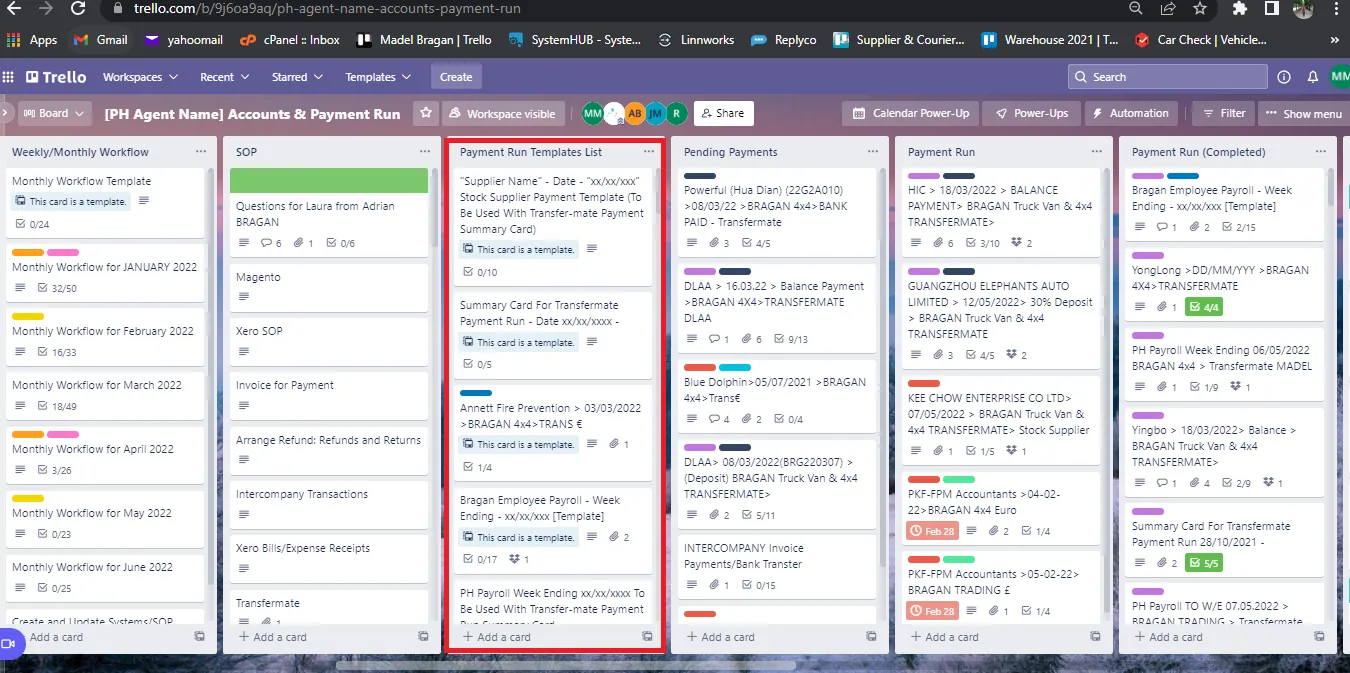
1.1 Stock Supplier
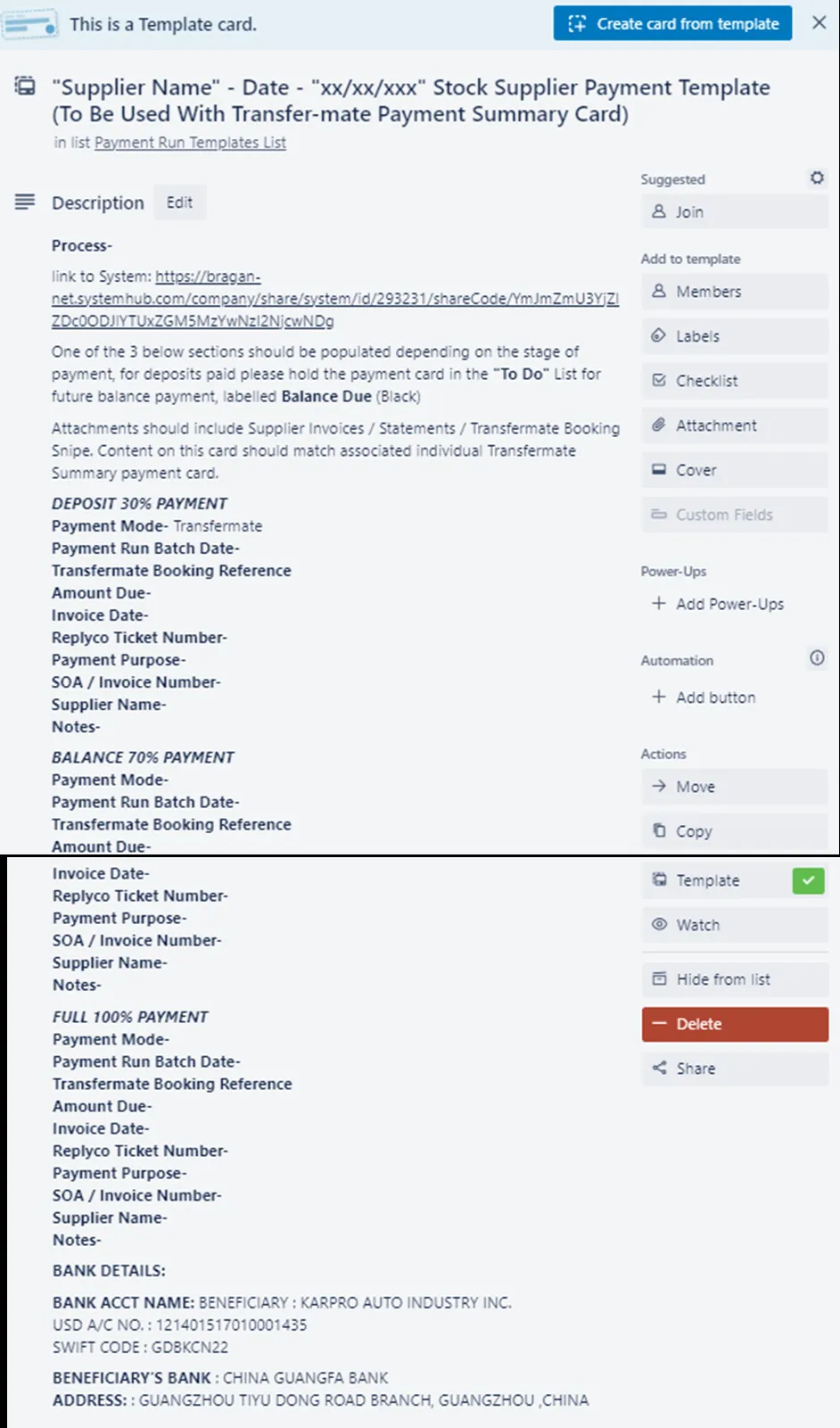
Click here for the payment run template. These are suppliers for all items that we sell.
1.2 Regular Supplier
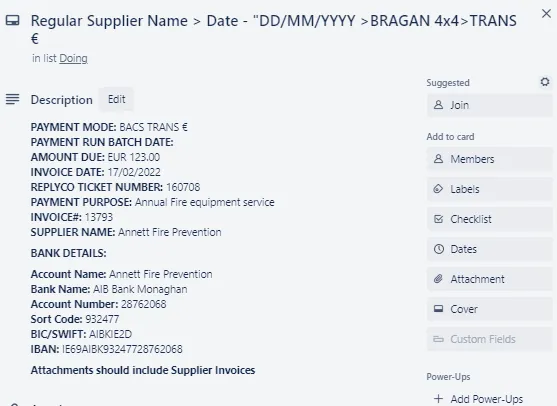
Click here for the template. These are suppliers for any other items that the company needs (ex. consumables, company equipment) - please confirm this with management) will attach final snipe of template once approved
1.3 Team IRL Payroll
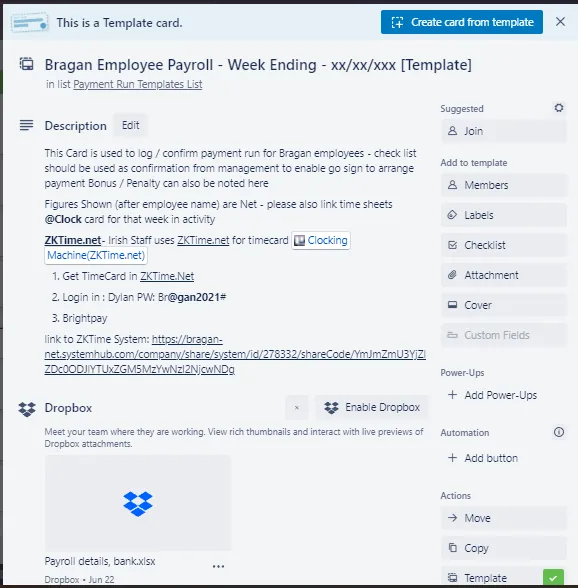
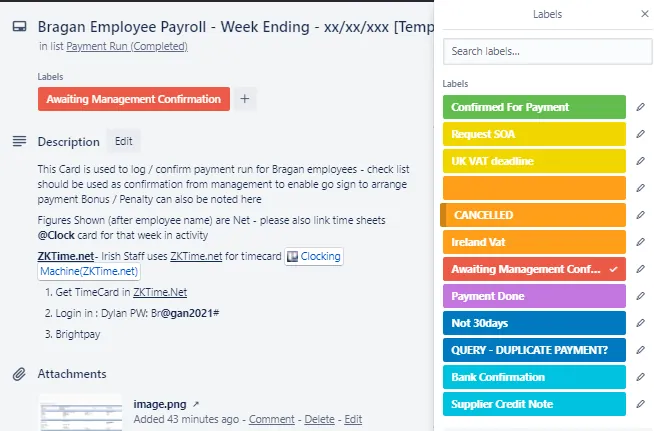
Click here for the template. This Card is used to log / confirm payment run for Bragan IRL employees - check list should be used as confirmation from management to enable go sign to arrange payment Bonus / Penalty can also be noted here.
1.4 Team PH Payroll
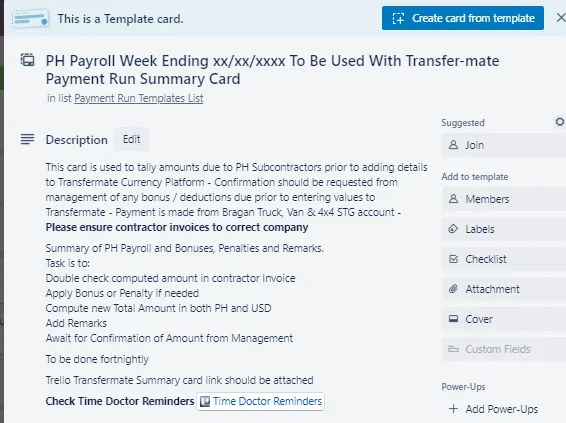
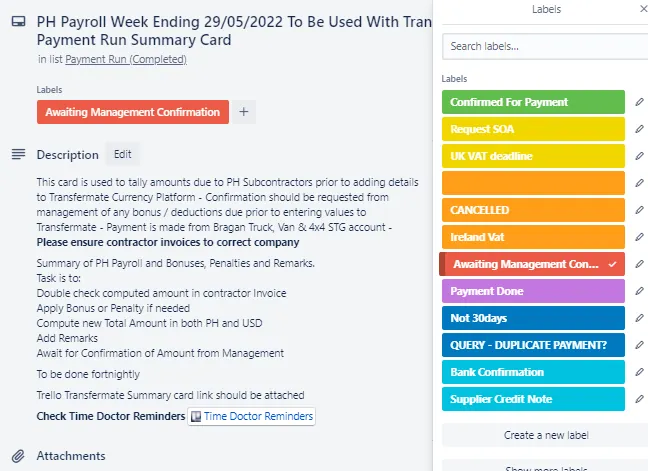
Click here for the template. This card is used to tally amounts due to PH Subcontractors prior to adding details to TransferMate Currency Platform - Confirmation should be requested from management of any bonus / deductions due prior to entering values to TransferMate.
1.5 Summary Card For TransferMate Payment Run
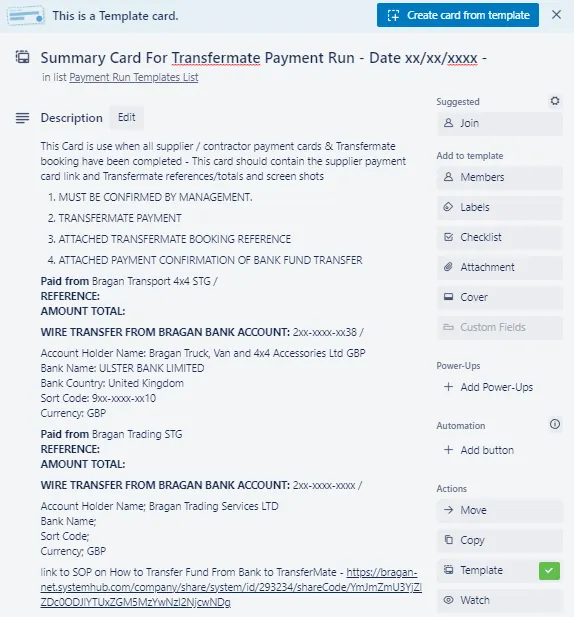
Click here for the template. This Card is use when all supplier / contractor payment cards & TransferMate booking have been completed - This card should contain the supplier payment card link and TransferMate references/totals and screen shots.
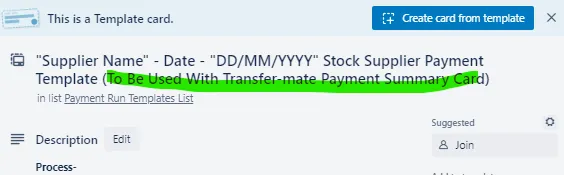
This means that this card contains the summary of all payment run cards for PH Payroll and Stock Supplier for a particular date. If you check again the template for Stock Supplier and PH Payroll you can see in the title that these cards are to be used with Transfer-mate Payment Summary Card. See Figure 7 & 8.
1.6 Couriers
Fastway - template
Express Freight - template
FedEx - template
IFS - template
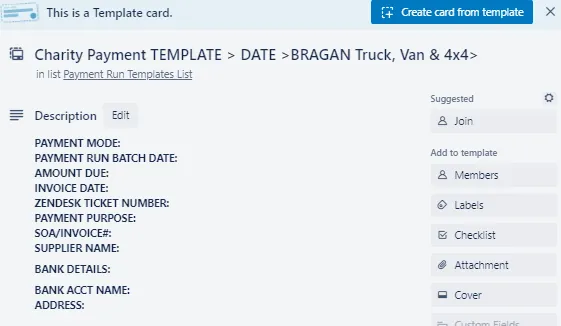
1.7 Charity
Click here for the template. Use this template for charity donations.
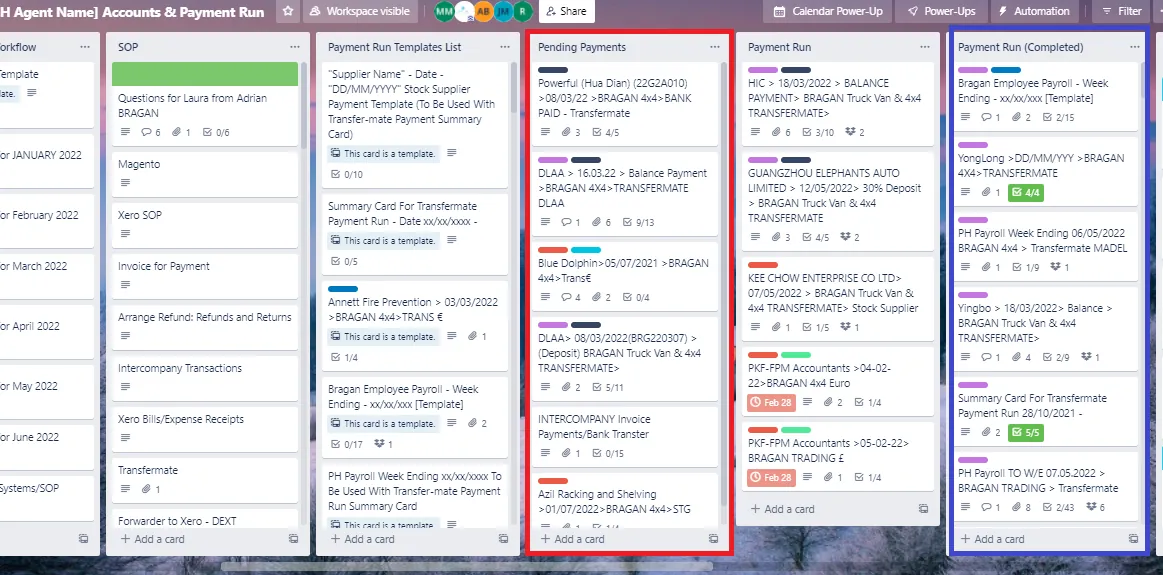
Note: For other available templates, check the template list. See Figure 1 (red box).
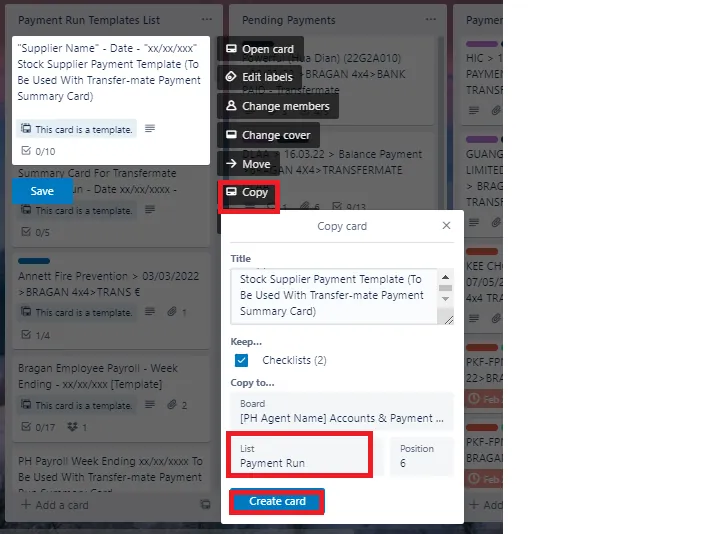
- Copy Template Card Once you choose the correct template to use, right click on the template then choose copy and copy it to Payment Run List then click Create Card.
Payment Run List should only contain active payments that needs to be done.
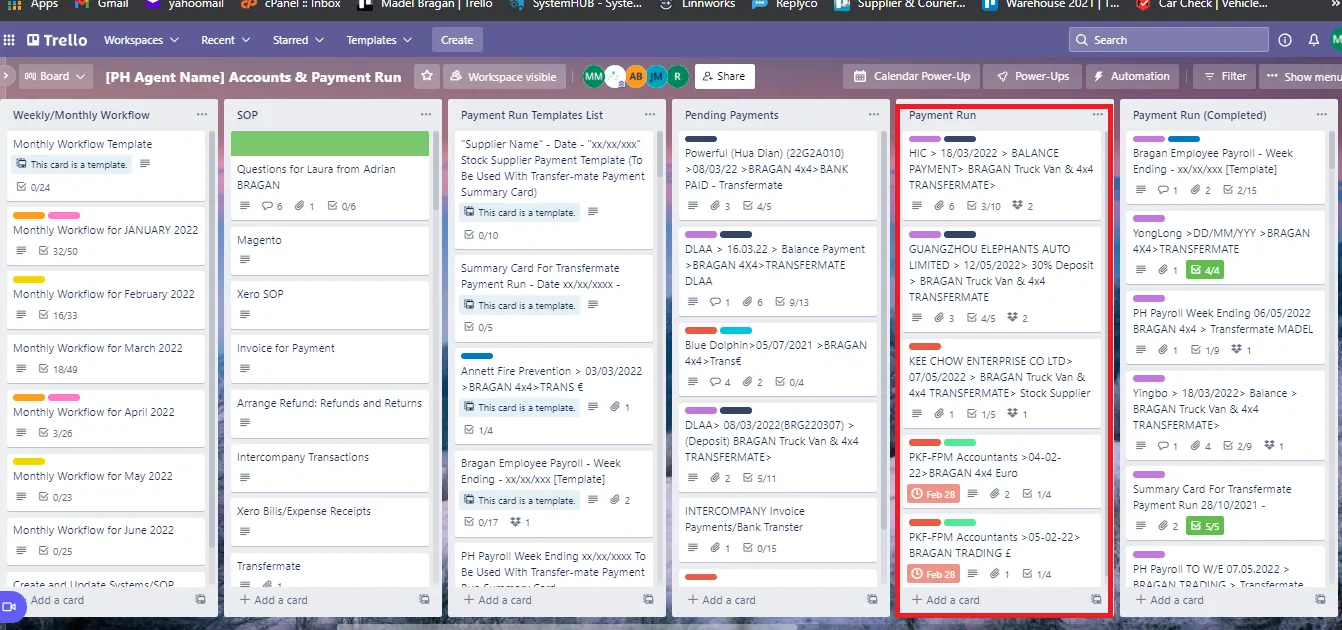
- Populate and Label the Card Populate the cards based on the description found in the template. Make sure to include attachments such as Invoice, statement of accounts etc. It is important that all details are accurate such as the amount to be paid, the bank details.
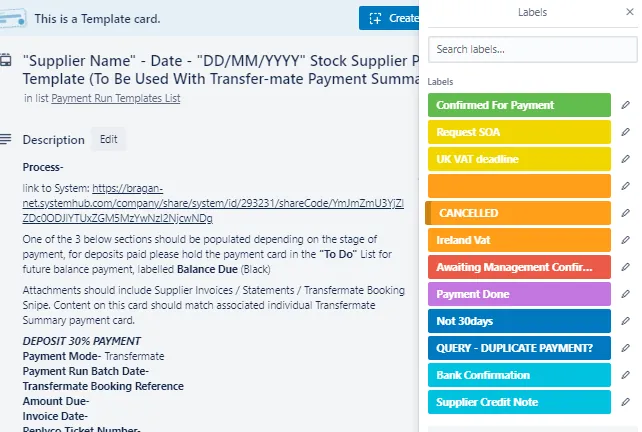
And tick the checklist as each step is completed. Use correct label for the cards to know status. See below for the list.
3.1 Team IRL Payroll
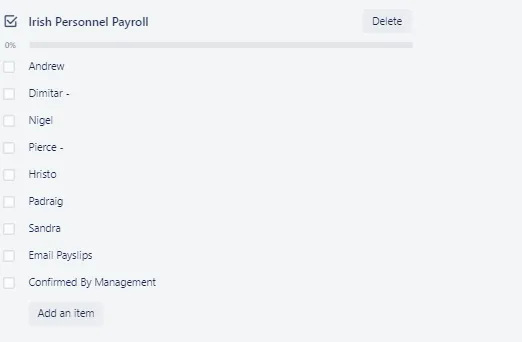
Add the total amount (net amount) to be paid beside the name of the employee found in the checklist. Follow the SOP on how to get the total work hours per employee using Clocking Machine (ZKTime.net). Check also the Payroll SOP for Team IRL to know where to check the rate for each employee.
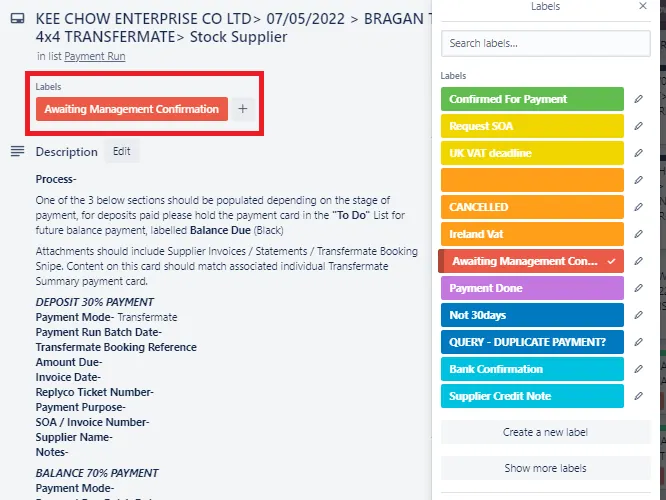
Once fully filled-out, move the card to Payment Run List and label red - Awaiting Management Confirmation.
3.2 Team PH Payroll
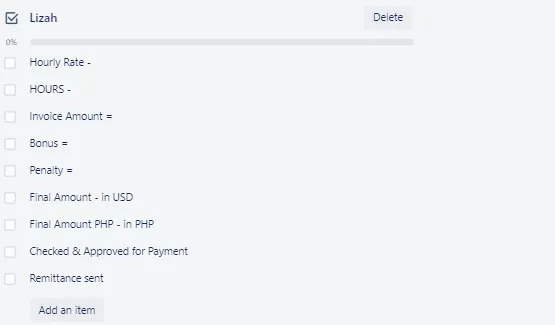
The checklist will show the hourly rate of employee, total hours worked, any bonus and deductions, final amount to be paid, etc. Make sure to check the invoice sent by
the employee for reference. To be done fortnightly. Final amount to be paid should be in USD and PHP.
Make sure that all details are correct and approved by management.
Once fully filled-out, move the card to Payment Run List and label red - Awaiting Management Confirmation.
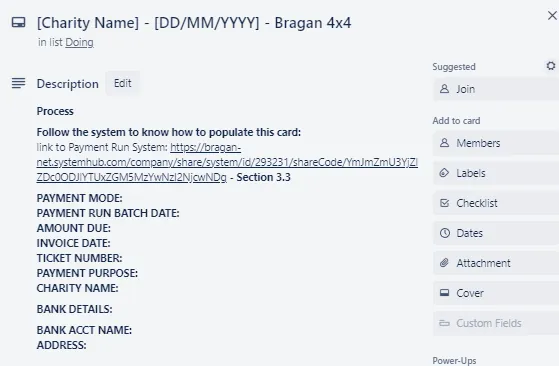
3.3 Charity
Fill out the important details found in the description. There is no need to add attachment such as invoice since this is a voluntary contribution.
Once fully filled-out, move the card to Payment Run List and label red - Awaiting Management Confirmation.
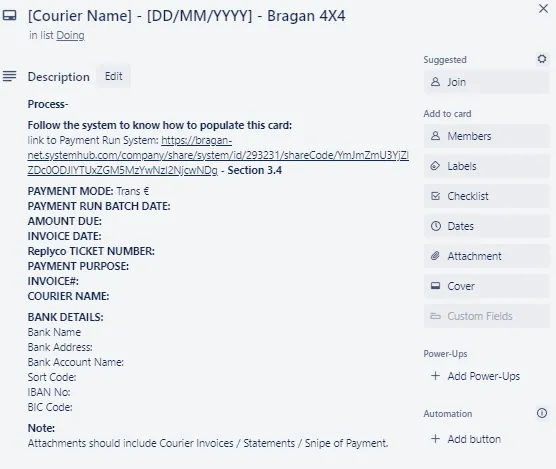
3.4 Courier
Fill out important details found in the description section. Make sure to attach the invoice from courier.
Once fully filled-out, move the card to Payment Run List and label red - Awaiting Management Confirmation.
3.5 Regular Supplier
Fill out important details found in the description such as the amount due, invoice date, supplier name etc (see Blue box for more details). Need also the regular supplier bank details (green box) which include the following information:
Account Name Bank Name Account Number Sort Code BIC/SWIFT Code IBAN
And make sure to attach the invoice from supplier.
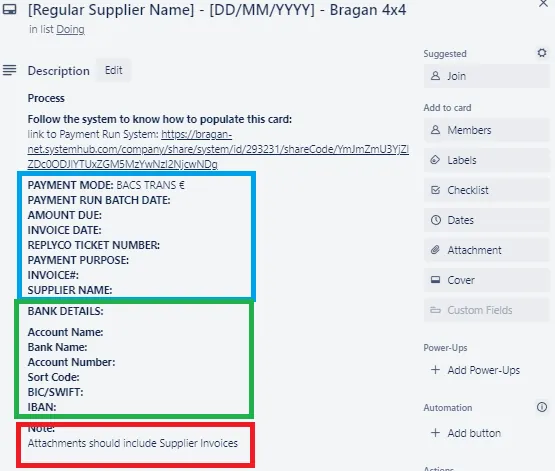
Once fully filled-out, move the card to Payment Run List and label red - Awaiting Management Confirmation.
3.6 Stock Supplier
For most of our stock suppliers, payment is not made always in full. Most of them we give deposit and then pay the balance later. In this case, after the 1st payment or the deposit is made the card is move from Payment Run List to Pending Payments List (red box). This would mean that there is still a pending payment for the remaining balance. It is then labelled in black - Balance Payment Outstanding. Once this balance is paid in full you and all checklist are ticked then you can now move the card to Payment Run (Completed) (blue box Figure 21).
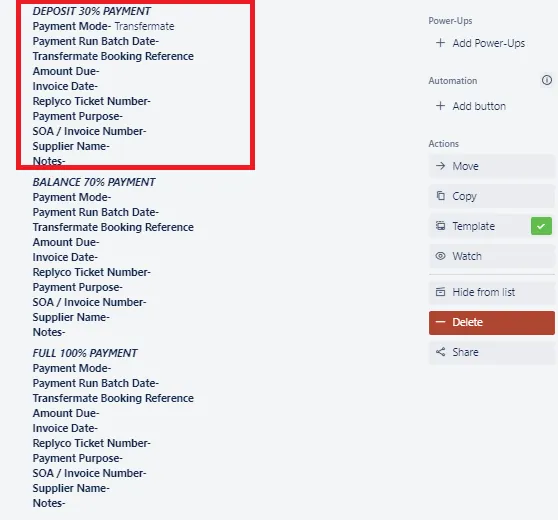
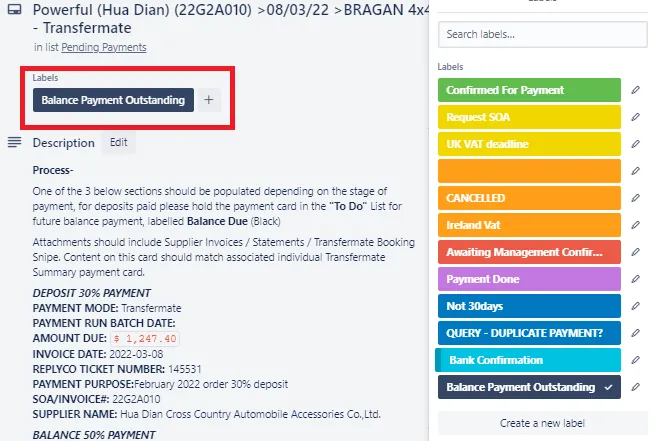
If a full payment was made to the stock supplier, after populating the card, move it to Payment Run List and label it red - Awaiting Management Confirmation.
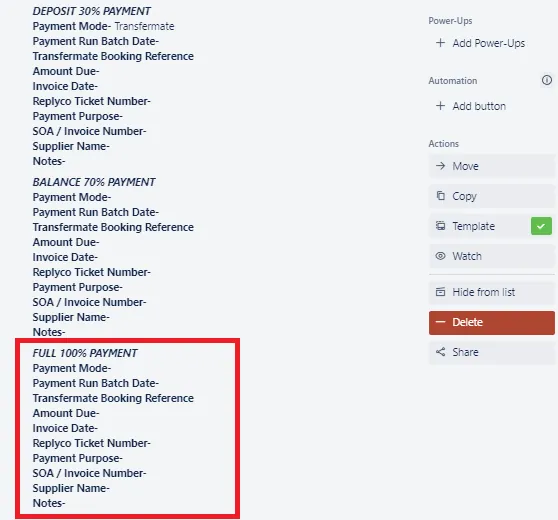
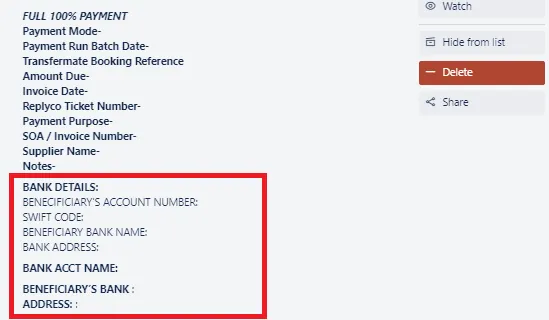
Input also the Bank Details of the Supplier and Bank Account Name. For the Bank Details the following information are needed:
Beneficiary Account Number
Swift Code
Beneficiary Bank Name
Bank Address
Note:
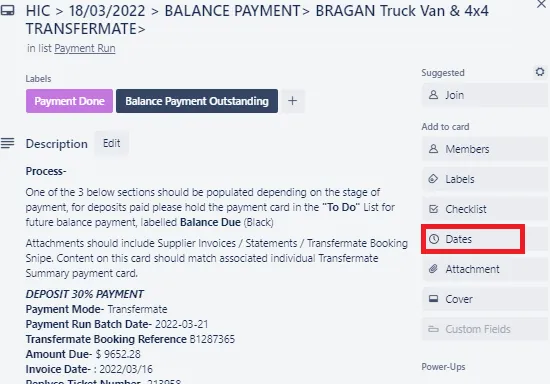
In order not to miss the payment due date. It is better to add a due date for the card. To add a due date, click on Dates
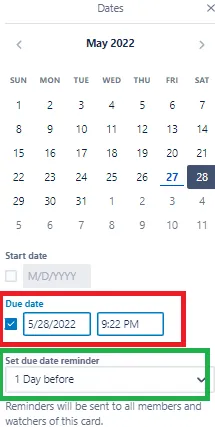
Then select the Due Date (red box), then set also due date reminder (green box).
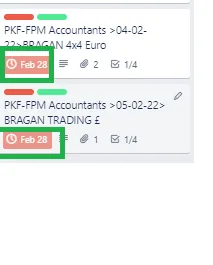
If a card passes the due date, there is this red notification with the date.
- Payment Done
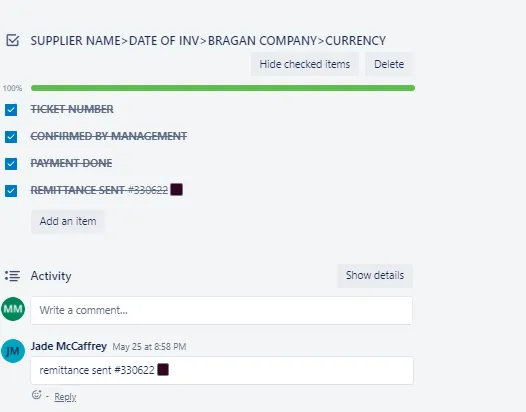
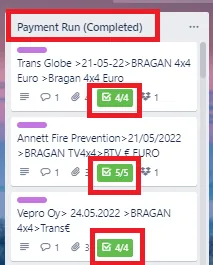
Once all tasks on a card have been completed (see Figure 29), the icon on the front of the card will automatically turn green (See Figure 30), you can now move the card to Payment Run (Completed) list.
Make sure to add the ticket number of the remittance that you sent as reference.
Video & Media#
Notes#
This section is important so Adhoc points and issues can be logged. Also, Q&A can be logged for suggestions for potential issues encountered. Also, log important notes needed for this system. Additional Notes:
Make sure that all details in the cards are accurate (amount, bank details, work hours etc). Ensure cards are labelled correctly to know status.
Potential Issues:
1 - ISSUE ENCOUNTERED: Stuck on Loading
RESOLUTION: Refresh Browser
2 - ISSUE ENCOUNTERED: Broken Links
RESOLUTION: Get the external link as this will allow other people to access the SOP without the need for login credentials and avoid broken links.
Attachments#
Payment_Run_Flow_Chart.xlsx 10/02/2026