Paypal: Send and Refund Invoices
The purpose of this document is to explain standard operating procedures for
Overview#
Purpose: The purpose of this document is to explain standard operating procedures for processing returns from customers through Paypal. PayPal is a payment services provider and acts as such by creating, hosting, maintaining and providing PayPal services to ecommerce customers via the internet. Refunds should be a last resort for the business, once all other avenues have been explored and offered to the customer. Refunds should be timely once agreed so the customer leaves with a positive experience, however all refunds must be followed up to a resolution with customer/supplier/staff/management.
Scope: This SOP is applicable to Accounts and Management of Bragan processing financial transactions which involve refunds, waiver, cancellation or adjustment of recovery of established amounts receivable invoiced. This SOP does cover Sending an invoice in Paypal, Searching an invoice sent (Paid/Unpaid) and process a Refund/Partial Refund.
Responsibility: It is the responsibility of each financial initiating agent and (delegated) authorising officer to comply with this procedure, including sound financial management. Establishment of amounts receivable is the responsibility of the (delegated) authorising personnel responsible for the relevant area of operation.
Objective: Ensure the following information is on every Invoice – Customer email address, Order ID & Total.
To streamline refund to customer and create customer satisfaction
To guide the newly hire on the Paypal Process.

Process Map#
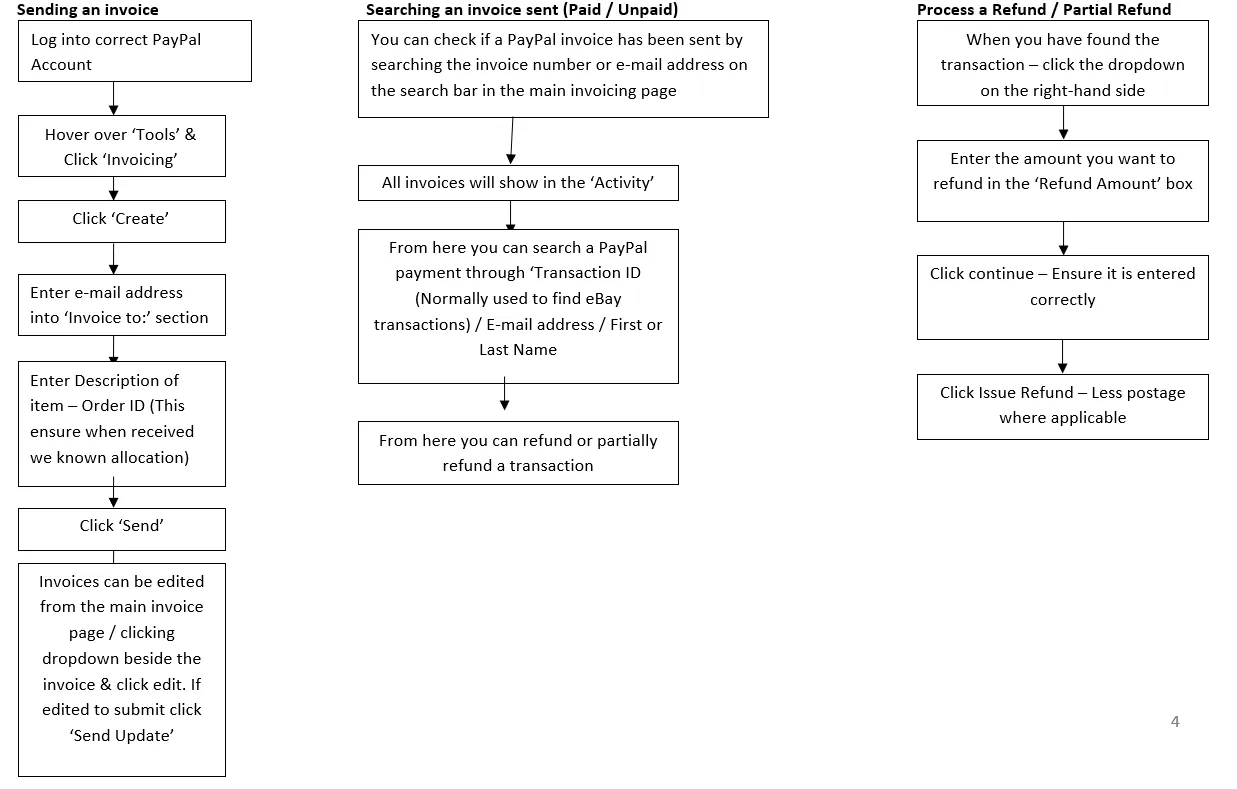
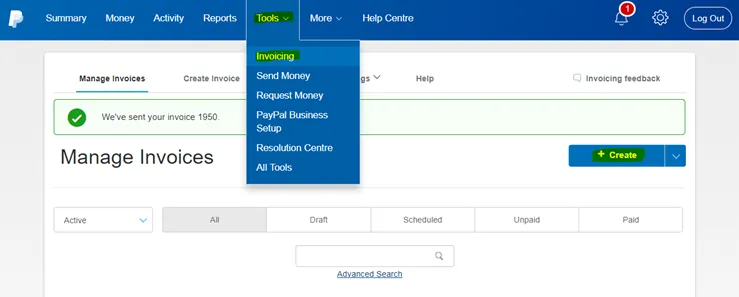
SENDING AN INVOICE#
- Go to Tools Menu>>Invoicing>>Create
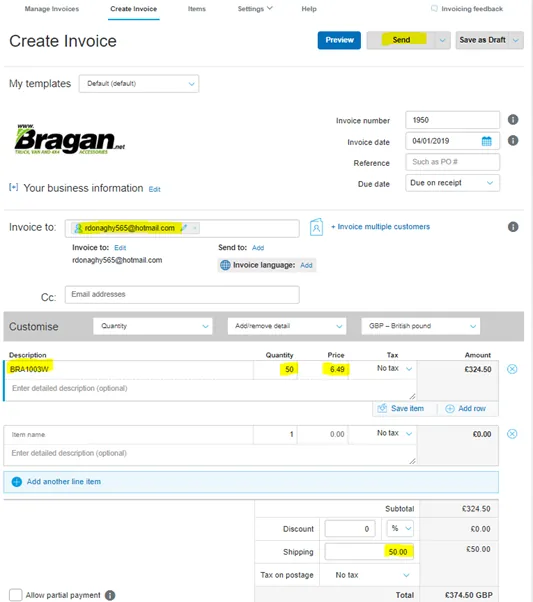
- In the “Invoice to” put customer email address
- Enter Description of item – Order ID
- Enter Quantity>>Price>>Shipping
- Click Send
SEARCHING AN INVOICE#
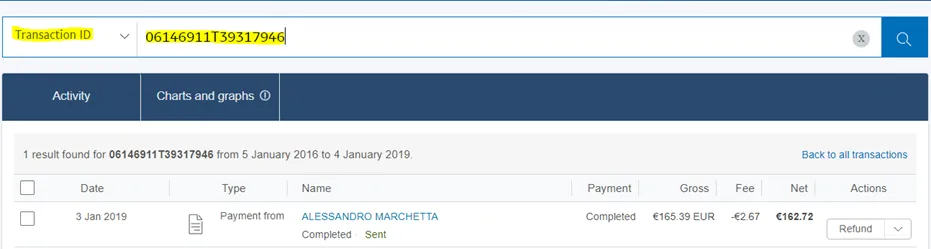
- Go to Activity Menu>>Click “Email Address”Search box
- Enter Email Address/Transaction ID
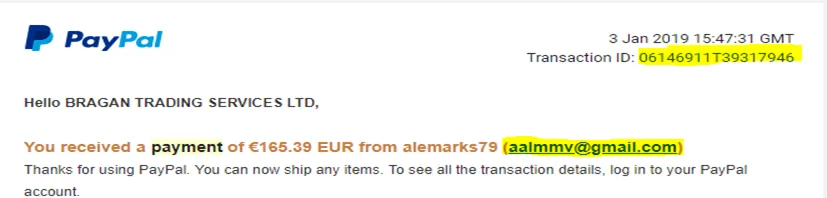
We can search either of the above highlighted through PayPal Activity
PROCESS A REFUND / PARTIAL#
- Search the transaction in Activity Menu
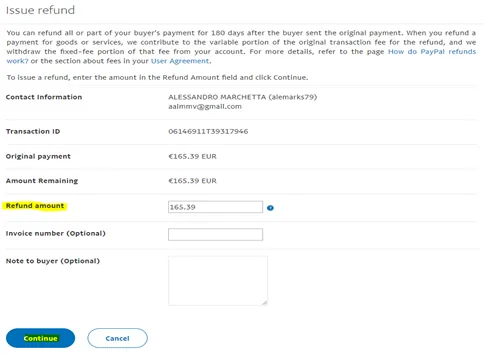
- Find the customer’s invoice with the refund >> Select Refund in Actions column

- Enter the refund amount
- Click Continue
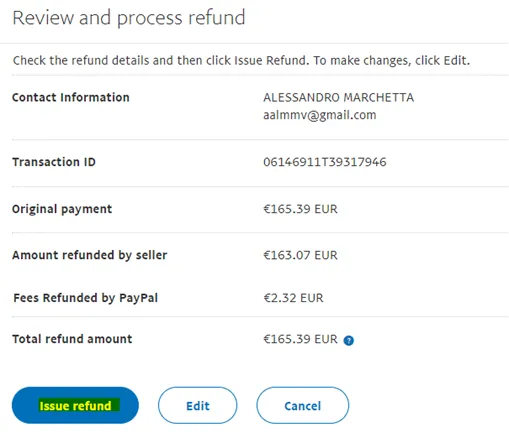
- Review the details and Screenshot of figure1 for sending proof of remittance to customer
- Click Issue Refund
TO VIEW RELATED ACCOUNTS AND PAYPAL#
CONFIRMATION IN ZENDESK#
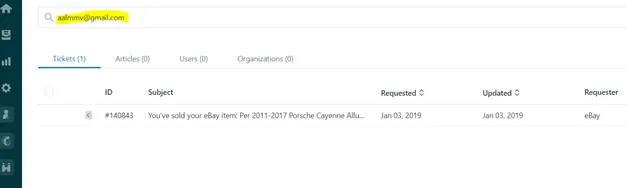
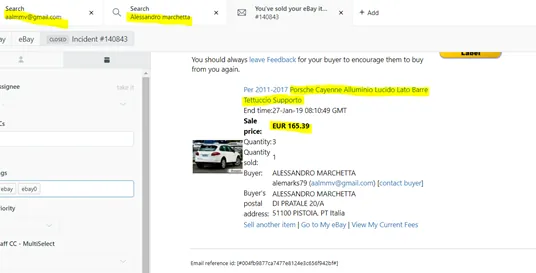
To help agent search on relevant account and related paypal transactions in Zendesk use the exact search
Requester’s or customer’s email Username Name Any content of the email (exact wording or verbatim)
Video & Media#
🎥 Sending & Refunding a PayPal invoice
Notes#
This section is important so Adhoc points and issues can be logged. Also, Q&A can be logged for suggestions for potential issues encountered. Also, log important notes needed for this system. Potential Issues:
1 - ISSUE ENCOUNTERED: Stuck on Loading RESOLUTION: Refresh Browser
2 - ISSUE ENCOUNTERED: Broken Links RESOLUTION: Get the external link as this will allow other people to access the SOP without the need for login credentials and avoid broken links.