Supplier Credit Note
Create a credit note to reduce an amount you owe your supplier.
Overview#
Purpose: Create a credit note to reduce an amount you owe your supplier. Add a credit note to record a refund received from a supplier.
Scope: This procedure covers the use of Xero to send credit notes to supplier. This SOP applies to Operations Team and Accounts.
Responsibility: You need the advisor, standard, invoice only - approve & pay, or invoice only - purchases only user roles to add a supplier credit note. It is the responsibility of the Accounts Team to reconcile the payment and outstanding balance of the customer In case of refund, returns and discount, please advise the management and have it approved and logged in Daily Metrics
Objective: Issue a credit note if you need to make a correction to bill. This leaves an audit trail for you and supplier.
Procedure#
To record a refund received from a supplier, add a credit note and include the reason for the refund, or reference to the original bill. You can also record the refund payment received on the credit note.
Enter credit notes from the Purchases overview, directly from a bill, copied from an existing credit note, or from your suppliers contact details.
Any changes made to a credit note will be recorded in the History & Notes section. The details will appear once the credit note is saved.
Credit notes have their own numbering sequence
You can apply more than one credit note, or payment to a invoice, but you can only credit up to the amount owing on the bill
Add a credit note from a bill#
If you have an awaiting payment bill for a supplier that needs to be credited, create a credit note directly from the bill:
- In the Business menu, select Purchases.
- Click See all, then select the Awaiting Payment tab.
- Open the bill you want to add the credit note to.
- Under Bill Options, select Add Credit Note.

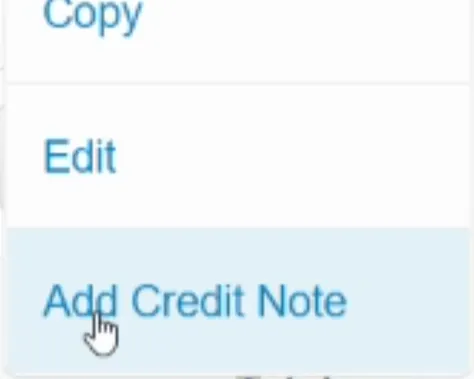
-
Confirm and edit the pre-populated details on the credit note.
-
You can record of the bill being credited in the Reference or Description field.
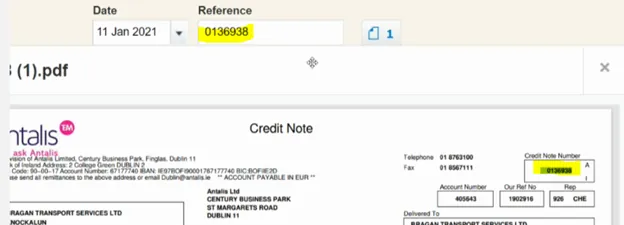
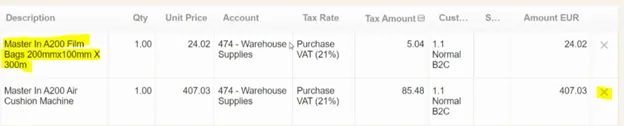
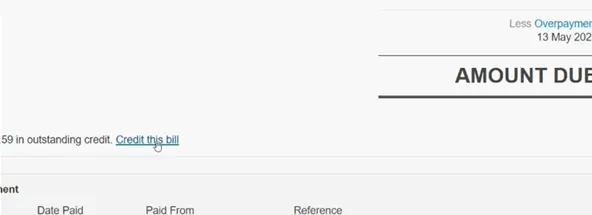
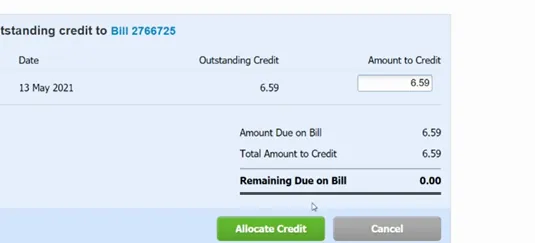
- Click Approve to automatically allocate the credit note to the bill.
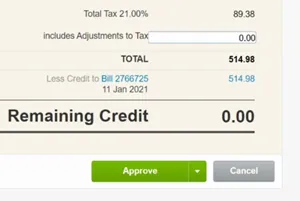
Or, click Save if you need to come back to this, and want to allocate the credit note manually.
Video & Media#
Notes#
This section is important so Adhoc points and issues can be logged. Also, Q&A can be logged for suggestions for potential issues encountered. Also, log important notes needed for this system. Potential Issues:
1 - ISSUE ENCOUNTERED: Stuck on Loading RESOLUTION: Refresh Browser
2 - ISSUE ENCOUNTERED: Broken Links RESOLUTION: Get the external link as this will allow other people to access the SOP without the need for login credentials and avoid broken links.
Attachments#
Attachments_and_Recordings… 16/12/2025