TAN (C&E) Payments
The procedure will help you to understand the procedures involved when importing
Overview#
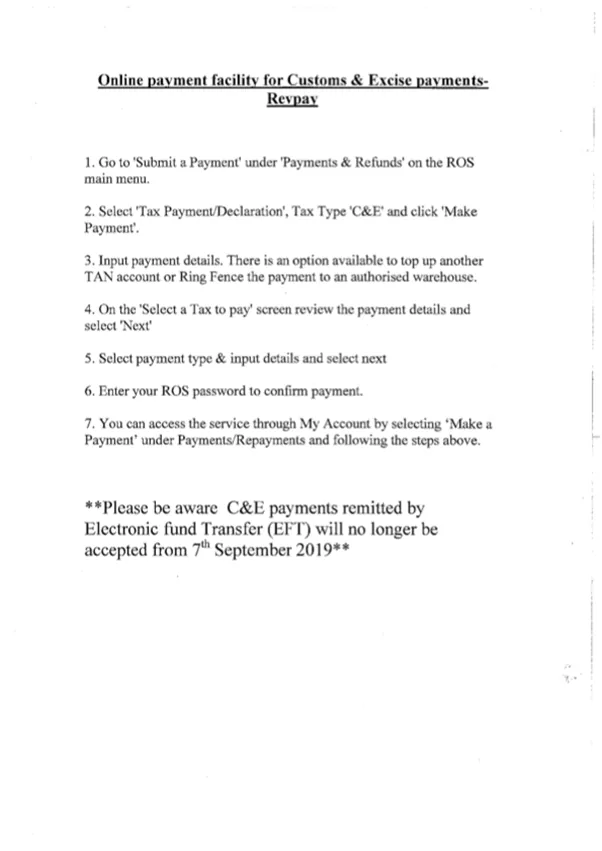
Purpose: The procedure will help you to understand the procedures involved when importing goods and the customs formalities involved. Revenue is responsible for controlling imports into Ireland for customs purposes and on behalf of other government departments. All goods imported into Ireland must be declared to Revenue in advance of arrival. If registered for ROS, you must be Customs & Excise (C&E) / Economic Operator Registration Identification (EORI) registered prior to using RevPay to make payments for C&E. A Revenue Trader Account Number (TAN) is a number provided by Revenue that acts as a secure channel through which you can make payments, for example, pay import duties. The easiest way to top up your TAN account is using revenue’s RevPay.
Scope: This procedure will give you walkthrough on Revenue Online Service Online facility for Customs and Excise payments. The procedure applies with the Operations, Accounts and Management.
Responsibility: It is the responsibility of accounts, Procurement and management to secure payments for C&E and communicate with the Operations and freight company (Transglobe)
Objective: To may TAN /C&E payments through REVPay To guide new and existing Accounts personnel on the standard procedures To streamline purchase and shipping of cost of goods sold

Section 1. Customs and Excise Procedure through
REVPAY#
MICROSOFT EDGE MUST BE USED ON THE#
ACCOUNTS PC#
How to do TAN payments for income and#
containers
Step 1 Log in to ROS www.ros.ie to get to these dashboard
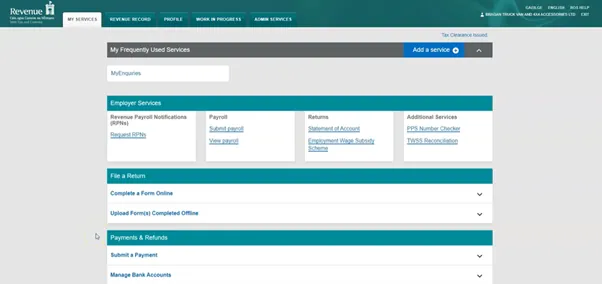
Step 2 Select Submit a Payment
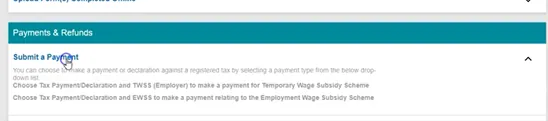
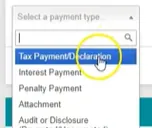
2.a Select Tax Payment/Declaration as payment type
2.b Select C&E in tax type dropdown
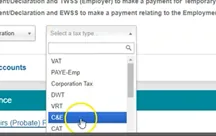
2.c Click Make Payment button
Step 3 Input payment details.
3.a From the Customs and Excise Screen, enter the correct year and correct period in which you want to allocate the payment
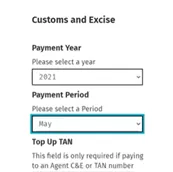
3.b Top Up TAN -There’s two TAN numbers, you need clarification and confirmation with Trans Globe shipping Ltd. This field is only required if you are allocating payments to an Agents C&E Registration number or TAN account. Please ensure the Registration number entered where applicable is correct.
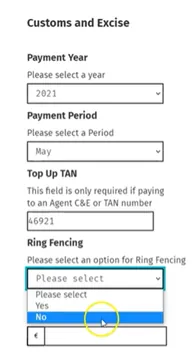
3.c Ring Fencing – Select No. this field is optional and is only required if you have an approved warehouse and want to ring fence the payment to a particular warehouse. You can only Ring Fence for the current period and cannot Ring Fence for a period that has passed.
3.d Enter Payment Amount. Please also confirm the amount payable to Trans Globe
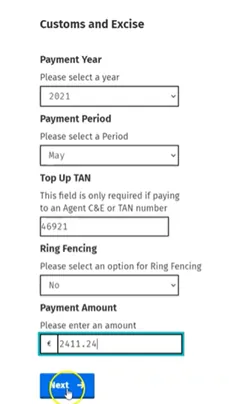
3.e Select “Next” to proceed with the payment.
Step 4#
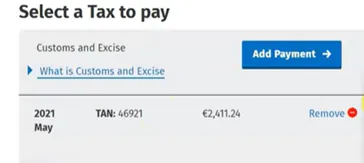
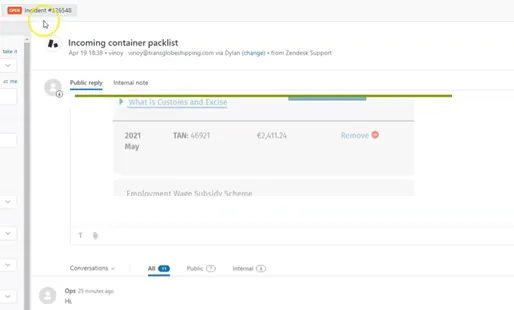
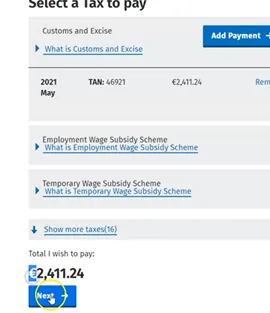
4.a On the ‘Select a Tax to pay’ screen review the payment details. Double check TAN number. Double check the amount. Take screenshot of the remittance and reply to Zendesk email.
4.b Click Next
Step 5#
5.a Select Payment Type.
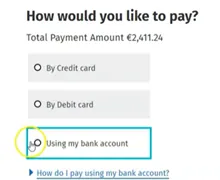
5.b And Enter Bank details. Refer to Zendesk Macro 304 for Irish account details.
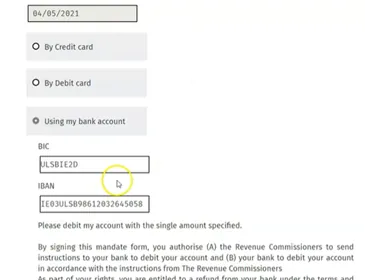
5.c Select Next
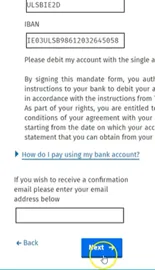
5.d Screenshot for remittance. And include this is reply to Trans Globe in Zendesk email. Click Next
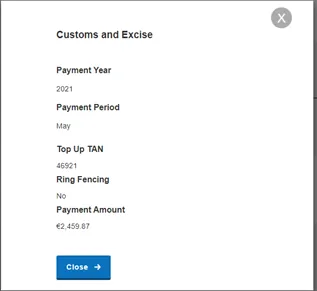
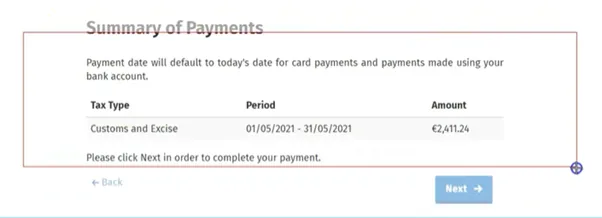
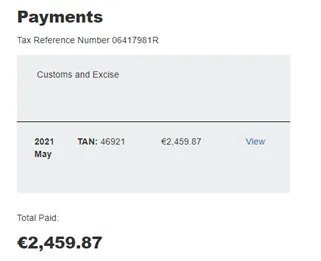
*can be accessed from ROS by opening payment record & clicking on VIEW
Step 6#
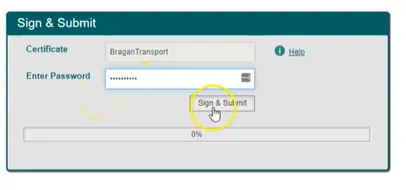
6.a Enter ROS password to confirm payment. Click Sign & Submit
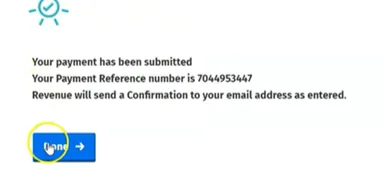
6.b Click Done
Video & Media#
Notes#
This section is important so Adhoc points and issues can be logged. Also, Q&A can be logged for suggestions for potential issues encountered. Also, log important notes needed for this system. Potential Issues:
1 - ISSUE ENCOUNTERED: Stuck on Loading RESOLUTION: Refresh Browser
2 - ISSUE ENCOUNTERED: Broken Links RESOLUTION: Get the external link as this will allow other people to access the SOP without the need for login credentials and avoid broken links.