TransferMate
Managing international payments, reconciling invoices & dealing with local regulations
Overview#
Purpose: Managing international payments, reconciling invoices & dealing with local regulations can cause huge headaches. How do you manage this? TransferMate is a market leading, globally regulated, B2B payments technology company, enabling organizations to send & receive cross-border payments faster and easier than ever before.
Scope: This SOP covers the detailed process of using TransferMate. This procedure applies to Accounts Department in paying the Suppliers, the Payroll Department and those authorized to payments
Responsibility: Roles and Responsibilities:
- Employees are responsible for providing all required documentation, such as clock-in cards.
- The Payroll Department is responsible for the verification of payroll details of each employee and making correct payments
- Authorized users are in charge of Smart Card Authorization
Objective: 1. To streamline B2B payments enabling organizations to send & receive cross- border payments faster and easier
- To Receive the correct amount every time, eliminating expensive wire fees. AMOUNT BILLED = AMOUNT RECEIVED
- To standardize the process and guide the one holding the accounts

Process Flow#
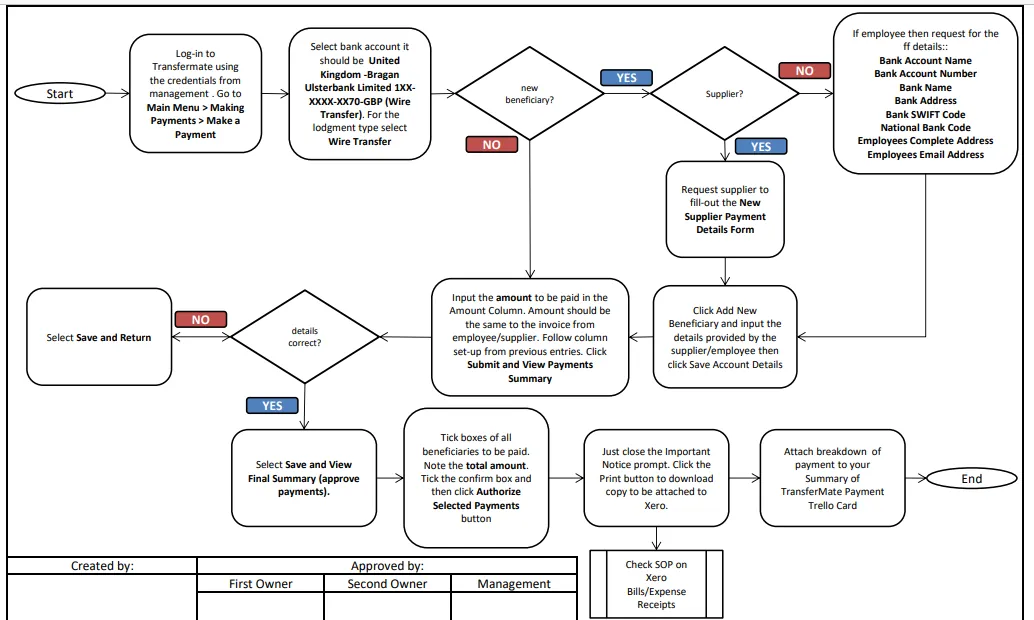
Arrange Payment to Beneficiaries#
Procedure#
Arrange Payment to Beneficiaries#
TransferMate is usually used when processing the salaries of the PH team and also in paying some of the suppliers. TransferMate do not have stored funds, you still need to transfer funds from company's bank account to TransferMate within 48 hours
after making your payment. But as a company rule, make sure to transfer the funds immediately after making payment for payroll.
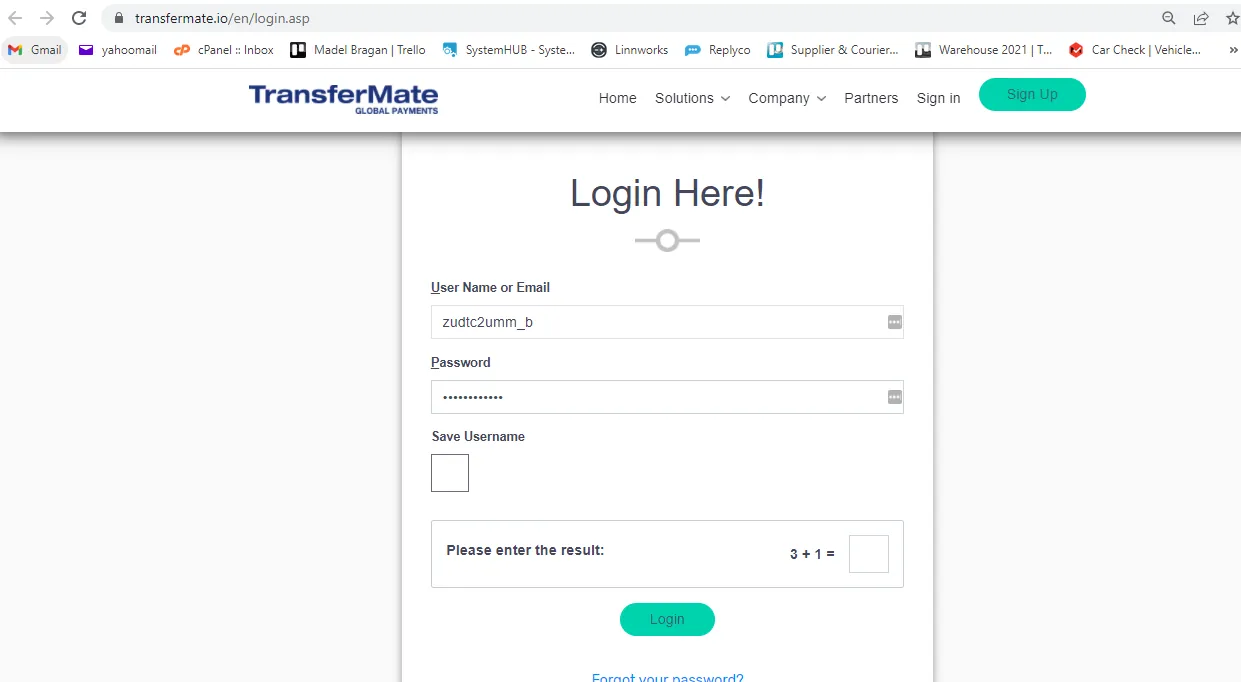
- Go to Transfermate and log in using the credentials provided by management. Answer the Math problem and click Login
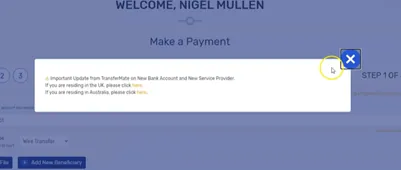
- Click X to close prompt message
- Go to Main Menu > Making Payment > Make a Payment
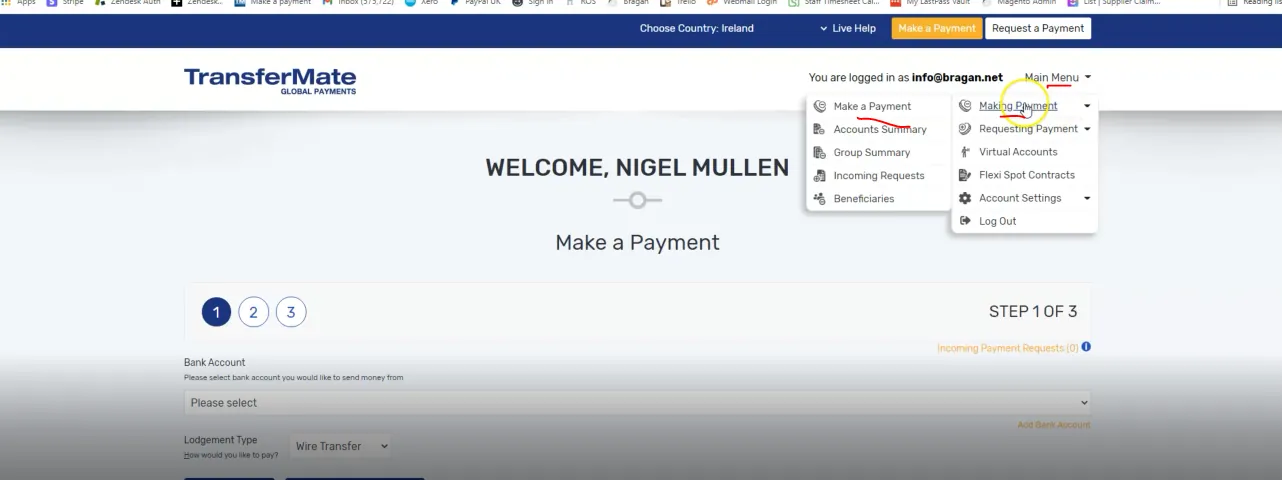
- Select bank account. For TransferMate it's always coming out of the Sterling Account of the Northern company so choose United Kingdom -Bragan Ulsterbank Limited 1XX-XXXX-XX70-GBP (Wire Transfer)
Note: if anything coming out of transfermate should come out from the sterling account what is the purpose of this note?
For Bragan 4x4 Suppliers choose "United Kingdom-Bragan Transport Services Ltd Ulster Bank Limited2xx-xxxx-xx38-GBP(Wire Transfer)
For Bragan Trading choose "United Kingdom -Bragan Ulsterbank Limited 1XX- XXXX-XX70-GBP (Wire Transfer)
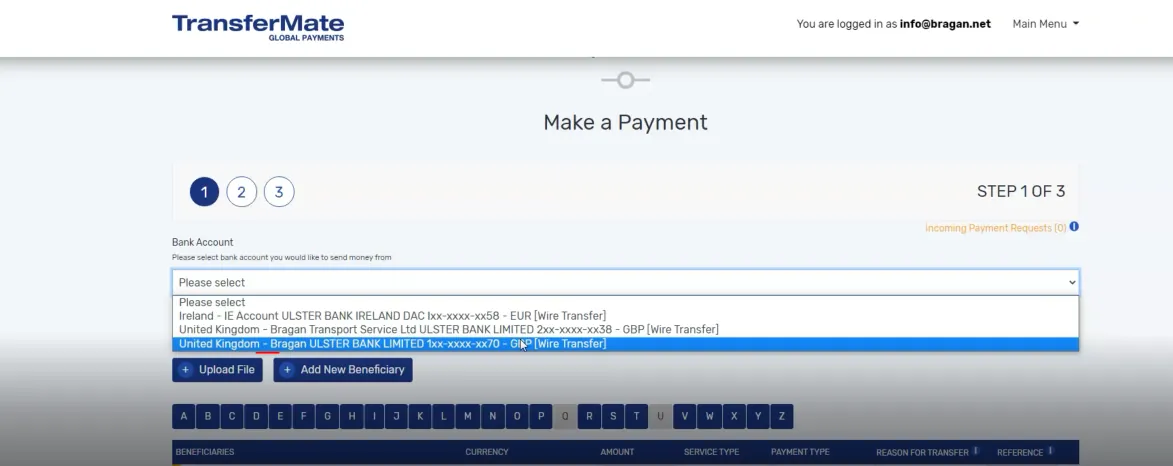
-
For the lodgment type it should always be Wire Transfer.
-
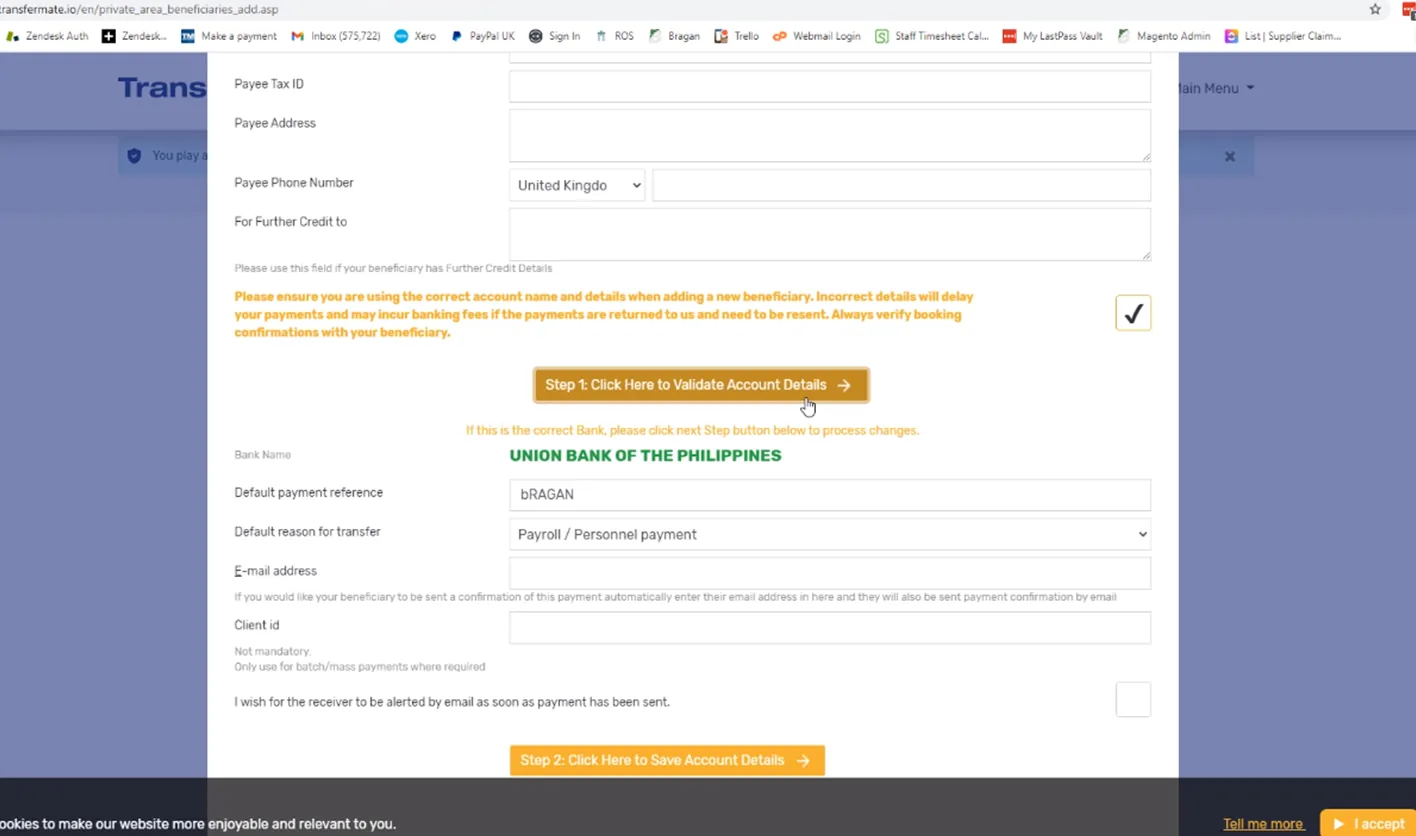
Scroll down and you can see all the beneficiaries (all Team PH and all suppliers enrolled or added in our TransferMate Account). If there is a new employee or supplier then just click Add New Beneficiary so that they will be added in the list.
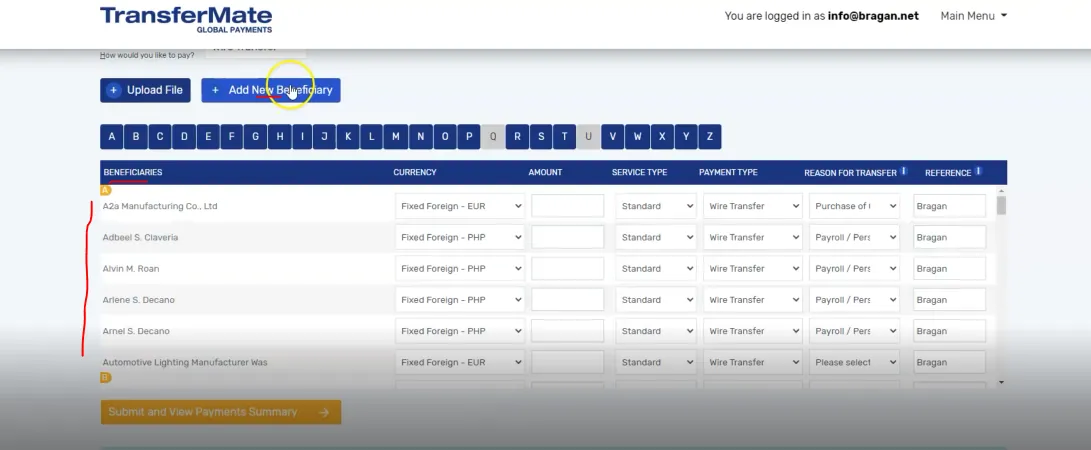
- To add a beneficiary the following information are needed. Please note that the requirements are different for new supplier and for a new employee or individual.
For new employee these are the information needed:
Bank Account Name
Bank Account Number
Bank Name
Bank Address
Bank SWIFT Code
National Bank Code
Employees Complete Address
Employees Email Address
Employee can send these information to account personnel through private message in Skype.
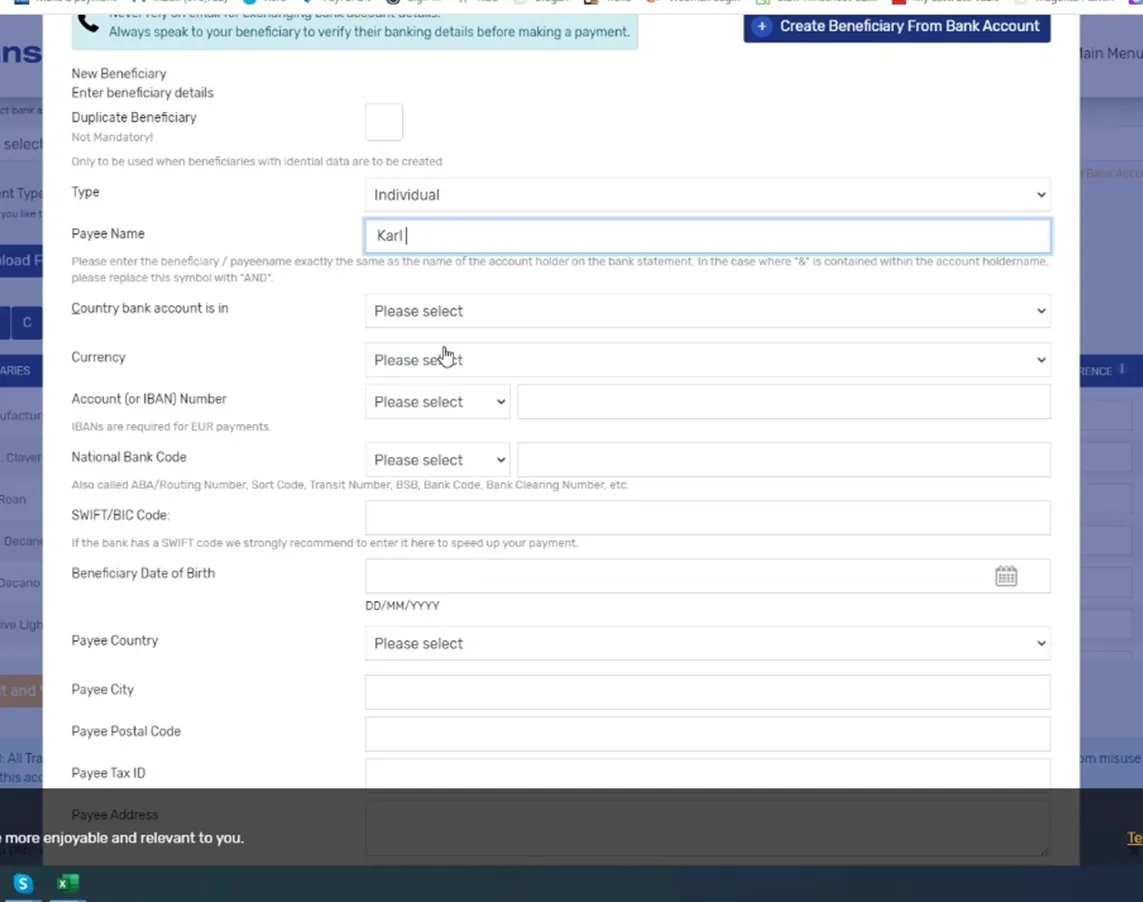
For new supplier they need to submit a filled-out copy of the New Supplier Payment Details Form (please see attachment for the form).
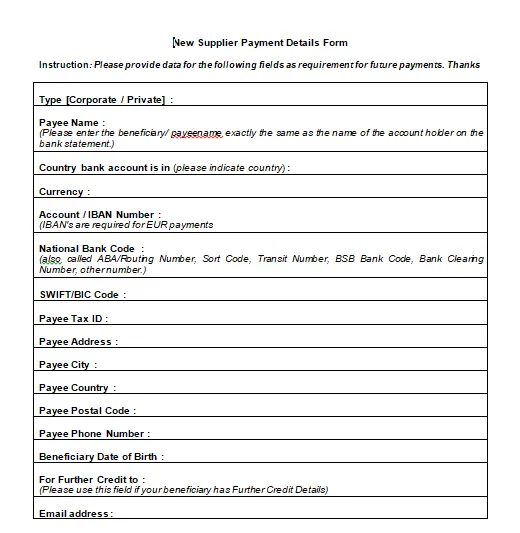
Note: When adding beneficiary details make sure to double check everything. Then save account details.
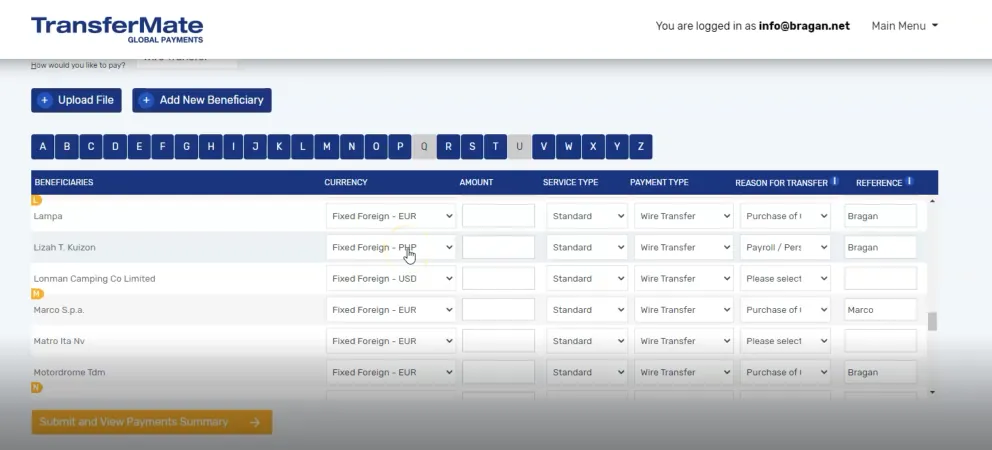
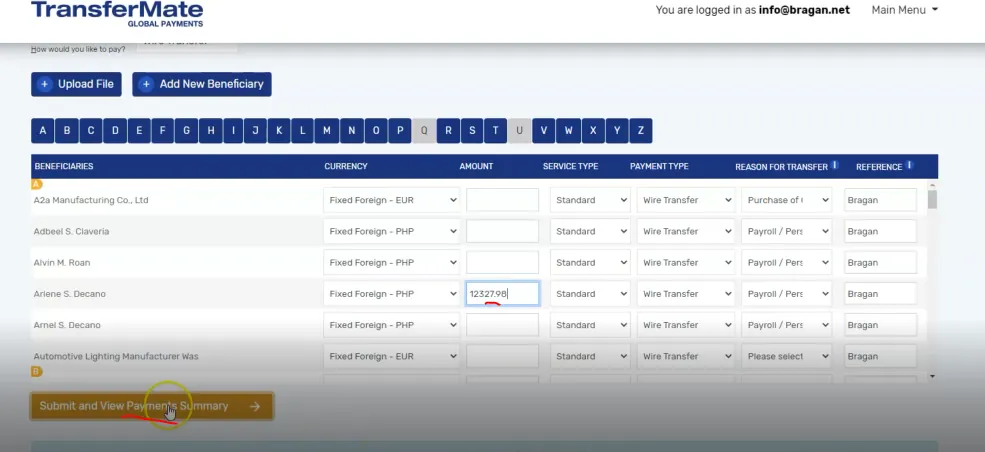
- Once everyone are set-up you can then proceed to making payment. As reference the set-up should look like the table and snipe below:
| Beneficiary | Currency | Amount | Service Type | Payment Type | Reason for Transfer | Referenc |
|---|---|---|---|---|---|---|
| PH Team Employee | Fixed Foreign - PHP | input amount based on the invoice sent by employee | Standard | Wire Transfer | Payroll/Personal Payment for Wages | Bragan |
| Supplier | Fixed Foreign - (currency used by the supplier either EUR, USD, etc) | input amount from supplier invoice | Standard | Wire Transfer | Purchase of Goods for Suppliers | Bragan |
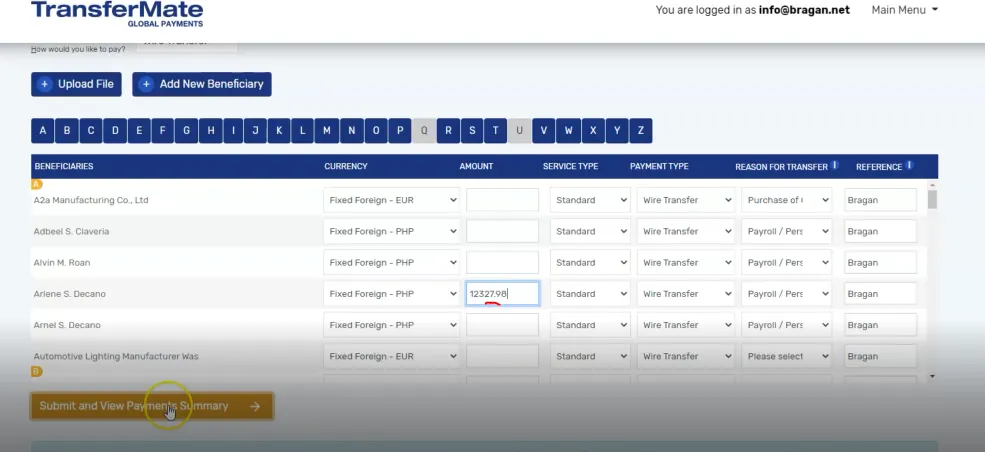
- Enter Amount In the amount column. This amount should correspond to the amount found in the invoice sent by the employee or the supplier. Since currency is set at PHP then the amount entered here should also be in PHP.
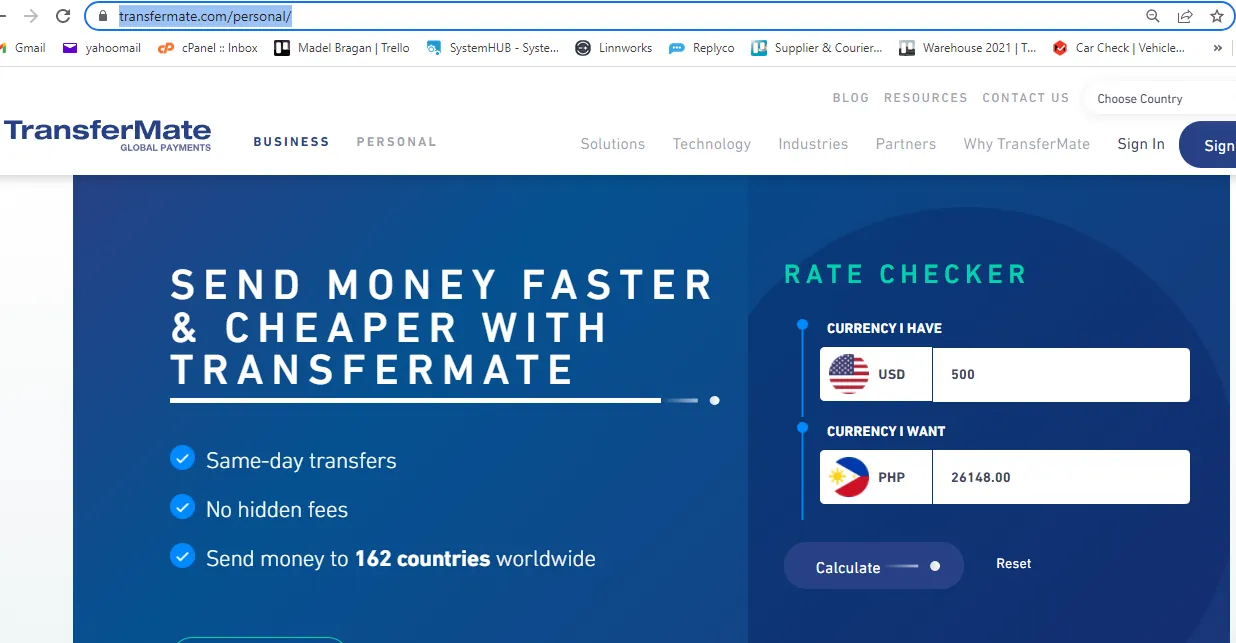
Note:
You can use the TransferMate Converter to double check the exchange rate.
- Once done. Click Submit and View Payments Summary
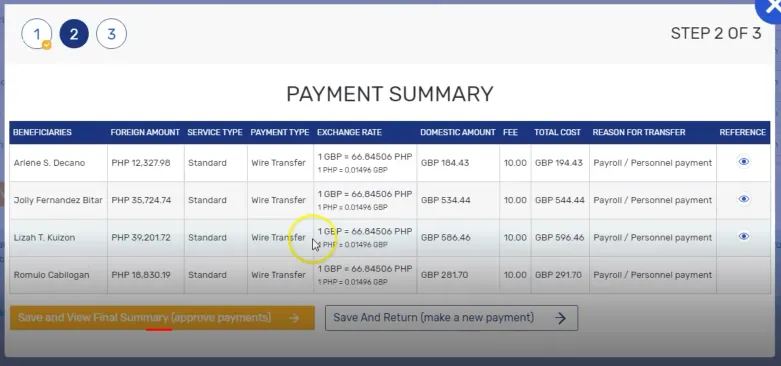
- A payment summary window is shown, review everything here. Check if all employees or suppliers are included and if the amounts are correct. Click Save and Return if you need to edit something. But if all are good then click on Save and View Final Summary (approve payments).
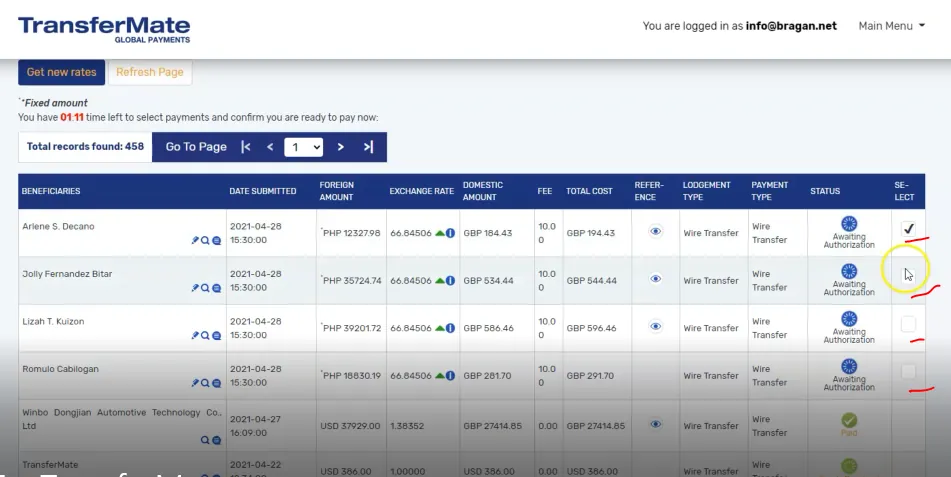
- You are now given 1:20 minutes to select the payments and confirm that you are ready to pay. Make sure to tick the boxes of all beneficiaries that you are paying within the time period.
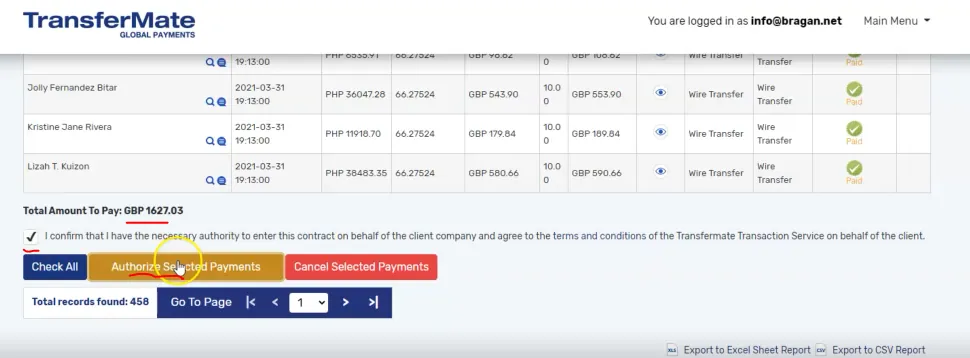
- Once you checked all that you are paying, scroll down to the bottom of the page and note the total amount to pay for bank reconciliation. Click the checkbox to confirm and make an authorize payment by selecting Authorize Selected Payments button
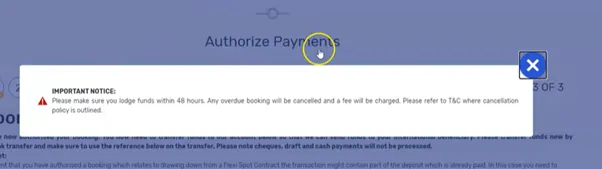
- An important notice will appear. This is a notice that you need to transfer fund from the bank to TransferMate within 48hrs. Bragan Policy however fund the transfer immediately for payroll. Just close by clicking X button.
- You will now see the breakdown of payments, then scroll down and click on the Print button to save a PDF copy which you will attach in Xero. To know the process for this step, the adding of expenses to Xero check this SOP on Xero Bills/Expense Receipts. Hi adrian please confirm if this is the correct SOP that I linked.
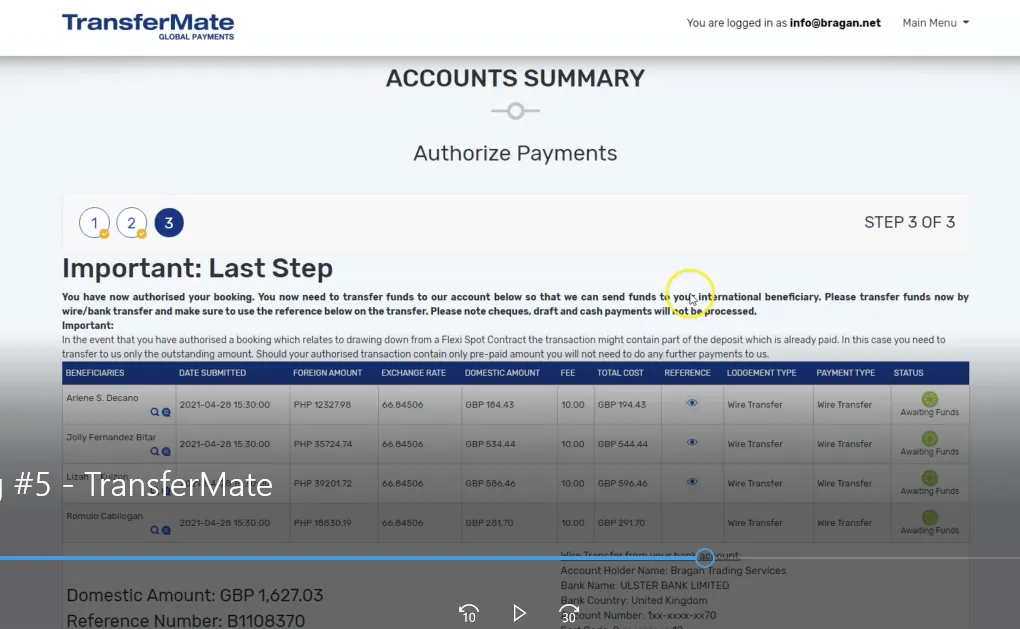
- Attach also this breakdown to your Summary of TransferMate Payment Trello Card. Click here for the template. Need to request to management for access.
- Immediately proceed and follow the steps in this SOP on How to Transfer Fund From Bank to TransferMate
Video & Media#
Notes#
This section is important so Adhoc points and issues can be logged. Also, Q&A can be logged for suggestions for potential issues encountered. Also, log important notes needed for this system.
Additional Notes:
If payment not received by supplier within 3 days - need to confirm bank account with supplier and contact Ann Marie Carrigan ([email protected]) thru email. Use Macro 808.
Potential Issues:
1 - ISSUE ENCOUNTERED: Stuck on Loading RESOLUTION: Refresh Browser
2 - ISSUE ENCOUNTERED: Broken Links RESOLUTION: Get the external link as this will allow other people to access the SOP without the need for login credentials and avoid broken links.
Attachments#
Arranging_Payments_to_Bene… 16/12/2025
New_Supplier_Payment_Detail… 16/12/2025