Dummy Claims
Dummy Claims.
A simple guide for the claim’s handler on processing dummy claims.
Preparation
Ensure to open Linnworks, Replyco/Zendesk, Claims Dropbox Folder, and FedEx Tracking Site.
Overview#
Responsibility: It is the responsibility of the claim’s handler to process dummy claims weekly (every Saturday). At least 1-2 per week.
Objective: To process dummy claims accordingly.
Process#
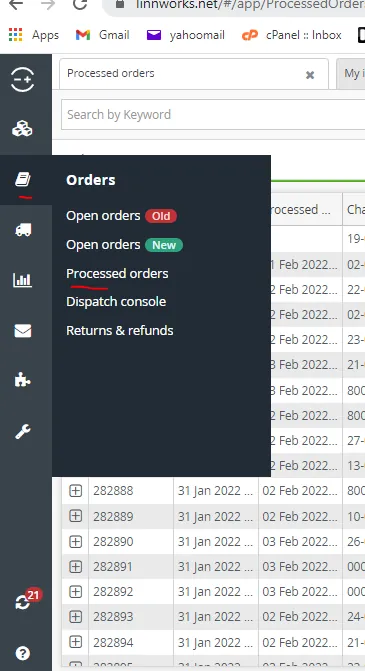
- Look for successful delivery. To do this go to Linnworks > Orders > Processed Order.
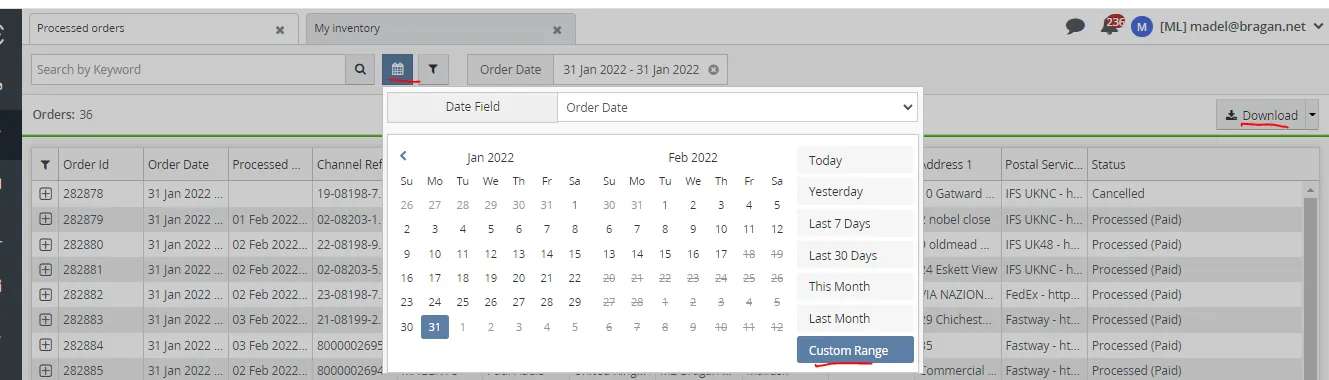
- Click on the calendar icon and choose Custom Range. Choose dates for the past three weeks from present date, for Fedex dummy claims. For example, if today is Feb 12, choose the dates Jan 24 - Feb 5. This is because FedEx takes 5-7 days delivery.
But for IFS and Fastway which only takes 2-3 working days for item to be delivered, date range should be from last week. For example, if today is Feb 12, date range should be from Jan 31 - Feb 5.
Processed orders within that dates will appear, click on download. An excel file will be downloaded for these processed orders.
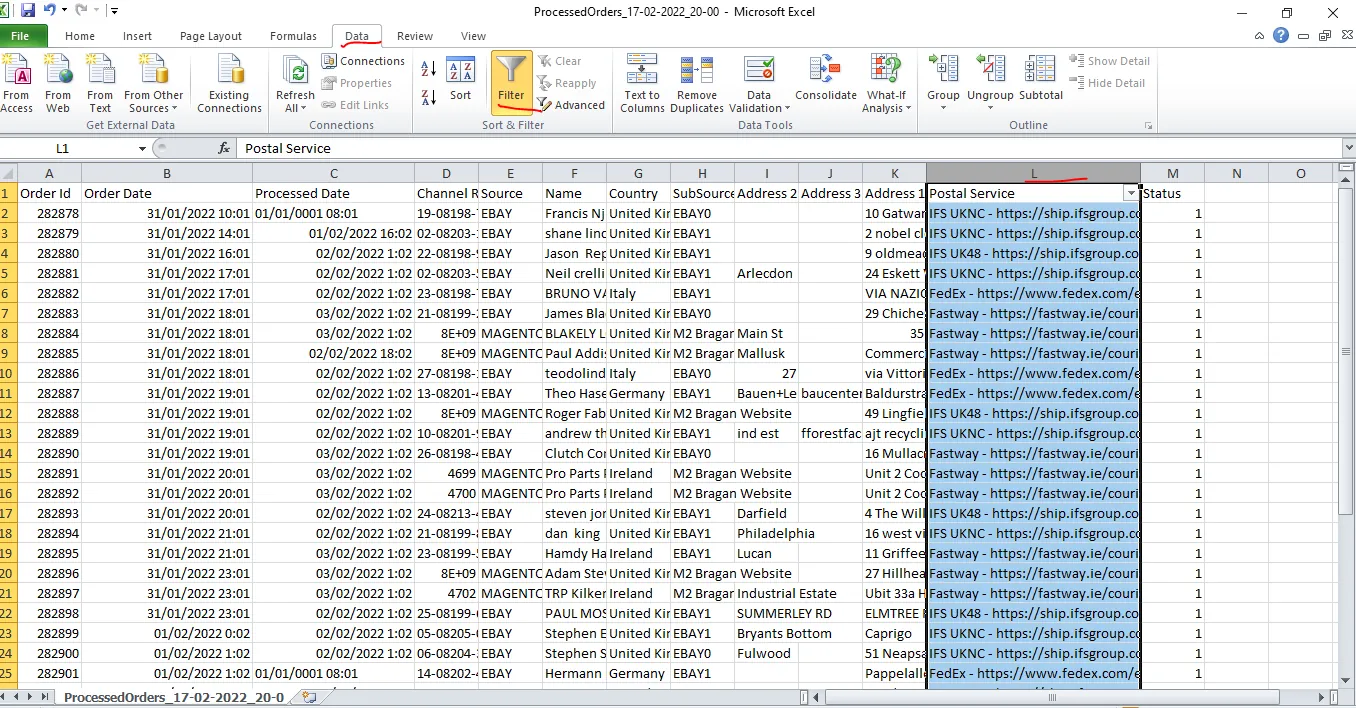
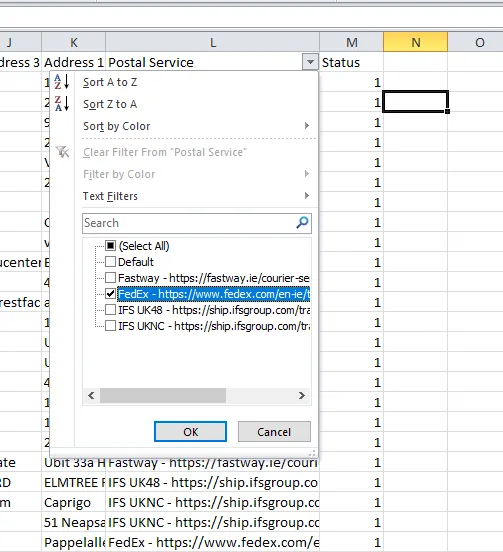
- Open the downloaded excel file. If you want to process a dummy claim for FedEx, click on the Postal Service column (highlight the whole column), click on Data then click Filter. A dropdown menu will appear (See Figure 3). Untick all except for FedEx then click OK (Figure 4). You will now see all the processed orders that use FedEx (Figure 5). Do the same if you want to process claim for IFS or Fastway. Untick all except for the courier you want to check.
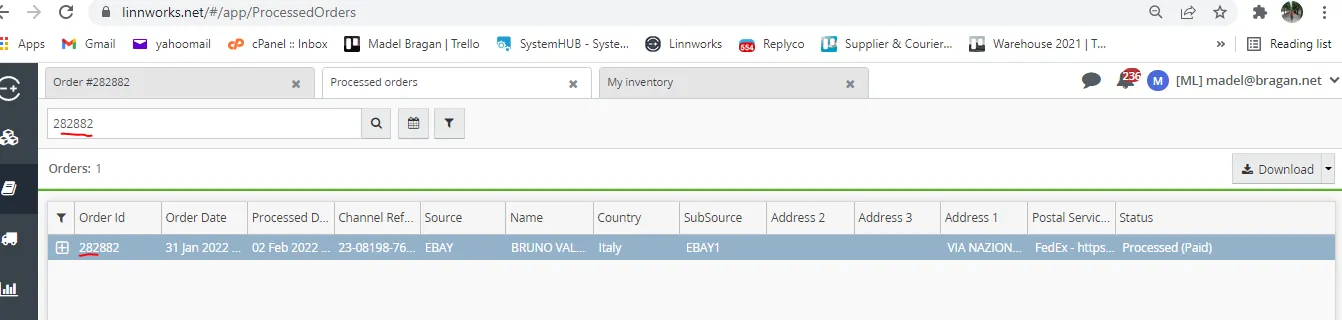
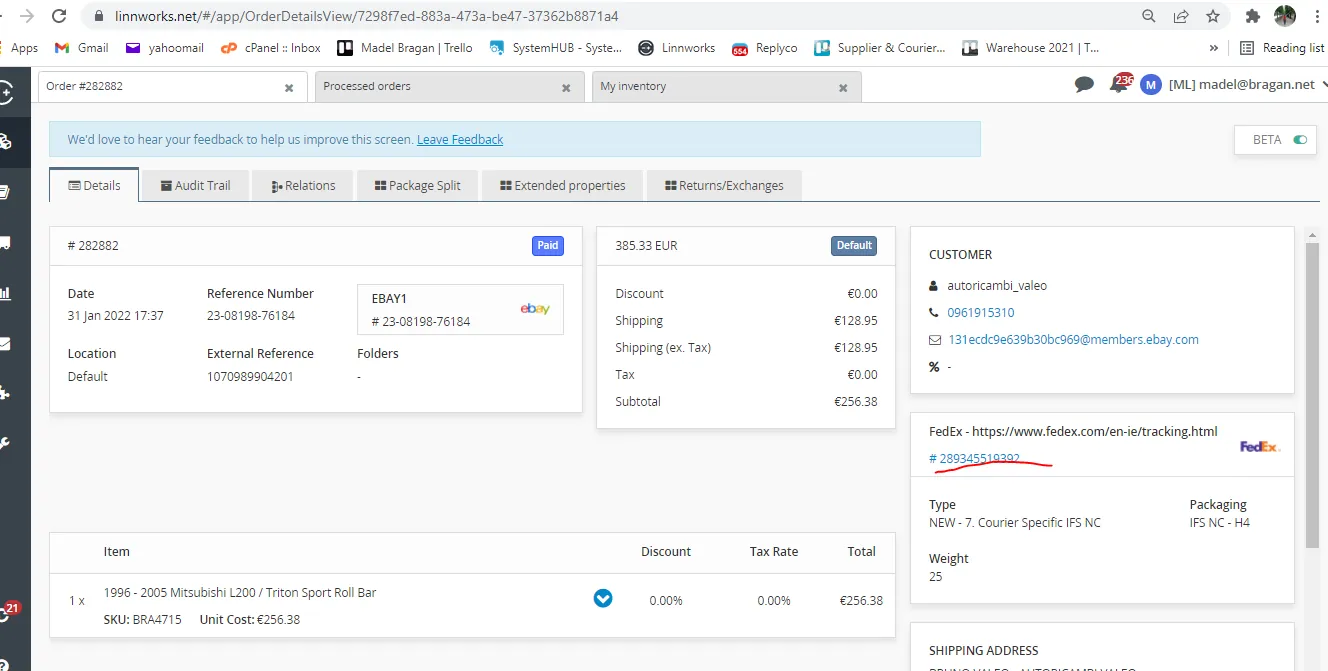
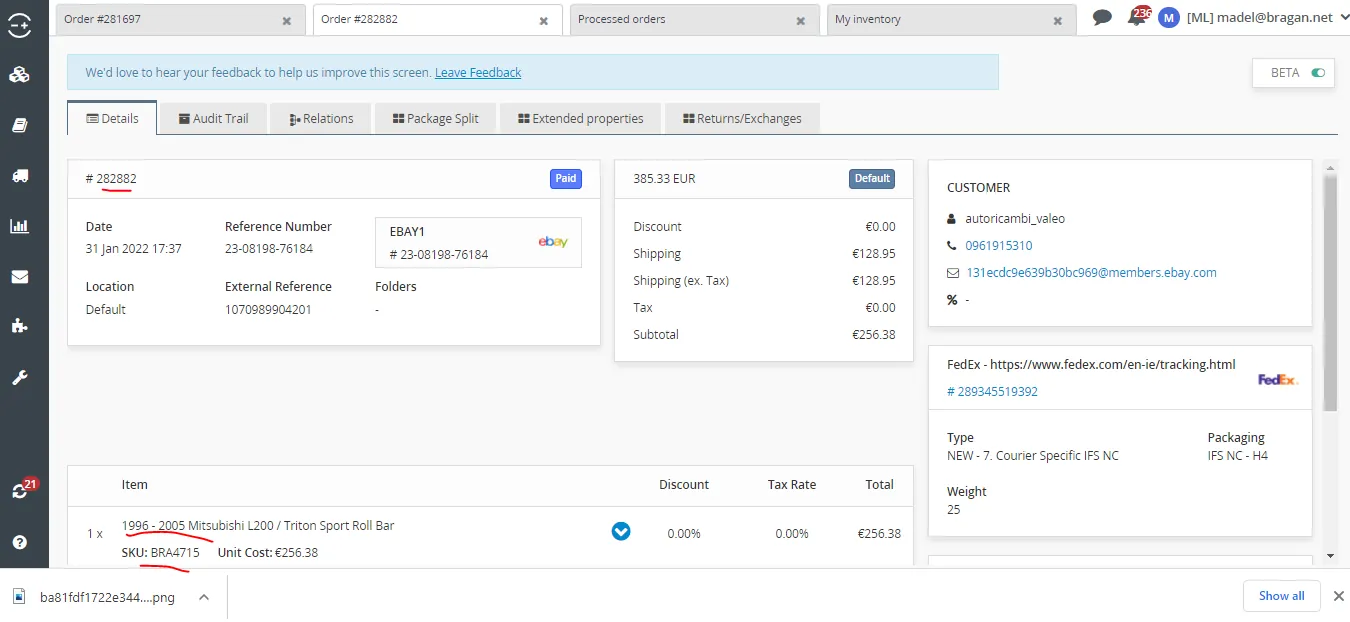
- In the example above (Figure 5), the orders were processed in Feb 2. Get the order number and search it one by one in Linnworks to get the tracking number. Let us search, order ID 282882 in the Processed Order in LW. Then double click on the order. You can now see the tracking number (See Figure 7).
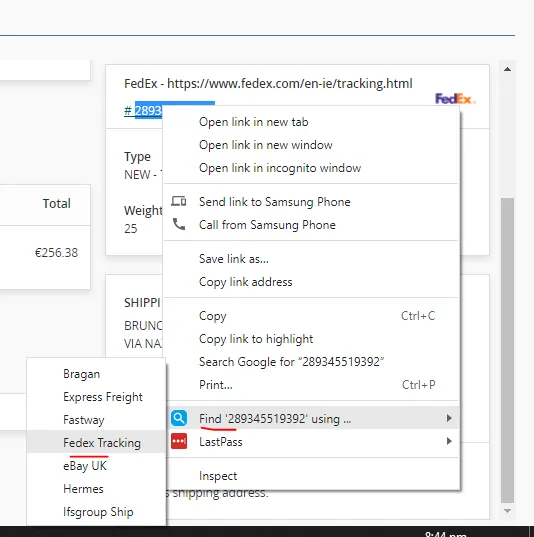
- Highlight the tracking number then right click on it and use the Selection Context Search - Right Click Chrome Extension to search the tracking details (Figure 8). To
know how to install this, see SOP here. This will automatically open the tracking detail of the item (Figure 9).
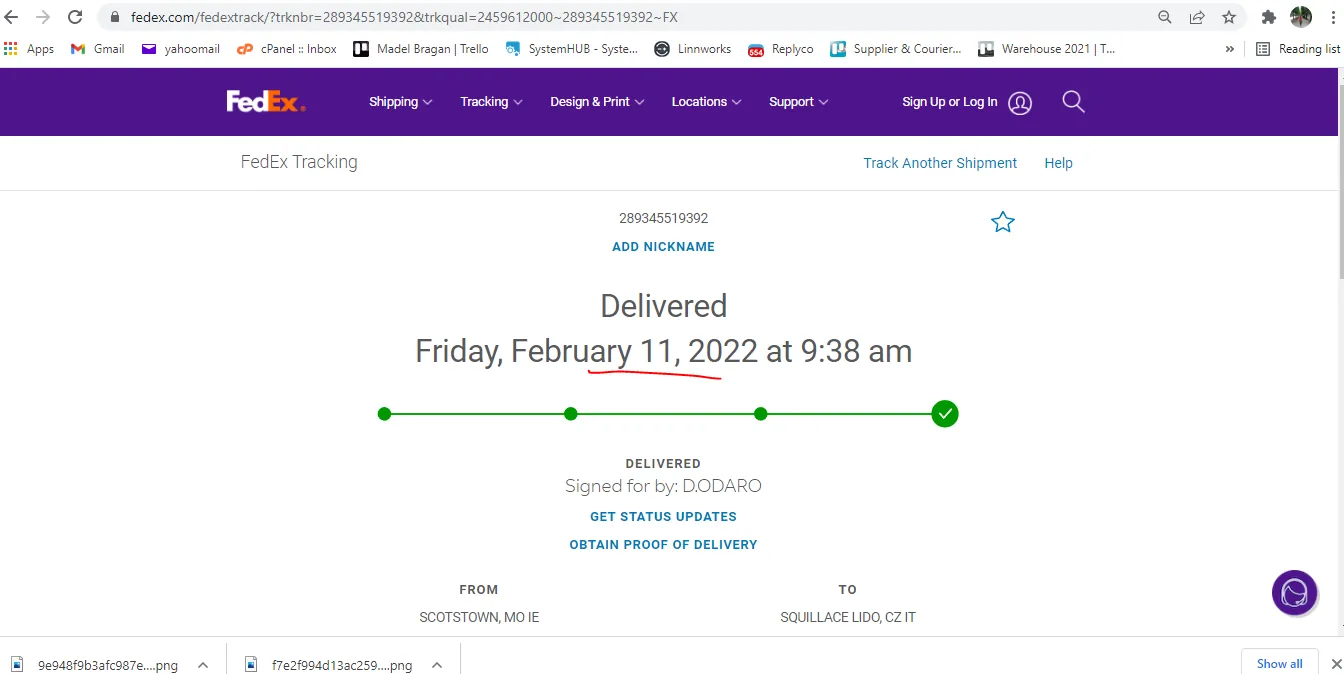
- Make sure that the delivery date is within the time frame for processing courier claims. For FedEx, the item should be delivered 3-7 days before the present date. For IFS and Fastway 2-3 days. From the above example (see step 2), the present date is Feb 12, therefore this item can't be used for a FedEx dummy claim since it was delivered 1 day before the present date. You can adjust the date range in Step 2 to consider delivery delays of courier.
Note:
If you found order number that can be used for dummy claim, make sure that there is no existing claim on this order. Check Supplier & Courier Claims Trello Board to verify if there is no existing claim for this order.
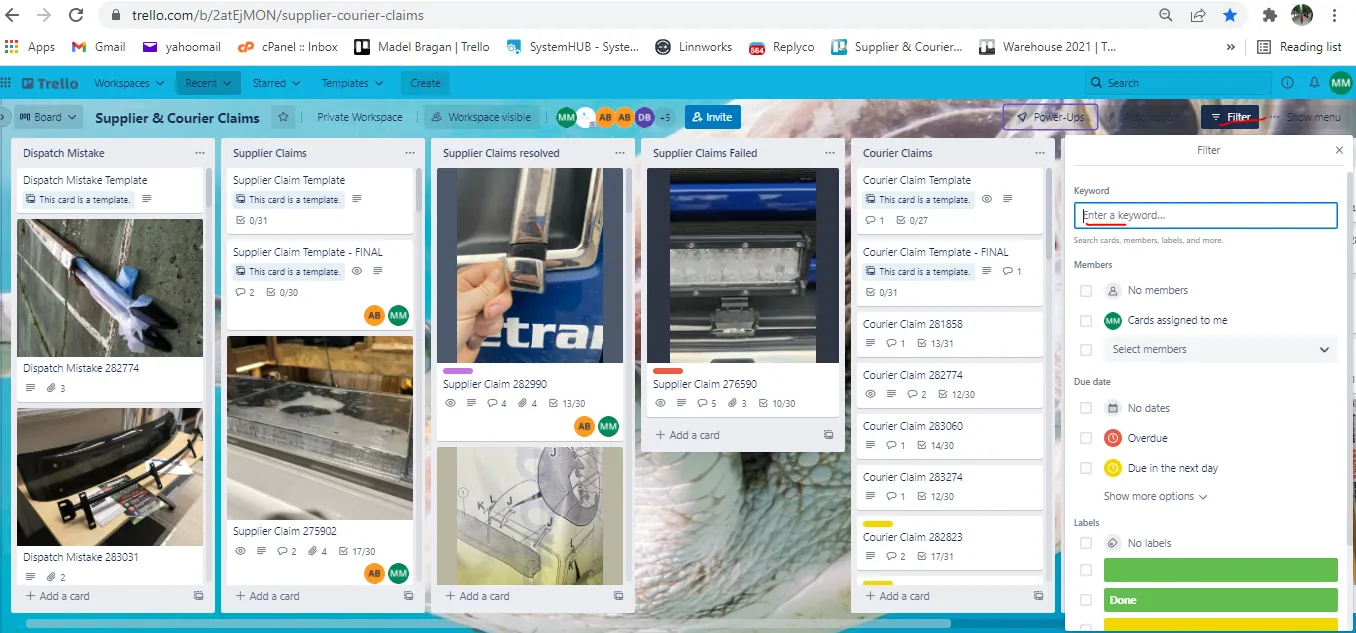
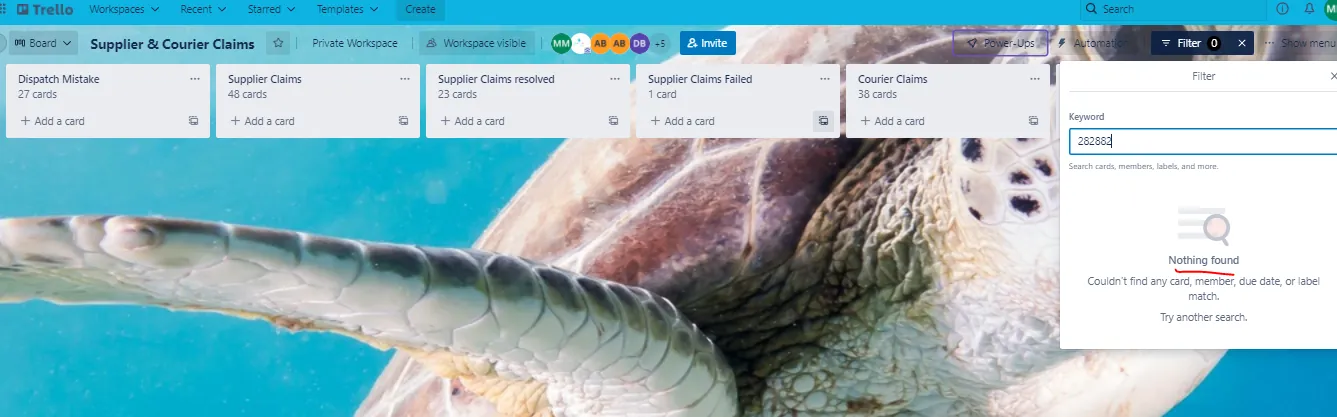
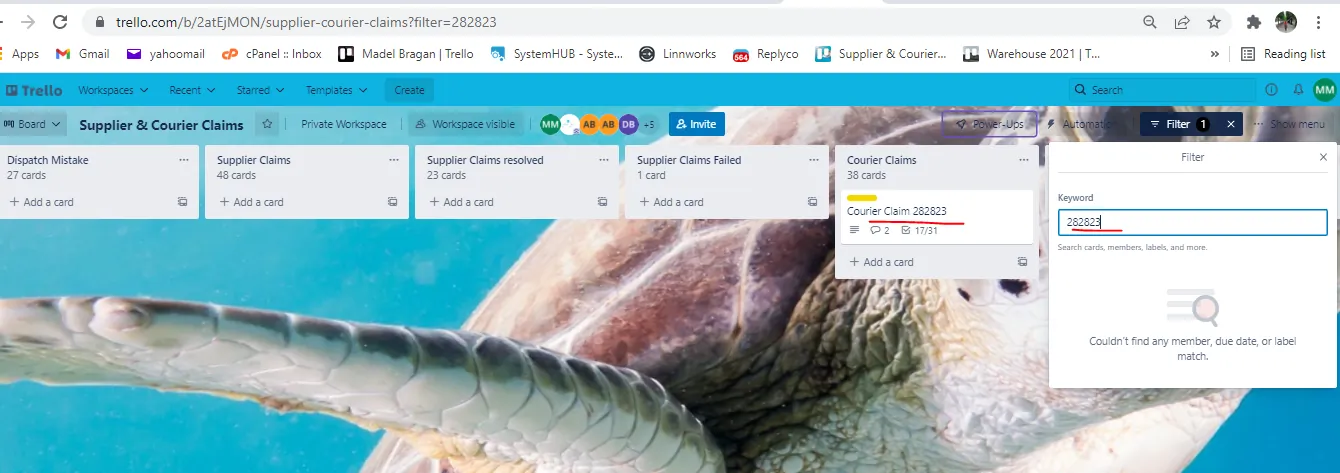
To do this click on the filter button and type in the LW order number in the Keyword Search bar (Figure 10). If there is no card with the same order number (Figure 11), then you can proceed in processing the claim. But if there is, then choose another order to process for the dummy claim (Figure 12).
- Once you confirmed that there is no existing claim for this order, the next thing to do is to look for pictures to support our claim. From the order number, search it again in LW to determine the item ordered. In the example below, the item is a roll bar for a Mitsubishi L200 1996-2005, BRA4715, you need now to search for damage picture of this item saved in the Damaged Item Pictures Dropbox Folder, you need to request management to invite you to this folder. See Figure 14 for the content of this folder.
- From above example, we are looking for BRA4715 roll bar for Mitsubishi L200 1996-2005, you can type the SKU in the Search bar. But if nothing appears, search it manually. Since we know that this item is for a 4x4, click on the 4x4 folder since click on the folder with the correct Make, then the Model and then the year. See
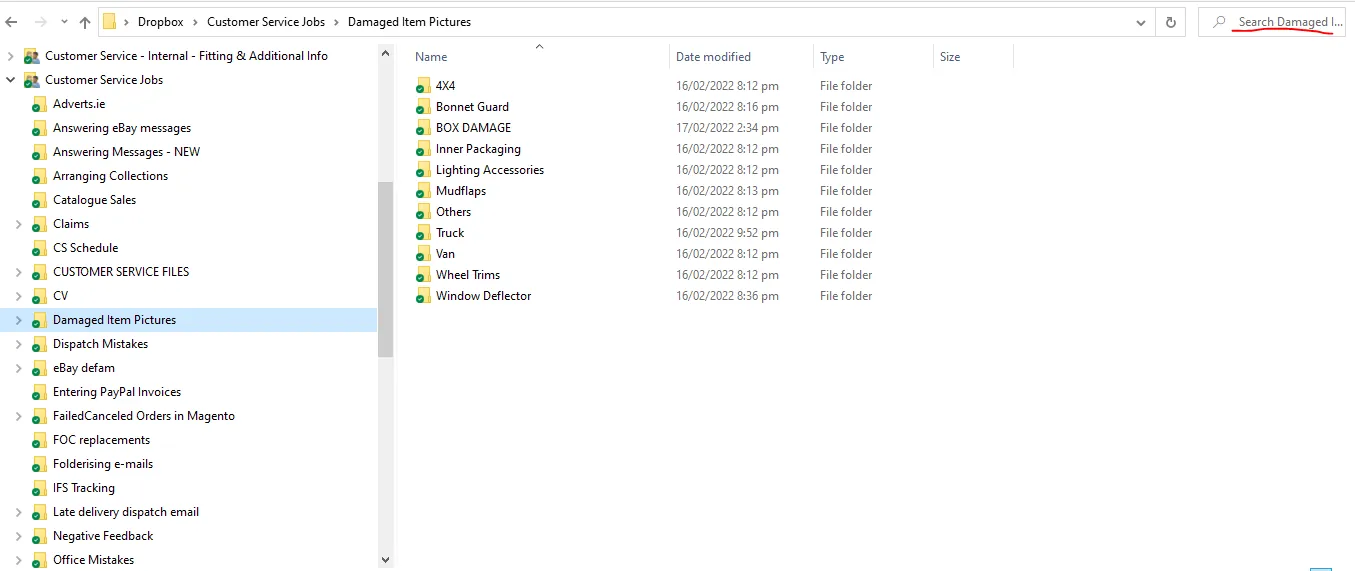

- But in this case, we do not have the correct year. If you cannot find the exact item, choose the nearest. Try to open the folders and look for a roll bar. If you cannot find it in the Mitsubishi folder, go to another folder with different make. Courier won't know the difference. Just make sure that the picture matches the description. Like if it is a stainless steel roll bar, choose the stainless one and not the black one.

Once you selected the item picture you want to use, rename it with the date for the day and the courier name. This way you will have a reference and won't send the same picture to the same courier. You can reuse the picture again for the same courier after 1 year.
If you want to use the same picture but for a different courier, for example Fastway, rename it by adding Fastway and the date it was used.
- Once you have the picture of the damaged item, next is to find a picture of a damage box. This is still found in the Damaged Item Pictures Dropbox Folder but in the BOX DAMAGE folder. Choose the correct folder. If item is a roll bar then choose the Roll Bar folder.
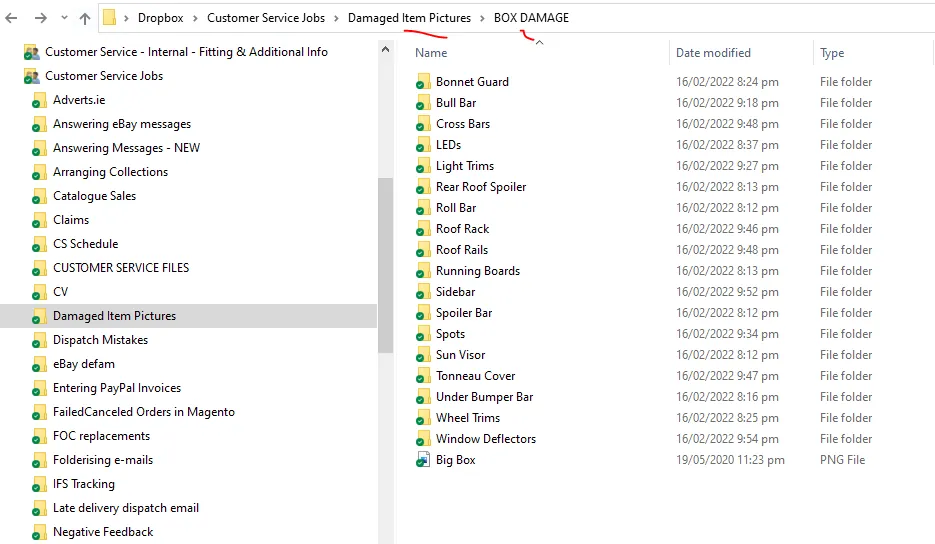
Once you selected the box picture you want to use, rename it with the date for the day and the courier name. This way you will have a reference and won't send the same picture to the same courier. You can reuse the picture again for the same courier after 1 year.
If you want to use the same picture but for a different courier, for example Fastway, rename it by adding Fastway and the date it was used.
- Once you found your damaged item and box pictures, save it in the Claims - Courier Dropbox Folder, this is the same folder where we save all courier claims, see this SOP on how to process Courier Claims. Choose the correct folder of courier, then the year, and then the month (create one if not yet created) then create folder to save the pictures. Filename of this folder is almost the same for Courier Claims, the difference is that it should have - DMY at the end. Rename the pictures in this folder with the SKU number.
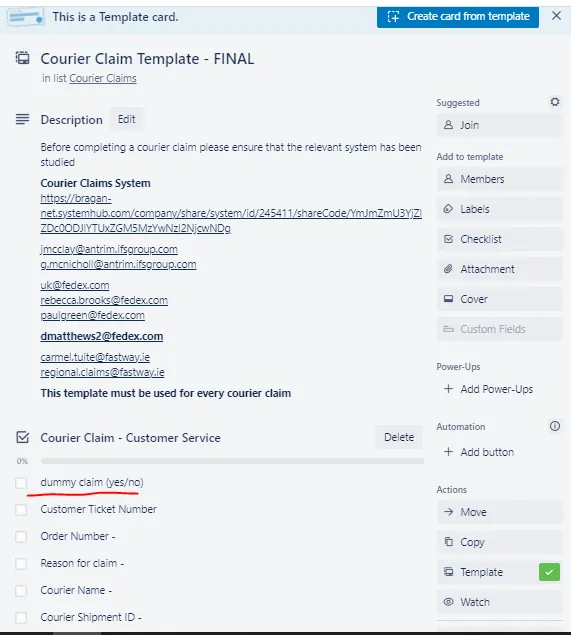
- If pictures are ready, proceed now to processing the claim by following this SOP for Courier Claims. But make sure to put YES in the Dummy Claim checklist.