eParcels Claims Process
eParcels Claims Process.

Accessing the Claims Portal#
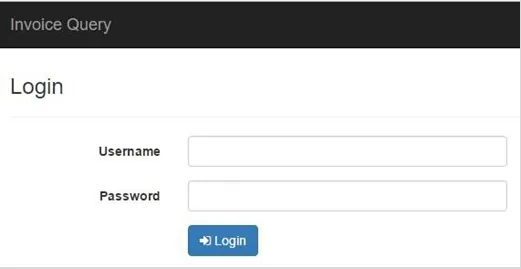
Go to the Claims Portal website: accounts.parcelhub.net
Log in using your eParcels account email and password.
Forgotten your login details then please contact accounts on 0044 28 7200 2008 or email [email protected].
Claims Queries#
Claims queries can be submitted here in addition to monitoring the progress of unresolved claims.
To submit a new claims query click on the New Query link. This will take you to the New Claim Query page.
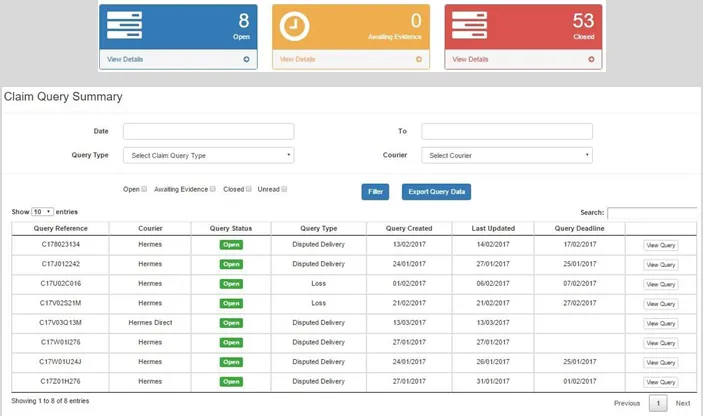
The image on the right shows a quick summary of your existing claims queries by their status.
Clicking on the icons will allow you to view further details:
Open to access the Claim Query Summary page for all open queries Awaiting Evidence to access the Claim Query Summary page for all queries awaiting further evidence to proceed with your claim Close to access the Claim Query Summary page for all closed queries
Alternatively, select the Claims Query Summary icon in the menu to the left of the screen.

New Claim Query#
This page allows you to enter details for new claims. You must enter details in all the fields in order to submit your query, this will assist in your query is dealt with efficiently.
Courier must be selected from the drop-down list.
Courier Service must be selected from the drop-down list. Claim Type must be selected from the drop-down list. Ticket Numbers must be entered manually in the text box (a six-digit number provided by Customer Services). Contact Name must be entered manually in the text box Contact Email Address must be entered manually in the text box. Please ensure the email address is typed correctly as it will be used for query updates. Enter Tracking Number must be entered manually in the text box, you may add 10 numbers per query. Click the + icon to lock the tracking number/s against your query. Should you wish to remove the tracking number click the – icon.
Please ensure you enter a valid tracking number so there are no delays in resolving your query.
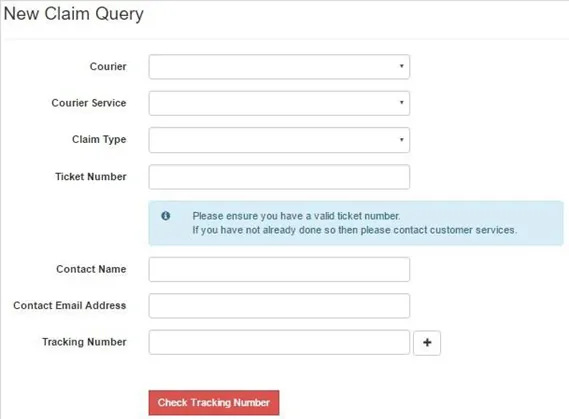
Click the Check Tracking Number icon, this will confirm if your ticket and tracking numbers match. If the ticket number and tracking number match the icon will change from red to green and will automatically fill in the Collection and Delivery details. Retail Value must be entered manually in the text box (this cannot be ‘0’). Claim Value must be entered manually in the text box (this cannot be ‘0’). Description of Goods must be entered manually in the text box, please provide details to assist with the handling of your query. Description of Packages must be entered manually in the text box, please provide details to assist with the handling of your query. Replacement or Refund must be selected from the drop-down list.
If Replacement is selected Replacement Tracking Number must be entered manually in the text box. If Refund is selected Refund Amount must be entered manually in the text box (this cannot be ‘0’) Location of Goods must be entered manually in the text box Additional Information must be entered manually in the text box, please provide details to assist with the handling of your query Add files icon can be used to upload documents or files supporting your claims query as evidence To submit your query click the Submit Query icon To clear the details you have entered for your query select the Clear icon
Once the query has been submitted you will be redirected to a new page that will generate a unique query reference number.
Claim Query Summary#
The Claim Query Summary can be viewed as a whole or broken down by the query status.
This page shows a summary of all the claims queries you have submitted and allows you to view their progress.
You may search for queries by Date Range, Query Type, and Courier by selecting the Filter option.
You can search by the query status Open, Awaiting Evidence, Closed or Unread. The Search function allows you to search for details under the table headings, results are automatically updated.
You can select the number of entries you wish to view from the drop-down menu and sort the rows in ascending order based on the table headings.
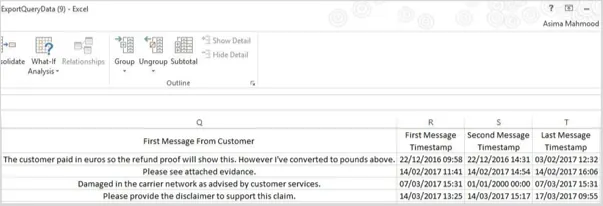
You may also export the query data for a selection of queries by highlighting the rows and clicking the Export Query Data icon. This will create a CSV file.
The CSV file will download with the following headings and data:
Query Reference Account Name Contact Name Claim Type Claim Status Claim Created Date Query Deadline Ticket Number Courier Tracking Number Retail Value Claim Value Description of Goods Description of Packages Replacement or Refund Location of Goods First Message From Customer First Message Time Stamp Second Message Time Stamp Last Message Time Stamp
Query Details
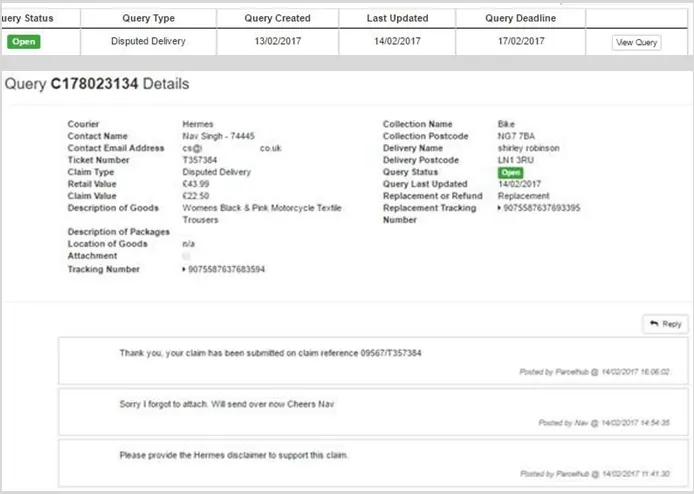
The Query Deadline date shows when the supporting evidence is required by, failure to submit evidence will result in your query being rejected and closed.
To view your query in detail Select the View Query icon.
The Query Details page shows the details which you entered when the query was created, along with any communication between you and Mail Workshop Ltd/ Parcelhub Ltd in relation to this specific query.
If the query status is Open or Awaiting Evidence you will have an option to add further details by selecting the Reply icon.
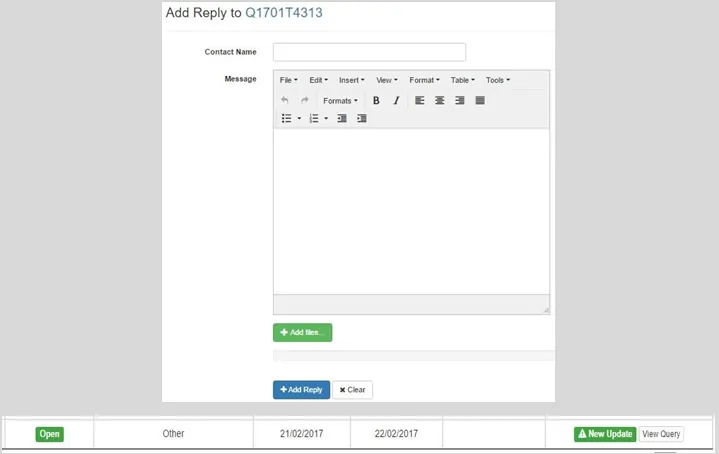
Add Reply
On the Add Reply to page:
Contact Name must be entered manually in the text box Message must be entered in the text box, this is to respond to Mail Workshop Ltd/Parcelhub Ltd communication The Add files icon can be used to upload documents or files supporting your claims query as evidence To submit your message click the Add Reply icon To clear the details you have entered in the message text box click the Clear icon
New Update will be shown on the Invoice
Notes#
If you have any queries regarding the use of the Claims Portal, then please contact accounts on 0044 28 7200 2008 or email [email protected]