Supplier Claims
The purpose of this SOP is to give an idea about Supplier Claims (being updated
Overview#
Purpose: The purpose of this SOP is to give an idea about Supplier Claims (being updated 2020).
Scope: This applies to customer service representative staff and all staff personnel who is in charge of this process.
Responsibility: It is the responsibility of all staff to follow the standard operating procedure for Supplier Claims (being updated 2020).
Objective: The objective of this procedure is:
- to guide employees on Supplier Claims (being updated 2020).
Process#
Do supplier claim after confirming with warehouse. See SOP on how to do warehouse queries. This is also important so we know if remaining stocks are faulty or not. We need to know total affected units so we can maximize the claim.
For obvious supplier claim complaints such as faulty lights immediately forward the email from customer to the supplier as these are time sensitive. After forwarding the email to supplier proceed on filling out the supplier claim trello card.
Fill-out Supplier Claim Trello Card#
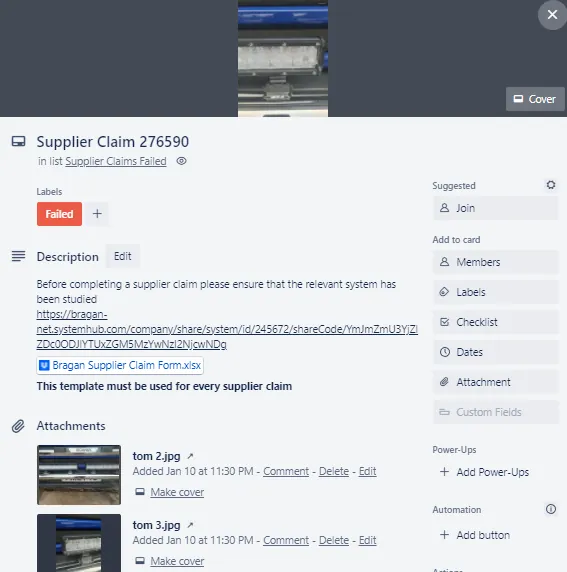
When a customer makes us aware of an issue and warehouse confirms that this is a supplier mistake. Fill-out the Supplier Claim Trello Card. Click here for the template link. Follow the checklist from top to bottom for proper guidance. Report claim with pictures IMMEDIATELY to supplier, it is essential this happens in real time to allow us to get a claim and a resolution when dealing with a customers issue. We do not want the customer to get impatient and open a case in our sales channel (eBay & Amazon) or leave negative reviews.
Make sure to tag the customer email as Supplier Claim and Claims Processing.
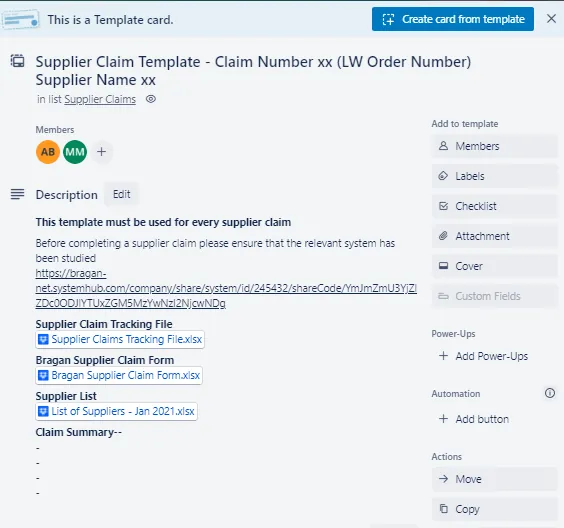
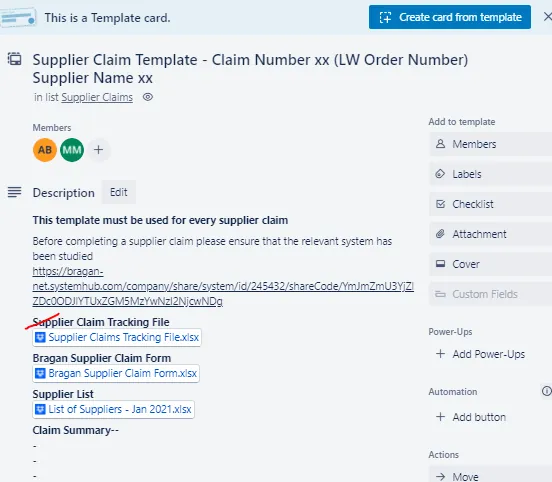
Supplier Claim Template (Trello) - Title Part
For the title indicate always the Linnworks order number and the supplier name. See Figure 2 for sample.

Supplier Claim Template (Trello) - Description Part
Here you can find the link to the Supplier Claim SOP, the Supplier Claim Tracking File, the Bragan Supplier Claim Form that you will need to fill out (see process below on how to do this) and the List of Suppliers. This list contains the contact details (email address, contact person) of all our active suppliers. You need the email address for when you send the claim.
At the last part in the Claim Summary, please state the reason for the claim.
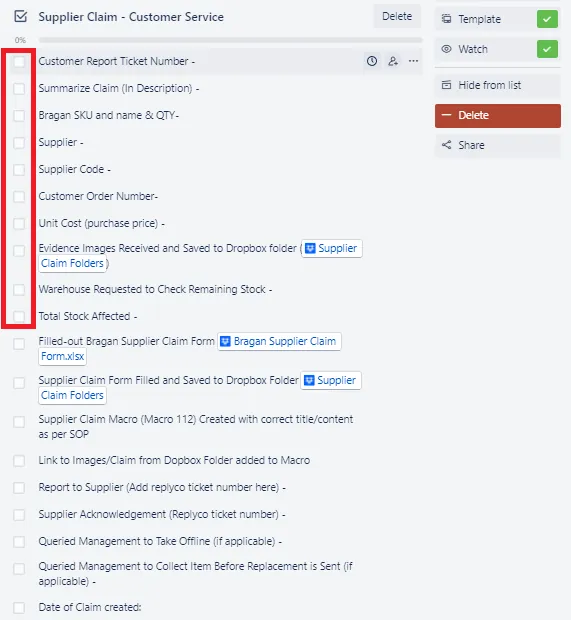
Supplier Claim Checklist for Customer Service Agents
CS agents need to first populate this first checklist and when finished make the initial contact with the supplier. CS will fill out the highlighted part first then mention or tag Account personnel in the activity section to inform that he can start his checklist up to claim amount (See Figure 4). Once the claim amount is determined, CS can continue populating the trello card.
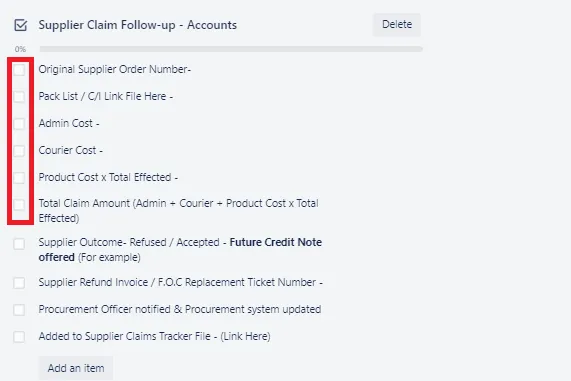
Supplier Claim Checklist for Accounts
Accounts will start populating this once CS tag him in the Activity Section. Once the claim is submitted to the supplier, Accounts is now responsible for the follow-ups. The submitted supplier claim needs to be acknowledge within 24hrs, if no acknowledgement Accounts will do follow-up. Accounts responsibility is to push for the refunds of all claims.
Guide on Filling-out the Supplier Claim Trello Card - Customer Service Agents
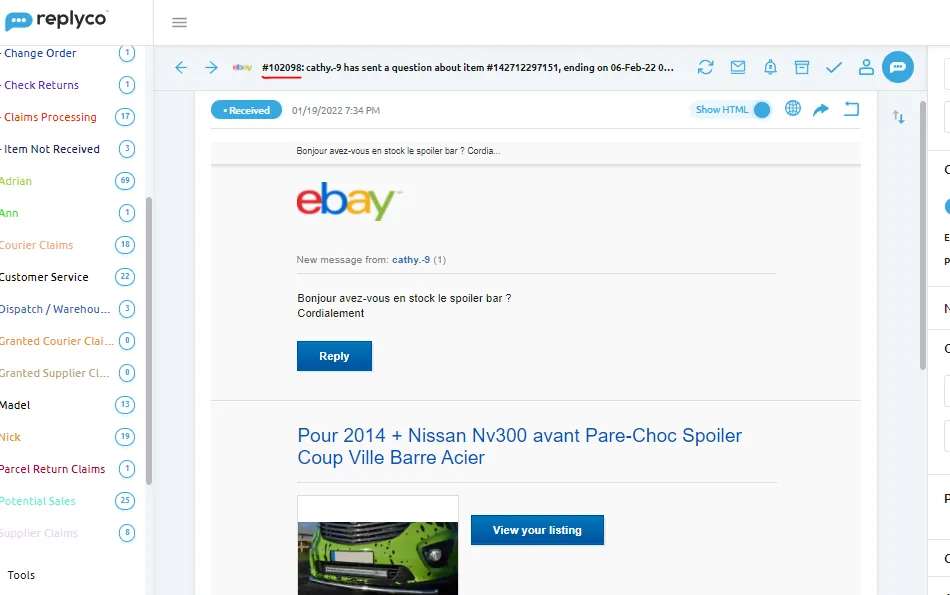
- Customer Report Ticket Number
This is the ticket number of the email
- Summarize Claim (In Description)
Check if reason for claim is already put in the description part of the card. Make sure to put in here the summary of the claim should include a detailed description of the problem.
- Bragan SKU & Name & Quantity
The SKU of the complained item and its description and the quantity (as reported by customer in the email except for lights. For the quantity of faulty lights, double the quantity.
- Supplier / Supplier Code
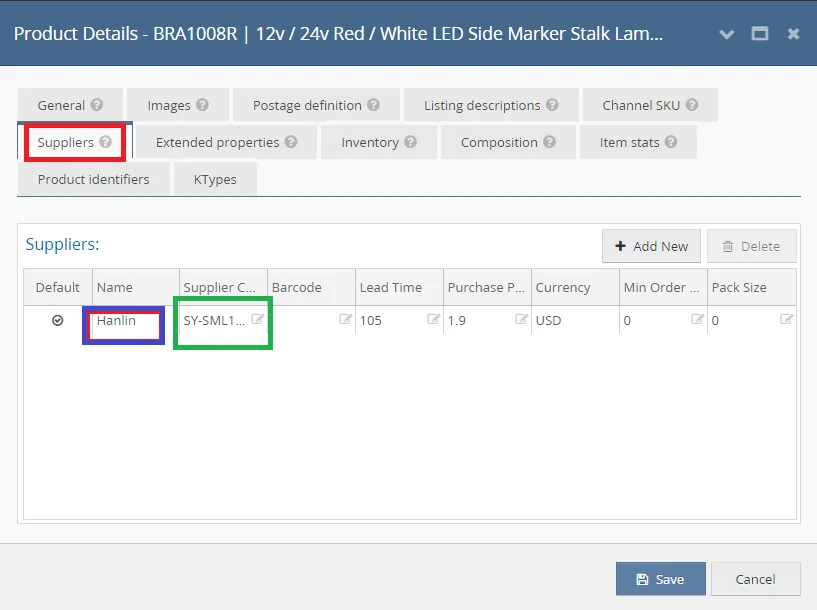
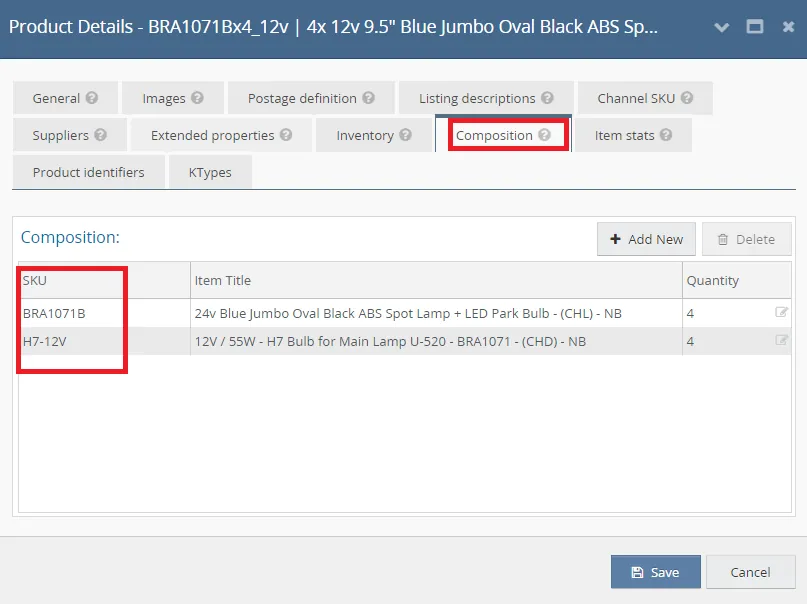
To Identify the supplier (blue box) and supplier code (green box) of the product check Linnworks product detail page - suppliers tab (See Figure 7). If product is a composite (See Figure 8) , check the composition tab, get the SKU of the main item and check again the supplier.
Variation Listing
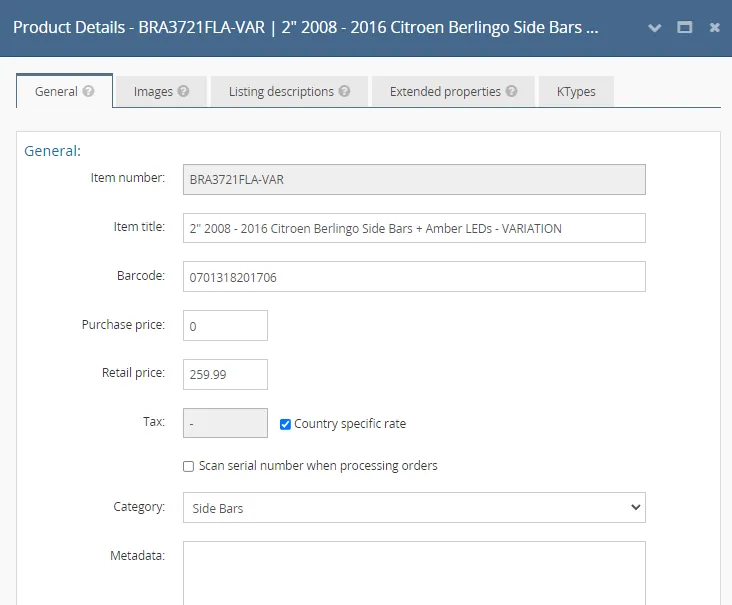
You will know that the listing has variation if the SKU has -VAR in it. For example: BRA3721FLA-VAR This means that there are two or more parent item. The product detail page of a variation listing looks like the one below (Figure 9). As you can see there are missing tabs like the composition and supplier.
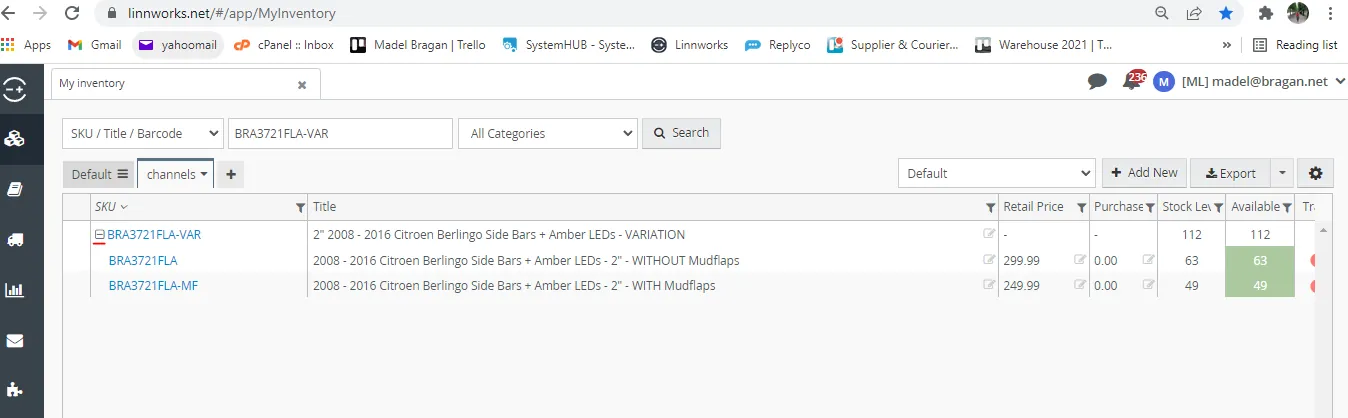
In order to get the supplier for this kind of listing, you need to determine the parent items for this variation. To do this, search the variation SKU in My inventory tab and then click the "+" sign to show the parent items. Once you have the parent item you can now get the child item and thus the supplier. The process for this is already discussed above.
- Supplier Order Date / Supplier Invoice Number
To get the Supplier Order Date and Supplier Invoice Number, follow these steps:
E.1 Go to Linnworks then click on Inventory > Purchase Orders
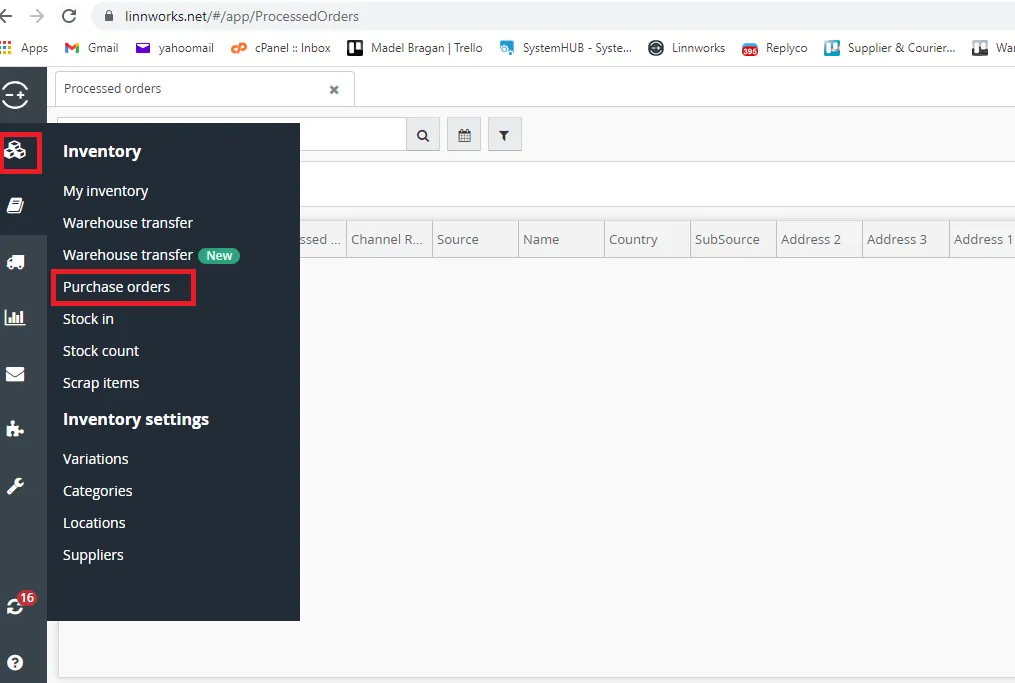
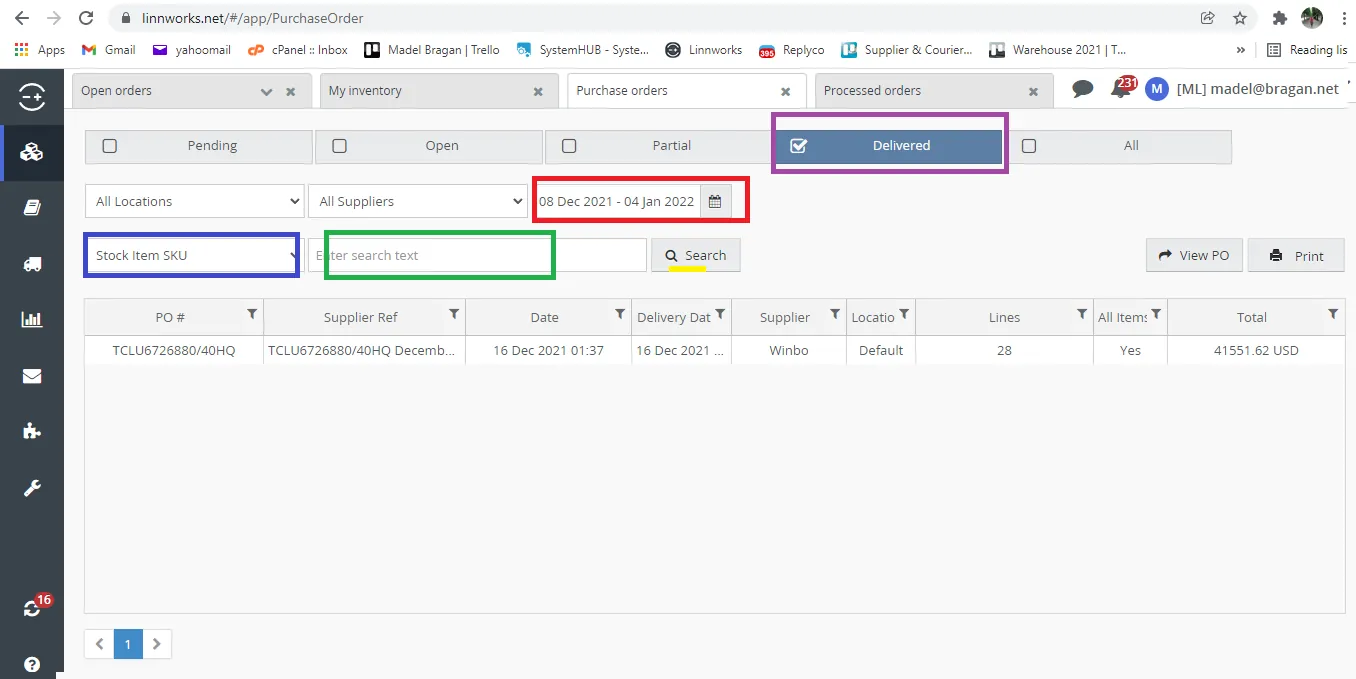
E.2 Select Delivered (purple box). Choose Stock Item SKU (blue box). Set the PO date at least 6 months (red box), if today is January 2022 then date range should be at least from July 2021. Type the SKU is the green box then click search.
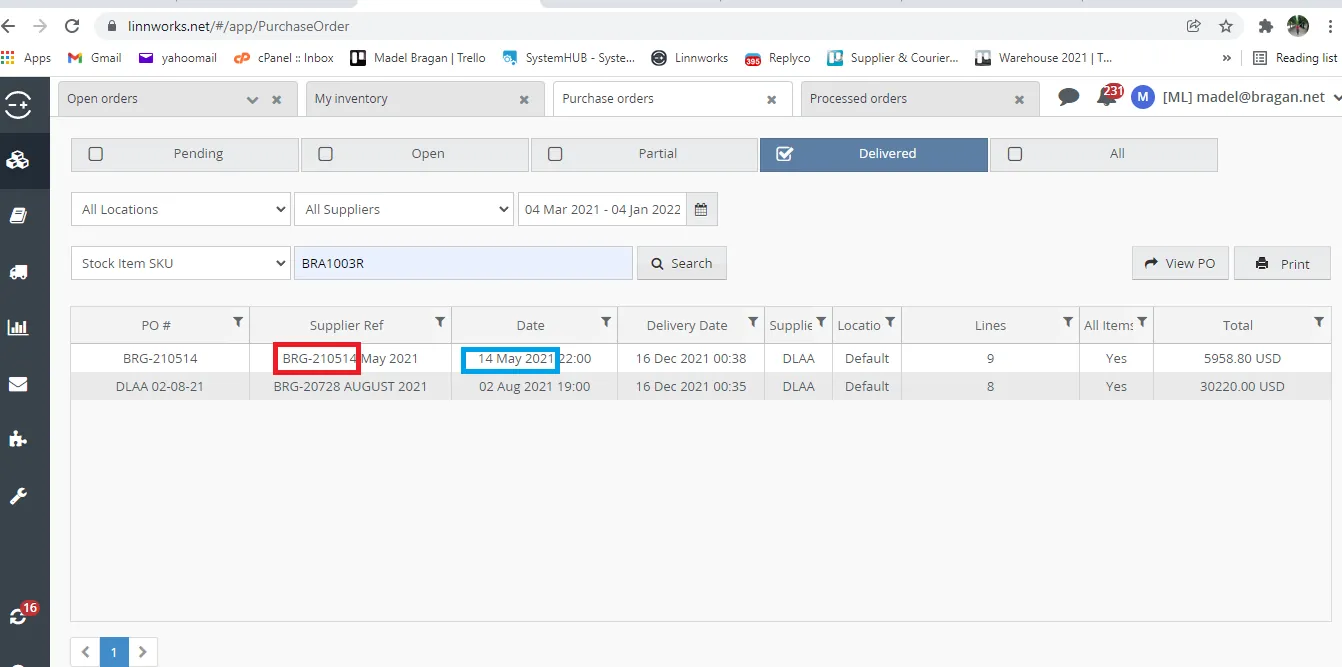
E.3 The Supplier Invoice Number is the one in the red box and the blue box is the Supplier Order Date.
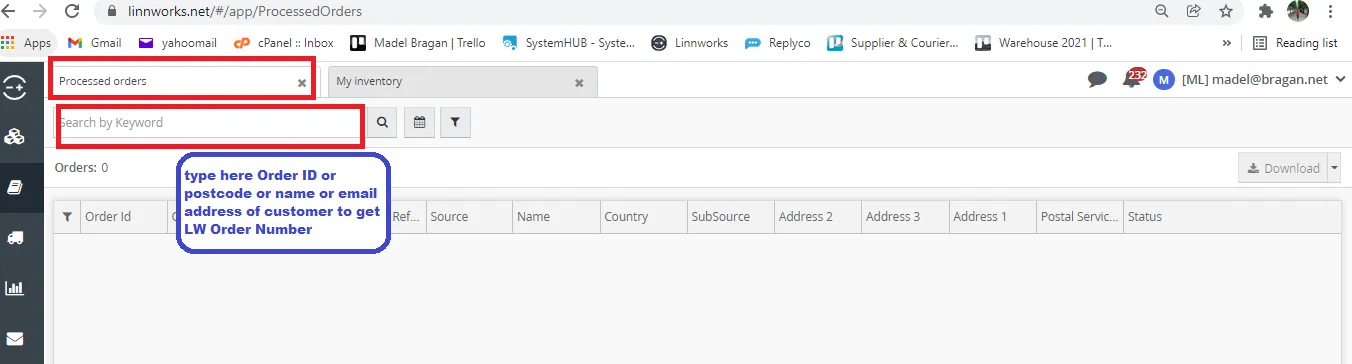
- Customer Order Number (Linnworks)
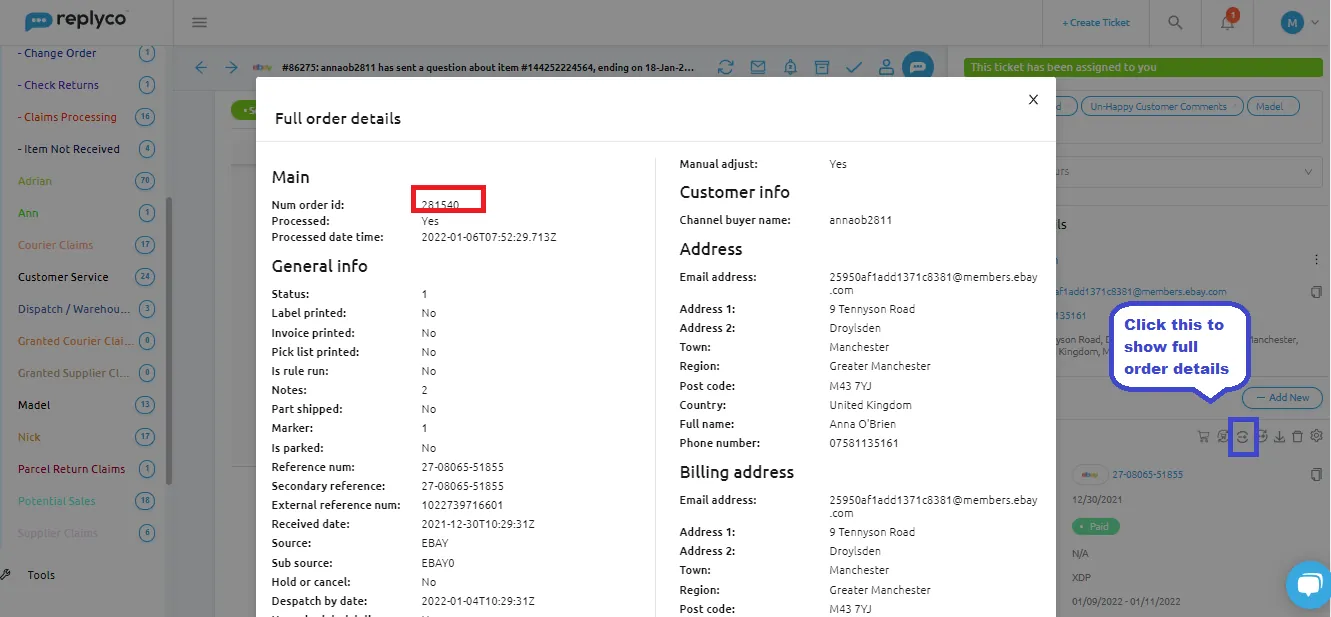
There are different ways in getting the Linnworks Order Number. You can get it from customers email (See Figure 14) or get it in Linnworks by using customers email address, name, postcode or the order ID in the Processed Order tab (See
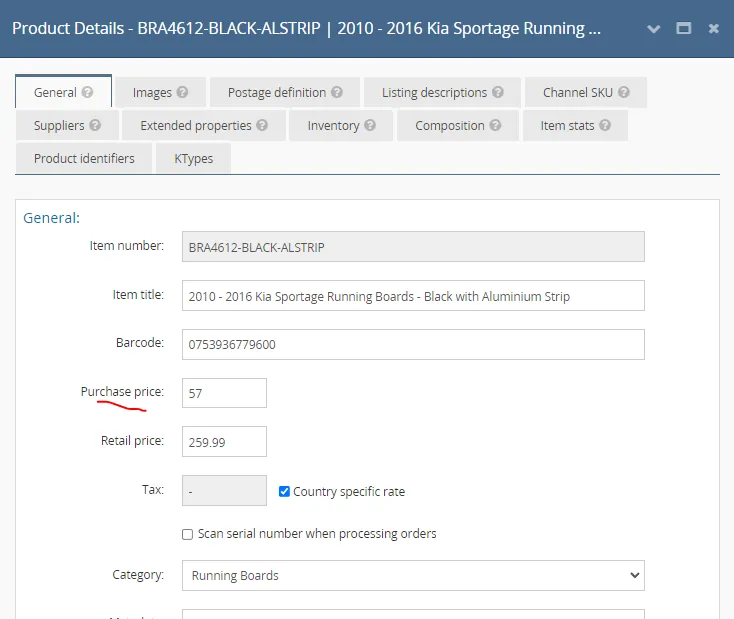
- Unit Cost (Purchase Price)
Get this in Linnworks, My Inventory Tab. Search the SKU you want to get the purchase price. If you cannot see the purchase price, click on the SKU number to open Product Detail Page (See Figure 17).

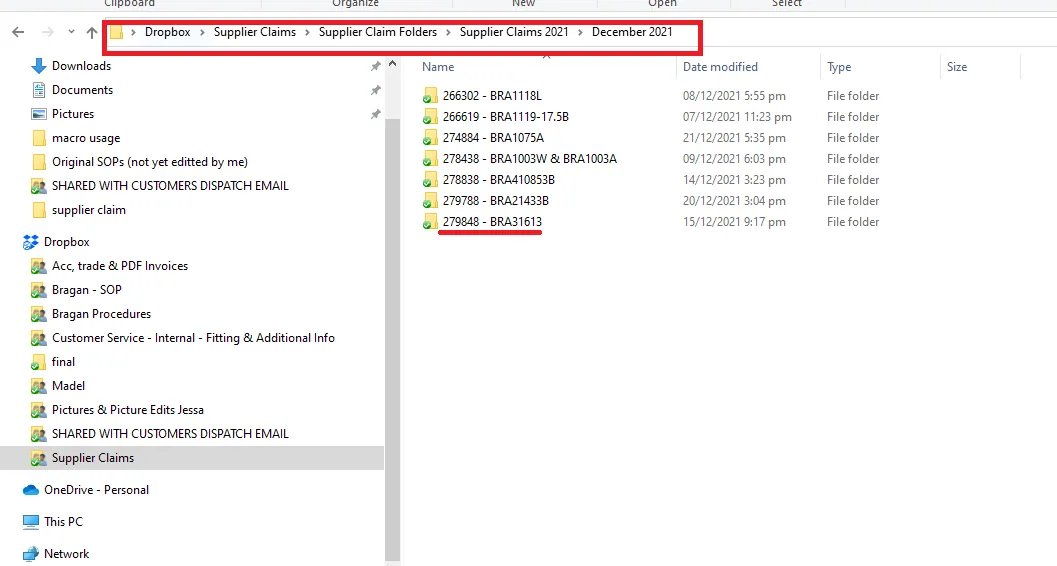
- Evidence Picture Saved to Dropbox Folder
A folder must be created in Supplier Claims Dropbox folder with the Linnworks Order Number and SKU number as the name of folder (See Figure 18). Request to management to give you access to this folder.
Save all relevant pictures of the item from the email sent by customer to the created folder
Note:
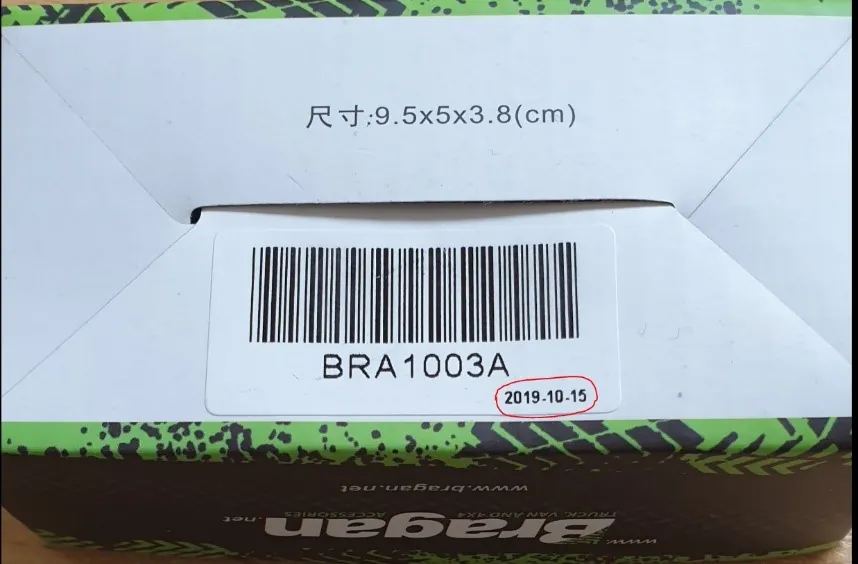
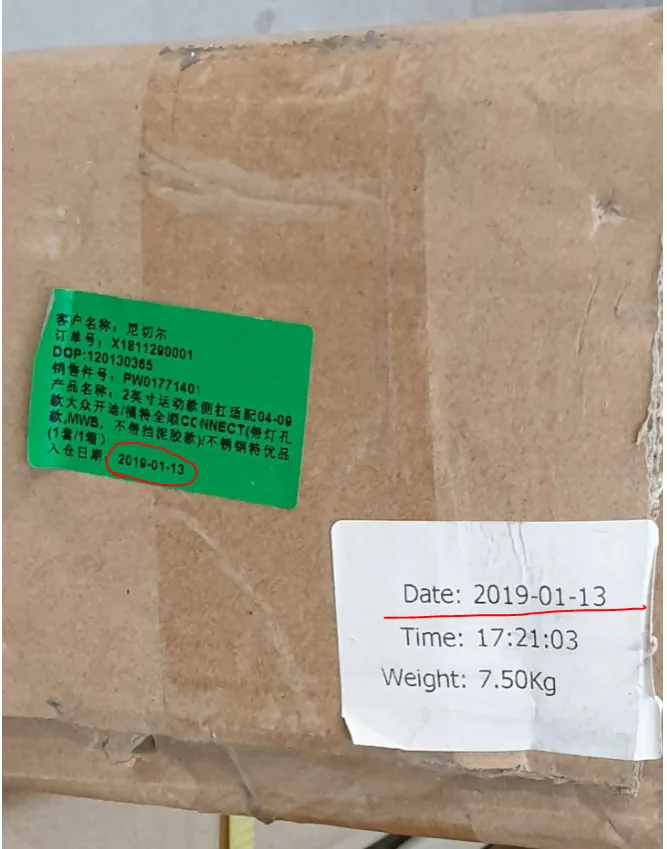
There are cases wherein the picture will come from Bragan stocks (this usually happens for lights) we need to ensure product is recent as the supplier may have warranty limits on the date supplied to us and this will ensure the claim is granted. Must include D.O.P (date of production or Stamp/Identification Marks on box. See samples below.
For Winbo Items the D.O.P or date of production should be shown in the picture.
- Warehouse Requested to Check Remaining Stocks
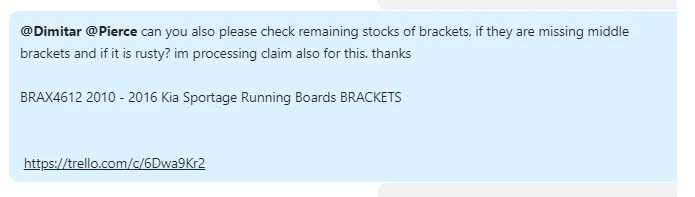
This is important because we do not want to have the same issue with another customer again. We need to check if remaining stocks are faulty or not. And also
so we can maximize our claim to the supplier. No need to check remaining stocks if the item are lights.
Do this by asking WH personnel in the Supplier Claim/Courier Claims Skype Group. The inquiry should include the SKU Number and Description and the link to the Supplier Claim Trello Card.
- Filling-out Bragan Supplier Claim Form
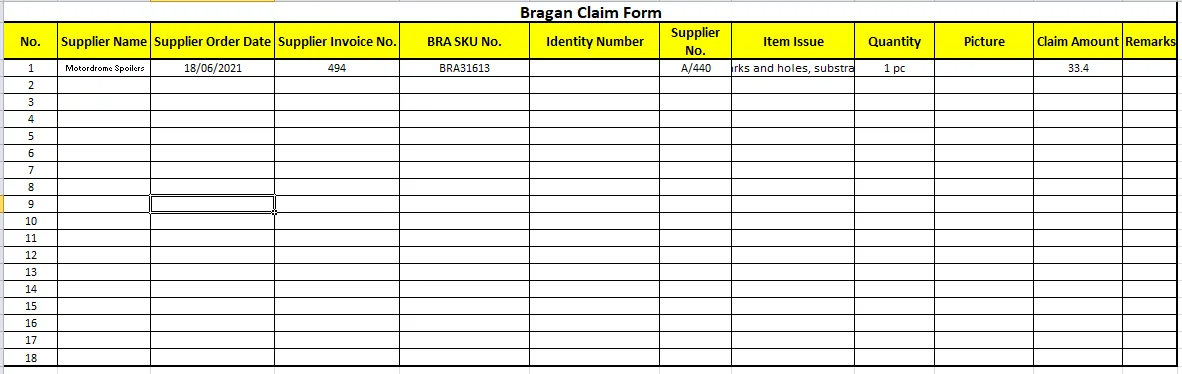
Fill-out the Bragan Supplier Claim Form (see attachment for the form, you can also get this from the supplier claim template card, there is a link there in the description, see Figure 3 above). Save filled-out form in the same folder where you saved the pictures in Step I - Evidence Picture Saved to Dropbox Folder .
- Sending Claim to Supplier (Macro 112)
Create a ticket using Macro 112. Subject should be "Claim Number + the Linnworks Order Number". For the recipient, check contact details of the supplier in the Suppliers List provided by procurement (See attachment for the Supplier List or from the Supplier Claim Template). If there are more than 1 email address, cc the others to make sure that it is received.
Make sure that the complaints are strongly reported to supplier.
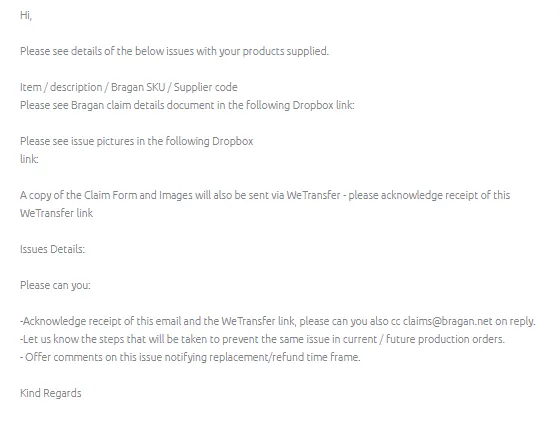
Note: Use of WeTransfer is optional. You use this if the file is too big. You can edit this part out if not used.
Note the created ticket number and put in the the supplier claim trello card.
Supplier needs to acknowledge the claim within 24 hours, Accounts personnel will do follow-up if there is no acknowledgement within 24 hours. Accounts will be the one to do succeeding follow-ups and push for the refund. Please note that these claims should be addressed in timely manner, especially if the customer open an eBay/Amazon case. eBay/Amazon cases needs to be resolved in a specific timeframe.
- Queried Management to Take Offline (if applicable)
if there is a need to discontinue the item confirm first with management or if there is a need to take the item offline while this is being identified to avoid future sales of faulty items. To have the item taken offline it is very important that the item is marked ARCHIVED to avoid this being re-listed/re-ordered from the supplier – Inform the Bragan New Listing/Listing Changes Skype Group of this to complete the process.
- Queried Management to Collect Item Before Replacement is Sent (if applicable)
Make sure that management confirms the collection of item first. Collecting item is an added cost that is why it needs managements approval. Some items are not worth collecting especially if these are just small items.
Guide on Filling-out the Supplier Claim Trello Card - Accounts#
- Pack List Date (for Eirturk Claims only)
You can find it in the supplier dropbox folder for Eirturk, ask management to give you access to this folder.
- Admin Cost
The cost to the admin which is not included in customer payment. (e.g Shipping cost of the replacement)
- Courier Cost
The shipping cost of the item from warehouse to customer
- Product Cost x Total Effected
This is the total cost of affected items (this includes faulty items found in the remaining stocks) Cost of the product multiplied with the total faulty items found
- Total Claim Amount
Admin + Courier + Product Cost x Total Effected
- Supplier Refund Invoice / F.O.C Replacement Ticket Number
The invoice number of the refund or if it is a replacement, the ticket number of the email where we update customer that a replacement was sent.
- Include in supplier claims weekly report in Excel worksheet (weekly basis/tasks)
All supplier claims should be logged in this file. This weekly report will be submitted to management in a weekly basis.
Please see attachment for the format.
Supplier Claim Monitoring/Follow-up#
Supplier needs to acknowledge the claim within 24 hours, Accounts personnel will do follow-up if there is no acknowledgement within 24 hours. Accounts will be the one to do succeeding follow-ups and push for the refund. Please note that these claims should be addressed in timely manner, especially if the customer open an eBay/Amazon case. eBay/Amazon cases needs to be resolved in a specific timeframe.
Ensure urgency in doing the follow-up especially when it is clear that it is our fault (or courier / supplier) and customer complaints is true. Our objective is to avoid the customer to open an eBay/Amazon case against us (that effect metrics straight away and lead to lower listing page rankings) and for website sales they may leave negative review on Trust Pilot or facebook groups. Also we want our claim to be granted so make sure to process it within the courier's timeframe.
Log the claims in this Supplier Claim Tracking File. This file needs to be submitted to management weekly for updates on the status. Request access to management for this file. You can also see the link of this file in the Supplier Claim template card.
Granted Claims#
- If supplier granted the claim by sending us Free-of-Charge (FOC) Replacements, Accounts will update procurement so they can check it on the next shipment and the CS Agent in the Supplier Claim/Courier Claim Skype Group. Accounts will also tag the email as Granted Supplier Claim. If the claim is in the form of refund, Accounts will follow-up the supplier until the refund is received, check the bank/paypal for the refund. Once received, complete the card and put the complete details of the refund transaction ( date received, amount, reference and supplier name)
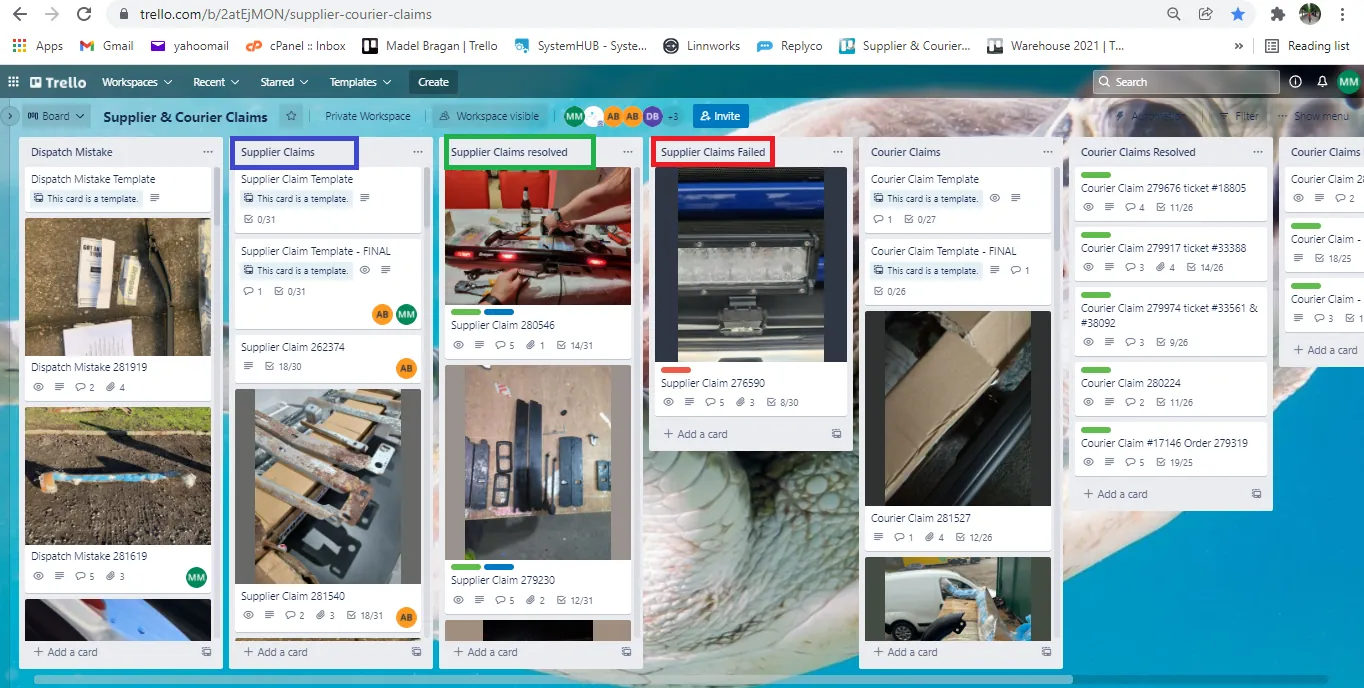
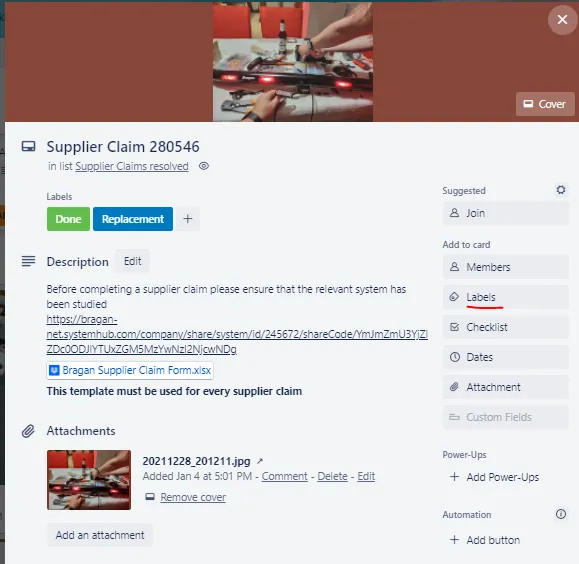
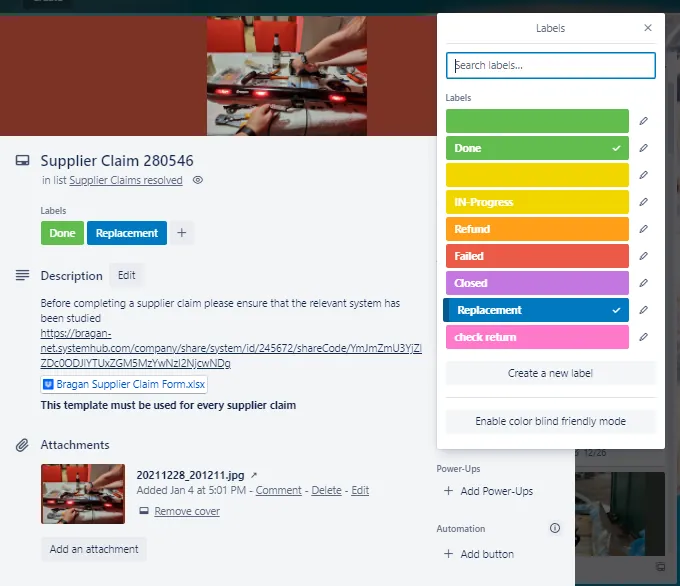
- Account will then move the supplier claim trello card (blue box) to the Supplier Claim resolved (green box) if it is granted. Account will also add label to the card (See
a refund.
- Once granted, CS agent can confirm with management next step if to refund or send replacement to customer. Update customer of managements decision. If it is a refund, Accounts will process it and if it is a replacement then CS will do it. Please see SOP on How to Arrange Replacement.
- However, in cases wherein the claim is taking too long and the customer is getting impatient, CS can tag management and ask if we need to send replacement or refund even though the claim is still on-going. Wait for managements advice before updating customer.
Failed Claims#
Write the reason why the claim failed in the Activity Section and move the card to Supplier Claims Failed (red box in Figure 28). Label also the card as FAILED.
Supplier Claims from Orders received from#
Supplier#
When an issue is identified from an incoming delivery by the Warehouse – (See Warehouse SOP for Goods Inwards)
Supplier Pack Lists quantity should be checked against what is received to claim for missing/wrong amounts
Incoming Order Quality Issues Noted on the Pack List
In both cases this should be Pictured with notes on the Pack List, pictures of the issue sent in Skype ‘Procurement Group’ with issue comments noted alongside.
Supplier Claims agent must then Open emails and log the Ticket as claim number following all stages above to complete the claim for affected items.
How to Arrange Refund#
To arrange a refund all Customer Service agents must fill out the Customer Refund Request Trello Card which can be found on the Customer Service Trello Board
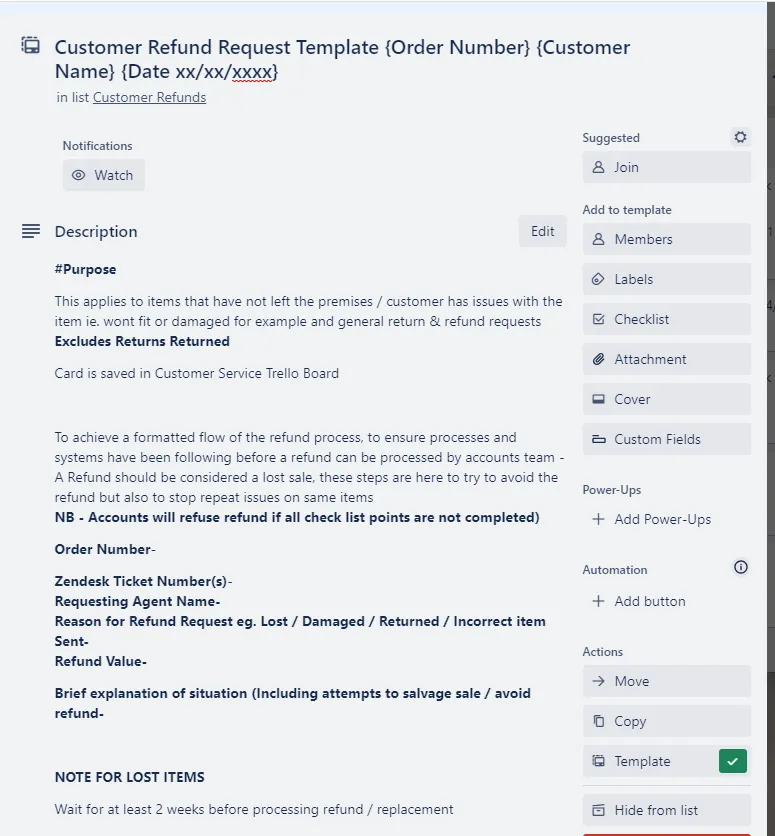
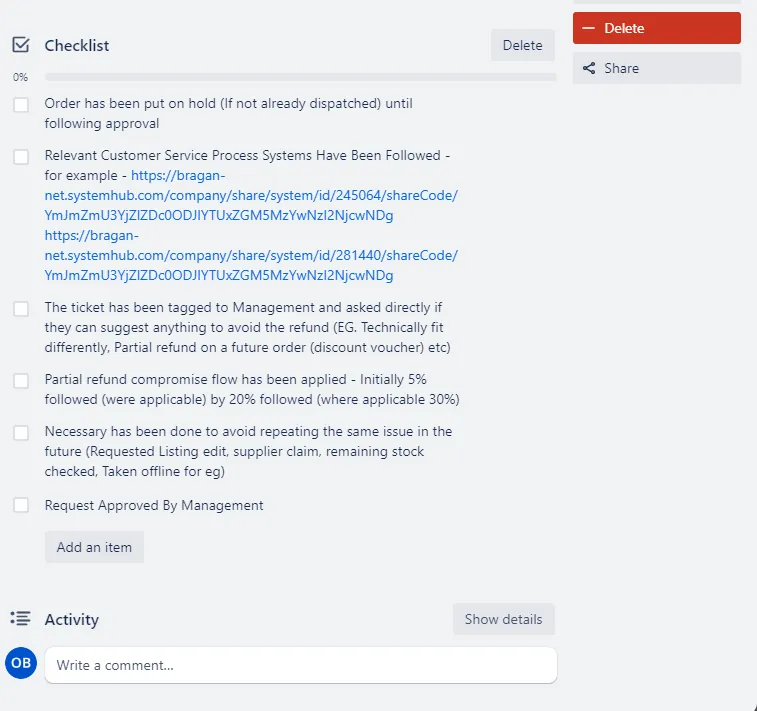
The Customer Service Agent must make sure that all of the checklist has been followed and completed before requesting approval from management for a refund. The CS Agent Must work with the customer in order to salvage the sale before a refund can be agreed.
Once all of the steps have been followed the CS Agent must tag management and ask for approval of the refund. Accounts will then follow up with a refund for the customer.
Video & Media#
Notes#
This section is important so Adhoc points and issues can be logged. Also, Q&A can be logged for suggestions for potential issues encountered. Also, log important notes needed for this system. Additional Notes:
Make sure that claims are logged in real time. CS agents will be the first to populate the supplier claim trello card and make first contact with supplier. Accounts will do the follow-up after CS agent send the Supplier Claim Macro. Accounts should be the one responsible in pushing for the refunds. A weekly report of supplier claims is submitted to management for update and review. Make sure to ask warehouse to check on remaining stocks to avoid the issue repeating again to another customer. Ensure urgency in doing the follow-up especially when it is clear that it is our fault (or courier / supplier) and customer complaints is true.
Potential Issues:
1 - ISSUE ENCOUNTERED: Stuck on Loading
RESOLUTION: Refresh Browser
2 - ISSUE ENCOUNTERED: Broken Links
RESOLUTION: Get the external link as this will allow other people to access the SOP without the need for login credentials and avoid broken links.
Attachments#
Bragan_Supplier_Claim_Form.x… 16/12/2025
List_of_Suppliers_-_Jan_2021.… 16/12/2025
Supplier_Claims_Weekly_Repo… 16/12/2025