Customer Group
The purpose of this procedure is to provide detailed overview of how Trade
Overview#
Purpose: The purpose of this procedure is to provide detailed overview of how Trade Customers were group in our website orders.
Scope: This SOP covers the following software applications Magento and Fooman Connect. This applies to Customer Service and Accounts department as it enumerates area about customer groups and tax conditions.
Responsibility: Roles and Responsibilities:
- SOP Author is responsible to draft SOP in consultation with the intended users, correct SOP according to feedback, make SOP available to intended users, amend SOP if required and format it to SystemHub
- The developer of the application will be responsible to Magento backend and Xero integration
- Customer Service and Xero Accounts Assistant ensure that accounts are in order and helps in mapping data
Objective: The important objectives of this SOP
- To learn the detailed procedure on Magento customer group and how to assign customer group
- Be familiar with Bragan’s customer Groups and Xero Tracking Categories
To Support synchronization from Magento Website to separate Companies in Xero

Overview Company Profile#
BRAGAN TRUCK, VAN AND 4X4 ACCESSORIES LIMITED (refer to as Bragan 4x4 in this SOP) is the main/parent company servicing Ireland, Europe and the rest of the world.
Main trading Currency used is Euro (€).
BRAGAN TRADING SERVICES LTD (referred to as BTS in this SOP) basically service United Kingdom Customers.
Main trading Currency used is pounds-GBP/STG (£).
*Bragan4x4 and BTS shared a physical warehouse located in Monaghan, Ireland.
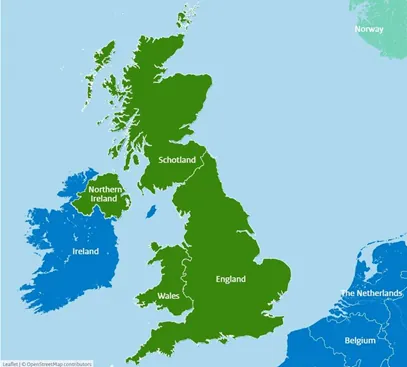
The United Kingdom (UK) is made up of England, Scotland, Wales and Northern Ireland.
Customer groups determine which discounts are available and the tax class that is associated with the trade customer. The default customer groups are General, Not Logged In, and Wholesale.
Magento Customer Group feeds to Xero the integrated transactions with Xero Categories.
B2C - simply means Business to Customer - these are ordinary customers who bought to our websites and sales channels
B2B - means Business to Business - these are trade customers, they submit Business Certification and VAT numbers and once verified are assigned to specific customer group where they will be able to avail of the trade prices (discounted than what is listing is sales channels).
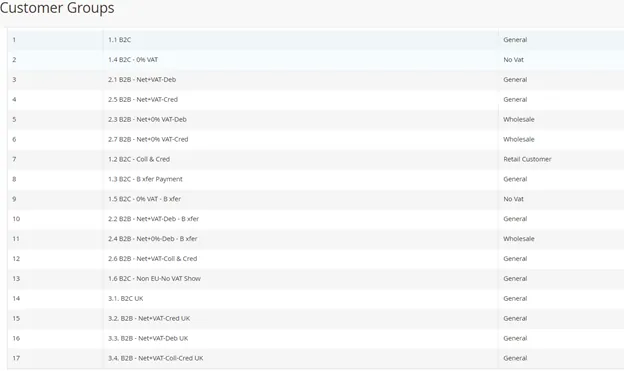
*Group 1.1 to 2.7 Irish Registered Business and is considered Bragan 4x4 Customers (IRL and rest of the world)
**Group 3.1 to 3.4 UK Registered business or customers and is considered Business Bragan Trading (UK and Northern Ireland)
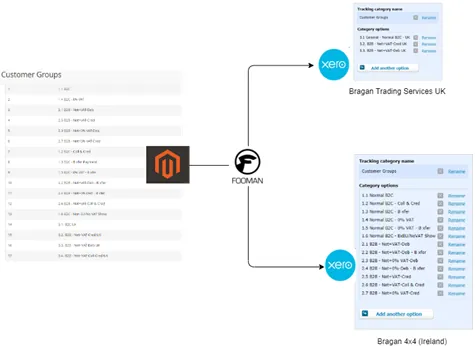
Diagram 1: Customer Group from Magento
| CUSTOMER GROUP | DESCRIPTION |
|---|---|
| Default 1.1 B2C | Standard VAT rate of 23% |
| 1.2 B2C Coll & Cred | Customers on Account or Paying on Credit |
| 1.3 B2C B Xfer Payment | Indicate B2C Sales Bank Transfer. Deferred Sales, Bank Transfer, “Pending” Status, May need to reconcile with Accounts the Magento /Xero to confirm payments already cleared in the bank. |
| 1.6 B2C Non EU - No VAT | Non Vat Registered/Exempt. You can also refer to FedEx Delivery tracking on delivery address. And validate VAT numbers. |
| 2.1 B2B -Net+VAT- Debit | Northern Ireland/EU wholesale. Mostly Irish customers. These customer must check out with payment to complete transaction as he is "Debit" account |
| 2.2 B2B Net+VAT- Deb Bank Transfer | Same as 2.1 but deferred sales. Will Show pending in Magento before processed |
| 2.3 B2B Net+0% VAT-Debit | Wholesale. No Vat. EU Customers zero rated |
| 2.4 B2B Net+0%- Deb Bxfer | same as 2.3 except on bank transfer. Double check with accounts for copy of bank payments/proof. |
| 2.5 B2B Net+VAT credit | On credit. They send credit application to Bragan. For sending invoice and remind Accounts of the Statement of accounts at Month end |
| 2.6 B2B Net+VAT Coll&Credit | Collect means customer is allowed to collect on site |
| 2.7 B2B Net+0% VAT-Credit | Zero rated VAT ; wholesale; Shipping option on credit. |
Filter Customer Groups#
- Log in to Magento Back End and go to Customers > Customer Groups.
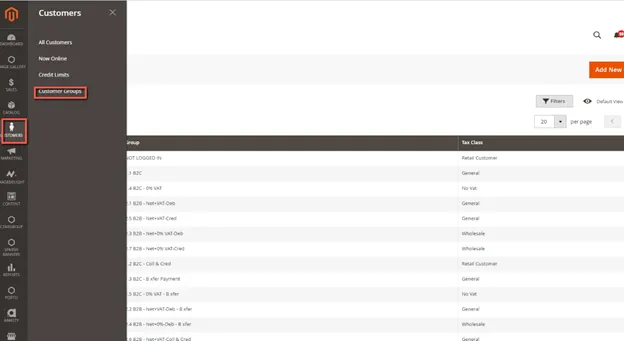
- Click Filters.
- Enter criteria for searching groups, including a range of IDs, group, or tax class.
- When complete, click Apply Filters.
The page displays the subset of filtered customer groups.
Update or Edit a Customer Group#
This is done so that the next time the customer log in to our website the account information is updated and they are now on the right customer group. This however does not apply to previous orders only on succeeding orders.
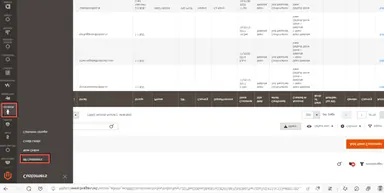
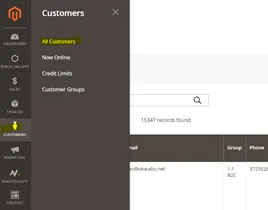
- Still in magento back end, go to Customers > All Customers.
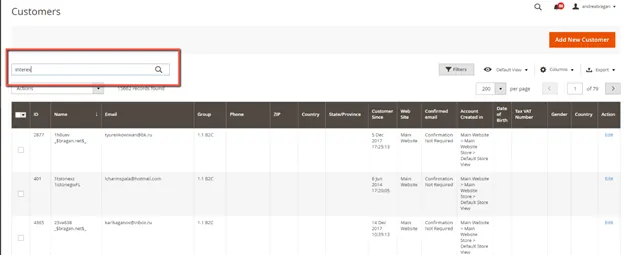
- Search in keyword or name of the customer previously set up. You may also type in the email address.
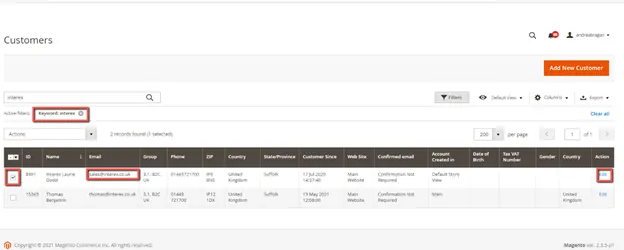
- In the right end column select EDIT action. Open the record in edit mode.
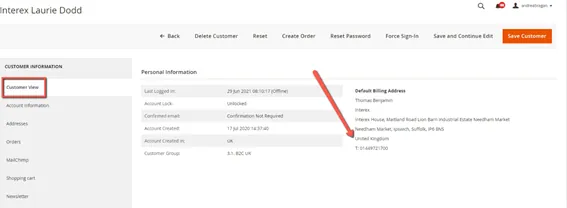
- Review the customer profile in the CUSTOMER VIEW.
- From the customer information menu, click ACCOUNT INFORMATION. Always Confirm with management what customer group this customer belongs to. Make the necessary changes.
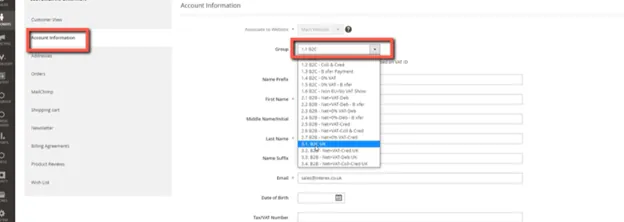
- When complete, click Save Customer Group.
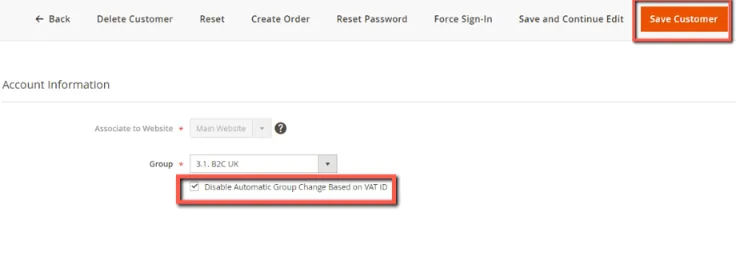
Assign a Customer to a Different Group#
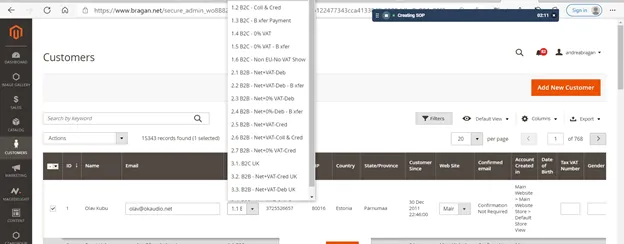
- On magento back end, go to Customers > All Customers.
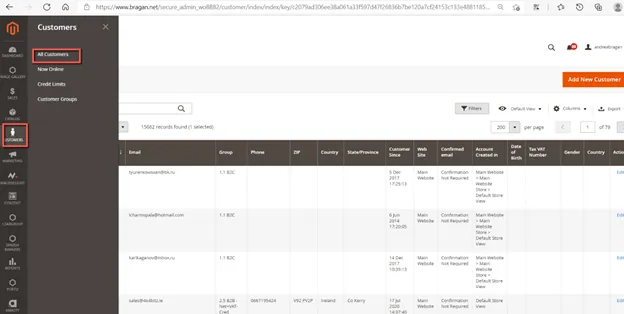
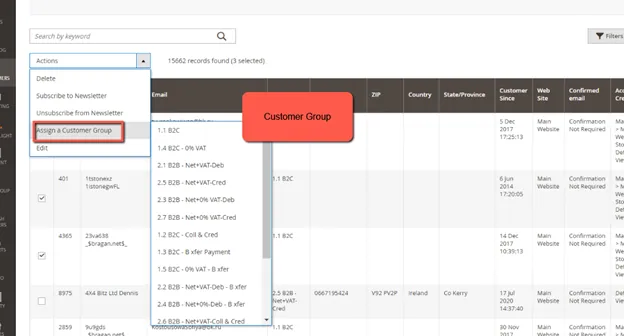
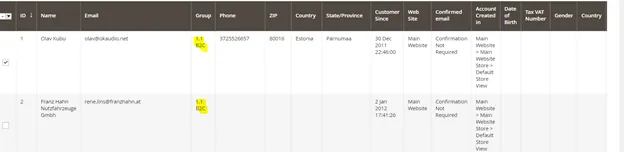
- Find the customer in the list and select the checkbox in the first column.
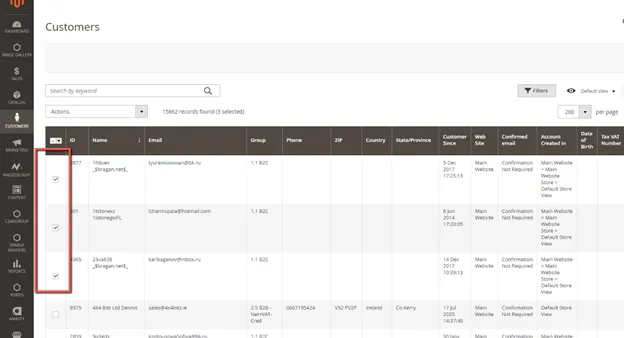
- Set the Actions control to Assign a Customer Group.
- Set the Group control to the new group.
- When prompted to confirm, click OK.
Associate a Group of Customers with Specific#
Discounts#
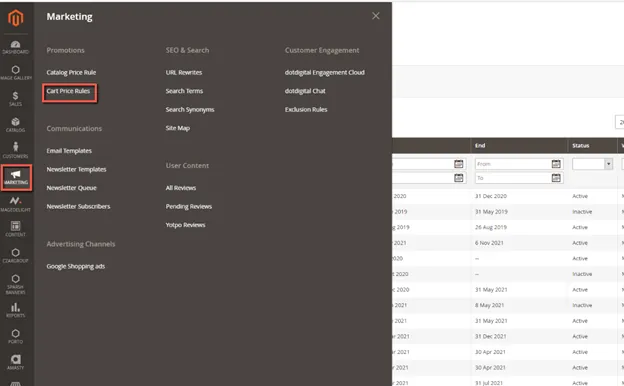
- On Magento back end, go to Marketing > Promotions > Cart Price Rules.
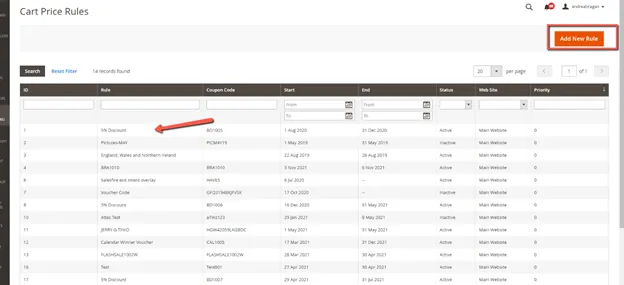
- Select the cart price rule with the discount to apply, or create a new price rule.
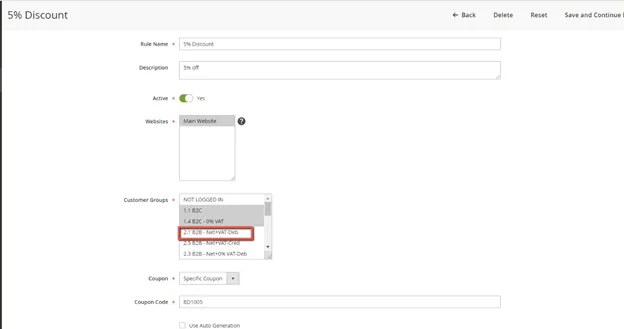
- Select the customer groups the rule will apply to.
- Click Save.
To View Customer Transactions in Magento#
When you view Sales/Orders on Magento dashboard you will see the customer group, and this should match Xero Tracking Categories relevant to the Sales Invoices and it’s corresponding tax conditions.
Select Customers>>All Customers
Notes on VAT#
UK & NORTHERN IRELAND
Customers in the UK & N.I – VAT rate is 20%. There are no exceptions to this rule – 20% VAT rate needs to be applied to all invoices. Bragan is a registered company in the UK (Trading).
REPUBLIC OF IRELAND
Customers in the Republic of Ireland pay 23% VAT. Companies & average joes all pay 23% VAT. Because these items are coming from our warehouse in Monaghan & delivered within the Republic then 23% VAT must be paid.
There are a select few that are exempt from VAT as they have VAT exemption from the Revenue – i.e. Combi Lift & Harte Peate are examples.
EUROPEAN
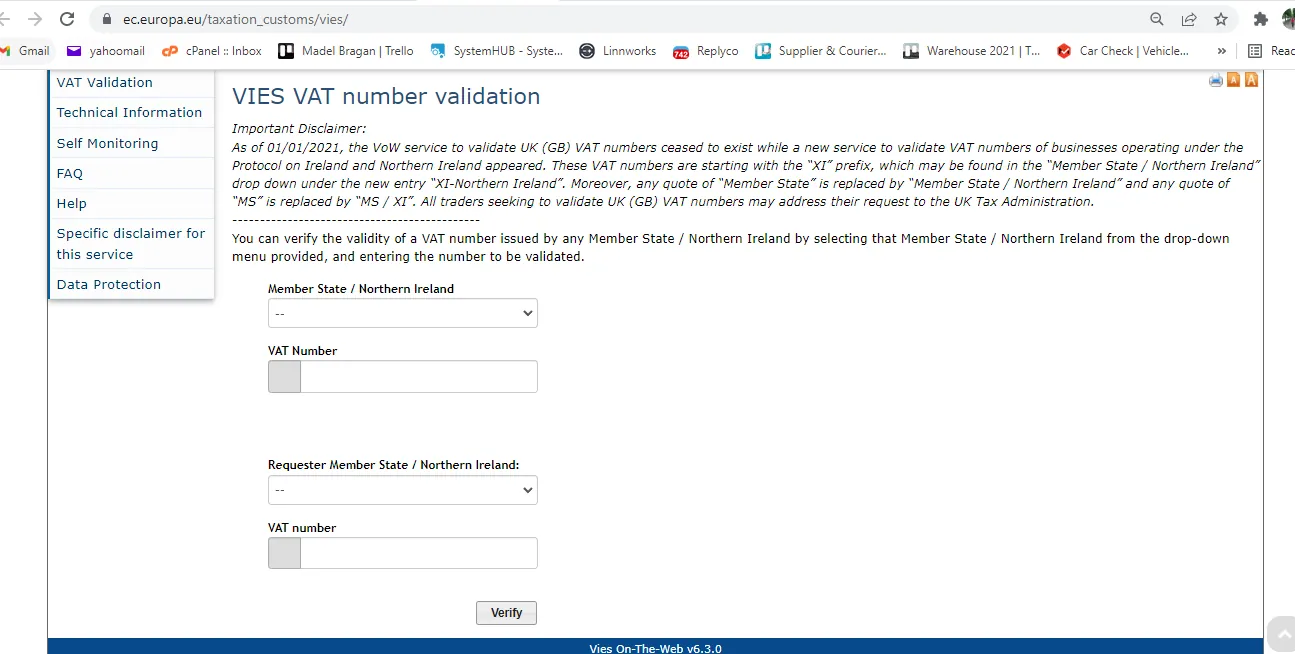
Companies in the EU can offer a VAT number (which is to be checked through VIES). If the VAT number is valid then the customer can get the order at 0% otherwise there is 23% VAT on the order.
Average joe customers in Europe pay 23% VAT.
The reason for this is because all Sales to EC & Worldwide come from Bragan Transport our Irish company.
OUTSIDE EU
Customer outside the EU (i.e. Estonia/Australia / Japan etc) can get their order at 0% VAT as this would be a NON-EU EXPORT. Proceed with the order at the full RRP price however the VAT rate on the order is 0%, the RRP price does not change. The full RRP is kept by us - no vat is indicated to these customer on checkout, this additional revenue is a cushion to us to absorb shipping discrepancies
EU Countries Subject to VAT#
Countries are Charged 23% UK Sales are Charged 20%
EU Countries NOT Subject to VAT#
Switzerland Norway Bosnia-Herzegovina Serbia Kosovo Albania Macedonia Ukraine Moldova Iceland Belarus Russia Turkey
Confirming Valid VAT Numbers#
(IF the process outlined below does not validate the VAT number you can ask the customer to email a current copy of their VAT certificate, prior to zero-rating the invoice).
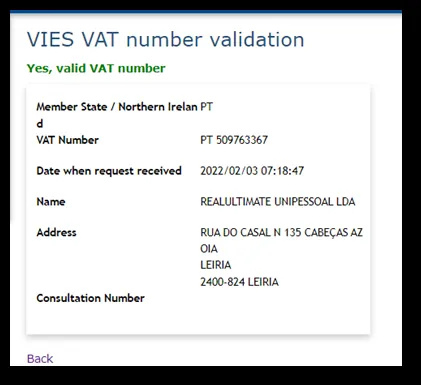
Here is an example email where you would be required to check out the VAT number. A customer from Portugal looking to provide a VAT number & order without VAT
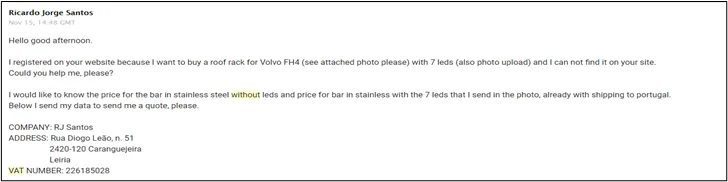
- Go to Vies Website. In the Member State/Northern Ireland, select the country of origin of the customer and the type his VAT Number. Then click verify.
- If VAT number is valid, you should see this result. Then compare the name and address that appears here to the name and address that is found on their Business Certificate. It should match. Put an internal note to the Replyco email and tag management so they will be aware that the customer has been checked and verified in VIES.
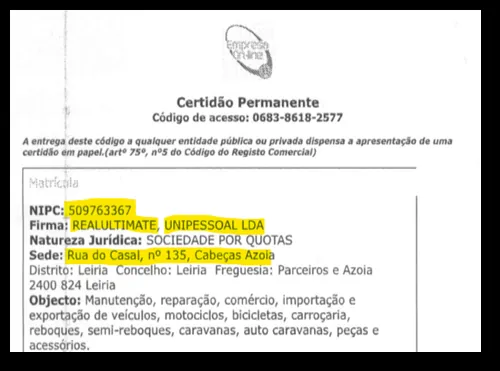
- If the VAT is valid, you can proceed and give the customer the 0% VAT prices. If invalid, take a snip of showing that it is invalid and send to customer and request to clarify their VAT Number.
Video & Media#
🎥 Editing Magento Customer Group
Notes#
This section is important so Adhoc points and issues can be logged. Also, Q&A can be logged for suggestions for potential issues encountered. Also, log important notes needed for this system. Potential Issues:
1 - ISSUE ENCOUNTERED: Stuck on Loading RESOLUTION: Refresh Browser
2 - ISSUE ENCOUNTERED: Broken Links RESOLUTION: Get the external link as this will allow other people to access the SOP without the need for login credentials and avoid broken links.