Handling Fitting Guide Request from Customers
The purpose of this SOP is to standardize the process of sending fitting instructions.
Overview#
Purpose: The purpose of this SOP is to standardize the process of sending fitting instructions.
Scope: This process applies to all Customer Service members both Team PH & Team IRL.
Responsibility: It is the responsibility of all Customer Service members both Team PH & Team IRL to follow that standard operating procedure in sending fitting instructions.
Objective: The objective of this material is to standardize the process on how to handle customer emails requesting a copy of the Fitting Guide.
INDEX:
- Searching Shared Dropbox Folder
- Fitting Guide for Window Deflectors Adhesive Type
- Fitting Guide for Window Deflectors Push In Channel
- Other Fitting Instructions incorporated in Macro
- How to Check Child Item SKU
- How to Check for the Supplier of the Item
- How to Fitting Guide Request to Supplier
- Saving Fitting Guide from Supplier
- Requesting advice on fitment from Previous Customer

Handling Fitting Guide Request
Process Flow#
Note:
The customer should be receiving a copy of Fitting Information in their email. This is automatically sent to their email when the item has been dispatched or processed off on Linnworks. In any case the customer failed to receive this, you may handle such request as per process below.
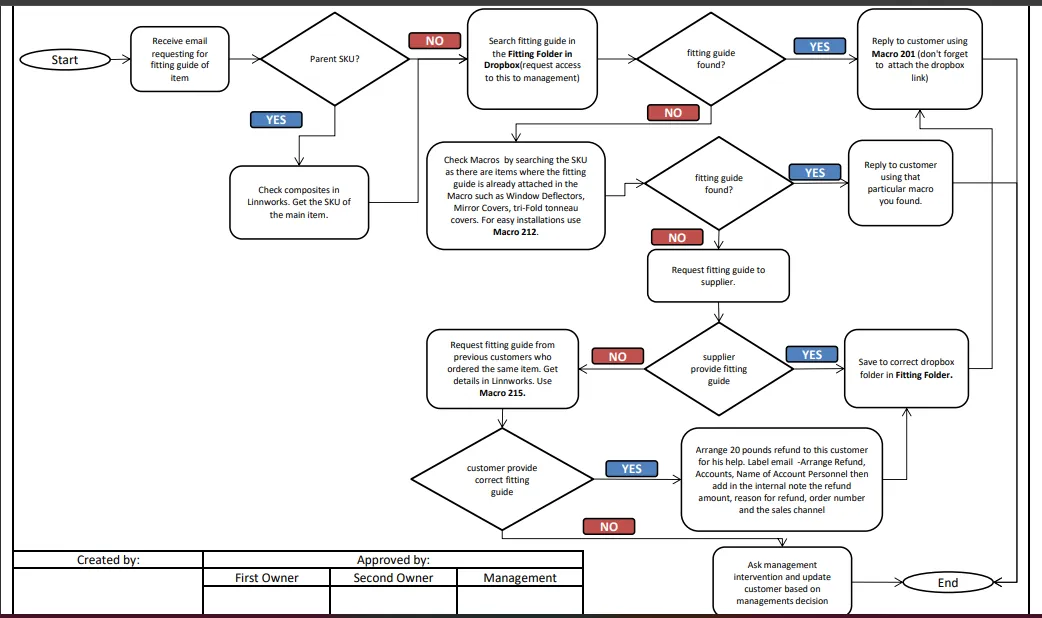
- Searching Shared Dropbox Folder
Important Note:
The following are the description of each relevant fitting folder:
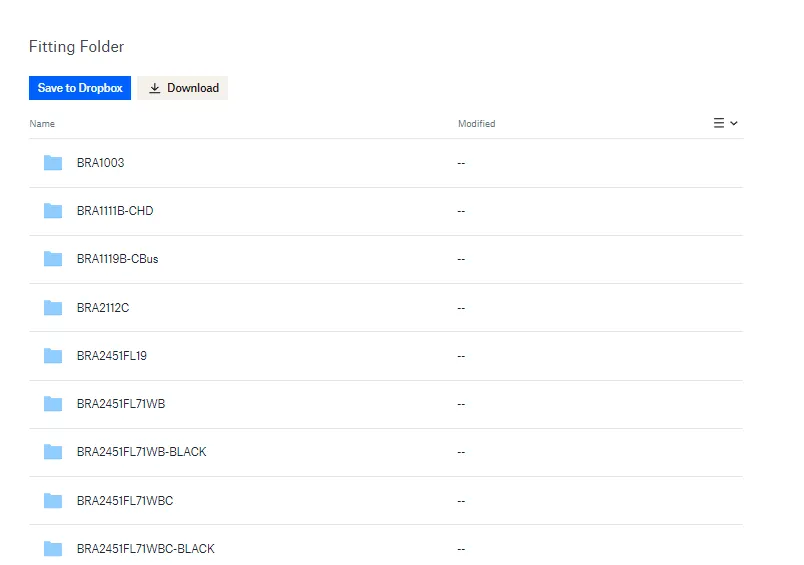
Fitting Folder - This is linked to the extended property of an SKU listing - it is only referenced by SKU for link purposes.
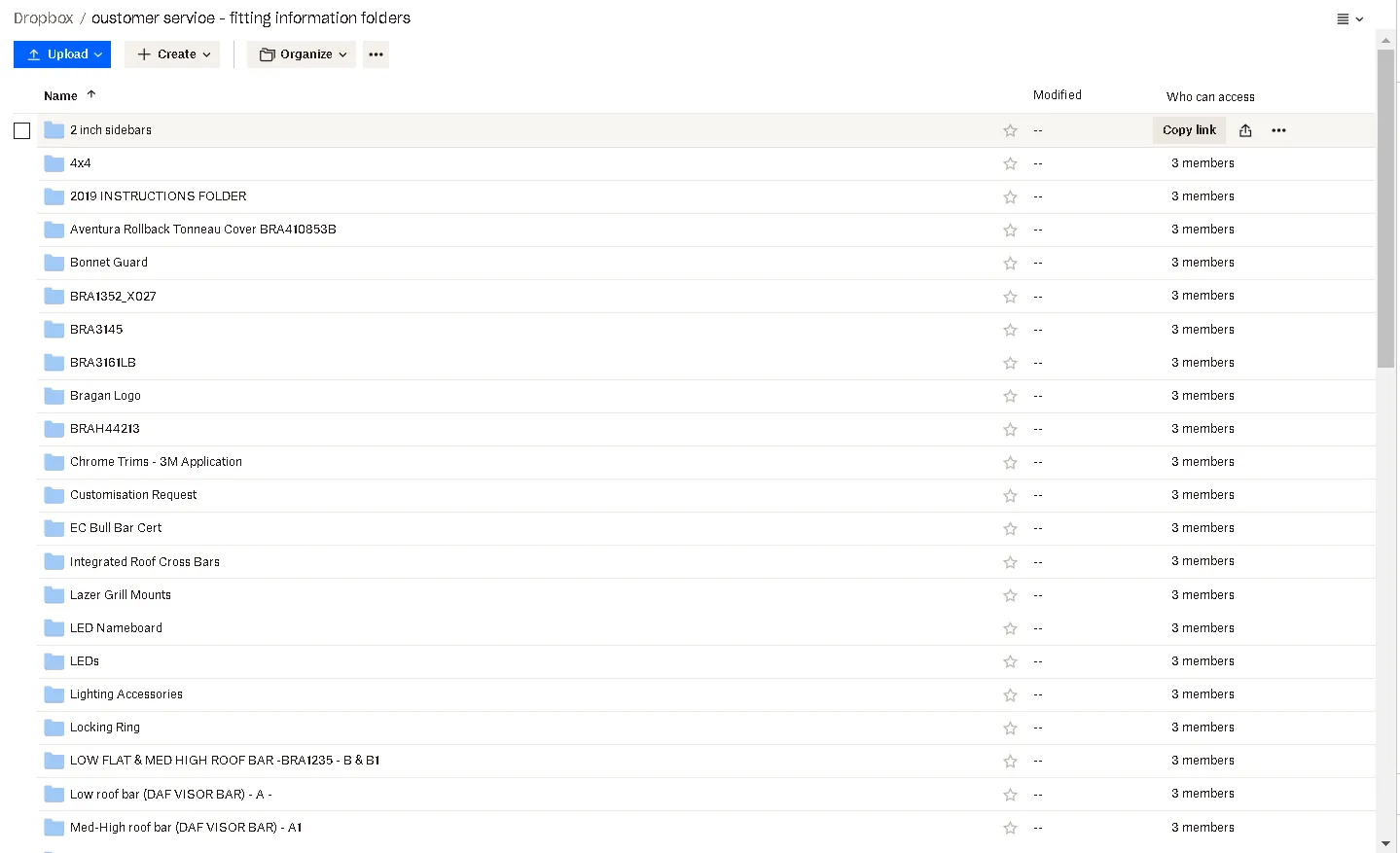
Customer Service - Fitting Information Folders - This holds same data as above fitting folder in many cases - it is searchable by Make > Model path – both this and the Fitting Folder content should be updated with new fitting guide / info as received.
Customer Service - Internal - Fitting & Additional Info/Fitting - Technical - This is used for info that would not suit being added to a listing or fitting guide folder and serves as an adhoc data
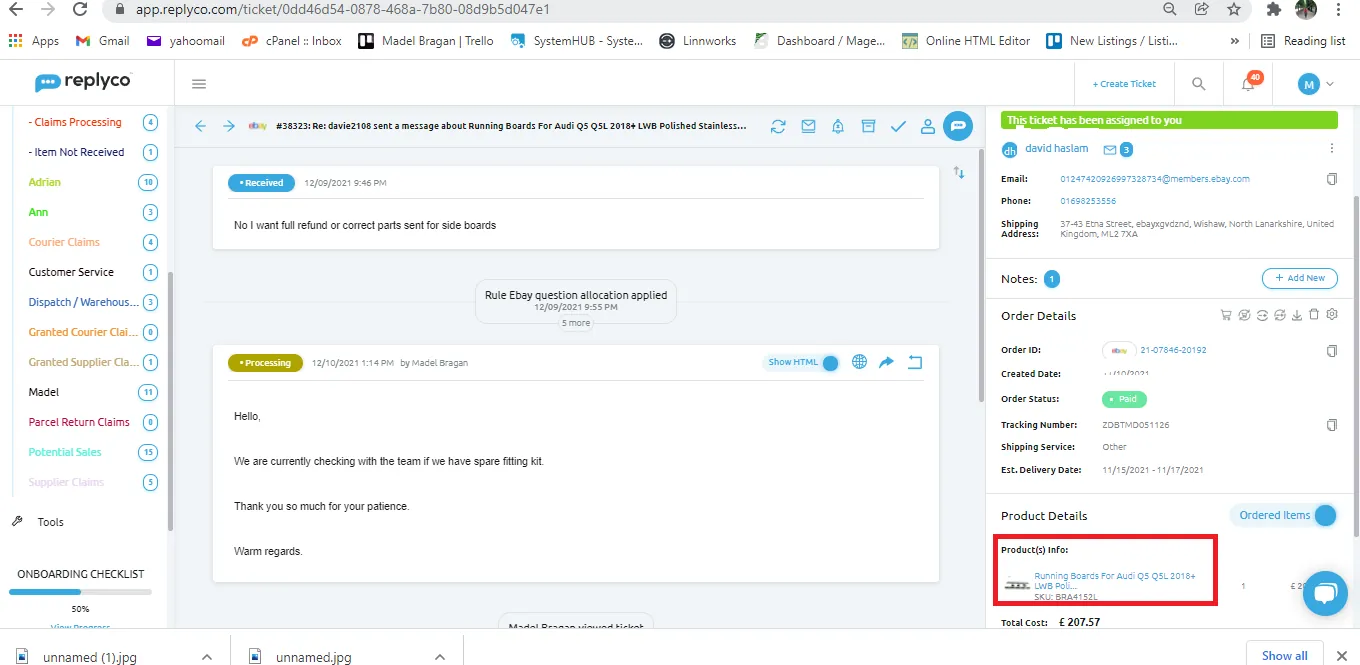
1.1. Check the item he needs a fitting guide for. Copy the SKU of the item he purchased and check other order details which can be found on the right side, under Product Details.
Note: Ensure that you have the correct SKU for the fitting guide he is asking for. You may have to search his order manually on LW to get the correct SKU.
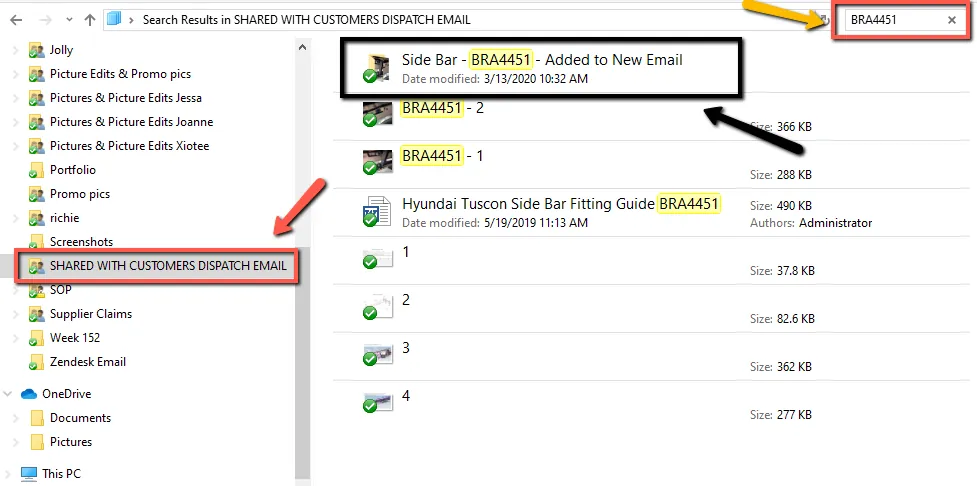
1.2. Go to the Fitting Folder. You can ask management to give you access to this folder. Paste the copied SKU in the search tab to look for the matched folder. Open the folder to check if it has the right content. Each fitting guides has a different file format.
NOTE:
Please check the content of the folder before sending to ensure the correct fitting guide is being sent to the customer and also if the content is really a fitting guide since sometimes there are folders that only contain pictures of the components but no fitting instructions.
If there are additional words or letters in the SKU do not include it when searching in the shared dropbox folder. For example: if the SKU is BRA41015FL you can drop the FL and search only BRA41015
the SKU is still the same.
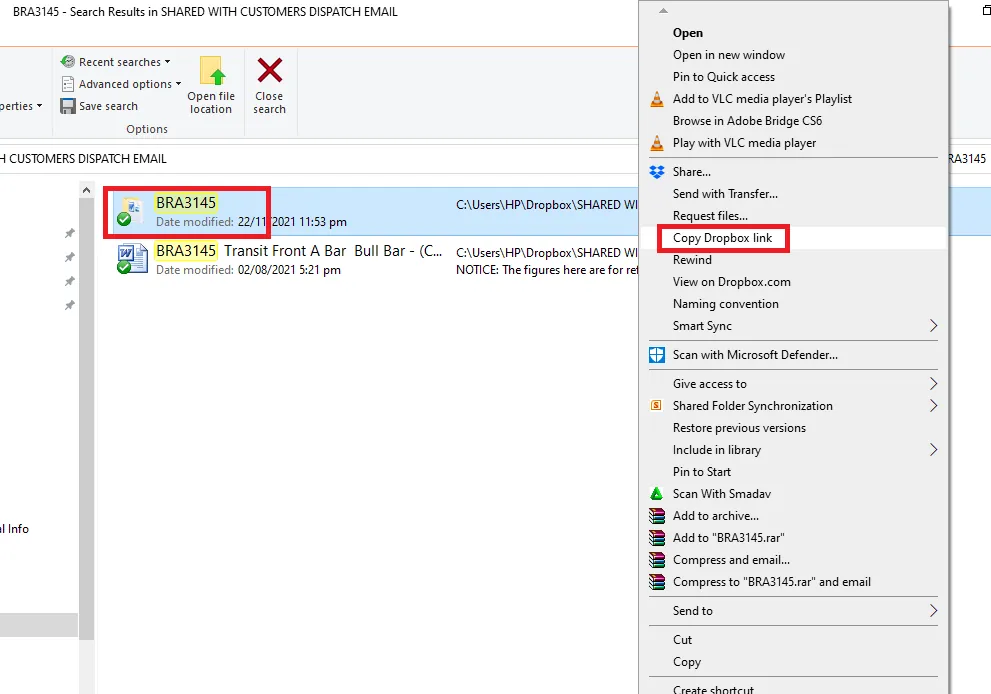
1.3. If content is correct, go back to the folder and then copy the link of the folder. It should be the folder and not the individual files inside the folder.
1.4. Use Macro 201-B For Insurance & Warranty these should be fitted by a Mechanic or Fitter to reply to customer. Paste the Dropbox link to the part highlighted below. This must always be the first macro sent when fitting instructions have been requested.
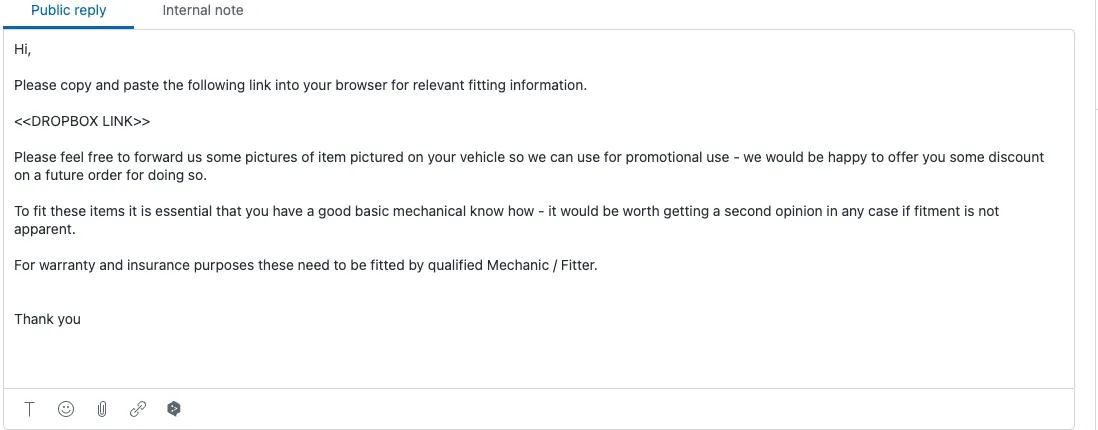
Note: Ensure to hit ENTER after you have paste the link to enable its hyperlink. (The link should appear blue.)
- Fitting Guide for Window Deflectors Adhesive Type
Fitting guide for this can be found in Macro 207. You can send this as reply to any inquiries and no need to search for it in the shared dropbox folder.
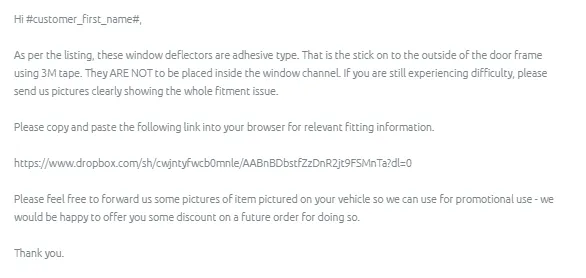
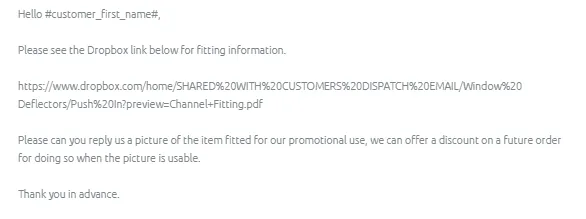
- Fitting Guide for Window Deflectors Push In Channel Fitting guide for this can be found in Macro 208. You can send this as reply to any inquiries and no need to search for it in the shared dropbox folder.
- Other Fitting Instructions incorporated in Macro
Macro 203 Fitting Instructions Request - RAISED CROSS BARS - Fitting guide, Instruction, Installation, Fitment Issue Raised Roof Rails, BRA1360, BRA1354, BRA1341, BRA1357, BRA1358, BRA1341B, BRA1357B, BRA1358B, BRA1352
Macro 204 Fitting Instructions Request - INTEGRATED CROSS BARS - Fitting Guide, Instruction, Installation, Fitment Issue Integrated Roof Rails, Audi, BMW, BRA4140, BRA4140-BLK
Macro 205 Fitting Instructions Request - 2" SIDE BARS , Fitting guide, Installation, Fitment Issue, 2 Inch,
Macro 206 Fitting Instructions Request- CHROME ACCESSORIES MIRROR COVERS / DOOR HANDLE COVERS Fitting guide, Installation, 3M Tape, Adhesive, Bumper Protector, Fitment Issue
Macro 209 Fitting Instructions Request - TRI-FOLD SOFT VINYL TONNEAU COVERS Fitting guide, Instruction, Installation, Fitment Issue
Macro 212 Fitting Instructions request - - For easy / straight-forward fitting items - no Instruction, Installation, fitment guide not available or needed
- How to Check Child Item SKU
5.1. If fitting guide is not found in the shared Dropbox folder, go to Linnworks then check if it has composite or it has child items. To know about Parent and Child Items, check this SOP. To know the composites of the item, follow steps below:
5.1a. Log in to Linnworks using the credentials provided by management. Click on Inventory icon and select My inventory.
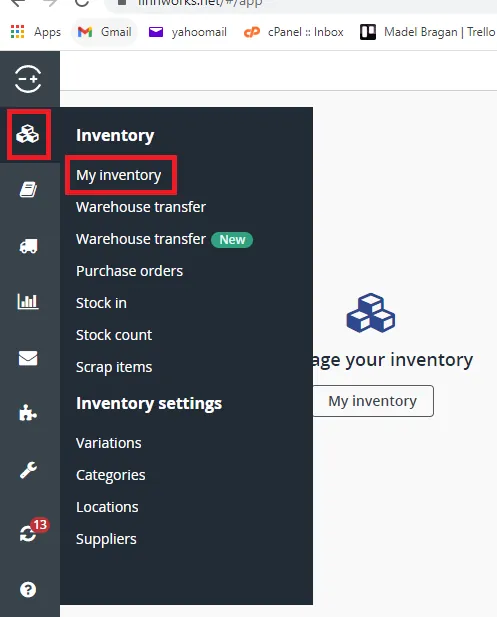
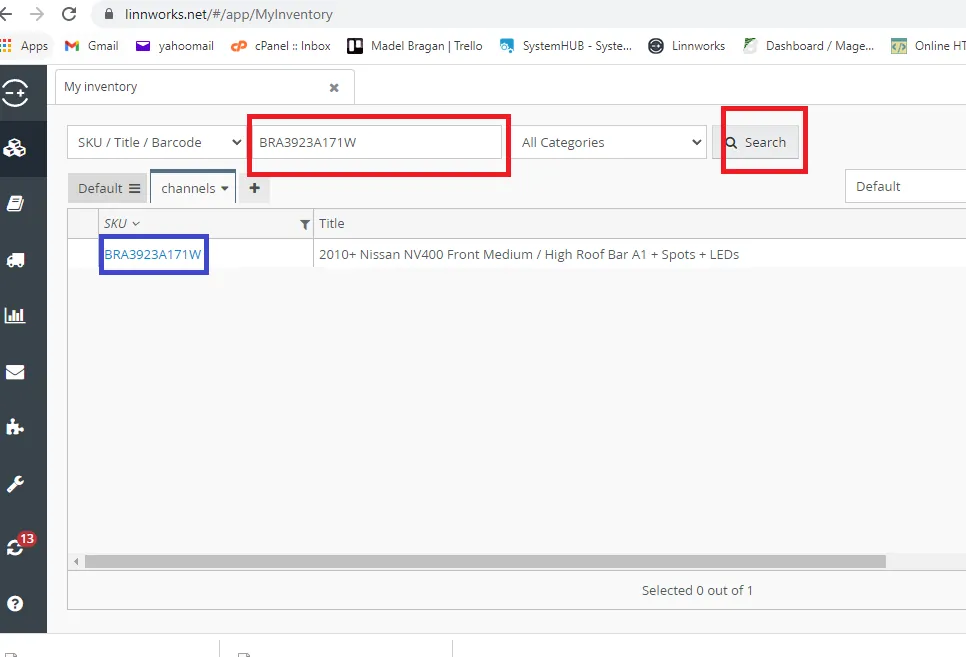
5.1b. Type the SKU and click search then click on the SKU (blue box) to open product details page.
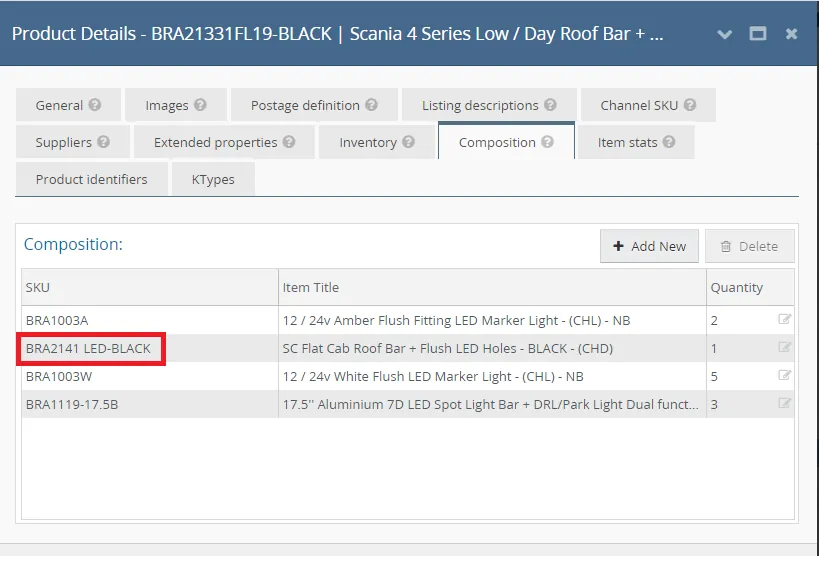
5.1c. Go to composition tab and you will see the composites. Copy the SKU of the relevant item and search again in the shared Dropbox folder. If fitting guide is found then follow step 3. Make sure to double check the content of the folder before sending to customer.
Note: Make sure that you choose the correct SKU. Do not use composite like lights and brackets since this is not the main item. Also if there are additional words or letters in the SKU do not include it when searching in the shared Dropbox folder. For example: if the child SKU is BRA2141 LED-BLACK you can drop the LED-BLACK and search only BRA2141
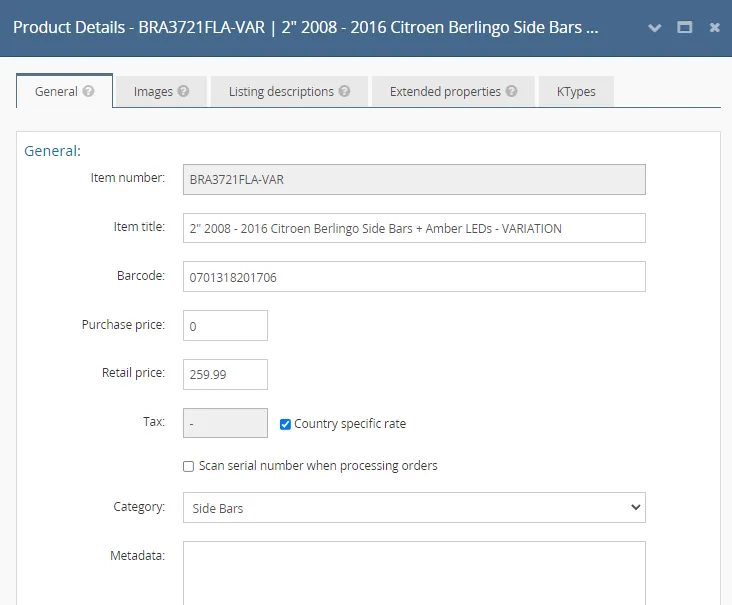
5.1d. If the SKU is a variation listing, meaning there are more that 2 parent items for the SKU, you need to determine first the parents items. You will know that a SKU is a variation listing when there is VAR in it. Example: BRA3721FLA- VAR. Product detail page for this also looks different (see Figure 10). You cannot see the supplier or composition tab.
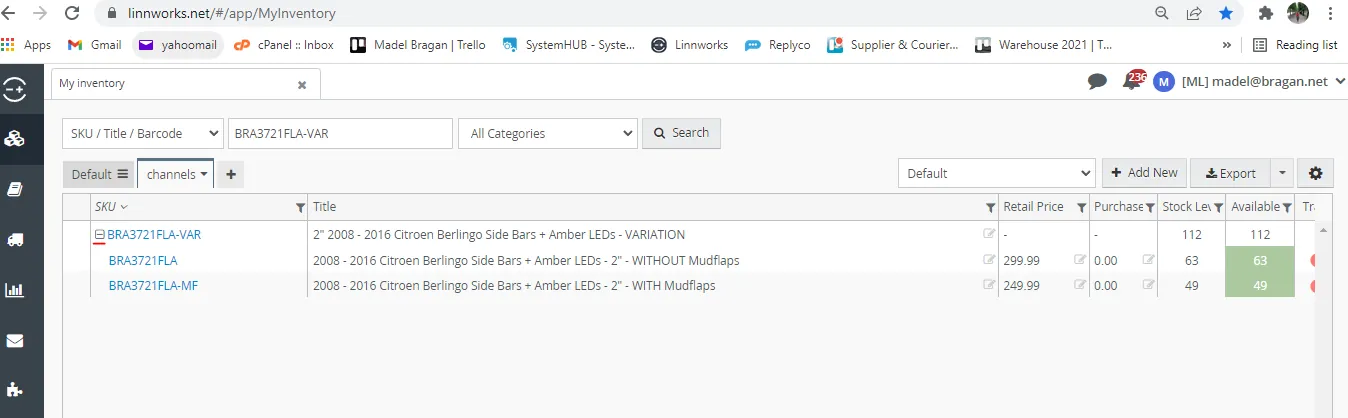
5.1e. In order to get the supplier for this kind of listing, you need to determine the parent items for this variation. To do this, search the variation SKU in My inventory tab and then click the "+" sign to show the parent items. Once you have the parent item you can now get the child item and you can now search for the fitting guide.
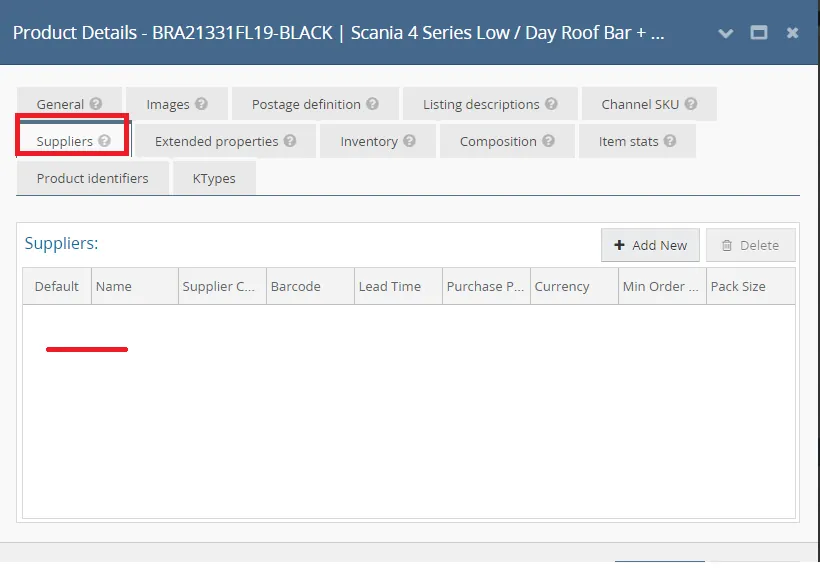
- How to Check for the Supplier of the Item 6.1. If fitting guide is still not found even after using the composite SKU, then you will need to request the supplier for the fitting instruction. To know who the supplier is, just go to the Suppliers tab, if this is blank, this mean that the SKU is a parent item.
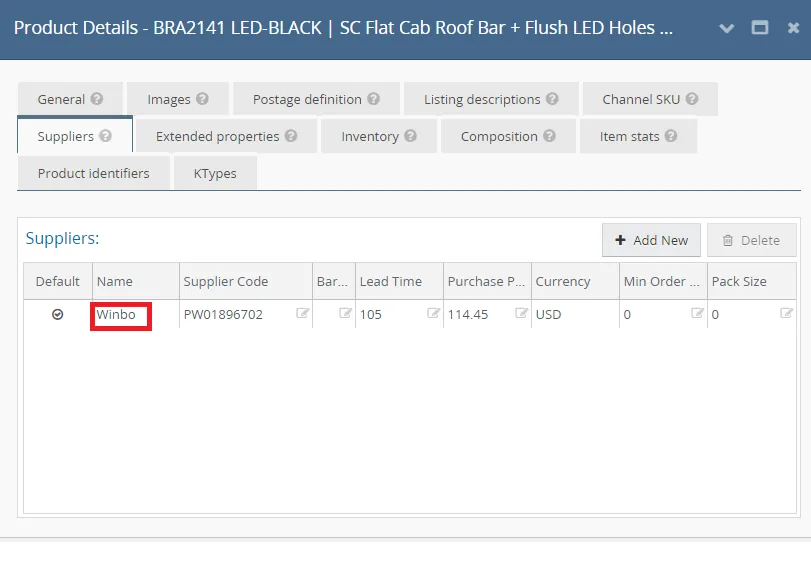
6.2. Go to composition tab and get the main child item and search again in the My inventory tab to open the product details page. Go to suppliers tab and you can see now the supplier.
- How to Request to Supplier 7.1. If supplier has a skype group you can ask them directly through chat. The format of your chat inquiry should include:
your request + SKU + item title + ticket number of the customers email requesting for the fitting guide
Supplier with a Skype Group is only Eirturk. Skype Group name is Bragan – Eirturk.
7.2. If supplier has no skype group then contact them through email. You can get the contact person and their email address in the Suppliers List provided by Procurement (see Attachment below)
Note:
It is best not to reply first to the customer while waiting for the fitting guide. But if it is taking too long (24 hrs) for the supplier to send the fitting guide then you can update customer that we are waiting for the fitting guide from supplier.
You can also request for a fitting guide video for clearer step by step process. You usually do this if customer has fitment problem using the written fitting guide.
Suppliers list is usually updated if there are new suppliers. If you cannot find the supplier in the list, you can request it to Procurement.
For items designed by Bragan, suppliers won't have a fitting guide for this since they were just the one who manufactures it but the design and fitment is originally from Bragan, therefore there is no need to contact suppliers for the fitting guide. Below are the list of items designed by Bragan (but not limited to):
2" Side Bars
All truck and van roof bars
All Truck Visor Bars
All truck Grill Bars
All truck under bumper bars
All truck side bars
All truck perimeter Top Strips
All truck rear roof bar
All truck chassis bar
All truck step bars
Transit Bull Bar
4x4 Roll bar (with LED marker light)
4x4 Rear quarter bar
4x4 & Van rear roof bar (DAF Visor bar)
- Saving Fitting Guide from Supplier
8.1. Once the supplier sends the fitting guide, you need to save it in the correct folder. If the fitting guide is for a Van the save it in the Van folder. There are subfolders also so make sure to choose correct subfolders. If you cannot find the correct subfolder since it is a new item then create one. Format for naming the folder should be: item name – SKU (example: Running Board - BRA4122B)
Note: Since there is now a new folder for the fitting guide. The new rule for saving the fitting guide is to save it by creating a new folder inside the Fitting Folder. File name of the Folder should be the SKU of the item. Then the filename of the fitting guide itself should also be the SKU number.
8.2. There are instances wherein the fitting guide for a certain child item can also be used for several parent items or other vehicle model. In order to know this you can do Composite Export in LW. For example BRA4853-BLACK-CHD Universal NSQ A Bar - BLACK (CHD) has many parent SKU. So the fitting guide for this child SKU can also be saved to parent SKU that have this as their child SKU. To do Composite Export follow these steps:
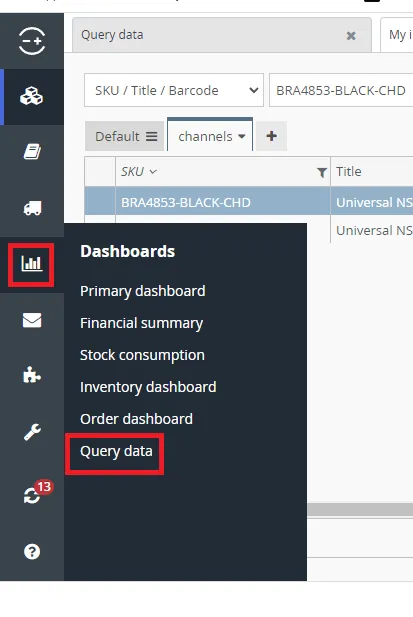
8.2a. Go to Linnworks then click on Dashboard then select Query Data.
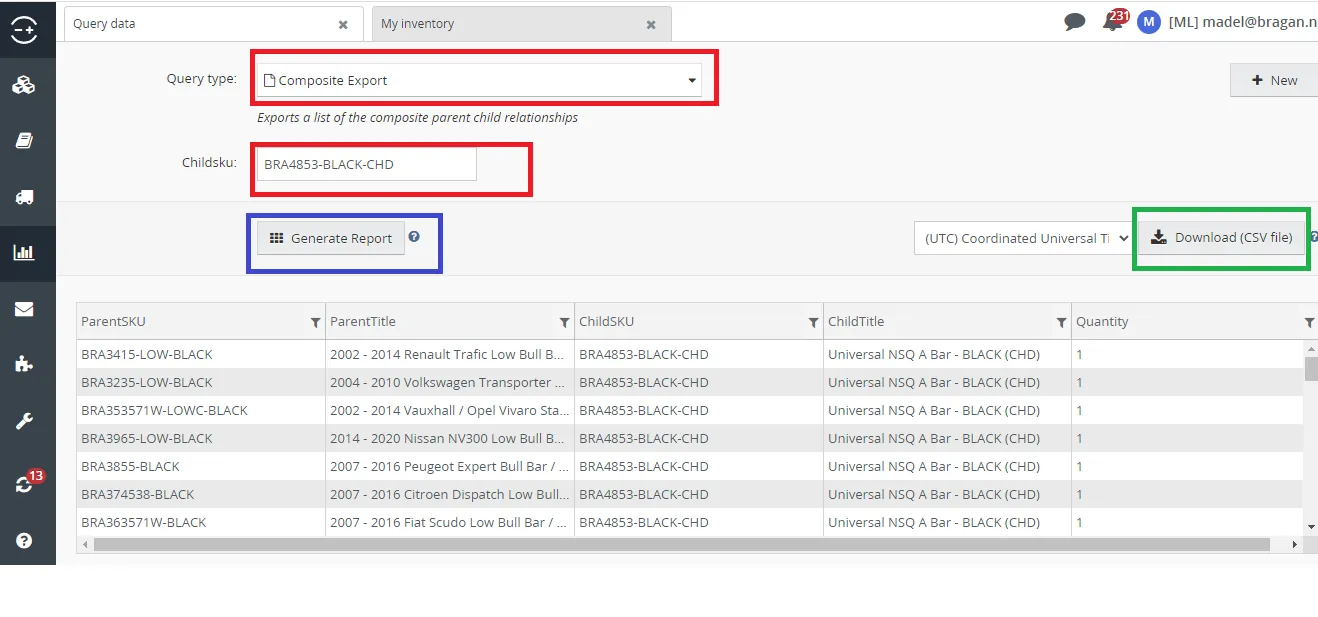
8.2b. For the query type select Composite Export then type in the child SKU. Click generate report to see the parent SKUs or download it as CSV file. This means that the fitting guide for BRA4853-BLACK-CHD Universal NSQ A Bar - BLACK (CHD) can also be saved to the folders of the following make and model of vehicles.
- Requesting advice on fitment from Previous Customer 9.1. If supplier couldn't provide the fitting instruction (this happens when the supplier is only the manufacturer but the design of the product if from us) then we can request fitting advice from our previous customer who bought the item. To check previous customer follow these steps:
9.1a. Go to Linnworks > Orders > Processed Orders
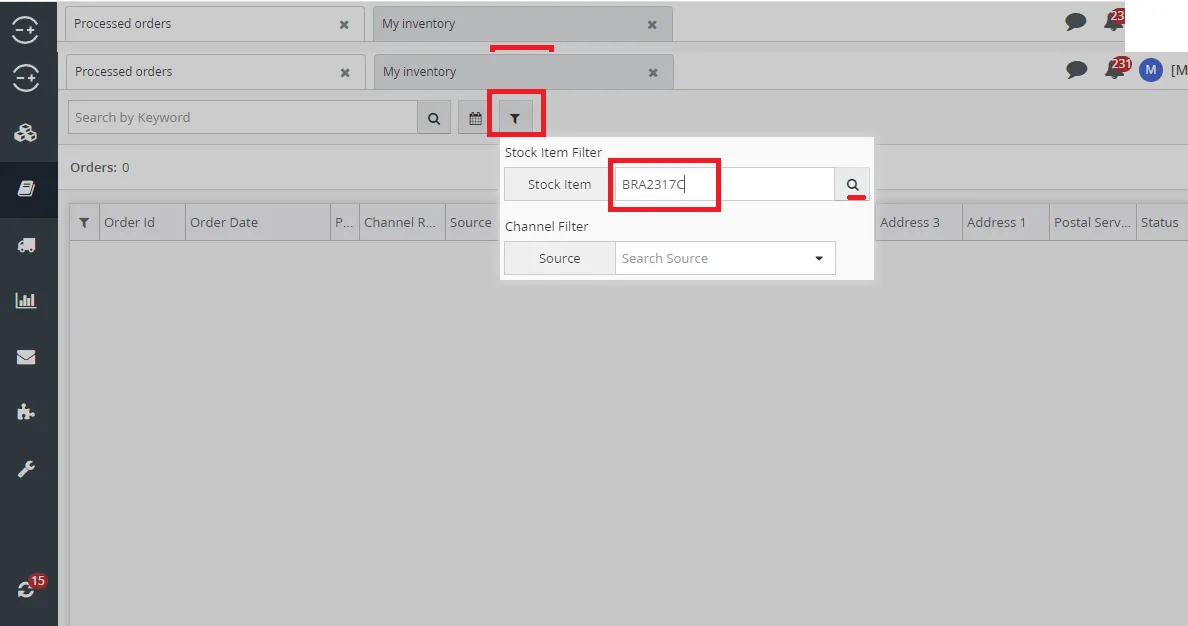
9.1b. Click on the filter icon and then type the SKU of the item then click search.
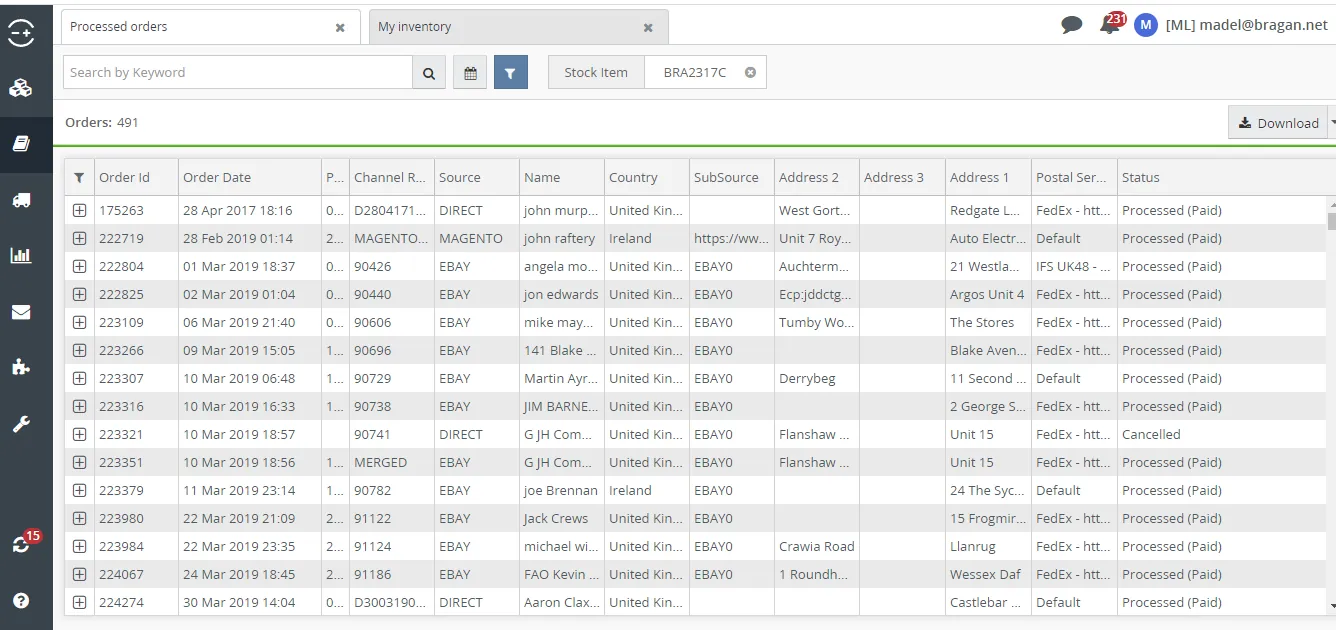
9.1c. Choose from previous customers, click order ID and look for their email address. Create a ticket and send Macro 215. Make sure to indicate in the message the SKU and item name since sometimes the customer bought many items. You need to specify so customer will know. Just edit the macro to include these details. Send to as many previous customer as possible since not all will respond. Ensure that they were not the ones who contacted us.
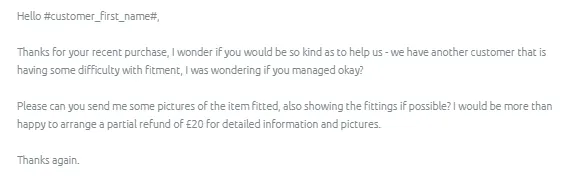
9.1d. If customer respond with the fitting guide pictures/information, assess the information given if it is helpful and clear. Then follow the proper way of saving the fitting guide. See steps 8.1-8.2.
9.1e. Then label it as -Arrange Refund and tag also Accounts so they can arrange the 20 pounds refund.
Video & Media#
🎥 Fitting Folder Explained 🎥 Sending Fitting Guide
Notes#
This section is important so Adhoc points and issues can be logged. Also, Q&A can be logged for suggestions for potential issues encountered. Also, log important notes needed for this system. Additional Notes:
Please check the content of the guide before sending it to ensure the correct fitting guide is being sent to the customer.
Ensure to hit ENTER after you have pasted the link to enable its hyperlink. (The link should appear blue.)
Ensure that you saved fitting guide from supplier and previous customers to correct folders.
If there’s no result in searching for a copy of the fitting guide using the Parent SKU, check the composite for the CHD SKU.
Universal Items such as Rear Roof Bar, Window Deflectors, etc. has general fitting information.
Attachments#
Handling_Fitting_Guide_Requ… 16/12/2025
List_of_Suppliers_-_Jan_2021.… 16/12/2025