How to Arrange Collection
The purpose of this document is to show instructions about the arranged collection.
Overview#
Purpose: The purpose of this document is to show instructions about the arranged collection.
Scope: Applies to all assigned Bragan CS personnel.
Responsibility: It is the responsibility of each employee to ensure the process set out in this procedure is followed.
Objective: The objective of this document is to guide new and old Bragan employees about arrange collection instructions.
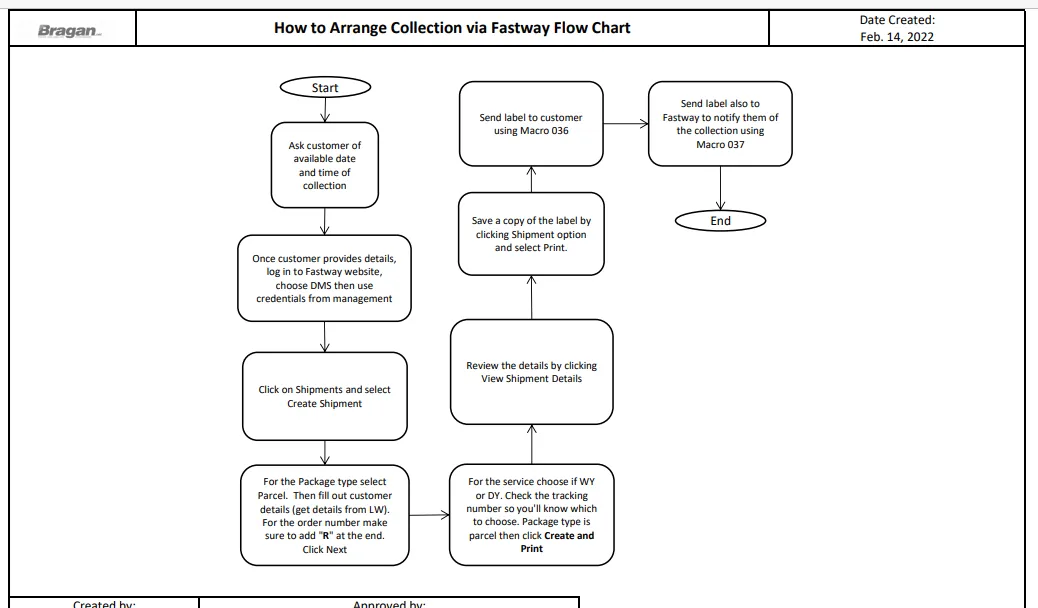
Process Flow (Collection via Fastway)#
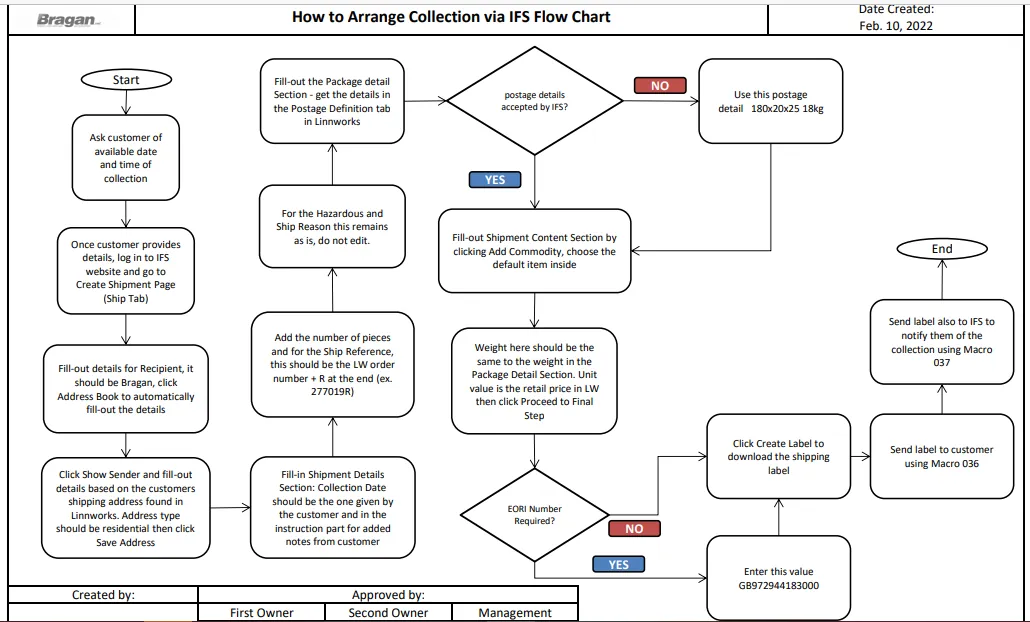
Process Flow (Collection via IFS)#
Arrange Collection#
Arranging collection depends on the location of the customer. All collections in UK are processed through IFS. All collections in Ireland or Northern Ireland are processed through Fastway.
Do not arrange collection for next day - give the courier 2-3 working days to organise collection.
Before processing collection, check the following:
- Management already gave their approval
- Details of the customer are confirmed (order number, address, etc)
- Customer already gave his available date and time when to collect the item. Note: Email first the customer asking for these details.
Arranging Collection via Fastway#
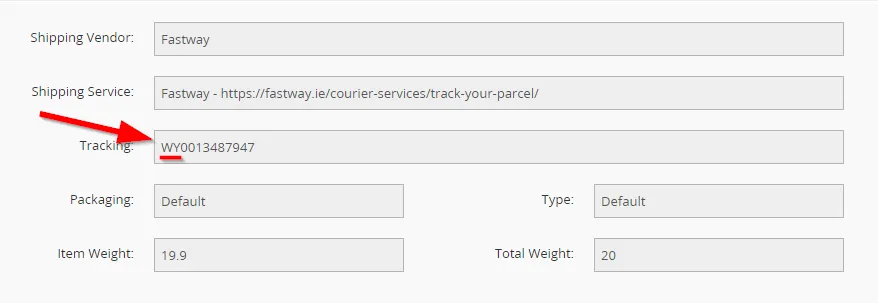
There are two accounts on Fastway - WY and DY. The account that you should use in arranging collection will depend on the shipping account used on the original order. You can check this through the tracking number in LW.
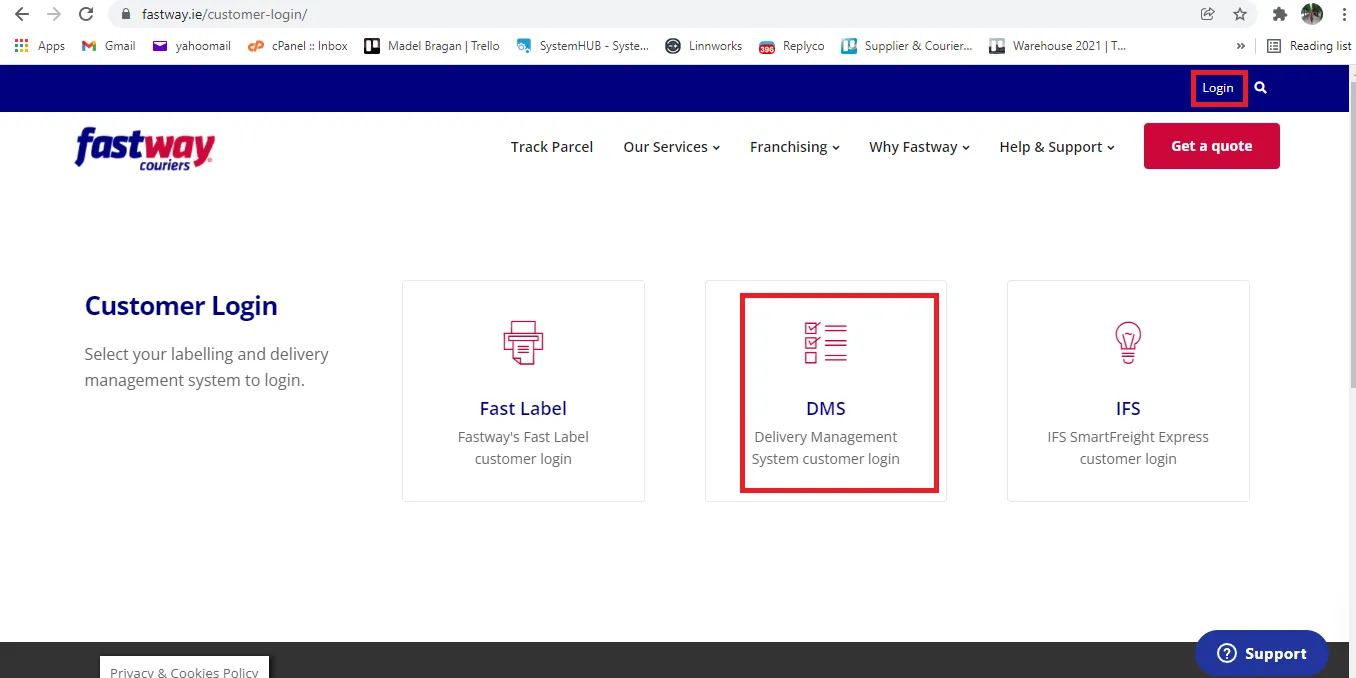
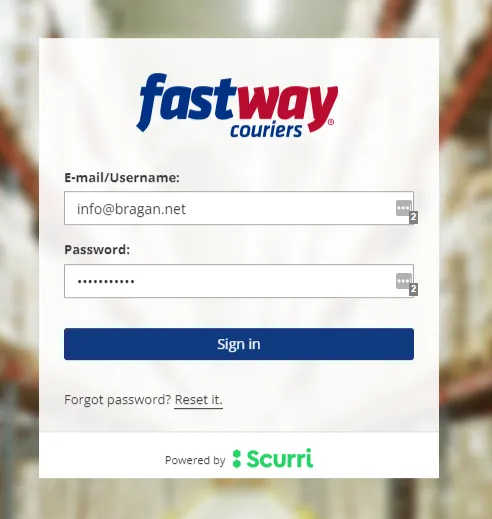
- Go to Fastway's website > Log in > DMS. Then input credentials (The log in details will be provided by management)
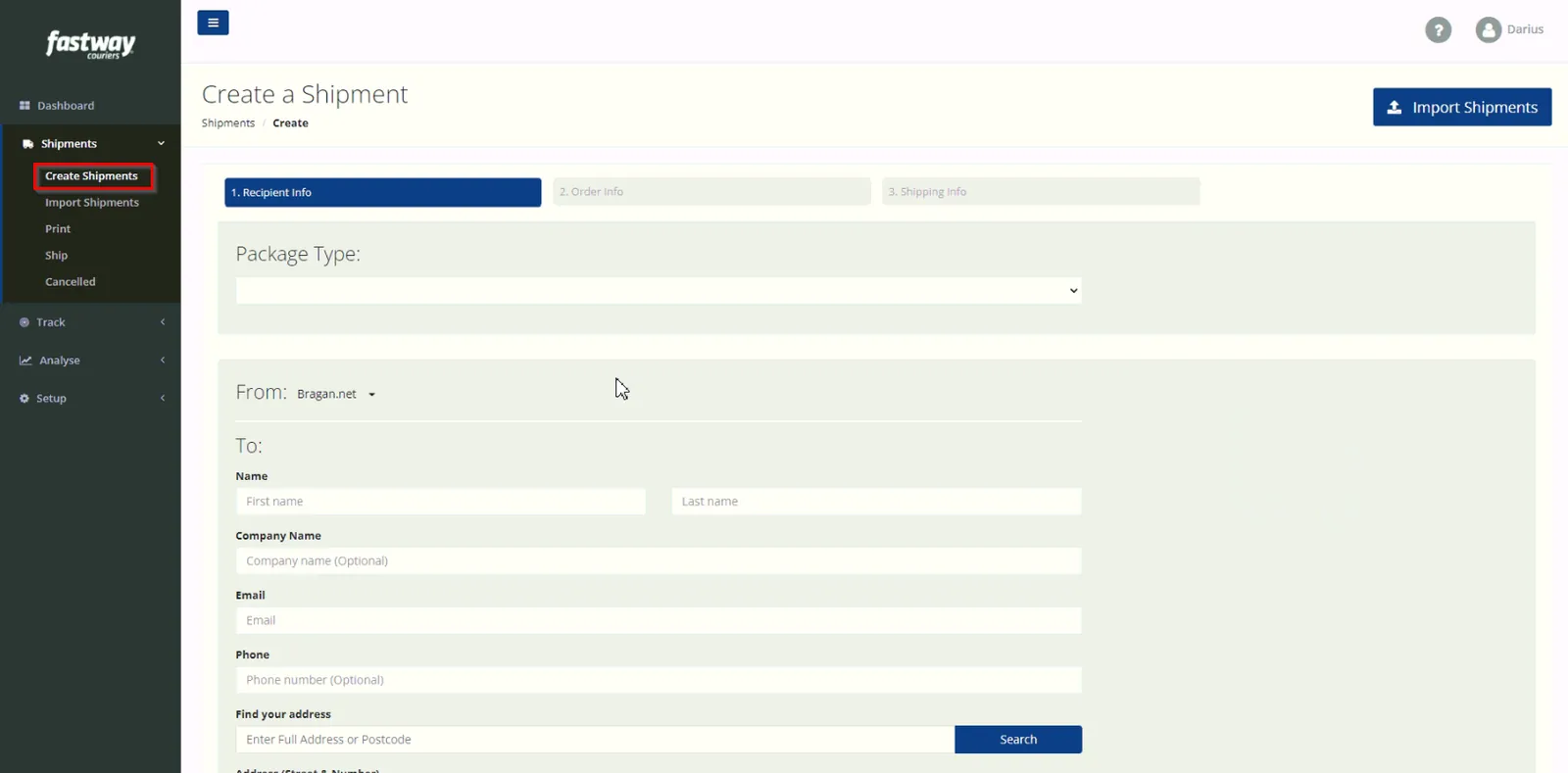
- Click Shipments > Create Shipments
Fill in the details needed:
- Package Type - Parcel
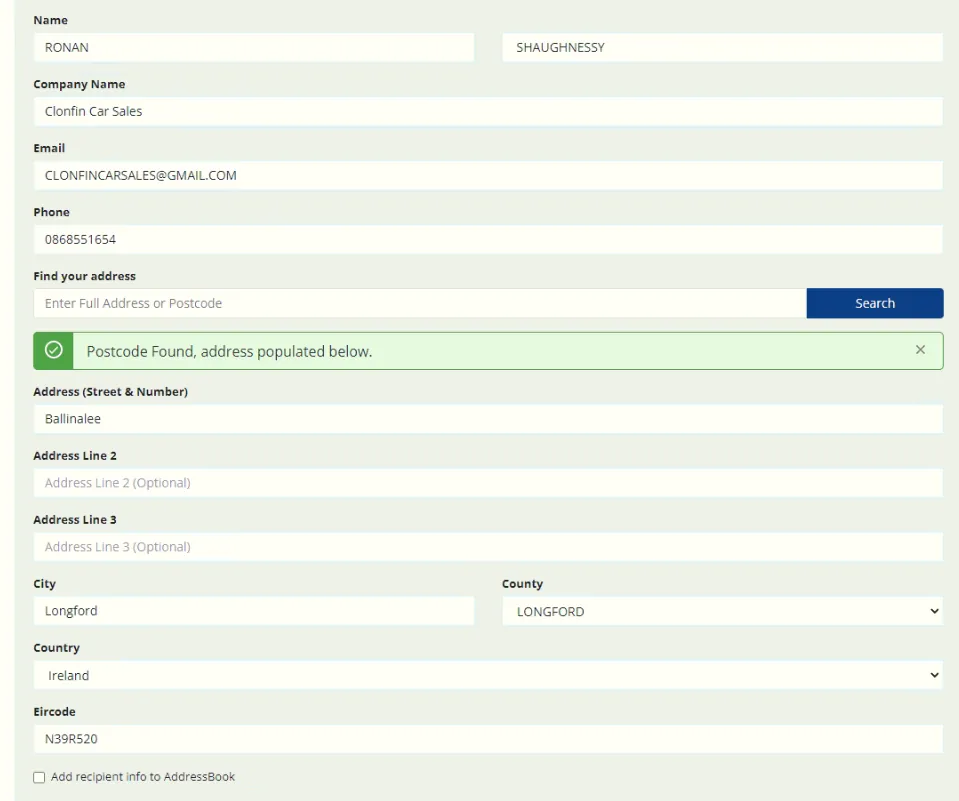
- Customer Details - Copied from LW
The address can be auto-filled by typing in the customer's post code in 'Find your address'. Hit 'Search'. Options should pop up then choose the correct address for the shipment.
After filling in the details, scroll down and click 'Next'.
Sample:
- Under the order number, type in the original order number and add R. See sample below.
Scroll down and hit 'Next'.

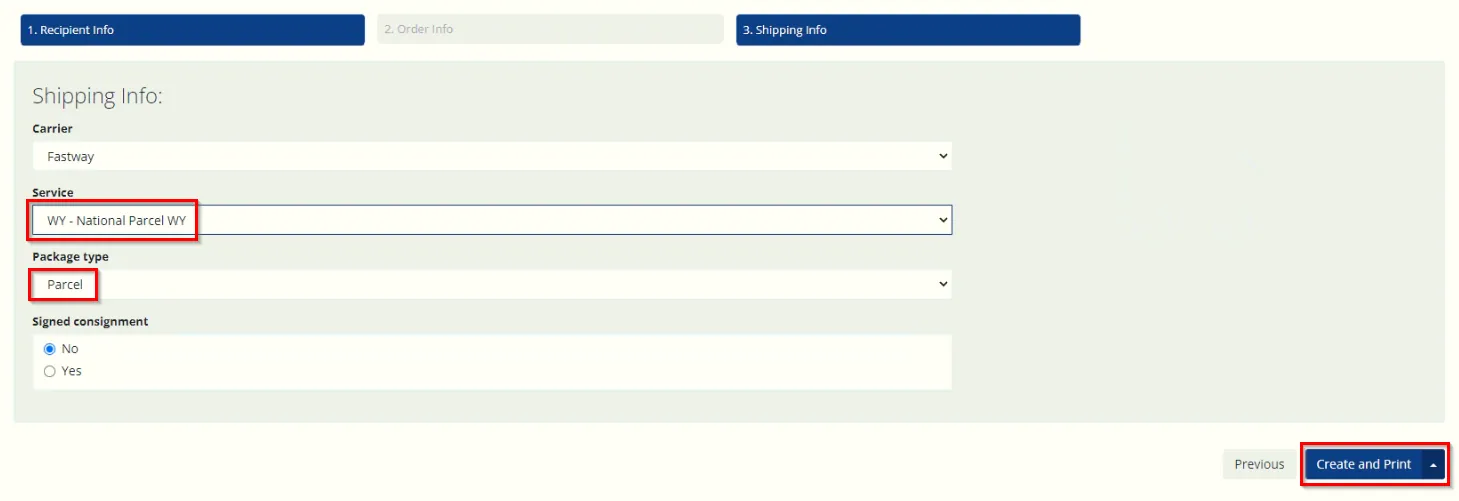
- Fill in using the following details:
- Service - WY / DY (depending on the account that you're using for )
- Package type - Parcel
- Select 'Create and Print'
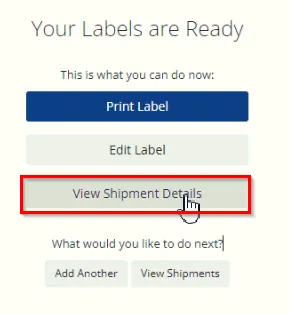
- To review the details, select 'View Shipment Details'.
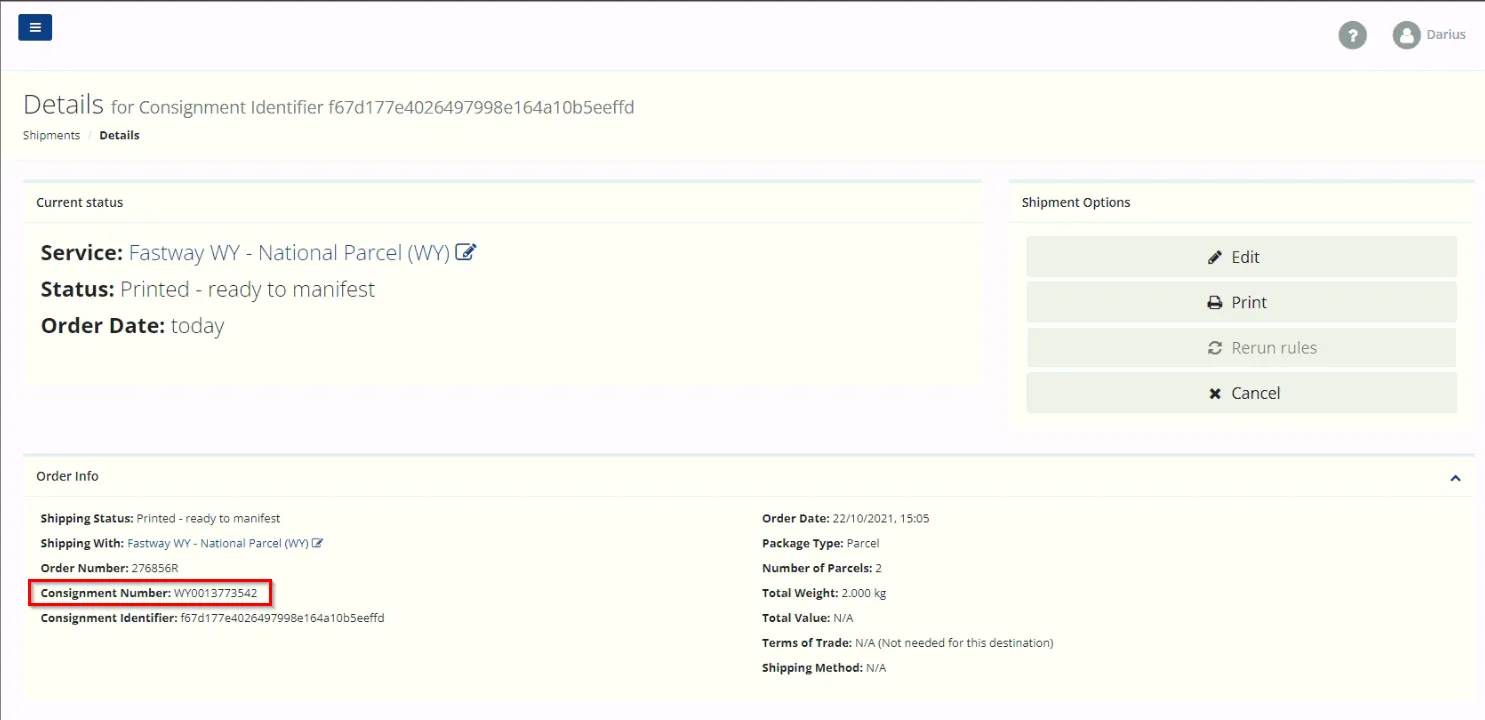
Take note of the Consignment Number. To save a copy of the Shipment label, under Shipment options, click 'Print'. Instead of printing, download a copy of the label.
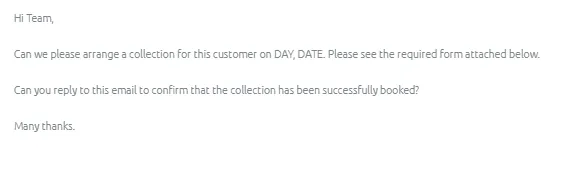
- Send the request to Fastway. Send the email to: [email protected]
Subject: [Tracking number] Collection
Body: Use the macro for Arranging Collection (Macro 037). If the customer has a preferred time or date, indicate it in the email. Normally, Fastway arranges the collection the next day after sending in the request.
Note: Do not forget to attach the downloaded Shipment label.
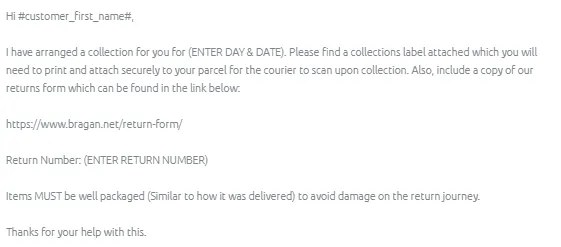
- Notify the customer that the collection has been arranged using Macro 036.
Arranging Collection via IFS#
Before creating a shipment label, ask the customer for his availability first. The collection date will be set based on his availability.
- Go to IFS Website > Log in > International, UK & Domestic Courier
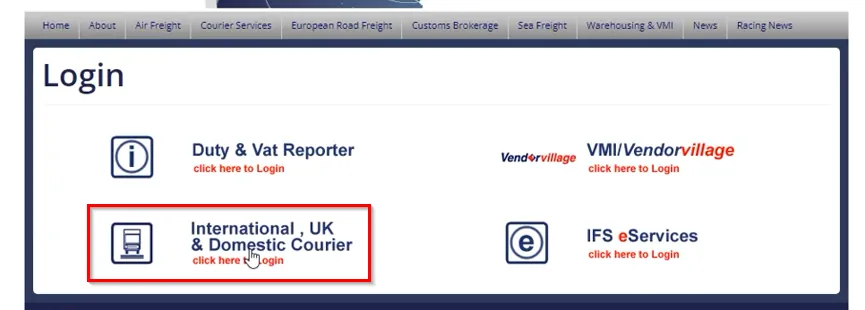
You will be redirected to the log in page. The log in credentials will be provided by management. After logging in, it will bring you straight back to the Create Shipment page (as seen below). If not, click 'Ship'.
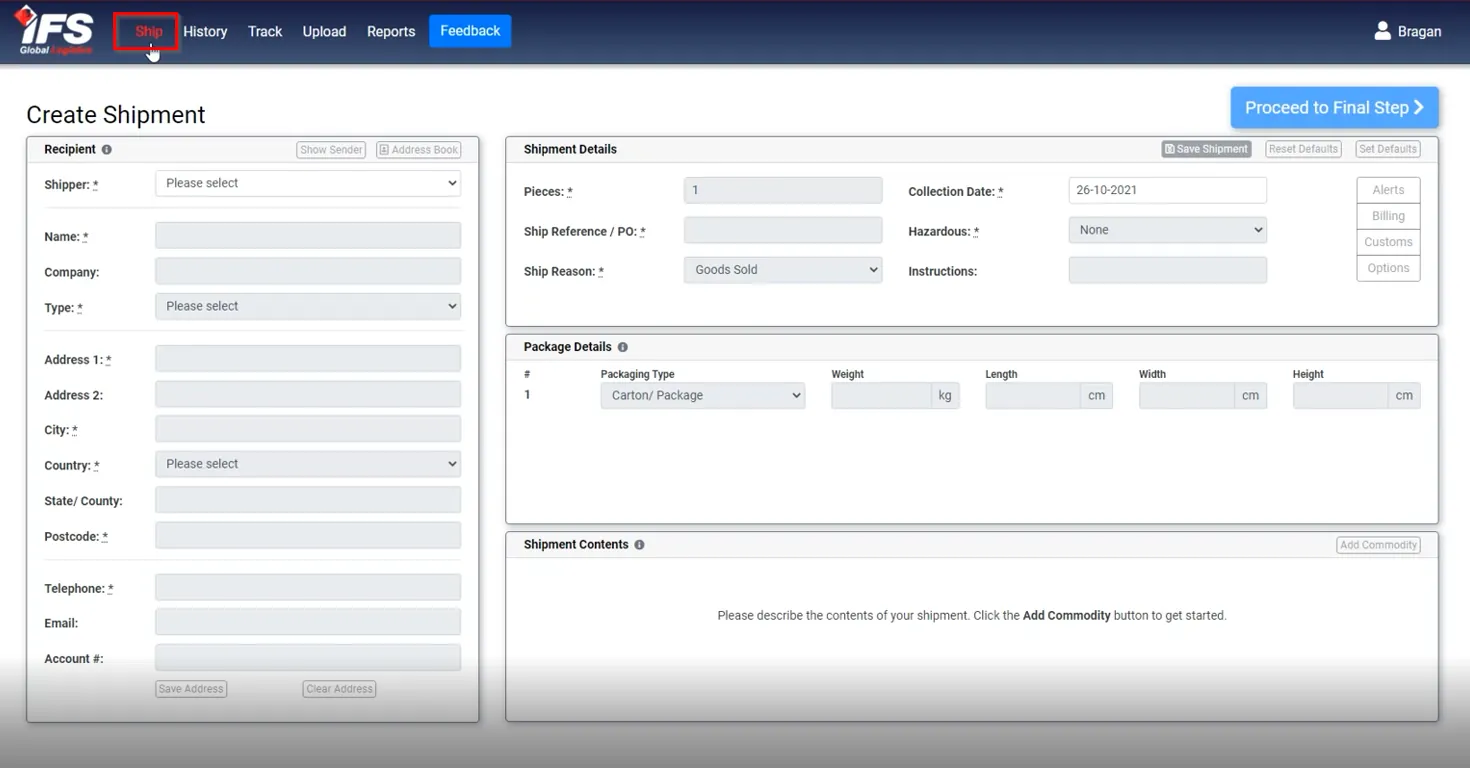
- Fill in the details needed under Recipient. Keep in mind that we are creating the label so that an item can be returned back to us. The Recipient should be Bragan.
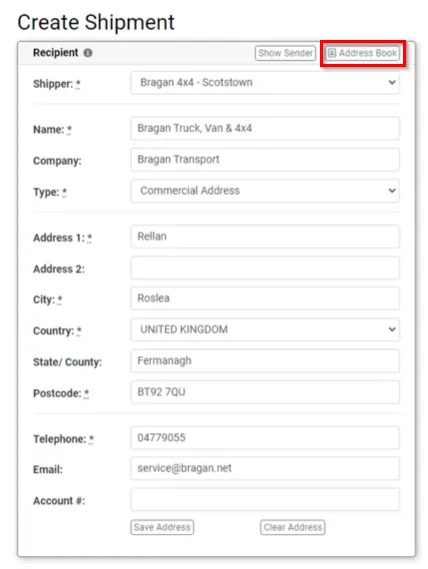
Shipper - Bragan 4x4 - Scotsdown
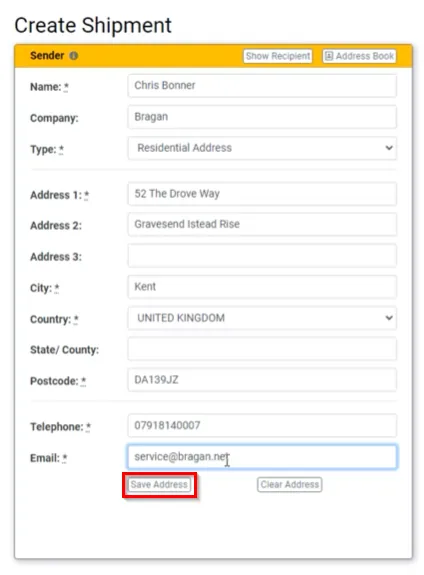
- Click 'Show Sender'. This is where the customer's details are added. You may access the customer details in LW.
Company - This is a required field. Input the customer's company name. If there's no company name provided, type in Bragan. Type - Residential Address Email - [email protected]
- Click 'Save Address'.
- Go back to the Recipient details. Show Recipient > Address Book > Bragan Transport
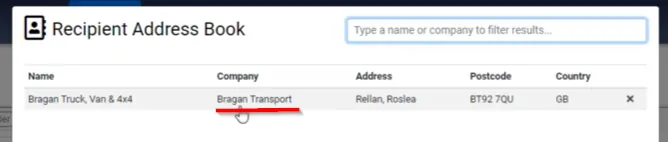
- Fill in the shipment details.
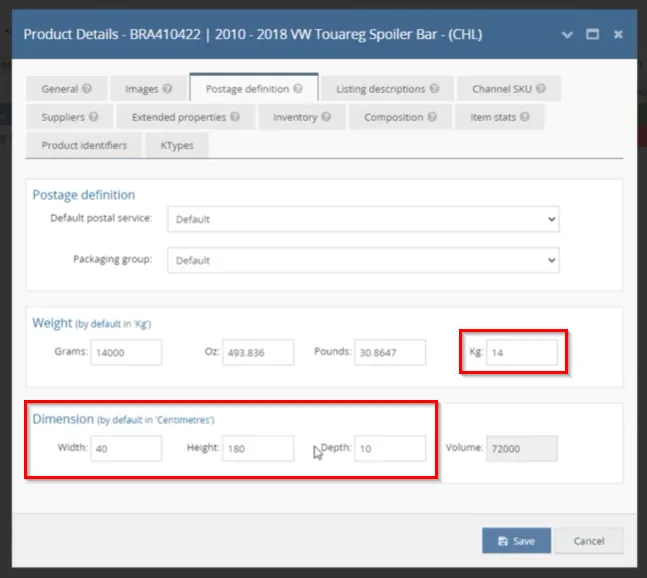
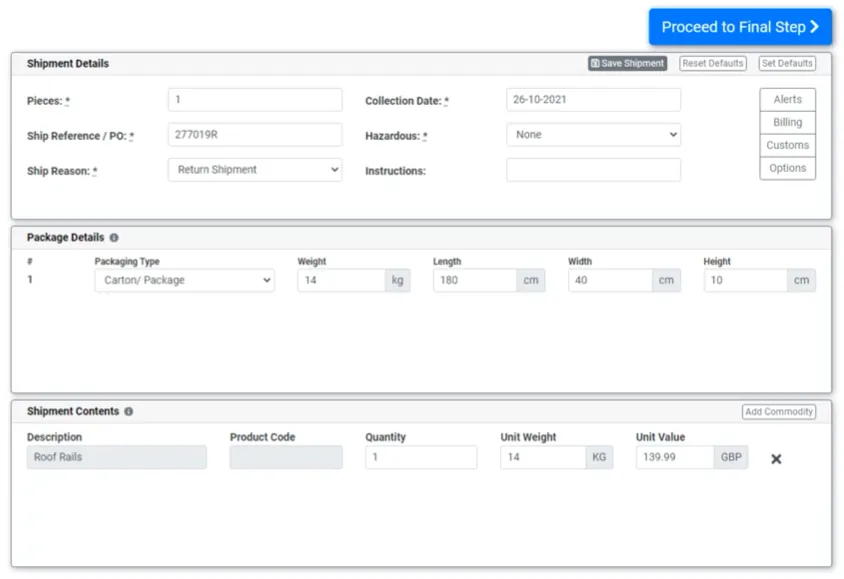
Ship Reference / PO - Order number + R (Example: 277019R) Ship Reason - Return Shipment
Collection Date - Date of the customer's preferred collection date (must be agreed upon via email) Hazardous - None Package details - Get the details from LW (My Inventory > Search for SKU > Postage Definition) Shipment Contents - Add Commodity > Roof Rails (generic code) Unit weight - Same weight as the package details Unit Value - Retail price of SKU
- Hit 'Proceed to Final Step' after filling in the details.
- To download the Shipment label, click 'Create Label'.
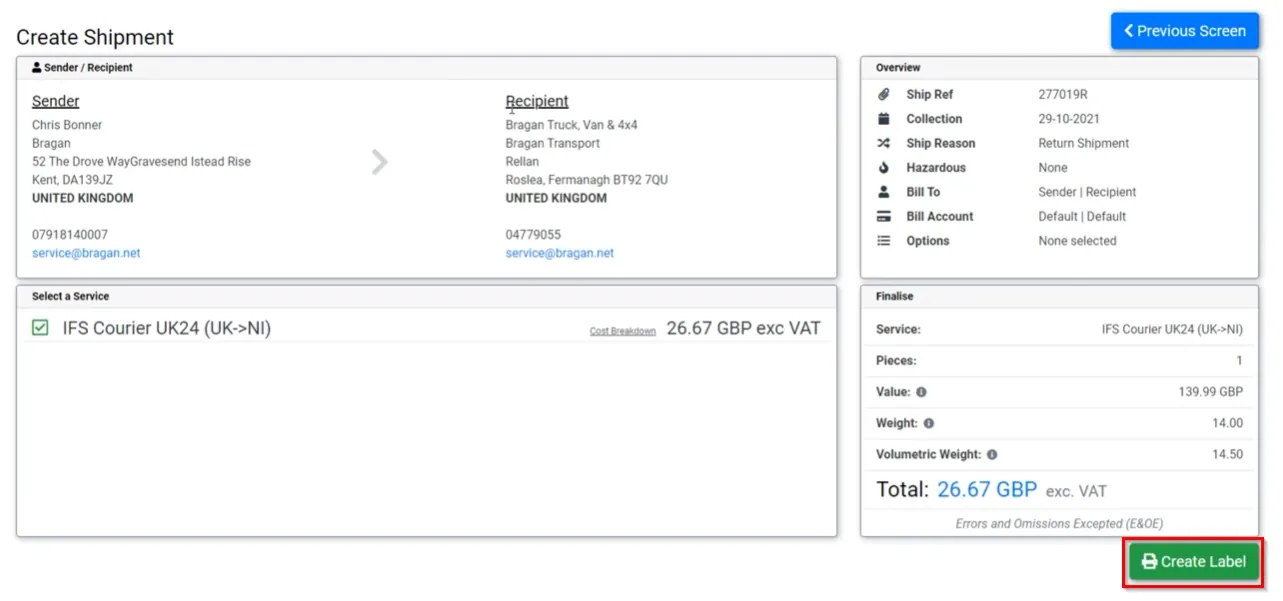
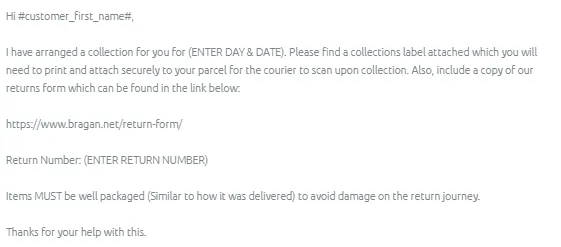
- Send the label to the customer and inform them that the collection has been arranged using Macro 036 for website customer. If customer is from eBay replace the return form link with Return-Form.html
Cancelling IFS Collection Label#
If there is a need to cancel the booked collection, follow the steps below:
- Log in to IFS website > History and search for the shipping label you created.
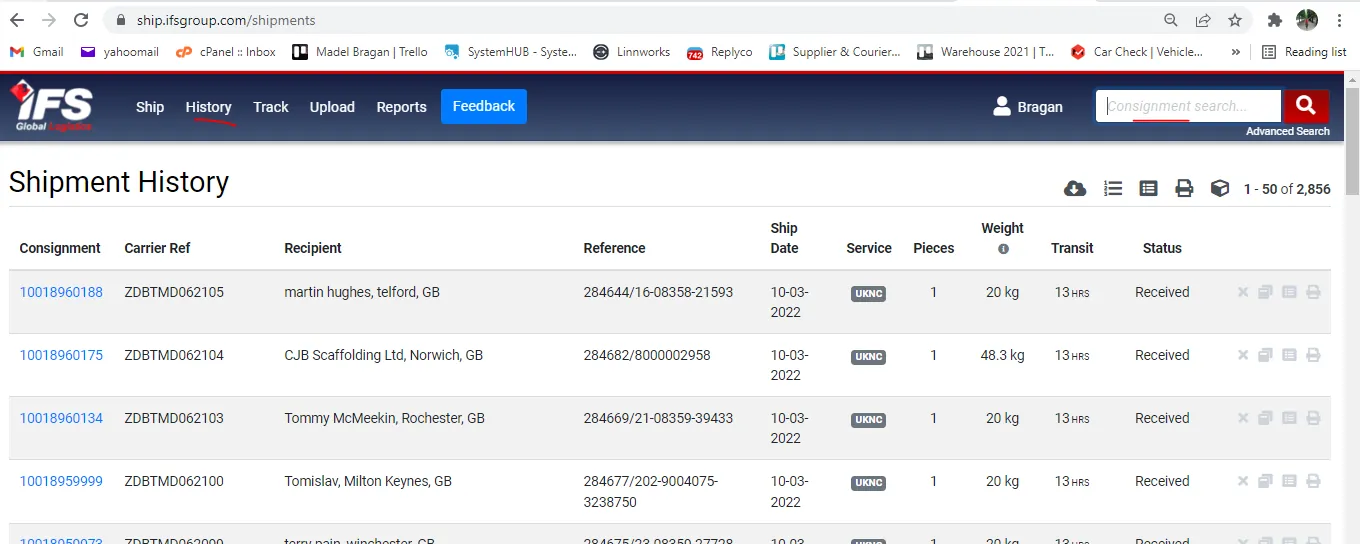
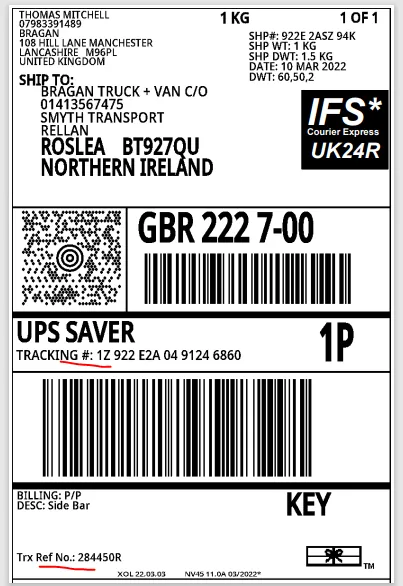
You can use the tracking number or the Trx Ref No to search for the shipping label.
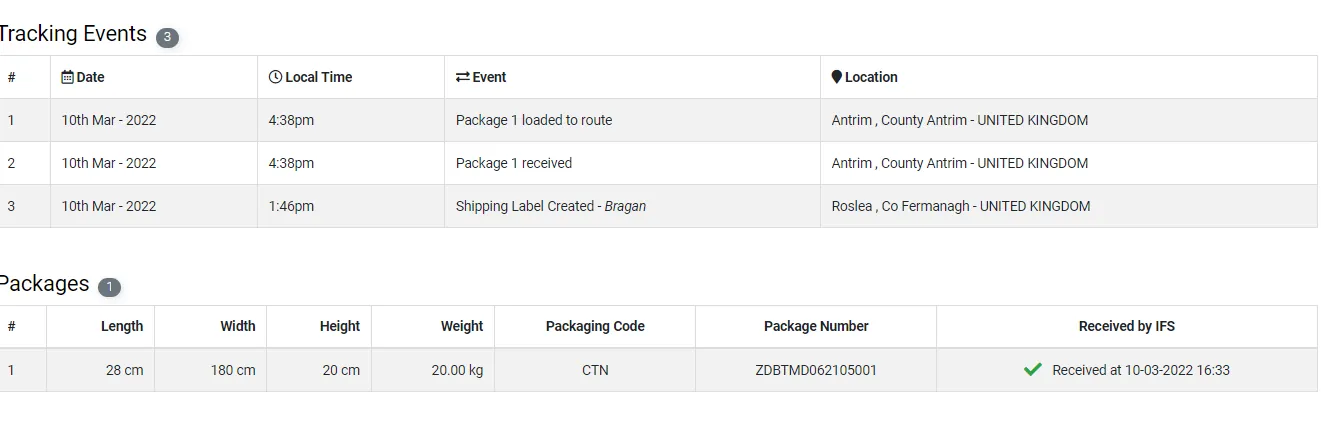
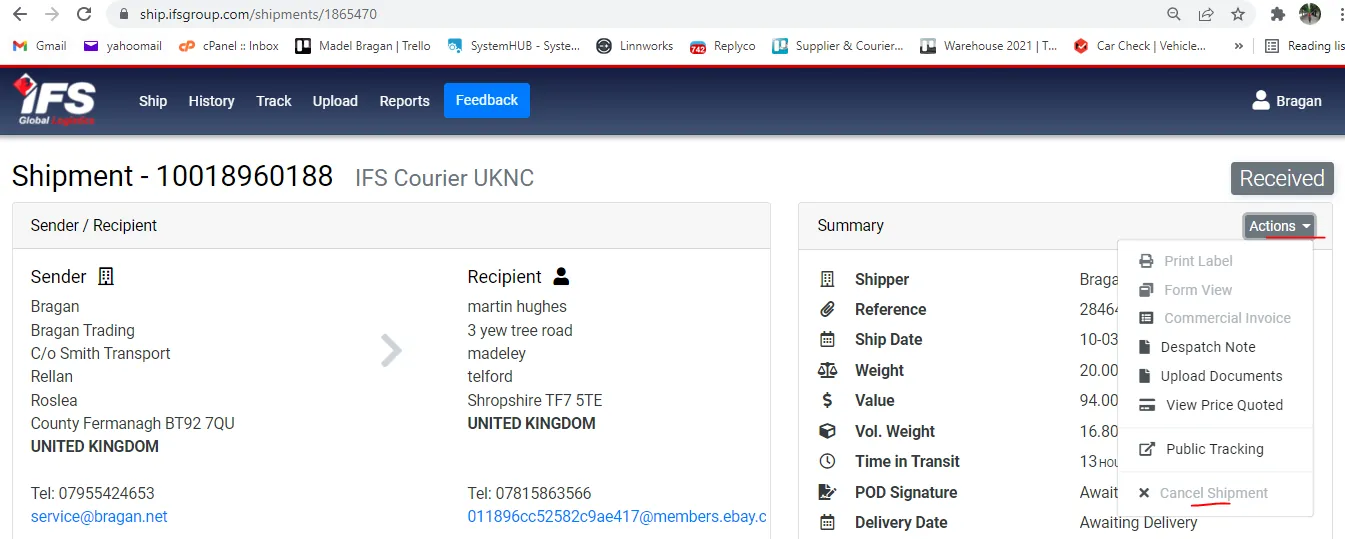
- Check if the item is still in pre-transit. If it is in pre-transit then you can still cancel it. But if it is received already then you cannot cancel it. Figure 24 below shows it is received by IFS already therefore you cannot cancel this one. Figure 25 shows not yet received so this one you can cancel.
- Click on the dropdown arrow for Actions, if it is received already you cancel click the Cancel Shipment but if this is pre-transit or not yet received by IFS then click on Cancel Shipment to cancel your booking.
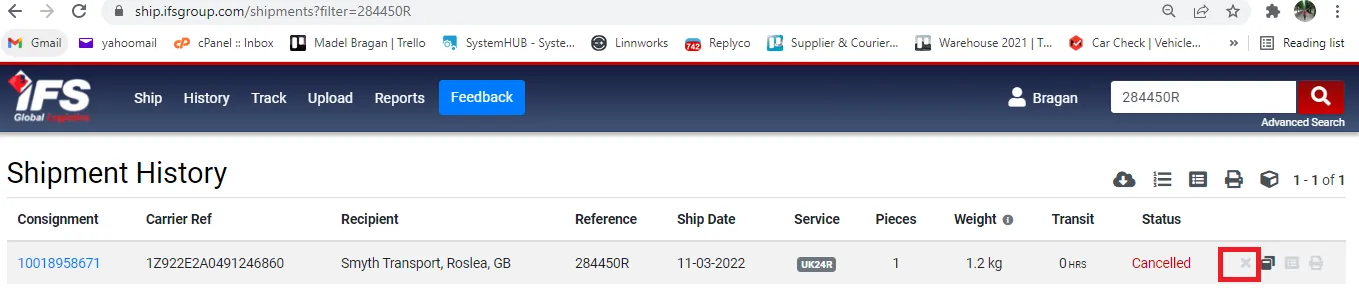
- Another way of cancelling a shipment is clicking on the x button, if a label can still be cancelled this button is clickable. Just click it and confirm the cancellation. You can see the status as Cancelled once it is successful.
Video & Media#
🎥 Arrange-collection-and-replacement 🎥 Arranging Collection Fastway 🎥 Arranging Collection via IFS
Notes#
This section is important so Adhoc points and issues can be logged. Also, Q&A can be logged for suggestions for potential issues encountered. Also, log important notes needed for this system. Additional Notes:
Arranging collection must be approved by management first
Potential Issues:
1 - ISSUE ENCOUNTERED: Stuck on Loading
RESOLUTION: Refresh Browser
2 - ISSUE ENCOUNTERED: Broken Links
RESOLUTION: Get the external link as this will allow other people to access the SOP without the need for login credentials and avoid broken links.
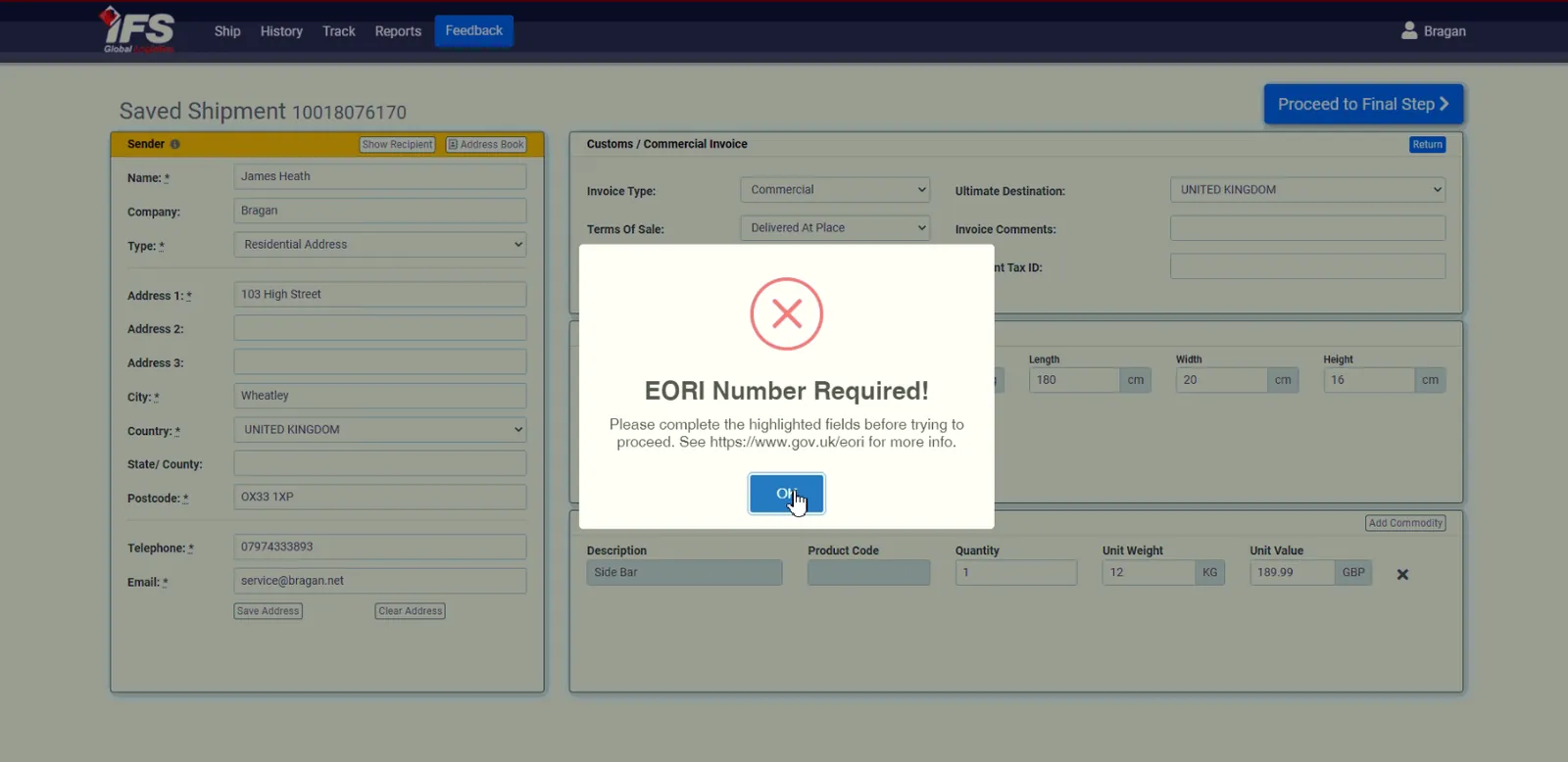
3 - ISSUE ENCOUNTERED: EORI Number Required! (For IFS)
RESOLUTION: Input "GB972944183000" for EORI. Click 'Proceed to Final Step' to create the label.
4 - ISSUE ENCOUNTERED: Errors while Creating Label (For IFS) - see Figure below
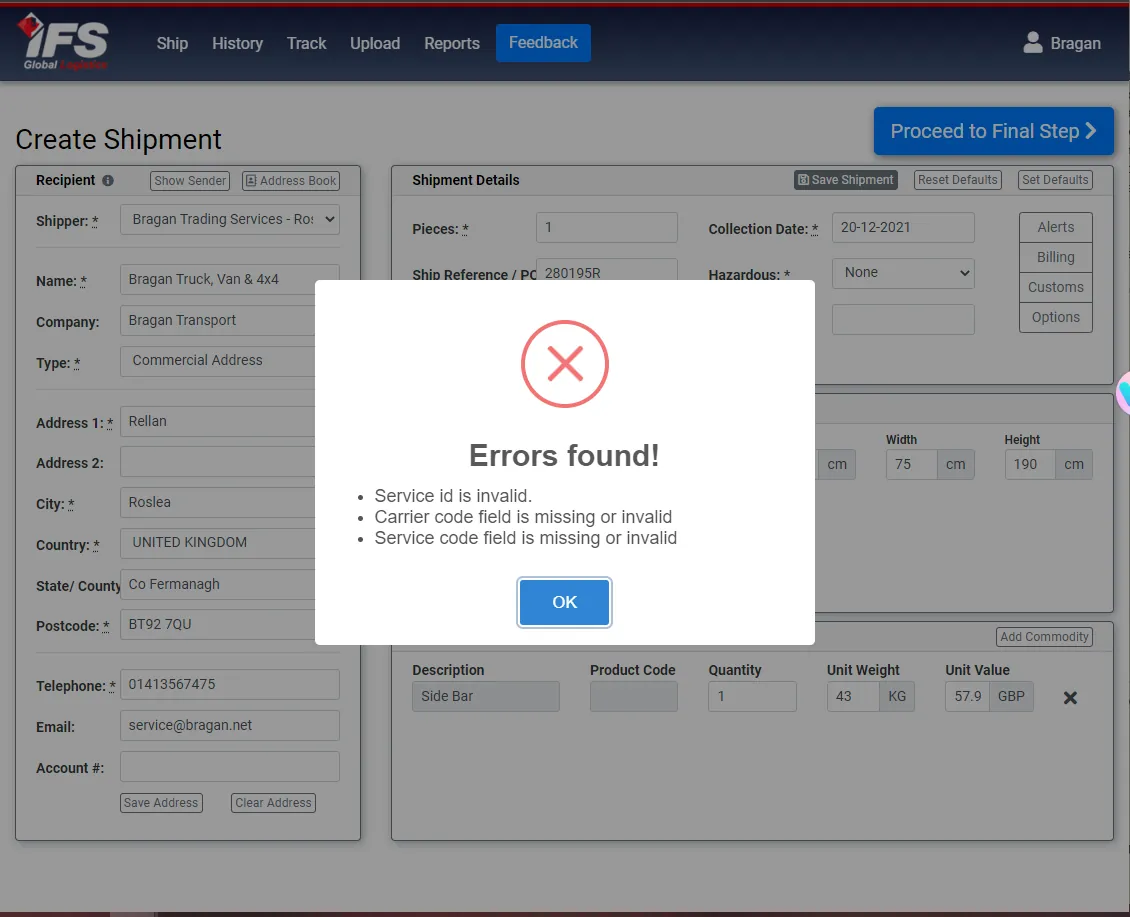
RESOLUTION: Set the dimensions as 180x20x25 18kg (but please confirm with management). This is an issue with IFS where volumetric weight of the item you were entering was over either of their services. Volumetric weight is different to the physical weight. Volumetric weight is greater than the physical weight that is why if you check the example above, the item is a running board but the weight is at 43kg but the physical weight is only around 16-18kg for running boards. When you see this weight in LW it is the volumetric weight. Length x Width x Height /5000 = volumetric weight.
Attachments#
How_to_Arrange_Collection_vi… 16/12/2025
How_to_Arrange_Collection_vi… 16/12/2025