How to Create New Ticket in Zendesk
In order to send a new email thread through Zendesk, a new ticket must be created.
Overview#
Purpose: In order to send a new email thread through Zendesk, a new ticket must be created.
Scope: This procedure applies to Zendesk Team.
Responsibility: It is the responsibility of each employee to ensure the process set out in this procedure is followed.
Objective: The objective of this procedure is:
- to guide employees on how to create a new ticket in Zendesk
Procedure#
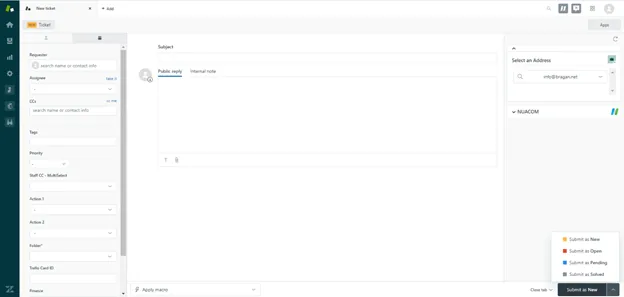
Step 1 (Red): Click “Add” to create a new ticket.
Step 2 (Blue): Enter the Email of the receiver. You can also enter the CCs below.
Step 3 (Orange): Click on Apps
Step 4 (Black): Select an Address (Default: [email protected]). You can click on the dropdown button to select a different email to use as sender.
Step 5 (Green): Click dropdown arrow. Select “Submit as Solved”. If the email needs to be seen/acknowledge other team members, then you will need to select “Submit as Open”
Video & Media#
Notes#
This section is important so Adhoc points and issues can be logged. Also, Q&A can be logged for suggestions for potential issues encountered. Also, log important notes needed for this system. Additional Notes:
This system must strictly be followed when creating a new ticket in Zendesk.
Potential Issues:
1 - ISSUE ENCOUNTERED: Stuck on Loading
RESOLUTION: Refresh Browser
2 - ISSUE ENCOUNTERED: Broken Links
RESOLUTION: Get the external link as this will allow other people to access the SOP without the need for login credentials and avoid broken links.