How to Forward Invoice from Replyco to Dext
The purpose of this SOP is to guide Customer Service Agents on how to forward
Overview#
Purpose: The purpose of this SOP is to guide Customer Service Agents on how to forward invoice, receipts and statements from Replyco to Dext (an Accounting Software).
Scope: This procedure applies to all Customer Service Agents.
Responsibility: It is the responsibility of all Bragan personnel to follow the standard operation procedure on how to forward invoice to Dext.
Objective: To be able to know how to forward invoice to Dext, how to use the drag and drop method in Dext, to know what are the acceptable file format for Dext and to know which Dext account to forward the invoice.
Process Flow#
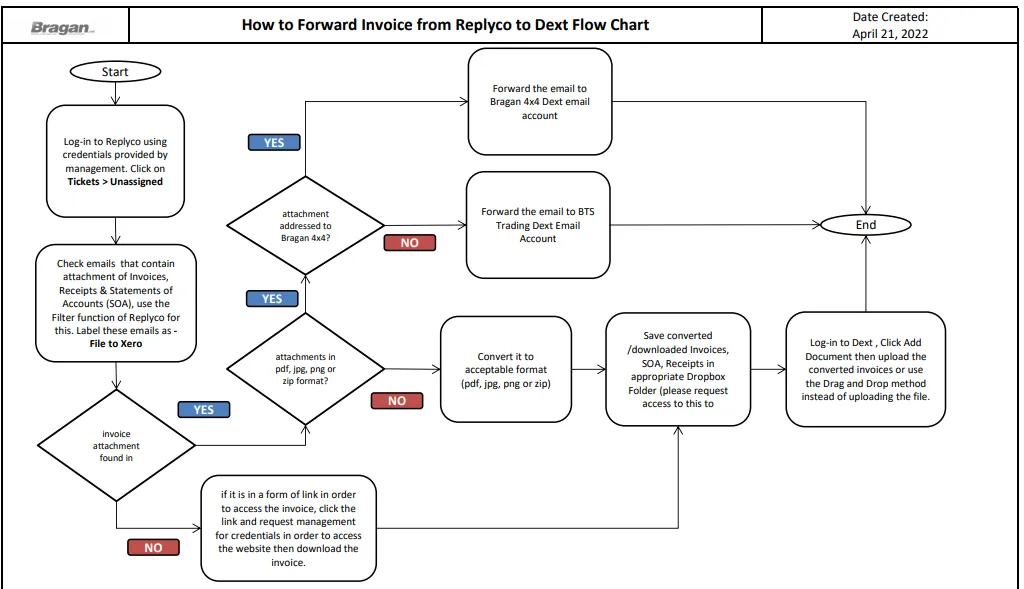
Procedure#
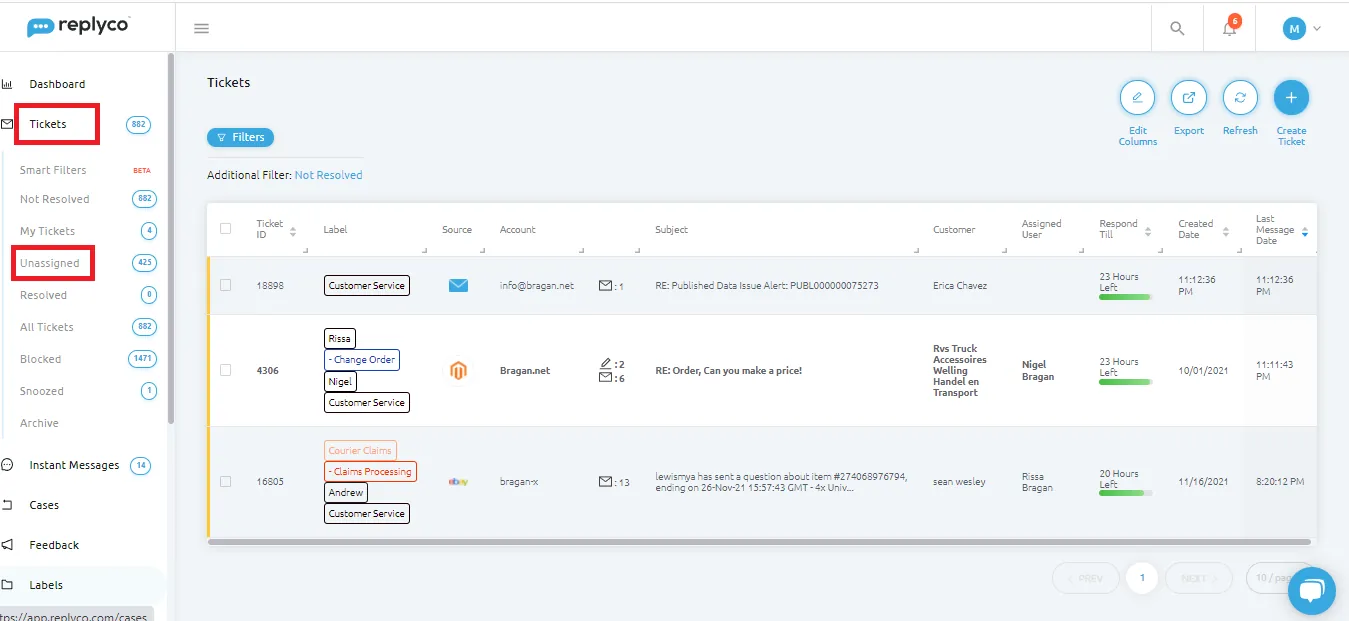
- Log in to Replyco using credentials from management, then Click on Tickets, then click Unassigned.
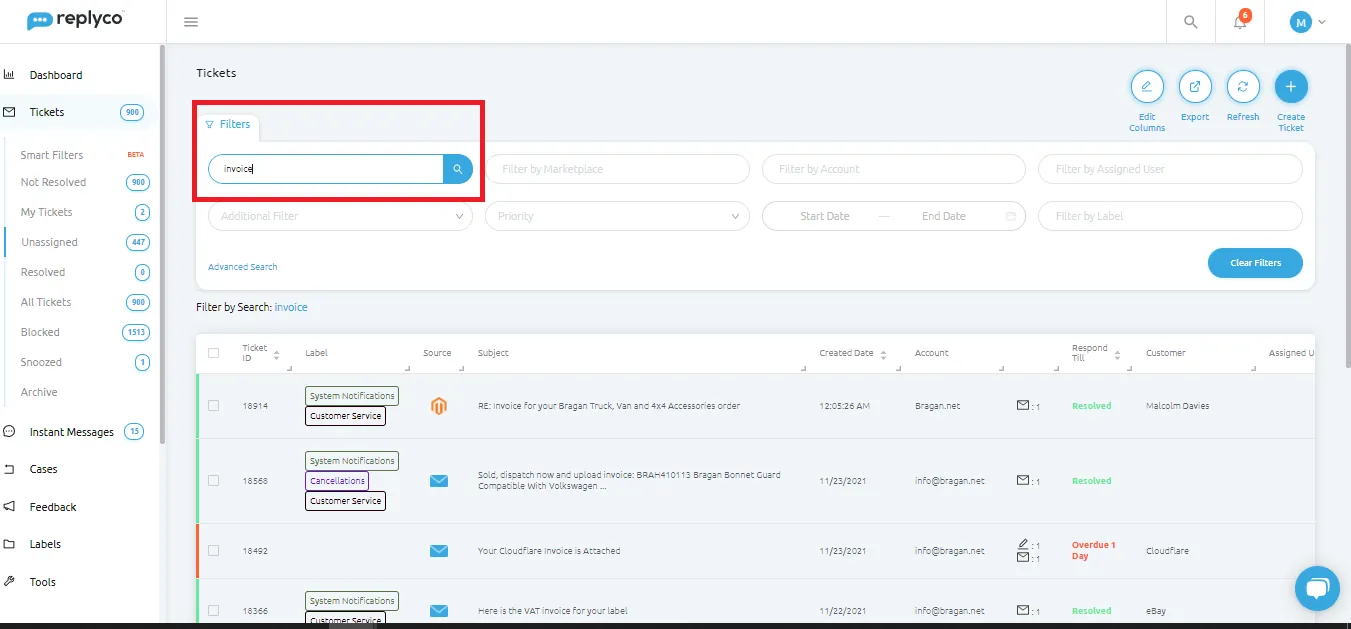
- Check emails that contain attachments of Invoice, Receipts, Statements of Accounts (SOA) by using the Filter button. These emails should be forwarded to Dext. Also tag/label these email as -FILE to XERO. Label -Arrange Payment (Account personnel will be the one to do this) if the invoice or statement was used in creating Payment Run Card.
For Accounts Personnel, if you label it as -Arrange Payment, add in the internal note the link of the Trello Payment Run Card and then label it to Nigel.
Note: It is the responsibility of Accounts Personnel to determine how the supplier is getting paid: Direct Debit, Credit Card, or Payment Run.
- Click on the email (one by one) and check if it contains invoice/receipts/SOA attachment and if it is in pdf/jpg/png or zip format.
If it is in these formats, check the invoice/receipts/SOA to see which company it was addressed to (Bragan 4x4 or Bragan Trading).
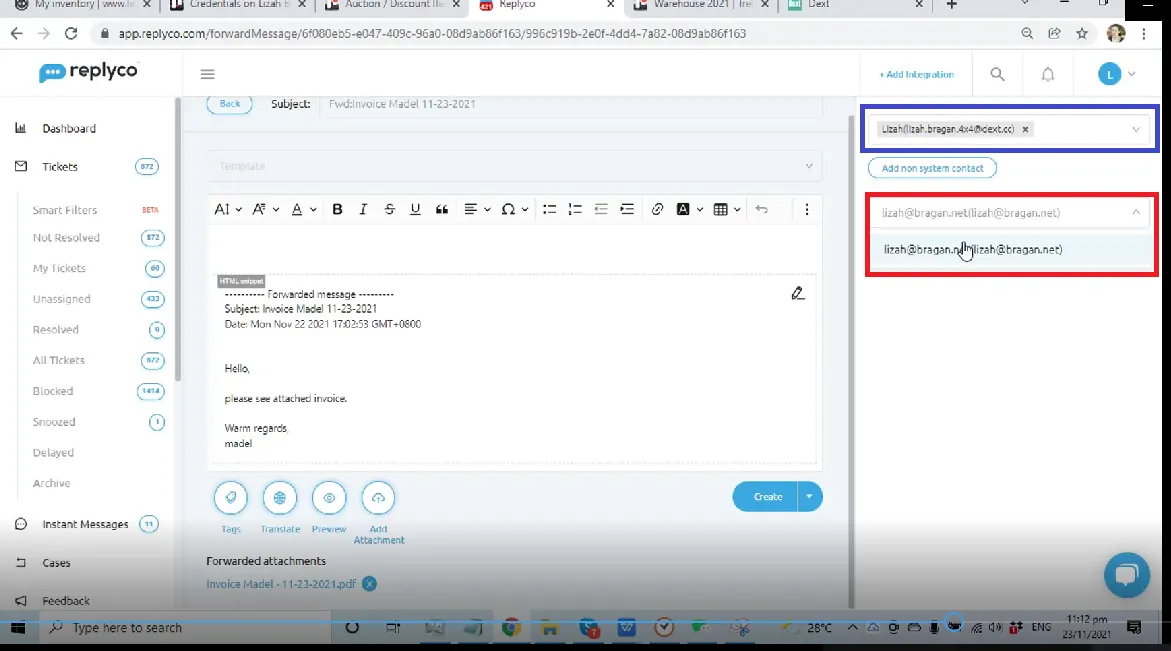
Forward the email and send it to the correct Dext email account. See Figure 3. Blue box is the recipients email and the red box is for the sender. For the sender just use your own company email account.
Notes:
The customer service agent will be given a Dext access and he will have the Dext Bragan 4x4 email. Therefore, if the invoice is addressed to Bragan 4x4 the agent will forward it to his own Bragan 4x4 Dext email account. Example of a Bragan 4x4 Dext email account is: ([email protected]). Salary Invoice from freelancers are also forwarded to this email.
But if the invoice is for BTS, the agent will forward it to this email: [email protected]
Dext only accepts PDF, JPG, PNG and ZIP. CSV, excel, doc files are not accepted.
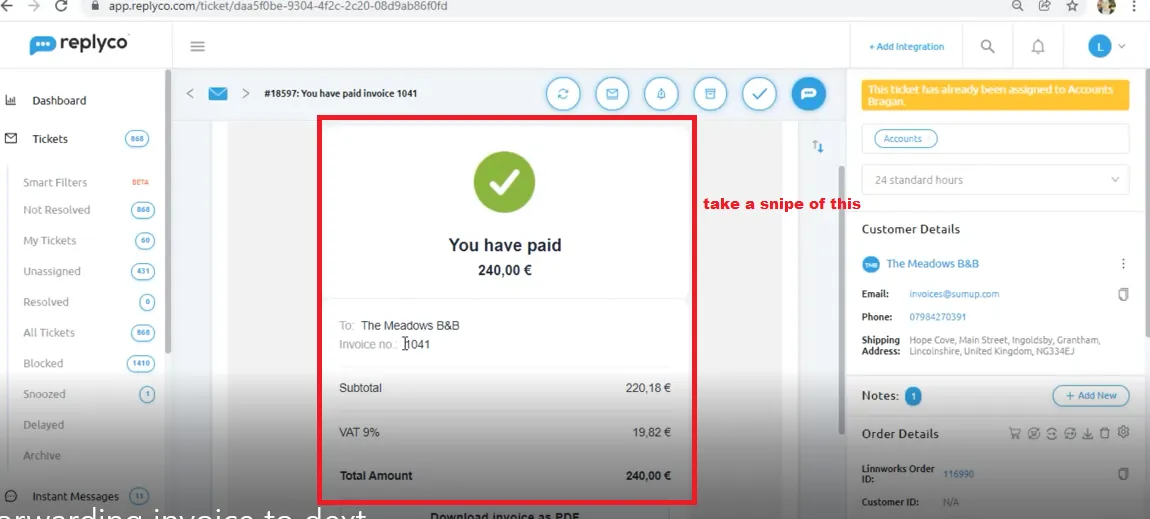
- If the invoice is not an attachment and is part of the message body, take a snipe of the invoice, save it to the appropriate Dropbox folder. Filename should include the Company Name and the Invoice Number. Ask management to give you access to this folder.
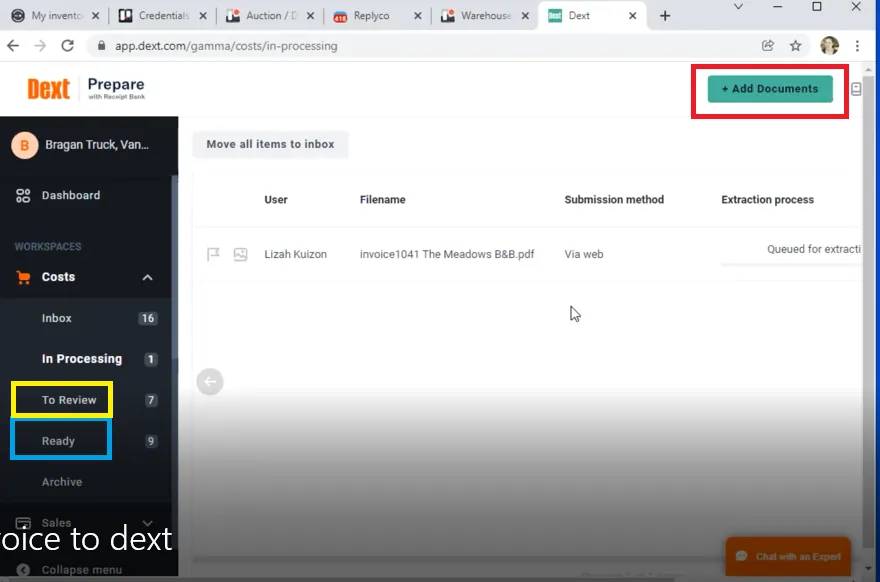
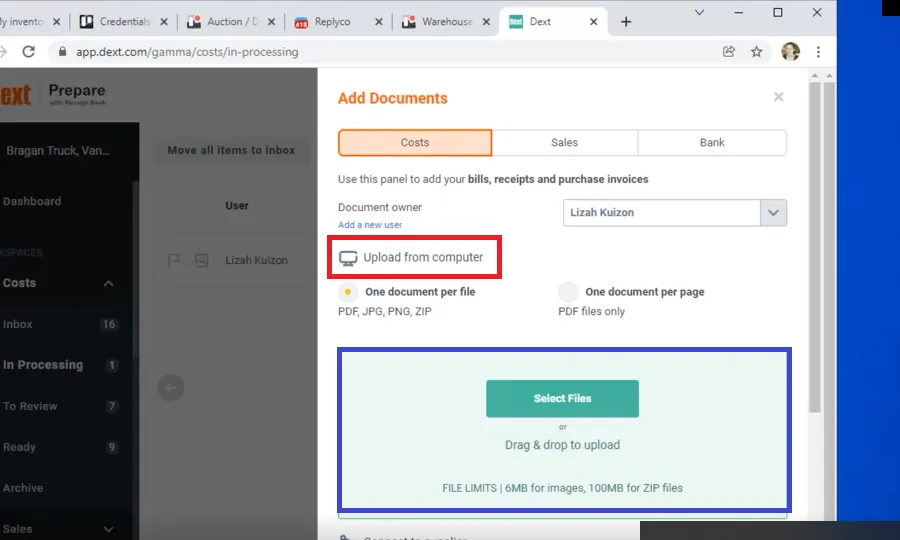
- Go to Dext then Click on Add Document. You can then upload the snipe of the invoice/receipts/SOA to Dext by clicking Upload from computer or use the drag and drop method (blue box). Credentials for Dext will be provided by management.
Note:
Uploaded invoices/receipts/statements of accounts are saved in the Ready Folder if all details are complete. If some details like category is missing it will be saved in To Review folder. See section below on how to fill missing category.
- If the email does not contain the invoice, then request a copy of the invoice.
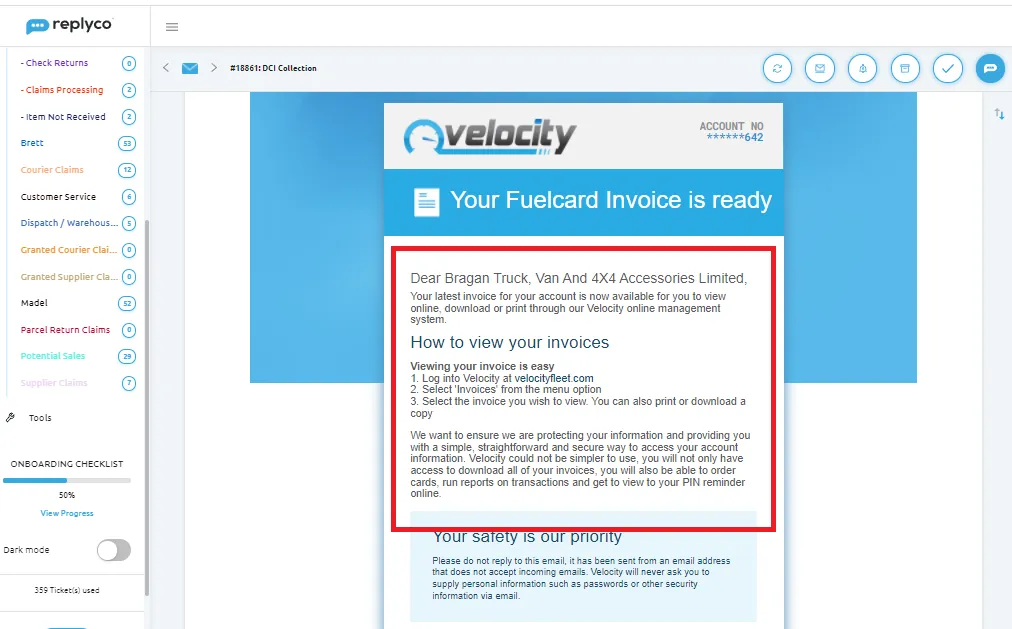
- There are cases wherein you are given a link to the supplier's website in order to access the invoice. See Figure 7 for sample email. You will need credentials in order to get this, ask management for it. Once in the website, download the invoice and save it to the Dropbox folder. Then follow Step 5 in uploading the documents to Dext.
Video & Media#
Notes#
This section is important so Adhoc points and issues can be logged. Also, Q&A can be logged for suggestions for potential issues encountered. Also, log important notes needed for this system.
Additional Notes:
Please note that only these file format are accepted in Dext Software: pdf/jpg/png or zip.
Please also note to save the downloaded invoice to correct Dropbox folder and named properly (company name + invoice number). Ask management for access to Dropbox folder.
If attachment is in excel format convert it to pdf then upload to Dext.
In process folder of Dext will just show invoices being uploaded and processed at the moment but it will save the invoice in either Ready or To Review folder after processing.
Uploaded invoice/receipts/SOA will be saved in Ready folder if all details are complete. If some details like category is missing it will be saved in To Review folder.
Potential Issues:
1 - ISSUE ENCOUNTERED: Stuck on Loading
RESOLUTION: Refresh Browser
2 - ISSUE ENCOUNTERED: Broken Links
RESOLUTION: Get the external link as this will allow other people to access the SOP without the need for login credentials and avoid broken links.
Attachments#
How_to_Forward_Invoice_from… 10/02/2026