How to Merge Ticket on Zendesk v2
Multiple tickets from the same sender/recipient regarding the same issue can be
Overview#
Purpose: Multiple tickets from the same sender/recipient regarding the same issue can be merged as one. This will help both the personnel and the other party to have a one continuous communication instead of multiple email threads that may cause confusion.
Scope: This procedure applies to Zendesk Team.
Responsibility: It is the responsibility of each employee to ensure the process set out in this procedure is followed.
Objective: The objective of this procedure is to guide employees on how to merge tickets in Zendesk
Procedure#
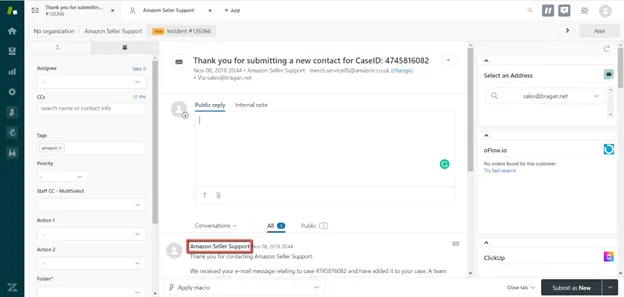
Step 1: Click customer name/email
Step 2 (Red): Check the emails you want to merge. (Example: The 2 checked email below will be merged into 1 another separate email.) If you’re going to merge only two tickets, check one of the tickets and take note of the other’s ticket number. This applies to any number of tickets you need to merge. You must take note of one ticket number as this will serve as the “destination” of all merged tickets.
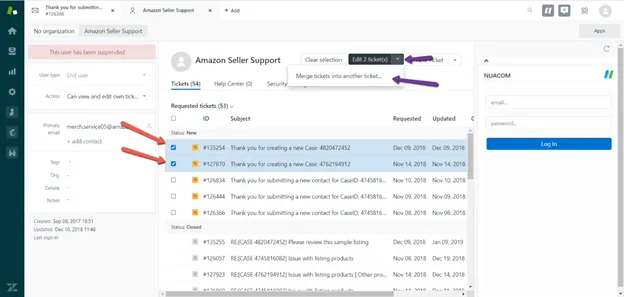
Step 3 (Purple): Click “Merge tickets into another ticket”
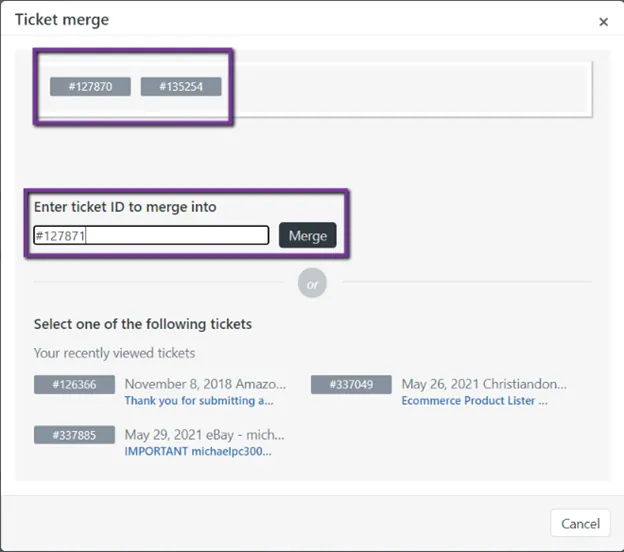
(Red): The emails you want to merge
Step 4: Enter the ticket ID of the email you want to merge. Then click merge
Notes#
This section is important so Adhoc points and issues can be logged. Also, Q&A can be logged for suggestions for potential issues encountered. Also, log important notes needed for this system. Additional Notes:
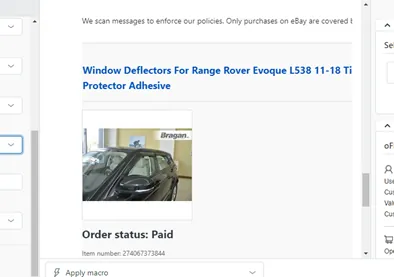
It is very important that agents must strictly follow this system when merging tickets in Zendesk. You can merge multiple tickets as long as their email was sent on the same advert. If the advert is different below then you cannot merge it.
Potential Issues:
1 - ISSUE ENCOUNTERED: Stuck on Loading
RESOLUTION: Refresh Browser
2 - ISSUE ENCOUNTERED: Broken Links
RESOLUTION: Get the external link as this will allow other people to access the SOP without the need for login credentials and avoid broken links.