Magento Discount Code / Replacing Homepage Banners / Creating SEO Hyperlinks SOP
Sometimes customers will ask for a discount on our fixed priced items and this
Magento Discount Code / Replacing Homepage Banners / Creating SEO#
Hyperlinks SOP#
Overview#
Purpose: Sometimes customers will ask for a discount on our fixed priced items and this discount may be agreed by management.
To know how to alter the Magento Website Homepage banner.
Scope: This includes the process how to create discount codes/cart price rules, changing Magento Homepage Banners, and Creating SEO Hyperlinks
Responsibility: It is the customer service representative’s responsibility to create the offer.
Objective: The objective is to create more sales by offering select customers discounts on products.
Coupons codes#
Coupon Codes are used with cart price rules to apply a discount when a set of conditions is met. For example, a coupon code can be created for a specific customer group, or for anyone who makes a purchase over a certain amount. To apply the coupon to a purchase, the customer can enter the coupon code in the cart, or possibly at the cash register of your brick and mortar store. Here are a few ways that you can use coupons in your store:
Email coupons to customers
Produce printed coupons
Create in-store coupons for mobile users
Coupon codes can be sent by email or included in newsletters, catalogs, and advertisements. The list of coupon codes can be exported and sent to a commercial printer. You can also create in-store coupons with a quick response code that shoppers can scan with their smartphones. The QR code can link to a page on your site with more information about the promotion.
Cart Price Rules.
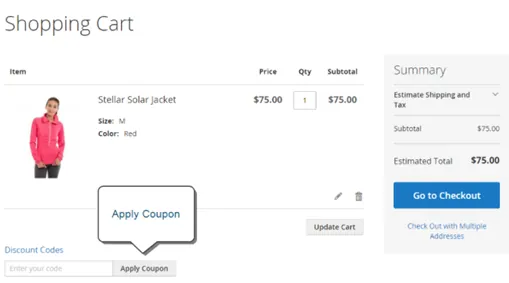
Cart price rules apply discounts to items in the shopping cart, based on a set of conditions. The discount can be applied automatically as soon as the conditions are met, or when the customer enters a valid coupon code. When applied, the discount appears in the cart under the subtotal. A cart price rule can be used as needed for a season or promotion by changing its status and date range.
NOTE:
An expired coupon code cannot be reactivated. Depending on the type of Discount Code, we can have it valid for 30 days.
1.) On the Admin sidebar, go to Marketing > Promotions > Cart Price Rules.
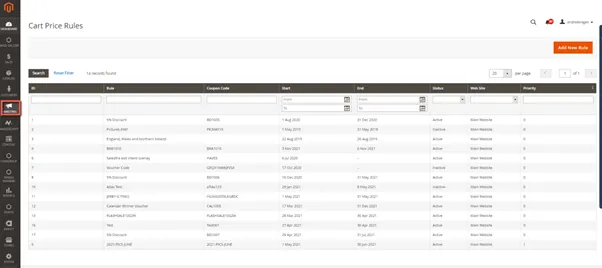
2.) If you have many rules, use the filter options at the top of each column to streamline the list and click Search to apply the filter(s).
3.) To clear all filter options and display the complete list, click Reset Filter.
4.) Update properties for a rule:
Click Edit to display the Rule Information page. Click the rule in the list to display the Rule Information page.
There you can change the settings for the rule (similar to creating a new rule).
Create a Cart Price Rule
Edit on GitHub Log an Issue
Turn on Private Listing
Log into Magento admin panel then Catalog>Products
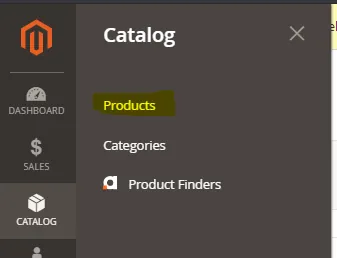
Search for the SKU that you are looking to make private and only visible via the URL, you can easily use the search function or filter your results

Click on the listing you are looking to set private and then click on the General tab
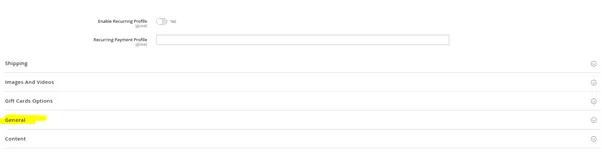
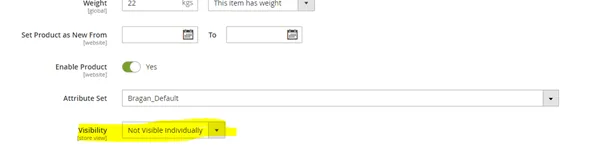
Change the visibility to “Not Visible Individually”
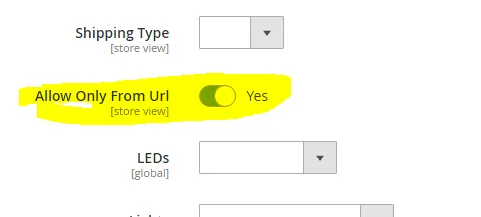
Scroll down and change “Allow Only From URL” to “Yes”
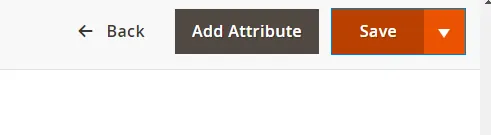
You can now click save at the top
How to Extend Coupon Expiration
- Log into Magento admin panel then click Marketing > Campaigns
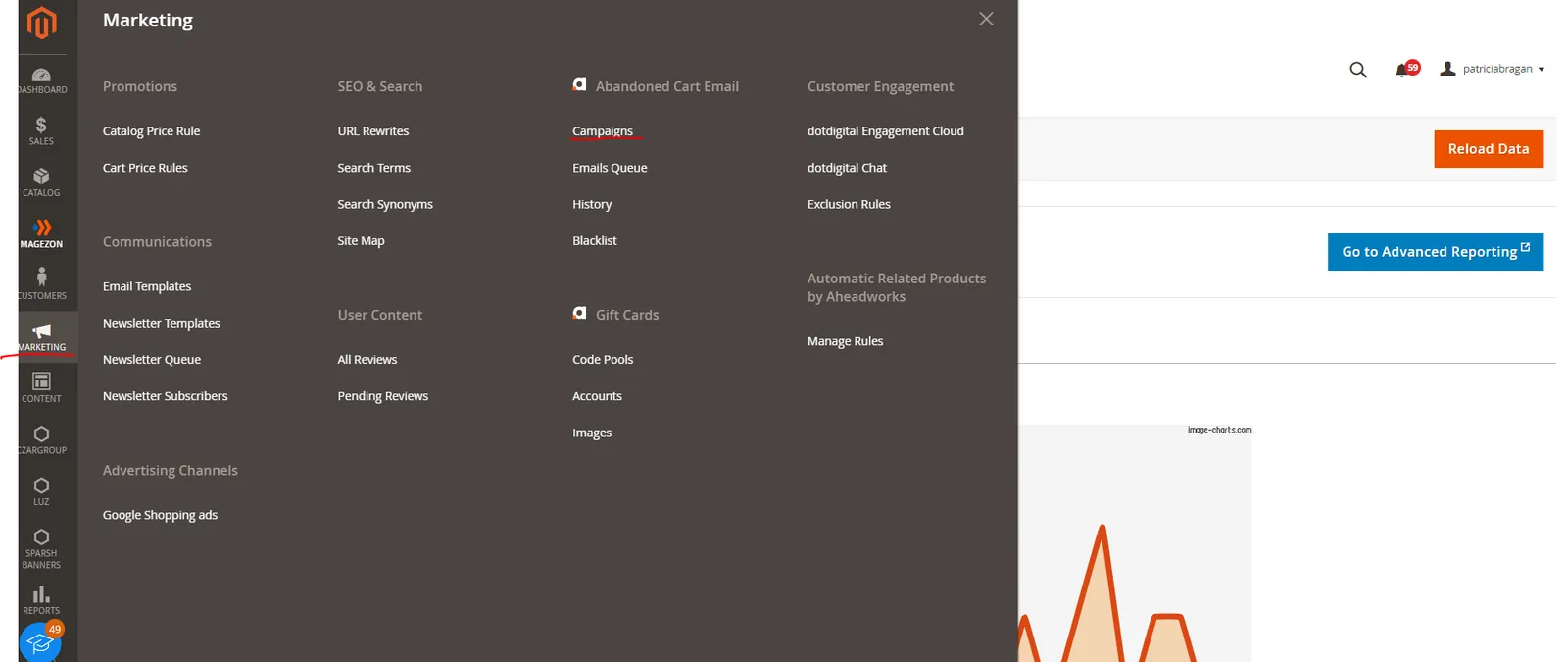
- Edit B2C Customers Cart Abandonment Sequence

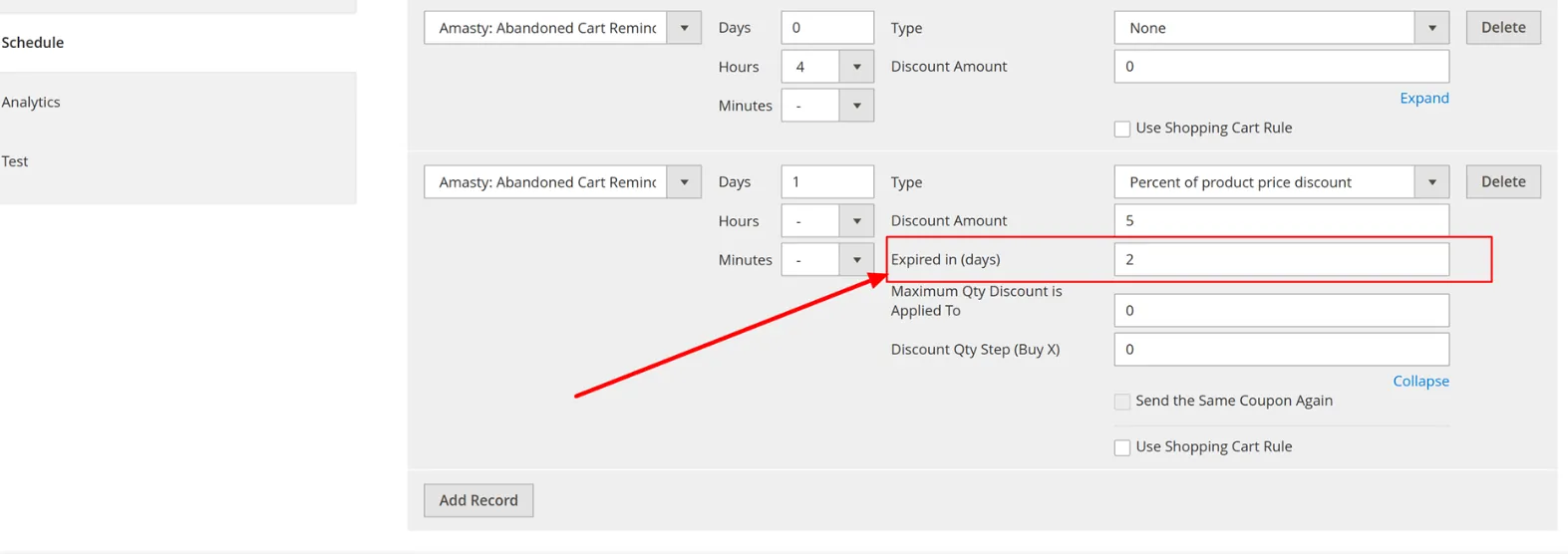
- Click on "Schedule" tab from left menu > Check coupon section by expanding
- You may now set the Expired in (days) of coupon codes
Replacing Homepage Banners#
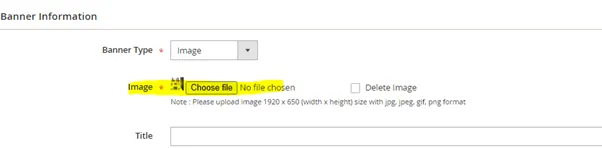
Before starting ensure your new replacement banner is 1920x650
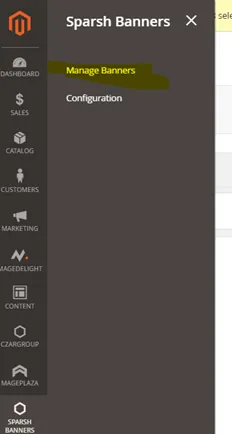
Log into Magento admin and click Sparsh Banners > Manage Banners
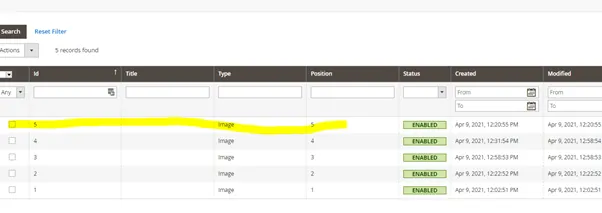
Click the banner you wish to replace
Click choose file and select the banner you are looking to place on the site
Once the new banner has uploaded click Save Banner
Go to the website homepage and see if your changes have taken effect it may take a few minutes to update)
Creating SEO Hyperlinks#
Please watch the video attachment for reference.
- System > Import/Export > Export
- Export Settings:
Entity Type – Products Export File Format – CSV
- Scroll down and look for the Continue button on the lower left side, Click Continue.
- Open the file and find ‘url_path’ (column BQ – might change but this is the correct column at the moment).
- Cut the ‘url_path’ column and paste it on column B.
- Highlight column A and press ‘F5’, click ‘Special’ and select ‘Blanks’ – this will select all Blank Rows.
- Navigate on the Ribbon, under ‘Home’ look for ‘Delete’ with dropdown menu and choose ‘Delete Sheet Rows’ – this will delete all Blank Rows on that column.
- Copy columns A and B and transfer to the excel file that needs hyperlinks. Make a new tab called ‘hyperlink source’.
- Add ‘https://www.bragan.net/’ in column C to all rows applicable where you transferred column A and B. ‘Concatenate’ column C and B to new column D. Copy all and paste as values to remove the formula.
- Copy the exact arrangement of the SKU you want to hyperlink within Column E in the hyperlink source Tab (this is very vital as this will be the reference of the hyperlink).
- Perform a lookup formula for us to look up the correct URL with the correct arrangement in Column E.
- Go to the column where you want to insert the hyperlink.
- Insert formula ‘=hyperlink(select cell of the hyperlink source ‘column F’, then the text ‘column E’ (this should be the correct SKU).
- Hide hyperlink source tab (using VBA – Developer Tab – Visual Basic) and lock hyperlink SKU cells.