ParcelForce - WDM User Guide
To guide all Bragan personnel on how to use ParcelForce - WDM for booking
Overview#
Purpose: To guide all Bragan personnel on how to use ParcelForce - WDM for booking shipments, and booking collections.
Scope: This applies to all Bragan customer service representative personnel.
Responsibility: It is the responsibility of all staff to follow the standard operating procedure of how to use ParcelForce - WDM for booking shipments, and booking collections.
Objective: The objective of this procedure is:
- to guide employees on how to use ParcelForce - WDM for booking shipments, and booking collections.
New WDM User guide
Below is a basic guide on how to use WDM for booking shipments, and booking collections.
To book a shipment, please log into www.parcelforce.net and hover over shipping and click enter a shipment.
The first thing to do would be to enter the postcode of where the delivery is going, please ensure there is a space between the two parts of the postcode, and then click the green tick on the right-hand side to find the address (please see screenshot below).
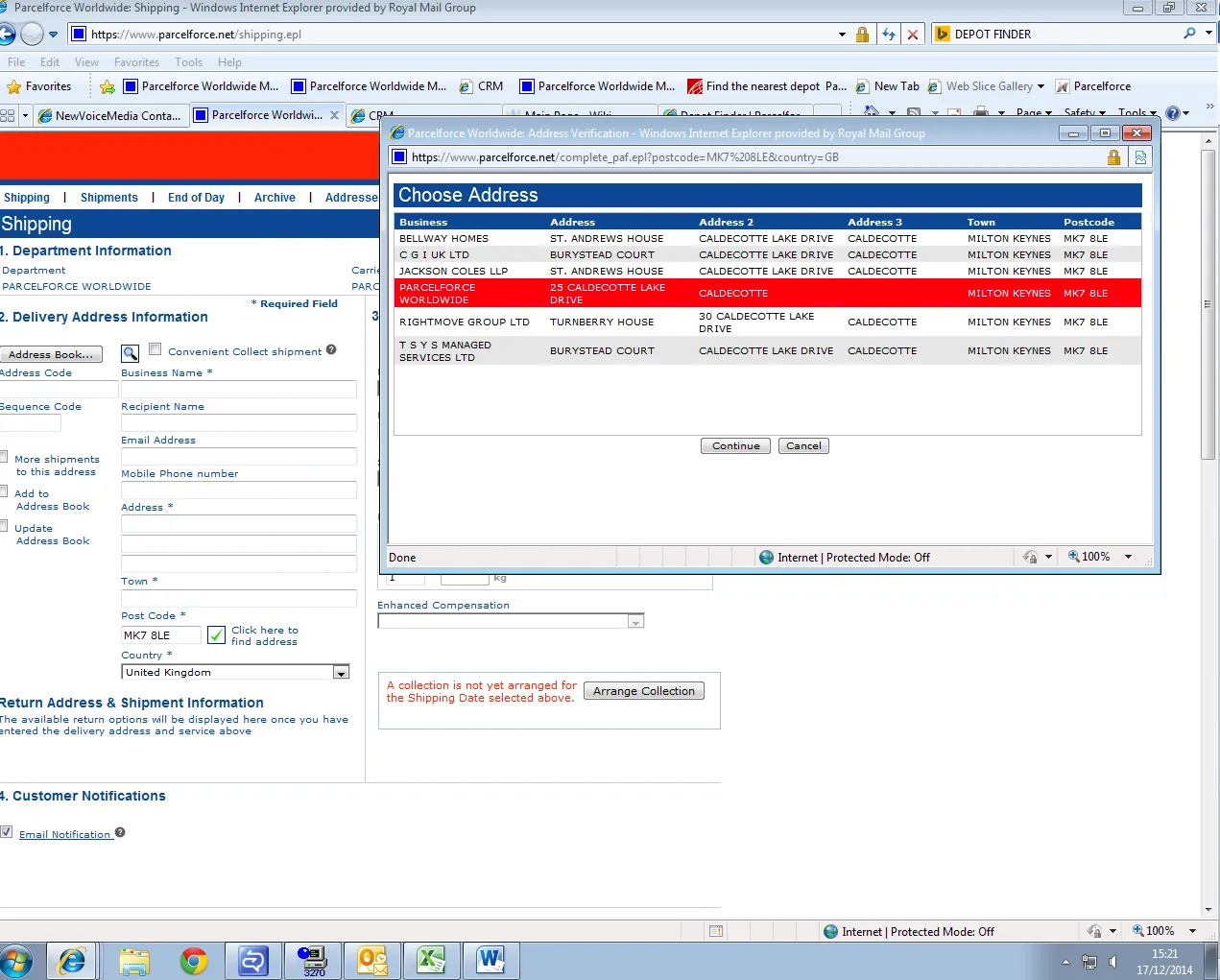
If you cannot find the address you are looking to send to in the list, please select the closest matching address and press continue. Once you press continue it should automatically populate the address fields with the address you have selected.
You can amend these fields if you cannot find the address that you are looking for, but please do not change the town or the postcode field as this will cause an error on the system.
Once all the address details have been entered, can you please choose a delivery service for the parcel (please see below screenshot).
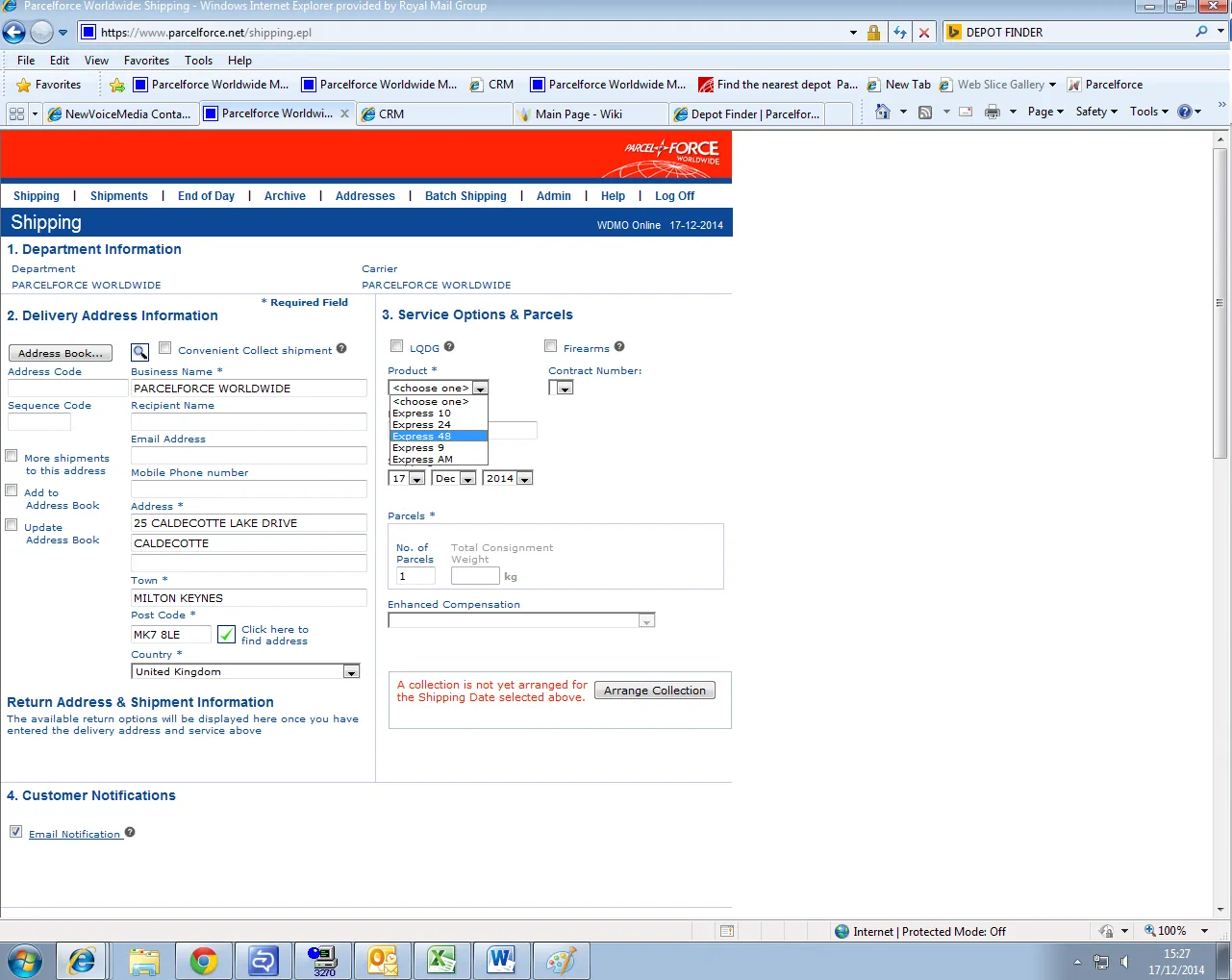
You do not need to enter the parcel weights for UK shipments, you only need to put how many parcels you are going to send.
Once that is all complete, and you are happy with the address details and the shipping date please click on the arrange collection button below where it says enhanced compensation. If you have a daily/regular collection from Parcelforce this will not be needed.
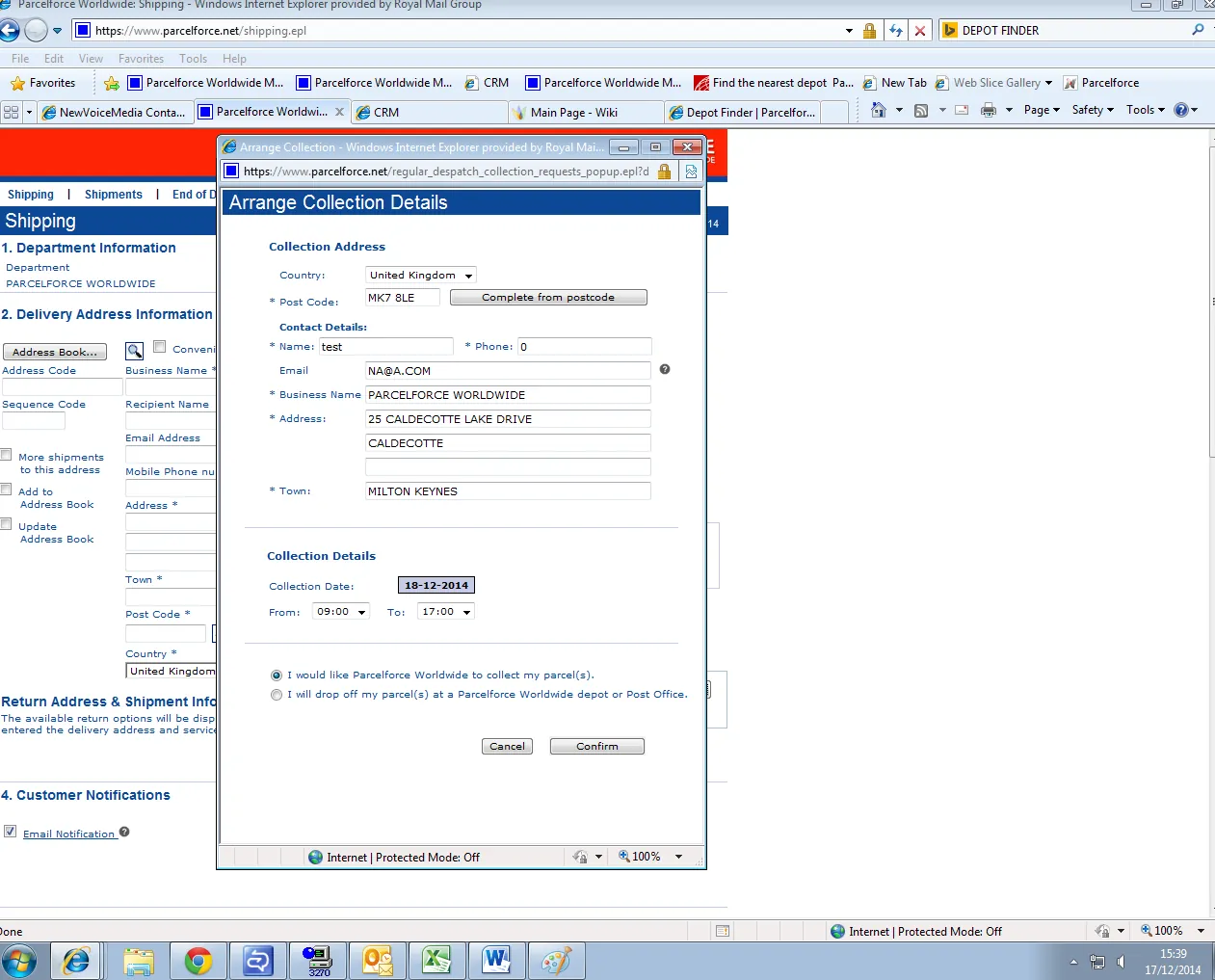
When you press arrange collection it will bring up a box with your address inside, and you can choose from there the date and time window you would like the parcel collecting. Generally, any collections arranged before 1 can be collected the same day, but if the collection is arranged after 1 it will default to the next working day.
During the Christmas period, same-day collections are actually disabled due to the rush, so any collections will have to be arranged the previous day. But this is only between the 8th and the 31st of December. After that, it will return back to normal same-day collections before 1.
If you would like to drop off items at a post office, please just close the collection box and do not click the I will drop my parcel worldwide depot or post office. That button is not functioning correctly so it's best to just close the box.
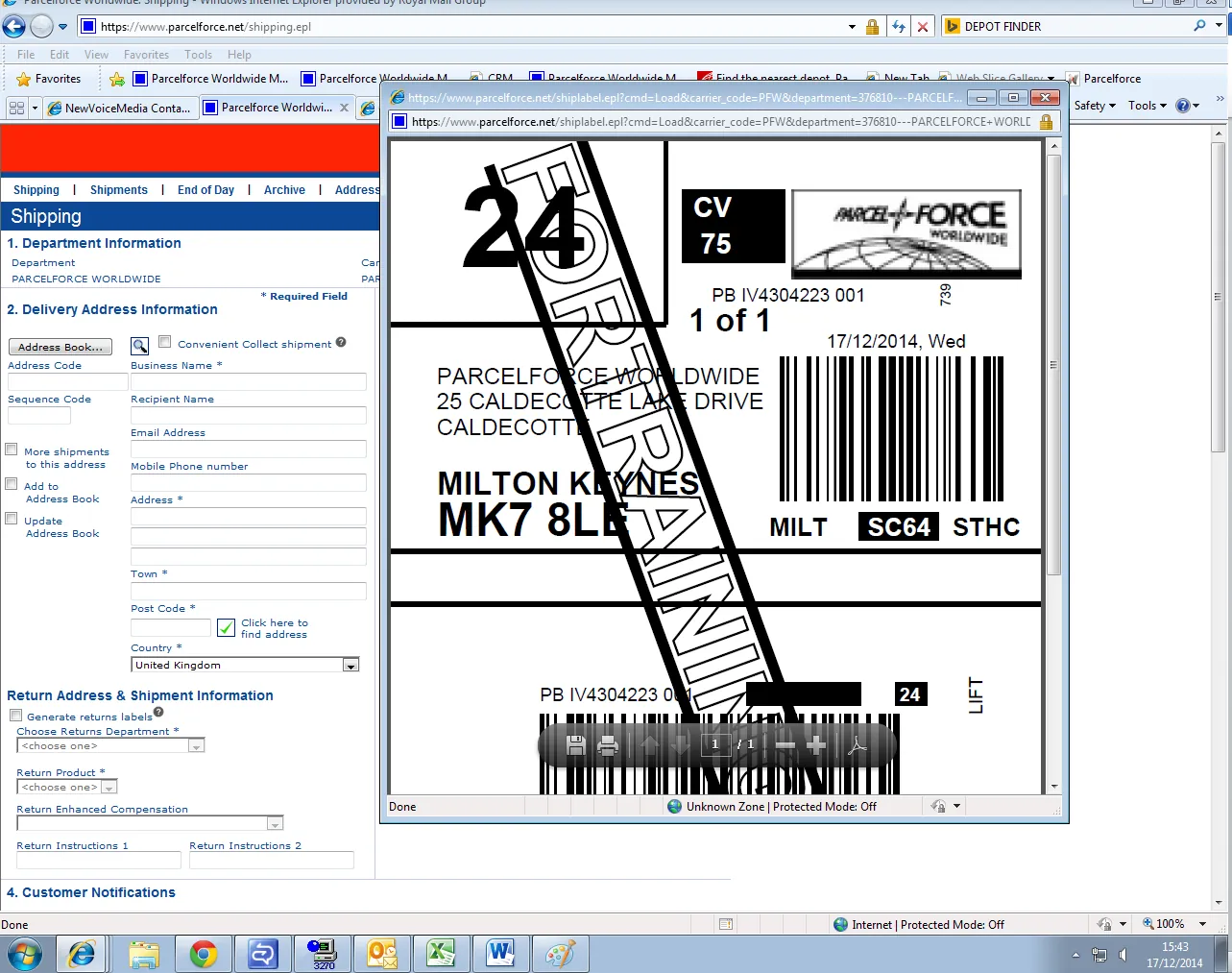
Once all those details are filled in, can you please click the process button in the bottom right-hand corner. Providing there are no errors it should bring up a label on your screen (please see below screenshot).
If you have not pressed the arrange collection button, the arrange collection box will come up once you press process. If you still want to drop off at the post office or depot and do not require a collection, please just close the box.
New WDM user collection guide
To enter a collection, please hover over shipping and click collection request.
This will then take you to the collection screen, first thing to do would be to enter the postcode of where the collection is taking place, and then clicking the green tick on the right-hand side to find the address.
Please choose an address from the list like you would for a normal shipment, and if you cannot find the correct address please find the closest address and manually amend the details.
The delivery return address information will always be the initial address on your Parcelforce account.
Once all those details are entered, please choose a delivery service for the item for once it has been collected. This will be the delivery service the item is returned to you on.
After that please click on the box that says get valid collection dates and times (please see below screenshot).
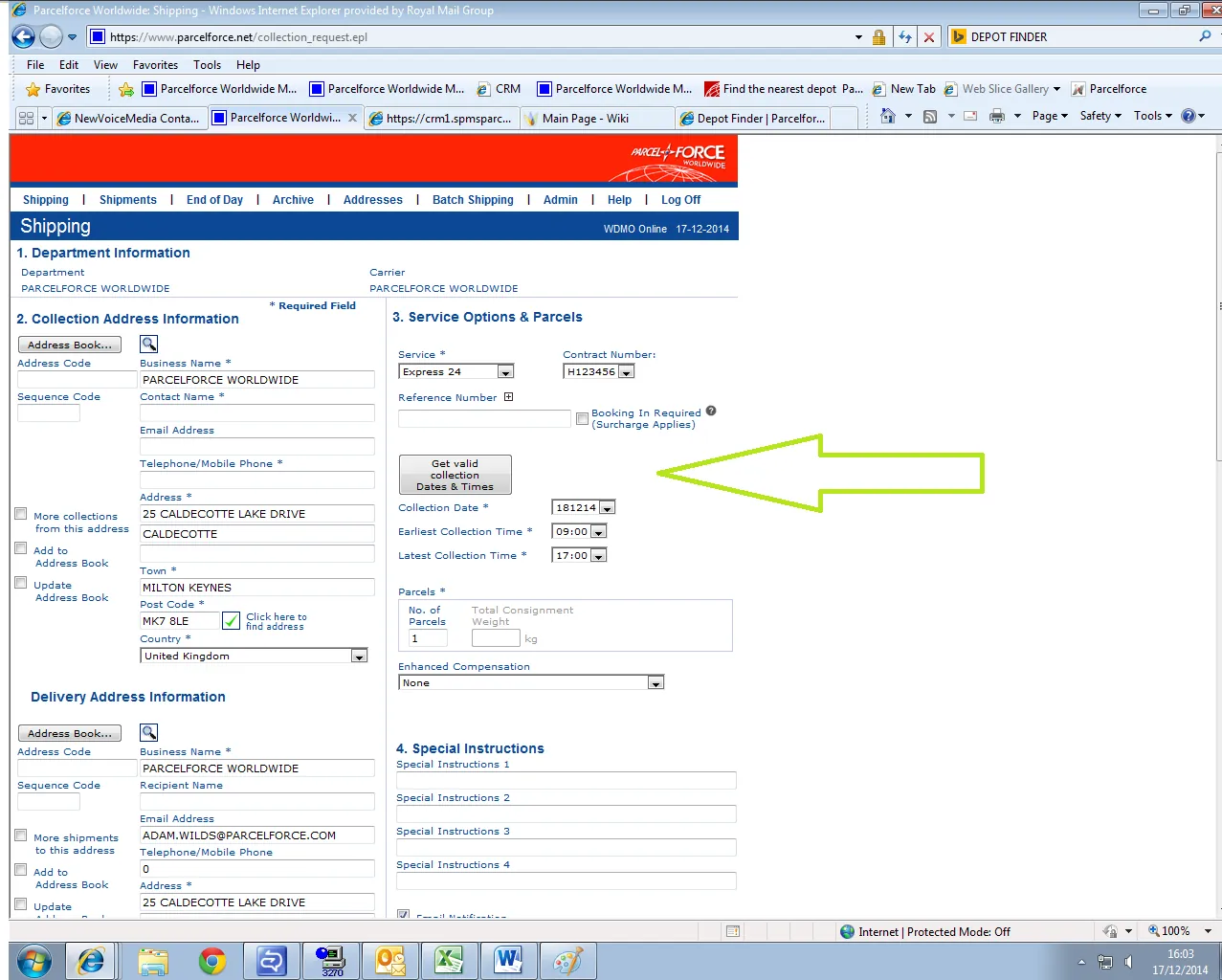
Here you can specify the date and time window you would like the collection completed in between.
Once all those details are entered, please click process in the bottom right-hand corner. It will then bring up a message advising if you need to cancel the collection to call 08448004466, please click ok on this message.
If the collection has gone through correctly it will clear all the fields on the screen, but will not bring up a label. This is because the driver would print out the labels at the depot, take it to the customer, put the labels on the parcel and then return it.
Notes#
It is very important for customer service personnel to know this process. This document shows how to use ParcelForce - WDM for booking shipments, and booking collections.
This section is important so Adhoc points and issues can be logged. Also, Q&A can be logged for suggestions for potential issues encountered. Also, log important notes needed for this system. Additional Notes:
The agent suggesting the update should be the one to carry through the edit. The suggestions for edit should be confirmed in real-time in the group and for the card to be cleared the same day. Creating a new version will break the link for systems that are linked to training/onboarding Trello Cards. This will also affect the systems linked to some email macros. Do not create a new version this will overpopulate the SystemHub. Editing the current system is the best practice to avoid potential issues.
Potential Issues:
1 - ISSUE ENCOUNTERED: Stuck on Loading
RESOLUTION: Refresh Browser
2 - ISSUE ENCOUNTERED: Broken Links
RESOLUTION: Get the external link as this will allow other people to access the SOP without the need for login credentials and avoid broken links.