Saving Potential Pictures
The purpose of this SOP is to give an idea of how to save pictures sent by customers
Overview#
Purpose: The purpose of this SOP is to give an idea of how to save pictures sent by customers showing our items fitted to their vehicles. This shows the standard size of the image allowed to save in the Dropbox week folder.
Scope: This applies to customer service representative staff and all staff personnel who is in charge of this process.
Responsibility: It is the responsibility of all staff to follow the standard operating procedure of checking customer's vehicle pictures of the correct size before saving them to the Dropbox week folder.
Objective: The objective of this procedure is to guide employees on how to save pictures from customer's vehicles and what is the standard size of a picture.
Process Flow#
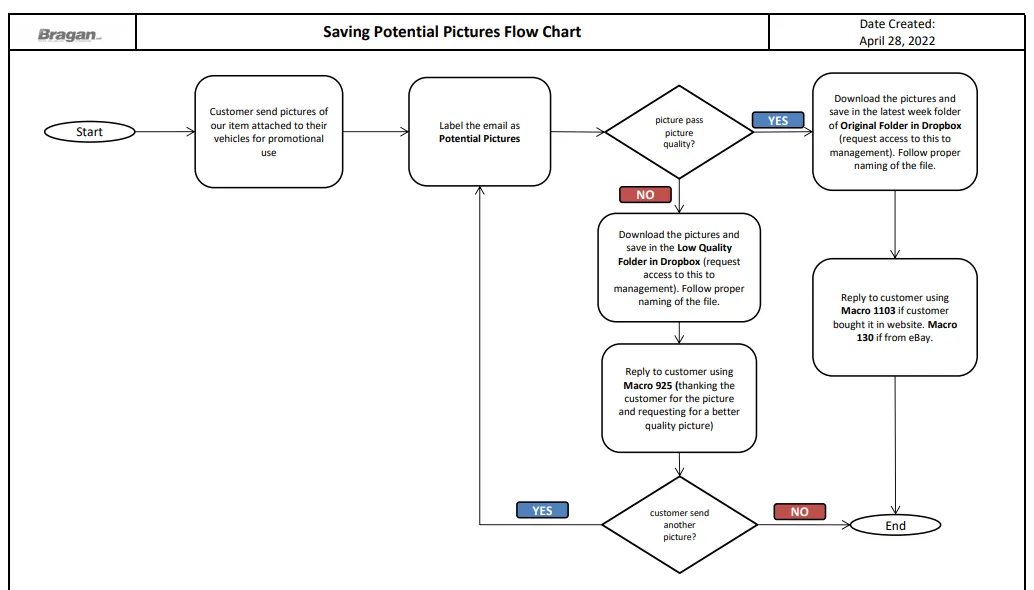
Picture Dimension#
Required dimension of potential pictures that we can use for promotions is 1280 /960 minimum
Where to Save Potential Pictures#
For Pictures that meet required dimension and quality
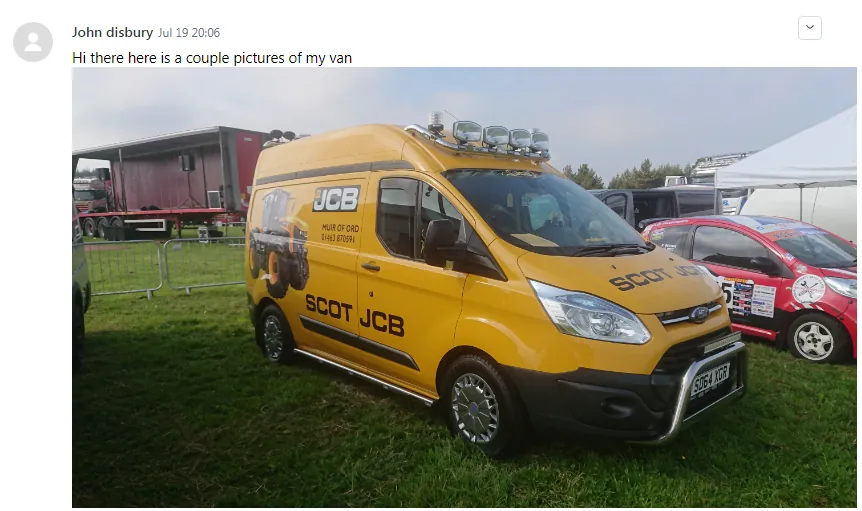
- If you receive email from customer with pictures of our items fitted to their vehicle. label the email as Potential Pictures.
- Save the picture in the Original Folder of Pictures & Picture Edits Jessa Dropbox Folder. Ask management to give you access to this folder.
- Filename of the picture should be the SKU number of the item.
- If there are multiple items in the vehicle, filename should be the names of the item and the SKU. Example: BRA32922 Running Board BRA3295-LOW Bull Bar.
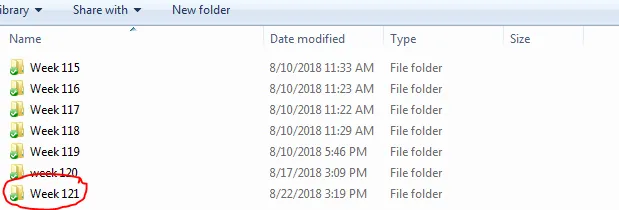
- Save it to the latest Week Folder. Please take note that folder must contain only 60 images. If the folder has 60 images already, create a new folder. For this example the new folder should be Week 122.
- If customer bought from the website, reply using Macro 1103
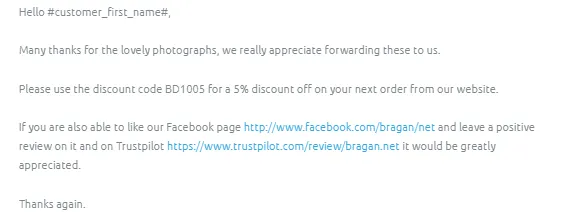
Macro 1103 Content
- If customer bought from eBay, reply using Macro 130
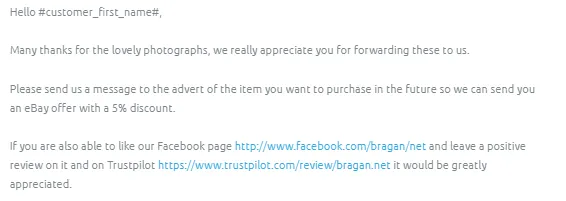
Macro 130 Content
For Low Quality Pictures
- Reply to customer using Macro 925 and still tag the email as Potential Pictures.
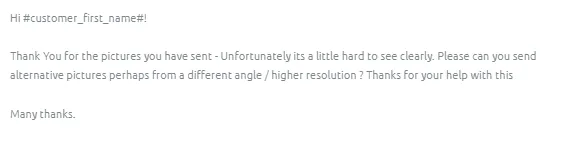
Macro 925 Content
- Save the low quality pictures in this Dropbox Folder. Request from management for access.
- If the image is being saved for potential picture or being renamed from the weekly folder the image should be saved as the SKU, if there are multiple of the SKU then the images should be followed by 1/2/3/4. For example
BRA1003W - 1 BRA1003W - 2
BRA1003W - 3 BRA1003W - 4
If the image is being saved for the calendar content the file name of the picture should be the SKU number of the item + Item Title + Customer Name - Ticket/Platform . If there are multiple images provided by the customer the filename should be SKU + Item Title - 1/2/3/4 etc. For example
BRA1003W - 12 / 24v White Flush LED Marker Light - Joe Blogs - #456874 - 1 BRA1003W - 12 / 24v White Flush LED Marker Light - Joe Blogs - #456874 - 2 BRA1003W - 12 / 24v White Flush LED Marker Light - Joe Blogs - #456874 - 3 BRA1003W - 12 / 24v White Flush LED Marker Light - Joe Blogs - #456874 - 4
- If customer reply with the picture that meets our dimension then follow the process above for Pictures that meet required dimension and quality.
Video & Media#
Notes#
This section is important so Adhoc points and issues can be logged. Also, Q&A can be logged for suggestions for potential issues encountered. Also, log important notes needed for this system. Additional Notes:
This document is very important because this will give an idea of how to save vehicles from customers and what is the standard size of a picture. Attached here is a video showing the process. Save the images with sku codes of the item and maximum images for each folder in saving is 60 images. Create new week folder once it reached 60 images.
Potential Issues:
1 - ISSUE ENCOUNTERED: Stuck on Loading
RESOLUTION: Refresh Browser
2 - ISSUE ENCOUNTERED: Broken Links
RESOLUTION: Get the external link as this will allow other people to access the SOP without the need for login credentials and avoid broken links.
Attachments#
Potential_Picture_Flow_Chart.… 16/12/2025