Xero Setup and Customer Groups
The purpose of this procedure is to provide detailed overview of how Xero
Overview#
Purpose: The purpose of this procedure is to provide detailed overview of how Xero integration is setup with Magento. This hopes to provide visual guide and explanation set up and Syncing Configuration. Once set up our integration runs in the background and automatically exports all your order, customer data and credit notes to Xero.
Scope: This SOP covers the following software applications Xero, Magento and Fooman Connect. This also applies to Accounts department as it enumerates area about customer groups and tax conditions.
Responsibility: Roles and Responsibilities:
- SOP Author is responsible to draft SOP in consultation with the intended users, correct SOP according to feedback, make SOP available to intended users, amend SOP if required and format it to SystemHub
- The developer of the application will be responsible to Magento backend and Xero integration
- Xero Accounts Assistant ensure that accounts are in order and helps in mapping data in Xero
Objective: The important objectives of this Payroll SOP are:
- To learn the detailed procedure on Magento mapping and Synching to Xero
- Be familiar with Bragan’s customer Groups and Xero Tracking Categories
- To streamline the process of data entry
- To Support synchronization from Magento Website to separate Companies in Xero

Company Profile#
BRAGAN TRUCK, VAN AND 4X4 ACCESSORIES LIMITED (refer to as Bragan 4x4 in this SOP) is company based in Knocknalun Scotstown Co. Monaghan Ireland Monaghan, IRELAND H18 CP573. The company started trading on the British marketing since 2005-02-21. It’s main line of business activity is 45200 Maintenance and repair of motor vehicles.
Bragan4x4 is the main/parent company servicing Ireland, Europe and the rest of the world.
Main trading Currency used is Euro (€). Have existing pounds-GBP/STG (£) and Euro (€) account for payment method.
BRAGAN TRADING SERVICES LTD (referred to as BTS in this SOP) is an active company incorporated on 8 April 2009 with the registered office located in Rellan Roslea Co. Fermanagh Northern Ireland, UNITED KINGDOM BT9 27QU
BTS basically service United Kingdom Customers.
Main trading Currency used is pounds-GBP/STG (€). Have existing pounds-GBP/STG (£) and Euro (€) account for payment method.
*Bragan4x4 and BTS shared a physical warehouse located in Monaghan, Ireland.
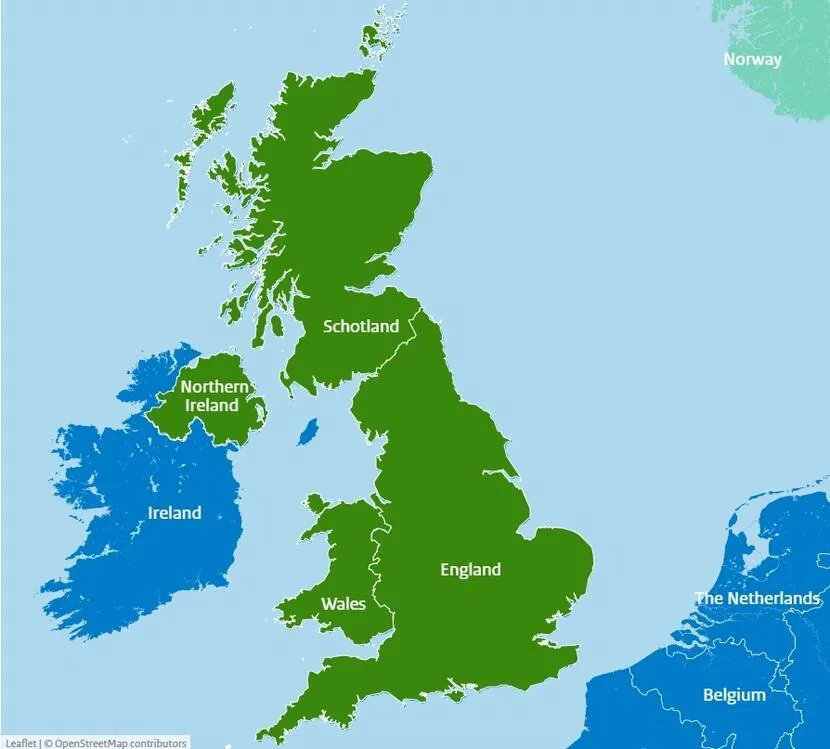
The United Kingdom (UK) is made up of England, Scotland, Wales and Northern Ireland.
Xero Setup Map#
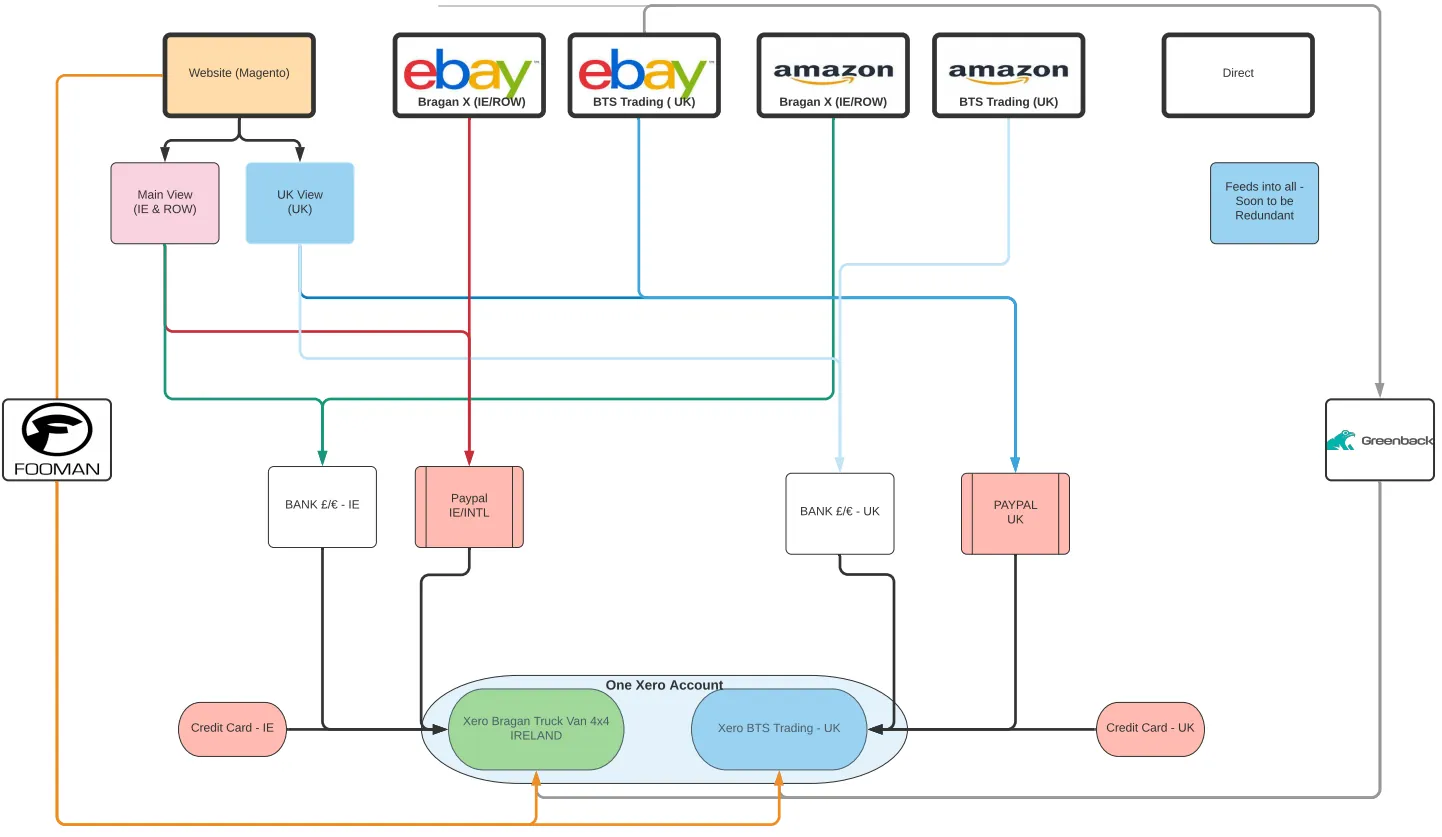
MAGENTO#
Magento is a platform with built-in PHP, which helps programmers create eCommerce websites. For businesses and individuals who want to develop a long- term ecommerce site, you should think of Magento as a priority. Magento is the best open-source to build an online store.
Your Magento account has a separate login from your store. You can access this account from either the Magento website or from your store Admin. From the dashboard of your Magento account, you can find information that is related to the products and services that you have purchased, as well as your contact and billing information.
Customer Group#
Customer groups determine which discounts are available and the tax class that is associated with the group. The default customer groups are General, Not Logged In, and Wholesale.
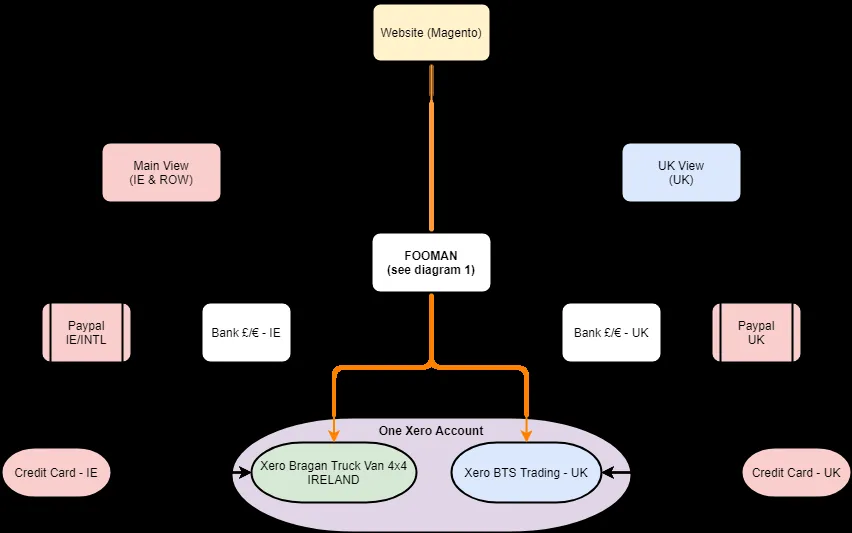
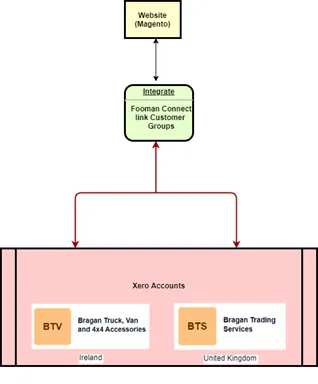
Magento Customer Group feeds to Xero the integrated transactions with Xero Categories
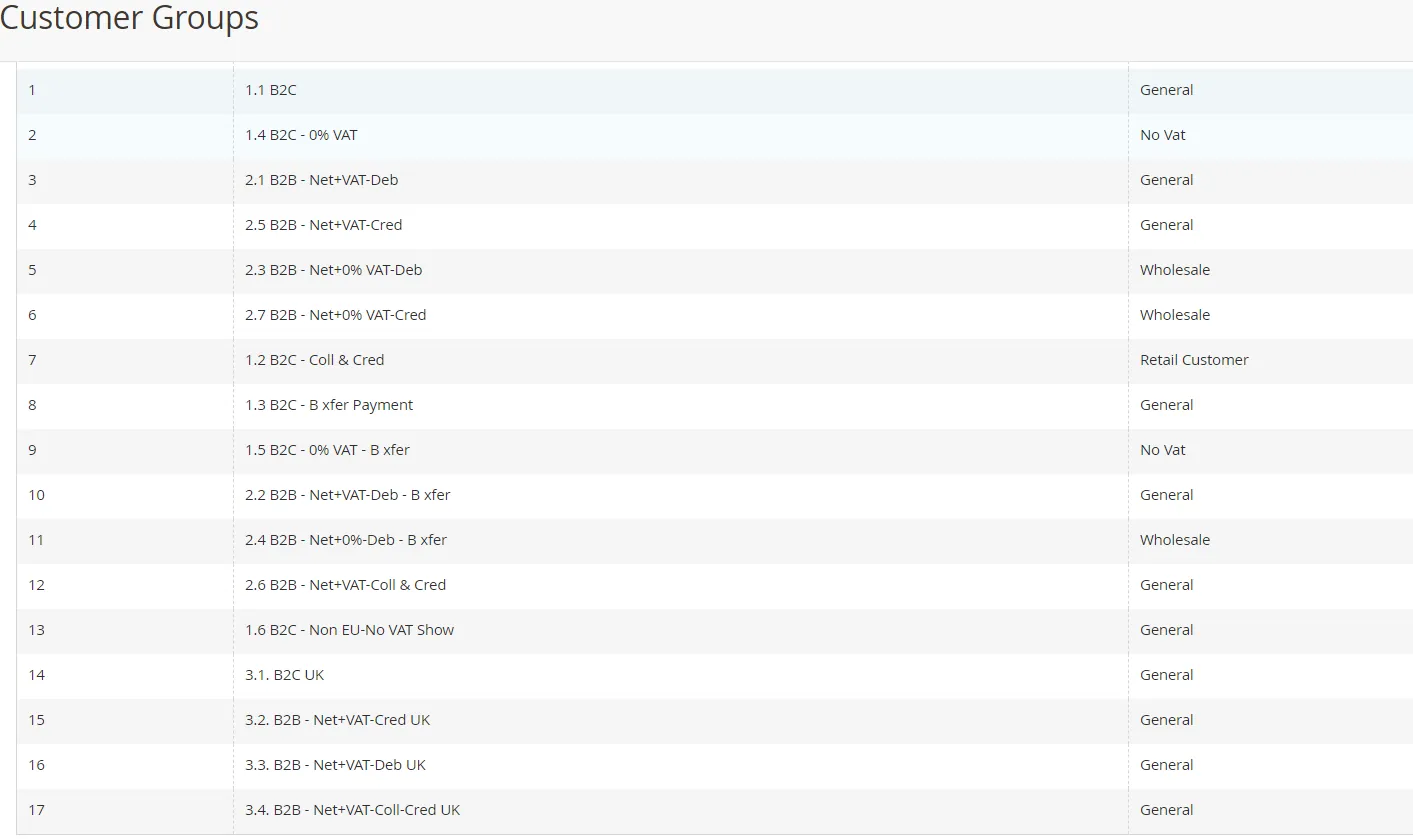
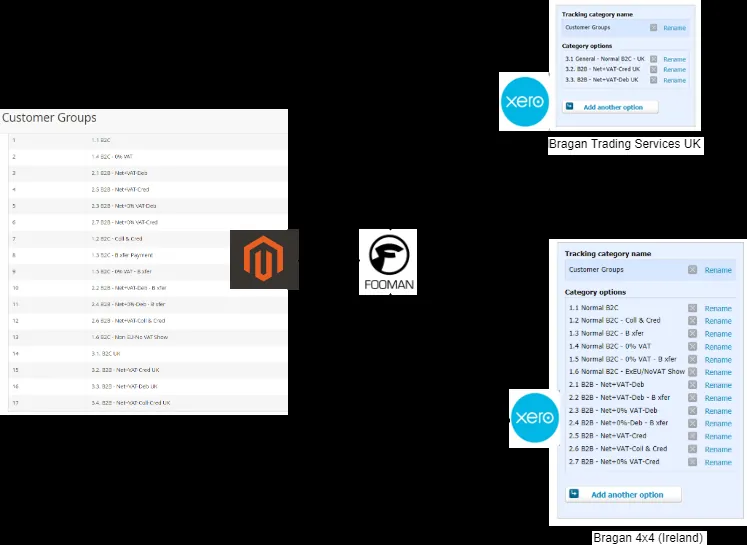
Diagram 1: Customer Group from Magento
*Group 1.1 to 2.7 Irish Registered Business Bragan 4x4 Customers
**Group 3.1 to 3.4 UK Registered Business Bragan Trading
Default 1.1 B2C Standard VAT rate of 23%
1.2 B2C Coll & Cred= Customers on Account and need to send SOA (Statement of Accounts) on Monthend. Staple in your Trello Board Monthly Workflow Task Checklist
1.3 B2C B Xfer Payment=This will be on your Daily Trello Board. Trello Card should indicate B2C Sales Bank Transfer.
Deferred Sales, Bank Transfer, “Pending” Status, May need to reconcile the feeds in Magento and Xero to confirm payments already cleared in the bank.
1.6 B2C Non EU -No VAT= Non Vat Registered/Exempt. refer to FedEx invoices(get access from Nigel)
2.1 B2B -Net+VAT-Debit=NI/EU wholesale. Mostly Irish customers. These customer must check out with payment to complete transaction as he is "Debit" account
2.2 B2B Net+VAT-Deb Bank Transfer= Same as 2.1 but deferred sales. Will Show pending in Magento before processed
2.3 B2B Net+0% VAT-Debit=Wholesale. No Vat. EU Customers zero rated
2.4 B2B Net+0%-Deb Bxfer= same as 2.3 except on bank transfer. Double check copy of bank payments/proof. For Reconciliation refer to statement of accounts.
2.5 B2B Net+VAT credit= On credit. For invoicing and SOA at monthend
2.6 B2B Net+VAT Coll&Credit=Collect means customer is allowed to collect on site
2.7 B2B Net+0% VAT-Credit= Zero rated VAT ; wholesale; Shipping option on credit.
Filter customer groups
- On the Admin sidebar, go to Customers > Customer Groups.
- Click Filters.
- Enter criteria for searching groups, including a range of IDs, group, or tax class.
- When complete, click Apply Filters.
The page displays the subset of filtered customer groups.
Create a customer group
On the Admin sidebar, go to Customers > Customer Groups. Click Add New Customer Group. Enter a unique Group Name less than 32 characters to identify the group. Select the Tax Class that applies to the group. Select the Excluded Website(s) that you want to exclude from the group. No websites are excluded by default. To select multiple values, hold down the Ctrl key (PC) or the Command key (Mac) and click each option.
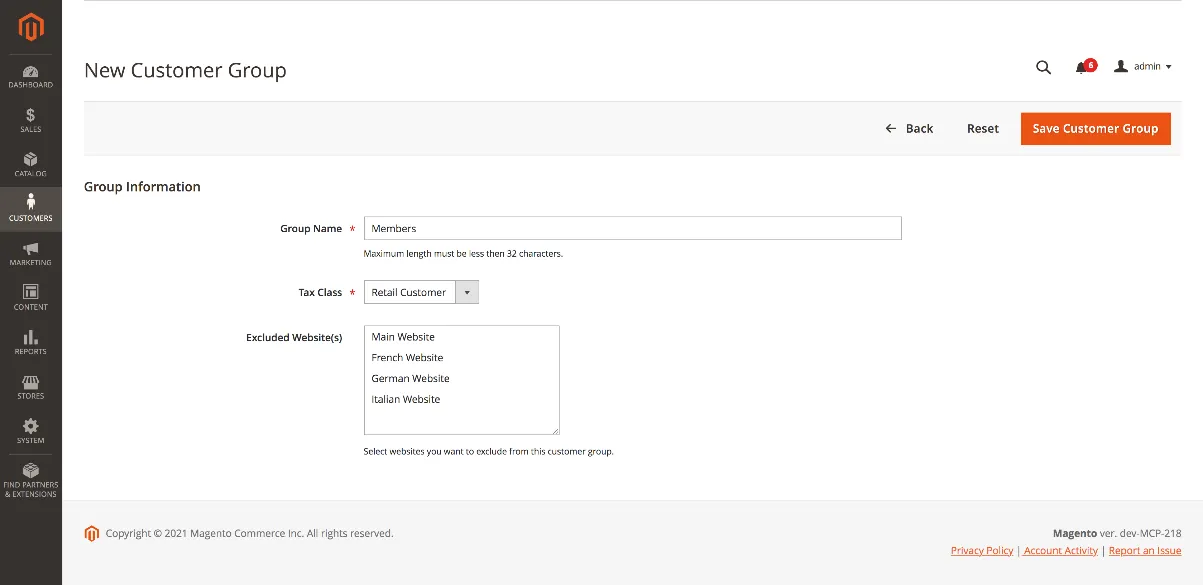
HYPERLINK "https://docs.magento.com/user-guide/images/images/stores-customer- group-information.png"

- When complete, click Save Customer Group.
Edit a customer group
- On the Admin sidebar, go to Customers > Customer Groups.
- Open the record in edit mode.
- Make the necessary changes.
- When complete, click Save Customer Group.
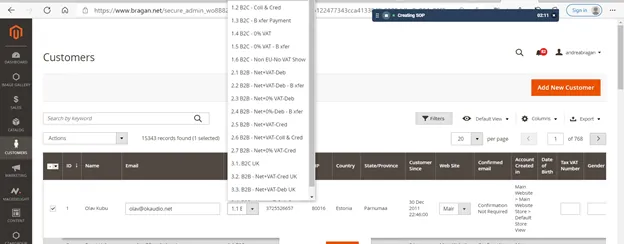
Assign a customer to a different group
- On the Admin sidebar, go to Customers > All Customers.
- Find the customer in the list and select the checkbox in the first column.
- Set the Actions control to Assign a Customer Group.
- Set the Group control to the new group.
- When prompted to confirm, click OK.
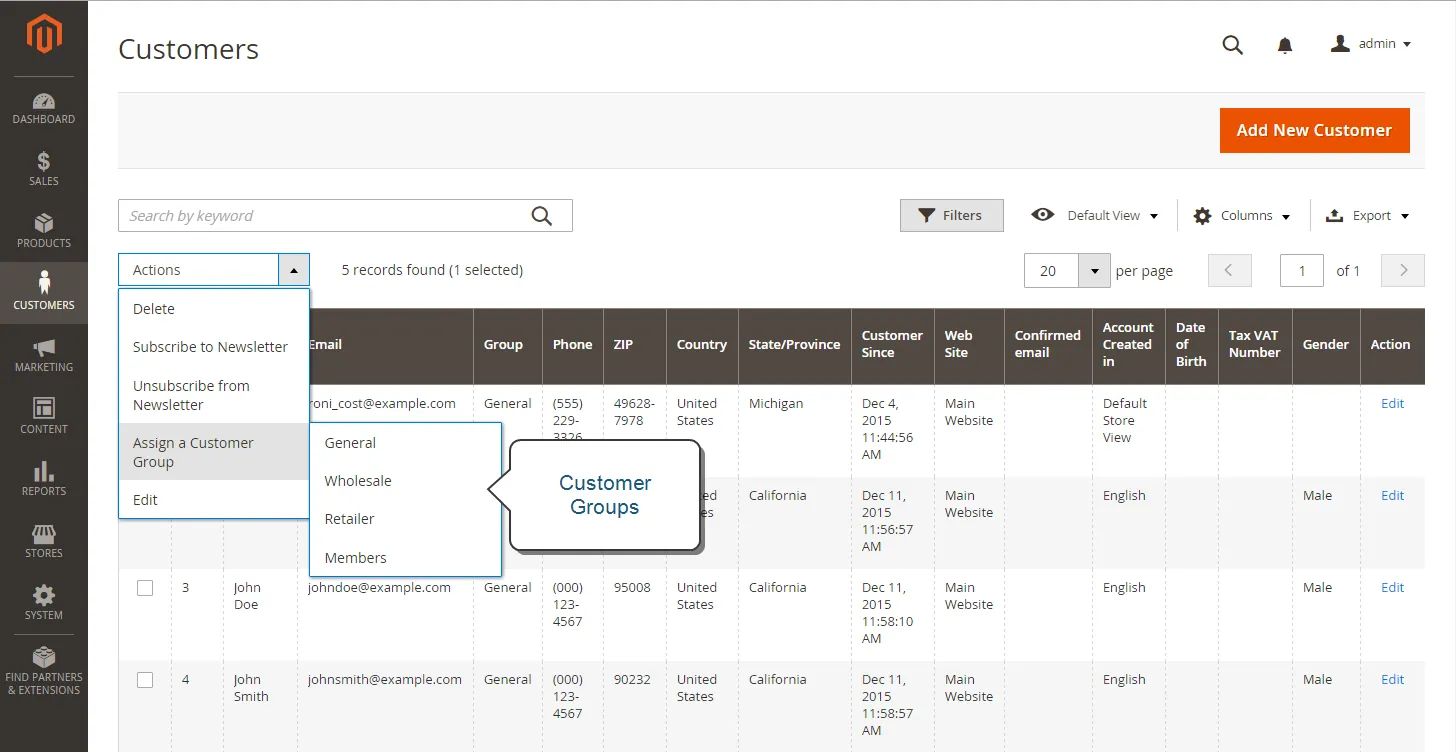
Assign a Customer Group
Associate a group of customers with specific discounts
- On the Admin sidebar, go to Marketing > Promotions > Cart Price Rules.
- Select the cart price rule with the discount to apply, or create a new price rule.
- Select the customer groups the rule will apply to.
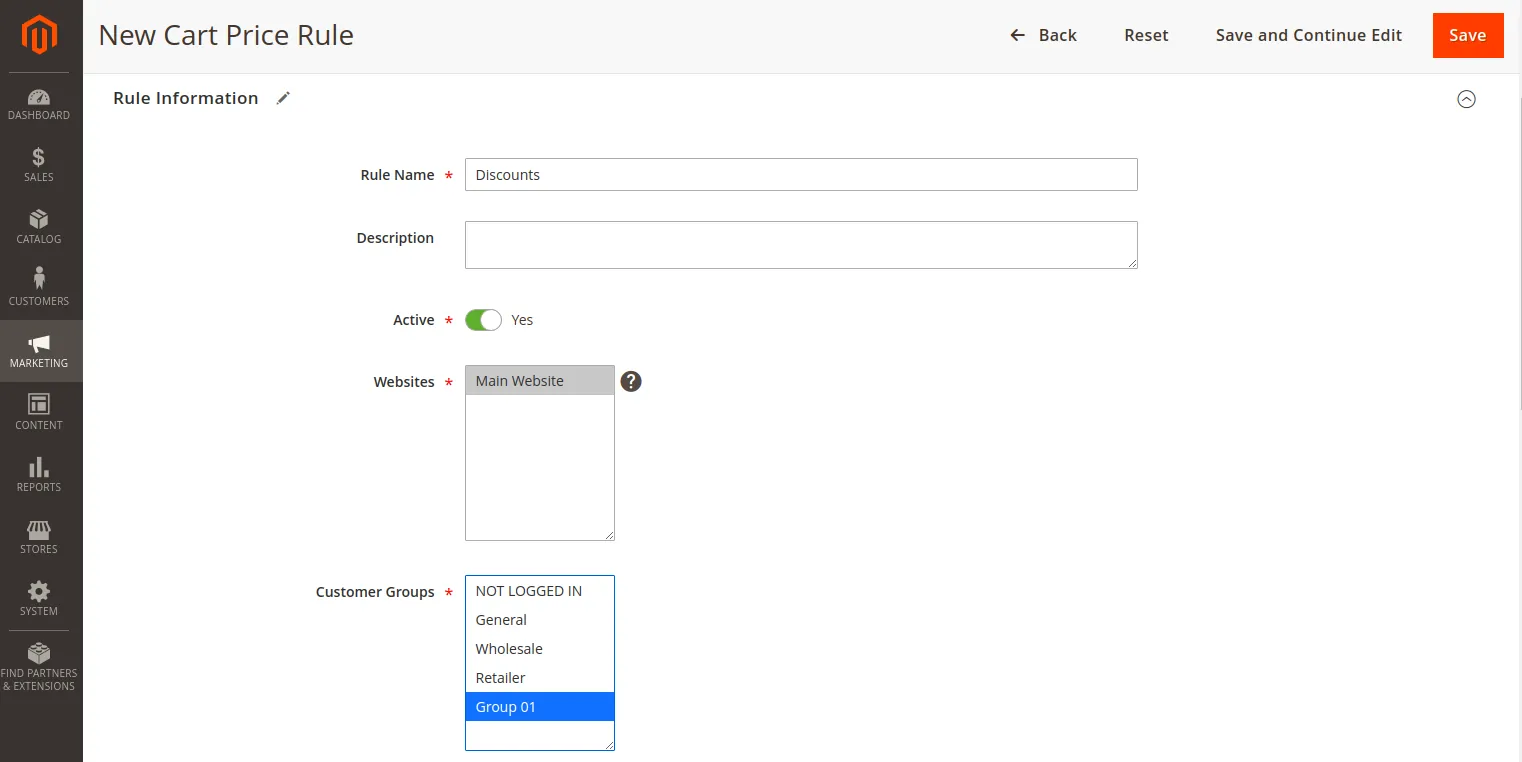
Customer Group to Specific Discounts
- Click Save.
To View Customer transactions in Magento
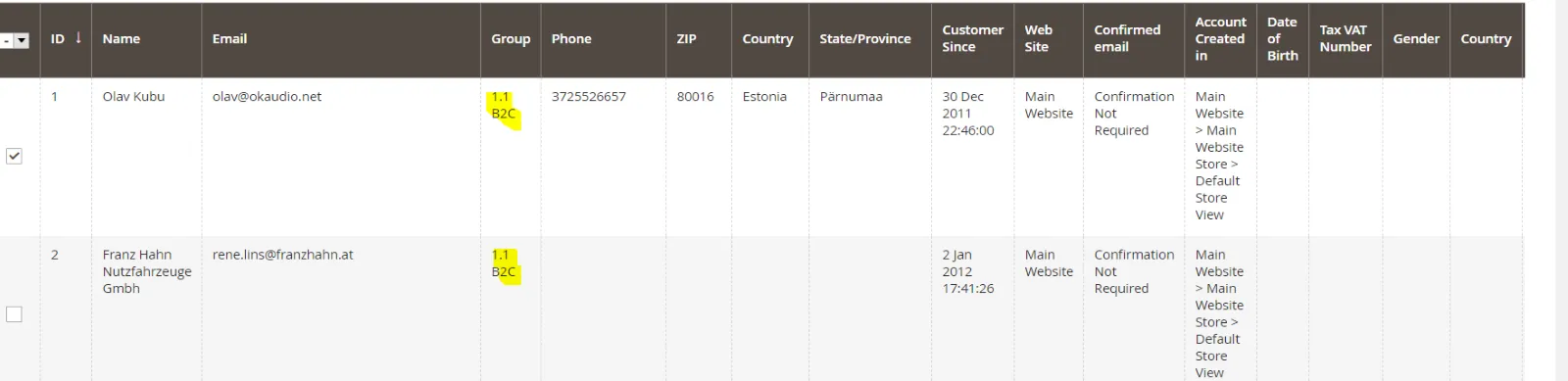
When you view Sales/Orders on the Magento dashboard you will see the customer group, and this should match Xero Tracking Categories relevant to the Sales Invoices and its corresponding tax conditions.
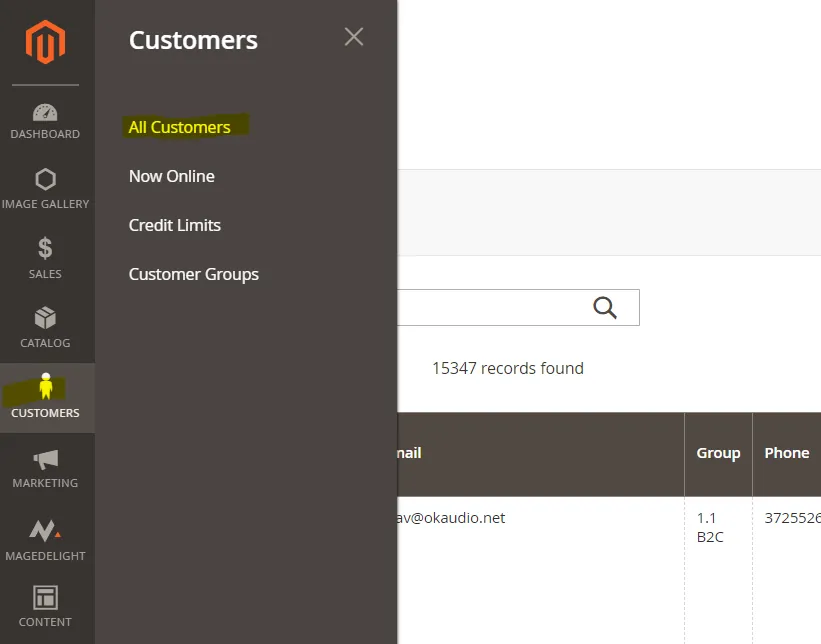
Select Customers>>All Customers
VAT#
UK & NORTHERN IRELAND
Customers in the UK & N.I – VAT rate is 20%. There are no exceptions to this rule – 20% VAT rate needs to be applied to all invoices. Bragan is a registered company in the UK (Trading).
REPUBLIC OF IRELAND
Customers in the Republic of Ireland pay 23% VAT. Companies & average joes all pay 23% VAT. Because these items are coming from our warehouse in Monaghan & delivered within the Republic then 23% VAT must be paid.
There are a select few that are exempt from VAT as they have VAT exemption from the Revenue – i.e. Combi Lift & Harte Peate are examples.
EUROPEAN
Companies in the EU can offer a VAT number (which is to be checked through VIES). If the VAT number is valid then the customer can get the order at 0% otherwise there is 23% VAT on the order.
Average joe customers in Europe pay 23% VAT.
The reason for this is because all Sales to EC & Worldwide come from Bragan Transport our Irish company.
OUTSIDE EU
Customer outside the EU (i.e. Estonia/Australia / Japan etc) can get their order at 0% VAT as this would be a NON-EU EXPORT. Proceed with the order at the full RRP price however the VAT rate on the order is 0%, the RRP price does not change. The full RRP is kept by us - no vat is indicated to these customer on checkout, this additional revenue is a cushion to us to absorb shipping discrepancies
EU Countries Subject to VAT
Countries are Charged 23% - UK Sales are Charged 20%
Xero Tracking Categories
Xero uses tracking categories and options. This keeps your chart of accounts manageable. You can have two active tracking categories. Example Customer Groups or Sales by Country. You can have up to 100 tracking options for each tracking category. A tracking category needs at least one tracking option to assign tracking to a transaction.
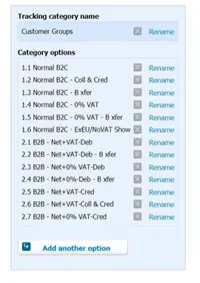
Diagram 2: Xero Bragan Truck, Van and Accessories Tracking Categories
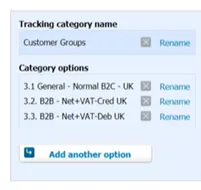
Diagram 3: Xero Bragan Trading Services Tracking Categories
Set up a tracking category with tracking options#
You can set up a tracking category with tracking options however you want, so for streamlining the integration we'll use Magento customer groups to align with Xero Tracking Categories
And let's also say Bragan e-commerce will track the Sales by Country locations. You can track sales at each location by setting up a tracking category with tracking options for each Country.
- In the Accounting menu, select Advanced, then click Tracking categories.
- Click + Add Tracking Category.
- Under Tracking category name, enter the name of the tracking category. (Example Customer Groups) Enter your tracking option names under Category options (Example 3.1 General-Normal B2C-UK)
- Click Save.
Fooman Connect#
Fooman Connect: Xero is a Magento-Xero integration that saves you serious time:
Quickly and easily link your Magento store with Xero Automatically export Magento orders, customer data, items and credit notes to Xero Improve the accuracy of your data in Xero and eliminate mistakes from human error Automate your processes and take the hassle out of managing your accounts.
Automatically Connect Magento With Xero.
Quickly and easily link your Magento store with Xero. All your relevant Magento data will be automatically exported to Xero, including:
Magento orders Magento credit notes Magento customer data Magento sold products (items).
Simply log into Xero and all your Magento data is there. All that’s left for you to do is to reconcile the invoice or credit memo with bank, credit card or Paypal payments in Xero.
Once reconciled in Xero, payments made in Xero can be displayed in your Magento backend, so you can view them at a glance.
You have full visibility and control of everything being exported from a new Xero dashboard in the Magento backend.
Advanced tax settings to suit your business
Even if your Magento tax settings are complex, Fooman Connect handles them with ease. No more frustration with manually re-assigning tax rates in Xero.
Your Magento tax settings are accurately reflected in Xero, whether you're using Xero Bragan 4x4 (IRL/worldwide) or Xero BTS (UK) (supports VAT and Xero custom tax rates).
Now the thing is, Fooman support provided the module which could be connect with multiple companies in Xero..
So we will need to Install that module and Configure the tax rates for both companies.
Sync Magento
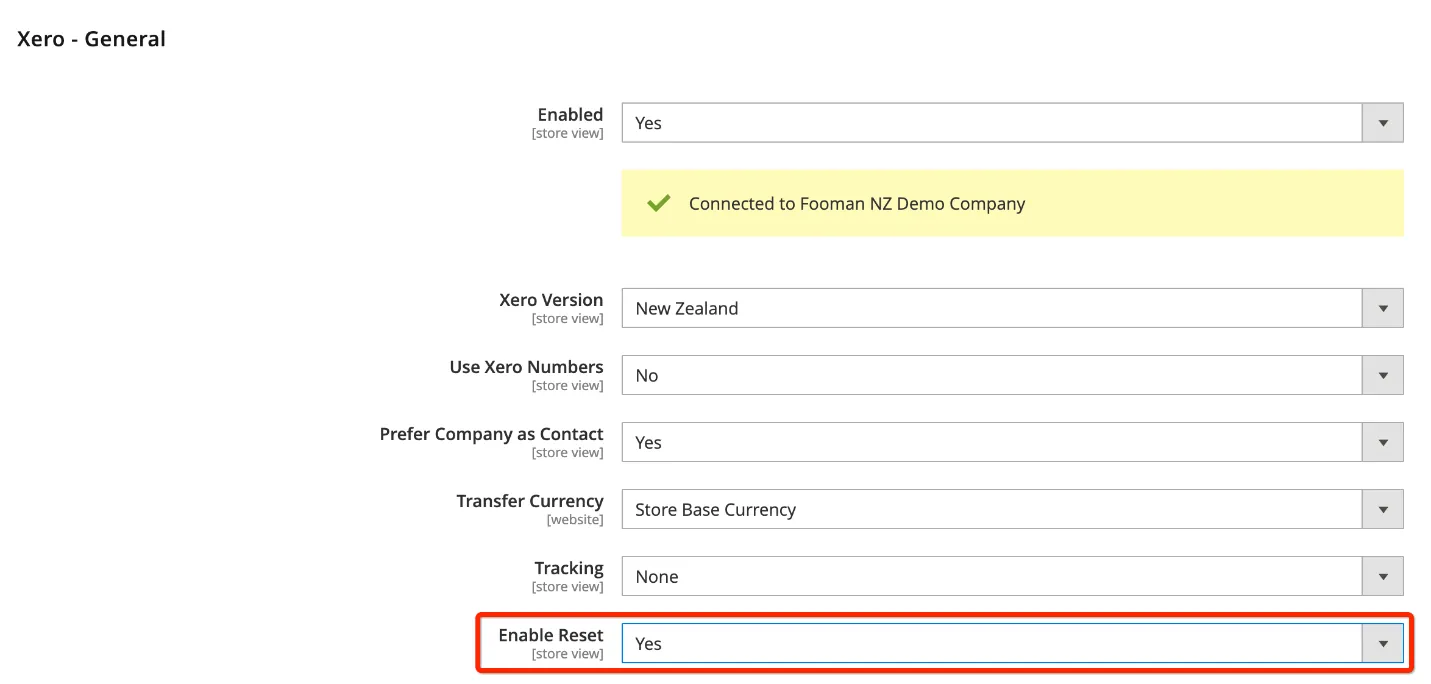
To get the two systems back into sync please perform the following steps in Magento head to Stores > Configuration > Fooman > Fooman Connect > Xero - General and set Enable Reset to Yes and save the configuration
Next head to Sales > Fooman Connect > Xero Orders/Invoices
Set up automatic exports
In Magento, configure Fooman Connect to automatically send your new Magento order data to Xero every ten minutes.
- Go to Stores > Configuration > Fooman Connect
- Configure the following settings and click Save Configuration.

Enable Automatic Exports (v1.0+)
Select “Yes” to enable Fooman Connect: Xero.
Even though the automatic export is scheduled to be run every 10 minutes, it cannot run faster than the system cron job. It is important to verify that a Magento cronjob was correctly configured during the initial set up of your Magento store, as this is essential to the automatic export function of Fooman Connect. If in doubt, please check with your web host or system administrator to confirm this.
That's it! You're all set up. Fooman Connect will run automatically according to your chosen settings. Simply log into Xero and all your Magento data is there - orders, items, credit memos and customer data. You can also perform a manual export at any time, via the process detailed in step 5.
Notes#
This section is important so Adhoc points and issues can be logged. Also, Q&A can be logged for suggestions for potential issues encountered. Also, log important notes needed for this system. Additional Notes:
This document provides a visual guide and explanation set up and Syncing Configuration. Once set up our integration runs in the background and automatically exports all your orders, customer data, and credit notes to Xero.
Potential Issues:
1 - ISSUE ENCOUNTERED: Stuck on Loading
RESOLUTION: Refresh Browser
2 - ISSUE ENCOUNTERED: Broken Links
RESOLUTION: Get the external link as this will allow other people to access the SOP without the need for login credentials and avoid broken links.