How to Renew Jobs on Indeed.com
Indeed.com is one of the platforms we use to post currently available jobs.
Overview#
Purpose: Indeed.com is one of the platforms we use to post currently available jobs. The
Purpose: of this system is to outline to assigned personnel how to renew jobs on Indeed.
Scope: This procedure applies to HR Personnel / authorized personnel in charge of posting jobs to Indeed.com.
Responsibility: It is the responsibility of each employee to ensure the process set out in this procedure is followed.
Objective: The objective of this procedure is:
to standardize the steps of renewing job postings on Indeed.
Process Flow#
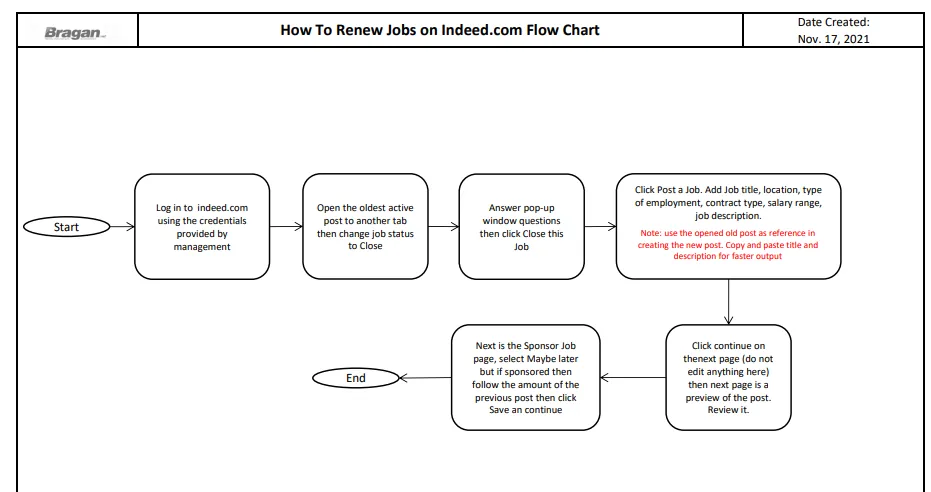
How to Renew Jobs on indeed.com#
This is to keep our job post on the most recent page and be visible to potential employees.
Step 1.
Go to indeed.com and log in with the credentials provided by management (Team IRL).
Step 2.
Find the oldest active job posting then click the ellipsis in the right most side, then edit job and open in new tab. The opened tab will serve as your guide and this is where you’ll copy details for the job ad
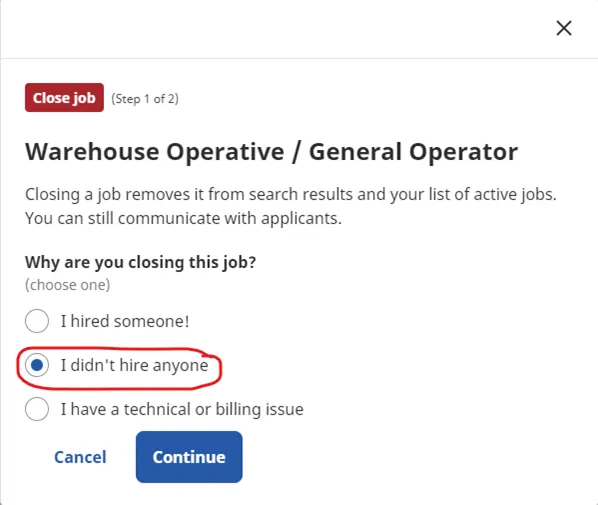
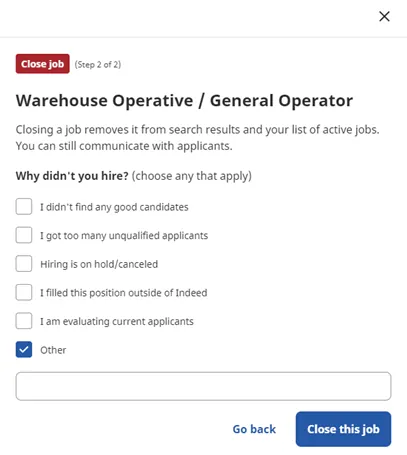
Step 3. Under Job Status, click dropdown arrow and select CLOSED. A pop-up window will appear and select “I didn’t hire anyone” as the reason why you’re closing the post. Then click continue. For the next question Why didn’t you hire, select “Others” then click Close this Job

Step 4.
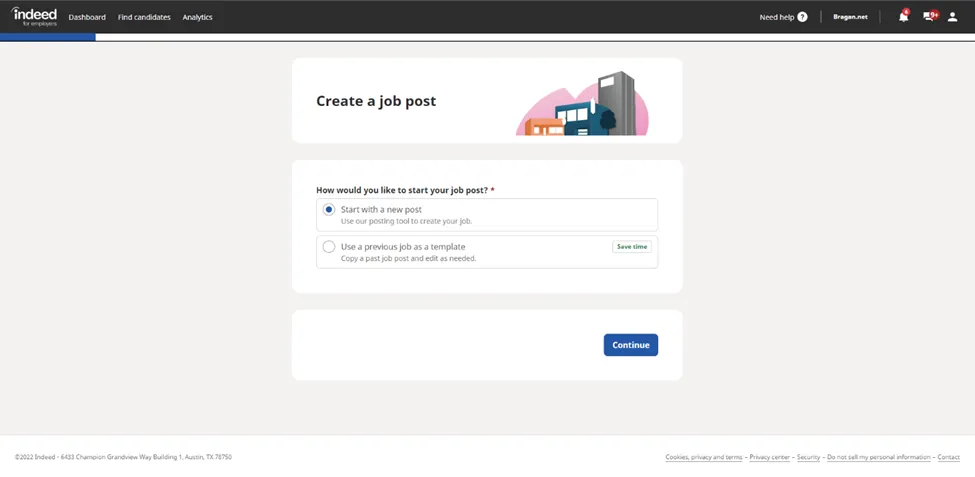
Scroll up and click on Post a Job. Then it will load into a new page choose “Start with a new post”
Step 5. It will bring you up to a new page which you will provide the basic information. Choose the country which you will see from the tab you opened (Ireland / United
Kingdom). There are same post that needed to be posted in two different location. (see attached).
Then copy and paste the job title, then click “Employees will not report to a specific area” then copy the area from the previous job ad. Save and continue. Do not change anything other than those.
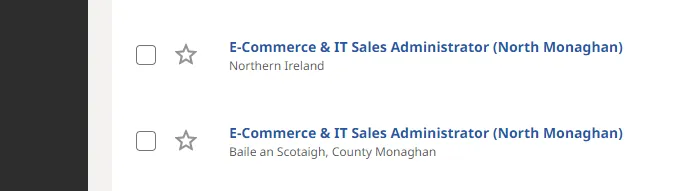
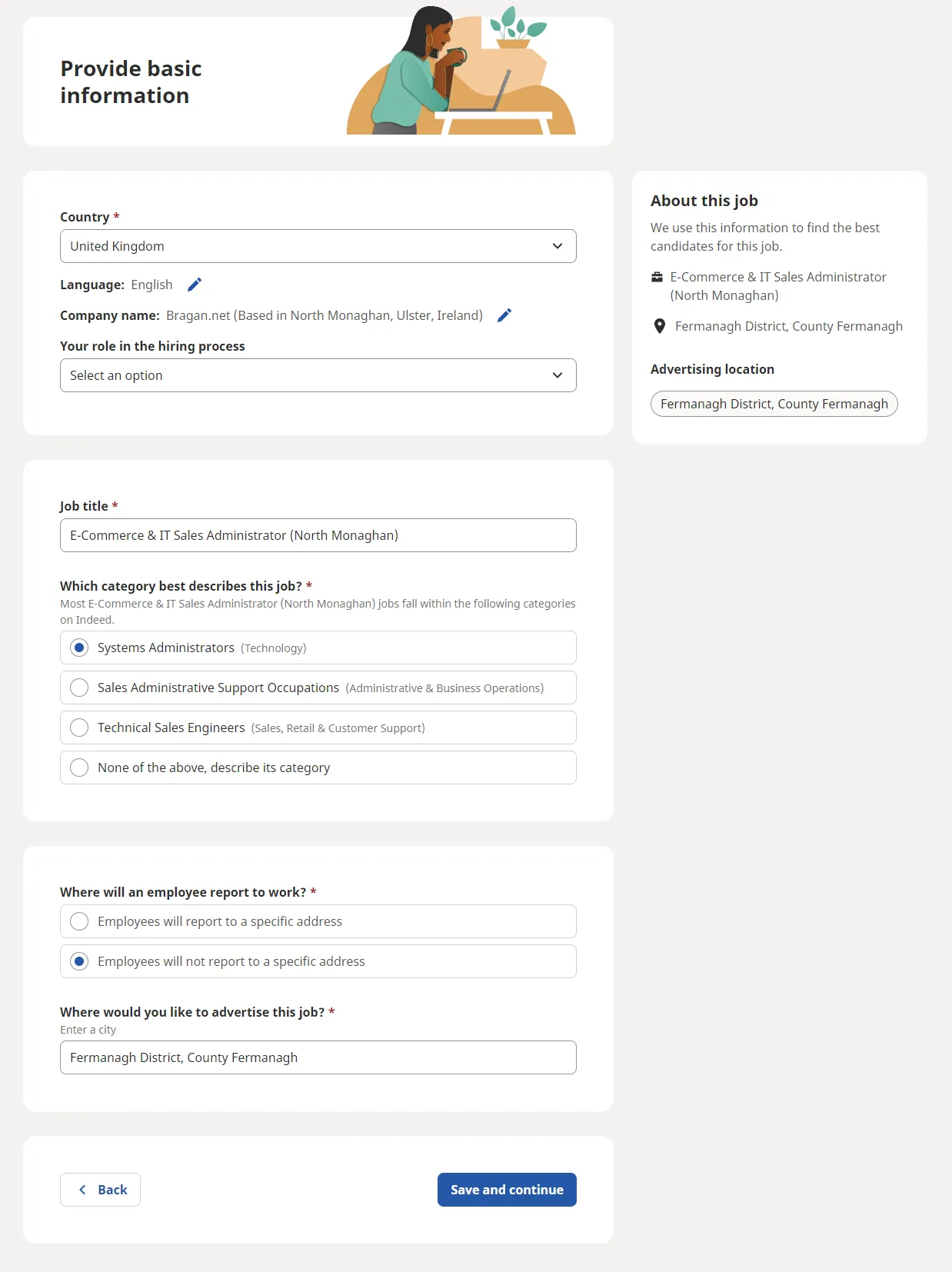
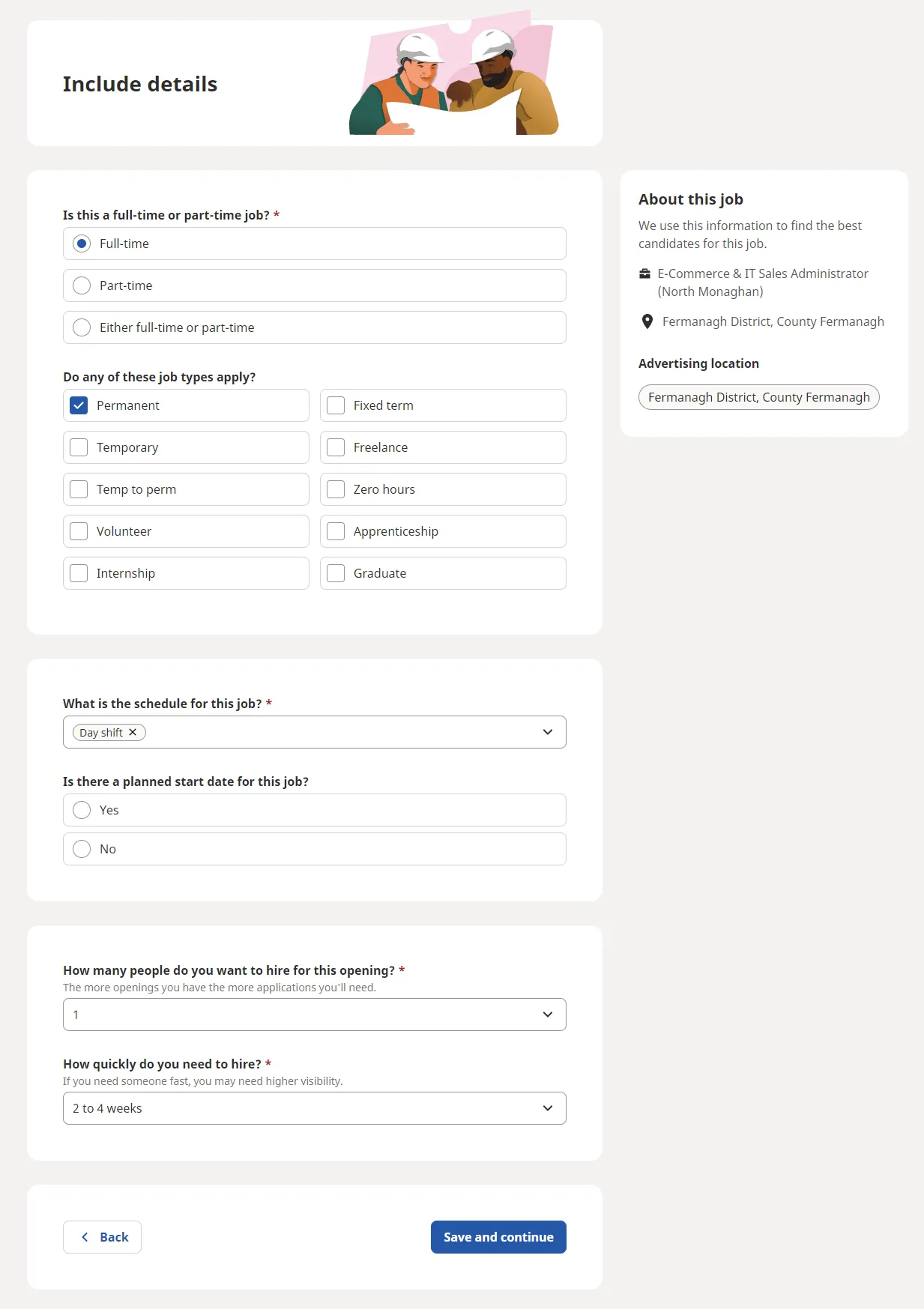
Go to the tab you open in Step 2 (the old post) then copy every part of the old listing and input in the proper details in this new post. Review then click Save and continue
Step 6.
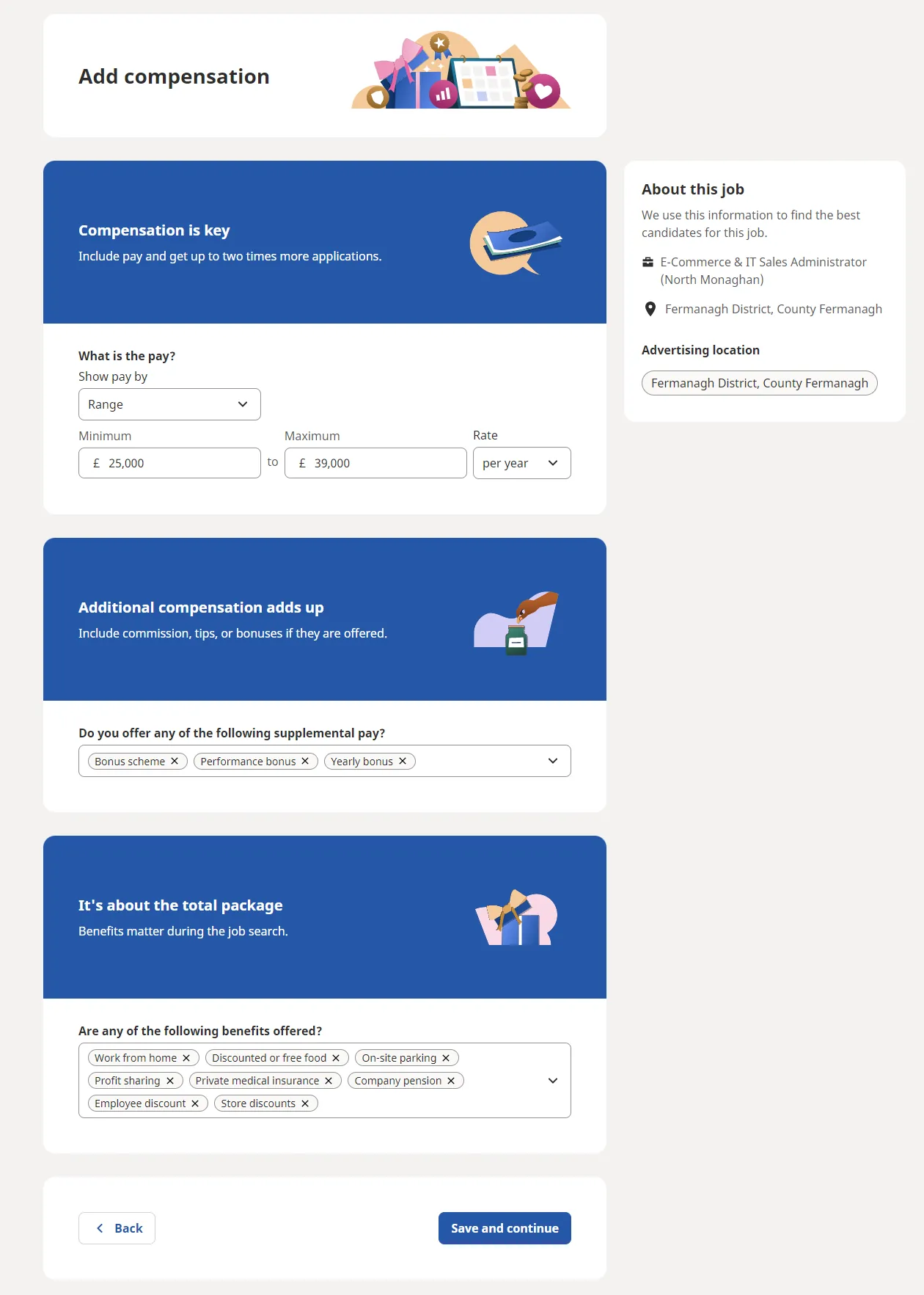
Indicate the salary range in the Add Compensation Page. Make sure that for the salary range it says per year and not per hour. For additional compensation and benefits, copy from the original listing. Then click on Save and continue.
Step 7.
For the “Describe the Job” page, make sure to copy the job description from the original and double check the start to finish if you have included everything. If there are any COVID-19 precautions, copy it; if none leave it blank. For the Job Reference ID, we skip and leave it blank. Save and continue.
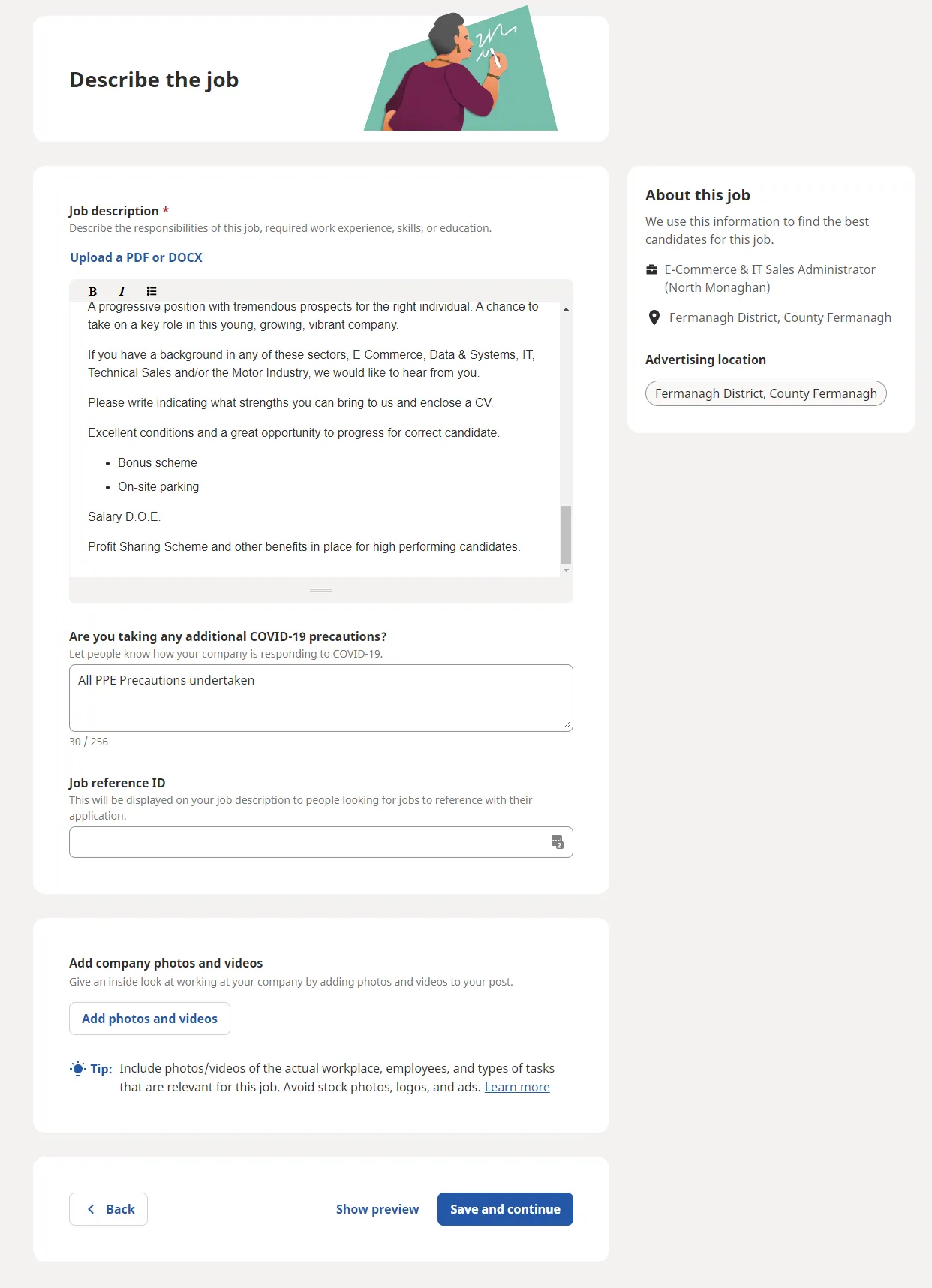
Step 8.
In the Set Application Preferences, copy the details from the original listing and choose them here. Also double check the emails and copy the 2 emails from the original post ([email protected] / [email protected]). Just ignore the No Indeed Access remark beside the [email protected]. Also, make sure how many days does the Employer Assist would automatically decline, you can check this in the old listing.
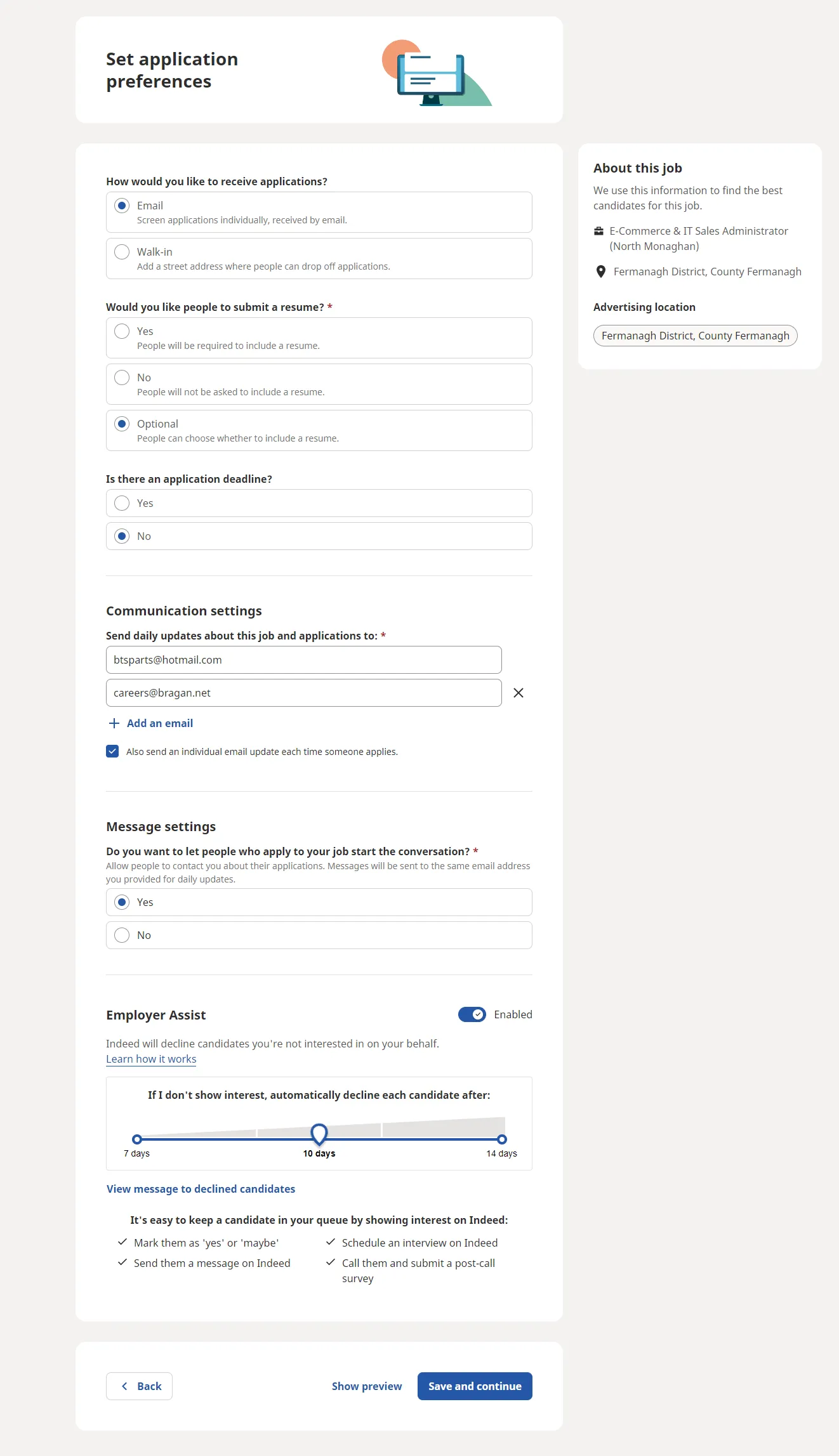
Step 9.
Customized pre-screening page – Copy all the questions from the previous job listing then save and continue.
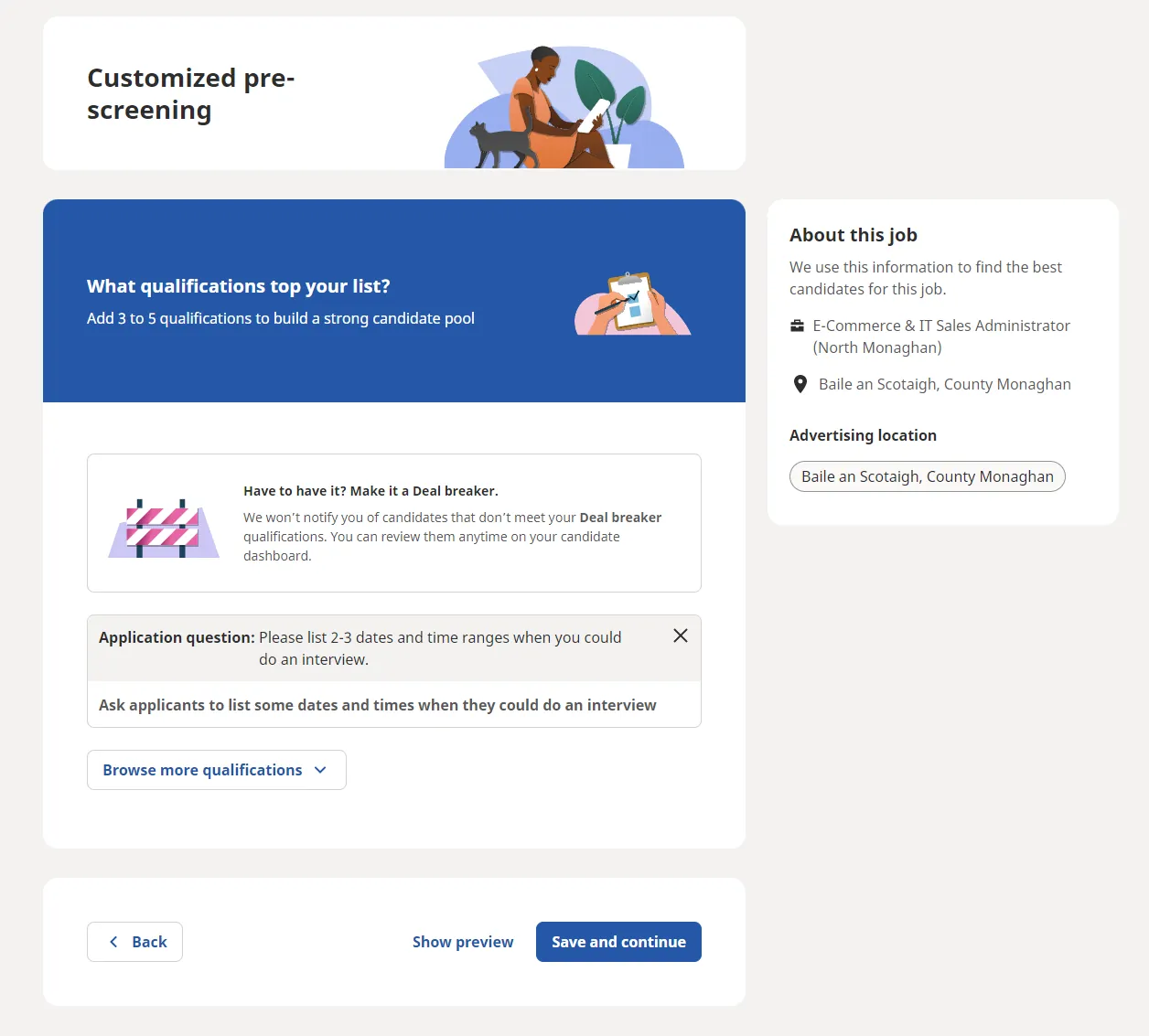
Step 10.
A preview of the job post will appear, review it. Make sure that the details are the same to the old post.
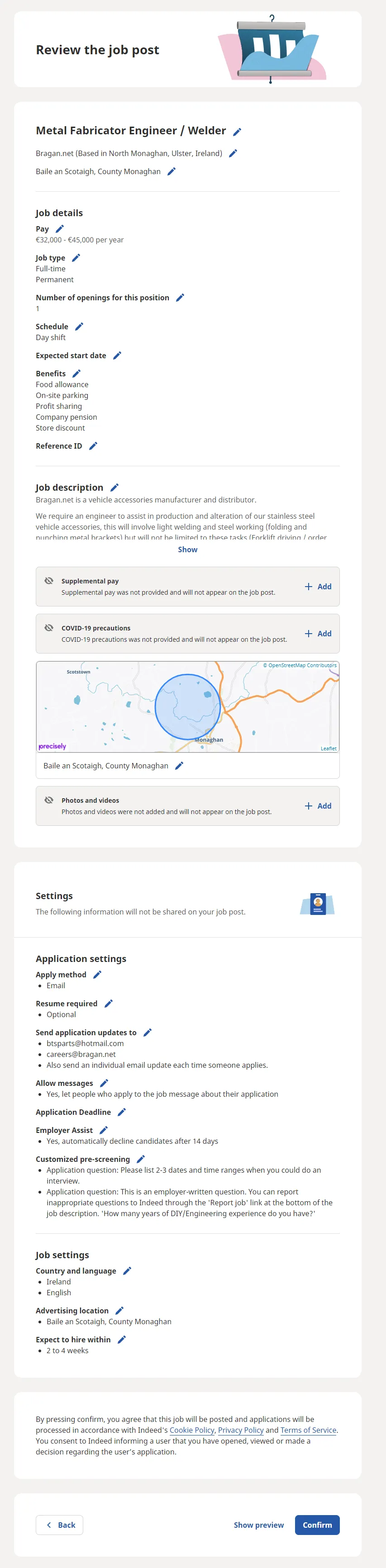
Step 11.
Next page is Sponsor Job, just scroll down and select “Maybe Later” but if the post is sponsored, you must also follow the amount in the previous post then select Save and continue instead of Maybe Later.
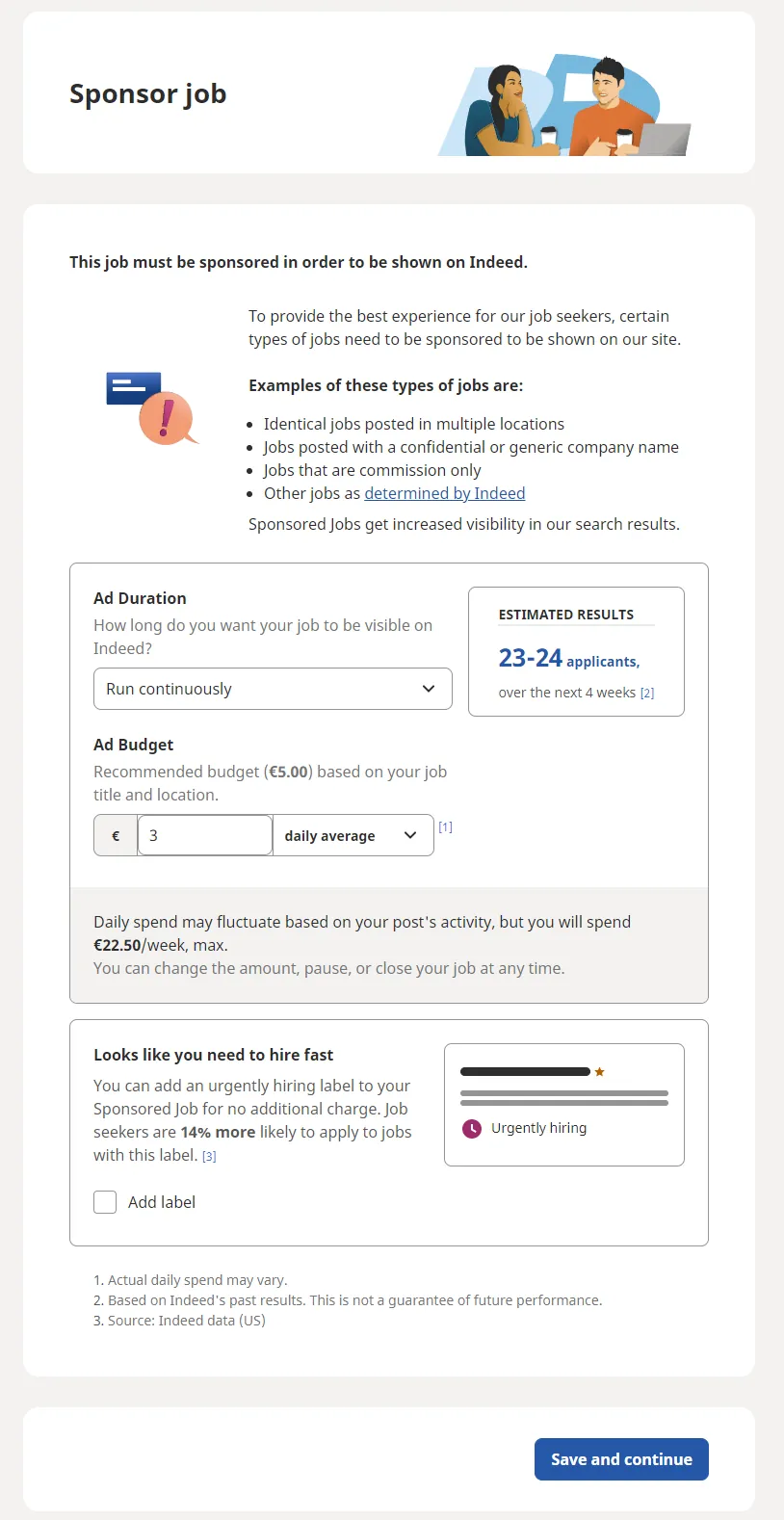
Step 12. You can now close the old post (the one you open in step 2). Then check if the created post appears on top. Repeat this for the other job posts. Make sure to always start at the bottom.
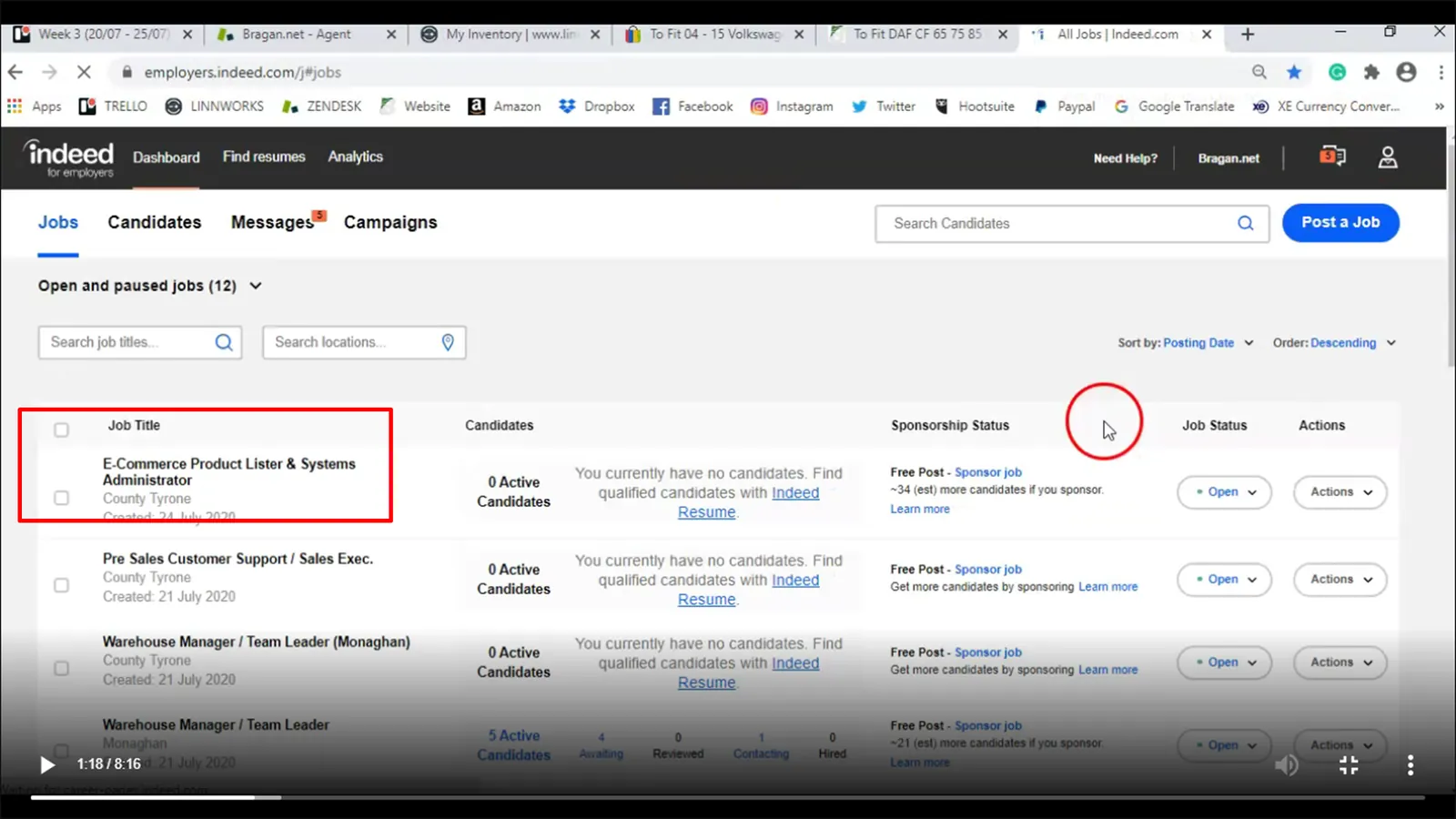
Note:
Renew half of the job post every Tuesday and the other half on Friday at 9AM GMT.
Example: We have 20 open job post and today is Tuesday. You repost 10 open job paused (start from the old post or the one at the very bottom). Leave the other 10 as you will renew that on Friday.
You must paused/closed the job before posting a new job
You must follow the location stated in each job posting
You must follow if the job is free post or sponsored post. For sponsored post, you must also follow the amount in the previous post.
Only copy and repost the job. You must not edit any content unless advise by Team IRL.
You must not deactivate or reactivate job post without Team IRL approval.
Any questions please ask Team IRL.
Step 13.
Post Jobs on the Bragan Page Social Media Channels and share them to relevant Groups as per Trello weekly tasks flow and below systems link- Please note this needs to be done daily on 3 groups per day due to Facebook restrictions (Only 3 share to Group is allowed per day)
https://bragan- net.systemhub.com/company/share/system/id/245177/shareCode/YmJmZmU3YjZlZDc 0ODJlYTUxZGM5MzYwNzI2NjcwNDg
Video & Media#
Notes#
This section is important so Adhoc points and issues can be logged. Also, Q&A can be logged for suggestions for potential issues encountered. Also, log important notes needed for this system.
Additional Notes:
Monagahn. Tyrone, Fermanagh and Armagh are all different districts and target districts for us - indeed restricts the ad to particular district so we have to advertise in each.
Budget for sponsored job ads in Indeed is 3 EUROS daily for districts outside of Monaghan. District of Monaghan is 5 EUROS daily.
| Ensure that the correct email address is used for receiving emails. Emails | ||
|---|---|---|
| should be forwarded to | [email protected] | and not [email protected]. |
Please see attached Folder link for Jobs Renew training videos
When renewing Jobs posting, you should follow video instructions and use the relevant template on the drop down.
Potential Issues:
1 - ISSUE ENCOUNTERED: Stuck on Loading
RESOLUTION: Refresh Browser
2 - ISSUE ENCOUNTERED: Broken Links
RESOLUTION: Get the external link as this will allow other people to access the SOP without the need for login credentials and avoid broken links.
Attachments#
How_to_Renew_Jobs_on_Inde… 16/12/2025