Trello Usage
How Bragan staff use Trello to record workflow and manage tasks — boards, lists, cards, the daily and weekly/monthly workflow, and task-card templates.
Overview#
Purpose: Trello is Bragan's primary tool for recording workflow and task management. The purpose of this document is to outline to new and existing staff how to use Trello to record workflow and manage tasks.
Scope: This procedure applies to all Bragan personnel.
Responsibility: It is the responsibility of each employee to ensure the process set out in this procedure is followed. Employees must allocate at least 10 minutes at the end of each day to maintain their Trello boards.
Objective: The objective of this procedure is:
- to standardise the use of Trello for all team members;
- to make the process of recording tasks and tracking progress more efficient.
1. The Basic Structure of Trello#
1.1 Trello Structure#
Board — A board represents a place to keep track of information, often for large projects, teams, or workflows. It is where you organise tasks and all the little details, and — most importantly — collaborate with your colleagues. This is the basic building block in Trello. A board can store all information related to a project in one place, or act as a central location for all duties and tasks a person performs. In Bragan, each team member has a Personal Trello Board created when they join the company.
Lists — Within each board, numerous lists can be created. Lists keep cards (specific tasks or pieces of information) organised in their various stages of progress. Lists can form a workflow where cards move across each step from start to finish, or simply hold ideas and information. There is no limit to the number of lists, and they can be arranged and titled however you like. The main lists for Bragan team members are Knowledge Bank, To Do, Daily Tasks, Weekly/Monthly Workflow, SOPs, and Done. Additional lists can be added depending on your role. Lists help manage workflow as cards move from one list to another (e.g. from Doing to Done). See §1.2 for the lists we use on personal boards.
Cards — Each list can be sub-divided into cards. Team members create individual cards to record information about tasks they are working on, plan to work on, ideas, or things they have learned. A card on one list can be linked to relevant data on a different list, and attachments can be added to a card. This reduces duplication and keeps all relevant information linked together.
A summary of what to record on each list is in §1.2; a more detailed explanation of the Daily Workflow list is in §3.
1.2 Personal Trello Boards#
All personal boards should include a standard set of lists:
- Knowledge Bank — The first list on every board. Contains cards such as Credentials, your job description, Important Contacts, and any training-related materials.
- To Do / Projects — Tasks or projects that have not yet started but are planned. Each card has a brief one-sentence title describing the task/project; further detail goes in the Description. Management may also add tasks here — a priority task is added at the top of the list. Check this list daily for new tasks and transfer them to your Doing list. Arrange by priority, most urgent/current task at the top.
- Daily Workflow — Cards recording daily planned tasks, with a unique card for each day of the week. Regular tasks vary by role. Where relevant, daily tasks link to cards on the Doing and SOPs lists. See §3.
- Weekly / Monthly Workflow — Repeat tasks to complete each week/month, or reminders for the weeks/months ahead. One card per month, with four–five checklists (one per week). See §4.
- SOPs — Logs relevant SOPs and processes. Link these cards to your Daily Workflow, Weekly Workflow, and Project cards.
- Done — Completed tasks/projects. When something is complete, move its card from Doing or Daily Workflow to the top of this list.
- Payment Run (Accounts board only) — Cards for supplier-payment invoices confirmed by management, payroll (Irish) and PH wages, the Summary of Supplier Payments, and the Transfermate summary payment.
- Payment Run Completed (Accounts board only) — Completed supplier payment runs.
Note: Lists 1–6 are standard on every team member's board. Lists 7–8 are only added to the Accounts board. Depending on role, a board may include additional lists. Take care not to over-populate with unnecessary lists or cards — housekeeping is important.
2. Knowledge Bank List#
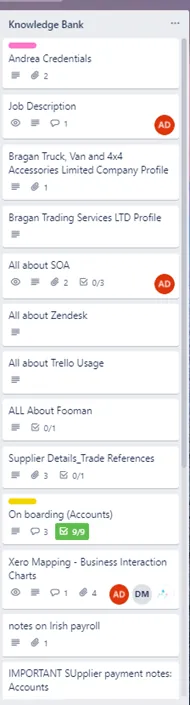
The Knowledge Bank contains cards about the employee's Credentials, Job Description, and Training Materials — including notes from discussions, meetings and trainings, relevant SOPs for the role, and issues to work on and improve.
For Accounts personnel, the Company Profile cards for Bragan Trading Services Ltd and Bragan Truck Van and 4x4 Accessories Limited are included here, since they are useful when filling out forms and corresponding with suppliers and customers. Other details include EORI, Registration, and VAT numbers.
2.1 Credentials Card#
The Credentials card should include your name, company e-mail, home address, next of kin and contact number, your own mobile number, and the Bragan Company Values.
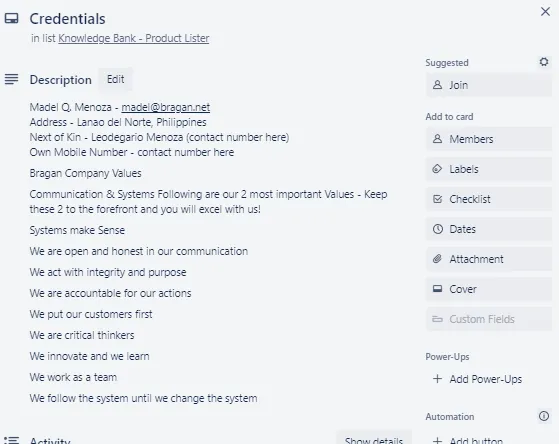
Bragan Company Values — Communication & Systems are our two most important values. Keep these two to the forefront and you will excel with us:
- Systems make sense
- We are open and honest in our communication
- We act with integrity and purpose
- We are accountable for our actions
- We put our customers first
- We are critical thinkers
- We innovate and we learn
- We work as a team
- We follow the system until we change the system
2.2 Job Description Card#
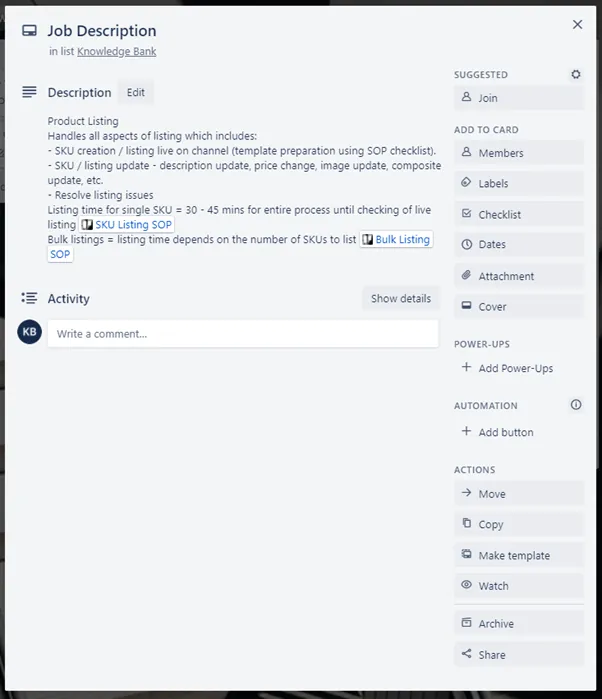
Your scope of work and related SOPs must be attached. The Job Description card should include all your given tasks and links to the relevant SOP for each task. When you are given a new regular task, update the Job Description card to reflect the change.
2.3 "What to do if Unsure How to Resolve Issues" Card#
Add this card under Knowledge Bank so agents are reminded what to do when they encounter an issue they do not know how to resolve. The card description should include the steps to take in that situation.
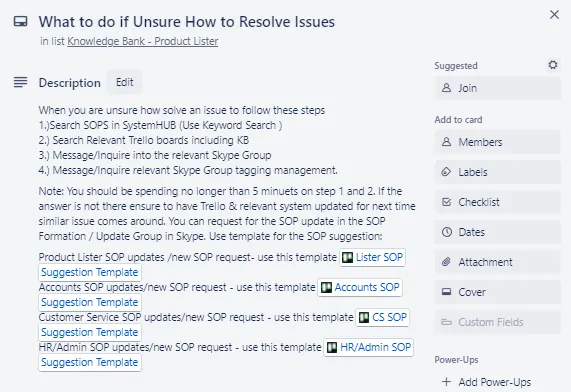
Note: SOP-suggestion templates exist for the following roles: Product Lister, Accounts, Customer Service, and HR/Admin.
3. Daily Workflow List#
3.1 Creating the Card#
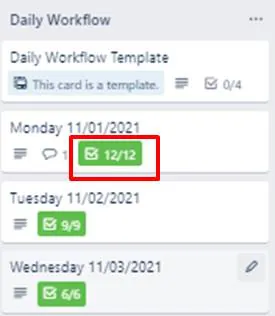
The first card on the Daily Tasks list should be a template containing a quick guide in its description on how to fulfil the workflow, plus a checklist of regular daily tasks. At the start of each week, create separate cards for the forthcoming week — and for the next week up to Wednesday — so the Daily Tasks list always has the coming week planned out. Create a card for the first day (using the template tab on the bottom right) and copy it for the days ahead.
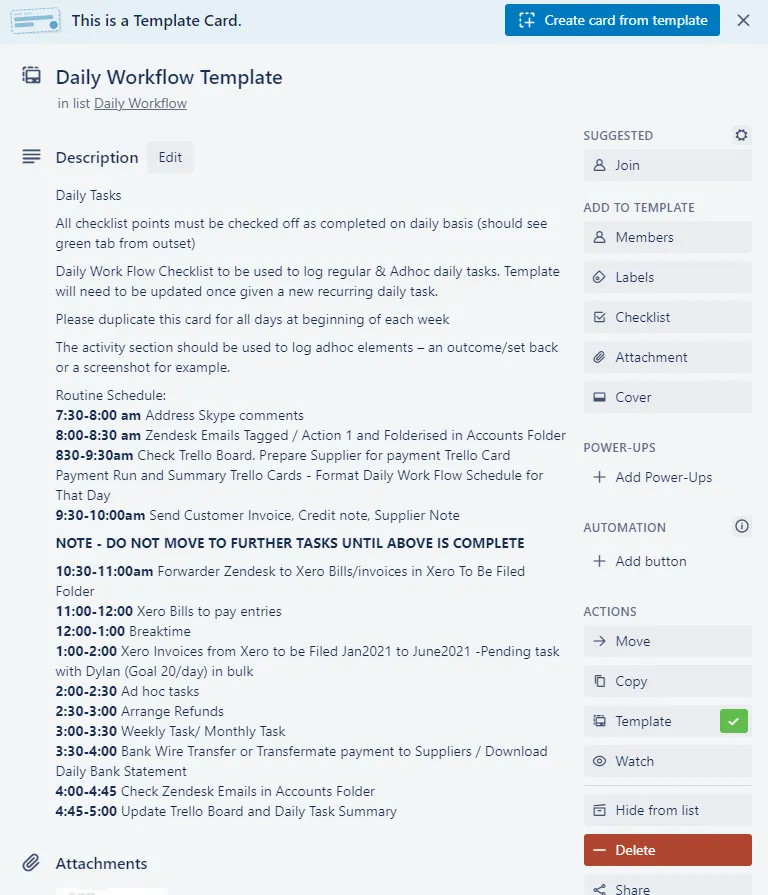
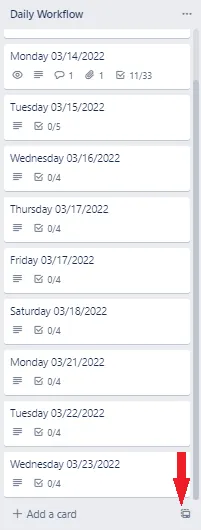
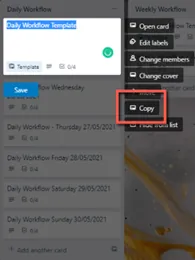
Use the Copy function on the right-hand side to copy the first-day template and create the next 4–5 days of the week. (Alternatively, right-click the card you want to copy.)
Title the individual cards in the format [Day] MM/DD/YYYY. In each
[Day] DD/MM/YYYY card, add a brief description of the card and click
Checklist to create a to-do list for that working day.
3.2 Add Description#
The Description should include a brief definition of what the card is. The Daily Workflow description can contain an everyday schedule detailing day-to-day activities and the time each task is performed. If you use a schedule, make sure the daily workflow checklist matches the schedule in the description.
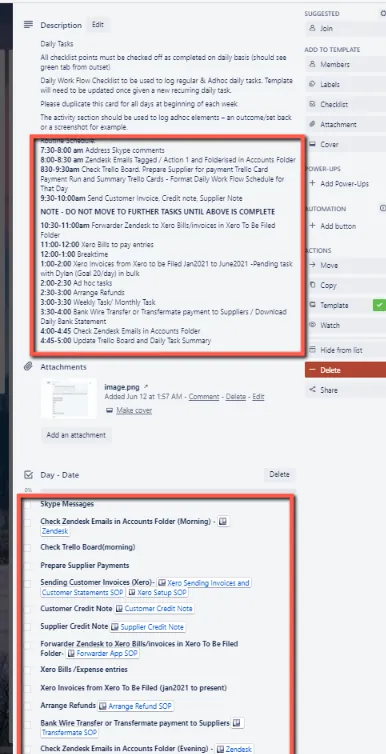
3.3 Add Checklist#
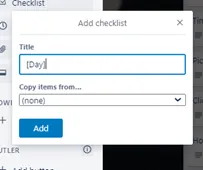
Each individual task for the day should be recorded on a checklist. Click
Checklist on the right side of the card, enter the title [Day] (changed on
duplication to the specific day), and click Add. Add each task as an item via
Add an item. Arrange items by priority — the first item is the first to be
checked off. The order can follow your workflow schedule. Use the Activity
section to log ad-hoc elements: a new listing link, an outcome/setback, or a
screenshot, for example.
3.4 Activity Log#
- Use it to comment on your daily activity.
- Record details about the activity done per section.
- Management comments are recorded here too.
3.5 Linking Cards#
If a task relates to a project or action that has a card on the Doing list of your personal board, include a link to that card in the task comment. Clicking the link takes you to the card where all the details are recorded.
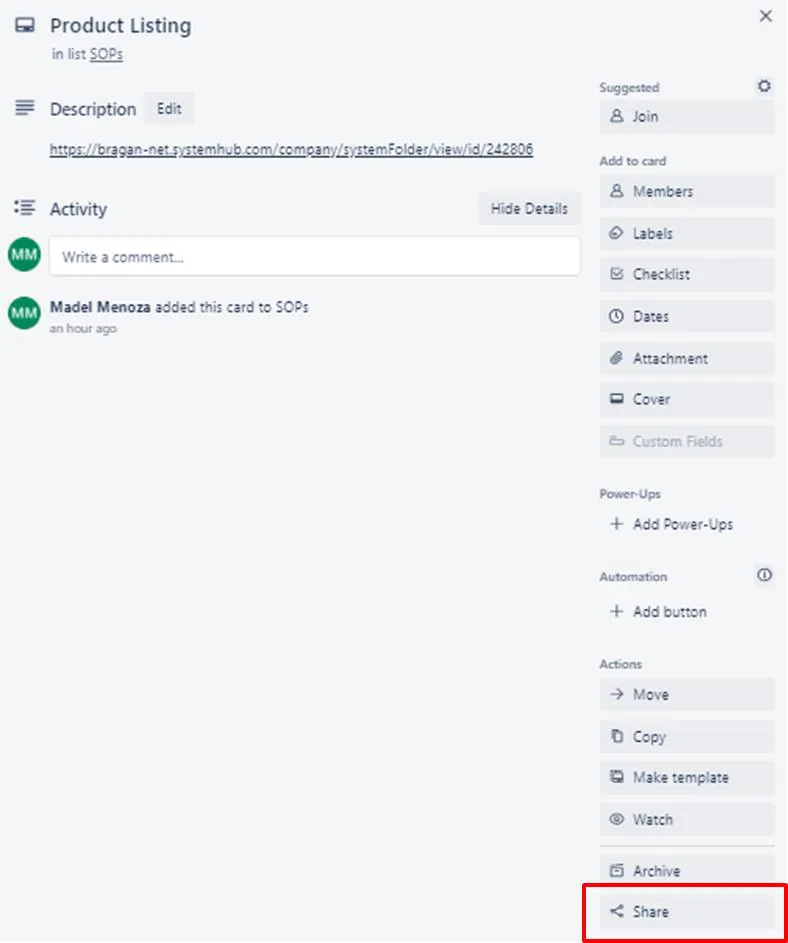
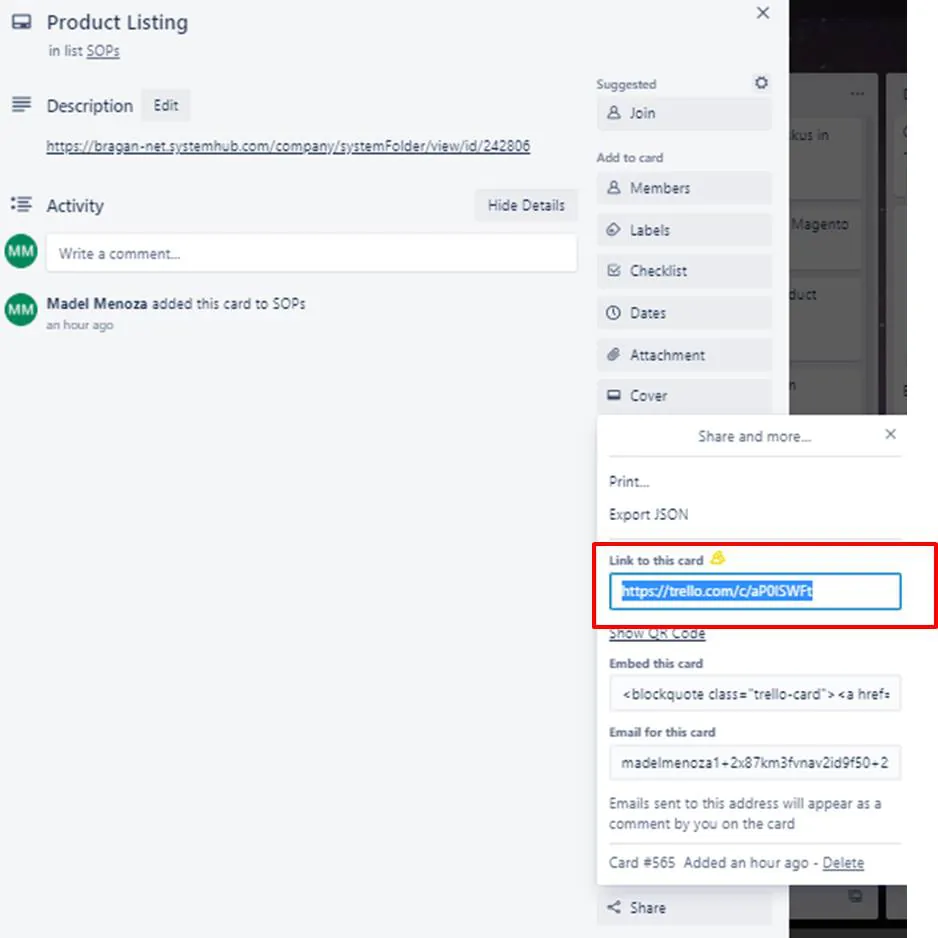
To create the link, first open the relevant card in the Doing / Project / SOP list on your personal board, then click Share and more on the card.
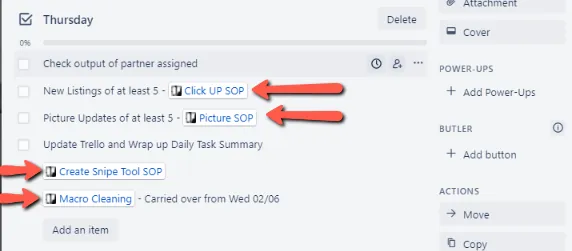
A pop-up appears with a link to the card automatically populated. Copy this link and paste it into the task comments on the daily checklist.
3.6 Green Ticks#
Once all tasks on a card are complete, the icon on the front of the card turns green automatically. Every card should be completed fully; any task not completed is moved to the next day (see Additional Notes). If a task cannot be completed in its time frame, follow it through as a task in the following period, and populate the Activity Log with a brief reason (power out, urgent task, off sick, etc.).
3.7 Done Daily Cards#
Once a task or checklist is complete, move it to the top of the Done list on a weekly basis. Every Monday morning, migrate all done cards to the Done list for future reference and archiving.
3.8 Daily Report of the Daily Workflow List#
At the end of each shift, everyone submits a screenshot of their Daily Workflow activities to their Skype group:
- The completed checklist for the day.
- The Activity section, which provides more specific details.
- Your Daily Workflow for the next day — a reminder of what to do first thing in the morning, such as sending follow-up emails or resending requests for approval.
4. Weekly / Monthly Workflow List#
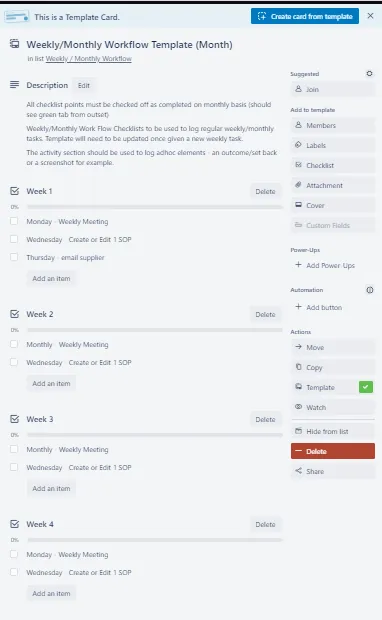
The first card should be a template. Weekly/Monthly Workflow cards contain
recurring/scheduled tasks that happen on specific days/times each week and month;
these are usually completed on the last working day of the month. Each card holds
all relevant information on the task and its frequency, and links to the relevant
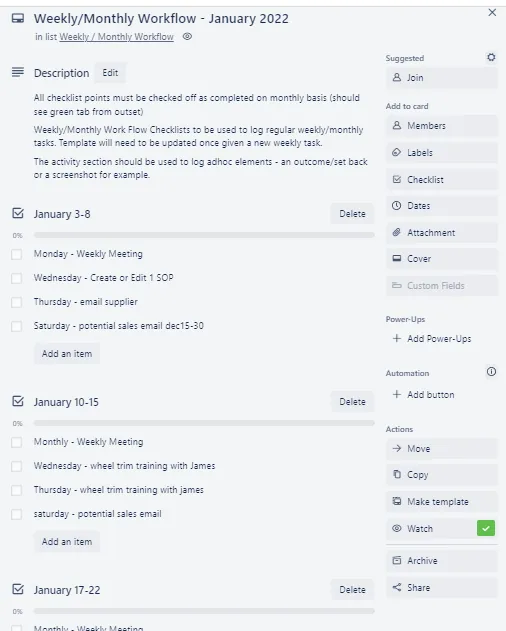
cards or SOP. Title the cards Weekly / Monthly Workflow [Month]. Update
these tasks with changes in real time — for example, the Monday weekly meeting
should be checked off on Monday after the meeting.
4.1 Weekly / Monthly Workflow Template#
The template for all roles must include four–five checklists (one per week). Each checklist item is a task scheduled for a specific day of that week. For example, a task scheduled for Wednesday of Week 2 goes in the Week 2 checklist — indicate the day (Wednesday) followed by the task. This is also a good way to remind yourself of scheduled events like Black Friday.
4.2 Done Weekly / Monthly Cards#
Once all checklists are complete, move the card to the top of the Done list on a monthly basis, for future reference and archiving.
5. Trello Task Cards#
Tasks that take 15 minutes to do need a task card. Always use the template cards — do not create your own. Some tasks take less than 15 minutes but still need a template card; check the SOP for that task to know whether it needs a card.
At the start of your shift, review your own Outstanding To-Do tasks list and continue anything incomplete or needing follow-up. You may rearrange cards by urgency. Each task stays on the list until it is done — if you switch tasks, update the progress in the previous card's checklist and add notes on what to do next so you can resume later. 10 minutes before your shift ends, review your cards and move finished ones to the Done list.
Note: You must be invited or added to a Trello board to access its templates. Request access from management if you are not yet added.
Product Listers
- give SOP suggestions or updates
- do warehouse queries about new listings or listing updates
- new listing task board
- listing update task (except picture update)
- updating pictures in a listing
Customer Service Agents
- give SOP suggestions or updates
- do warehouse queries about customer-related concerns
- supplier claim
- courier claim
- dispatch mistake
Accounts (most templates are confidential and provided by management)
- give SOP suggestions or updates
Web Developer
- task card for web developer
Warehouse
- auction items
Order Processing
- give SOP suggestions or updates
HR / Admin
- give SOP suggestions or updates
Procurement Officer
- give SOP suggestions or updates
6. Calendar / Reminder Function#
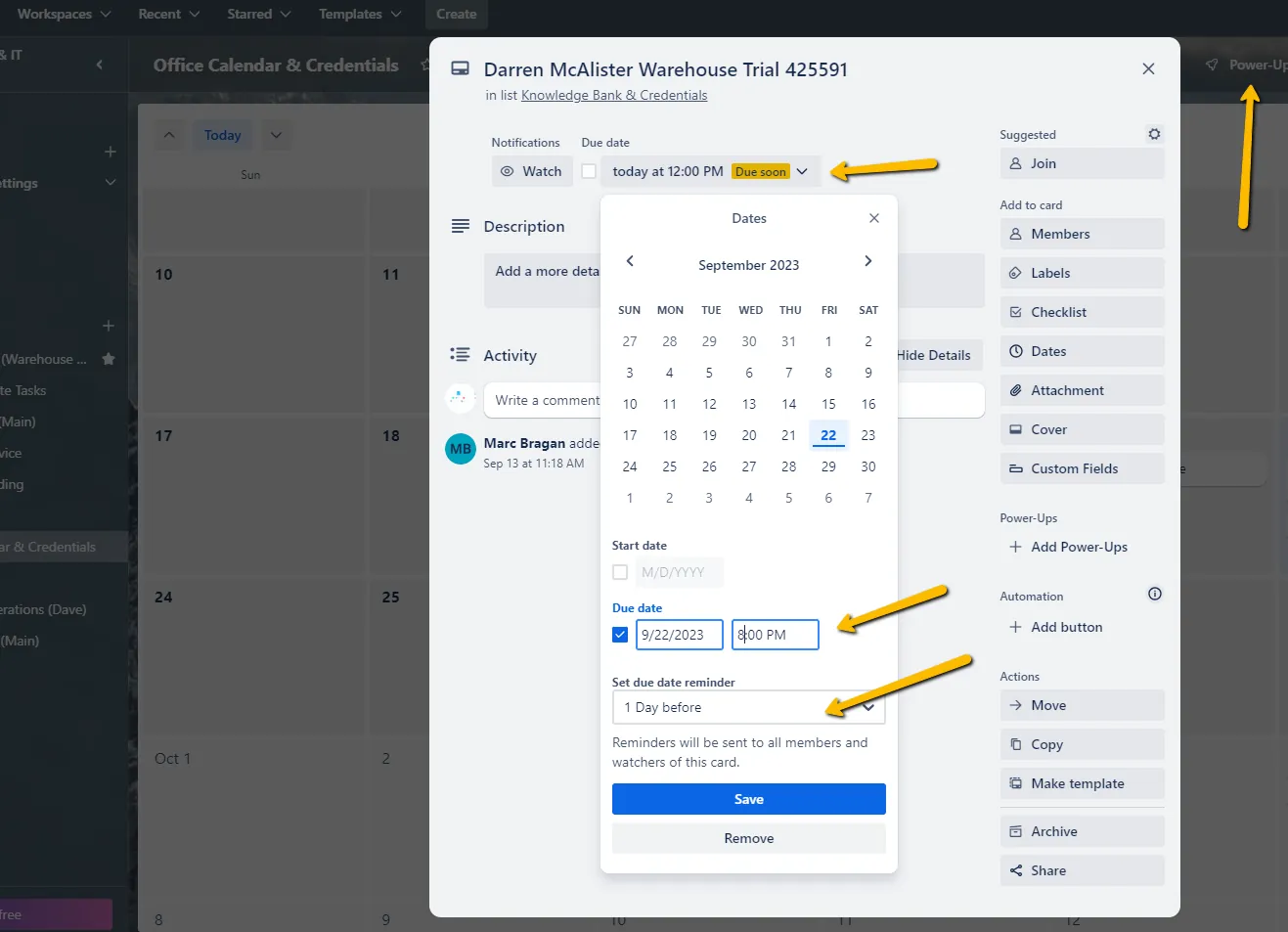
The calendar function is good for visual planning — in the top section of your Trello page, use the Power-Up function to enable Calendar if it is not already present.
The reminder function can be set on any card. For example, it is used when an employee's trial is due, but it can be replicated for other tasks.
7. New Listing / Update Listing Trello Board#
This is the board where product listers receive their daily output for new listings, listing updates, and picture-application tasks.
If the requested task takes more than 15 minutes:
- Create a Trello card for the request — duplicate the relevant template (bulk or not; new listing or listing change).
- Fill in the scope relevant to the request.
- Send the card for management approval if the scope is correct: add the label "Awaiting management approval" and move it to the Awaiting approval list.
- Once approved, change the label to "Confirmed by management".
- Move the card to your own board. Make sure the task is understood — ask questions to clarify if not.
- Join the card and label it URGENT if the task is urgent.
- Follow the task checklist relevant to the task.
- When done, send the sample and task card to partners/management for checking. If there are no comments and it is confirmed done, move it to the Done list.
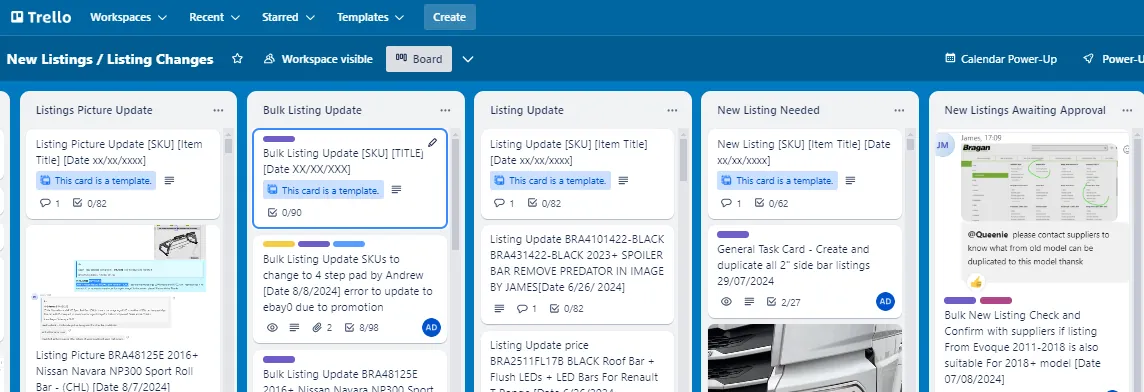
Daily output on this board is 5 new listings / 5 update listings / assigned tasks:
- Join the card as a member and add a label.
- Update the items marked with
#(Purpose, Instruction) and ask for management approval if the task is scoped correctly. Send to Bragan new listing for approval (Sir James, or Sir Andrew if he requested the task — label as Urgent for any request from Ireland). - Once management has approved and ticked the checklist, label it blue (Management Confirmed) and In progress, copy the card to your own company Trello and into your Doing list, and start the task. Tick every checklist step (price, image, typo checking, etc.).
- When done, change both cards' labels to green (Done) and move them to Done.
When sending a warehouse query, once it has been answered and labelled green (done) by Warehouse, move the card to Done on the Warehouse Trello board.
Video & Media#
No content recorded yet.
Dropbox#
No content recorded yet.
Notes#
This section is important so that ad-hoc points and issues can be logged. Q&A can be logged for suggestions on potential issues encountered. Log important notes needed for this system here.
Additional Notes#
A. If a daily task is not related to a card on the To Do / Projects list, it is very important to include the specific details associated with the task. For example:
- if the task is associated with a particular email, include the email number;
- if the task references a file in Dropbox, include the link to the file;
- if there is a related attachment or image, use the Attachment function to add the file;
- if the task involves contact with an external third party, include that person's name, number, or email to make follow-up easy;
- edit the comment if necessary to note the outcome of the task.
B. Priority cards/items should always show as the first item in the list/checklist respectively.
C. The daily checklist must be updated at the end of each working day with the tasks that were completed.
D. Staff entitled to overtime payments should note their finish time each day in their daily checklist. Finance uses this timestamp for payroll.
E. Where a task is not completed on its scheduled day, edit the item and add "Unfinished – Carried forward to [day]". Add the task on the next planned day with "Carried over from [day]".
F. At the end of each week, all team members should ensure all planned tasks in that week's card are complete.
G. If all tasks are complete, move the team member's card to the Done list.
H. If a task is carried over to the next week, follow point E.
I. At the end of each day, move all daily cards to the Done list, and the process starts over again.
J. At the end of each day, employees should allot 10 minutes to update Trello boards accordingly.
K. Trello has tools and plug-ins for different functions. Employees are encouraged to suggest helpful ones to management.
L. Proper use of the Trello board is a basis for management performance reviews, which can lead to bonuses and pay rises.
M. Direct instructions from Skype can be logged in the Activity section of a card for easy reference when searching in Trello. Only the Title and Activity section are searched by Trello's "Search card" function.
O. The Payment Run and Payment Run Completed lists are only applicable to the Accounts team.
P. "There are so many things to remember — and to remember always to update the system."
Q. Tasks that take 15 minutes to do need a task card. Always use template cards; do not create your own. Some tasks take less than 15 minutes but still need a template card — check the SOP for that task to know whether it needs a card.
Potential Issues#
- Stuck on loading — Resolution: refresh the browser.
- Broken links — Resolution: use the external link, which lets others access the SOP without login credentials and avoids broken links.