Auction Listing
The purpose of this Standard Operating Procedure is to guide agents on how to
Overview#
Purpose: The purpose of this Standard Operating Procedure is to guide agents on how to create, relist and manage auction listings.
Scope: This procedure applies to all Product Listers.
Responsibility: It is the responsibility of all employees to ensure the process set out in this procedure is followed.
Objective: To serve as a guide on how to correctly list and relist auction items and the proper monitoring these listings.
For bundle
Process Flow#
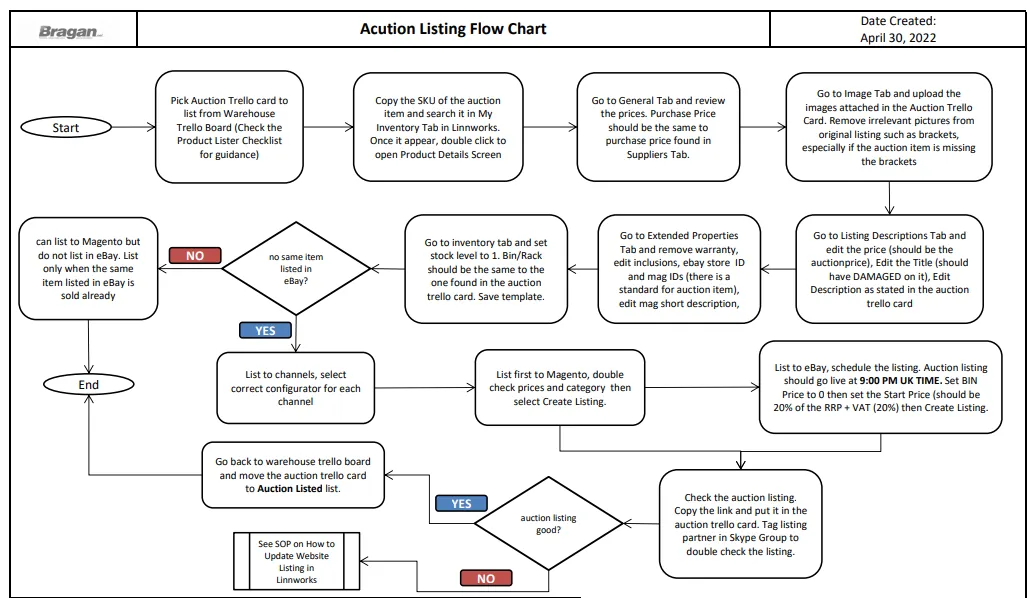
Procedure#
Creating New Auction Listing#
- Pick an Auction Card to list
Product listers are tasked to list at least five (5) auction items per day. To know what auction items are needed to be listed, go to the Warehouse Trello Board and check Auction to List. All cards under this list that has a yellow label are still pending for listing. Pick from the cards here. Latest card is found at the bottom.
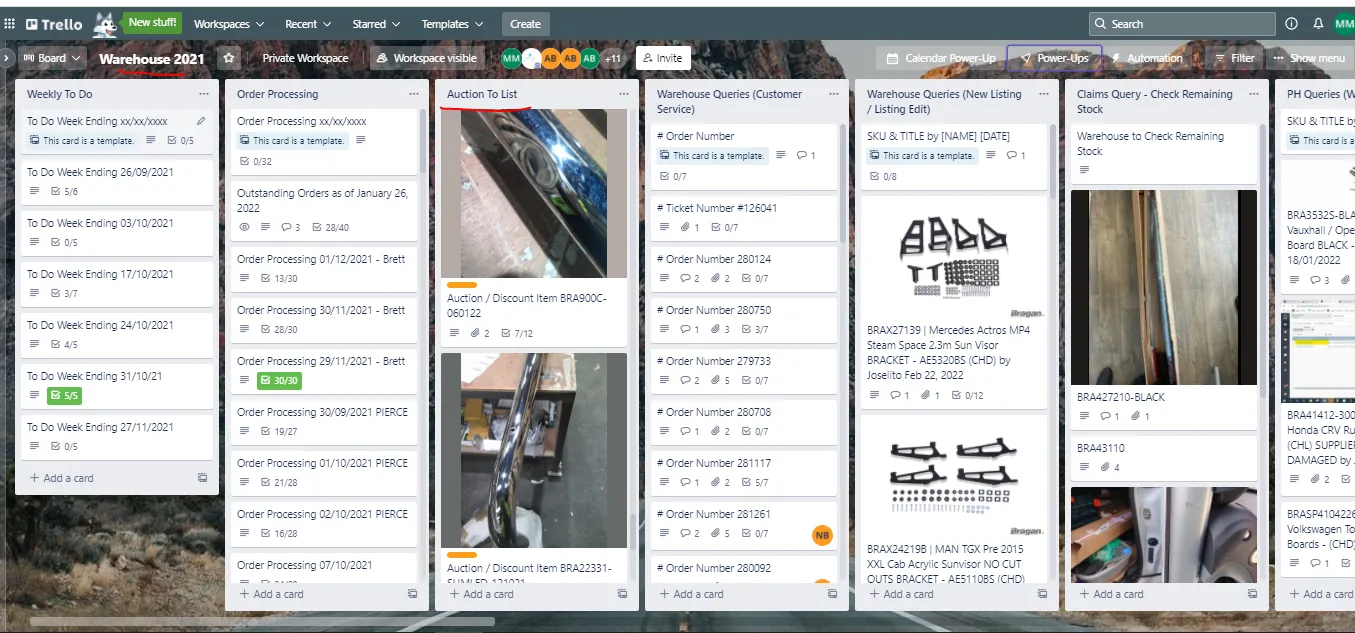
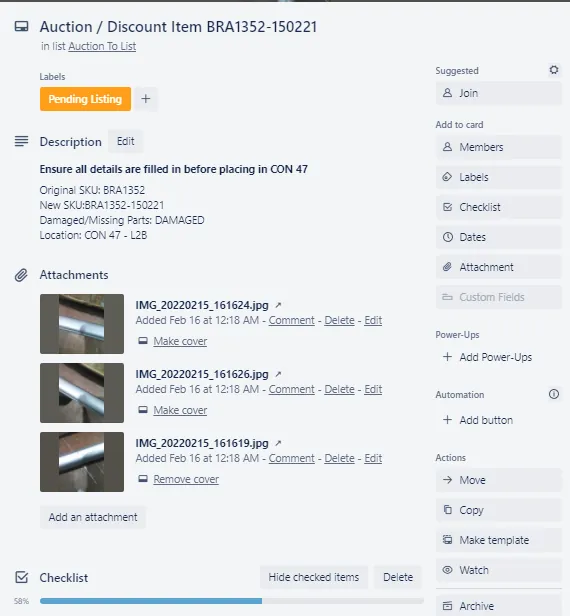
Here is a sample auction Trello card, you can see there is a Pending listing label so you can pick this and list it. These cards are created by warehouse people. To know how this is created and where does this auction item came from, check this SOP on Warehouse Returns & Auction.
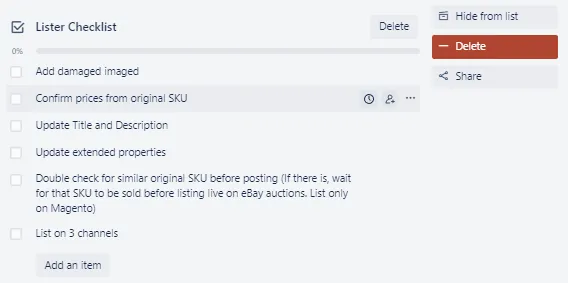
- Create Listing Template in the Product Details Screen
Refer to the second checklist of the Auction trello card so you will have a guide, make sure to check off each item in the checklist once you finish each tasks.
From the Trello card you can see the new SKU of this damaged item. New SKU for damaged item is just the Original SKU with the date when the item was posted in the Returns/Auctions & Discounts Group Chat in Skype. From the trello card sample above the new SKU is BRA1352-150221. This mean, this item was posted in the Group Chat last Feb. 15, 2021.
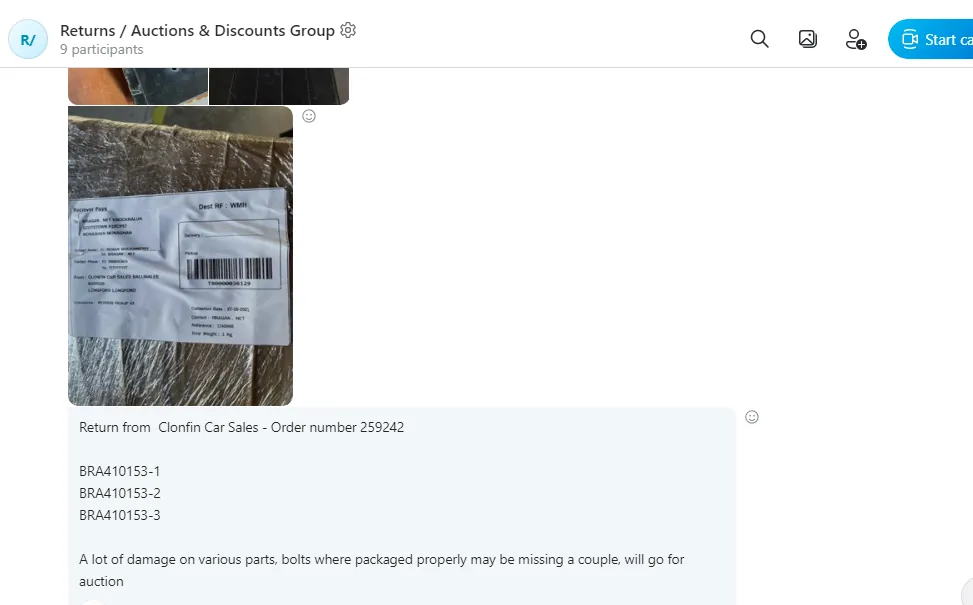
Copy this new SKU and search it in LW since it is already there and you just need to edit the Product Details Screen. Warehouse people are also the one that duplicates the main SKU so that this damaged SKU can be found in Linnworks already. As you
can see there are still no templates to all channels. Click on the SKU to go to the Product Details Screen.
2.1 General Tab
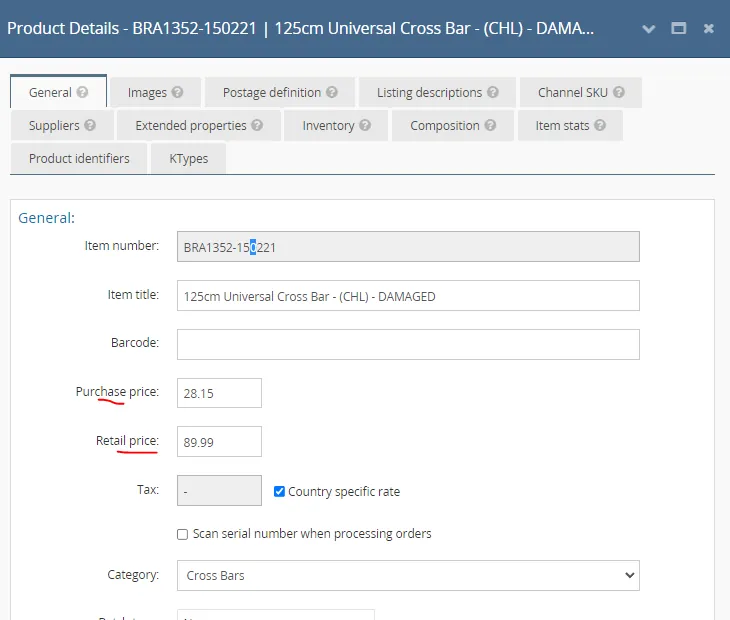
Check on the Purchase Price and compare this to the purchase price found in the Suppliers Tab. Sometimes the two are different. Always choose to follow the purchase price found in the Suppliers Tab, edit the purchase price in General Tab if this is different to the Suppliers Tab.
For the retail price, this is just the same to the retail price of the main item (not damaged one). But take note that in the Listing Descriptions Tab in the Product Pricing by Channel these prices will change depending on the channel. It will be discussed once we reach that tab section.
2.2 Images Tab
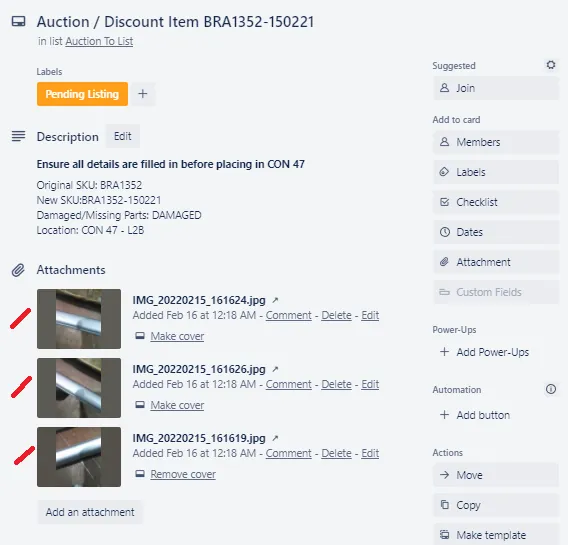
Add the attached images in the Trello Card. Make sure that this damage pictures are not set as the main image. Arrange it that these damaged pictures follows the main image. There is no need to edit these pictures from the auction Trello card, just upload it as is.
If there are pictures of brackets or fitting kits in the image cluster, delete it. It should not be included.
Also, all bar auctions should not include the LEDs in the listing. It should be sold without any composites. Therefore, if there are images showing bars with LEDs please remove it. Remove any reference to LEDs also in the descriptions, extended properties etc.
But there are instances that LEDs are included, WH will put it in the Activity Section of the Trello card so make sure to read this part always for additional notes. If LEDs are included, there is no need to delete images with LEDs. Make sure it is also referenced in the description.
2.3 Listing Descriptions Tab
There is no need to edit the Postage Definition tab so proceed directly to the Listing Descriptions Tab.
PRODUCT PRICING BY CHANNEL:
eBay Start Price
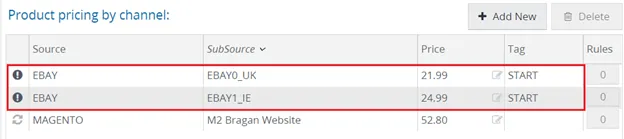
For listing eBay auctions, there are two Subsources needed to be created. One is for eBay0 with "UK" as its Subsource Suffix. Then eBay1 with "IE" as its Subsource Suffix.
STARTING PRICE in eBay auction:
eBay0 = 20% of RRP + 20% VAT
eBay1 IE = eBay0 (covert pound to euro)(ebay0 price x 1.15 = ebay1 IE price)
NOTE: add "START" in the Tag for eBay as shown in the picture.
Magento Start Price
For Magento auctions, it is the same source and SubSource. MAGENTO and M2 Bragan Website.
Magento Price = Purchase Price
For bundle prices computation
Example bundle of 4 pcs
- Get 1st the auction price for each Ebay0 Auction price 26.99 for each Ebay IE Auction 30.99 for each Magento Auction price 45.15 for each
- Computation for bundle of 4 pcs- Multiply the singular rule result x 3 pcs of single auction price based on sop of auction. (Remove 1 pc price) so bundle of 4pcs will be price of 3pcs.
Price for bundle of 4 sample computation is
Ebay0 Auction price 26.99 x3 = 80.97 Ebay IE Auction 30.99 x3 = 92.97 Magento Auction price 45.15 x3 = 135.45
PRODUCT TITLEs BY CHANNEL: Add the corresponding keyword “Damaged” or "Missing Fitting Kit' at the end of the original channel listing title. Make sure to still follow the proper way of creating Listing Titles, if the original SKU is not following the standard process you need to revise the title so that it would follow the correct format then add DAMAGED at the end or Missing Fitting Kit. See this SOP on How to Create Listing Title for Each Channel.

PRODUCT DESCRIPTIONS BY CHANNEL: Use the original listing description but add as first-line the text below.
“The description is from the original listing. Please refer to the photos for damage which may include scrapes and dents. The item does/may not include all bolts and brackets.”
This one here please use only for Tonneau Cover Auction Item.
“ Description below is from original listing. Please note: Sale is for 1x Tonneau Cover. These will need to be cleaned and may be fixing clamps components missing but this can be addressed by the buyer by using DIY skills”
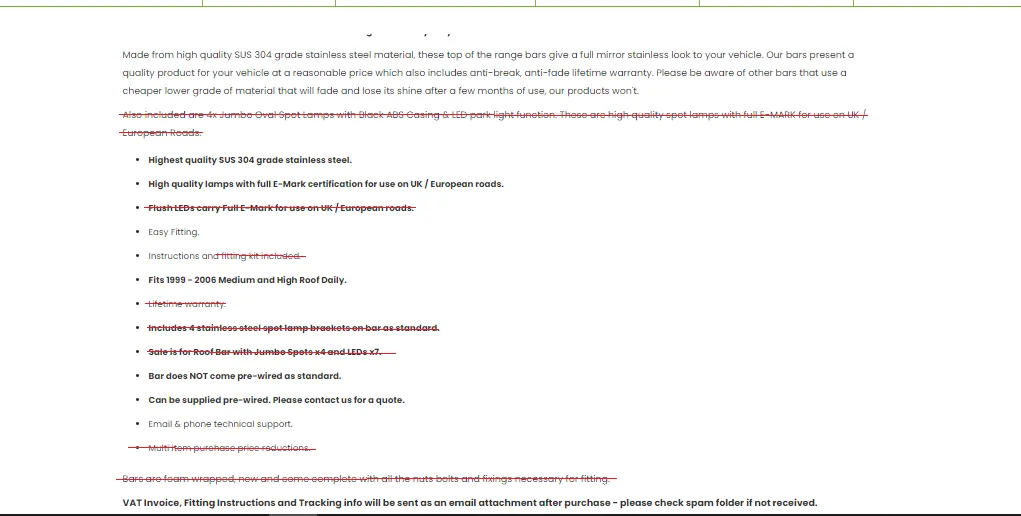
NOTE: For all sales channels, you must remove any reference to Warranty such as “Lifetime warranty / Stainless Lifetime” and “Fitting kit included” from the main description, short description on M2, and item specifics on eBay in the extended properties.
For auction items where warehouse confirms that it does not have a fitting kit - warehouse will note this in the auction trello card, include it in the description as one of the bullet points. Please add this phrase:
Item is damaged and does not have fitting kit
And edit this part:
“The description is from the original listing. Please refer to the photos for damage which may include scrapes and dents. The item does/may not include all bolts and brackets.”
Replace “The item does/may not include all bolts and brackets.” with “Item do not include fitting kit.”
If the item has incomplete fitting kit (missing some bolts or brackets) then do not edit this part and leave as is.
There are also auction item trello cards where warehouse put a note that brackets can be bought separately, this usually happens for Sunvisor items. If there is this note from warehouse, you can also add it as note in the description.
Also sometimes they would add in the Activity Section that LEDs are included, so please make sure it is also referenced in the description.
Sample below, shows what phrases should not appear in the description for auction items.
2.4 Extended Properties Tab
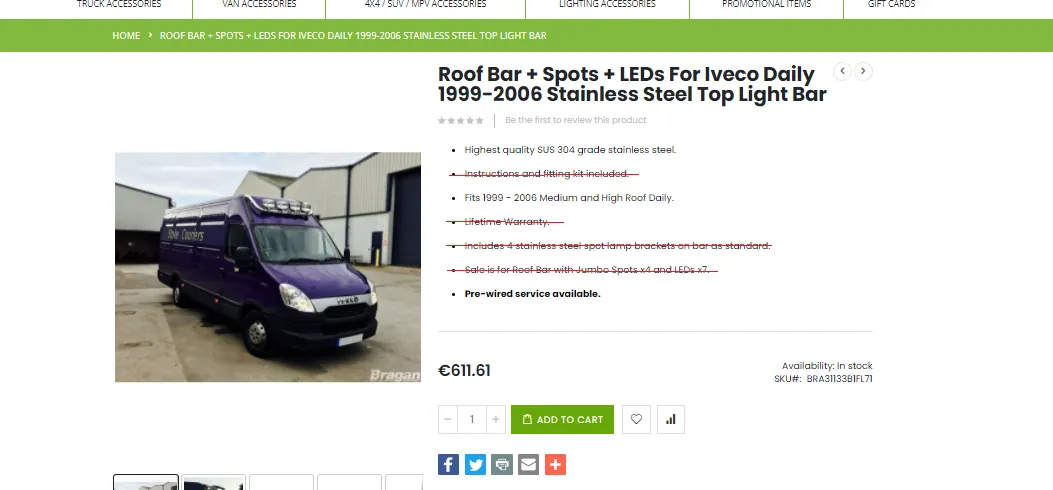
NOTE: For all sales channels, you must remove any reference to Warranty such as “Lifetime warranty / Stainless Lifetime” and “Fitting kit included” from the main description, short description on M2, and item specifics on eBay in the extended properties.
For example, those lines in the Magento short description should not be included.
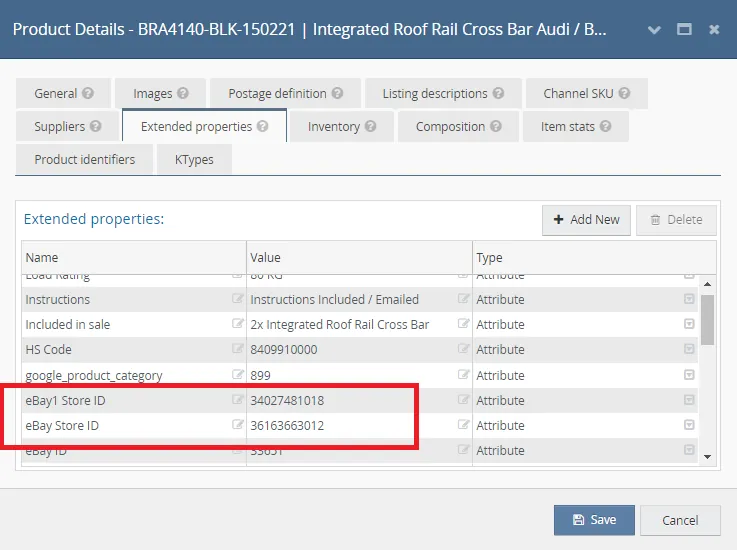
For eBay Store categories always input the following value. For the eBay ID it will be the same to the original item.
For eBay Store ID_1 = 36163663012 For eBay1 Store ID_1 = 34027481018
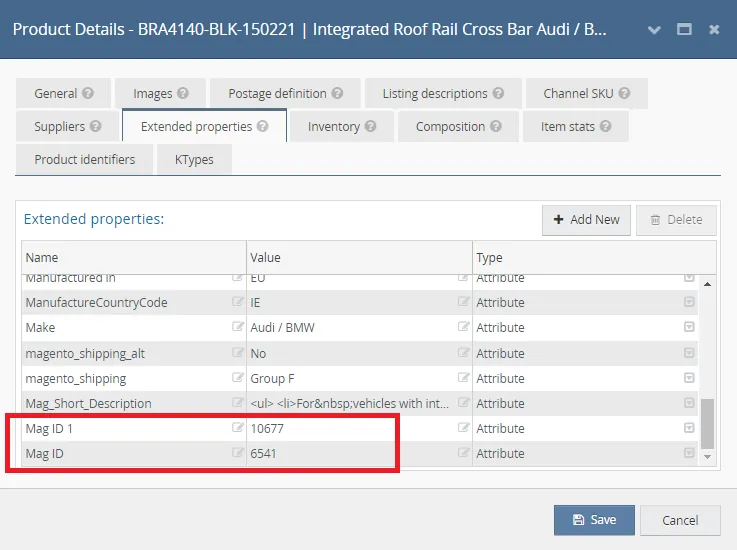
For Mag ID it is always 6541 (Promotional Items) and Mag ID 1 is always 10677 (Clearance Sale).
2.5 Inventory Tab
Set the stock level of the SKU to 1. Make sure that the correct stock and location or Bin/Rack is the same with the Trello Card.
These are the only tabs you need to edit. You can now save the template.
- Listing to Channels 3.1 Select Correct Configurators
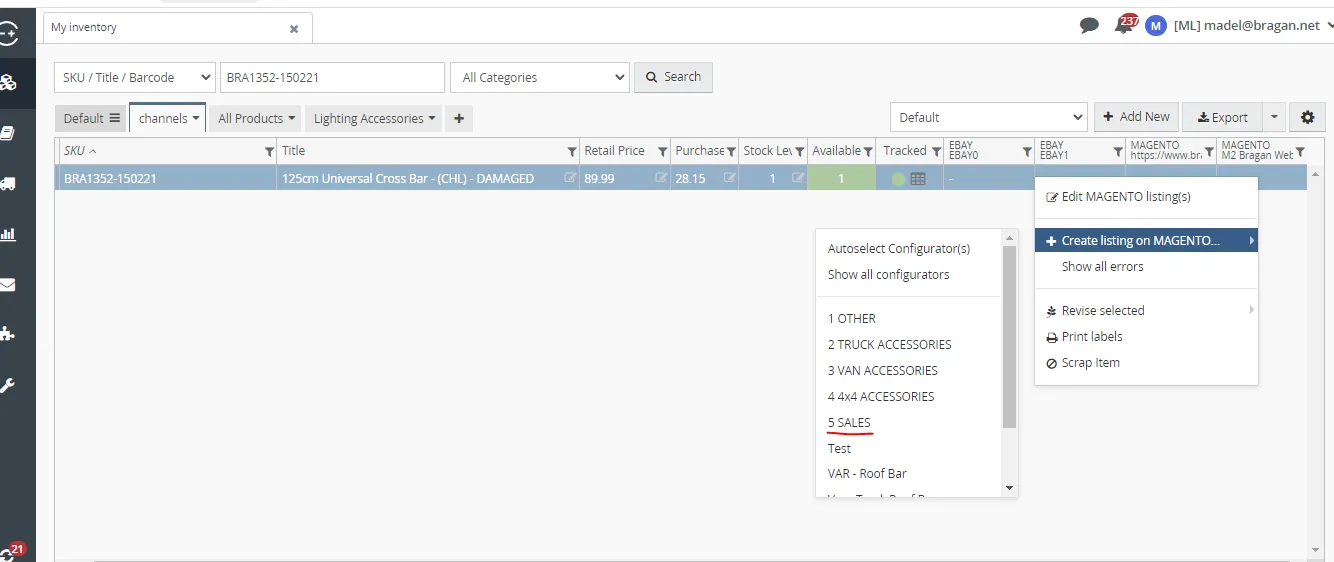
Once the template is ready, right click on the channel where you want to list it. See sample below, right click on the Magento M2 Bragan Website column if you want to list it in website. If you want to list it in eBay1 then right click on eBay1 column.
Configurator for Magento
After you right click, select +Create listing on Magento then select the correct configurator for the item. For promotional items such as this one, the configurator is
always SALES.
Configurator for eBay
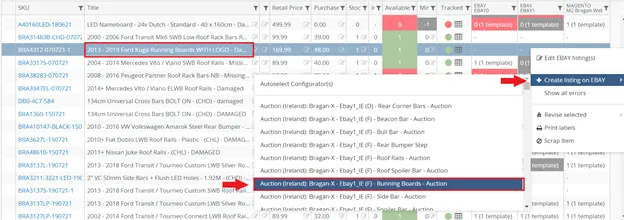
After you right click, select +Create listing on EBAY then select the right configurator. Applicable configurator is per category name. Since this is an auction item, choose the one with Auction at the start then select the right item. Example, if you are doing an auction listing for a rear roof spoiler then select the configurator: Auction (UK) Ebay0 (F) - Rear Roof Spoiler - Auction.
If you cannot find the category name in the auction configurator list, choose the nearest or almost similar item. For example your item is a running board and there is no running board auction configurator, then you can choose configurator for side bars. Another is cross bar, you can use roof rails if you cannot find cross bar. Or truck roof bars for visor bar if you cannot find configurator for visor bar.
Note:
Before listing to eBay channels, you need to check first if there is no the same auction item listed already in eBay. In this example we are listing BRA1352-150221, you need to check first if there is no other BRA1352 auction item listed in eBay, If there is still one then do not list this to eBay but you can list it in Magento. This way you will know that a template is ready for this auction item and is ready for listing to eBay. You just need to wait for the first auctioned item to be sold before you can list this.
To easily checked all auction items, it is better to create a view containing all auction items. See process below on how to do this.
In the meantime let us just assume that there is no similar item listed in eBay so we can proceed with the steps.
3.2 Create the Listing
For Magento just simply double check the price and the category. There should only be two in the category, the price should be the purchase price and the configurator should be SALES. Once everything is correct just click Create for the listing to be live. Collect the link and put it in the auction Trello card. Review the live listing and edit if there's a need.
For eBay you need to schedule the listing. The time used in Linnworks is the same time where you are located. So for example you are working from remote pc of UK you can schedule it 9:00pm UK time and if you are working not in remote pc of UK and it is from Philippines, Linnworks will be using the PH time. We need to schedule the listing to go live at 9:00 PM UK TIME. Consider daylight saving time in converting the GMT to PH time. Since it needs to go live at 9:00PM GMT the start time that we will put in Linnworks is either 4:00 or 5:00 AM PH time depends if there is daylight saving time.
Once you put the start time, set the "BIN (Buy it Now) Price" to 0. Set the “Start Price” to 20% of the RRP + VAT (20%).
And then click “Create” to create the listing.
3.3 Check Live Listing
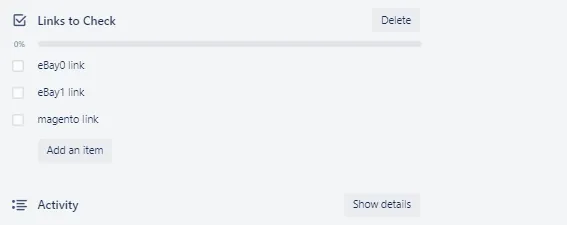
Collect the link and add in the auction Trello card for checking with your listing partner. Double check the live listing and edit if there's a need. Tag your listing partner in the Bragan New Listings/Listing Changes Skype Group and request to check your new listing. Make sure to attach the link of the auction trello card.
The listing partner will check off the checklist but will have to inform the lister what updates are needed in the skype group. -
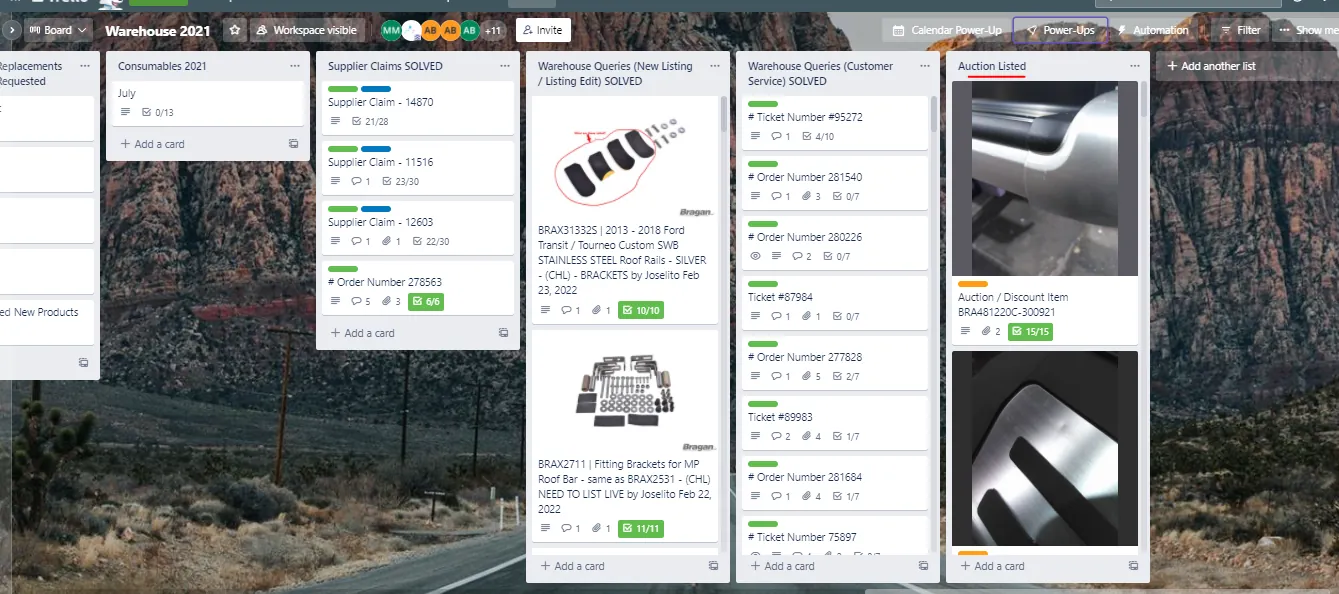
Once listed to all channels, move the auction Trello card to the Auction Listed list. There are some cards that are already listed but not yet moved to Auction Listed because these cards are only listed in Magento and not yet in eBay since there is still a similar item not yet sold.
Creating an Auction View#
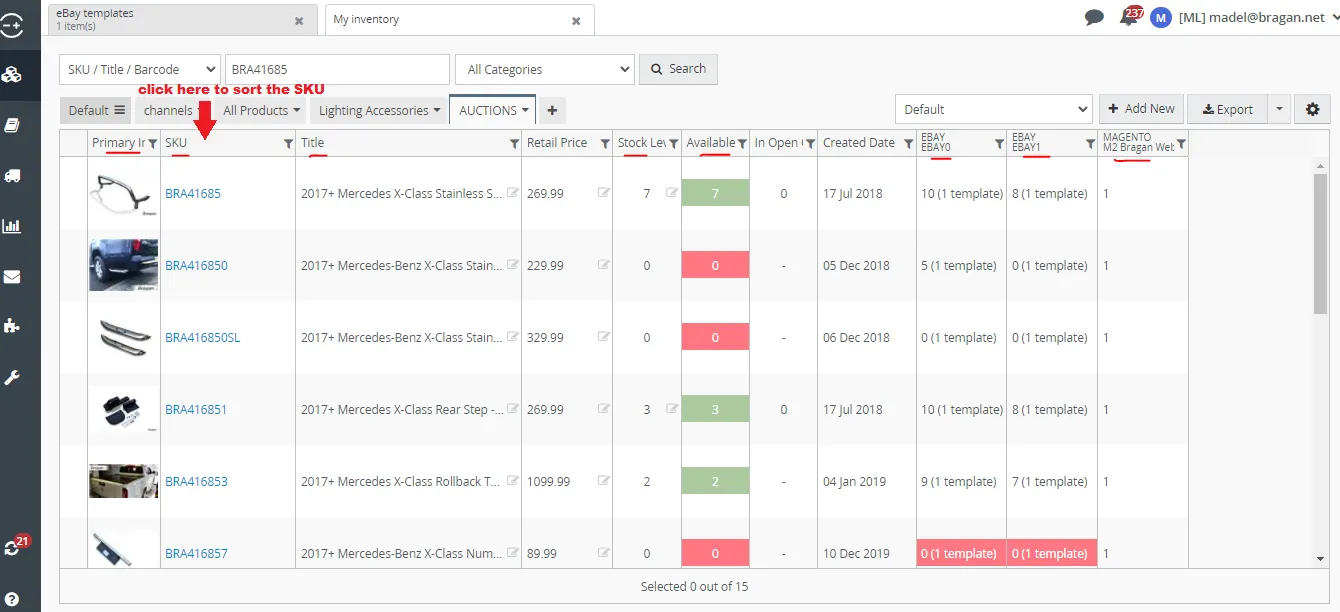
As mentioned above, in order for faster and easier monitoring of all auction items you need to create a view for auctions. See this SOP on How to Create Views in Linnworks. Below is a suggested view for your Auction Items. Primary image is shown so that it is easier to identify similar items. Stock level and Available column so you will know if the auction listing is already sold or not. And the three channels, so you will know where they are listed and if there is an active listing to the channel or not. Then you can filter the title so that only those that contains DAMAGED will show. Click on the SKU to sort the SKU so that same SKUs will appear adjacent to each other. You can also add Category column.
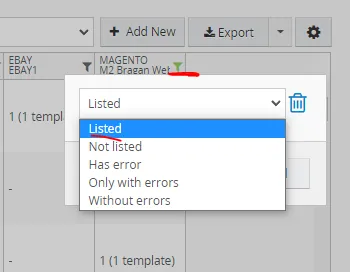
If you only want to see listed auction items you can use the filter for the channel, for listed auction items it is better to put the listed filter in Magento since all auction listings are listed here, unlike eBay wherein you cannot list similar items at the same time. Click the filter icon in Magento channel, select Listed in the dropdown menu and then apply.
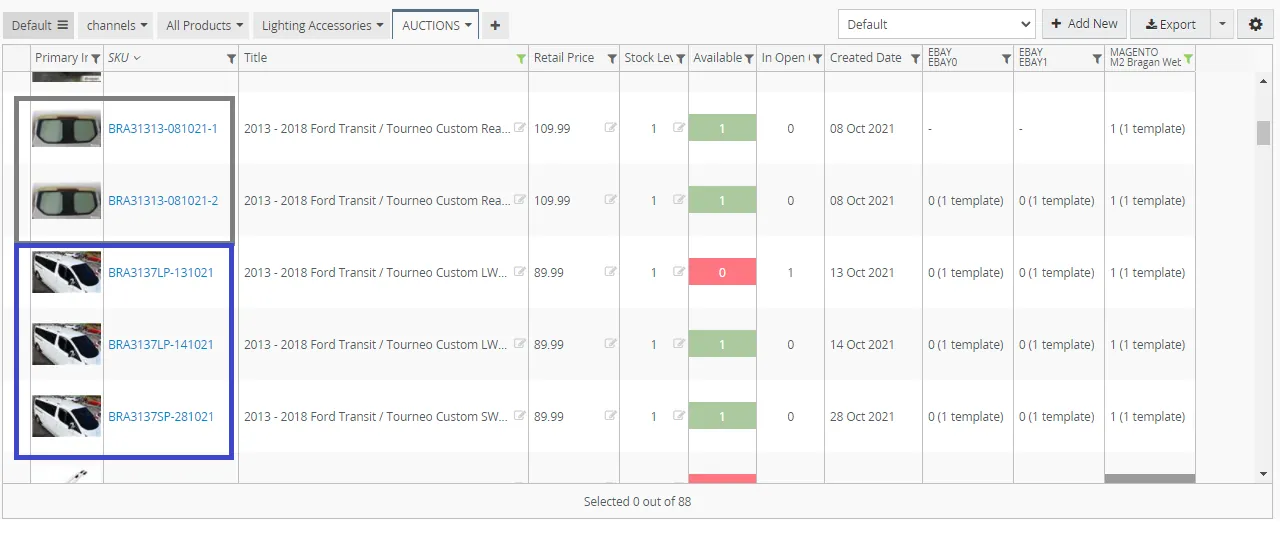
You can now easily see similar auction items. You can list all in Magento but in eBay you can only list one at a time. Once sold then list the next one.
Sold Auction Items#
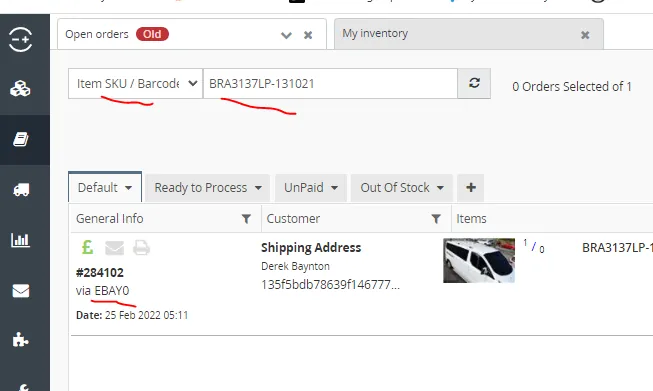
Available stock for sold auction items will be zero and is highlighted in red as you see in Figure 24. If sold already you need to make sure that the listing is not running to the other channels so that there would be no double buyer. If you want to check which channel it was sold, you can check the Open Order or Processed Order of Linnworks. Open Order is if the item is still with warehouse and not yet dispatched and Processed Orders are those that are dispatched already. Just copy the SKU and search it in Open or Processed Order.
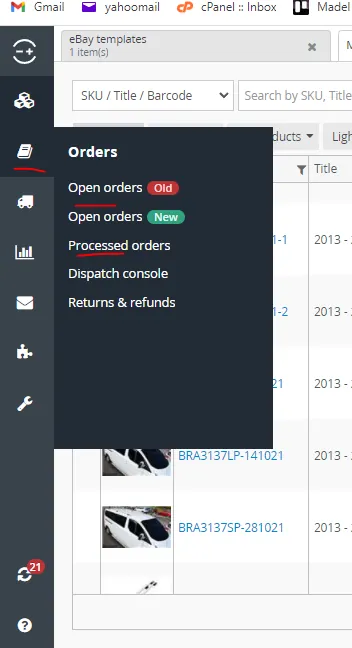
When searching set it to Item SKU/Barcode. From here you know that the item was sold in eBay0. You therefore need to end the listing in eBay1 and delete in Magento. After ending the listing in eBay1 delete it also. See process below on how to delete and end listings.
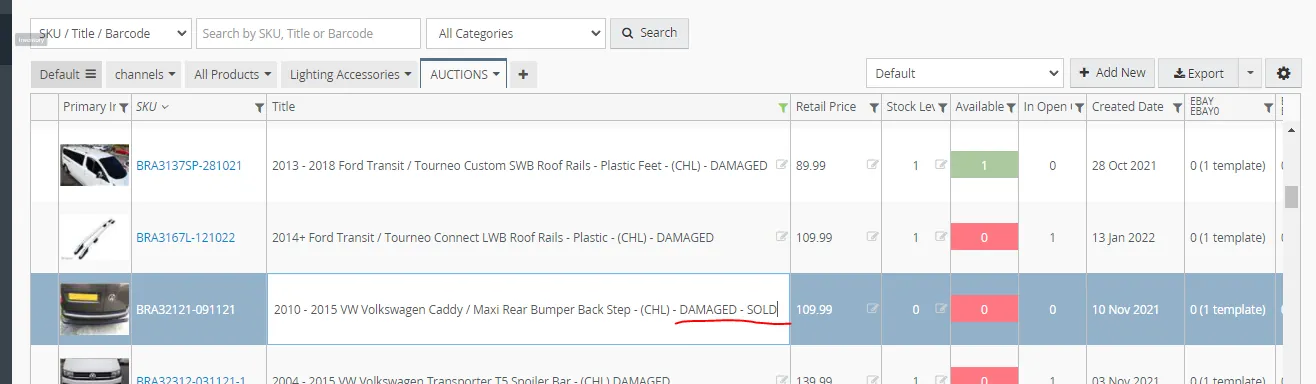
Once the template for the other two channels are deleted, put SOLD at the end of the title. Just double click on the title name and edit. And then archive the SKU. Note: If item is still in Open Order do not archive it yet. Archive only when it is in processed order already.
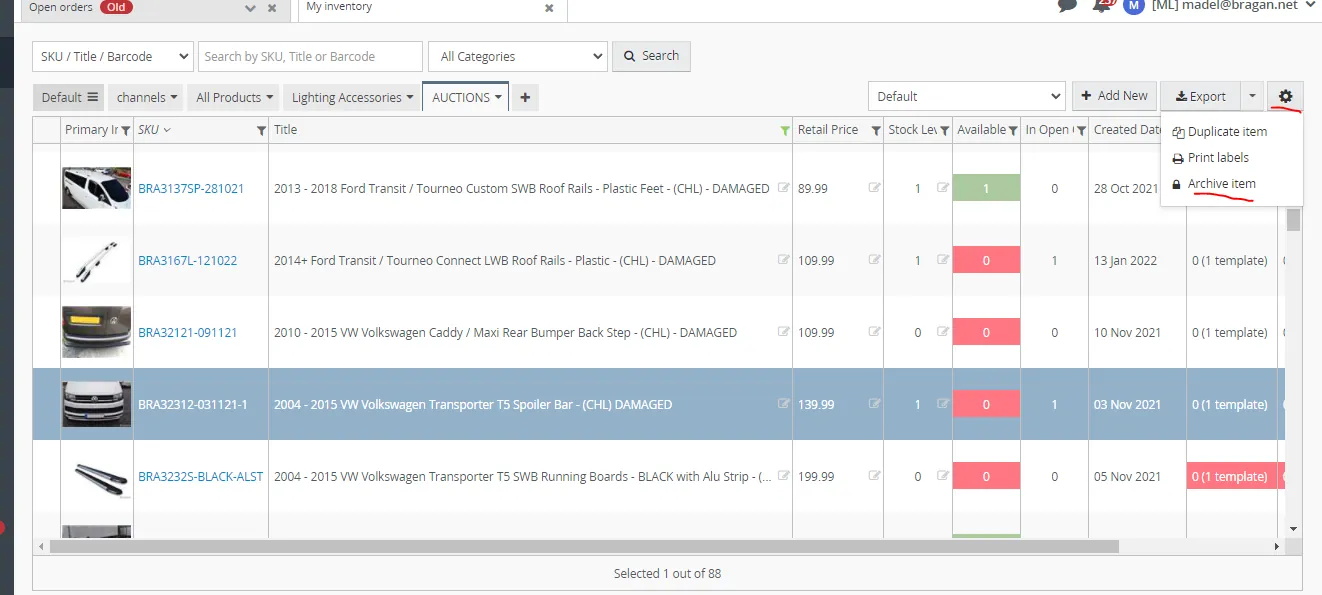
To archive the SKU, highlight the SKU, click on the settings icon and select Archive item. Be careful in doing this, make sure that you only highlight the SKU you want to archived because if not you might archive other items.
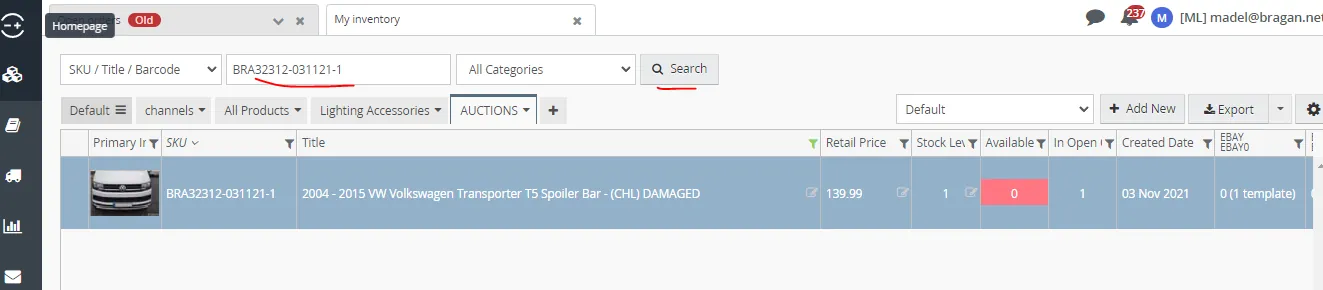
To be safe in archiving, you can copy the SKU and put it in the search bar and click search so that only this SKU will show. Then proceed to archiving.
Auction Items with Bids
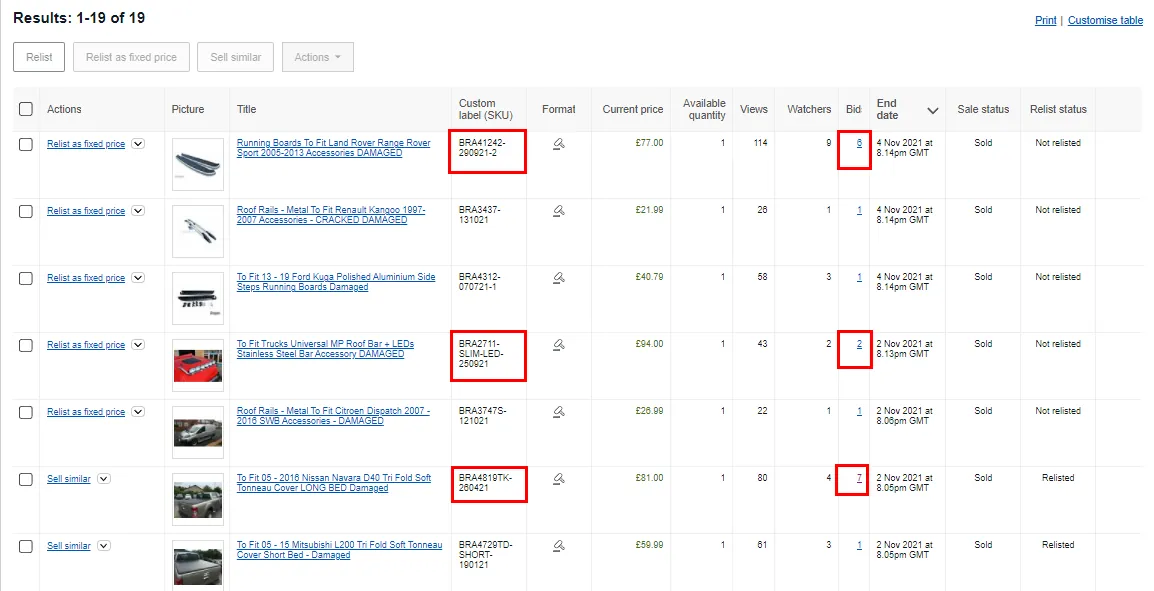
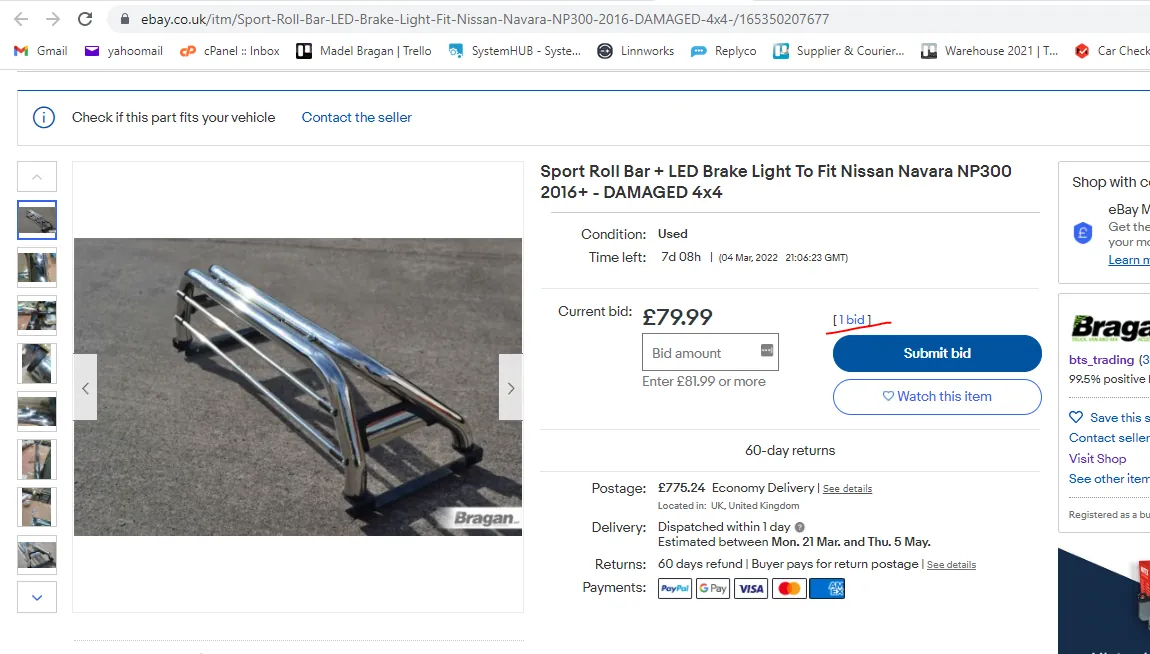
To check auction item that already has an existing bid, log-in to eBay seller hub. Part of listers daily task is to check if an auction item is sold or already has a bid. Available stock still appears 1 even though there is a bid already it won't be zero since it is not yet sold, so you really need to log-in in eBay to see all auction listings and check if there's a bid for each. Credentials are needed in order to see this. Request from management. Note: Even though you already have the credentials to log-in to eBay, you still need to notify management every time you log-in.
Once there is a bid on an item, example in eBay1, you need to manually end the listing in eBay0 and delete the one in Magento. Make sure to check on this daily and monitor it properly. If you have a manually ended template (gray in color) this would indicate that there is already a bid on the other channel, you can use it as an indicator.
Below shows an example of what you will see in the eBay seller central. There is a column where you can see if there are bids.
Manually Ending and Deleting Auction Listing
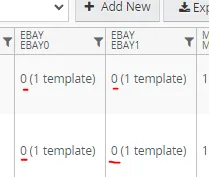
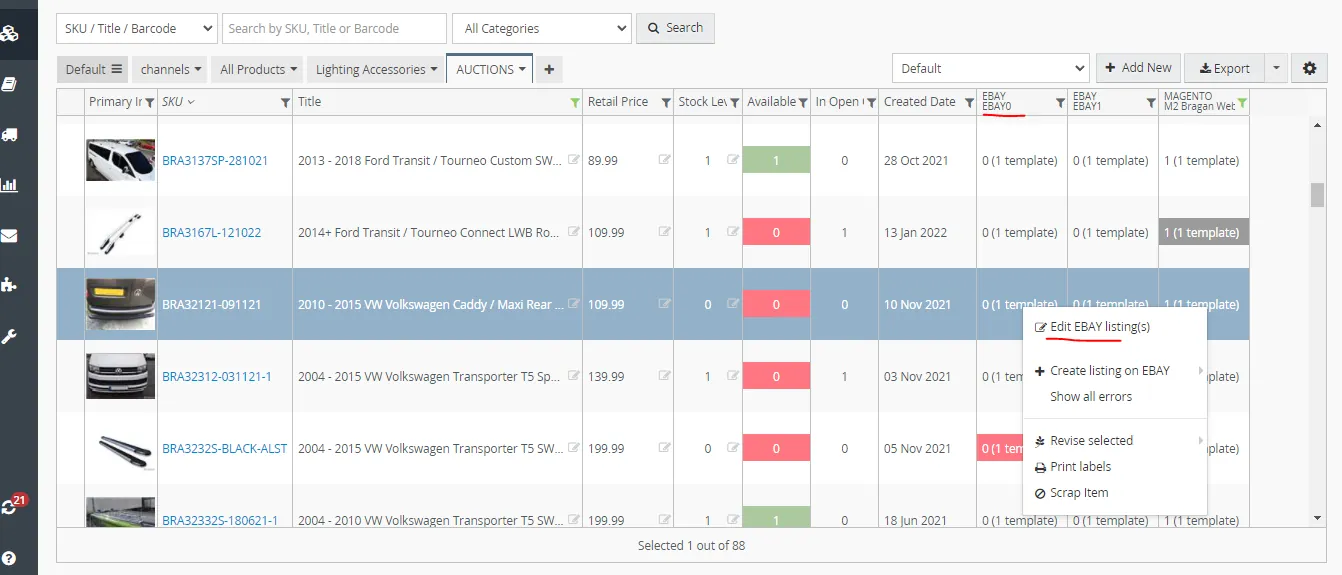
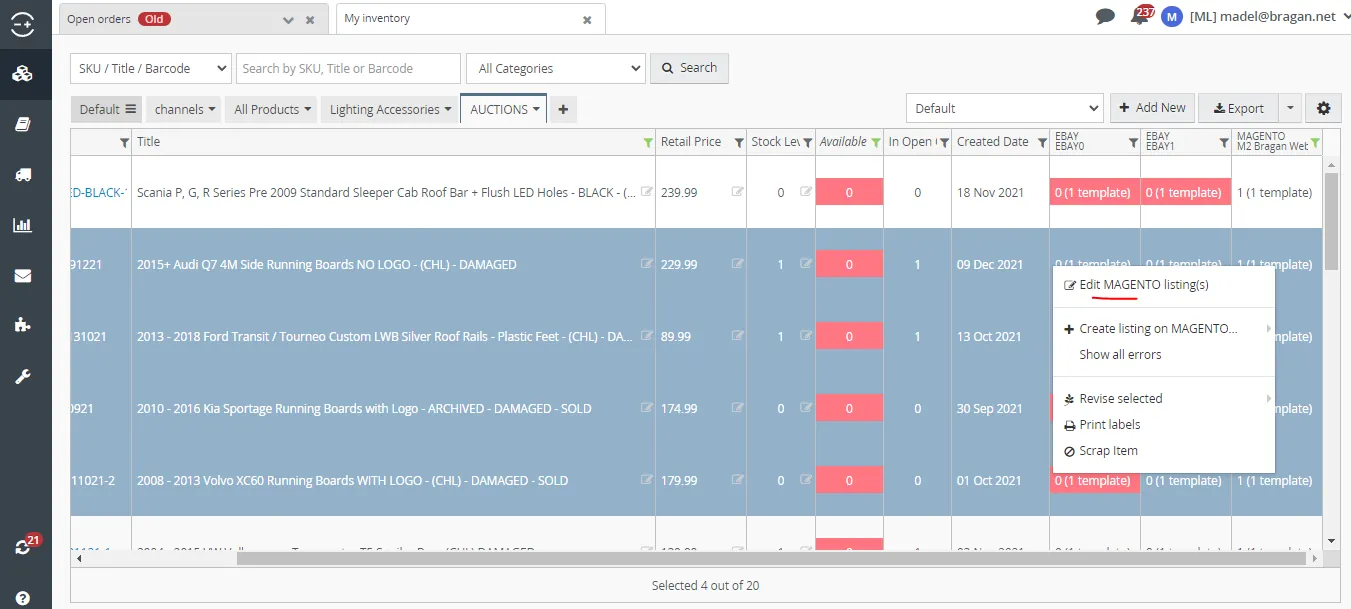
eBay auctions if not sold are automatically ended by eBay after 10 days. But if you want to delete or manually end a listing in eBay0, just right click on the template under eBay0 and select Edit EBAY listings. Click on the SKU and select End Listing or Delete. Ending a listing will just end the live listing but the template is still there, you can still use it for relisting but if you delete a listing then you are also deleting the template. Manually ended listing are highlighted in gray.
Listing automatically ended by eBay looks like this:
For Magento, there is no end listing option. You can only delete.

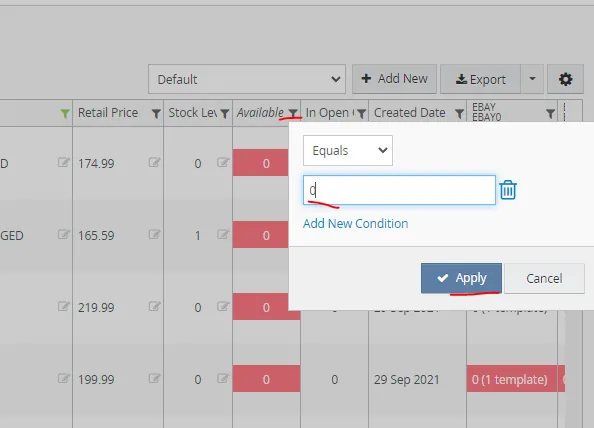
You can also do bulk delete or end listings in bulk and bulk archive. To know what listings to be ended, deleted and archived, you can filter the Available to zero so that you will only see auction listing that are already sold.
To do these in bulk, just highlight all the SKU you want to delete, end or archive and repeat process as stated above on how to delete, end and archive. Again be very careful in doing this, make sure you select the right SKUs and on the right channels. And remember to archive only once all templates are deleted
Relisting Auction Items#
Relisting auction items is a weekly task for product listers. Done twice a week every Monday and Thursday. Relist ended auction items that are not yet sold and make sure that there are no pending bids.
To make the process of relisting faster, do it by bulk.
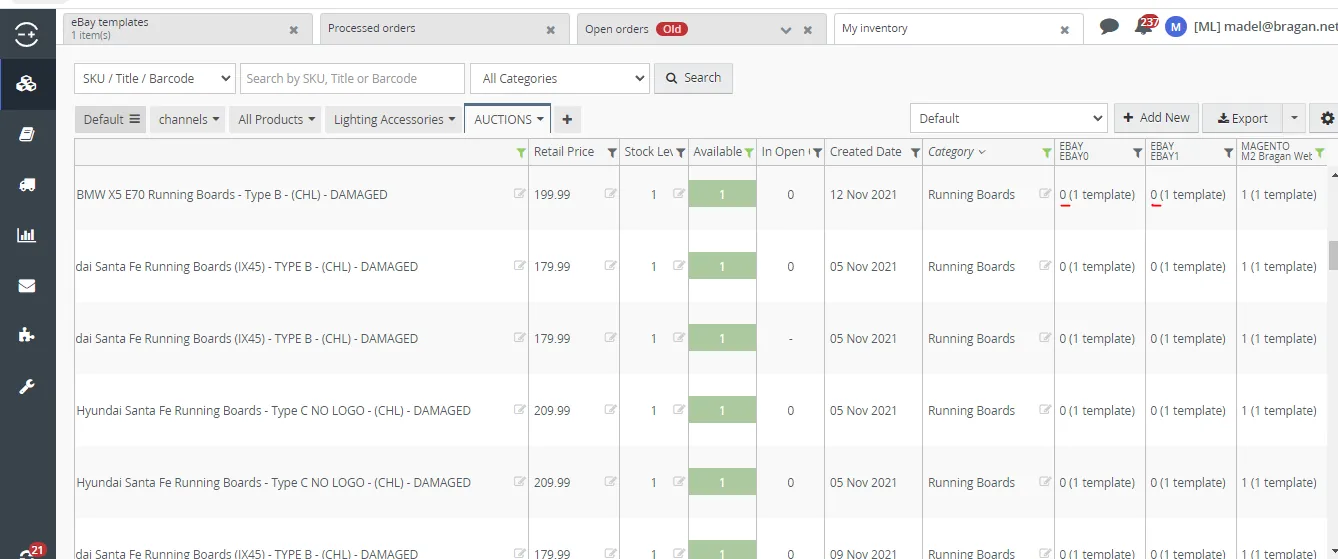
- Filter listed auction items that has still available stocks then you can filter it by category (example all running boards) so that they will have the sample eBay configurator when you relist. As mentioned above, ended listing looks like in the Figure below.
- Check if ended listing has pending bid. Log-in to eBay to check if there is pending bid. You can do it without logging in to eBay by going to the listing itself (See Figure 37).
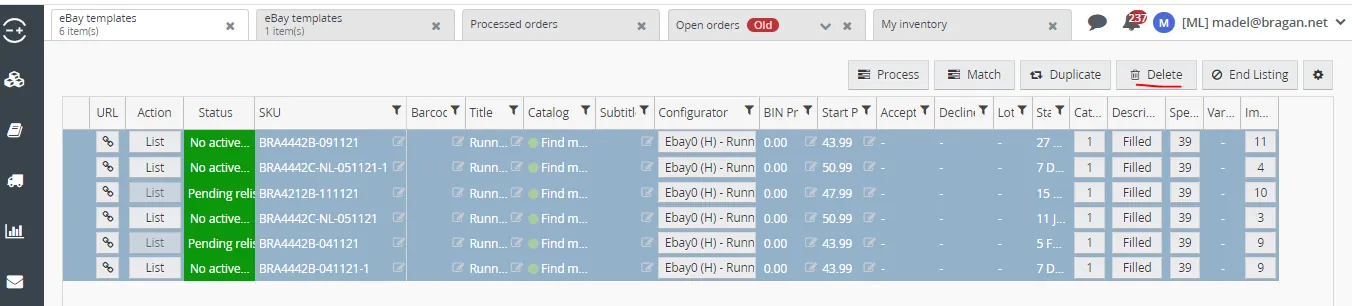
- Once you identify the auction item to be relisted, make sure to highlight them, the next step is to delete the templates for eBay first. But do not delete at the same time for both eBay0 and eBay1. Do it one channel at a time. You need to delete the template before relisting so that you won't have multiple templates.
First, you can bulk delete the templates for eBay0 (see steps above on how to delete listings).
- Once the template is deleted, you can relist it. Right click on eBay0 select create listing on eBay then select the configurator.
- Edit the Start Time same as when you are creating a new auction listing. It should be set to 4:00 or 5:00 AM the next day.
- BIN Price should be set to zero. As you notice, we did not get edit the Product Details Screen anymore because we are only relisting. The template is ready and
there is no need to edit it.
- Then click on Create, no need to collect the links for this since there is no need for your listing partner to check this.
- Once you relist it in eBay0, you can proceed in deleting the templates for eBay1. Do the same process until you relist it in eBay1.
Note:
You can also relist individually by right clicking on the channel you want to relist then select Edit EBAY listing, if the LIST button is clickable you can relist directly but make sure that you edit the Start Time and the BIN Price is set to zero. But if this LIST button is not clickable then delete the listing and create a new one (same process mentioned above in bulk relisting.


How to Send Second Chance Offer#
This is another weekly task for listers, sending Second Chance Offer to bidders who did not win the auction as long as the item has multiple or more than 1 stock.
When an auction is sold but there are multiple bidders and there are multiple stocks on hand, we need to send the other bidder(s) a "second chance offer". To do this follow the steps below:
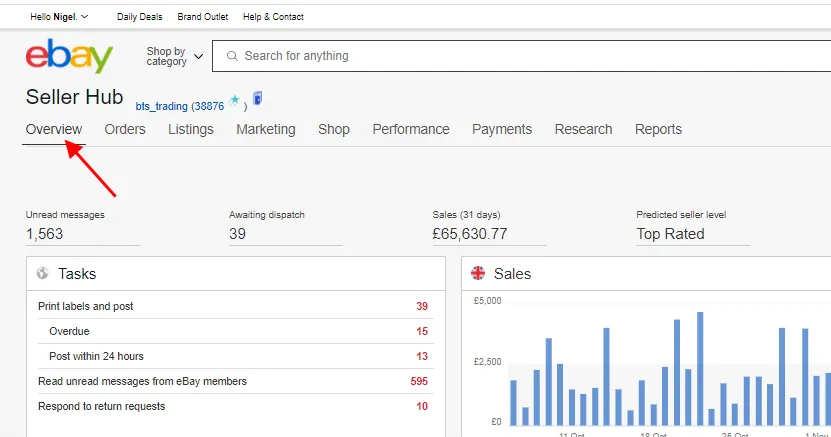
- Login to eBay Seller Hub and click Overview menu. You need to always notify management every time you log-in to eBay.
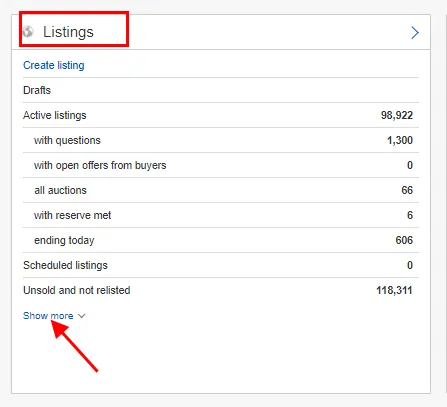
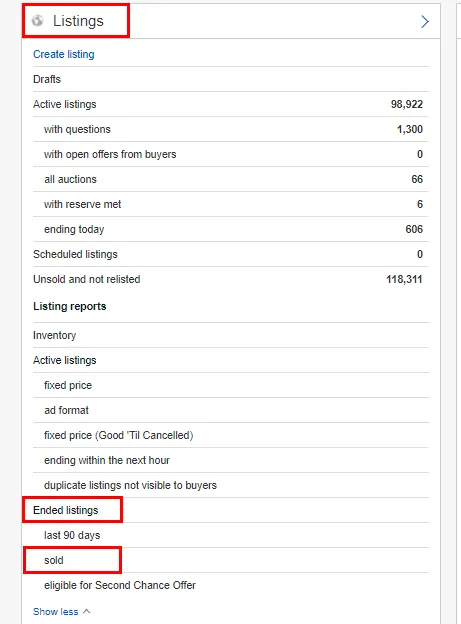
- Under Listings, click show more to find Sold and Ended Listings
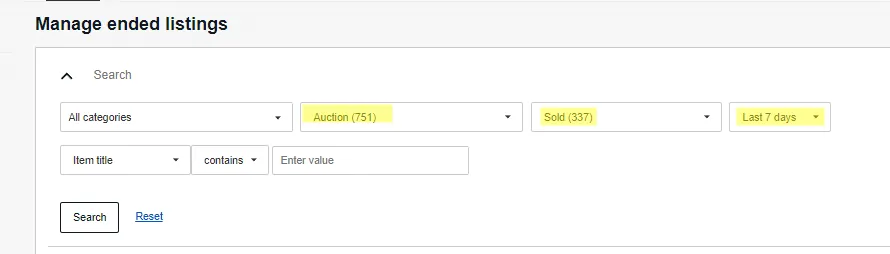
- In Manage ended listings, select Sold for the status, Auction for the Format and select Last 7 days for the Period of the auctions. And then click Search.
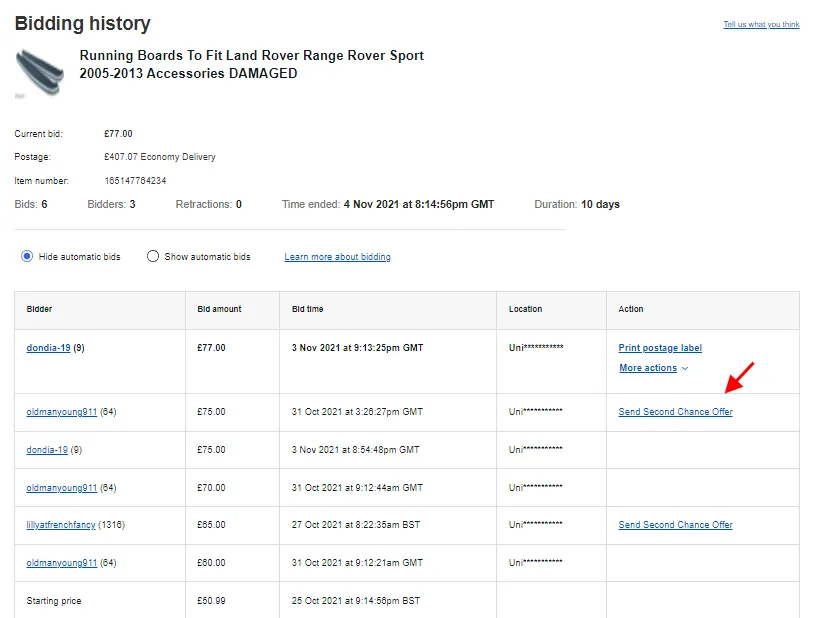
- You will then see list of auctions sold in the specified period. Click the number with multiple bids in the Bids column.
Note: You only need to send second chance offer to other bidder(s) who didn't win the auction if the auction item has more than one available stock in Linnworks or the winning bidder didn't pay and the order is cancelled.
- Click any of the Send Second Chance Offer link.
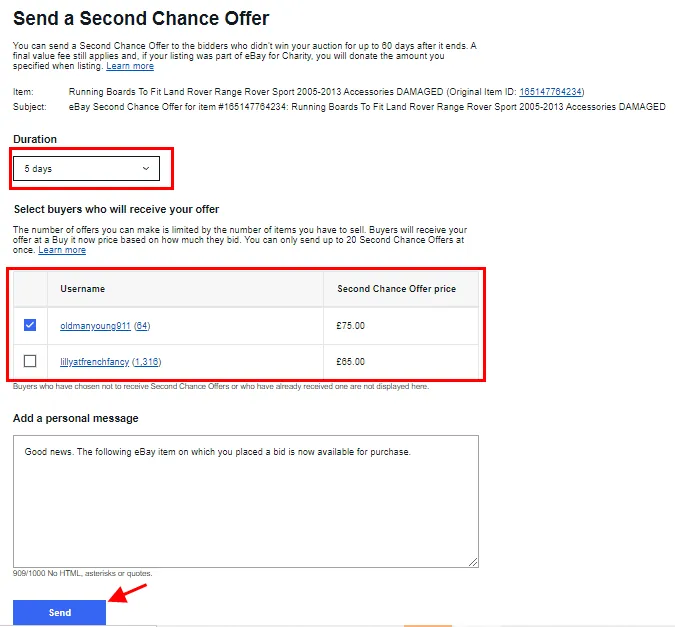
Note: You can send more than one second chance offer depending on the number of available stocks in Linnworks.
- Offer duration must be 5 days or as advised by the Management. You can type your message to the bidder. Then click Send.
Video & Media#
Notes#
This section is important so Adhoc points and issues can be logged. Also, Q&A can be logged for suggestions for potential issues encountered. Also, log important notes needed for this system. Additional Notes:
Before listing to eBay channels, you need to check first if there is no the same auction item listed already in eBay. One item at a time. Once it is sold then list the next same item.
For all sales channels, you must remove any reference to Warranty such as “Lifetime warranty / Stainless Lifetime” and “Fitting kit included” from the main description, short description on M2, and item specifics on eBay in the extended properties.
Ensure that the "Auction Items" category is selected for eBay0 and eBay1 Store category so that it will show in the Auction Items. If the category is not used, it will be listed live but it will not show in the auction items category on eBay0 and eBay1 websites. This also applies to the M2 Bragan Website add "Promotional Items" and "Clearance Sale" categories.
Only Relist ended auction items that have no pending bids on the other eBay Channel.
Delete first the template before relisting so you won't have multiple templates.
Archive items that are sold and make sure to delete templates for all channels.
Do not archive yet sold items that are in Open Orders.
Send only second chance offer if you have more than 1 stock of the item.
Notify management every time you log-in to eBay Seller Hub
Please be reminded for the daily and weekly task of listers for auction items:
Daily task - to list at least 5 new auction items
Daily task - checking of sold auction items in eBay seller hub and ensure that there is no live listing of it in the other channels
Weekly task - Relist items with no pending bid every Monday and Thursday
Weekly task - Sending second chance offer every Monday and Thursday
Use Pricing file to compute prices
Potential Issues:
1 - ISSUE ENCOUNTERED: Stuck on Loading
RESOLUTION: Refresh Browser
2 - ISSUE ENCOUNTERED: Broken Links
RESOLUTION: Get the external link as this will allow other people to access the SOP without the need for login credentials and avoid broken links.
Attachments#
Auction_Listing_Flow_Chart.xlsx 16/12/2025
Pricing_File_Updated_April_20… 16/12/2025