Bragan Procurement - Inventory Planner (NEW PROCESS)
Inventory Planner is the software used in the procurement process at Bragan.
Overview#
Purpose: Inventory Planner is the software used in the procurement process at Bragan. It will tell you how much of an item to purchase based on the current stock, stock on order, and predicted sales (based on previous trends). The purpose of this document is to outline to new and existing staff how to successfully complete the procurement process using Inventory Planner.
Scope: This procedure applies to the member/members involved in the procurement process.
Responsibility: It is the responsibility of each employee that is part of the procurement team to ensure the process set out in this procedure is followed.
Objective: The objective of this procedure is to keep a sufficient amount of stock available and ready to send to our customers without being overstocked on items. Inventory Planner should accurately predict the stock needed to purchase.
Inventory Planner Link:
Trello Link:
Zendesk:
https://braganhelp.zendesk.com/access/unauthenticated?theme=hc
Lazer Lamps B2B Portal:
www.lazerlamps.com
Please ask management for Inventory Planner credentials, Lazer Lamp's credentials, Zendesk credentials and access to the appropriate Trello board if needed.
Important Notes For Suppliers (including consolidation of goods in container / items to stop order/ minimum orders, etc.)
See important notes for suppliers
1.Trello
Trello is used widely through Bragan. Please see Trello SOP - https://bragan- net.systemhub.com/company/share/system/id/243404/shareCode/YmJmZmU3YjZlZD c0ODJlYTUxZGM5MzYwNzI2NjcwNDg for a more in-depth breakdown of how Trello is expected to be used here at Bragan. For the procurement process, Trello is used to log suppliers we replenish stocks on a monthly basis. We will also keep a note of the Purchase Order (PO) numbers on Trello for clarity and ease of access.
1.1 Trello List A Trello card is created for every monthly procurement made every first working day of the month. Inside this Trello card is a checklist made up of every supplier, Fig 1.1.1.
Trello link > trello.com
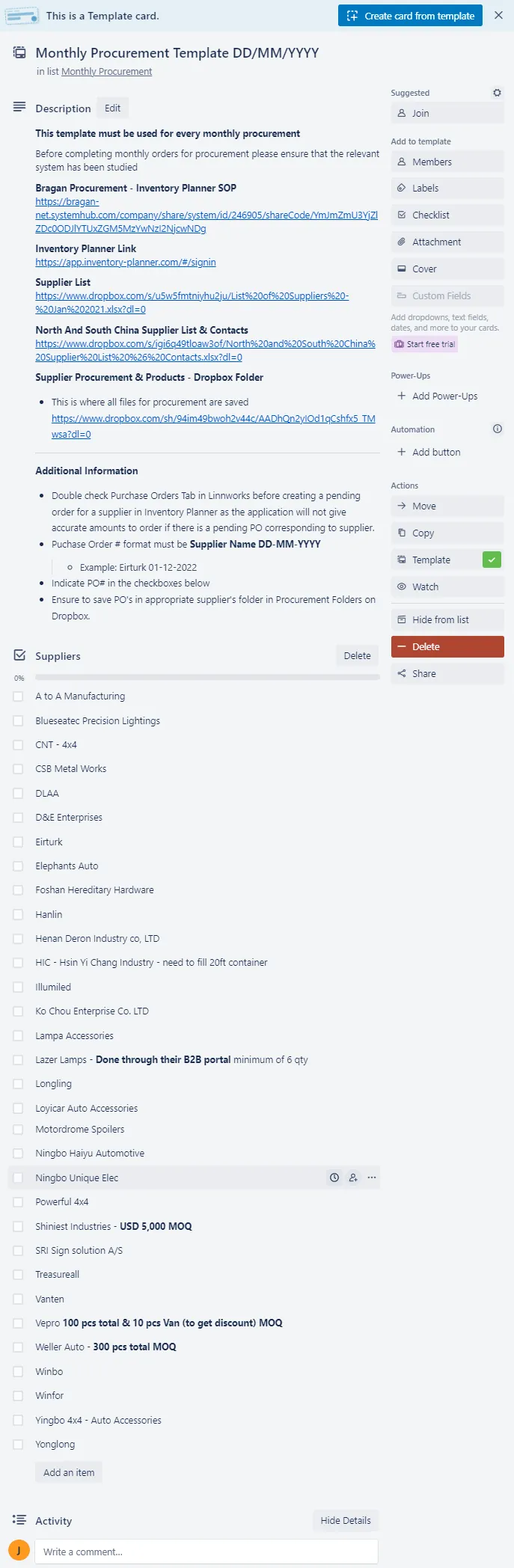
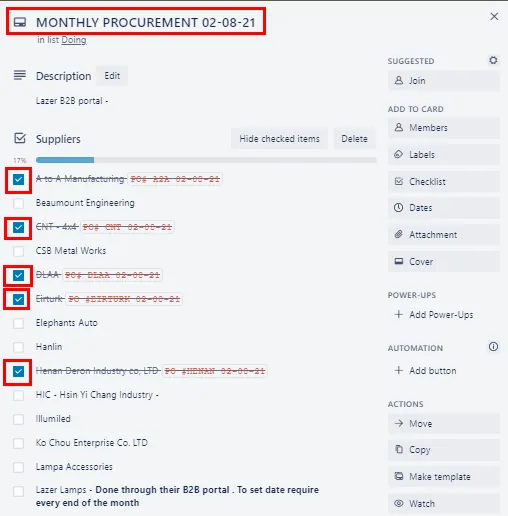
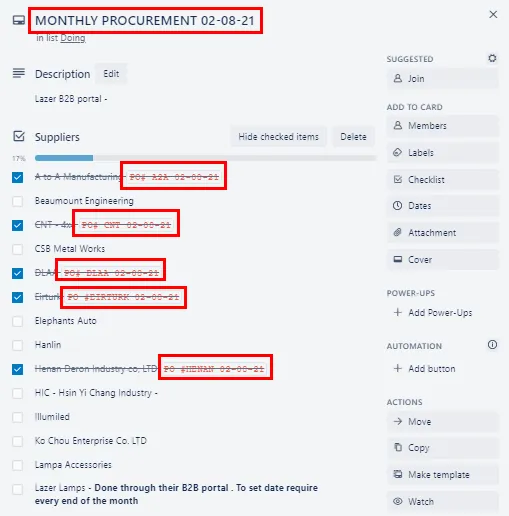
1.2 Trello Process Each supplier that is on the Trello lists must be put into Inventory Planner to see if how much stock we need to purchase from them. How this is done will be explained later in this document, in section 2. If there is an order placed with a supplier, that supplier is checked off, as shown in fig 1.2.1, and the PO number for that supplier is placed beside the supplier name, in red, fig 1.2.2. As shown in both images, there is also the date as part of the name of the card. This is the date that you have done procurement. There is a template card set up at the top of each list, you will duplicate this template, add the date, and proceed as shown above with this card.
1.3 MOQ / Supplier Conditions on Trello
You will see besides some suppliers there are some different variations of their minimum order quantity (MOQ). This is the minimum we can purchase from them for them to accept an order. Most of the MOQ's for suppliers are already set up in Inventory Planner, however, there are some suppliers with MOQ's that are not straightforward enough to set up in Inventory Planner, so they are added to the template on Trello to make sure you are aware of them as you are placing an order. These suppliers will be at the bottom of each list. Take Shiniest Industries, fig 1.3.1, for example. They have a MOQ of $5,000 per order. Meaning that the total order will have to be of a minimum value of $5,000 or they will not accept it. Inventory Planner will not efficiently allow this setting, so it is something we need to be aware of here.
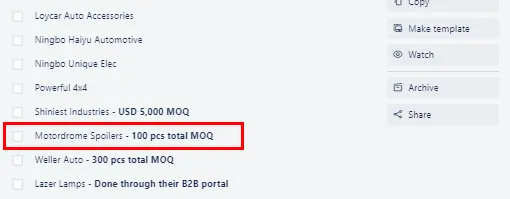
Where you see the term 'pcs total MOQ', this refers to the minimum amount of units you have to buy from this supplier. It does not matter how you spread this out amongst the stock, it can be one unit of many different items, as long as the total will hit the minimum amount of units that you order, an example of this Motordrome Spoilers, fig 1.3.2, they have a MOQ of 100 pieces in total in the order. This means there could be 1 unit of 100 items, and it would still cover their MOQ.
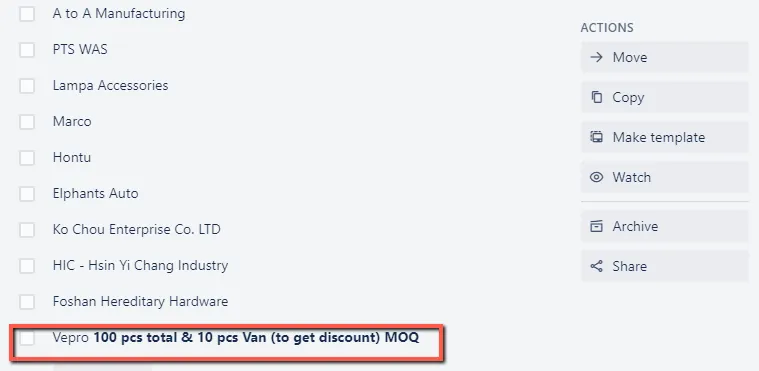
The final version of MOQ we see in these lists is the MOQ needed to get a discount. An example of this is Vepro, Fig 1.3.3. It is obviously very important to hit this MOQ as if we do not get the items at a discounted price we can not sell the items at the competitive prices that we do. If there are orders for items that are desperately needed but do not put us over the MOQ for these couriers it must be confirmed by management before placing the order.
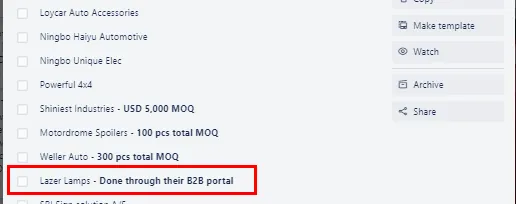
Lazer Lamps do not have a MOQ, however, they do have a condition for ordering. They require us to order all items through their B2B portal, the link for this can be found at the beginning of this document, and the process for this will be outlined in section 3. In Trello, the Lazer supplier is tagged to show this process, fig 1.3.4.
- Inventory Planner
Inventory Planner is directly linked to Linnworks and will use the stock count, previous sales data, and current orders from suppliers to determine if there should be a new order, and if so, how much that order should be for. It is currently set up with the correct lead time, days of stock, and MOQ where applicable for every supplier. Each user's Inventory Planner will need to be set up for Bragan's needs and
should be done when credentials for the inventory planner are being created. Please ask management for credentials if you do not have them yet.
2.1 Navigating Inventory Planner for Replenishment
The link for Inventory Planner can be found at the beginning of this document. Once you have logged into Inventory Planner, you can navigate to the left-hand side and click on 'Replenishment', fig 2.1.1.
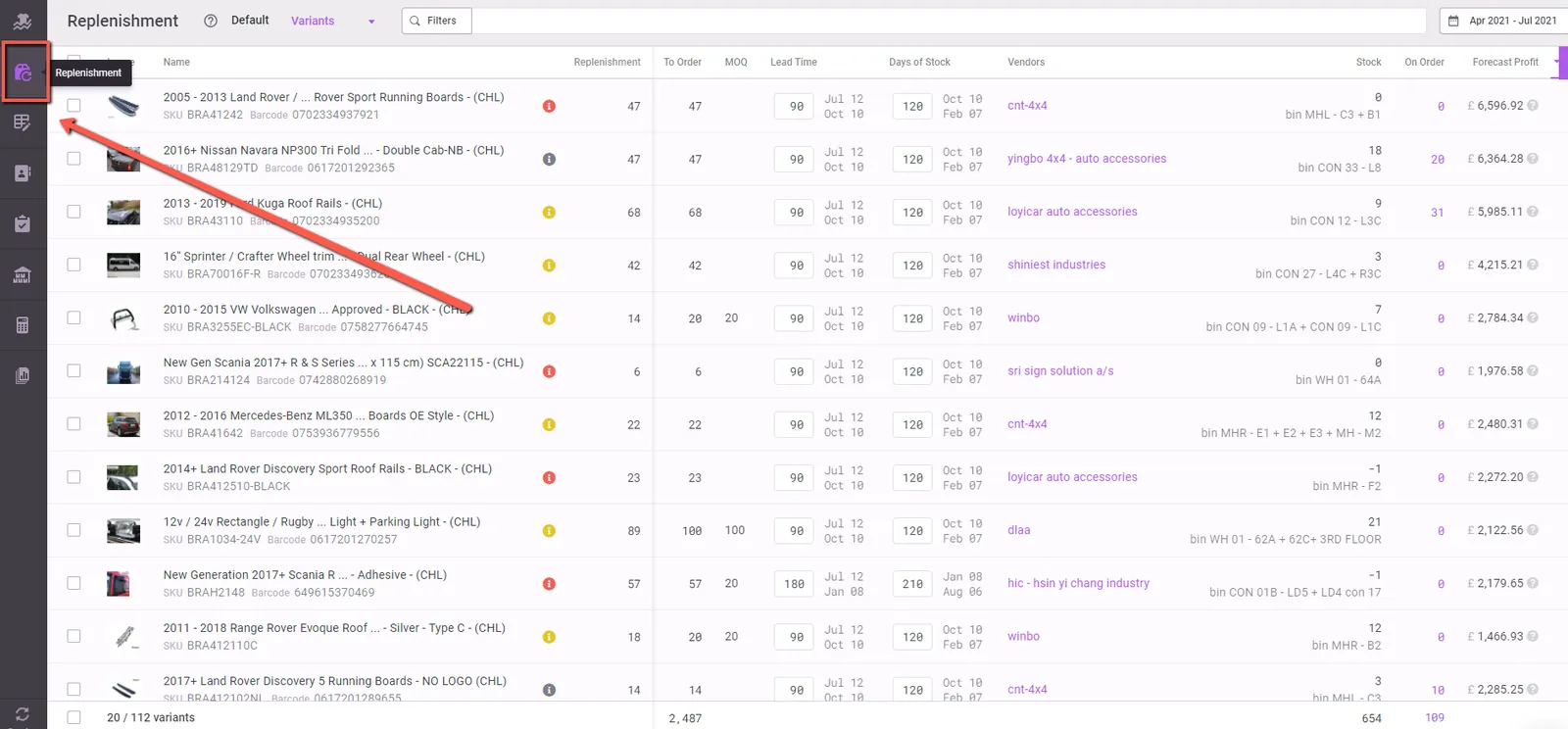
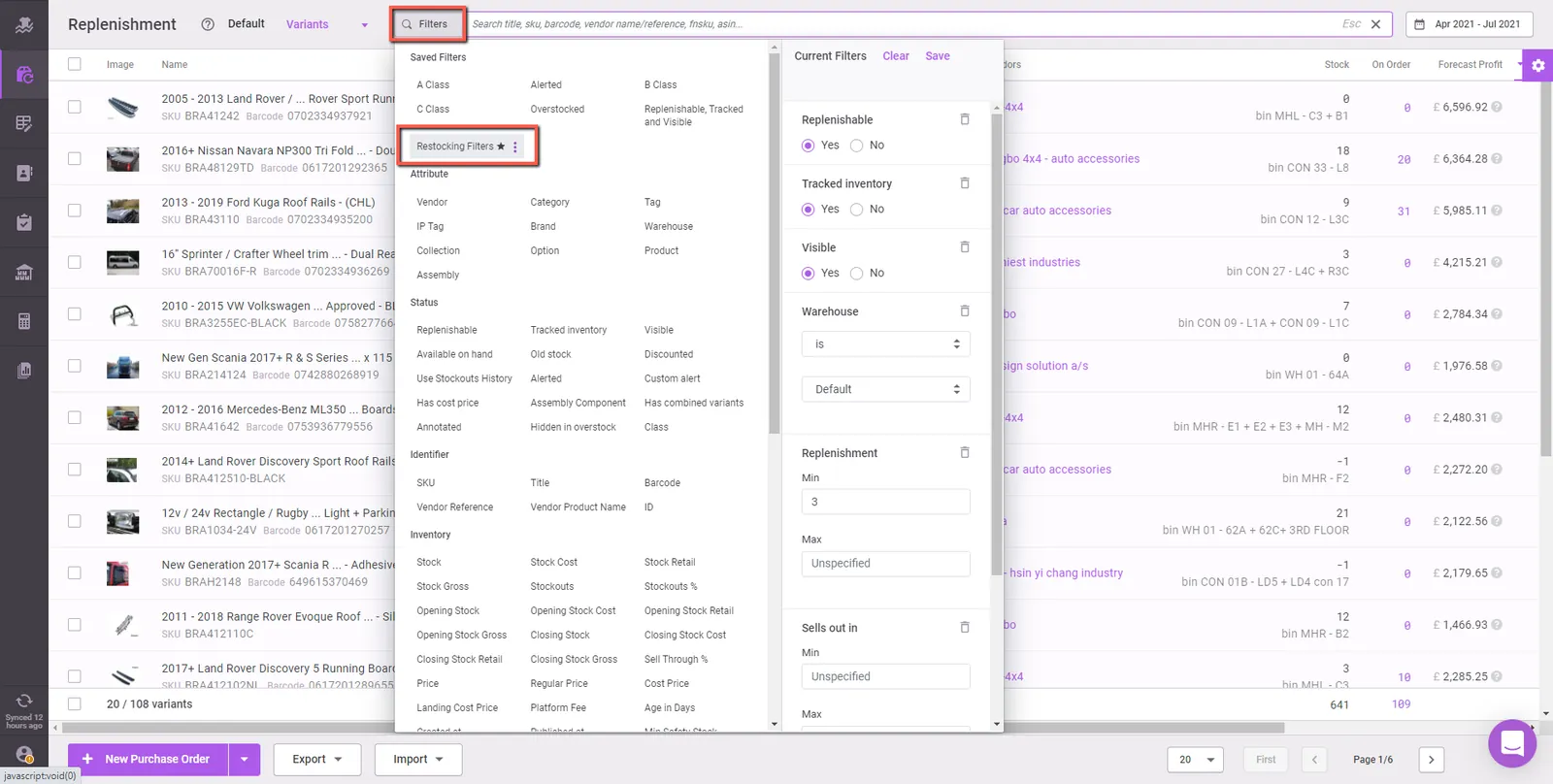
This will open all of the stock and the suggested date that you should replenish this stock, along with the amount that you should replenish. It will automatically place the 'Default' filters, showing you only stock that should be replenished at that time, but for all suppliers. If you need to manually apply the restocking filters, go to 'Filters' at the top of the screen, and click on 'Weekly/Monthly Restocking Filters' as shown in fig 2.1.2.
For the use of procurement, this is the only area needed on Inventory Planner, please refer to this SOP to know how to set up and edit Inventory Planner.
2.3 Selecting Supplier In Inventory Planner, the supplier is referred to as the vendor. Once you are in the restocking filters you must select the vendor that you want to replenish. Each vendor must be worked through one by one, as Inventory Planner will not separate the order by the vendor when we are sending the purchase order. So, if we do not create an order one by one by vendor, then each supplier will receive an entire order, showing items ordered from all other suppliers.
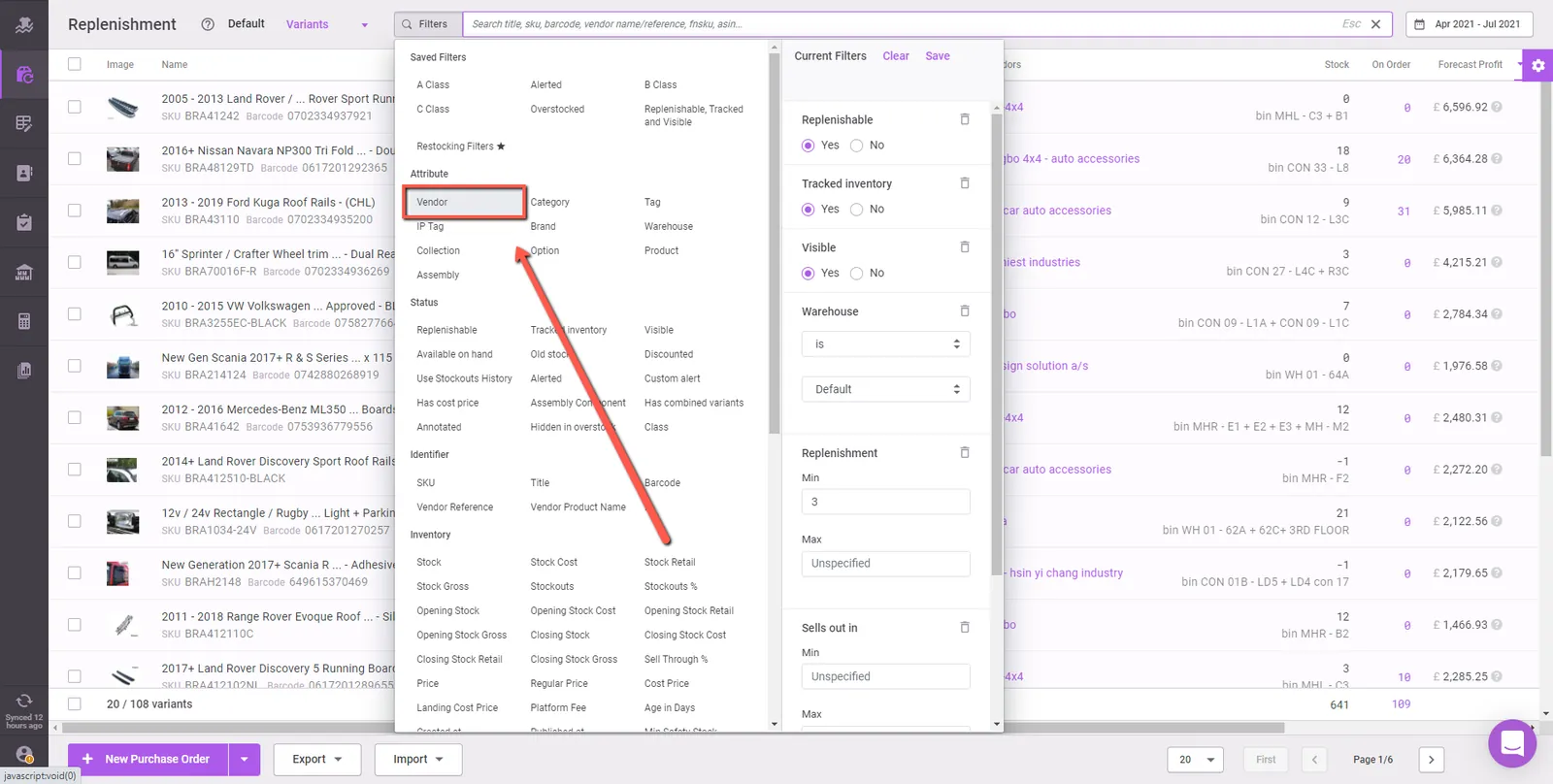
Select the vendor by opening the 'Filters' as shown in FIG 2.1.2, and clicking on the 'Vendor' button, FIG 2.3.1.
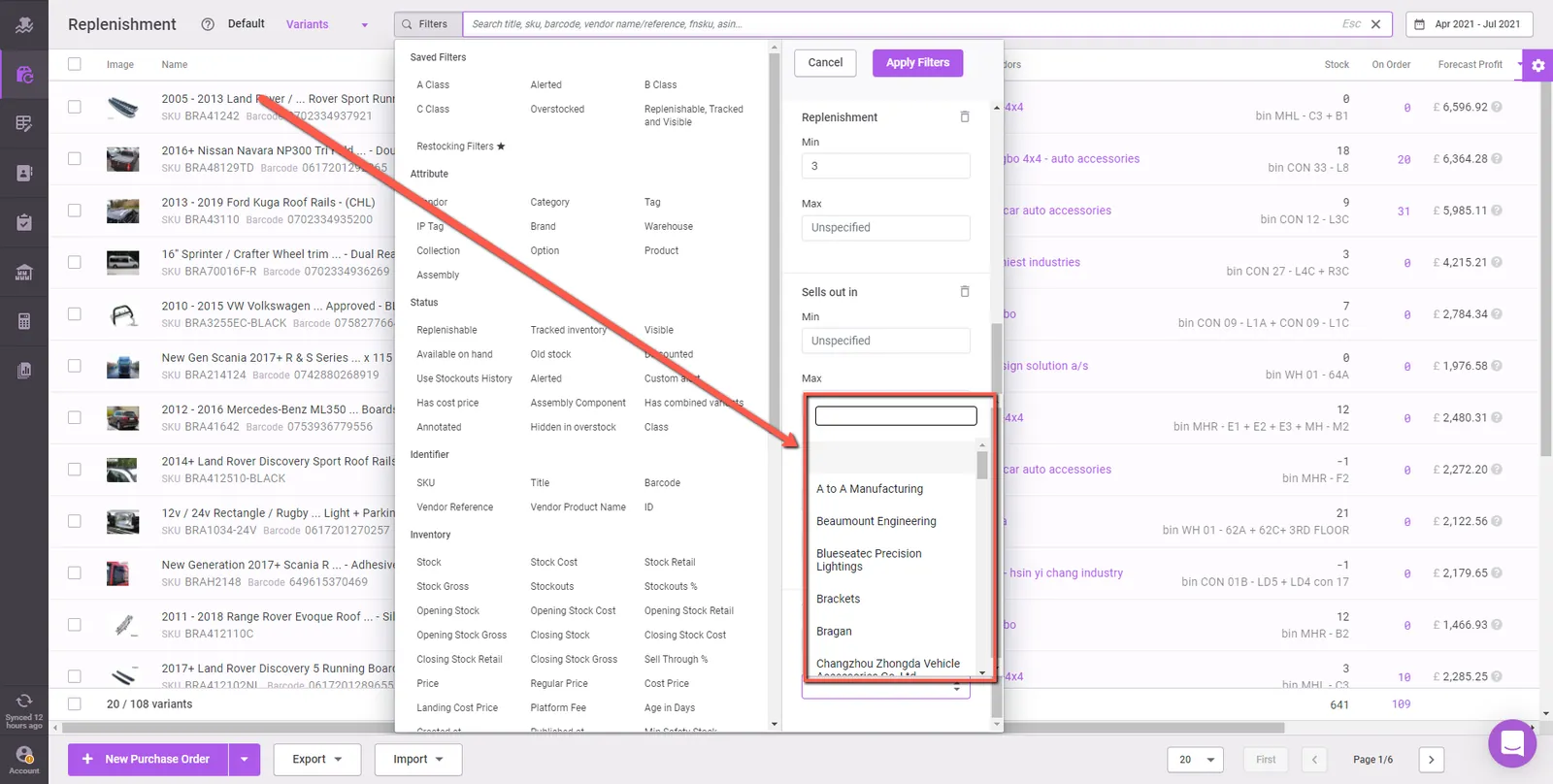
A box will then appear to the right-hand side of the filters pop-up window, where you will select the vendor that you want to replenish, fig 2.3.2. This is based on the Trello cards discussed in section 1. You will work, one by one, selecting each vendor with it showing you what you need to purchase from each vendor.
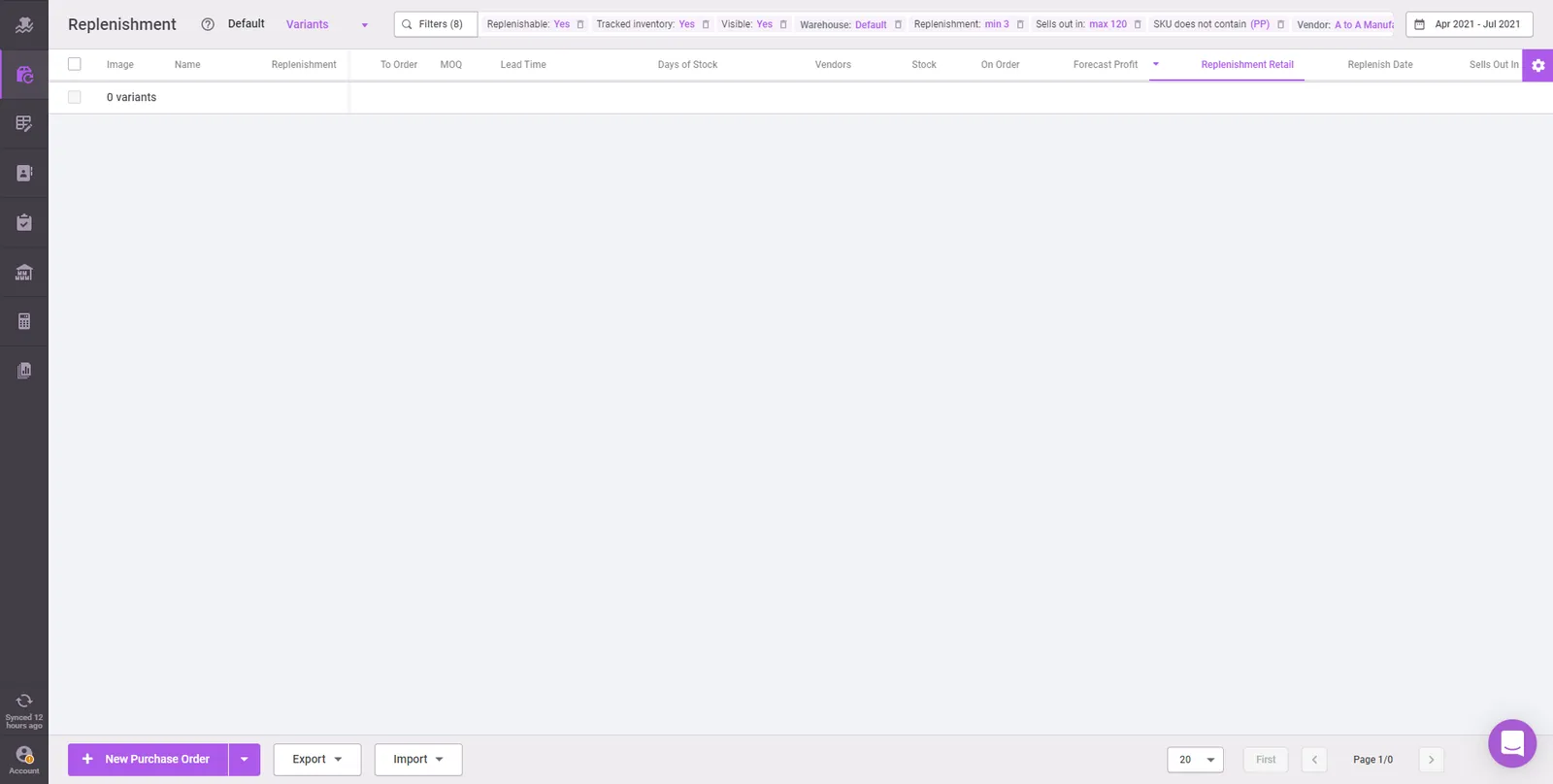
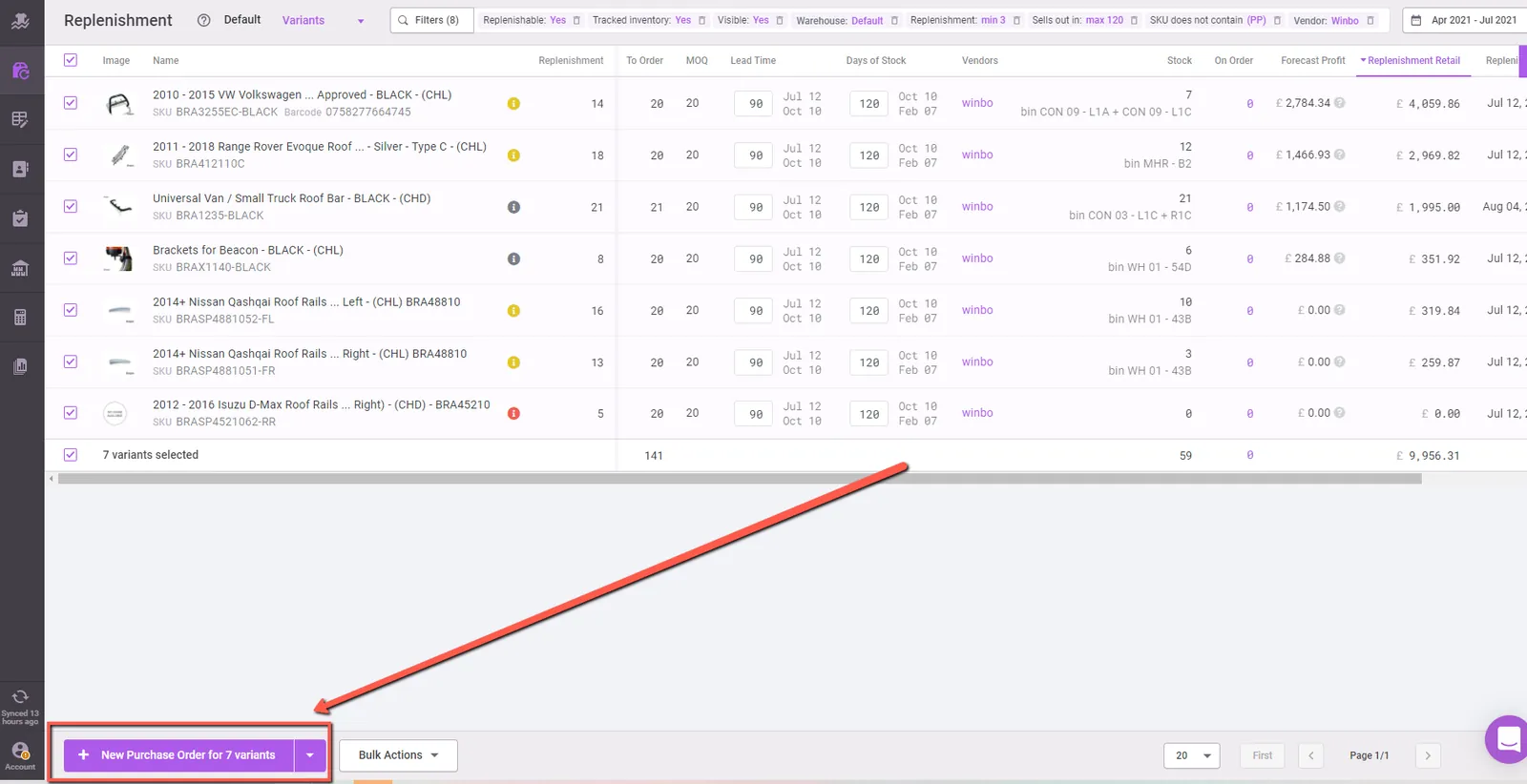
2.4 Creating a Purchase Order Once you have selected the vendor, if zero variants appear when you select a vendor, FIG 2.4.1, then there is nothing to purchase from this vendor according to Inventory Planner. You can just move on from there until the next procurement run.
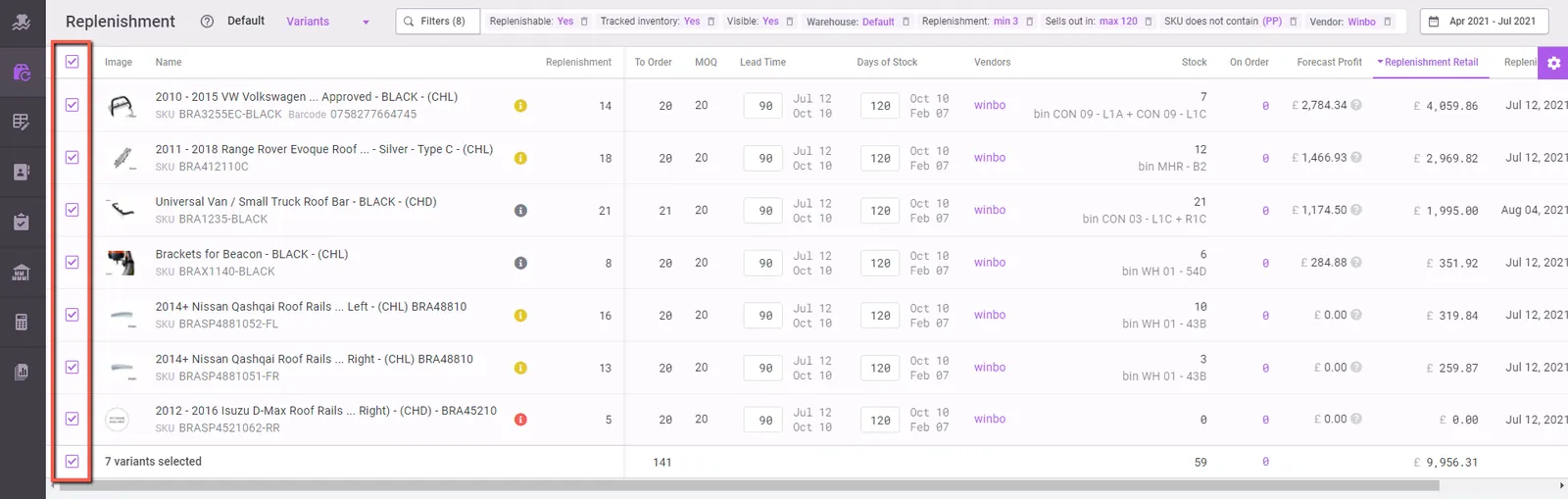
If it is showing products that need to be replenished, you must double-check that none of these products stand out as something that shouldn't be replenished (for example a damaged item) or that the suggested number isn't standing out for being too high/low. If Inventory Planner is set up properly then this should not be an issue, however, this is the last time you will be able to double-check before sending the PO, so make sure to look at all suggested products to make sure that nothing stands out.
Once you are satisfied with the products being ordered and the amount for that vendor, select all of the products using the boxes to the left of the product, fig 2.3.2, and click 'New Purchase Order', FIG 2.4.3.
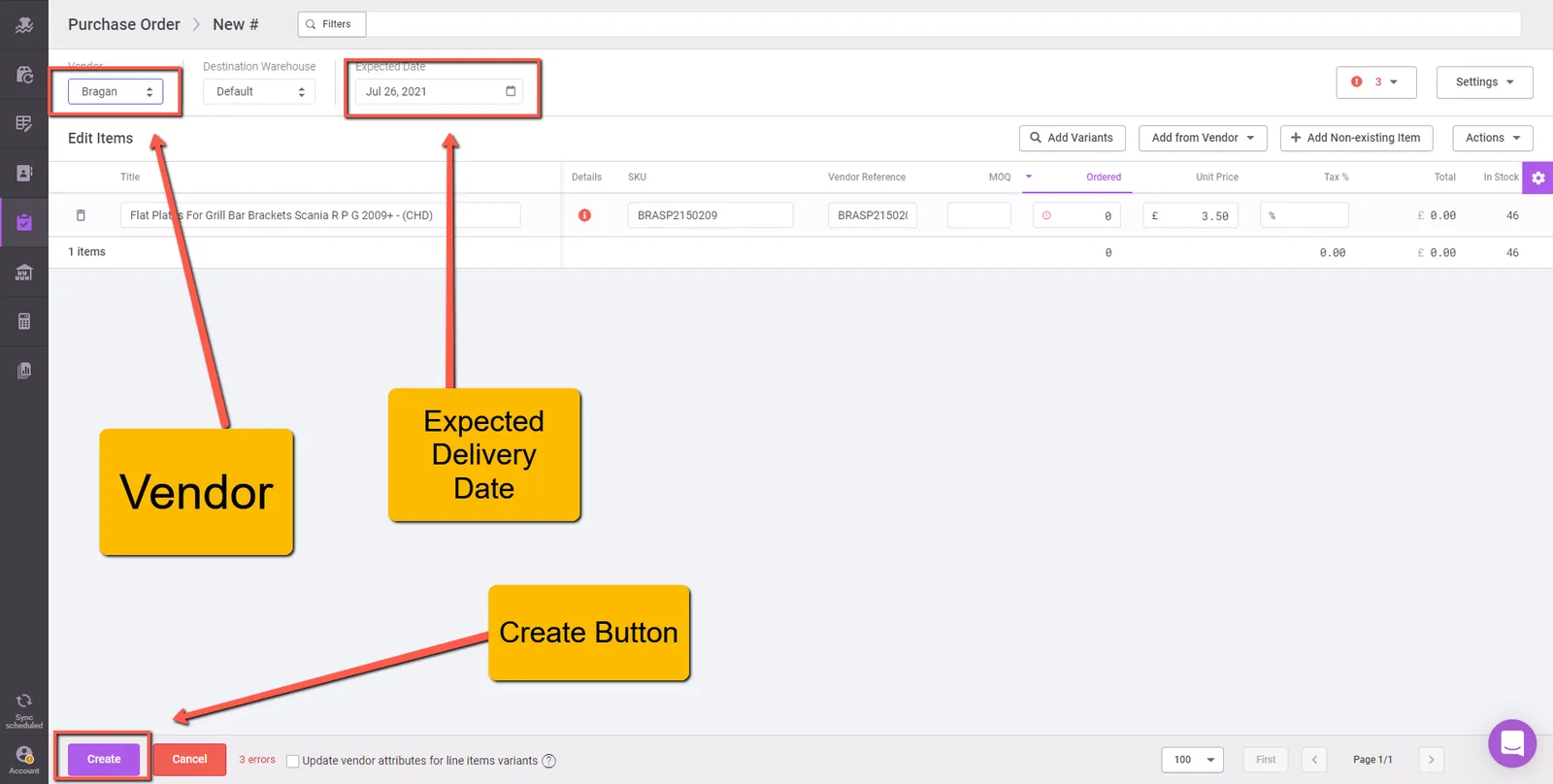
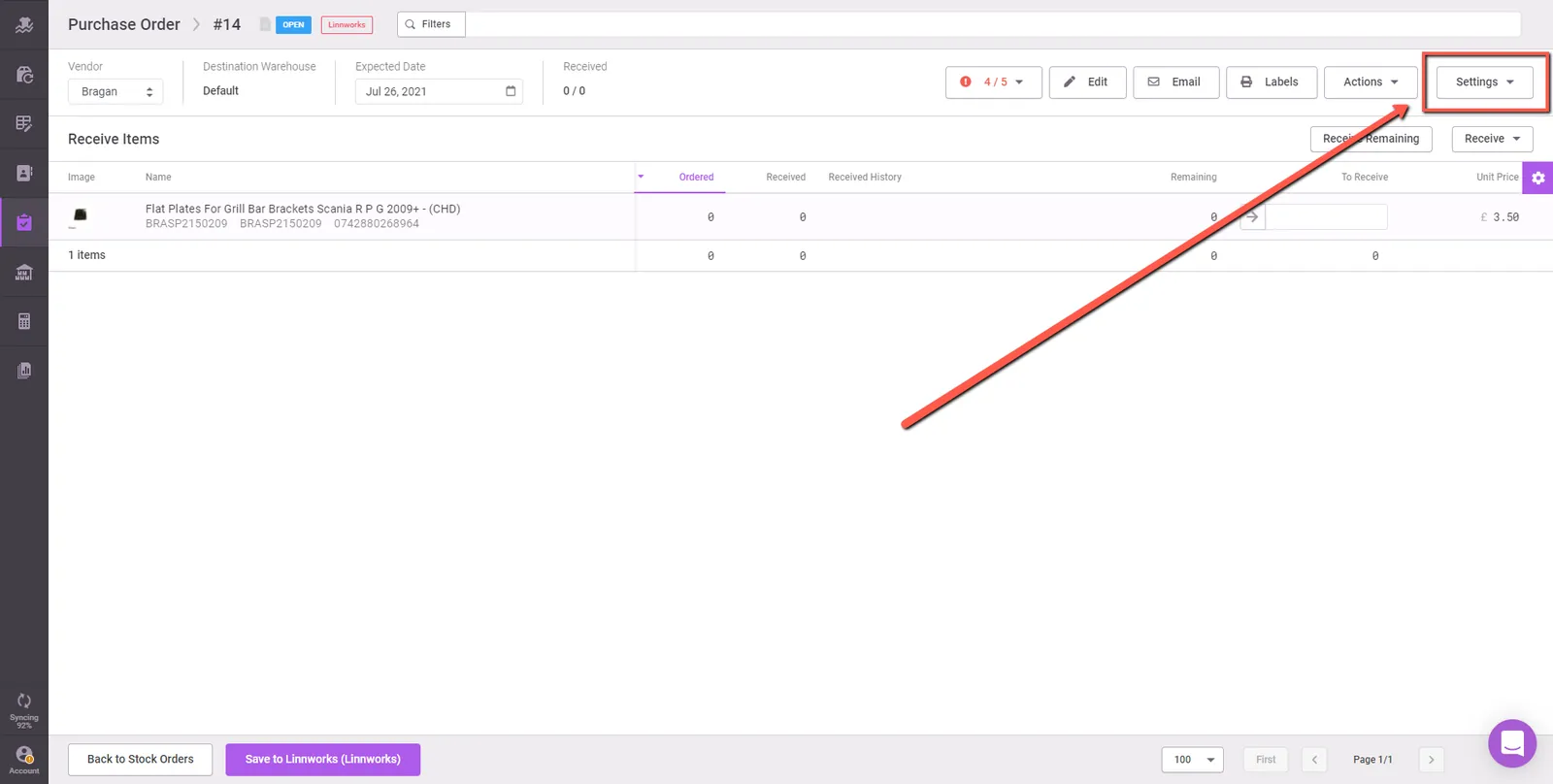
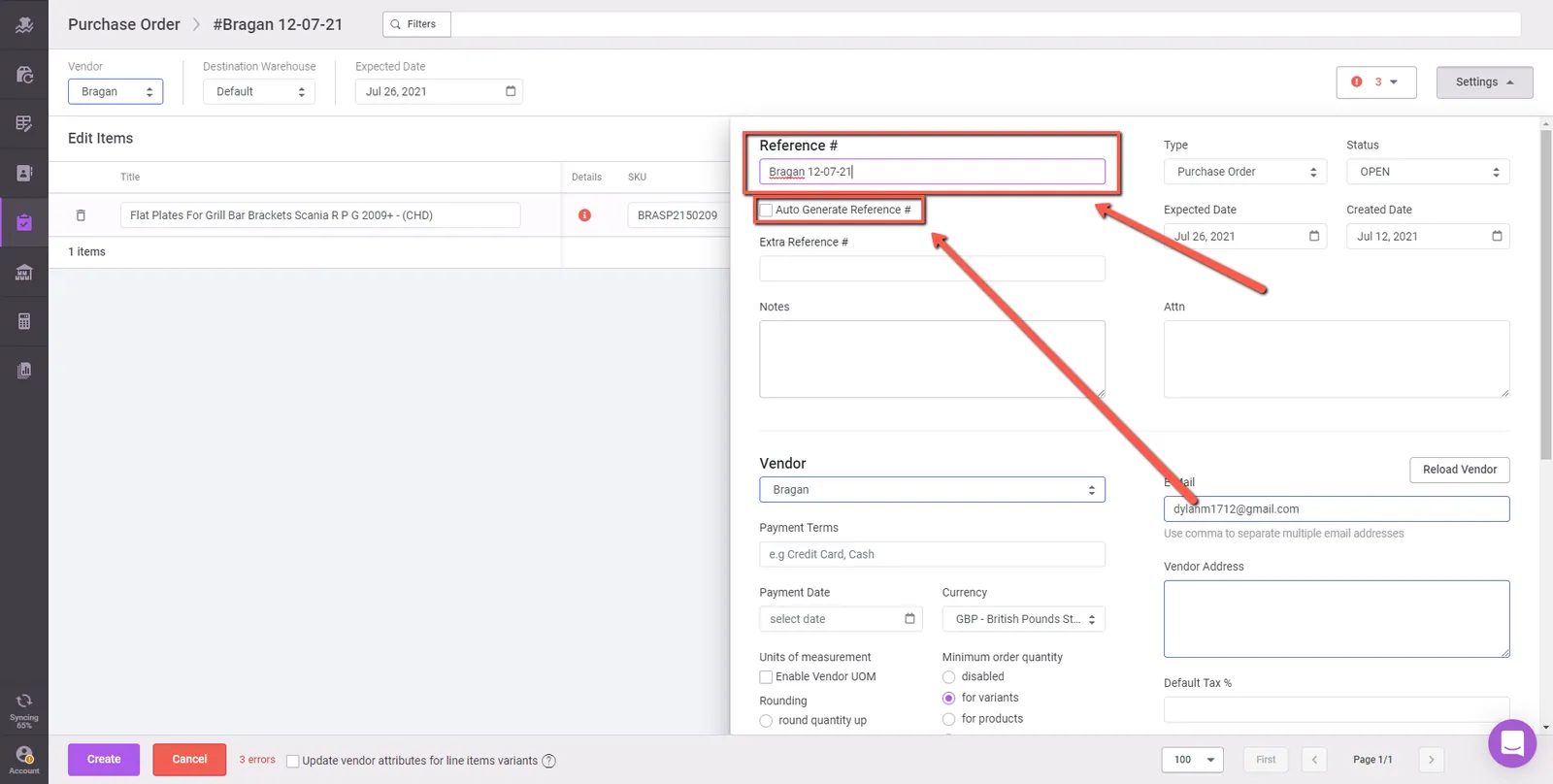
This page will give you a breakdown of everything you are looking to order, along with the vendor and the expected delivery date, FIG 2.4.4. At this stage, you must change the name of your PO to give you some reference to the vendor without viewing the items on the PO. This is done by going into the settings, FIG 2.4.5, unclicking the 'Auto Generate Reference #' and add the name of the vendor and the date, as shown in FIG 2.4.6. Finally, at the bottom of this page, you can click the 'Create' button and after accepting the warning message, FIG 2.4.7, you will have created your PO.
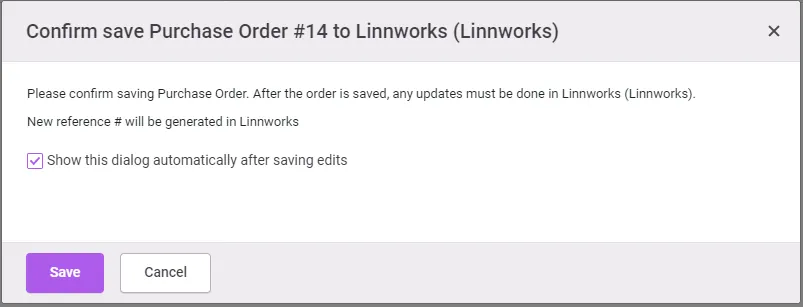
2.4 Sending Purchase Orders Emails to Suppliers are sent in Inventory Planner.
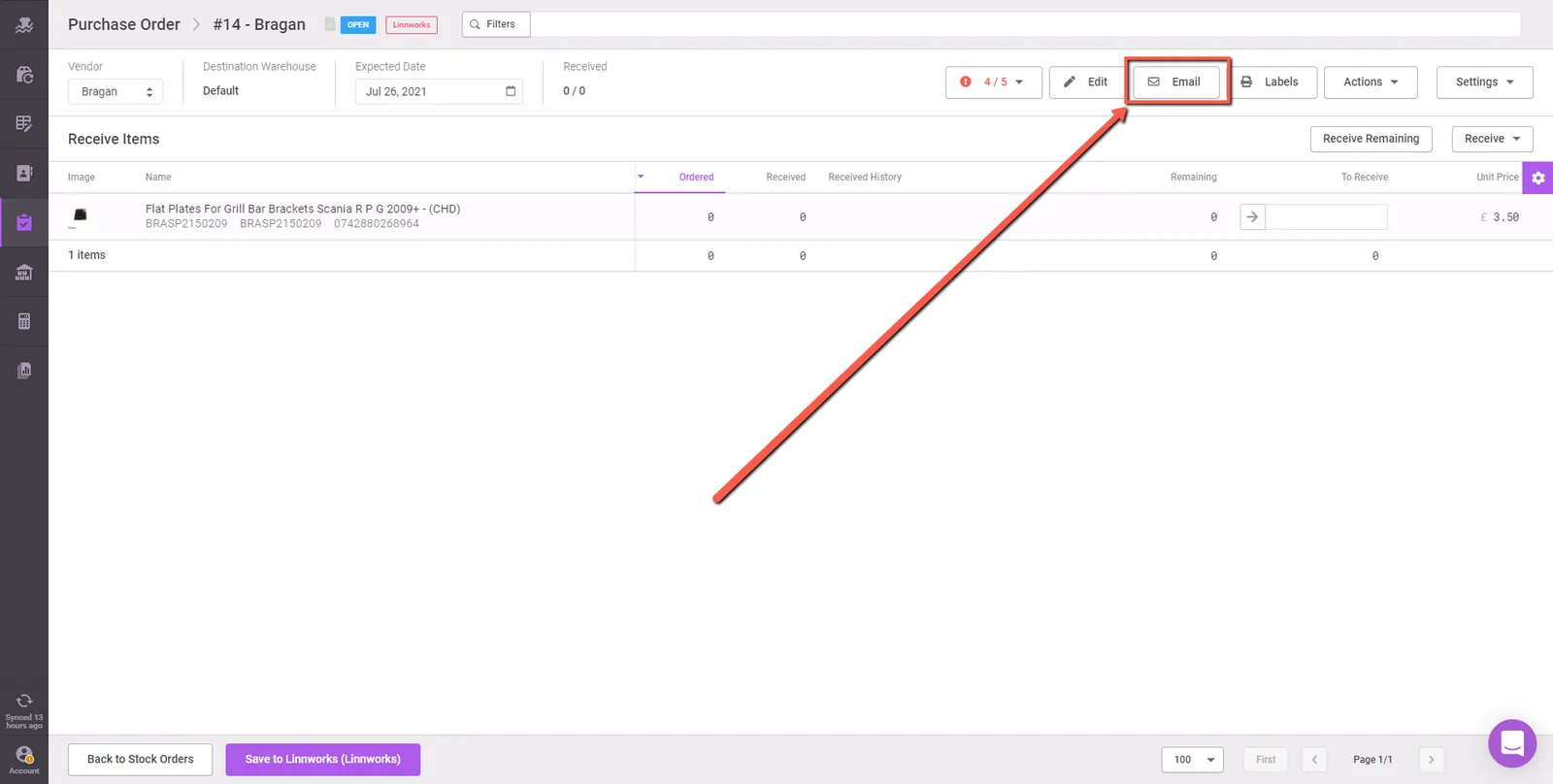
Once you have the PO done for the vendor, you must email a copy to the vendor for production. The email will be sent through Inventory Planner.
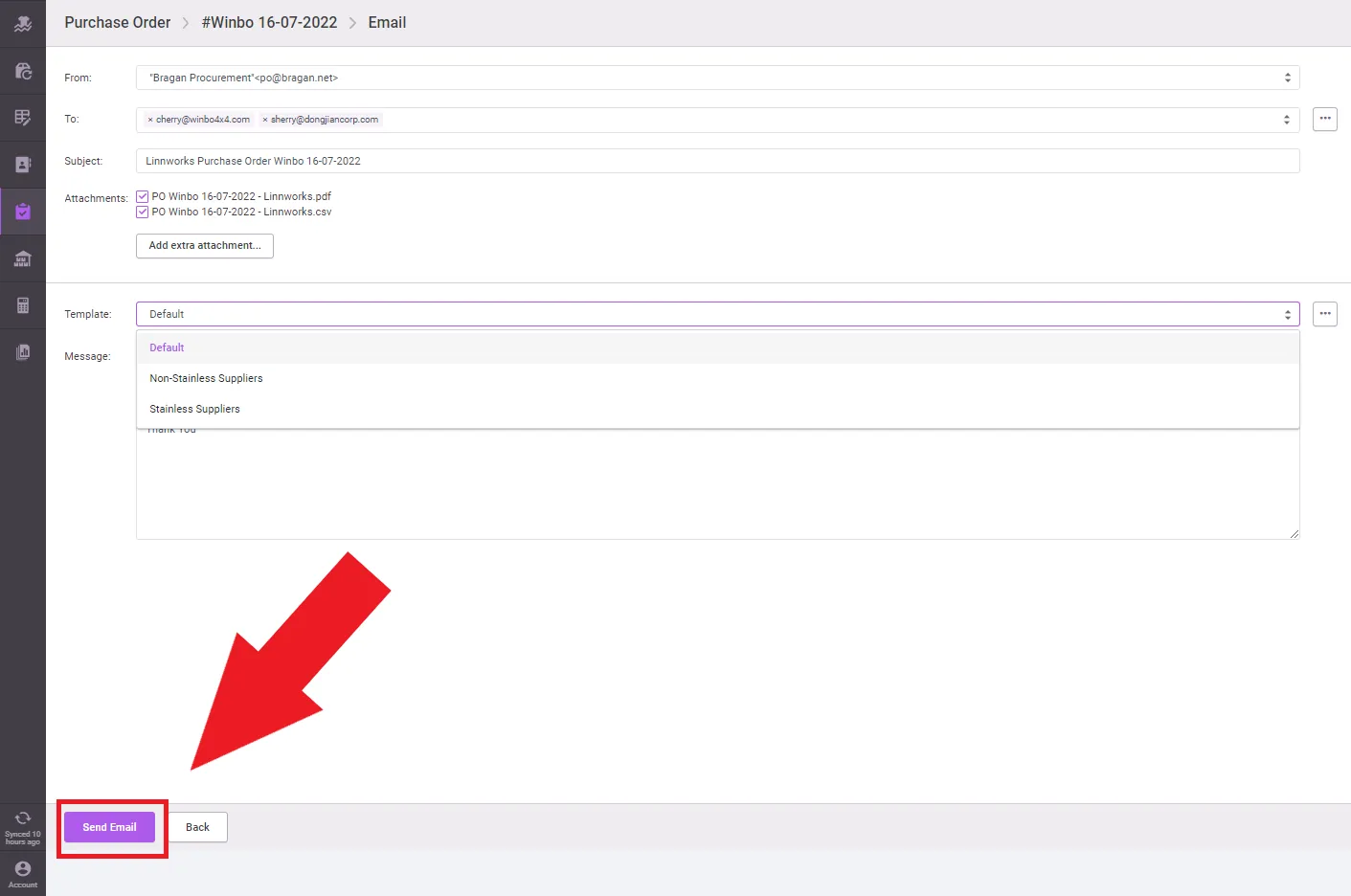
This is done by clicking the 'Email' button as shown in FIG 2.5.1, which will bring you to the edit/preview page for the email, FIG 2.5.2. The PDF and CSV copies of the purchase order must be downloaded in Inventory Planner. (FIG 2.5.2 & FIG 2.5.3)
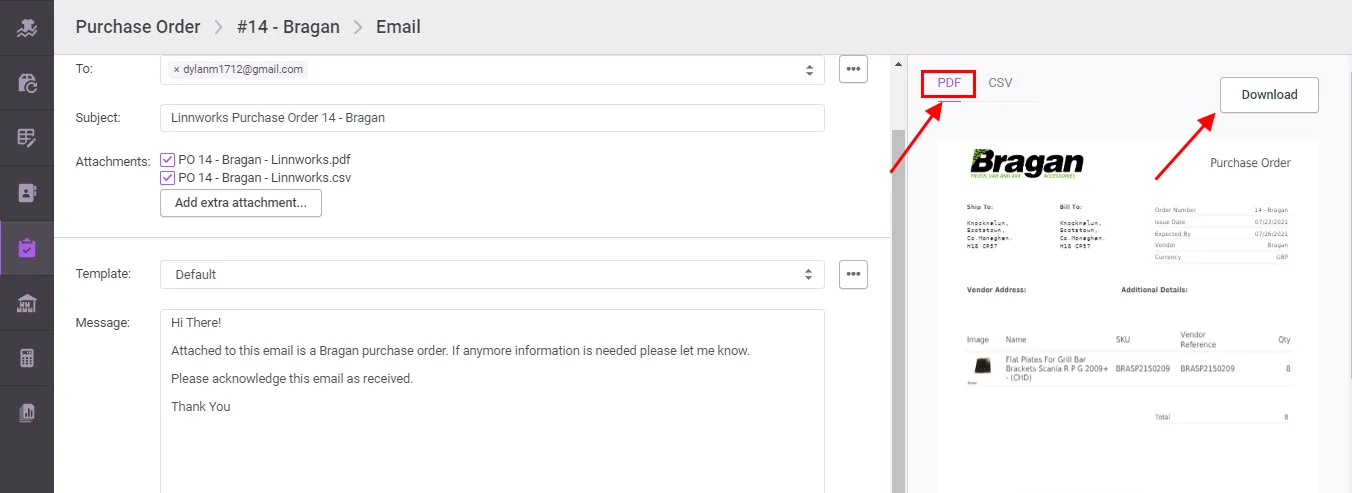
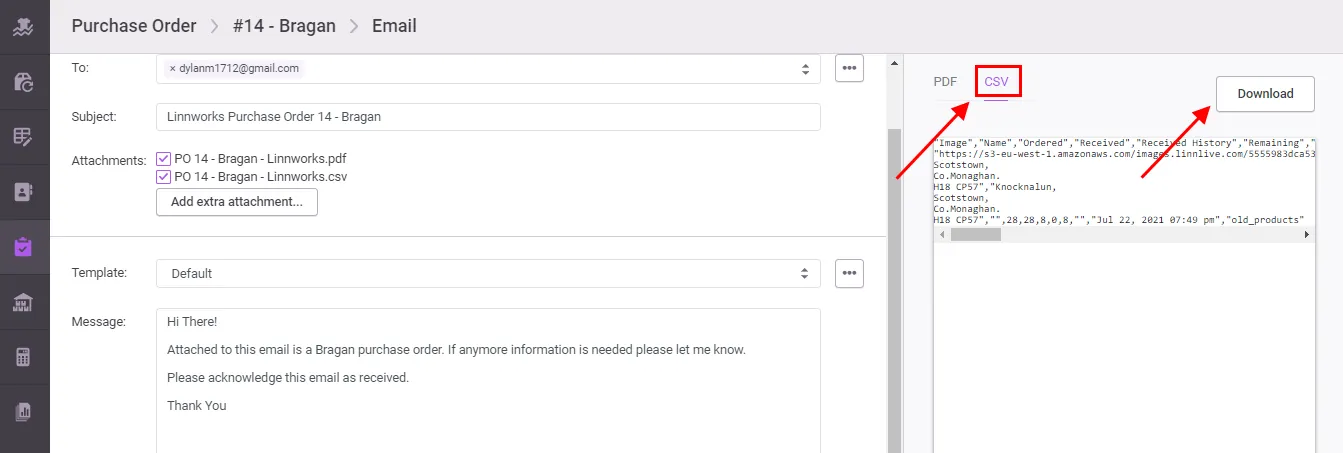
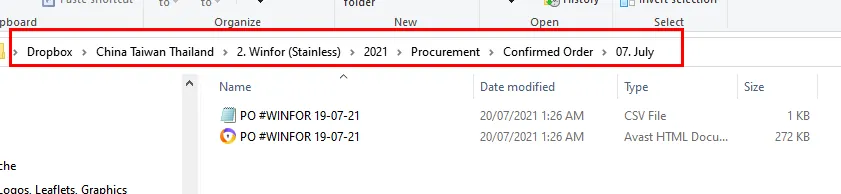
You can then save the downloaded PDF and CSV copies of the purchase order to the designated supplier Dropbox folder.
Once the PDF and CSV copies of all purchase orders are downloaded and saved, next step is to send email to supplier.
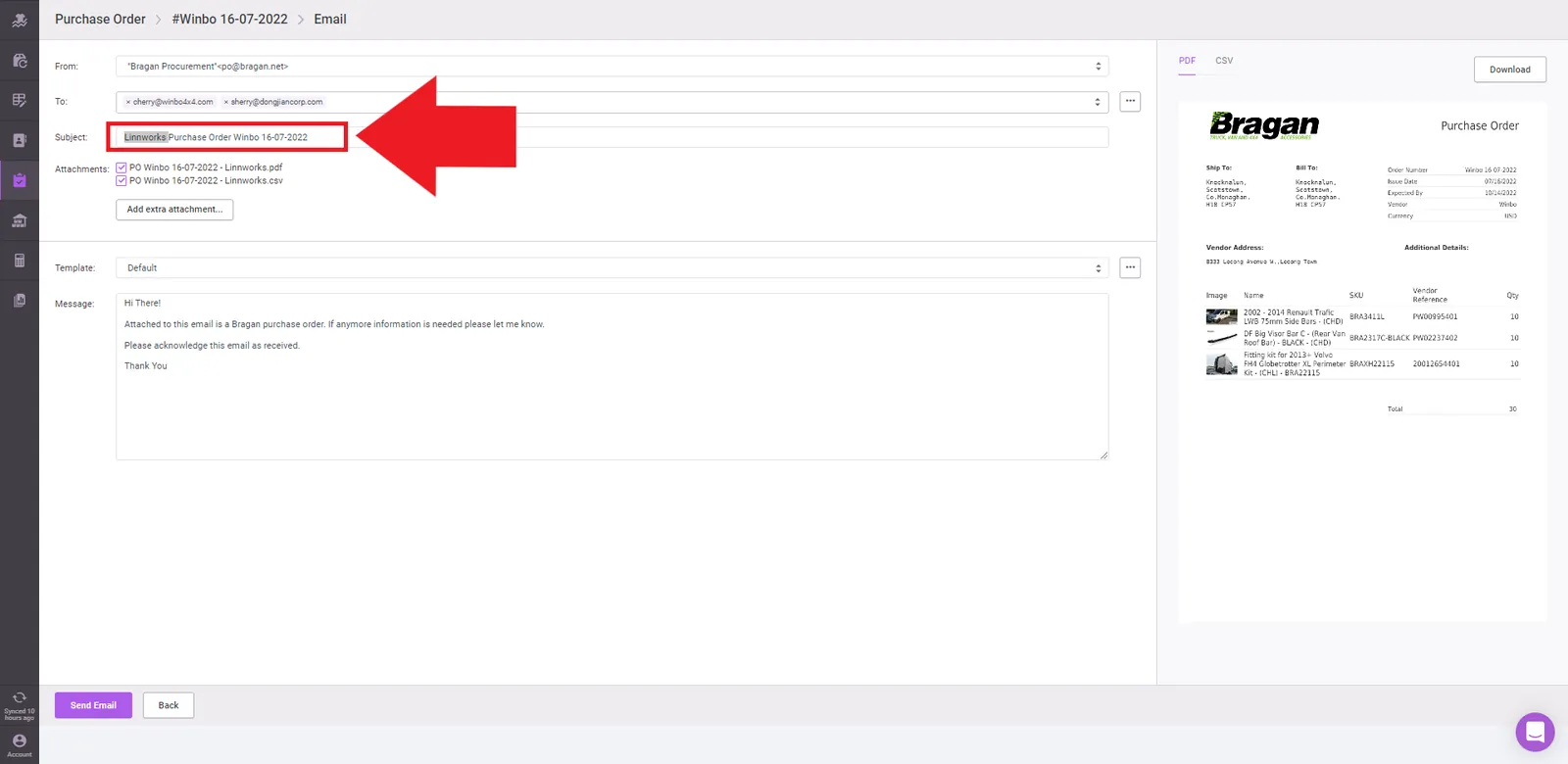
Before sending, we need to edit subject. (Fig 2.5.5)
Change Linnworks to Bragan
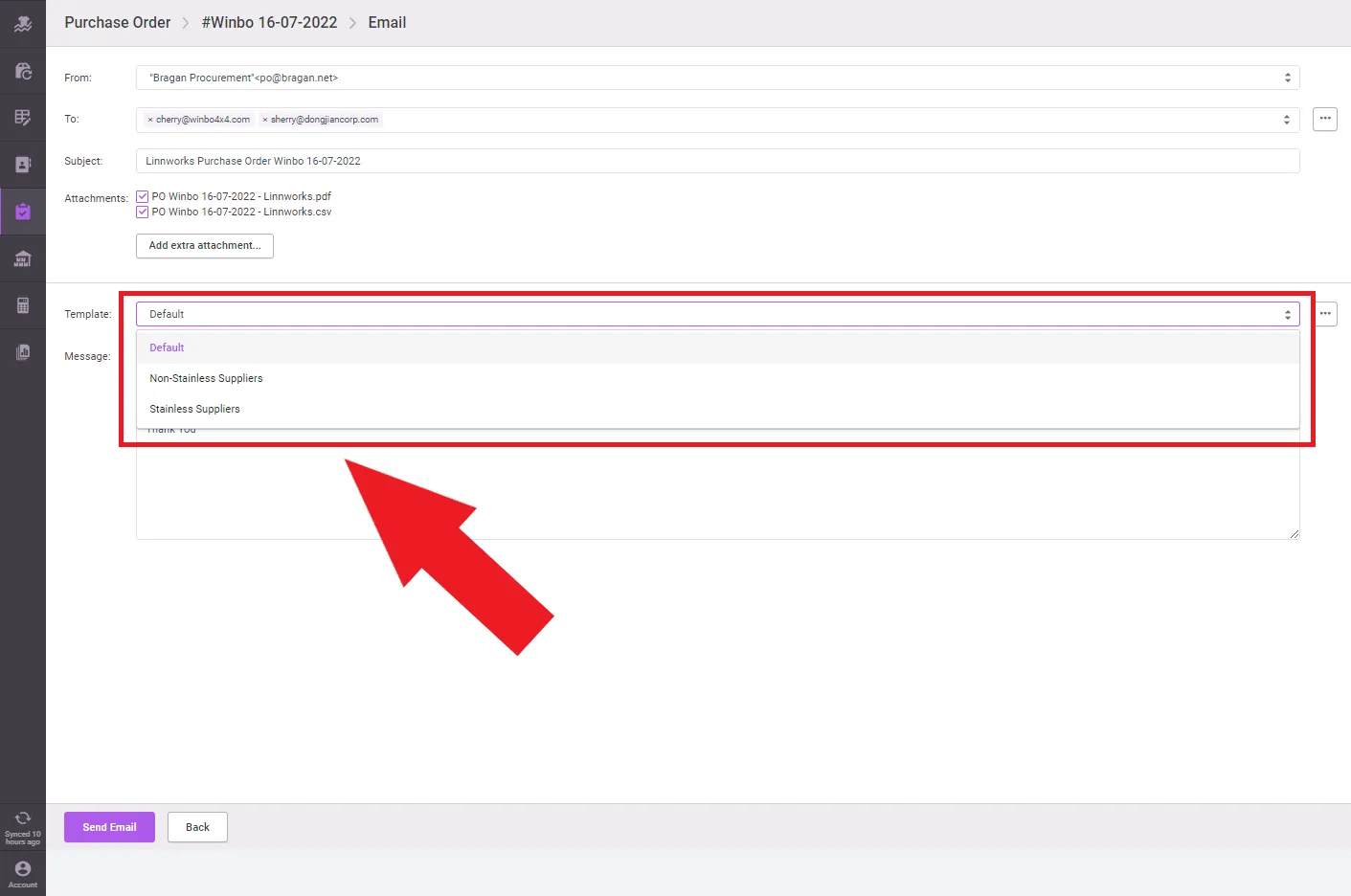
Choose template to be used. Either Stainless or Non-Stainless supplier (FIG 2.5.6)
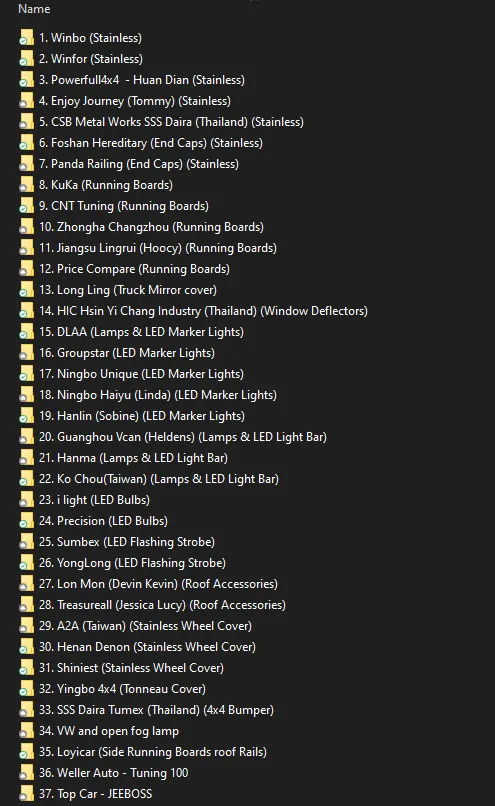
Note: You can check what template to use for this in the Dropbox procurement folders and you can see which type of supplier. (FIG 2.5.6)
Once you have selected correct template to be used hit send. (FIG 2.5.8)
2.5 Supplier Proforma Invoice (PI)
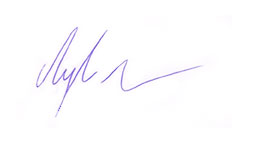
Once the supplier responds with the PI, sign this with Nigel's Signature which can be downloaded in the attachment section of this SOP and send it back to the supplier.
Then place into the relevant suppliers Confirmed Orders folder.
Example: \China Taiwan Thailand\1. Winbo(Stainless)\2021\Procurement\Confirmed Order
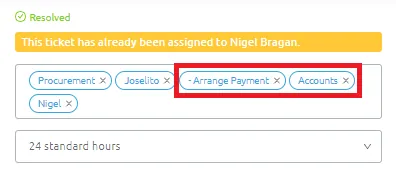
Once PI has been confirmed, and Supplier is asking for payment - add label in Replyco to Accounts and -Arrange Payment to make a deposit/full payment where necessary. (FIG 2.6.0)
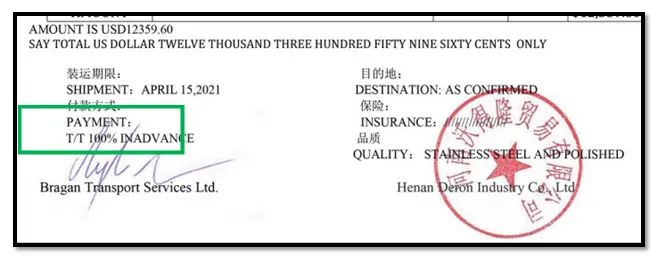
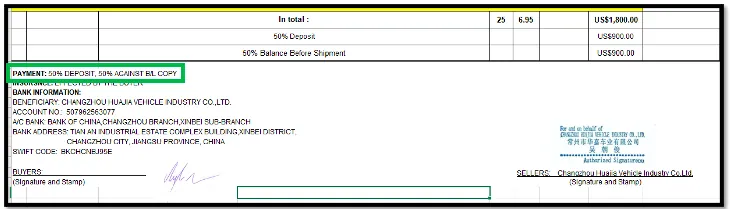
Note: Include in the message via Internal note if the PI is for 100% TT (telex transfer) Payment (FIG 2.5.1) or Deposit only. (FIG 2.5.2)
Please also note before sending the payment to ask all suppliers to "Please send invoice to show amount outstanding and deposit paid." to ensure that deposit is not double paid.
2.7 Supplier Shipment of Orders
Once items have been loaded in the container, collect packlist (PL) and commercial invoice (CI) from each supplier. You will know items have been loaded when suppliers send an email or notify thru wechat. PL and CI will be sent through email or wechat as well.
Save these in the correct Dropbox folder
Save these in the correct Dropbox folder Choose Year and Month → e.g. Winbo February 2021 Order → China Taiwan Thailand\1. Winbo (Stainless)\2021\Procurement\Incoming & Pack Lists\2. February Edit PL to include BinRack Location extracted from Stock Items Query Data in LinnWorks and save as different file. Add 'Warehouse' at the start of the file name (FIG 2.7.1)
Note – for files to be shared with Warehouse, remove any Purchase Price (Cost) details. Save PL in the Warehouse Trello Board as well. trello.com Turkey – Eirturk → trello.com Europe → trello.com Asia Packlist → trello.com
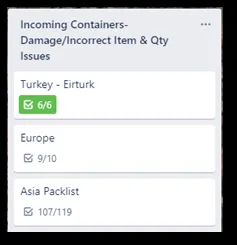
Send PL (picklist), CI (commercial invoice), and Telex copy of BL (Bill of Lading) to shipping agent (Transglobe)
The PL, CI, and Telex copy of BL documents must be requested from the supplier when loading has been confirmed. These documents must be submitted immediately through email in Zendesk to the shipping agent (Transglobe Shipping) to comply with the customs requirements.
Email address (Saji): [email protected]
Macro: 806 Submit PL, CI, and BL TLX
Manual Intervention Before Proceeding in Creating the Purchase Order (No
Longer Needed / Old Process)#
Due to the volume of items in our inventory, we want to ensure there is nothing missed in the items that need replenishment so we will do some manual intervention in the process, also to double check that Inventory Planner is suggesting the correct replenishment quantity for the items needing the replenishments.
Download the list of items that need the replenishment from Inventory Planner
With the 'Weekly/Monthly Restocking Filters' selected as in Fig 2.1.2, click the 'Export" and select 'CSV/Excel Format' from the dropdown list.
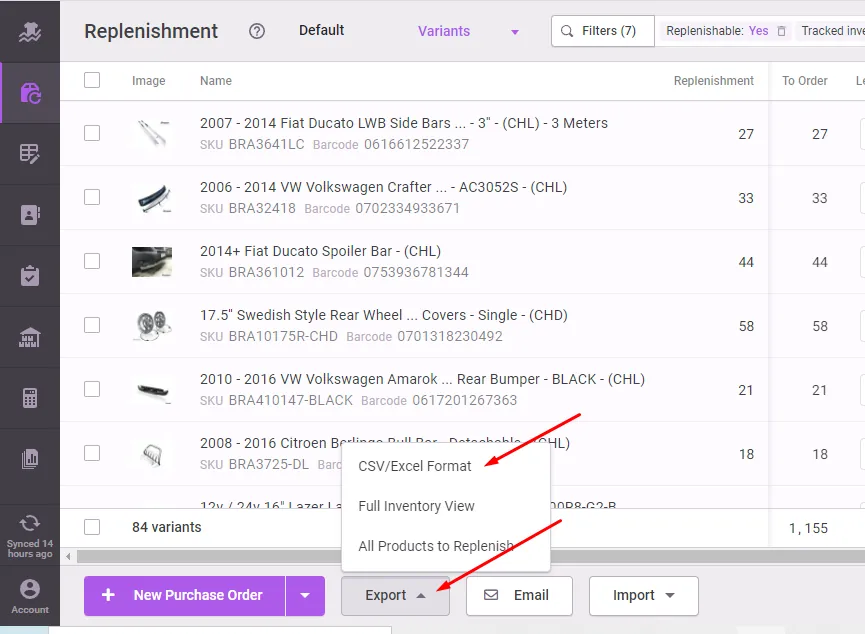
This action will allow you to download the replenishment variants as shown in FIG 2.2.2. Remove other not relevant columns - see FIG 2.2.3.

Export Product Suppliers, Composite Export, Stock Items (with level) and Stock Movement CSV in LW.
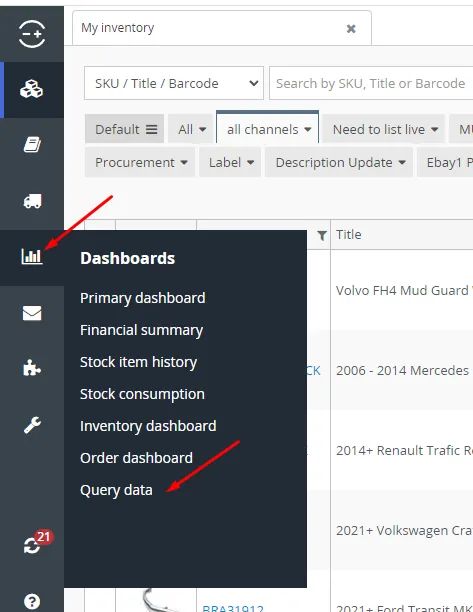
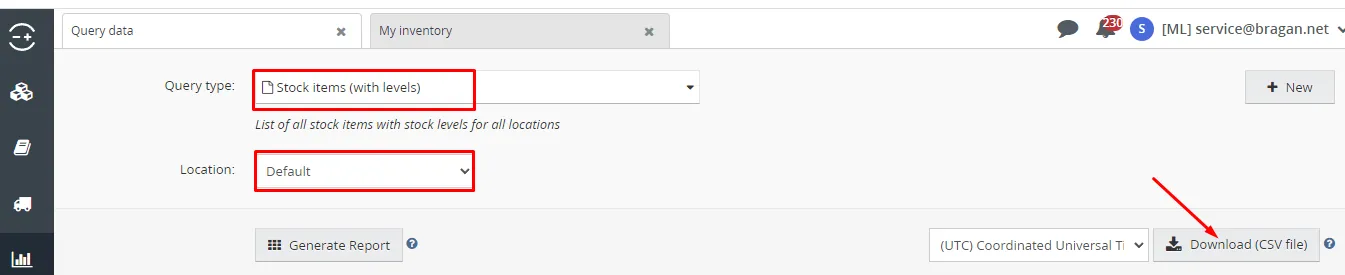
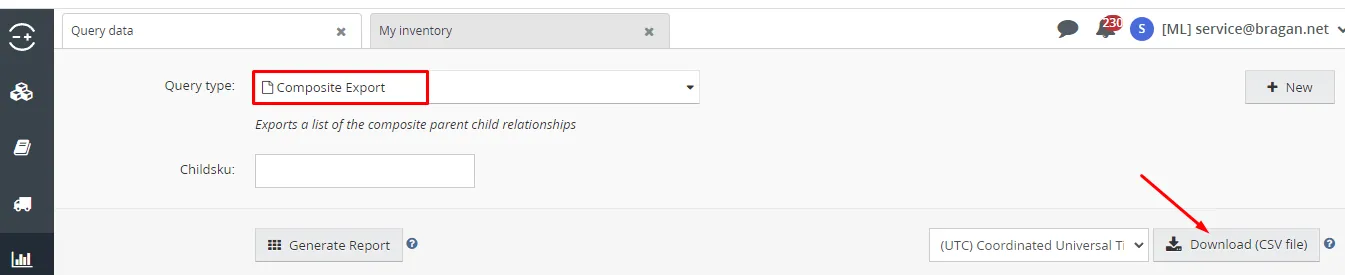
- Format Product Suppliers table so it will show only the columns in FIG 2.2.8
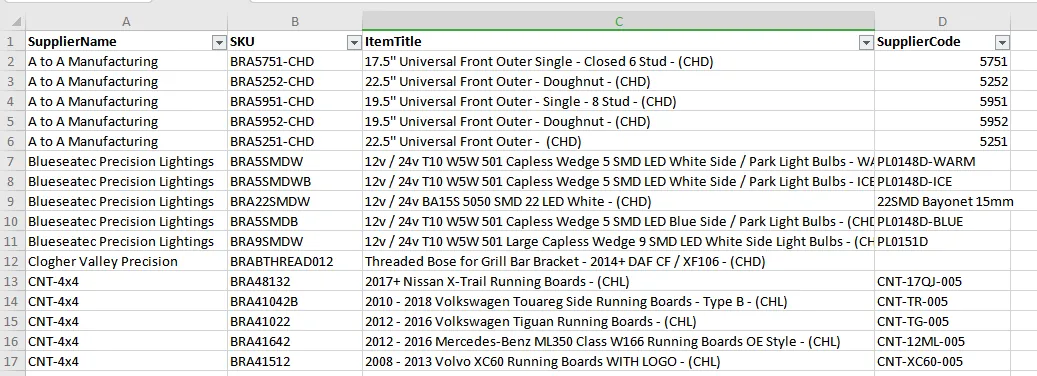
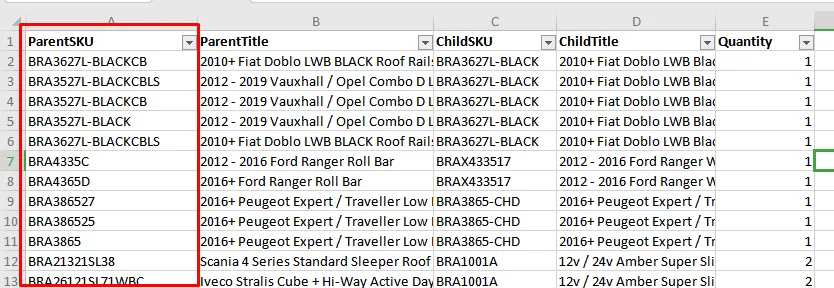
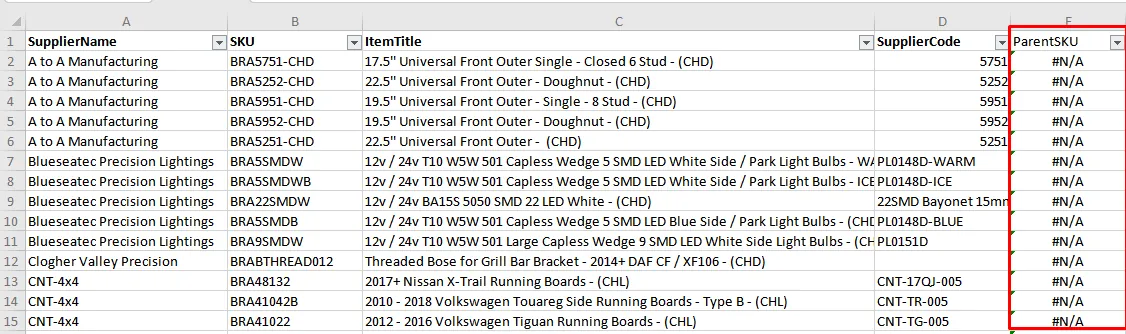
- Remove all possible parent SKUs in Product Suppliers table. To do this, lookup the SKU in Product Supplier table to the Parent SKU column in Composite Export query (see FIG 2.2.9). Those with #N/A values in the Parent SKU column of the Product Suppliers table are correct child SKUs (FIG 2.2.10). You need to remove items in FIG 2.2.10 with values other than #N/A (these are parent items).
- Furthermore, filter and remove items in Product Suppliers table with the following text in the SKU, title or supplier code.
- Archived
- Damaged/ No Fitting Kit (these are auction items)
- Dent/ Scratch
- ALT / Prewire
- DXD (discontinued) / TBD (to be discontinued when stock level reaches zero)
- need to list live (these are new items not yet listed in the channels)
- (PP) (these are incoming new items)
Remove also all discontinued suppliers including (these may have items with stocks in inventory)
- Changzhou Zhongda Vehicle Accessories Co.,Ltd
- Devin
- Hanma
- Kuka Vehicles
- Meric
- Sam Sun International Co., Limited
- Vcan
- exclude also Bragan, eBay and Wurth from list of suppliers
Please refer to this trello link for the list of suppliers
https://trello.com/c/yBUsi4vy
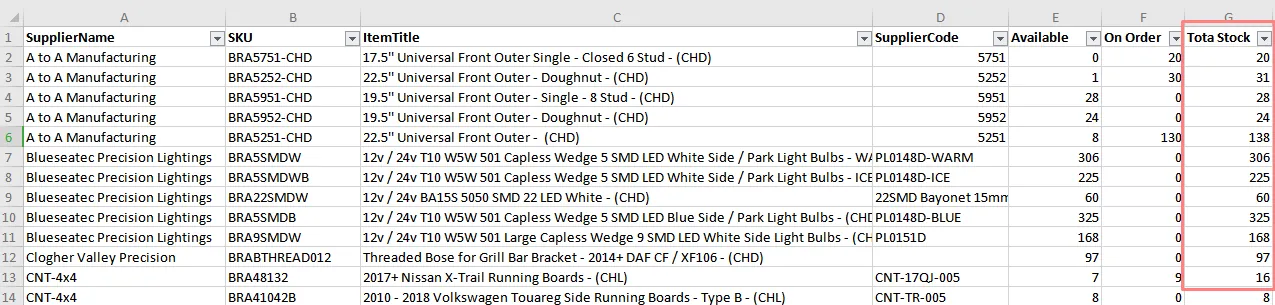
- Add 'Available' and 'On Order' columns in Product Supplier table and look up these values from the Stock Items with level table (FIG 2.2.12). Calculate the Total Stock (Available + On Order) in Product Supplier table (FIG 2.2.13).

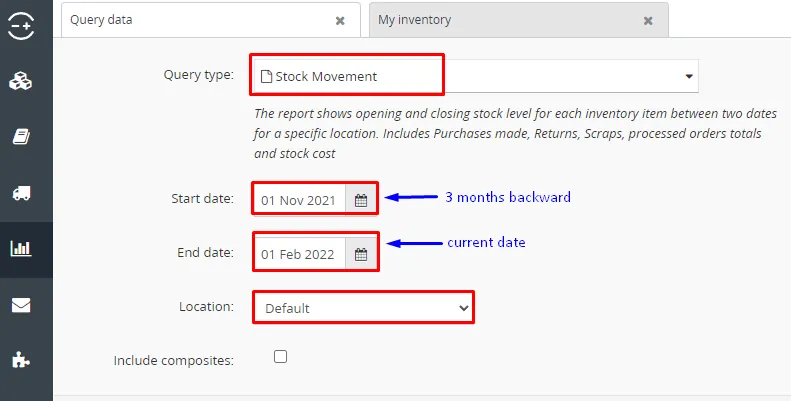
- Lastly, download the Stock Movement CSV in Linnworks (FIG 2.2.14). This report provides the sales of each stock in inventory (FIG 2.2.15). You just need the data of the sales in the past 3 months and add this column in the Product Supplier table.
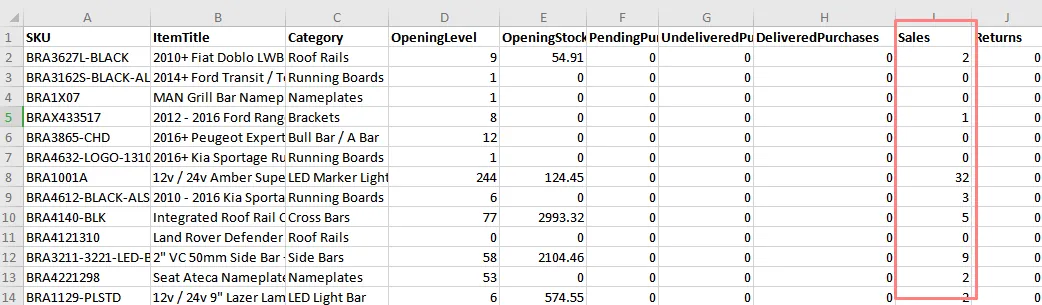
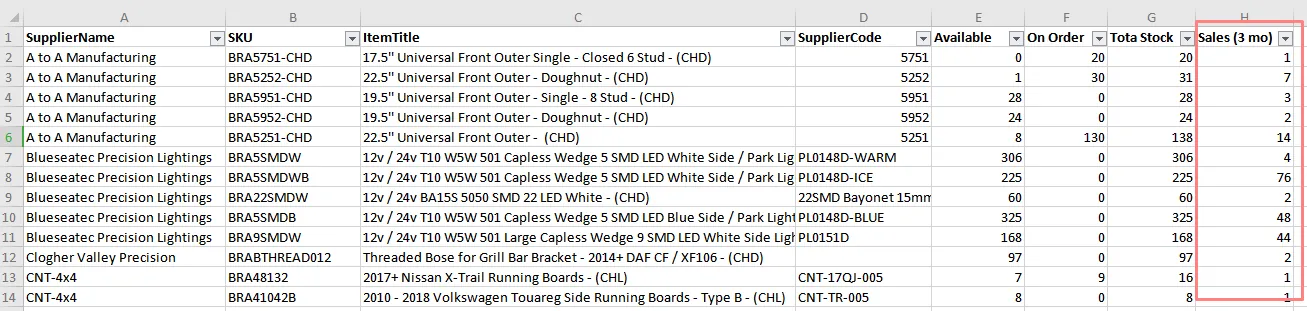
- Add column for 3 months sale in the Product Supplier table and lookup the values for the Stock Movement table in FIG 2.2.14
-
Calculate the quantity to order by doubling the Sales in 3 months (this also means 120 days in stock based on the past 3 months sale) and subtracting this from the Total Stock (FIG 2.2.17) .
-
Filter only negative numbers in the
To Ordercolumn (FIG 2.2.18) - the items in these rows are the ones needing the replenishment or new order. You can then adjust slightly the quantity to order if needed e.g. if theTo Ordervalue shows a-1value, it means suggested replenishment is 1 and you can adjust it to order 5 qty for this item needing replenishment (FIG 2.2.19).
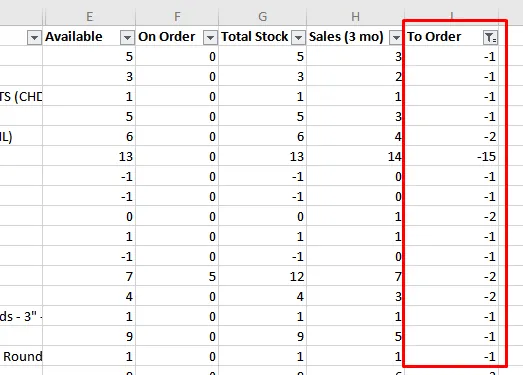
items needing replenishment quantity
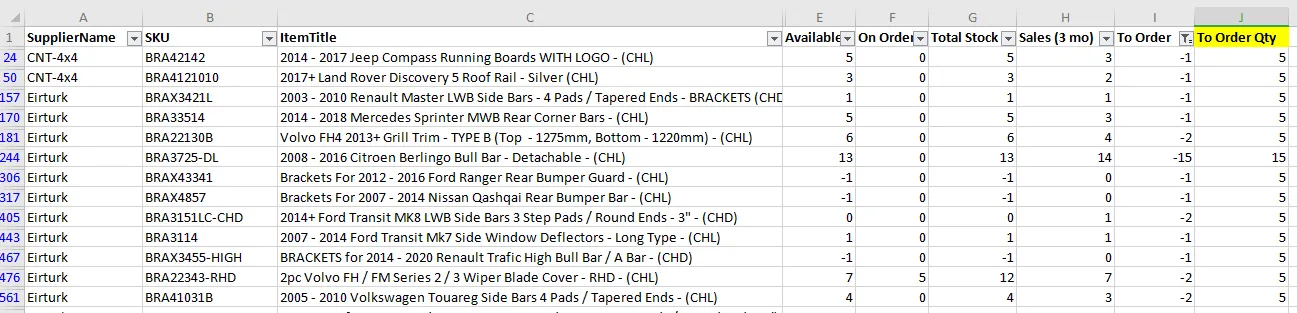
Use data in FIG 2.2.19 to add items not suggested in Inventory Planner and to check if suggested replenishment in IP are closer to the quantity in FIG 2.2.19.
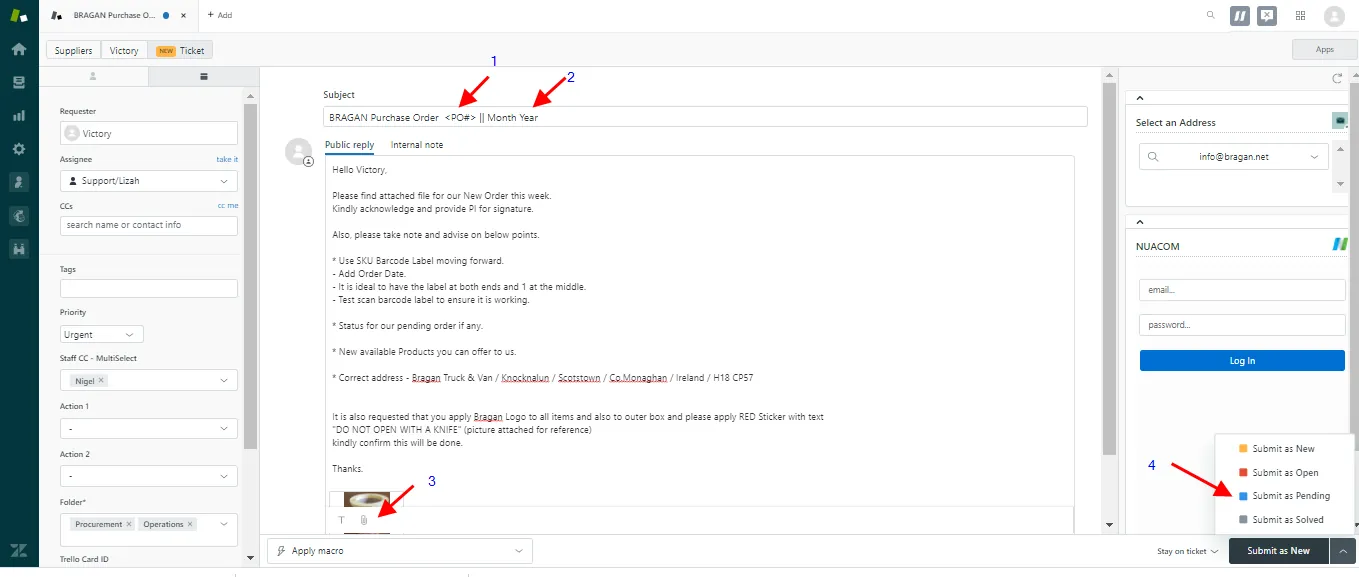
Sending email to Supplier via Zendesk (Old Process)
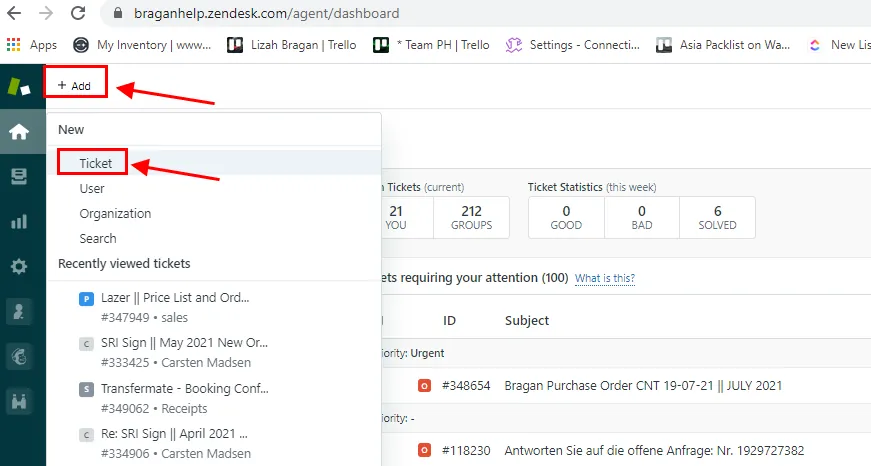
and create a new ticket (fig 2.5.7) to send the purchase order to the supplier using the same email address as seen in Catalog > Vendors in Inventory Planner (fig 2.5.5 and fig 2.5.6). You can also refer to the "Suppliers List" file for the supplier email addresses attached file at the bottom of the page.
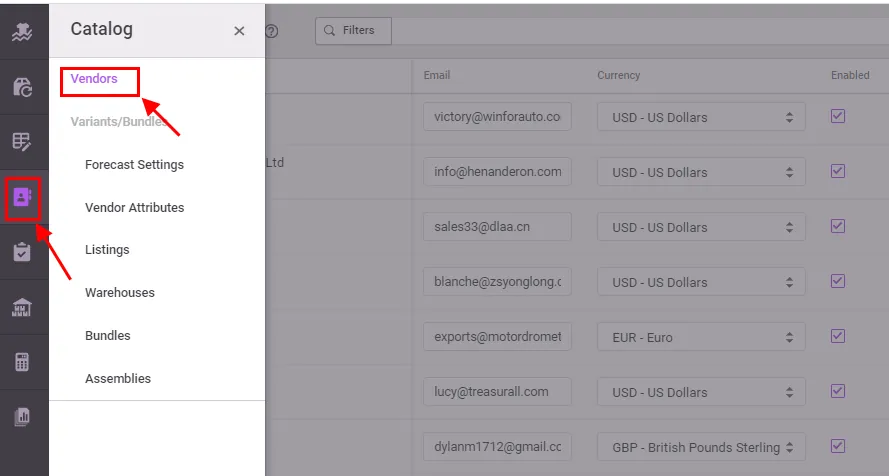
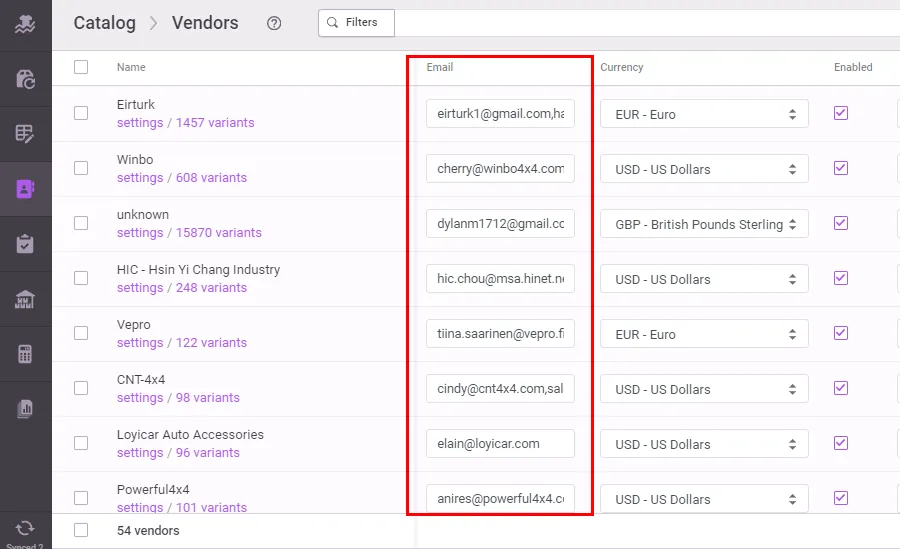
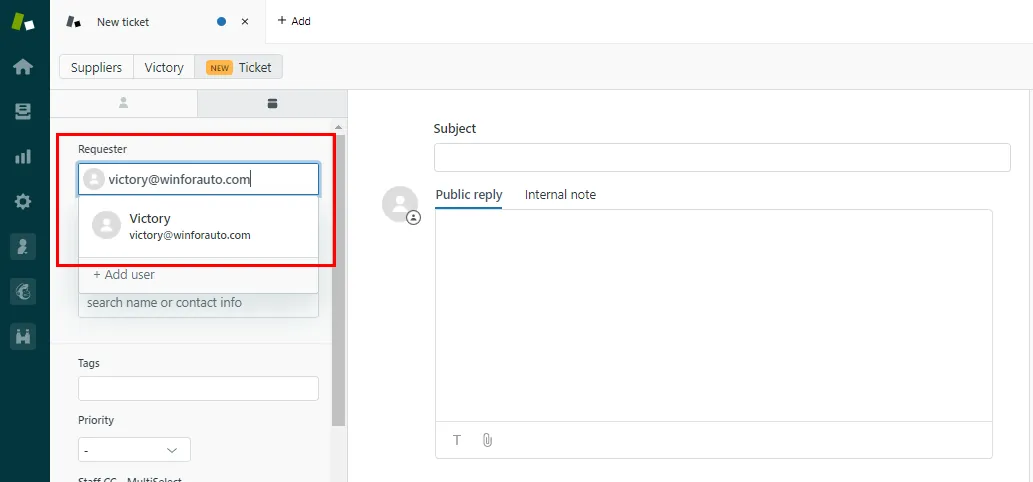
Input the email address of the supplier in the requester section of the new ticket (fig 2.5.8)
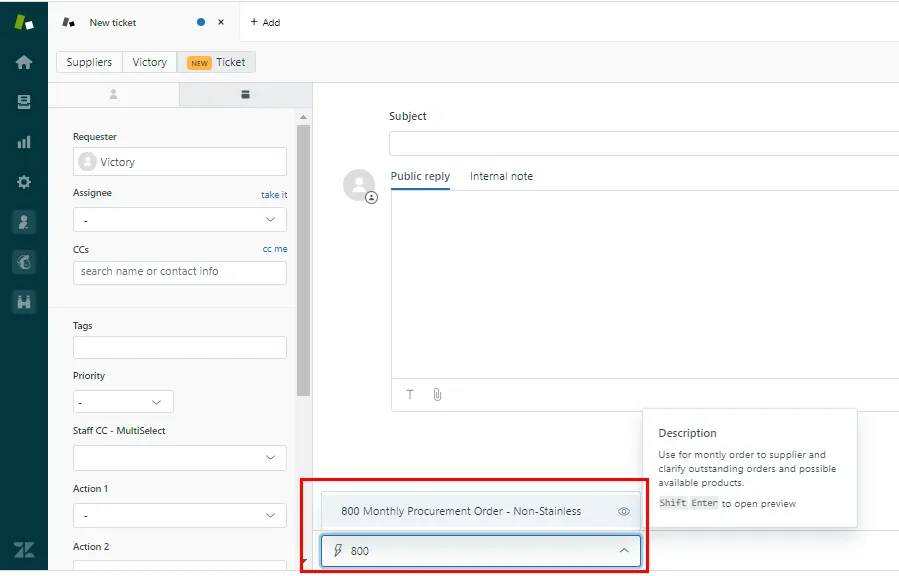
Apply Macro 800 - Monthly Procurement Non-Stainless for non-stainless suppliers
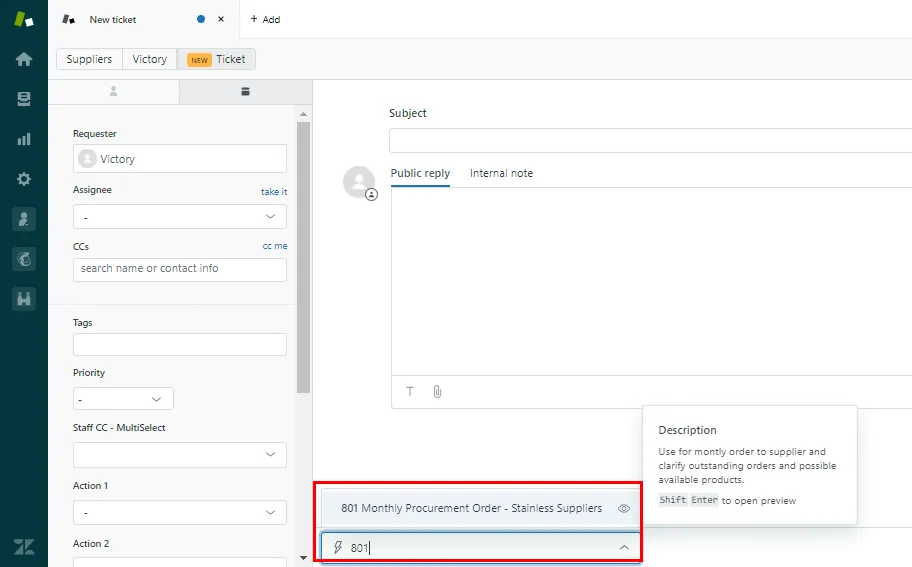
And use Macro 801 - Monthly Procurement Stainless for stainless suppliers.
In Fig 2.5.11
1 - Input the PO# from Inventory Planner (PO# should start with supplier code followed by date)
2 - Input the current Month and Year the PO is sent
3 - Attach the PDF and CSV copies of the PO saved in the supplier dropbox folder
4 - Send the email using the Submit as pending option
Video & Media#
Notes#
This section is important so Adhoc points and issues can be logged. Also, Q&A can be logged for suggestions for potential issues encountered. Also, log important notes needed for this system. Additional Notes:
It is very important to keep a sufficient amount of stock available and ready to send to our customers without being overstocked on items. Inventory Planner should accurately predict the stock needed to purchase.
Potential Issues:
1 - ISSUE ENCOUNTERED: Stuck on Loading
RESOLUTION: Refresh Browser
2 - ISSUE ENCOUNTERED: Broken Links
RESOLUTION: Get the external link as this will allow other people to access the SOP without the need for login credentials and avoid broken links.
Attachments#
Nigels_Signature.jpg 16/12/2025
Suppliers_-_Jan_2021.xlsx 16/12/2025