Creating an eBay Promotion SOP
Items that are not selling for the past 6-8 months and overstock items are qualified
Overview#
Purpose: Items that are not selling for the past 6-8 months and overstock items are qualified and will be included in the promotion. Please see section 4 for the process of extracting these data from Linnworks.
Scope: This process describes how to create eBay promotional campaigns to wit: sale events and multi-buy promotions for some pre-identified slow-selling and overstock items in the inventory.
Responsibility: It is the customer service representative’s responsibility to create promotions.
Objective: The objective is to create more sales by offering discounts on products.
Creating a Sale Event Promotion#
- Go to Marketing in Seller Hub - www.ebay.co.uk
- Select Promotions on the left side of the page.
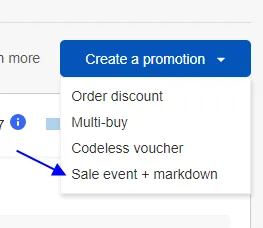
- Select Create a Promotion.
- Choose Sale Event + Markdown.
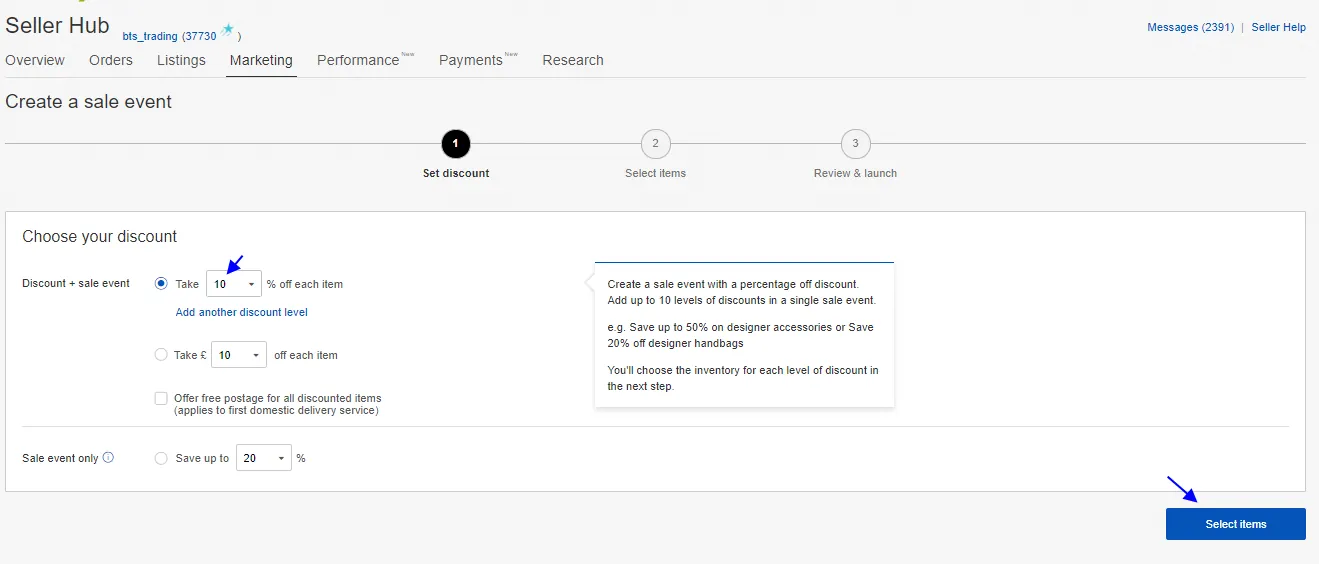
- Choose discount (to be advised by management), then click Select Item (This will start at 5% then increase by 5% each week until it gets to 50% off for non- selling items.)
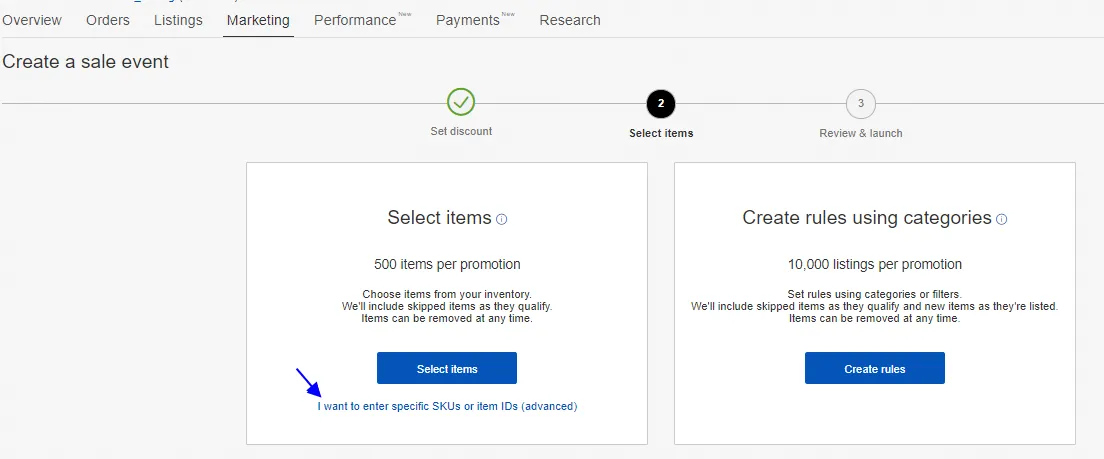
- Select I want to enter specific SKUs or item IDs.
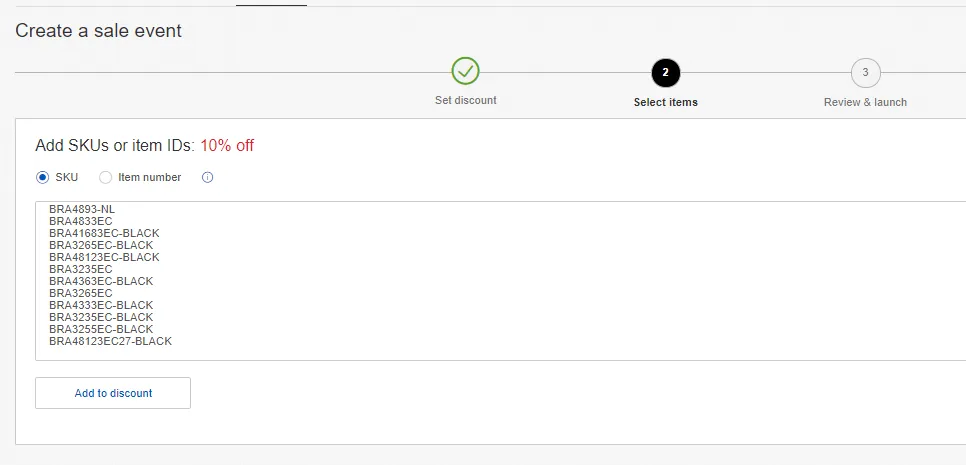
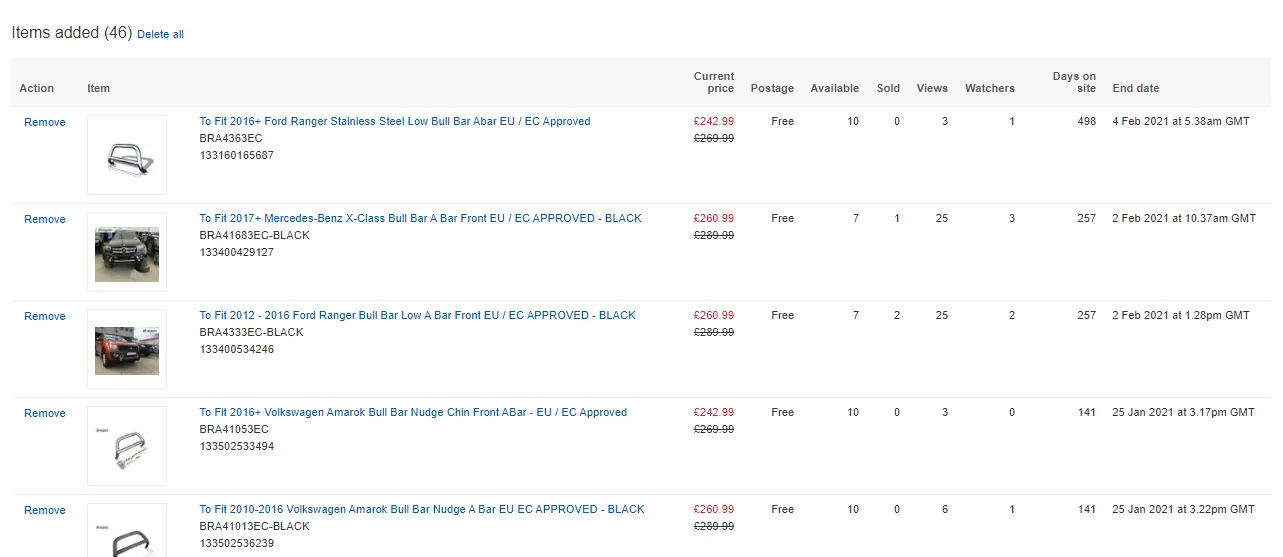
- Add list of SKUs to discount.
- You would then see the list below. Click Review button found at the lower right corner.
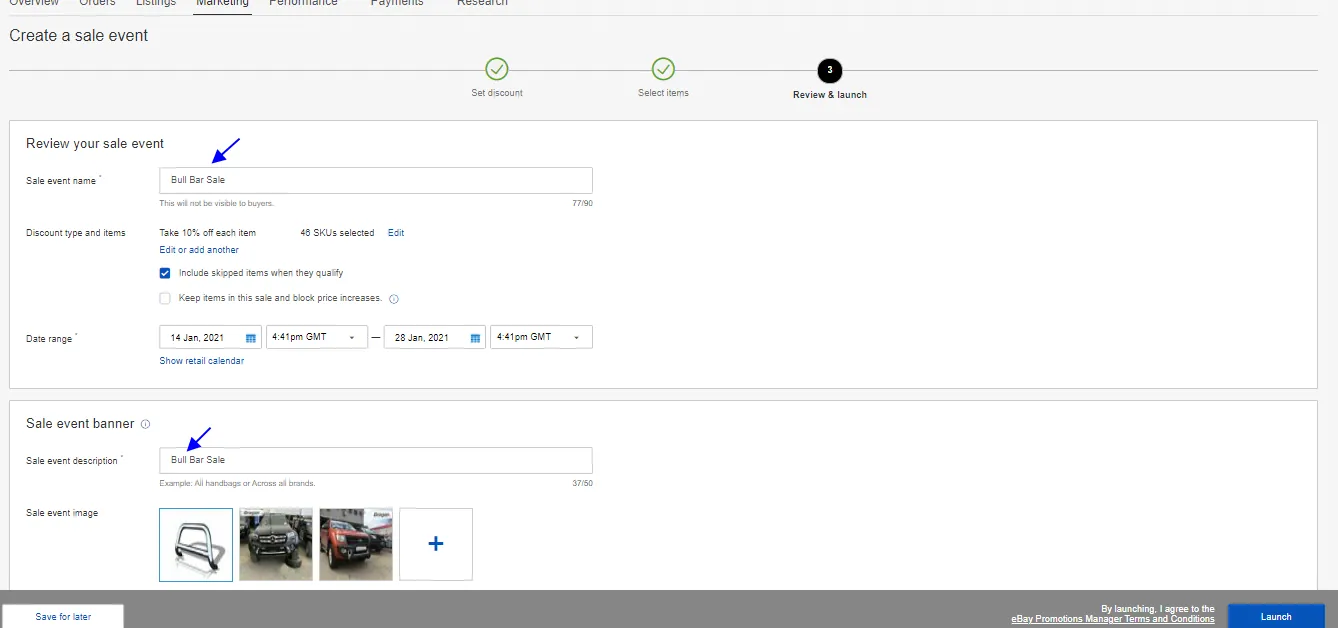
- Provide a meaningful Sale Event Name, Date Range (must be 2 weeks) and Sale Event Description and click Launch button found at the lower right corner.
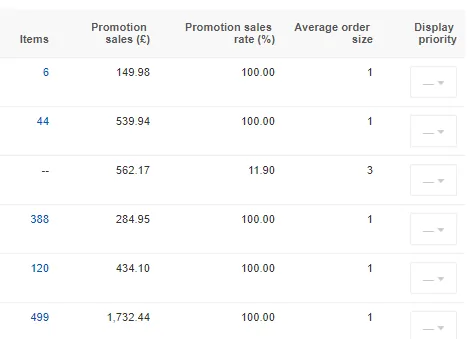
- You will then see this in the list of promotions.
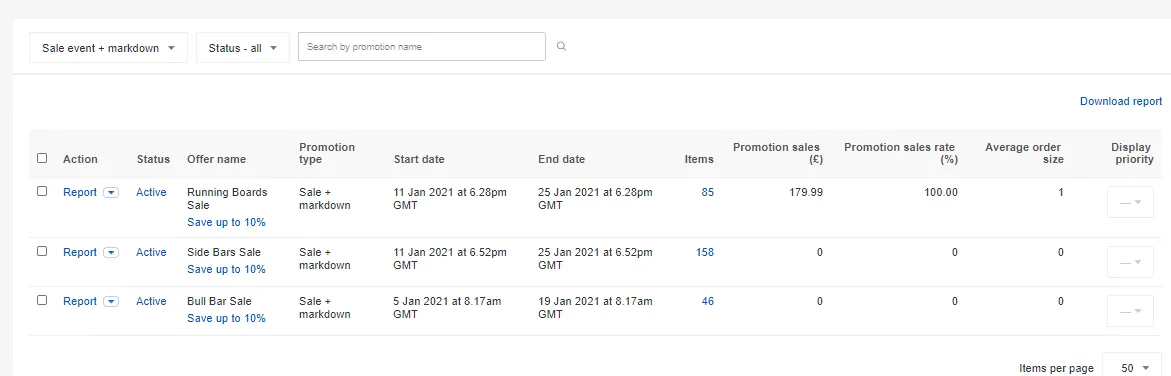
- Check daily promotional campaigns are running ok on both eBay accounts - add new campaign / edit existing as needed.
Creating Multi-buy Promotion#
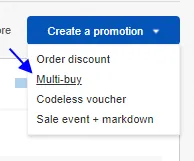
- From the Create a Promotion dropdown list, select Multi-buy
- Type a meaningful offer name, set pricing tiers (to be advised by the management), add inventory (elaborated in the next step), set the date range (to be advised by the management).
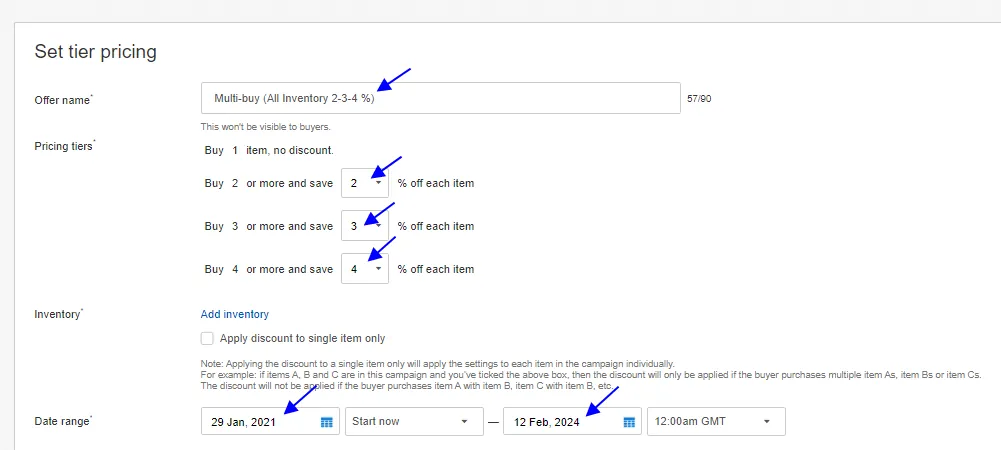
- To add inventory, you can provide list of specific SKUs if you just need to include not more than 500 items as in B.1 - 7.
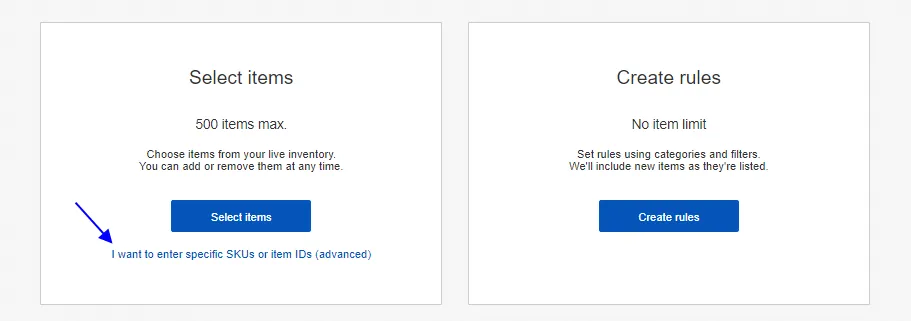
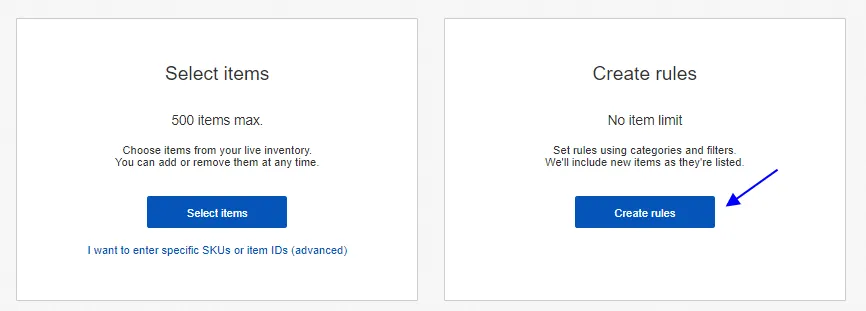
- You can also include unlimited number of items by choosing Create Rules option.
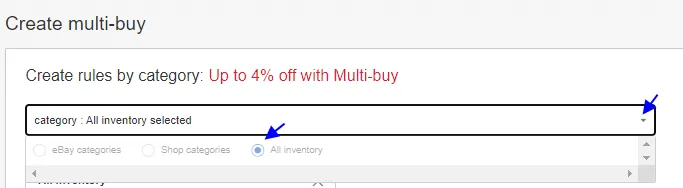
- You can choose All Inventory if the management advised to include all items in the multi-buy promotion.
- Click Review button place at the lower right of the screen.
- And then finally click Launch.
Scheduling a Promotional Campaign#
Promotional campaigns should be done on a weekly basis. A product category to be included in the sale will be choosen by the management.
Monitoring Promotions#
Active promotions should be checked and monitored daily to see if items are selling. When a promotion is ended, a report of sold out items from the promotion is to be
submitted to the management for assessment and a decision is made on the next % discount to be given for the succeeding promotion of unsold items.
Extracting List of Slow Selling Items in the Past 6 -#
8 Months
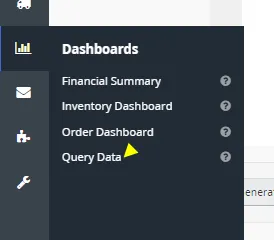
- You need to download Stock Movement csv file using the Query Data report. Start date and End date should cover the past 6 - 8 months.
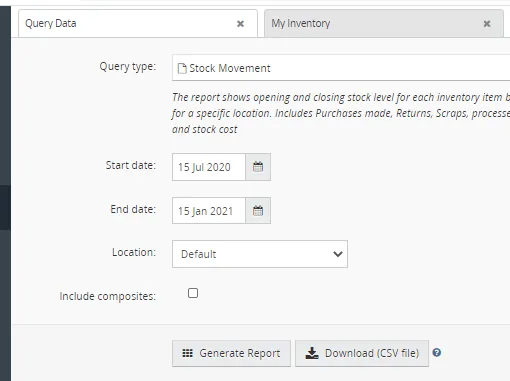
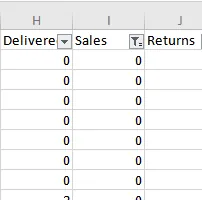
- Filter only zero(0) values in the sales column of the file. This will give the list of all child items that are not selling in the past six(6) months. The list may include listed and not listed child items but you need all of these SKUs to get all parent items that use these child SKUs as their composites. Furthermore, filter the category column removing all categories that are not essential for sale such as spare parts, brackets, adhoc items, etc.
- Copy at least the SKU and Item Title from the above into a separate file.
4.You need to download the Composite Export file from Query Data.
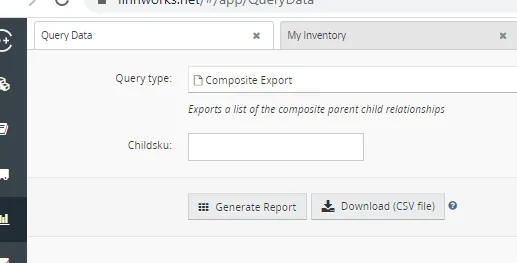
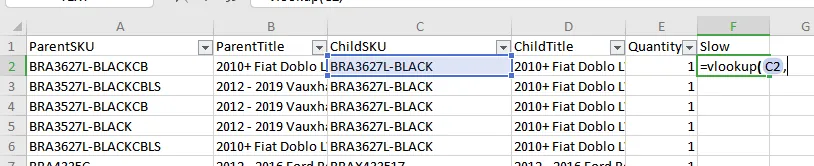
- Use the =vlookup(ChildSKU,…) formula to lookup the ChildSKU from the composite export file that matches the same SKU in the file created in step 3).
- Filter only the rows with matching values in column C and column F. These will give you the list of parent SKUs of the slow selling items.
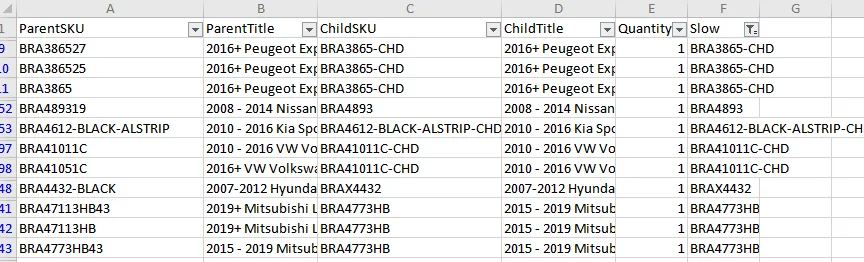
- Take the list of all child SKUs (removing CHD - child not listed) and parent items.
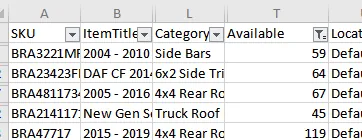
- You still need one more step that is to lookup the available quantity of each item in step 7) from Stock Item (with levels) that can be exported from Query Data. Use the Available column of Stock Item (with levels) to get the available quantity.
- Include only the items in step 7) that are not out of stock in the promotion.
Extracting List of Overstock Items#
- You can simple download Stock Item (with levels) from Query Data and filter all quantity above 25 in the Available column. Ensure to exclude categories that are not essential for the sale as mentioned in Appendix A-2).
Video & Media#
Notes#
This section is important so Adhoc points and issues can be logged. Also, Q&A can be logged for suggestions for potential issues encountered. Also, log important notes needed for this system.
Additional Notes:
This document shows how to create promotions Items that are not selling for the past 6-8 months and overstock items are qualified and will be included in the promotion. To create promotions Items that are not selling for the past 6-8 months and overstock items are qualified and will be included in the promotion. "Add important notes here"
Potential Issues:
1 - ISSUE ENCOUNTERED: Stuck on Loading
RESOLUTION: Refresh Browser
2 - ISSUE ENCOUNTERED: Broken Links
RESOLUTION: Get the external link as this will allow other people to access the SOP without the need for login credentials and avoid broken links.
3 - ISSUE ENCOUNTERED: "Type Text Here"
RESOLUTION: "Type Text Here"