Creating and Delivering Purchase Order in Linnworks SOP
Procurement is a vital process on the supply chain because it is where the process
Overview#
Purpose: Procurement is a vital process on the supply chain because it is where the process of maintaining stock inventory begins. Creating PO in Linnworks is needed in this process so that stock levels would be updated in Linnworks. The purpose of this document is to outline to new and existing procurement members the process of creating PO in Linnworks.
Scope: This procedure applies to Procurement Team.
Responsibility: It is the responsibility of each employee to ensure the process set out in this procedure is followed.
Objective: The objective of this procedure is:
to standardize the process of creating PO in Linnworks.
Procedure#
1.) Creating a PO in Linnworks When using the new procurement software Inventory Planner, the purchase order is created and can be automatically saved at the same time in Linnworks. But purchase orders can also be created the other way around. In case you will be creating purchase orders for all new items not yet added in Inventory Planner, you can choose to create it first in Linnworks provided SKUs for the new items are already created. The new PO created in Linnworks will be sync to Inventory Planner at the scheduled time.
1.1 Navigation
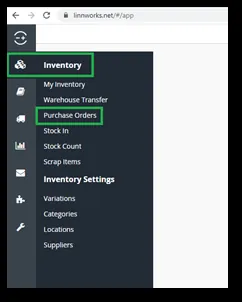
Navigate to Inventory > then select Purchase Orders (FIG 1.1)
Click the +New PO button on the left side of the screen. The button will open the Edit Purchase Orders screen where you can proceed further. (FIG 1.2)
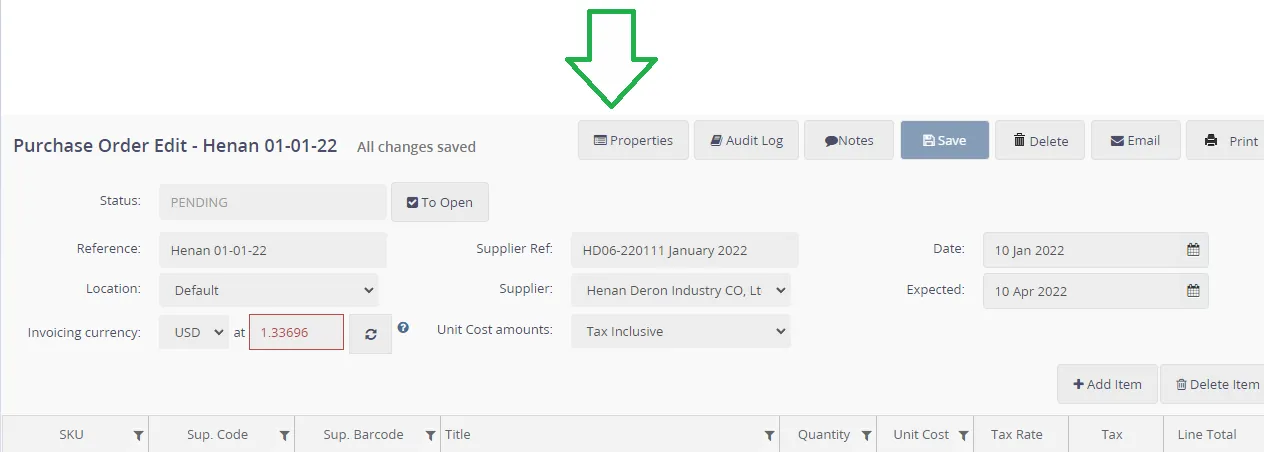
Review PO's general information that is added by default and adjusts any details in the Edit Purchase Order screen. (FIG 1.4)
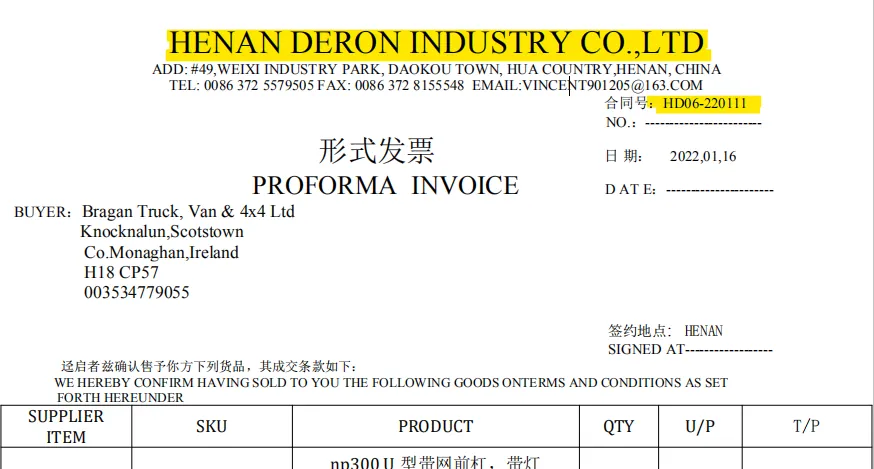
Reference – this is the Bragan Purchase Order Number containing the Supplier name and date of the purchase order e.g. Henan 01-01-22 Location – set to Default Invoicing currency – do not update, this will be updated based on Supplier’s currency (once Supplier has been selected). Supplier Reference – this is the supplier Invoice Number but add Month and Year e.g. HD06-220111 January 2022 Supplier – select the correct supplier e.g. Henan Deron Industry CO, Ltd Unit Cost amounts – Tax Inclusive Date – Creation Date Expected – 3 months after creation date (this is just an estimate) Status – Leave this for now
Sample PI: (FIG 1.3)
1.2 Adding items in the PO.
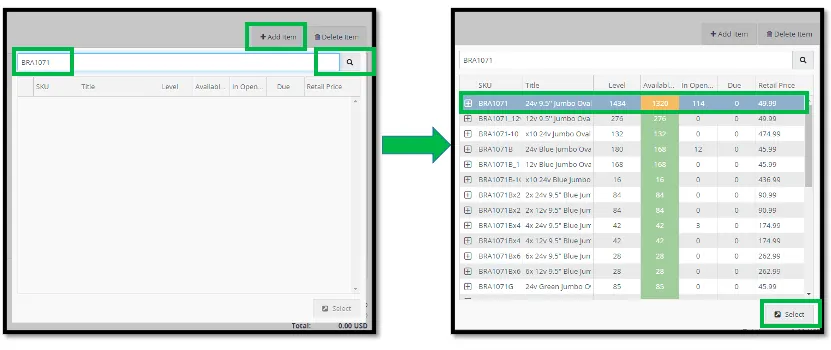
Note – for FOC (Free of Charge) / Replacement items, Unit Cost should be 0 (this is just to monitor FOC items) Manual – using the +Add Item button Select the +Add Item button beside the Delete Item button on the middle left side of the screen. Paste the SKU or type into the search box and click the Search button or hit the Enter key. (FIG 1.5) Highlight the correct SKU and Click the Select button
Bulk – using drag and drop via CSV (FIG 1.7) . Use this template for Bulk product upload to PO. (FIG 1.6)
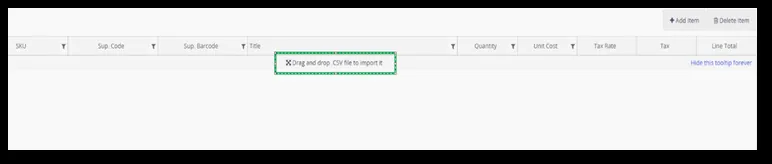
Ensure that the file type is CSV. Drag and Drop the file into the items table. Once all items have been added.
Save the PO by selecting the Save button in the upper right corner of the screen. Date of PO creation and Expected Date are automatically generated in LW but you have to edit the Expected Date to current date+3months (FIG 1.8)
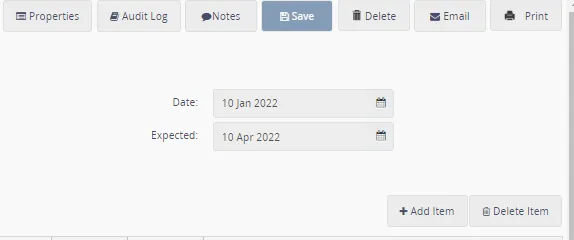
Change the Status under the PO's general information, this is found in the upper left corner of the screen to Open – this will add the PO qty to the On Order column in the Stock Items (with level) query data export file. Stock Due for the selected location will be incremented by the quantity of items on order. (FIG 1.9). PO changed to Open status - see FIG 1.10.

A new version was created for the process on delivering purchase order in LW please see this SOP.
2.) Delivering Purchase Order in Linnworks Purchase Orders are primarily created from Inventory Planner and changed from Pending to Open status in Linnworks once the order has been confirmed (Proforma Invoice (from China suppliers) signed or Order confirmation (from Europe suppliers) received after placing the order to the suppliers.
2.1 Open the Supplier Packlist
The Packlist is a document containing the list of finished goods shipped by the supplier with details of the SKU, description and quantity. This can be obtained from the supplier thru email or Wechat (for China suppliers). These are saved in the respective supplier dropbox folder.
Sample Location of Packlist (FIG 2.1)
Packlists are also saved in Warehouse Trello under Incoming Containers → Turkey / Europe / Asia list
ASIA PACKLIST 2022 - trello.com
TURKEY - EIRTURK 2022 - trello.com
EUROPE 2022 - trello.com
NOTE: Mark the Trello checklist as completed once PO has been delivered to LW.
NOTE: The packlist from some suppliers like CNT and Loyicar are usually a mixed of more than one purchase orders as they deliver the finished goods in bulk, same as Winbo and Eirturk. So this means you need to deliver more than one PO in Linnworks from one packlist. Some items in the packlist may also contain partial quantity in the PO so you just need to deliver the quantity reflected in the PO.
For small orders you can also use confirmation PI (like Marco, Lazer Lamps, etc.).
2.2 Search the PO to Deliver in Linnworks
Go to Inventory > Purchase Orders select date range at least 6 months backward select the correct supplier name click all tab (upper right) click search button Select the open or partial PO from the topmost (earliest date) and double-click it or click the Deliver button to open the Edit Purchase Order screen. see (FIG 2.2)
Cross-check the Packlist against the PO that was created in LinnworKs.
NOTE: if the Packlist quantity does not match the LW PO quantity, you need to deliver the items with the Packlist quantity. This will mark the PO as Partial in status. This means the PO still has a quantity to receive. The supplier will notify us of this kind of scenario.
2.3 Delivering Items individually and Delivering Items in Bulk
You can use the Deliver Item button (to deliver one item at a time) or Deliver All button (if all items in the Purchase Order with the correct quantity are present in the packlist.)
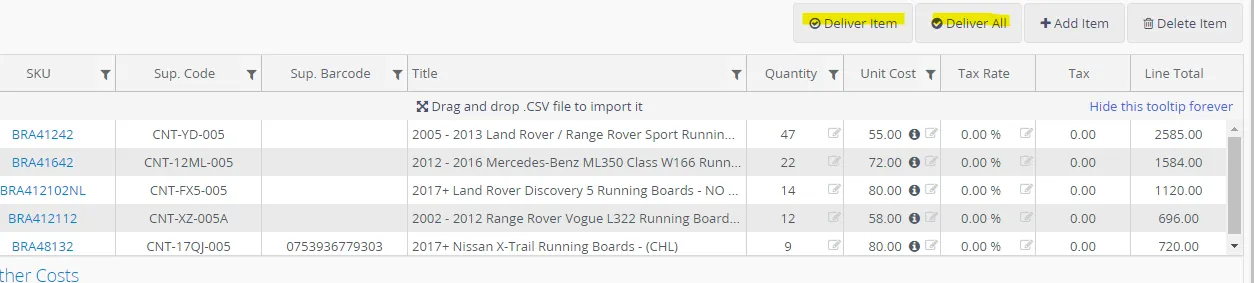
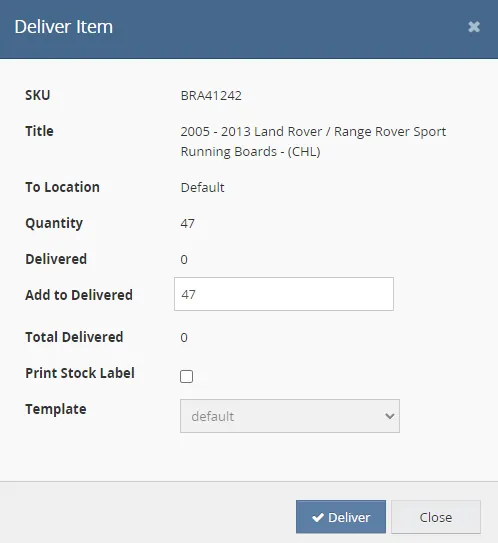
The Deliver Item button: use to deliver items individually. (FIG 2.3)
Select an item in the items table and click the Deliver Item button. Specify the quantity that was delivered by the supplier in the Add to Delivered field. Check the Print Stock Label box if you need to print stock item labels when delivering an item. The Stock Item Label template needs to be set up in the Template Designer screen. Click the Deliver button. see FIG 2.4
The Deliver All button: use to deliver all items in one go. (FIG 2.3)
Click the Deliver All button. Double-check quantities in the Deliver All pop-up > To Deliver column. Check the box in the Print column if you need to print stock item labels when delivering items. The Stock Item Label template needs to be set up in the Template Designer screen. Click the Deliver button. see FIG 2.5
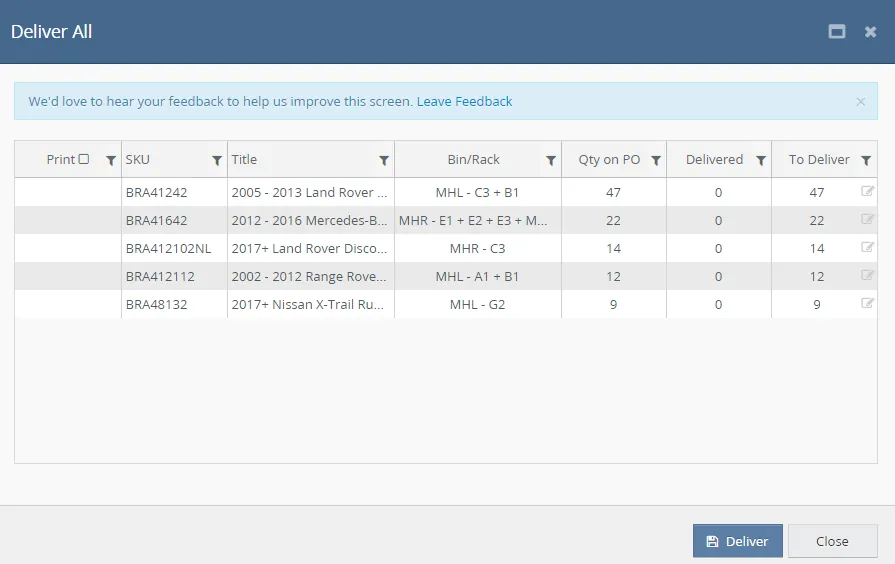
This will mark the PO as delivered and stock levels of all items will be increased.
NOTE: When delivering replacement item (FOC from supplier), mark Unit Cost as 0.
2.4 Checking Quantity Delivered.
Before delivering the PO in LW, download this report from Query Data first. (FIG 2.6)
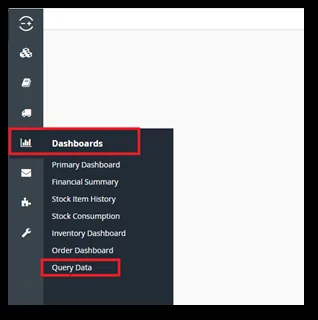
Stock Items (with levels) → you can rename as stock items with levels dd mm yyyy
- before delivery (FIG 2.7)
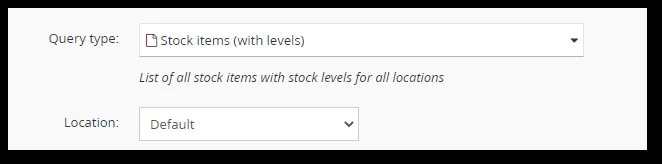
After delivering the PO in LW, download the same - Stock Items (with levels) → you can rename as stock items with levels dd mm yyyy – after delivery
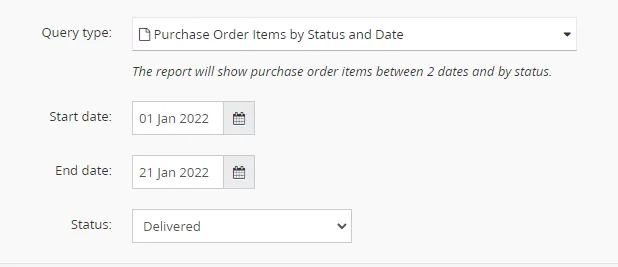
Download Purchase Order Items by Status and Date as well
Date Range should be the same as the current PO you are delivering.
Status = Delivered (FIG 2.8)
Open all 3 files and do a comparison checking of stock levels for delivered items.
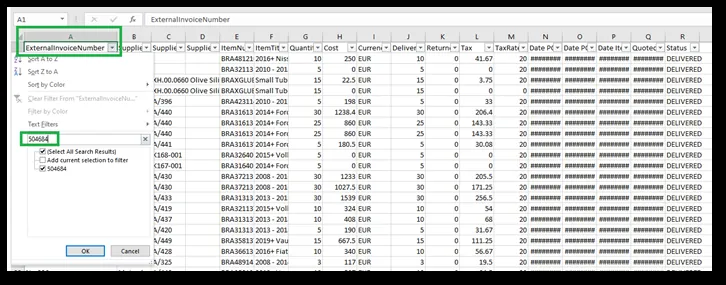
In the Purchase Order Items by Status and Date, filter the ExternalInvoiceNumber (column A) using the PO# of PO delivered in LW. e.g 504684 (Fig 2.9)
Copy all columns and Paste them into a New excel sheet. You can remove unnecessary columns (check image). (FIG 2.10)
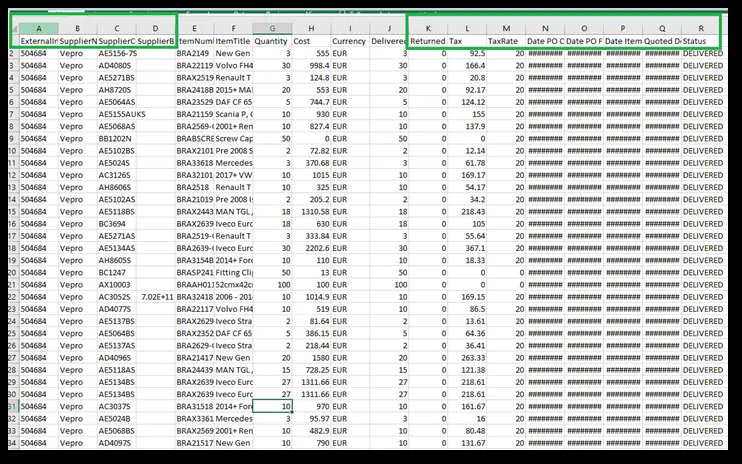
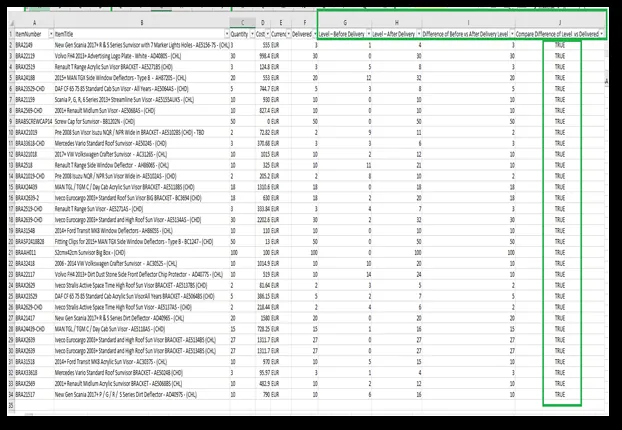
Add these columns and perform formulas.
Level – Before Delivery → lookup Level from the Stock Items (with levels) before the delivery file Level – After Delivery→ lookup Level from the Stock Items (with levels) after delivery file Difference of Before vs After Delivery Level → use equals formula = Level – After Delivery - Level – Before Delivery
Compare Difference of Level vs Delivered → use equals formula = Difference of Before vs After Delivery Level - Delivered → the result should be ALL TRUE, otherwise, there is a quantity discrepancy for the Delivered items Level and Added Levels to Inventory.
Notes#
This section is important so Adhoc points and issues can be logged. Also, Q&A can be logged for suggestions for potential issues encountered. Also, log important notes needed for this system. Additional Notes:
Before delivering PO to Linnworks, download the Stock Items (with levels) report. This will be used to cross-check the stock levels before and after PO delivery.
Potential Issues:
1 - ISSUE ENCOUNTERED: Stuck on Loading
RESOLUTION: Refresh Browser
2 - ISSUE ENCOUNTERED: Broken Links
RESOLUTION: Get the external link as this will allow other people to access the SOP without the need for login credentials and avoid broken links.