Generating Reports from Linnworks
This SOP gives a summary of what are the commonly used reports we export in
Overview#
Purpose: This SOP gives a summary of what are the commonly used reports we export in Linnworks Query Data. These is very useful when you want to export information such as prices, descriptions, titles, extended properties, supplier details etc of all your inventory items in Linnworks.
Scope: This only covers the most commonly used Query Data reports in Linnworks such as: Composite Export Report, Stock Items (with levels) Report, Extended Properties Report, Channel Information by Source and Subsource Report and Product Suppliers Report.
Responsibility: It is the responsibility of all Bragan Employees to ensure the process set out in this procedure is followed.
Objective: To be able to give a summary guide on the commonly used export reports in Linnworks Query Data.
Procedure#
The Query Data dashboard in Linnworks contains a set of reports allowing you to analyze and summarise data about your inventory and orders. These is very useful when you want to export information such as prices, descriptions, titles, extended properties, supplier details etc of all your inventory items in Linnworks.
Detailed here are the different Query Type and what are the information content for each. It will only cover the most common and mostly used query type.
To access Query Data follow the steps below:
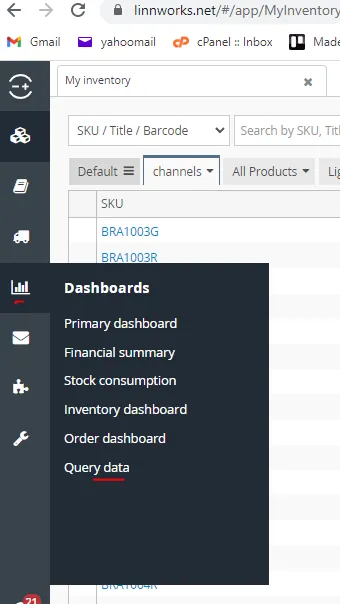
- Log-in to Linnworks using the credentials that management provide. Once logged in click Dashboards > Query Data
- You can see now the different Query Type, each query type contains information about our inventory in Linnworks. Your query type will depend on what information you want to export from Linnworks. Once you select the type you want, just click on Download CSV file.
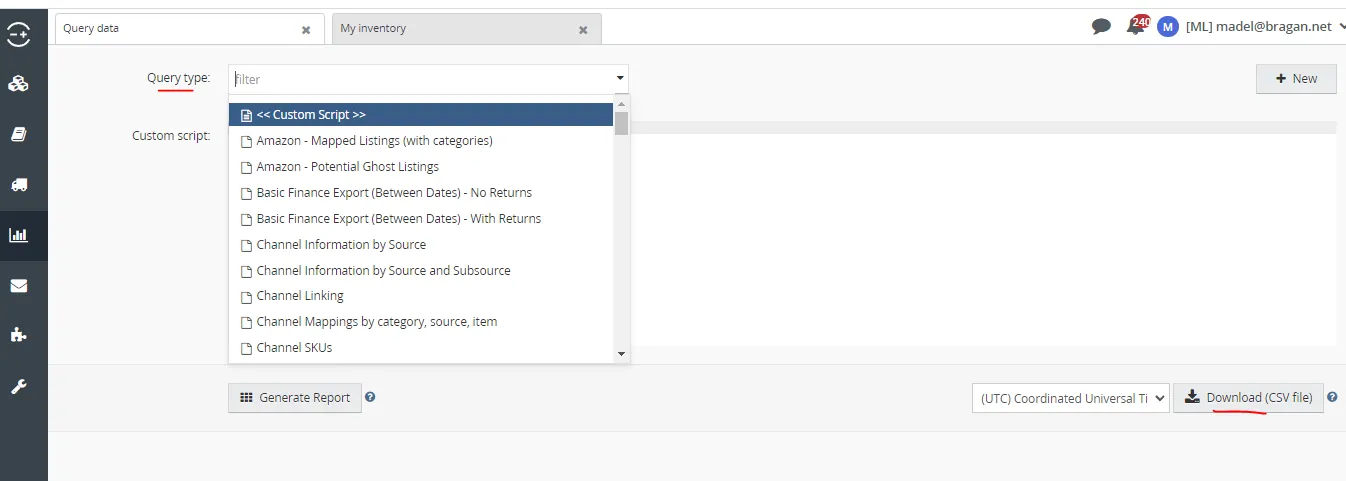
- If you do not want to download it and just check it here in Linnworks, just click Generate Report.
Commonly Used Query Types#
- Composite Export Report
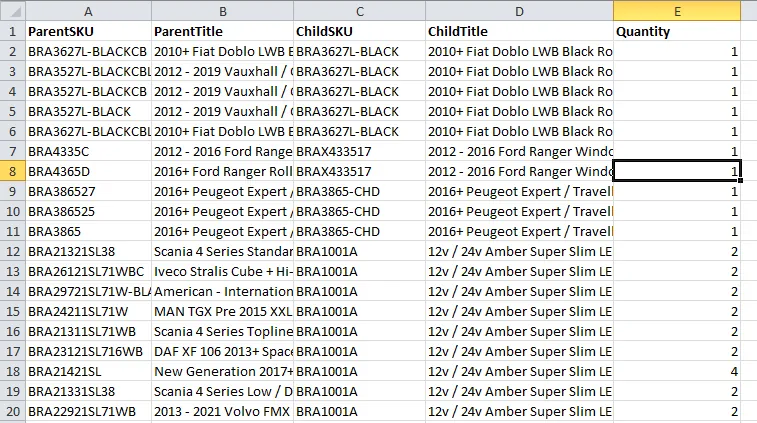
It gives a list of all parent items and the quantity of their child items. To know what are child and parent item, refer to this SOP.
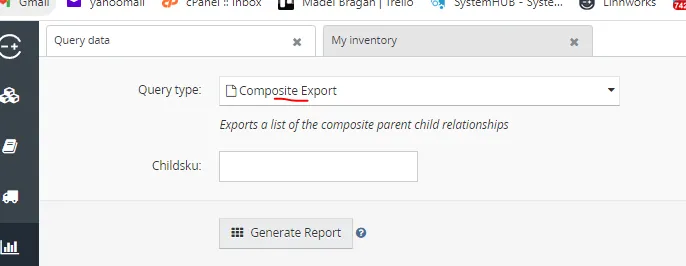
if you want to see all parent items that has the same child item, you can also use this query type. This mean you specify the child SKU so that all Parent SKU with this child SKU will be the only ones showing in the CSV file
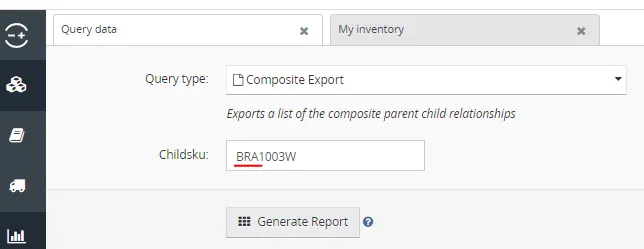
See Figure 5 below for the content of this CSV report
- Stock Items (with levels) Report
outputs all stock items including archived items in the Linnworks database with stock levels for a specified location. Location should be Default
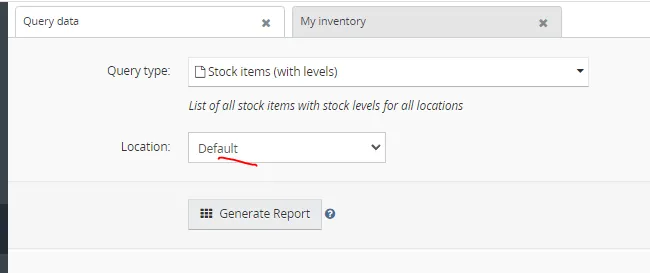
This report contains many different information, see list below. Therefore if you want to see most of the information listed here then this is the appropriate report you will download.
SKU code (all SKU both parent and child that is in Linnworks)
Item Title
Item Description
Purchase Price
Retail Price
Category
Stock Level
Barcode Number
Bin/Rack Location (item location)
Dimensions of the item (Height, Width, Depth)
Weight of the item

- Extended Properties Report
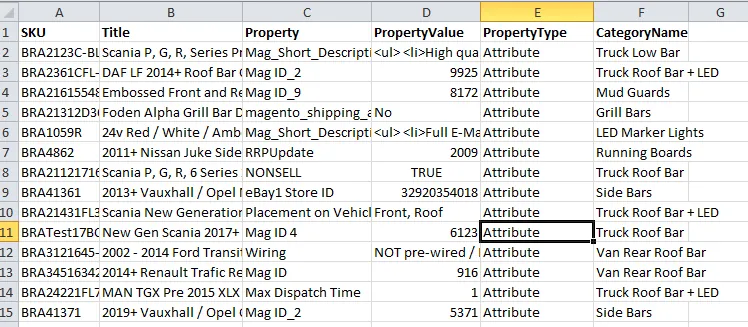
If you want to see the extended properties of each item in Linnworks, such as eBay item specifics, Amazon bullets, magento short descriptions etc.
If you want to see the extended properties of a specific SKU only, you type in the item number the SKU code.
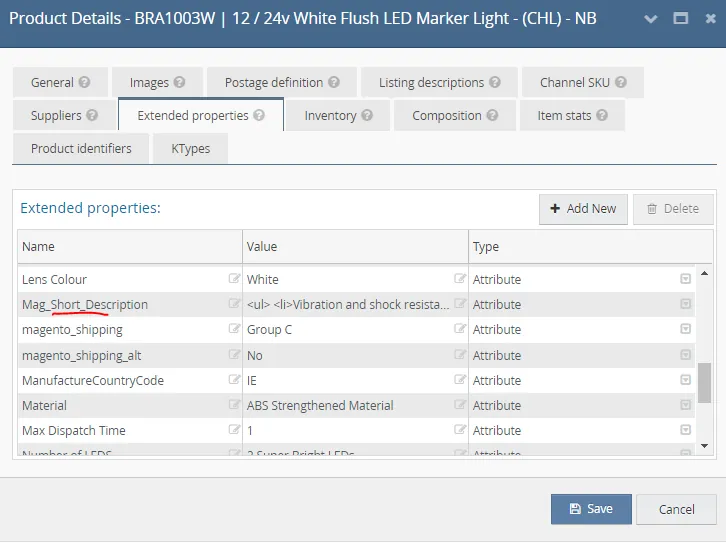
If you want to see a specific extended property only example you only want to check all the magento short description then type in Mag_Short_Description. The property name that you will input should be the same to the name that is found in the Extended Property tab (see Figure 9). So if you want to search for the magento shipping, you should input magento_shipping.
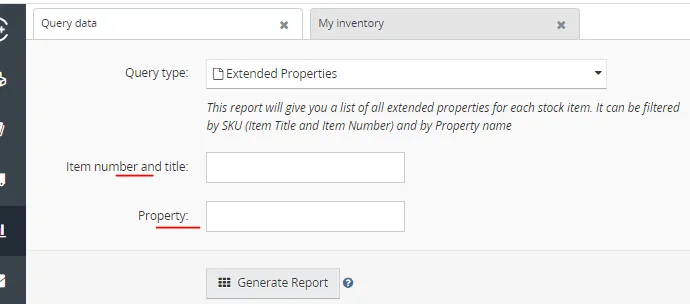
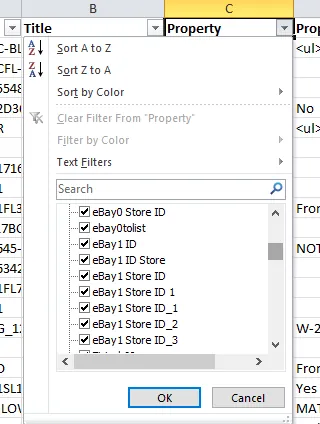
use filter if you only want to see a specific property like the eBay store IDs only.
This information are very helpful if you want to bulk update the extended properties of your listings. See SOP on How To Update Listings In Bulk in
Linnworks
- Channel Information by Source and Subsource Report
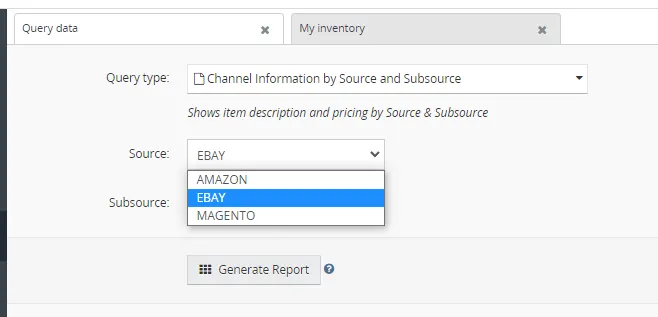
Summarises the information about inventory items stored in Linnworks specifically by Source and Subsource. If you want to see all the listings in eBay then select EBAY as source. You can also specify the subsource. If you only
want to see eBay1 or eBay0 only. But it is better to just select ALL and then just use filter in the CSV report. This is a big file so it may take a while for it to download
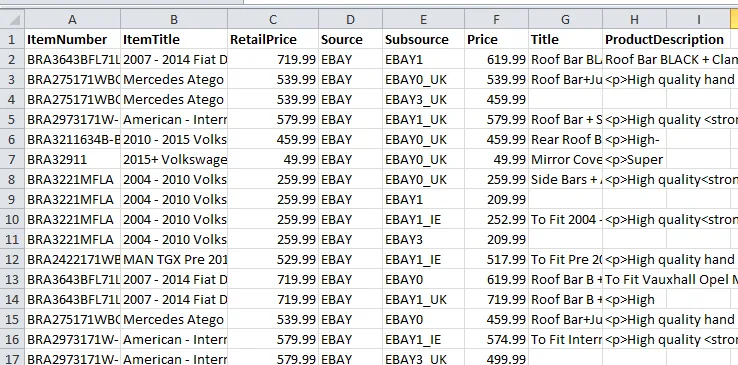
This report is very useful when you want to bulk update your channel listings. See SOP on How To Update Listings In Bulk in Linnworks Information you will get here are shown in Figure 13 below: Retail Price of the item per subsource Purchase Price of the item Product Description per channel Title per channel SKU Item Title
- Product Suppliers
This report shows the supplier information of the inventory items in the Linnworks database. You can choose All Suppliers or a specific supplier.
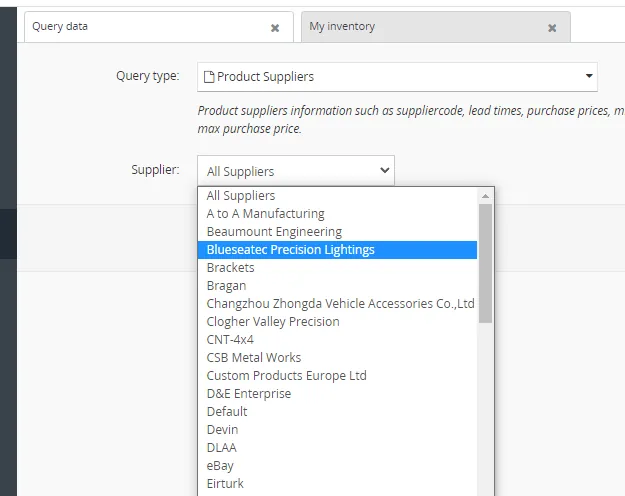
This report contains the following information: Supplier name for each SKU Supplier code for each SKU Purchase price Item Title SKU Lead Time Minimum Order See Figure 15 below for the other information available.
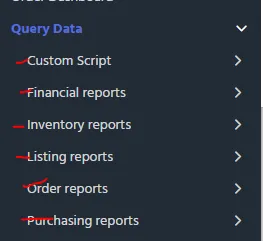
Note: For complete list of Query Types and their details please click this link. Click on the arrows to see the reports within each category.
Combining Reports#
Sometimes you will be tasked to pull information from Linnworks but there are cases wherein you need to pull two or more reports and combine the needed information in one excel sheet.
For example, you will be tasked to create a report that contains the extended properties of all SKUs and the purchase and retail price. You can do this by using the vlookup formula in excel. See SOP on How To Update Listings In Bulk in Linnworks Step 4 to see how to use this formula. Another SOP that gives example on how to use the vlookup is the Trade File SOP, please also check it, step 1.14
Video & Media#
Notes#
This section is important so Adhoc points and issues can be logged. Also, Q&A can be logged for suggestions for potential issues encountered. Also, log important notes needed for this system. Additional Notes:
"Add important notes here" "Add important notes here"
Potential Issues:
1 - ISSUE ENCOUNTERED: Stuck on Loading
RESOLUTION: Refresh Browser
2 - ISSUE ENCOUNTERED: Broken Links
RESOLUTION: Get the external link as this will allow other people to access the SOP without the need for login credentials and avoid broken links.