How to Archive SKUs in Linnworks
The purpose of this document is to outline new and existing staff on how to archive
Overview#
Purpose: The purpose of this document is to outline new and existing staff on how to archive SKUs in Linnworks.
Scope: This procedure applies to all Bragan personnel.
Responsibility: It is the responsibility of each employee to ensure the process set out in this procedure is followed.
Objective: The objective is to standardize the way of archiving skus in Linnworks to all of staff and have the knowledge to do this efficiently and correctly.
How to archive skus in Linnworks
Process Flow#
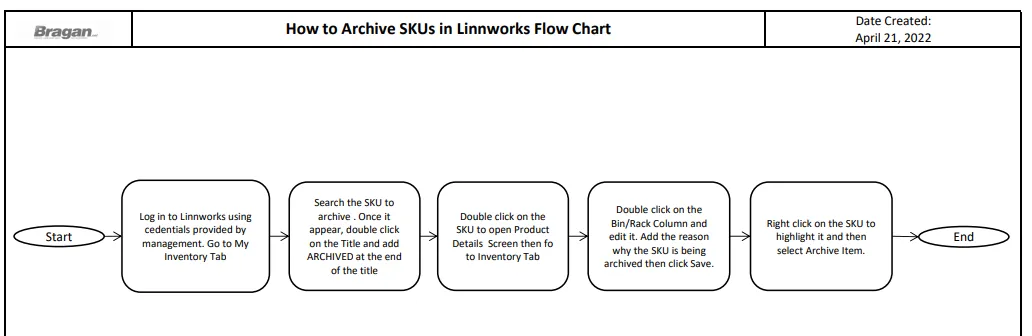
Procedure#
Before archiving TBD SKUs, ensure that the listings have been removed from all sales channels.
- Go to Linnworks > My Inventory and search the SKU that needs to archive.
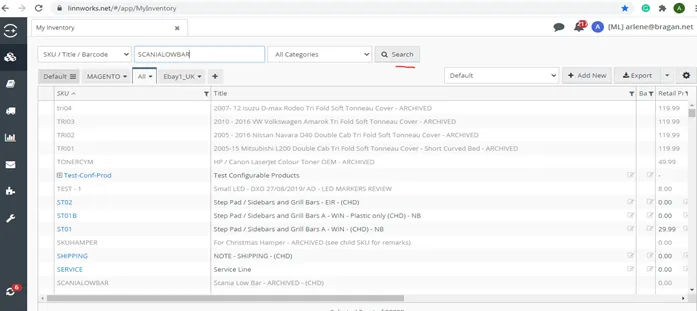
- Double click the SKU title and add ‘ARCHIVED’
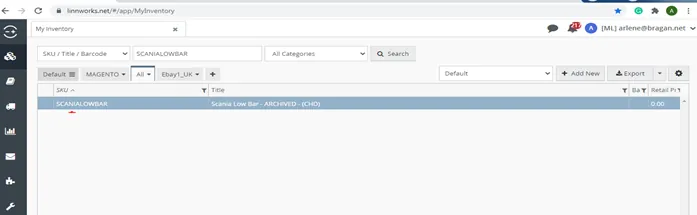
- Click the SKU to open
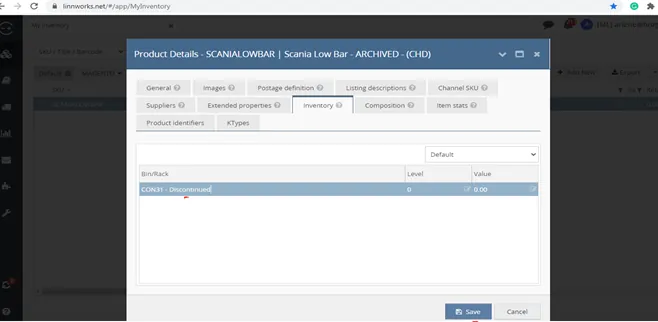
- Go to the Inventory Tab > then Binrack Tab and add the reason of archiving the sku. Then click Save button.
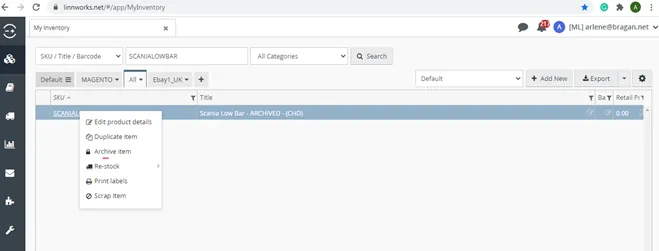
- Right click the SKU and then choose ‘ARCHIVE ITEM’.
Video & Media#
🎥 How to archive skus in Linnworks
Notes#
This section is important so Adhoc points and issues can be logged. Also, Q&A can be logged for suggestions for potential issues encountered. Also, log important notes needed for this system. Additional Notes:
Add the title in Linnworks 'ARCHIVED' Add reason in bin rack why the SKU was archived. This document is very important because this will show the process to new and existing staff on how to archive SKUs in Linnworks.
Potential Issues:
1 - ISSUE ENCOUNTERED: Stuck on Loading
RESOLUTION: Refresh Browser
2 - ISSUE ENCOUNTERED: Broken Links
RESOLUTION: Get the external link as this will allow other people to access the SOP without the need for login credentials and avoid broken links.
3 - ISSUE ENCOUNTERED: Don't know the reason why the SKU was archived.
RESOLUTION: Add the reason in Binrack why the SKU was archived.
Attachments#
How_to_Archive_SKUs_in_Linn… 16/12/2025