How to Create a Variation Listing
Standard Operating Procedures are the clear and concise documents that will serve
Overview#
Purpose: Standard Operating Procedures are the clear and concise documents that will serve as the guiding principle in every task in this business. The purpose of this document is to outline to new and existing employees how to create a variation listing.
Scope: This procedure applies to all Bragan Personnel.
Responsibility: It is the responsibility of all employees to ensure the process set out in this procedure is followed.
Objective: To help employees create a variation listing for all Bragan products.
[Agent 2 Queenie]
(Bragan logo will always remain on top as standard.)
Variations#
When you have many similar items that have different variations, you can arrange them into Variation groups. For example, Side Bars for same Make and Model but for vehicle With or Without Mudflaps.
Variation Groups Components#
Variation groups are made up of standard inventory items that are added to a group under the main item.
Variation parent
The variation parent is the main item that holds information that is shared by all items in the group. Variation parents are required for creating variation listings on selling channels via Linnworks.
Example of Variation parent: (see image #1)
BRA32121SU-VAR Side Bars Tapered Ends + Down Lights for VWC SWB 2021+ - VARIATION
Variation children
Variation children are standard inventory items that represent every item in the variation group.
Example of Variation children: (see image #1)
BRAW32121SU Side Bars Tapered Ends + Down Lights for VWC SWB 2021+ - (CHL) - WITHOUT Mudflaps BRA32121SU-MF Side Bars Tapered Ends + Down Lights for VWC SWB 2021+ - (CHL) - WITH Mudflaps
image #1
How to create a variation listing
| Note | : Prior to creating a new variation group in the | Variations | screen, the actual |
|---|---|---|---|
| stock items (variation children) need to exist in the inventory. |
Add/Create Variation Listing Manually
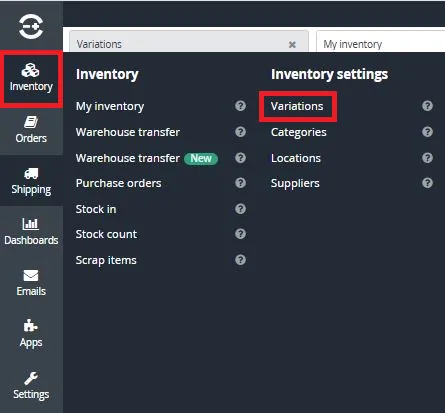
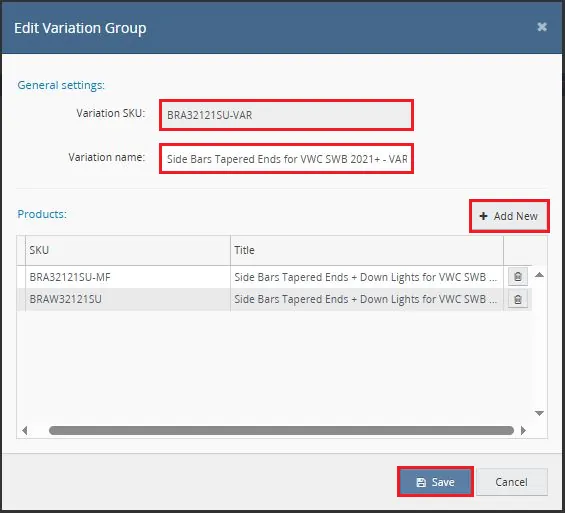
Go to Inventory > Inventory Settings > Variations and click the +Add New button in the top right-hand corner of the screen. In the General settings, add variation parent SKU and variation name. Then in the Products section click the +Add New button which will start the Stock Finder. In the Stock Finder type in the variation child SKU that you wish to add and click the Select button. Once all the variation children are selected, click the Save button to create this variation group.

Add New Variations in Bulk
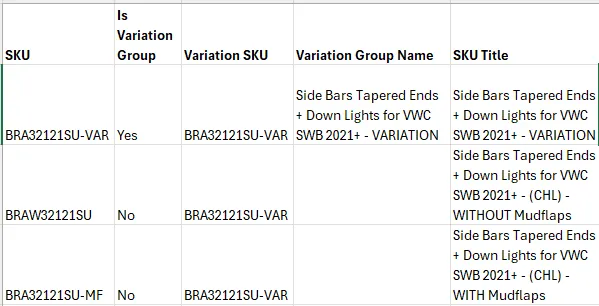
When creating variations by CSV upload, the SKUs should be added to them at the same time. The following columns are required when creating and populating variation groups, assuming that the child SKUs are already in Linnworks.
Column Description
SKU Unique identifier to reference this item in Linnworks.
Is Variation Group Enter Yes if the SKU is to be a Variation group instead of a norma Linnworks SKU.
Variation Group If the item is the parent SKU of a variation group, this is the nam Name the group as a whole.
Variation SKU This is the Parent SKU that the Child SKUs will belong to.
Note: When creating a variation group, ensure that the SKU and Variation SKU match.
Example:
Notes#
This section is important so Adhoc points and issues can be logged. Also, Q&A can be logged for suggestions for potential issues encountered. Also, log important notes needed for this system. Additional Notes:
"Add important notes here" "Add important notes here"
Potential Issues:
1 - ISSUE ENCOUNTERED: Stuck on Loading
RESOLUTION: Refresh Browser
2 - ISSUE ENCOUNTERED: Broken Links
RESOLUTION: Get the external link as this will allow other people to access the SOP without the need for login credentials and avoid broken links.
3 - ISSUE ENCOUNTERED: "Type Text Here"
RESOLUTION: "Type Text Here"