How to Create Listings in Linnworks
This system aims to guide new and existing Product Listers on how to list live on ly removed from eBay channels.
Overview#
Purpose: This system aims to guide new and existing Product Listers on how to list live on different channels specifically eBay and Magento (company website). The purpose of this document is to show all the checklists and procedures by using Linnworks Template in creating a listing.
Scope: This procedure applies to all assigned Bragan Listing Personnel.
Responsibility: It is the responsibility of all Product Listers to ensure the process set out in this procedure is followed.
Objective: The objective of this procedure is:
To guide Product Listers the correct way in creating listing in Linnworks using a template.
Procedure#
Note: In order for an item to be listed live, it should already have an SKU number. Please see this SOP on how to correctly give or assign an SKU to an item.
Checklist in assigning SKU Number:
Determine SKU from Formatting File Make sure SKU is not in use already by searching this on Linnworks Take note of new SKU when formatted
Listing Task Card#
A lister will receive a listing task by checking the New Listings / Listing Changes Trello Board. It will be a task card under your name (blue boxes). Click on the card and read the instruction. If there are no more cards under your name, you can select from any task cards under Listings Picture Update, Listing Changes or New Listing
Needed. To know how these cards were created check this SOP on Trello Card Creation for New Listing.
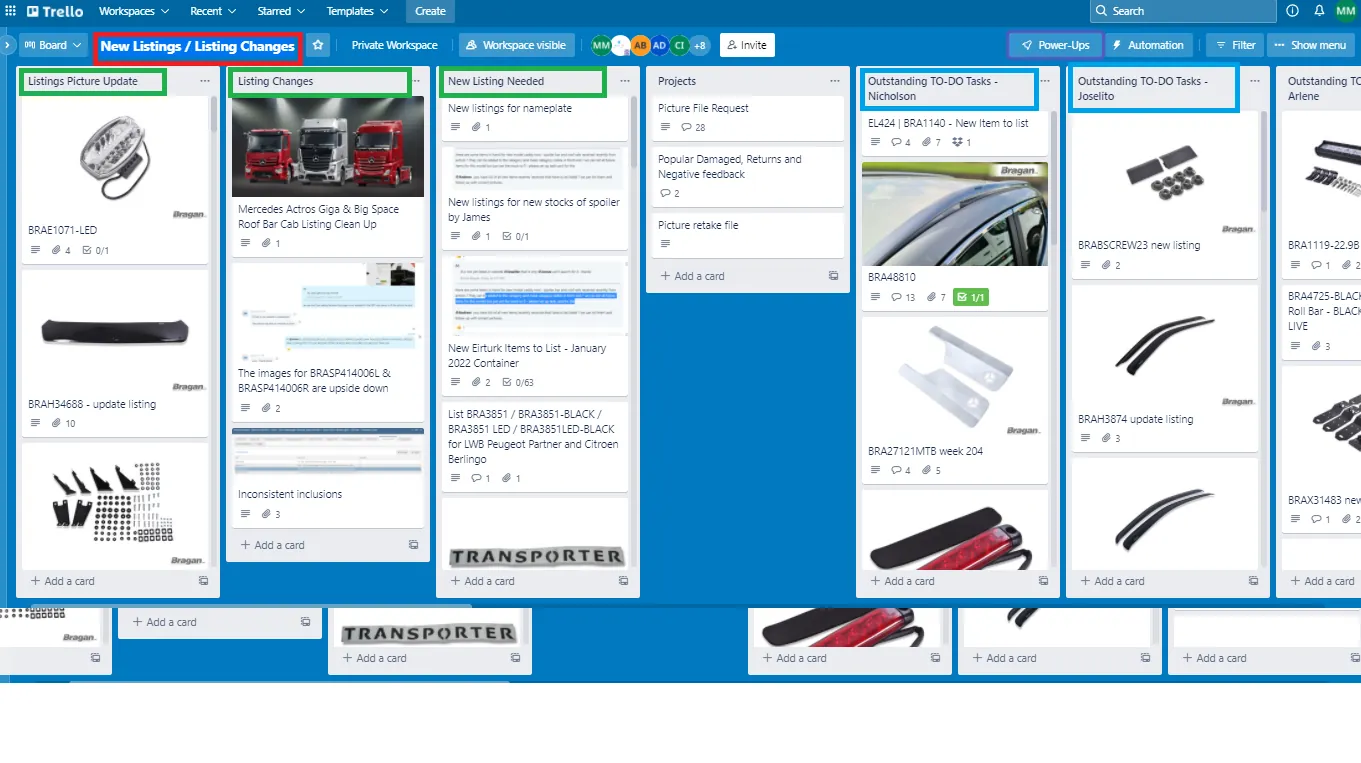
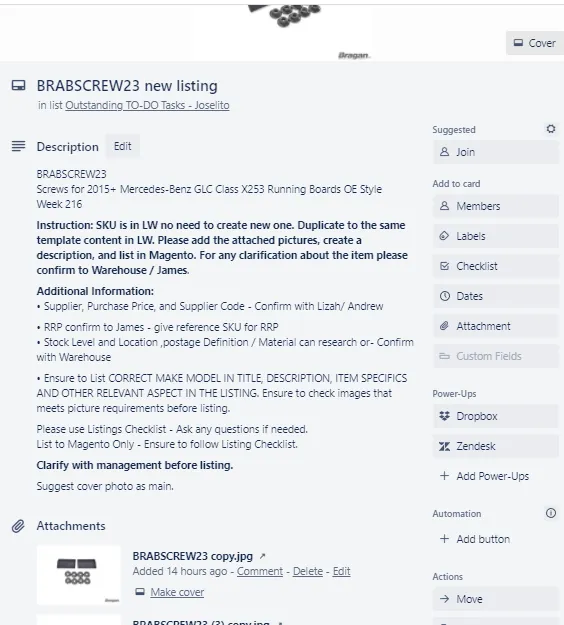
Note: You will need to get an invite to access this board. For trainees, please request your trainer to invite you.
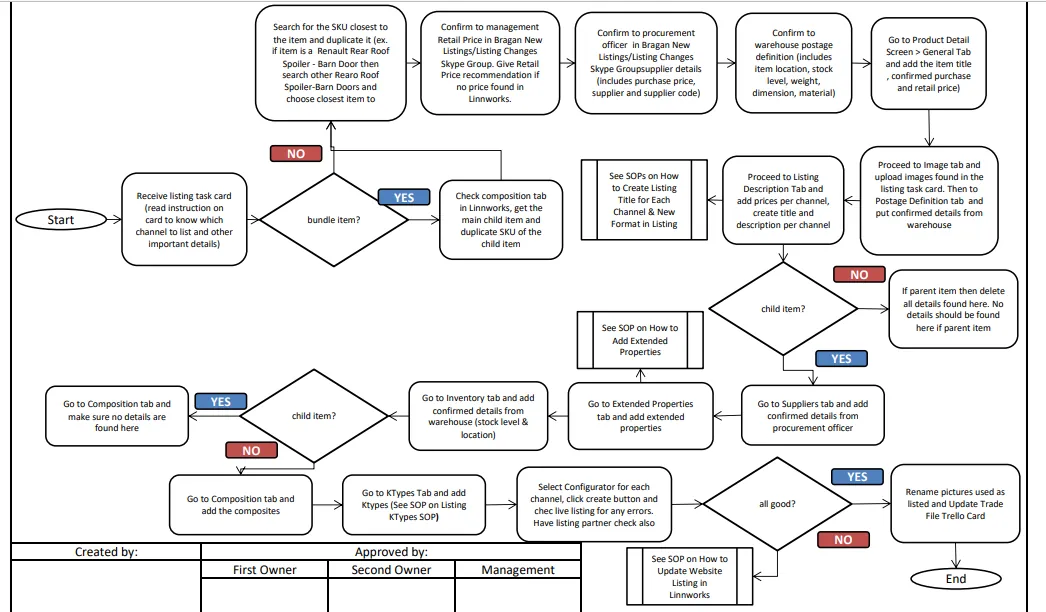
1.) Duplication This is the ideal way of starting your new listing. When you duplicate a listing, important aspects of the template such as Category, Price, Source, SubSource, image, price, title and listing description are copied. However, Supplier Code, K-types are not. Duplicating an existing listing would save time since you do not have to input everything anymore.
For example, the item you need to list is a BRA34513 2014+ Renault Trafic Rear Roof Spoiler - Barn Door, search the SKU in Linnworks (Figure 3) and check the composition tab if there is a child item (Figure 4). If there is a child item, search again the SKU of the child item and duplicate it. This way you will only need to update few
aspects like Make, Model and Year of vehicle, etc and follow listing rules. To know more about parent and child item, see this SOP.
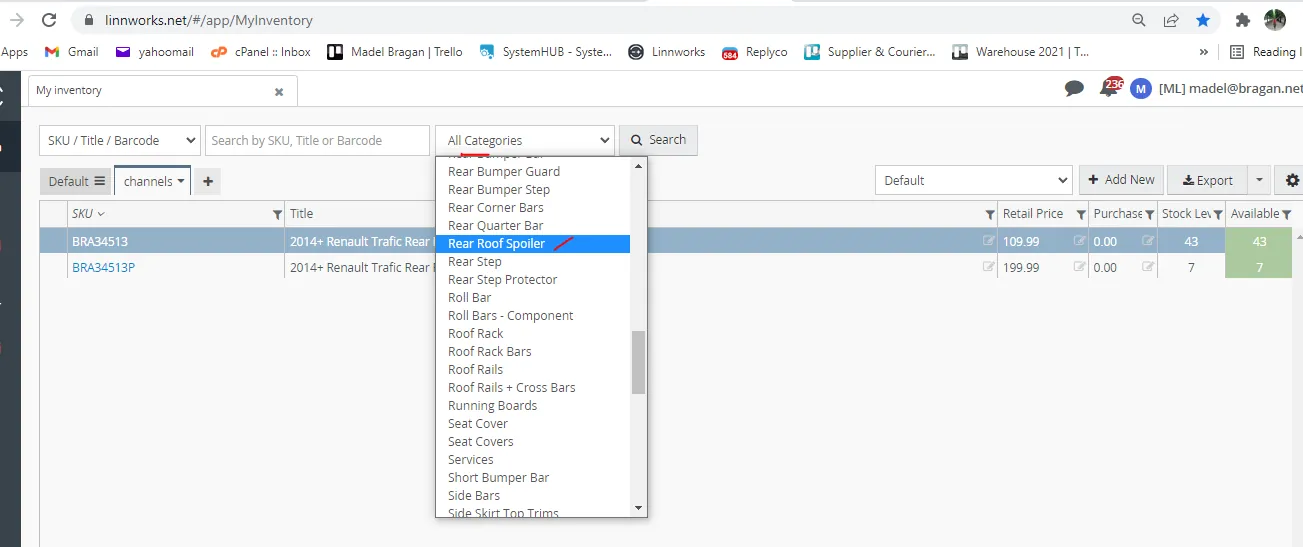
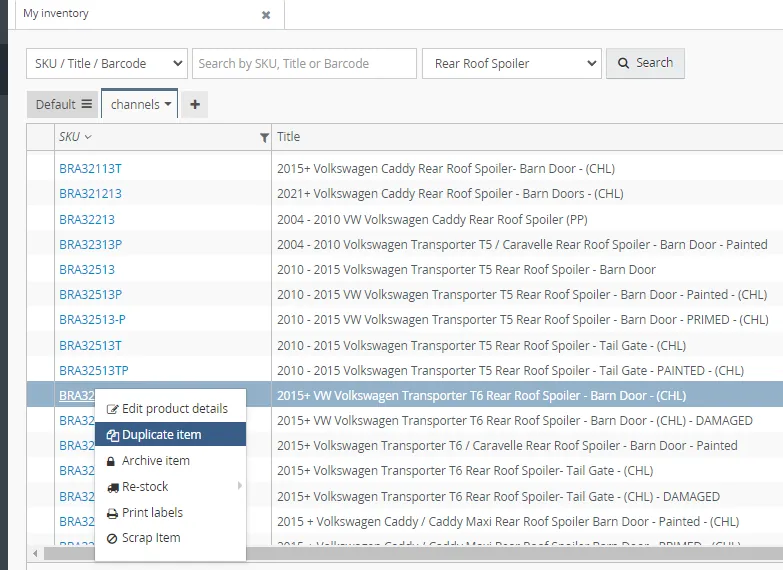
If there is no child item, search Rear Roof Spoiler in Linnworks and look for other rear roof spoiler - barn door (See Figure 5 & 6) then duplicate closest item.
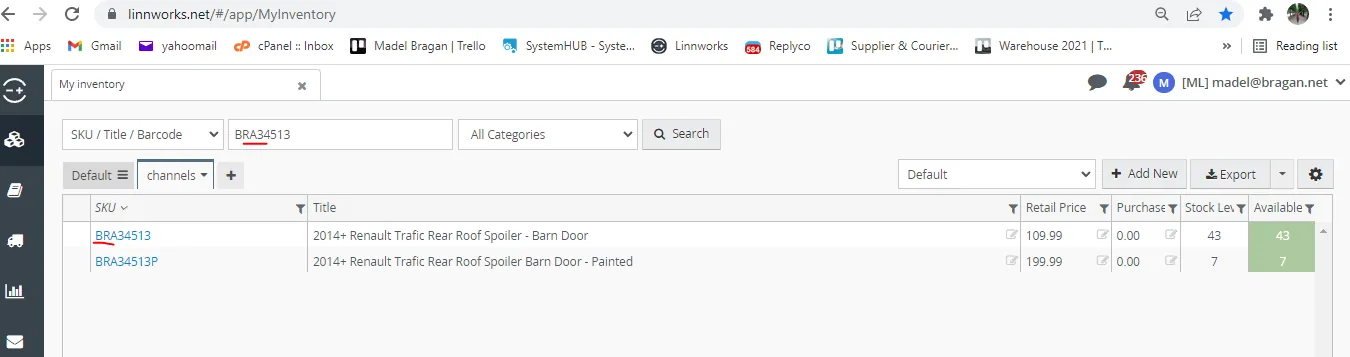
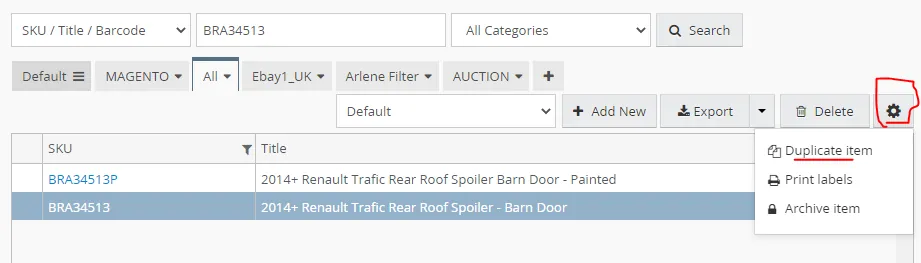
To duplicate sku to create new sku and listing in Linnworks, search the sku, click duplicate
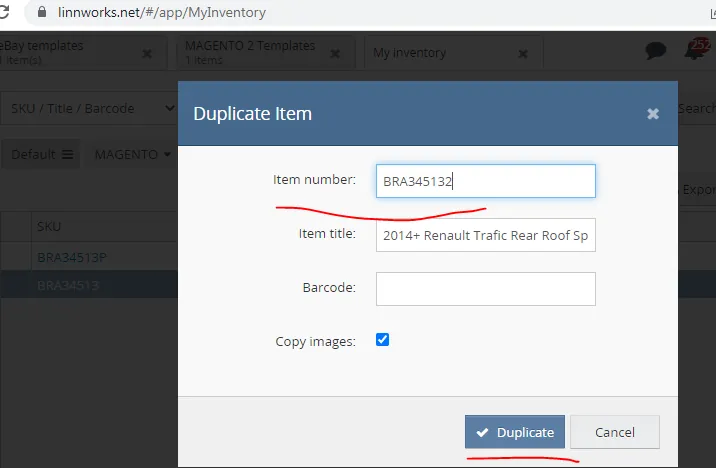
Then in item number put the new sku to create then title and then click duplicate.
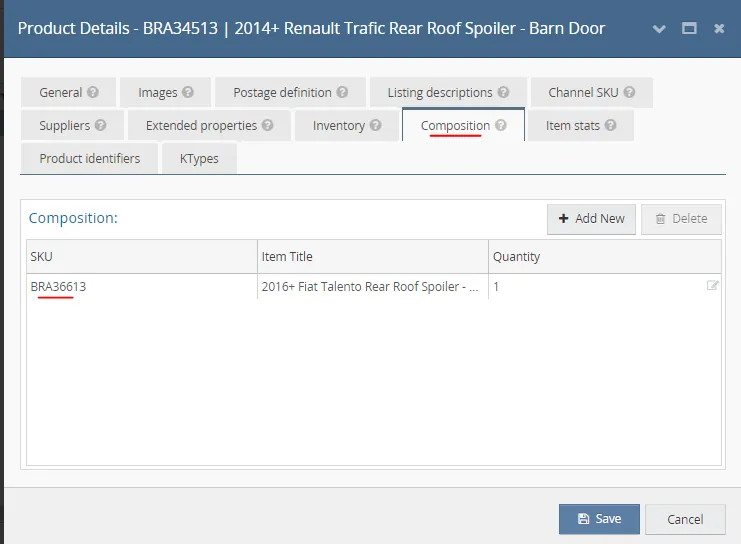
BRA36613 is the child item of BRA34513
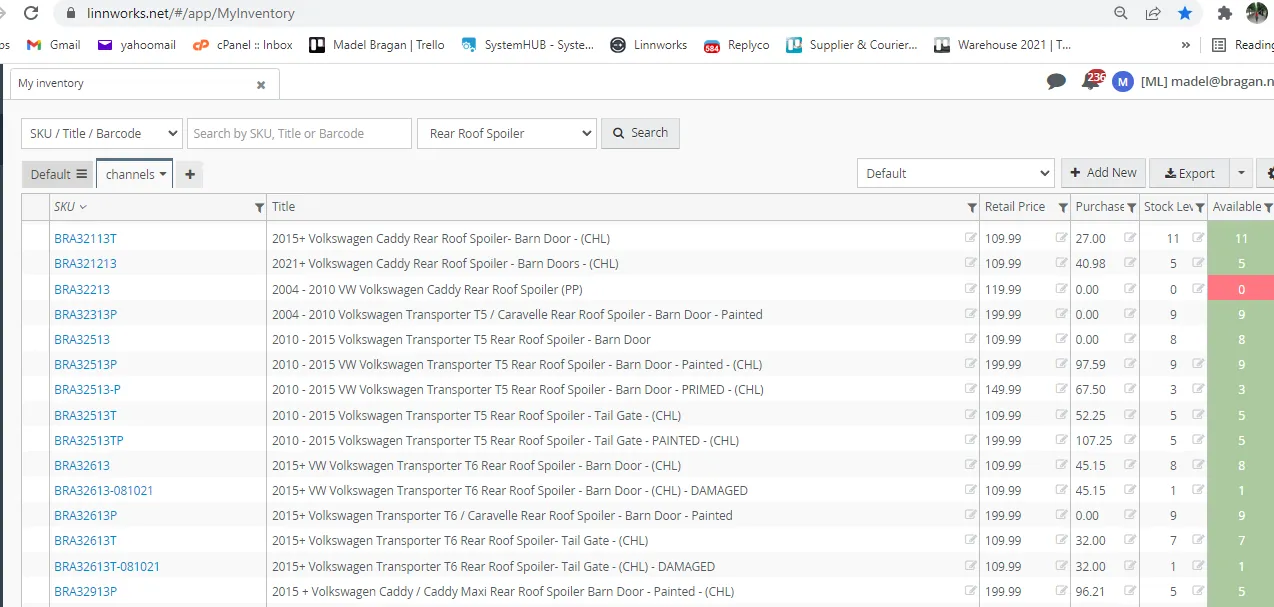
To duplicate an item, right click on the chosen SKU and select Duplicate Item (See
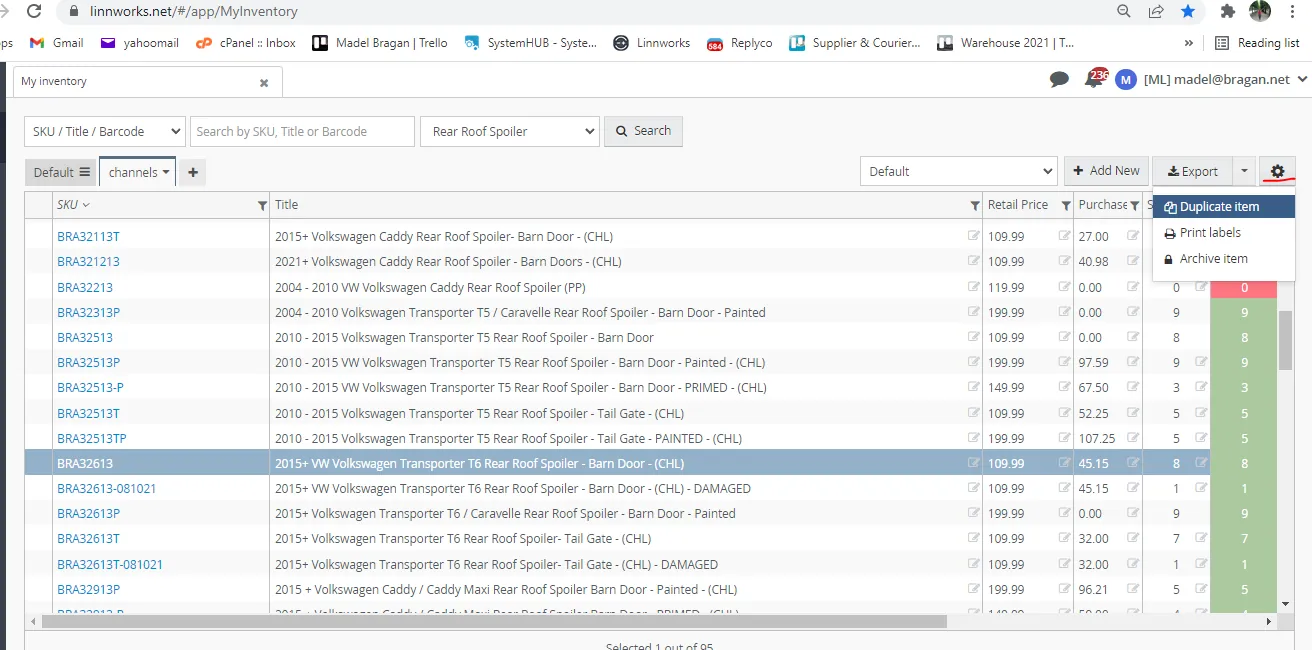
(upper right corner) and then select Duplicate Item (See Figure 8). Input the SKU code of the item you want to list and the item title.
2.) Product Details Screen - General Tab
The Product Details Screen is now your template for your listing. This will serve as your guide. Follow the rules and checklist for each tab in order to have optimized and correct listing.
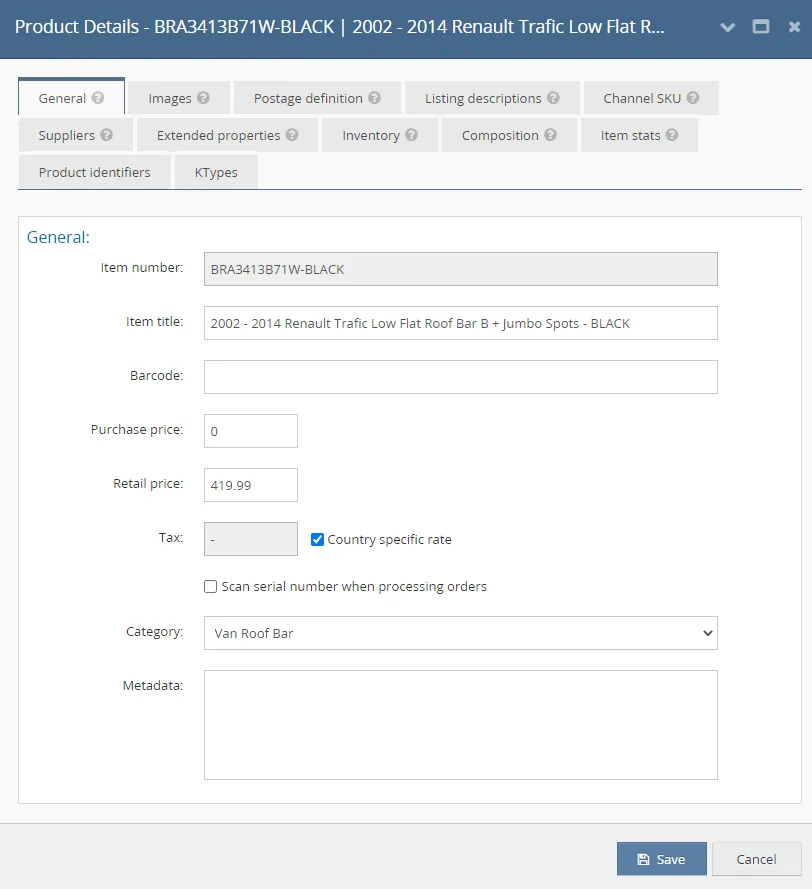
The General tab shows basic item details and allows you to change them. The exception to this is the Item Number - Linnworks SKU which cannot be changed. SKU code can be changed via CSV Import.
Checklist:
Item Number - Ensure item number is correct, double-check the format that you have created Item Title - Although this item title is used internally → For Child item, this Title will appear in the Sales Invoice. Make sure it is applicable to the item. Correct Price Confirmed → For BOTH Purchase Price and Retail Price - Confirmed by management (RRP) - ebay price is 3% higher than Magento RRP (magento price input is excluding the 20% vat) magento RRP is approved RRP is divided to 1.2(exclude the 20% vat) and cost price is confirmed by procurement officer (Purchase Price). No need to add trade price to new listings to magento price because ebay price is 3% higher than Magento RRP. Add the approved RRP to magento (magento price input is excluding the 20% vat) magento RRP is approved RRP is divided to 1.2(exclude the 20% vat) and eBay price is Magento rrp * 1.03 to give a 3% increase to eBay price then round it to .99 Duplicated new listings should be the same price from the original listings and no need to send for RRP for approval to Sir James. Purchase Price (Cost) - the default purchase price of the product (important for Child items) If the supplier has the details of supplier name, code and purchase price, no need to confirm to procurement unless you think the details are wrong. If it has no details then confirm to supplier or procurement officer.
To confirm purchase price of the item, you can chat it in the Bragan New Listings/Listing Changes Skype Group and tag procurement officer. To save time you can do this together with confirming supplier details (see Suppliers Tab below). You need also to fill-out the Supplier Purchase Price & Codes Queries Card for record purposes and also for easier tracking of the procurement officer. Make sure to attach the link of the card when inquiring in Skype Group. Make sure to follow the format, please read card description. See sample format below in inquiring:
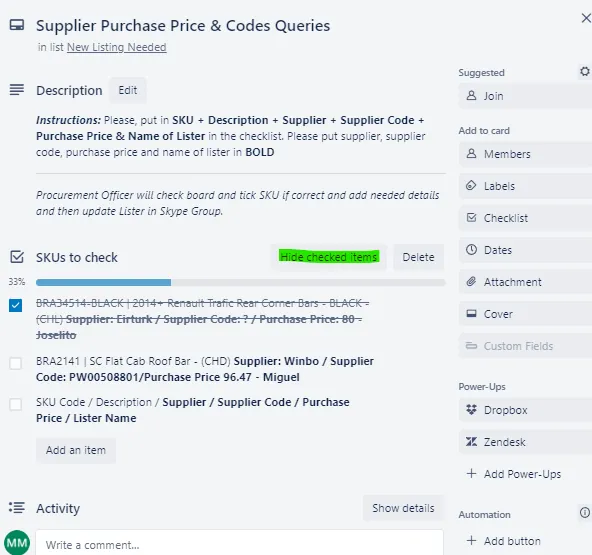
Note: Click Hide Checked Items so that it's not crowded.
Note: you can copy what you typed in the Trello card checklist and paste it in Skype when inquiring.
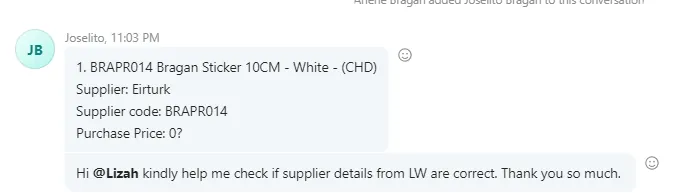
Retail Price (RRP) - The default retail price of the item. Note: Retail price should be the same to the price found in product pricing section under Listing Descriptions Tab. eBay price is 3% higher than Magento RRP. The approved RRP is in magento price. Magento RRP is approved RRP input price is divided to 1.2(exclude the 20% vat)
Sample RRP approved is 299.99
Ebay price = 308.99 (299.99 x 1.03) Magento price = 249.99 ( 299.99/1.2)
Sample by Sir Andrew:
Chrome Side Bar - 204.99 Chrome Side Bar with Under Light (+50 = 255.99) Chrome Side Bar with LED light (+ 100 = 304.99) Chrome Side Bar with LED Light & Under Light (+90 +40 = 334.99)
Black Side Bar - 209.99 Black Side Bar with Under Light (+50 = 259.99) Black Side Bar with LED light (+ 100 = 309.99) Black Side Bar with LED Light & Under Light (+90 +40 = 339.99)
For the above is for small vans - but for the child item BRA2600 and BRA2800 (Big Vans) - we need to add 25 to each of these prices
For items that include ALT in the composite, we need to add a further 25
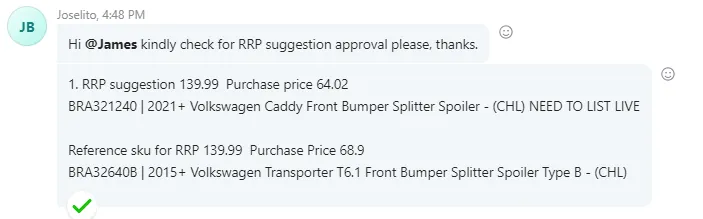
To confirm the RRP, you can chat it in the Bragan New Listings/Listing Changes Slack Group and tag management Sir Johnny or Sir Andrew if Sir Andrew requested the task. If there is no RRP in LW you can check similar listings and give your recommendation for management to approve. Add the item that you use as reference so management can review. See format below:
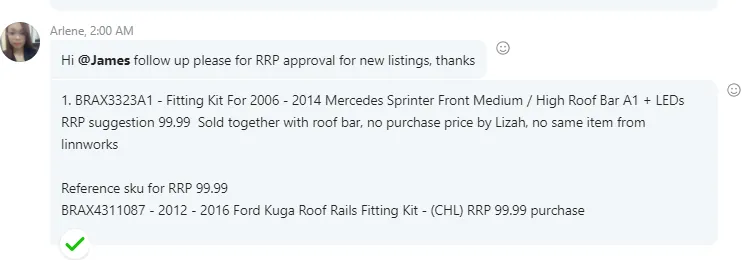
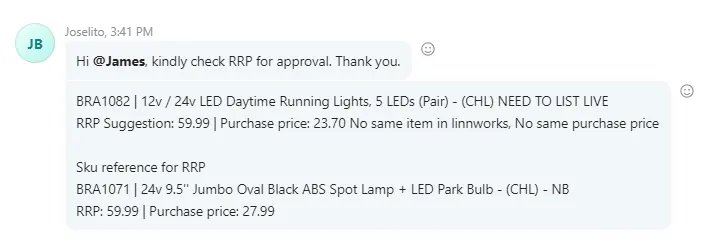
If there is no same item to reference in Linnworks, you can check same item in eBay UK for listings of other seller and use as reference and state in RRP request of approval that item is new in Linnworks and you search same item in eBay UK from different seller.
For Roof Bar listing, there should be a difference of 50 pounds for all roof light bars with / without LED lights.
For listing with 3 LEDs downlights like to sidebars, add 50 to RRP from original listing to duplicate.
Category - The item category can be selected from the list of existing categories. Ask management if unsure. Tax Rate - Tick 'Country specific rate' box.
3.) Product Details Screen - Images Tab
The Images tab serves as a gallery of uploaded images for the stock item. Images can be added to stock items either individually via this screen or in bulk via an import. The first photo you add here is automatically set as the main image, however, you can change the main image sequence using drag and drop.
All images (applicable for new listings) especially Main image (applicable for update listings) should have no logo and should be a white background. And New listings should always have a dimension image except for very small items like fitting kit.
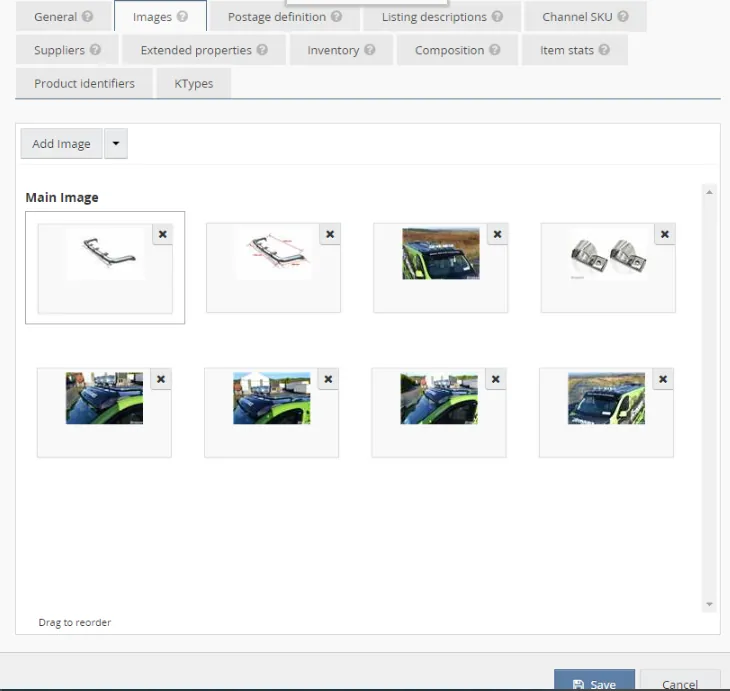
Use the images found in your trello task card and upload it in this tab. In the trello task card you can find the location of where these pictures where saved.
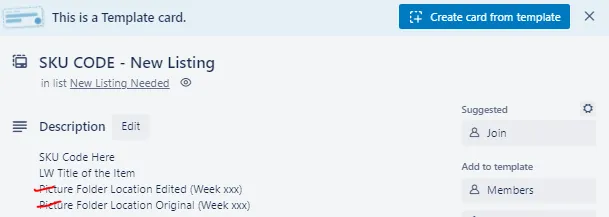
Go these picture locations and rename the picture file once it is listed. Add LISTED before the SKU in the file name. Please note that there are two picture file locations, the Edited and the Original Folder. Make sure to rename the pictures in both folders.
Checklist:
Have the images been converted to .jpeg? Is the image size below 1800x1800px? If the image is above 1800x1800px, has it been resized? Maximum number of images is 12 for eBay channels? Maximum number of images is 8 for Amazon channel? For Magento channel there is no limit on the number of images. Main picture showing only item being sold? Do not make the dimension image as main image. Cluster pictures in the correct order? Main image is HD? Images should be no Bragan logo for new listings and for update listings, main image is in white background with no Bragan logo if available. If unsure, or need clarity, please ask management. Bundle Item - Does the main image have all composite items in the image (e.g., Roof Bar + Spots + Beacons) Bundle Item - Cluster pictures should have individual items from composite If you are missing any pictures, have you requested from IRL? Have you added the requested images to the item once received from IRL? Edit/request edited images accordingly to show watermark etc. Upload images to the item. Watermark NOT APPLICABLE TO BULL BAR WITHOUT EC CERTIFICATE. You will know that it is EC approved if there is EC in the SKU code and EC approved in the title. Listers can edit and create basic item photo dimensions for example using MS Paint. Example of a dimension image edited in MS Paint.
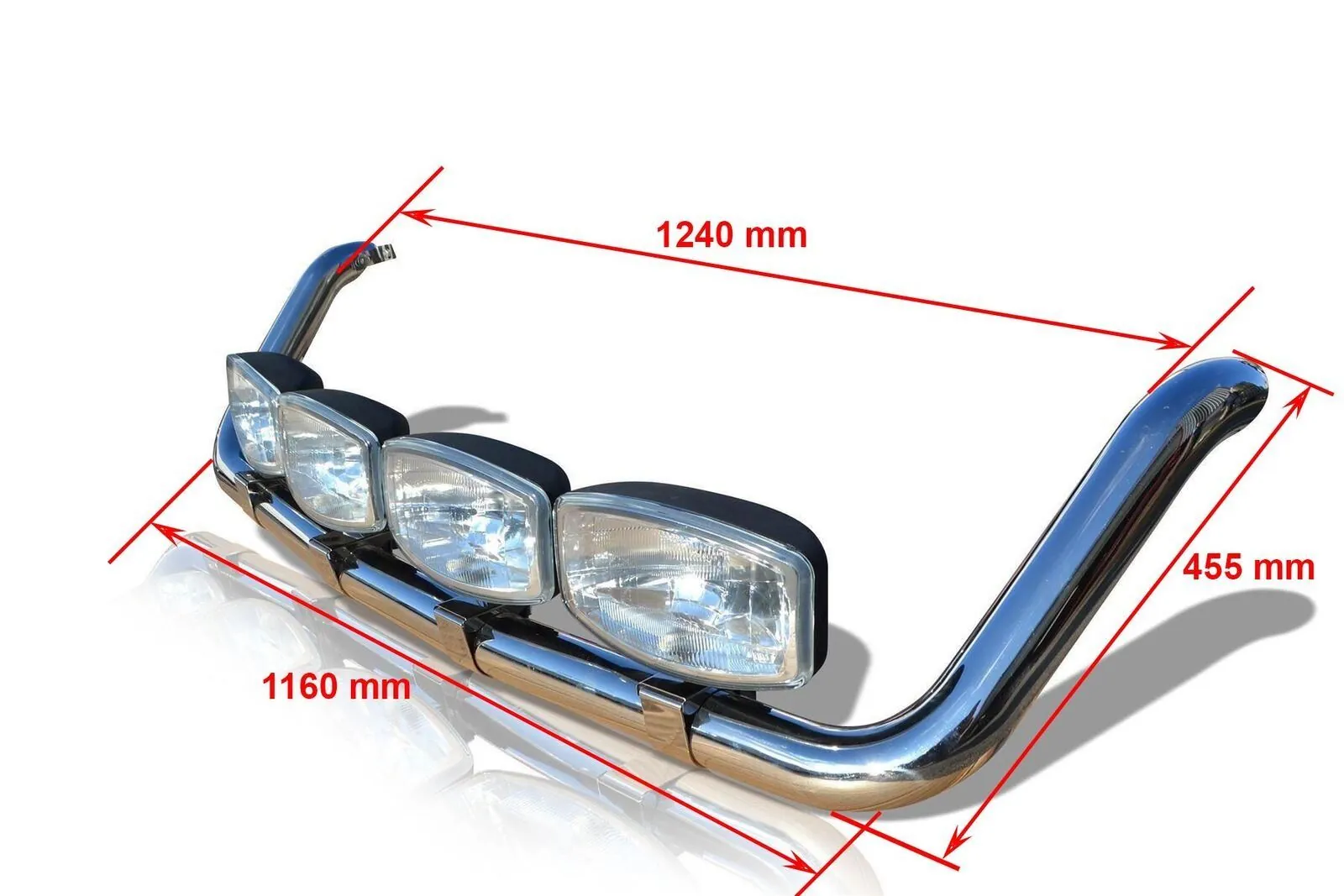
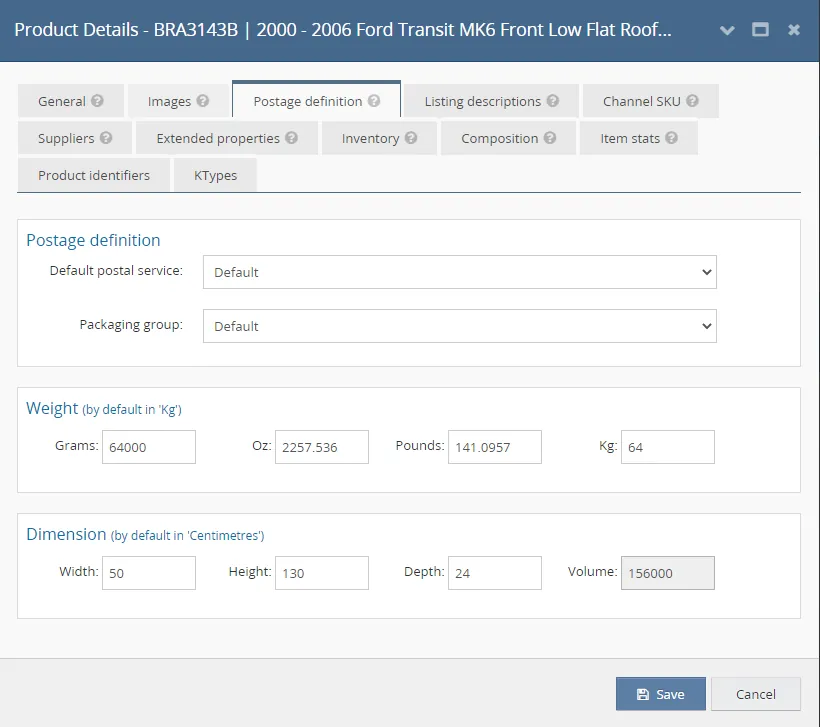
4.) Product Details Screen - Postage Definition Tab In the Postage Definition tab, you can find the dimensions and weights of the stock item. These are required by integrated shipping couriers and can be used for selecting the right packaging method.
Checklist:
Height Confirmed by Warehouse Width Confirmed by Warehouse Depth Confirmed by Warehouse Height, Width & Depth inputted on Linnworks Confirm weight with Warehouse / IRL
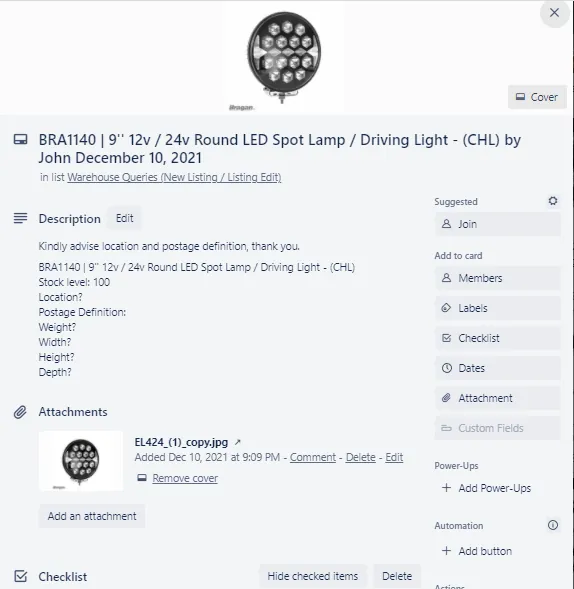
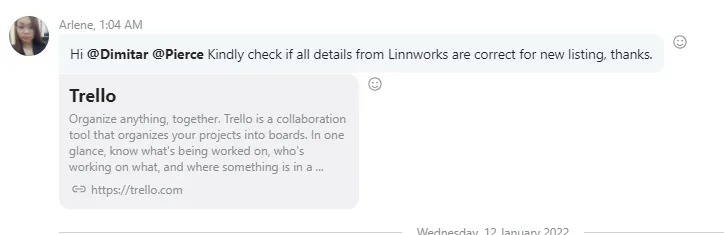
To confirm these information to warehouse check this SOP for the process. Once you populate the trello card, see sample below Figure 17, share the link of the card in the Warehouse PH Technical Skype Group and tag warehouse personnel. See
For Postage definition: When creating listing with compositions ensure that you set the postage definition dimensions of the parent item to the dimensions of the largest item in the composition.
5.) Product Details Screen - Listing Description Tab
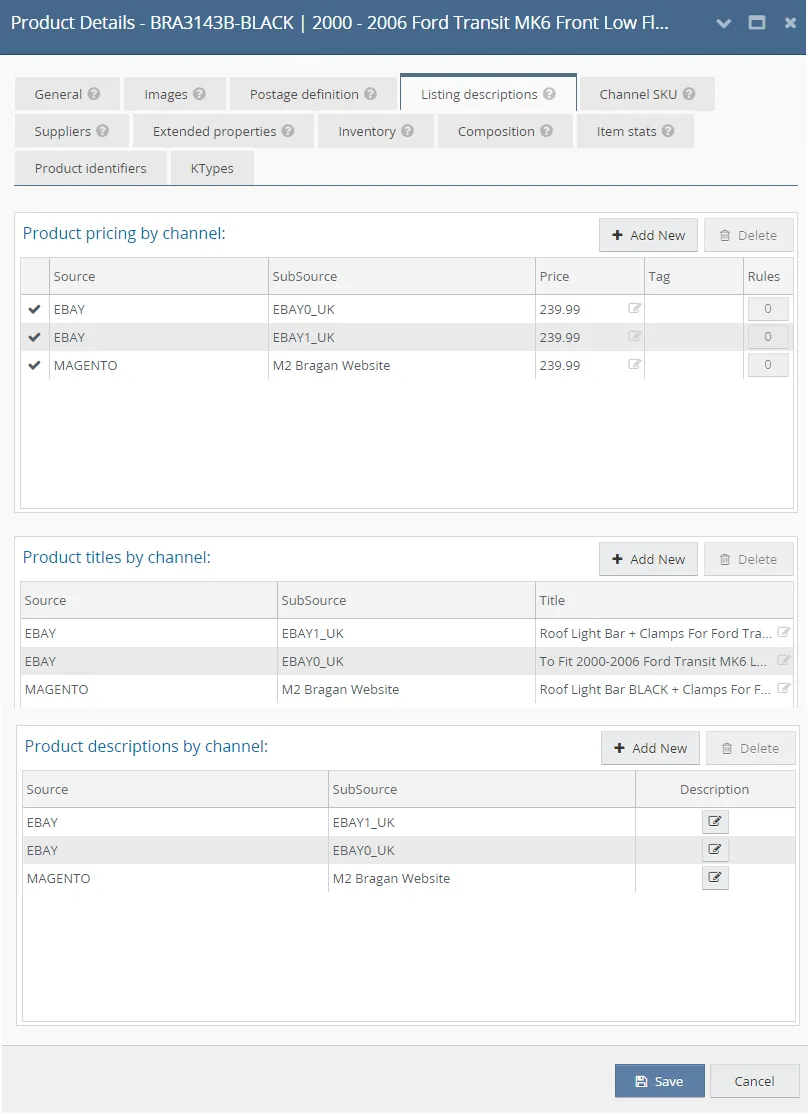
In this tab you can add price, source, sub source and title for the listing for each channel/marketplaces.
Linnworks allows you to store various titles, prices, and descriptions that can be used on different channels and listings. This information is stored in the Listing Descriptions tab. As an example, a single SKU can have different prices on different Amazon and eBay sites/marketplaces.
Product Pricing by Channel:
Price here should be the same to the RRP in the General Tab except for Magento
| (eBay price is 3% higher than Magento RRP). Add the approved RRP to | |
|---|---|
| magento and eBay price is Magento rrp * 1.03 to give a 3% increase to eBay price | |
| then round it to .99 |
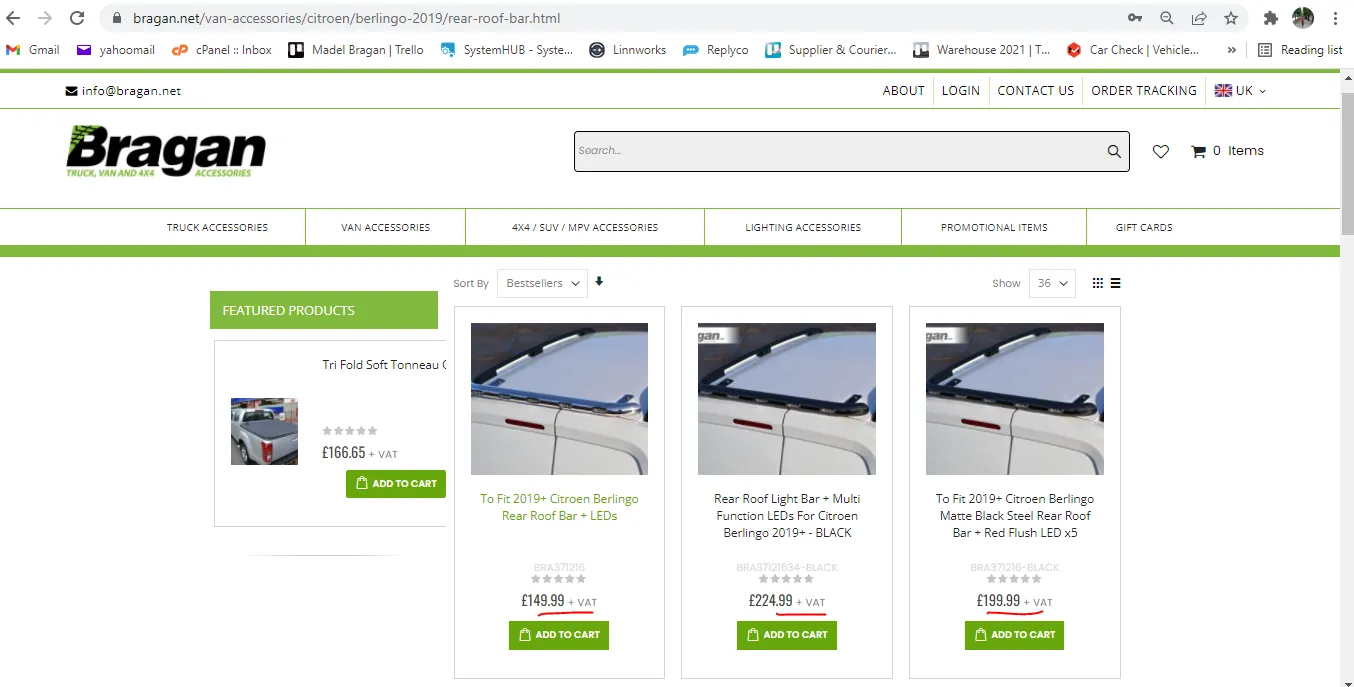
Note: In the live listing in Magento pricing appears like in the snipe below there is +VAT after the price. Please do not be confuse with this. Price will still be the same with what you input in the back end. The "+ VAT" is merely for display purposes just so that the displayed price is lower if the customer is not logged in.
Product Titles by Channel:
Make sure that the correct title format is followed for each channel. Refer to the link below for the guide.
Checklist:
Magento
Product pricing by channel enabled Price confirmed by management? Price of black and chrome bars are the same. Add the approved RRP to magento and eBay price is Magento rrp * 1.03 to give a 3% increase then round it to .99.
Then round it down. For Example if the approved RRP for BRA1082 is 64.99 in magento. ebay price is 64.99* 1.03, ebay RRP is 66.93, then round off always the RRP to have to .99 to make it 66.99
Set source as MAGENTO. Sub Source is M2 Bragan Website Correct Title format
eBay0
Product pricing by channel enabled Price confirmed by management? Price of black and chrome bars are the same. eBay price is 3% higher than Magento RRP, Magento rrp * 1.03 to give a 3% increase to get the price for eBay Add the approved RRP to magento and eBay price is Magento rrp * 1.03 to give a 3% increase to eBay price then round it to .99 Set price to RRP → Same as Retail Price in General Tab Set source as EBAY Sub source is EBAY0_UK → This is for bts trading account Product Title maximum character count is below 80 characters? → Use as many relevant keywords as possible Correct Title Format
eBay1
Product pricing by channel enabled Price confirmed by management? Price of black and chrome bars are the same. eBay price is 3% higher than Magento RRP, Magento rrp * 1.03 to give a 3% increase to get the price for eBay Add the approved RRP to magento and eBay price is Magento rrp * 1.03 to give a 3% increase to eBay price then round it to .99 Set price to RRP → Same as Retail Price in General Tab Set source as EBAY
Sub source is EBAY1_UK → This is for bts trading account Product Title maximum character count is below 80 characters? → Use as many relevant keywords as possible Correct Title Format
Amazon
Product pricing by channel enabled Price confirmed by management? Price of Amazon and eBay listings are the same. Price of black and chrome bars are the same. Set price to RRP → Same as Retail Price in General Tab Set source as AMAZON Sub source is Bts-Trading Product Title maximum character count is 200, minimum is 80 → Use as many relevant keywords as possible Correct Title Format
Product Descriptions by Channel:
Product descriptions by channel are used as part of the listing via My Inventory functionality. The HTML editor for product descriptions is the same as the one for configurators which allows for rich content to be generated - however, it is not recommended. Adding content beyond a basic description can lead to a significant amount of maintenance should you decide to alter the description in the future. Please see this SOP for the New Format for Listing Description.
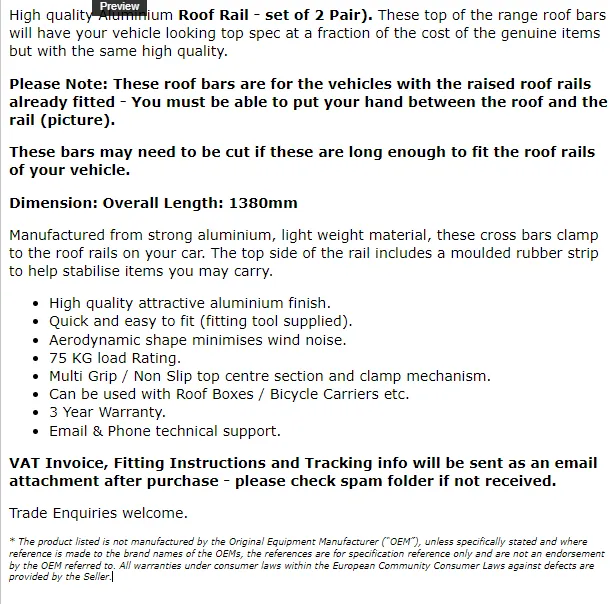
Below is a general outline for listing description (Figure 22), please note that if some part of the outline is not applicable for a listing then do not add it. Example, if you have no additional note for the item, then there is no need to add the Please Note part.
Listing description usually starts with "High Quality" then followed by the material of the item (if applicable) then Item Description, make sure to write first the main item then the word "for" then the make, model and the year. If it is a composite item make sure to add "+" in between item and indicate the quantity of the composites after the name. For example: Bull Bar/Abar + 9" Black Spot Lamps x9 for Ford Transit MK7 (2007-2014 models).
Next paragraph should be the additional note for the item. Should be in BOLD format and is always: Please Note: add the additional notes after the colon.
You can add dimension of the item after the note part if applicable. Make this in BOLD format also. In the example below, dimension is not included.
Next sections are more detailed description of the item and its components (if it has one).
Next would be the bullet points. Add here important features you want to highlight light what is included in the sale, dimensions, the material etc. Make sure that for eBay listing this should be included in the bullet point: For technical support please contact us via eBay messages. But for magento and amazon listing, it is should be: Email & phone technical support.
Next section would be additional notes but there is no need to highlight (or in bold format).
Then the VAT invoice, fitting instruction and tracking info notes and remaining sections. Make sure that the new format for this is followed. See SOP link above for the New Format for Listing Description.
Please see new format of listing description only important words are in BOLD font.
Note:
Add disclaimer for NON-EC Approved Bullbars. There is a Non EC Approved Bullbars and an EC Approved Bullbars. You will know it is EC Approved if the SKU contains EC. For example: BRA4125EC, since there is EC at the end of the SKU it is an EC Approved Bullbar.
" We can only officially sell these bars as replacements. On buying this bar you are agreeing to buy to replace an existing bar or for off road use. New EEC laws have not yet been implemented in the UK and the Department of Transport have yet to implement the details in UK law. (Still much confusion)."
Non-EC Bull Bar Disclaimer
Add PLEASE NOTE: THIS IS A GENUINE BRAGAN PART AND NOT A CHEAP COPY for Sun Visor items. Sun Visor Disclaimer
Checklist:
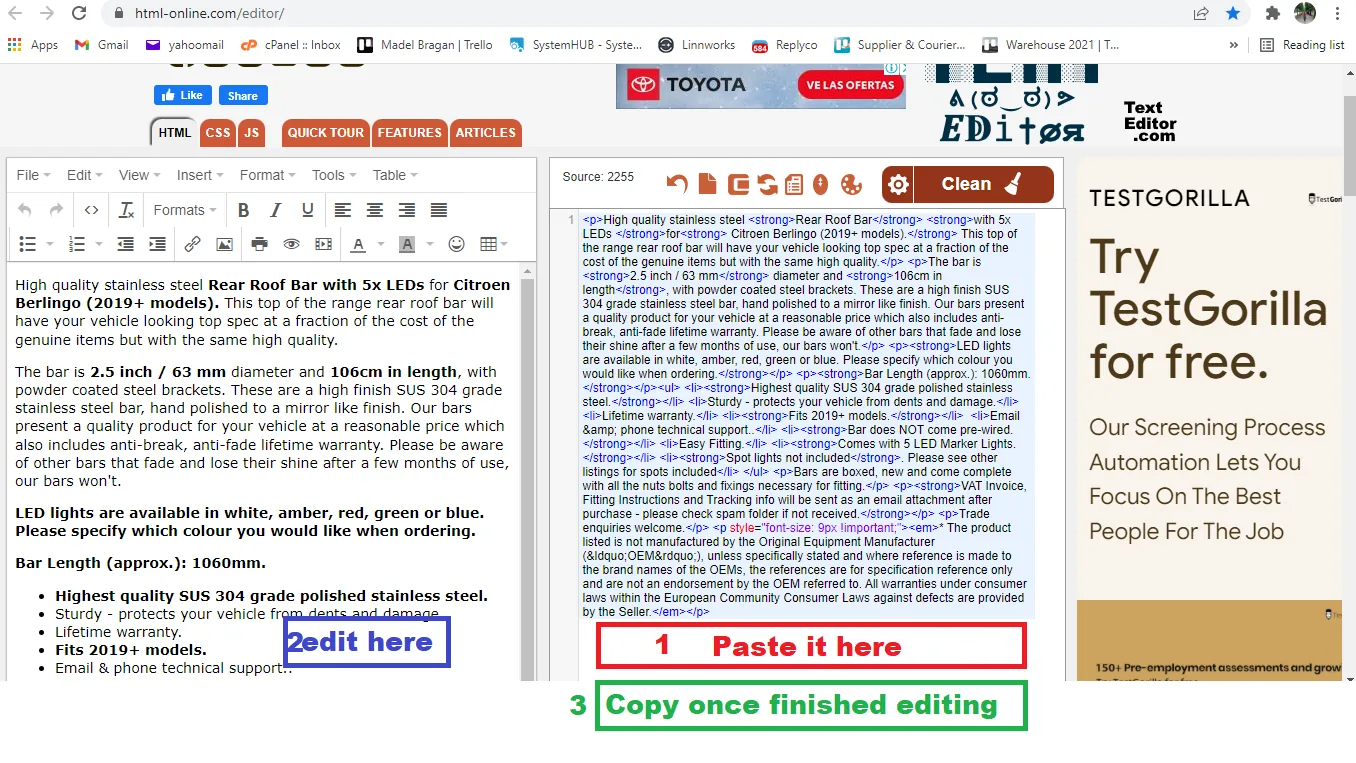
For New Items (without current listing reference) → Confirm to Management for correct content, description, material and specifications available You can use this online HTML editor to have a preview of what you are editing.
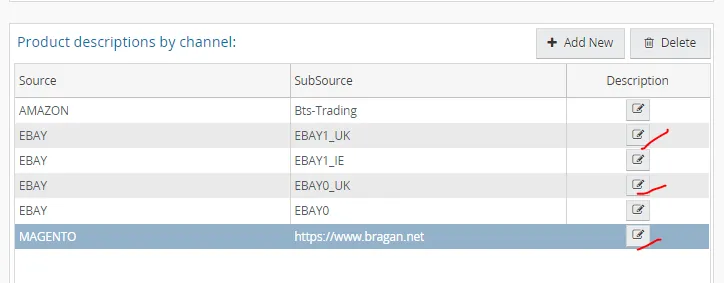
To do this, scroll down to the Product descriptions by channel then click on the edit button. If you want to edit or check on the listing description for magento then click the edit button for magento, same if you want to check eBay1 or eBay0.
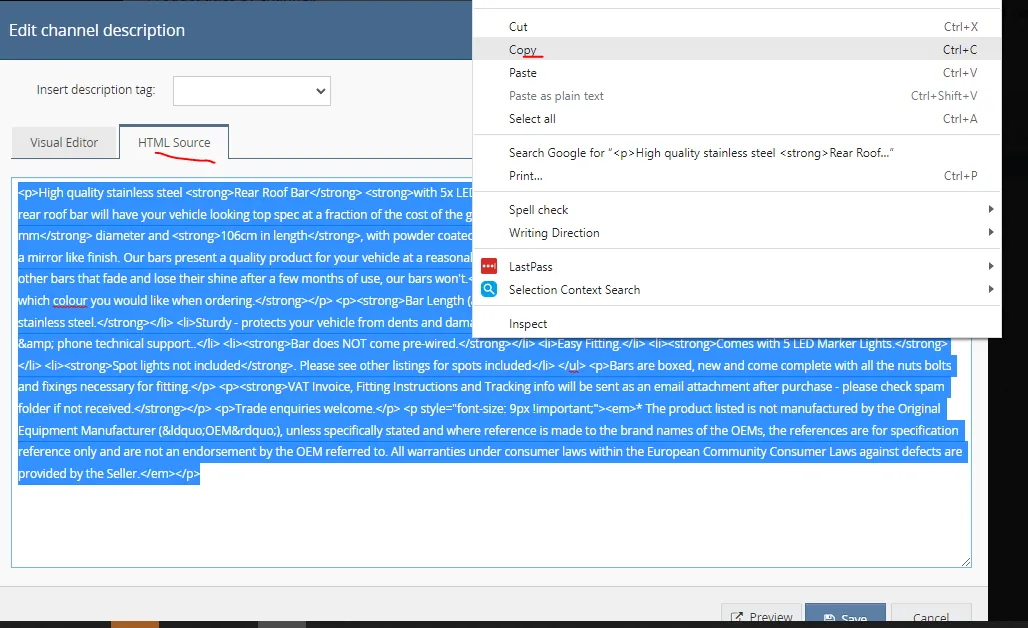
Click on the HTML Source tab and copy the content and paste it in the online HTML editor. You can edit it there since it would be easier. Once finished, copy the edited description and paste it back here in the edit channel description, HTML source tab then click Save.
Is make the same as the image / title?
Is model the same as the image / title? Is year the same as the image / title? Is colour (Black/Chrome) the same as the image / title? Is wheelbase / cab type the same as the image / title? Is material (i.e., plastic / steel etc.) the same as the image / title? Ensure there is no mention on multi-purchase discount. Is the correct number of LED's referenced for the item? (Check with management if unsure) Dimensions should be added to the listing description and images. Double-check dimensions with IRL / Warehouse where needed. Side Bars - If three-step pads, make sure it is referenced as RHD, Right Hand Drive. VAT template should be written in bold. eBay should have no reference to the company's contact details (email address and phone number) If the vehicle has a crossover year, it is a must to include CROSSOVER NOTE→ e.g., Newer Model 2015+ and has a 2008 - 2015 Older Model → Please Note: If your vehicle is 2015 year, you need to ensure it is the 2015 newer model (same as 2016) and not the older shape (same as 2012) before purchasing. Packaging Details → Ensure (included in sale) is correct in the description → For a description that says something other than the item itself is included, this would need to be checked with Warehouse. This kind of checking is NOT needed to be checked if, for example, the listing is just for the same item but in black, or duplicating items that are the exact same but with our new components → For example Roof Bar + Jumbo Spots but the new listings are for the same Roof Bar + the new style LED jumbo Spot Lamps Have you checked the overall content of description (all aspects relevant to the product being sold and conditions, no typo and grammar errors)? → Very IMPORTANT Amazon Channel should only have a maximum of 2000 characters for the description Magento and eBay channels no maximum characters for the description
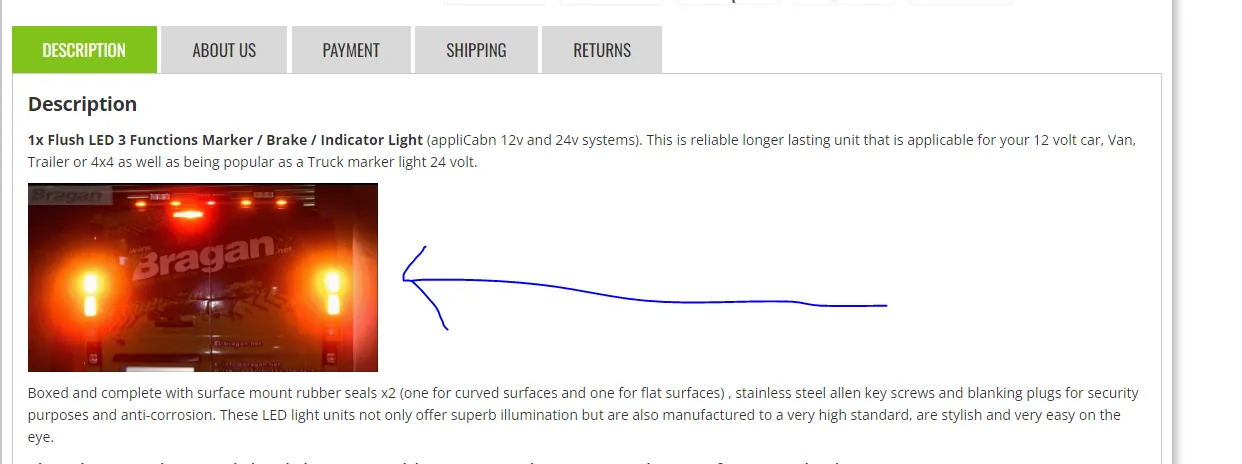
How to add gif in listings
You need to add this html code and change the dropbox link for the gif you need to add in the listing
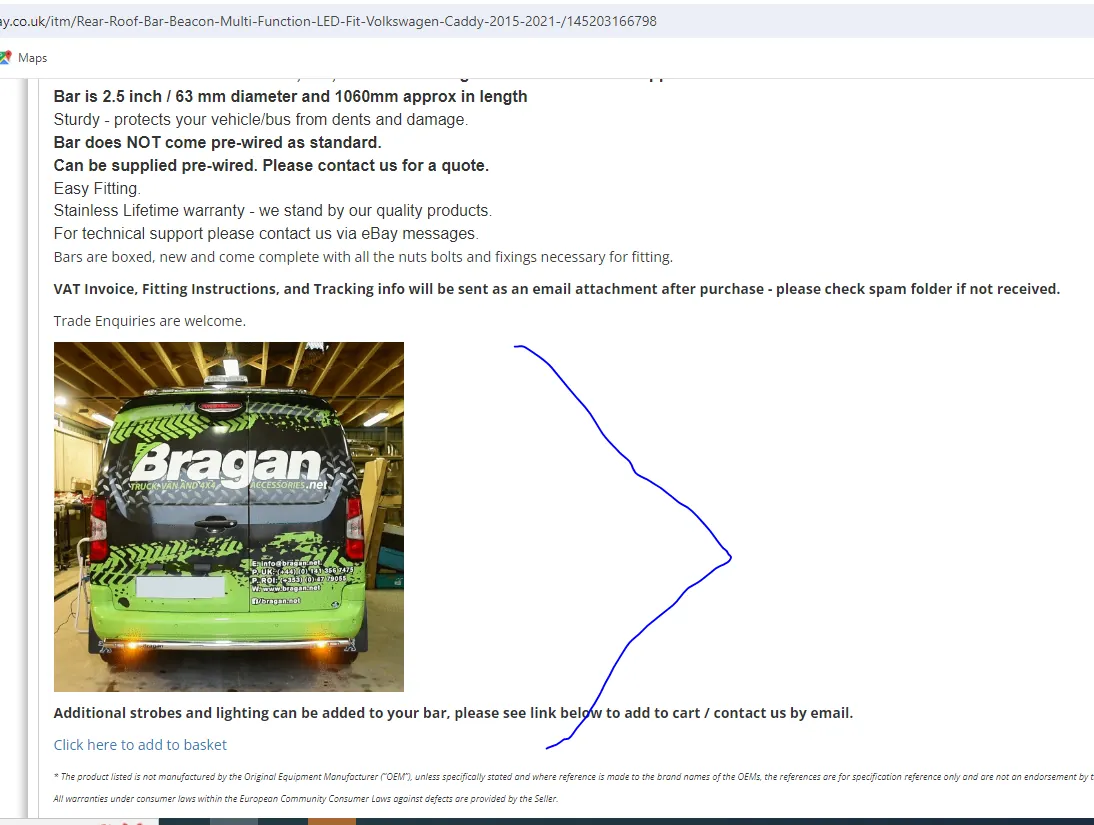
How to add link in listing like Click here to add basket
You need to add this html code and change the dropbox link for the gif you need to add in the listing and you change the sentences like Additional strobes and lighting can be added to your bar, please see link below to add to cart / contact us by email to what is requested.
Additional strobes and lighting can be added to your bar, please see link below to add to cart / contact us by email.
For listings that has led like bars with led, add the pre wire note in bullet description and item specifics in eBay so that customers will know that LEDs are not pre wired.
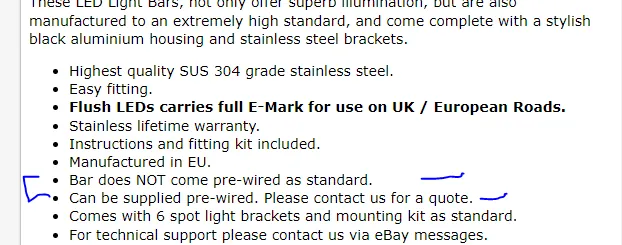
Bar does NOT come pre-wired as standard. Can be supplied pre-wired. Please contact us for a quote.
add also in item specifics
Wiring Not pre-wired / Pre-wired service available
We have the pre wire sku also available in Linnworks
This is added only to composite upon confirming to management.
PREWIRE01 PRE-WIRE 01 - DIFFICULT PRE-WIRE SERVICE 180.00
"Bragan offers a convenient pre-wiring service for your LED lights, Lamps and electrical components. We will expertly wire the components in series (including electrical plugs and connectors if necessary), saving you installation time and expense; the item must be hard-wired to the vehicle by an auto electrician with the necessary expertise. Pre-Wiring Options: To select the appropriate pre-wiring service for your needs, please refer to the following options: ● Difficult Pre-Wiring (2-3 Additional Business Days): ○ Ideal for complex lighting systems such as roof light bars, grill bars, perimeter strips, under bumper bars, and sidebars with more than 2 LEDs per side. ○ Add the following link to your cart (quantity = number of items requiring pre- wiring): https://www.bragan.net/pre-wire-01-difficult-pre-wire-service.html ● Mid-Difficulty Pre-Wiring (2-3 Additional Business Days): ○ Suitable for moderately complex lighting systems such as chassis bars, rear roof bars, spoiler bars, and sidebars with 2 or less LEDs per side. ○ Add the following link to your cart (quantity = number of items requiring pre- wiring): https://www.bragan.net/pre-wire-02-mid-to-difficult-pre-wire-service.html" bragan.netbragan.net PRE-WIRE 01 - DIFFICULT PRE-WIRE SERVICE Top Quality Products. Fast Delivery. Order Now! Amazing value on Truck, Van & 4x4 Accessories. Largest Online Selection. Order Tracking Available. Over +1M Satisfied Customers. Exclusive offers and Best Prices Guaranteed!
6.) Product Details Screen - Channel SKU
Not really needed for the listing template, you can skip this tab. Check this tab once it is already listed in the website to check if all SKU links are the same as the one listed.
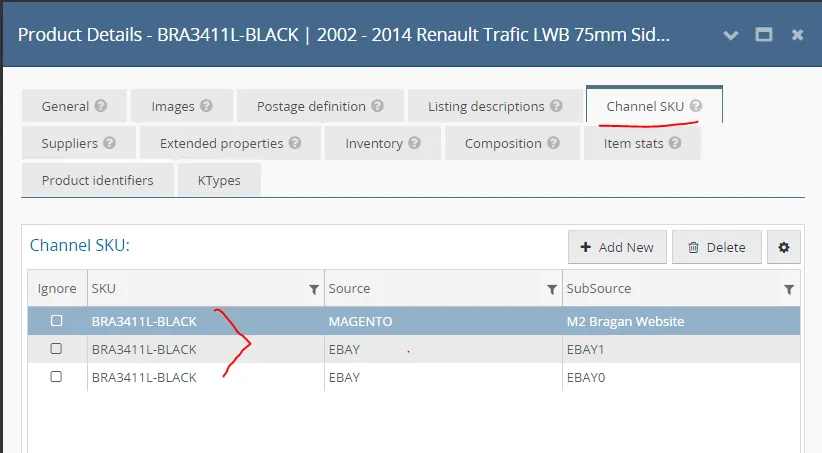
Do this after you check the live listing. Check if the SKU listed are the correct SKU code. If a wrong SKU code is linked, highlight it and click Delete then click +Add New, to add the correct SKU code.
7.) Product Details Screen - Suppliers Tab
Note: For Child Items only, if you are listing a parent item then delete everything here (no details should be found here for parent items)
To know more about child and parent SKU, check SOP here.
The Suppliers tab shows all suppliers that have been configured for this SKU. In this tab, you can assign suppliers to the SKU that already exist inside Linnworks and select a default supplier for this item. You add here the supplier code and the purchase price (which should be the same to the General Tab). As shown in the General Tab, you can confirm the supplier details by chatting it in the Bragan New Listings/Listing Changes Skype Group and tag procurement officer.
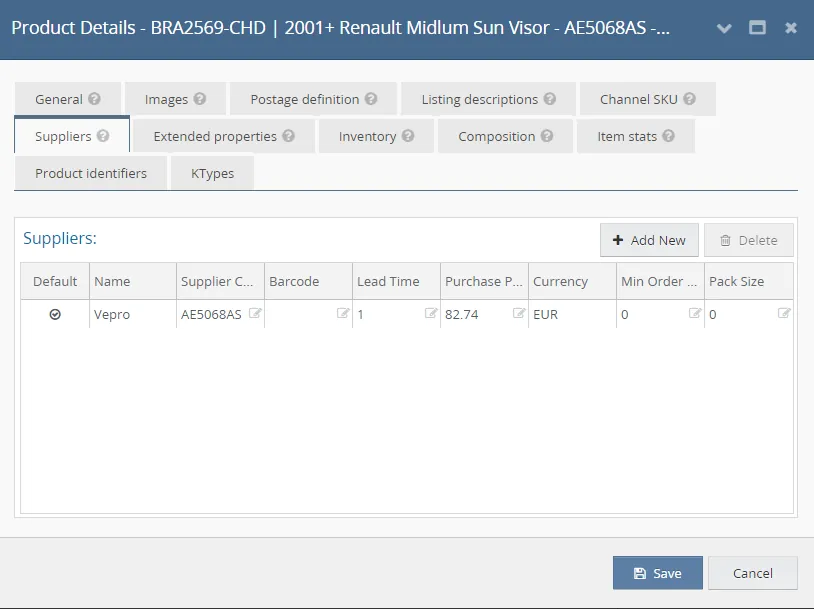
Checklist:
Is Supplier Name added? (To be confirmed by Management or Purchasing Team) Is Supplier Code added? (To be confirmed by Management or Purchasing Team) Is Purchase Price added? (To be confirmed by Management or Purchasing Team) Delete Any Details in this Tab if the item is a Parent SKU → Very IMPORTANT
8.) Product Details Screen - Extended Properties Tab
Item extended properties contain additional information about the product, most commonly used as the basis for variations. The best way to add them in bulk is via an inventory import, but they can also be added or edited individually on this screen. See this SOP on how to add extended properties.
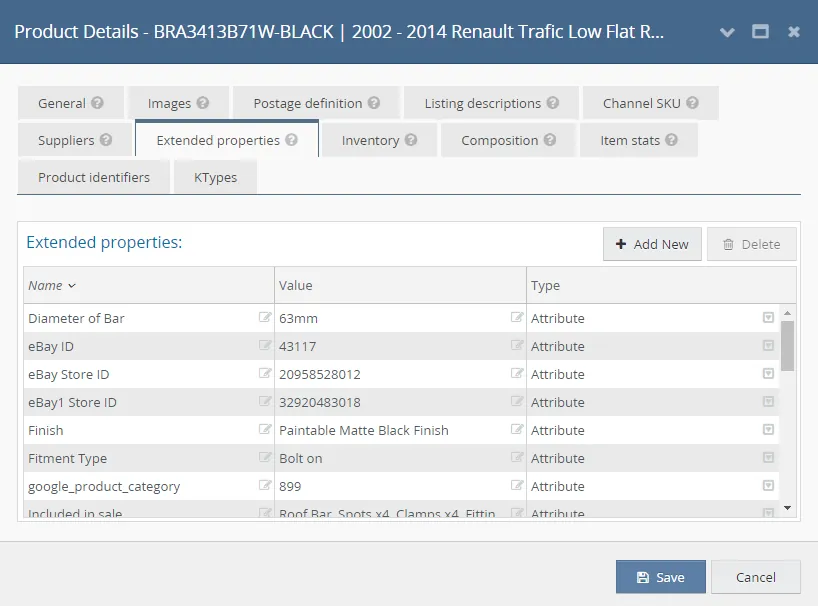
Checklist:
Magento
Mag_Short_Description (Bullet points should not be in Bold and from the main description - HTML format)
magento_shipping (Group E, etc - Group specified for shipping rates → The same letter used in eBay Configurators)
magento_shipping_alt (if parent item has ALT composite value = Yes, otherwise value = NO)
Mag ID (Magento Category IDs applied to relevant model/categories based on Make / Model / Year or for Lights application)
google_product_category (value is always 899)
eBay
Item Specifics should be complete depending on the category of product listed (arrangement for items with Make, Model and Year should be as follows 1. Make
- Model (and Year) > 3. Cab Type or Wheel Base if applicable > 4. Included in Sale > 5. Material > 6. Brand. Other item specifics are Manufactured in, Fitment Type, Finish/Colour, Instructions, Overall length if applicable, etc.) eBay ID Category (eBay0 and eBay1 Channel Categories → Select 1 relevant category, exact or closest to the item for sale.) eBay Store ID (eBay0 Store Categories - bts trading shop) → Select correct Shop Category (Model or Light application) eBay1 Store ID (eBay1 Store Categories - bragan x shop) → Select correct Shop Category (Model or Light application)
Amazon
Bullet 1, Bullet 2, Bullet 3, Bullet 4, Bullet 5 Search_1, Search_2, Search_3, Search_4 VehicleFitmentCode
9.) Product Details Screen - Inventory Tab The Inventory tab allows you to add the location and stock level of the item. It shows a list of physical locations for the SKU with the ability to define a bin/rack location for each warehouse that is added to Linnworks. Bin/Rack is the position on the shelf where the item is located and would be used when picking items for orders or booking stock in.
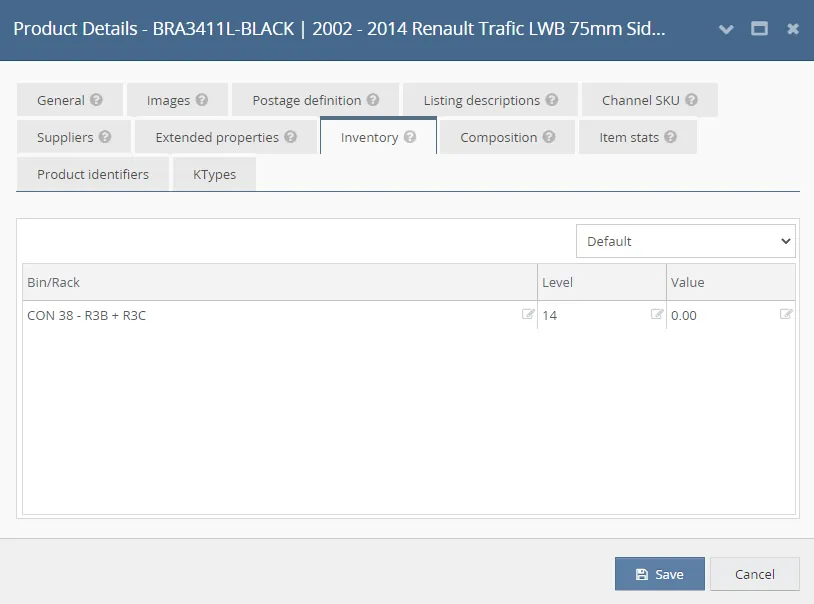
Note: These details are confirmed to warehouse. To save time do this together when you are inquiring about the postage definition tab, see process above. See sample trello:
Checklist:
Add Level (This is the Stock Level for an item - only applicable to Child main items → Ask Warehouse, for New Items received → ask Procurement Team) Add Bin/Rack (This is the Item Location - Confirm with Warehouse for the correct location.) Add ‘+ ALT’ in Bin/Rack for parent items that have ALT as composite. For ex. CON 01 - L1A + ALT
ALT means that the item is altered to fit vehicle. There is alteration done. See this SOP to know how to add +ALT in Bin/Rack.
For Parent Items - Add 'See Child Location' and 'ALT' if applicable → This can be done via LW Desktop or CSV file Upload Use Attached CSV Template → BinRack_Title_Date - Parent Location Template
Import file once data has been added → Navigate to Settings → Import & Export → Import Data → Select Import Now → Add Name e.g., Parent BinRack Location Upload (this will be saved and can be used on your next import as long as you have the same header column → Import Type = Inventory Import → Select Next → Choose File - select the correct file edited to upload → Run now Refer to this Linnworks Documentation for more details → assets.linnworks.com data/import-data/import-types/inventory-import/
10.) Product Details Screen - Composition Tab
Note: This tab is for when you are listing a parent SKU/item, if you are listing a child SKU then this tab should be blank.
The Composition tab shows the details of the composite item and allows you to create such items manually. Composite items are "virtual" items that can be created in Linnworks. Rather than being a physical product, they are a collection of multiple SKUs, much like a set of items. Compositions can be created on this screen or in bulk with the 'Stock Item Compositions' import.
In the example below, the parent item being listed is BRA3413B71W-BLACK and its composites are the ones listed below. This means that when a customer bought this item BRA3413B71W-BLACK it would be composed of the composites listed below.
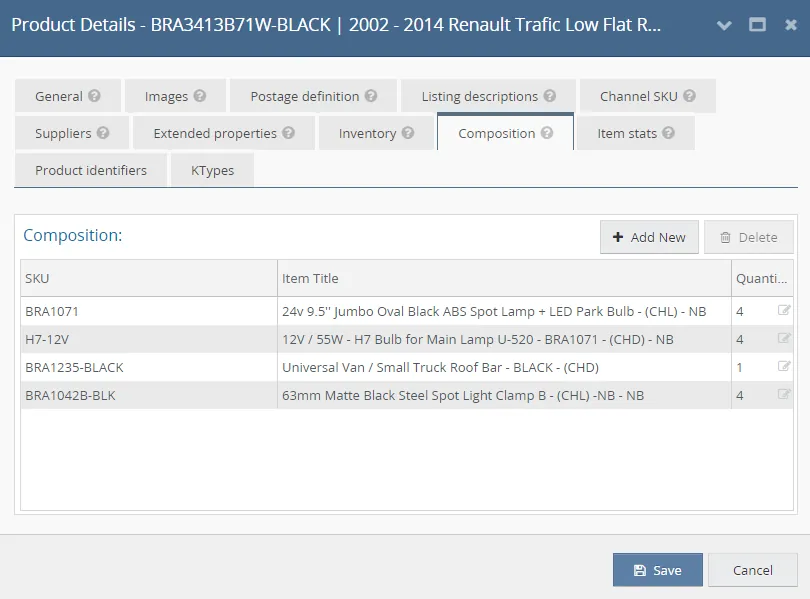
Also, if an item is being altered, an ALT is added in the composite. There are different types of ALT and you need to confirm with warehouse what type of alteration was done to the item. Please see this SOP on ALT to know what are the different types of ALT.
Checklist:
SKU → This is use for composition items / parent (the SKU / Item number of the Linnworks inventory item that is to be included as a child item in this composite). Quantity → QUANTITY NEEDED FOR COMPOSITION / BUNDLE (the amount of this child item to be included in the composition). Input correct quantity Checking → Ensure to select the correct Child SKU code and Quantity Double check composition with warehouse or management.
to confirm with warehouse use the same process when confirming postage definition and inventory details.
11.) Product Details Screen - KTypes Tab
Shows all eBay KTypes for the Inventory item. All KTypes that have previously been added either manually or via Data Import using the eBay Motors Listing (K-Types) Import will be displayed. You can add, edit or delete eBay KTypes directly on this page. See the SOP link below to know how to add K-types. K-types will appear in the Compatibility Chart of eBay channels.
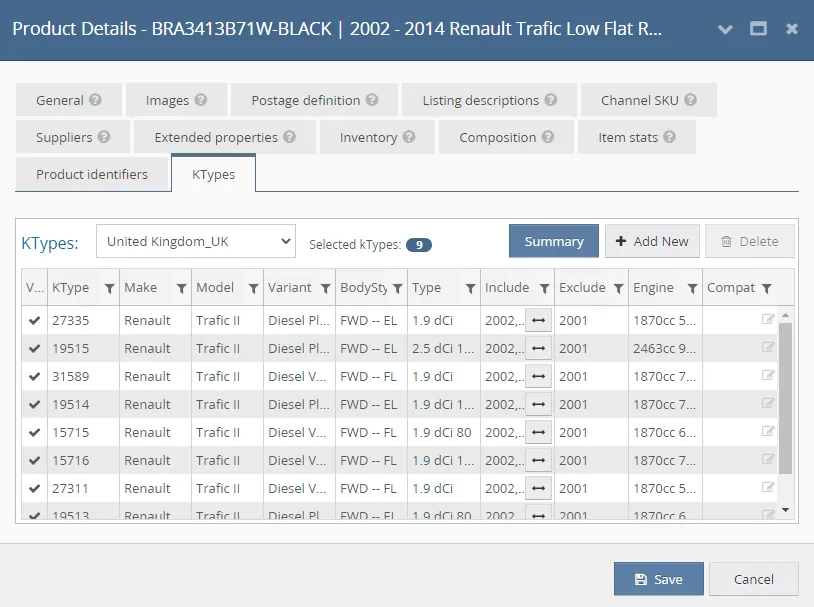
Note:
As you notice, Item Stats and Product Identifiers Tab were skipped, this is because this is not used for the template in creating the listings. Click Save. You can click save from time to time like when you finished 1 or more tabs to save your progress. Ktypes are applicable for Van and 4x4, no need to add ktypes for Trucks and Lights.
12.) Select Correct Configurator
Once the template is ready, right click on the channel where you want to list it. See sample below, right click on the Magento M2 Bragan Website column if you want to list it in website. If you want to list it in eBay1 then right click on eBay1 column.
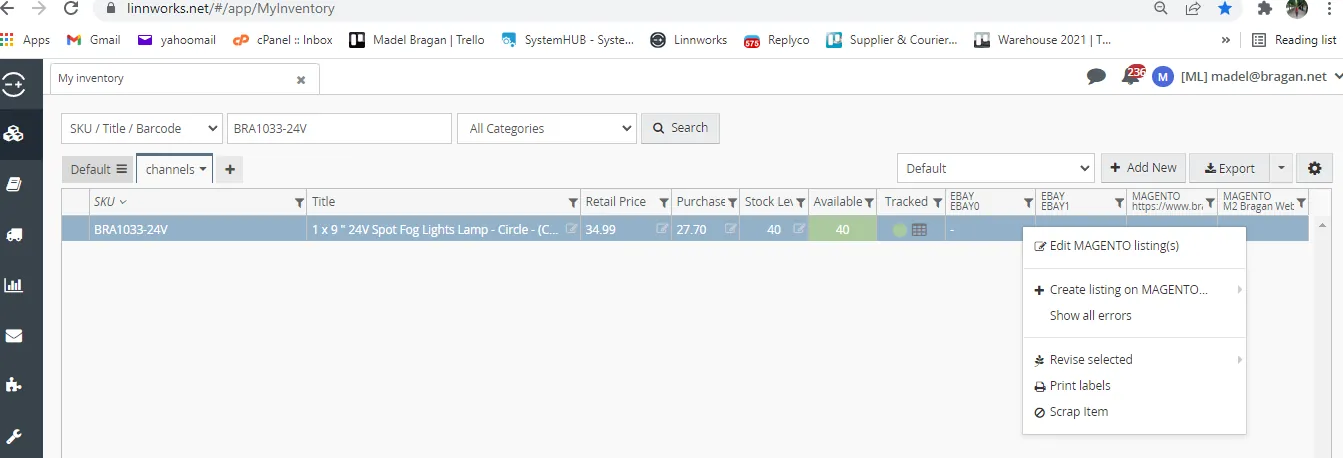
Configurator for Magento
After you right click, select +Create listing on Magento then select the correct configurator for the item. If the item you are listing is for a van then select 3 VAN ACCESSORIES configurator. For lights choose 1 OTHER as configurator. For spare pieces (BRASP), check if the part is for a van, truck or 4x4 then select the right configurator.
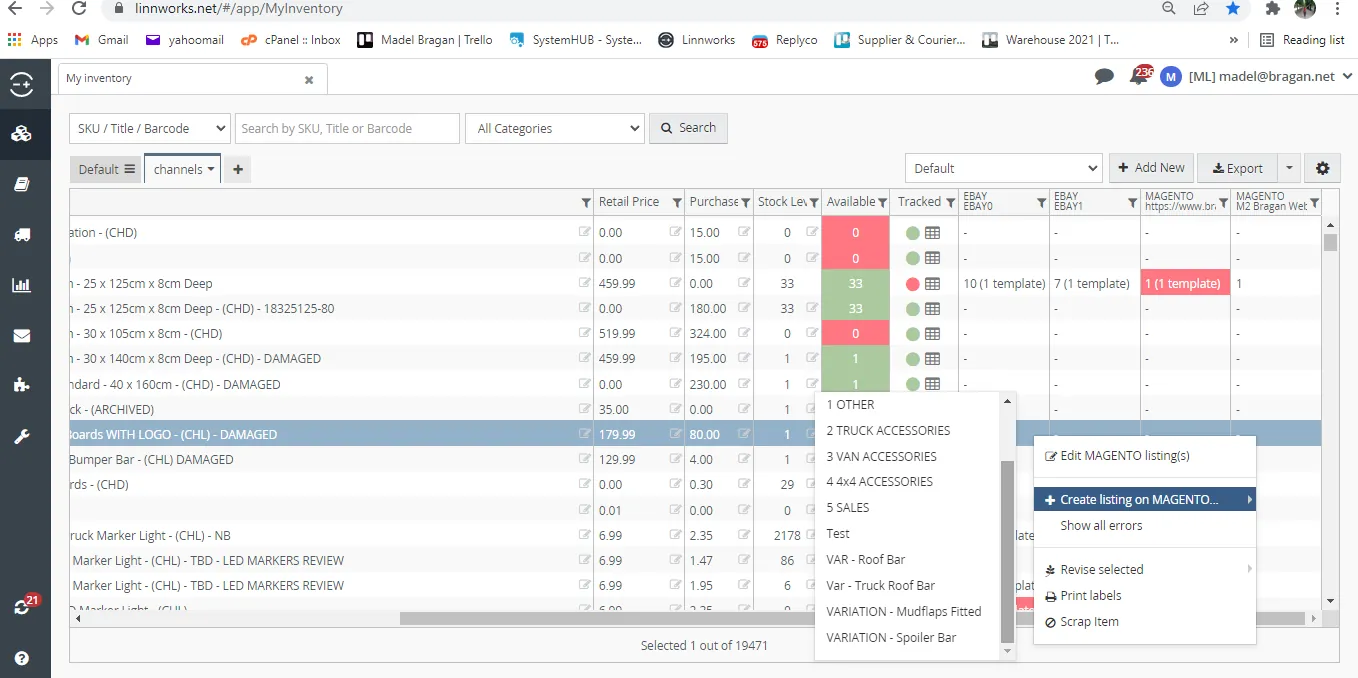
Configurator for eBay0
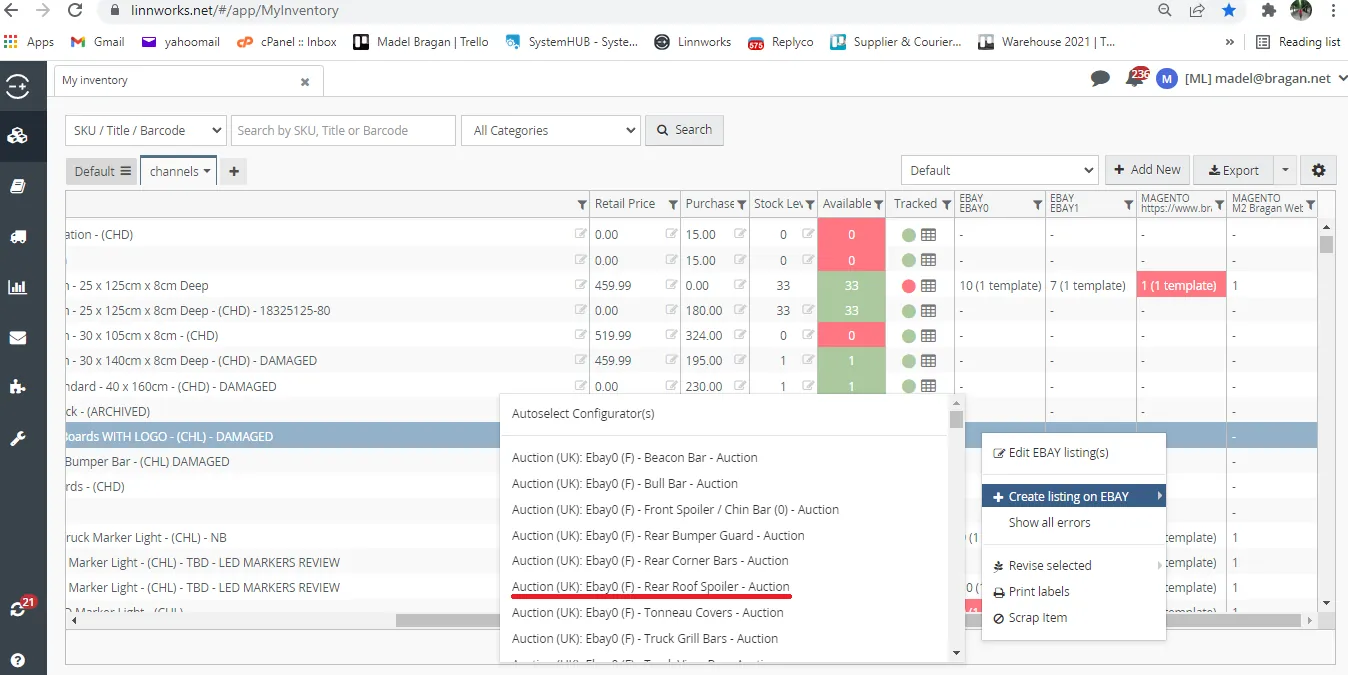
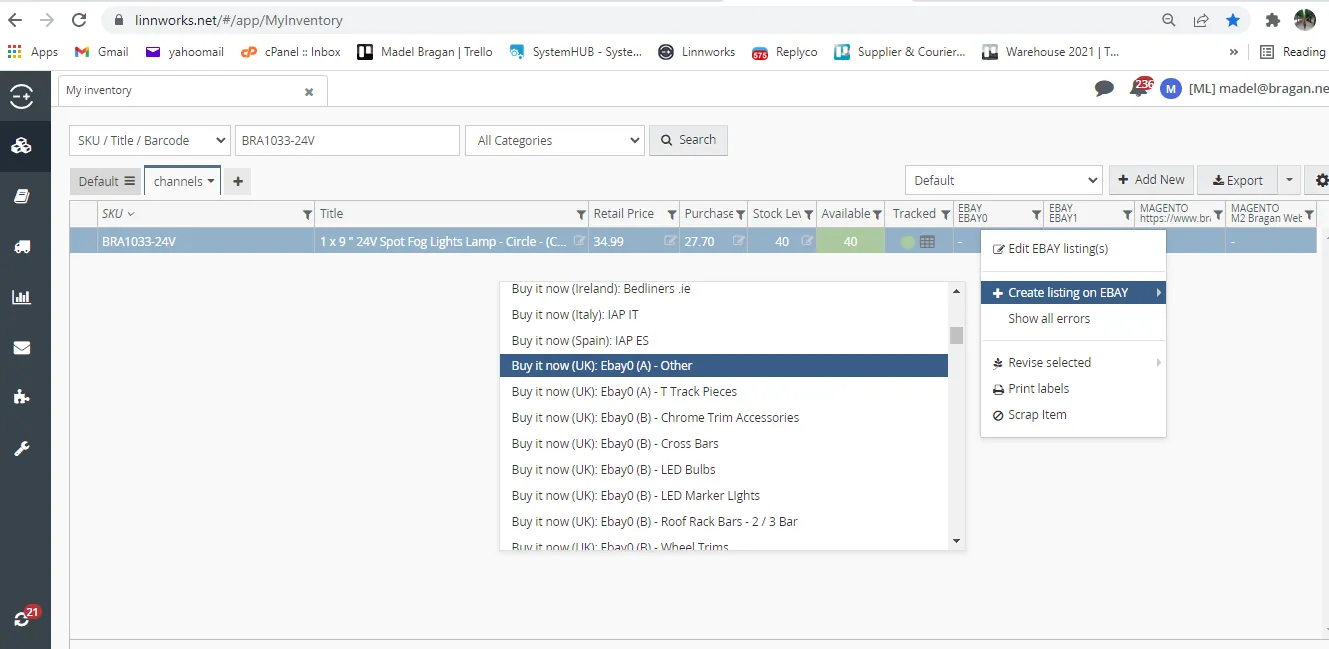
After you right click, select +Create listing on EBAY then select the right configurator. Applicable configurator is per category name. If it is an auction item then choose the one with Auction at the start then select the right item. Example, if you are doing an auction listing for a rear roof spoiler then select the configurator: Auction (UK) Ebay0 (F) - Rear Roof Spoiler - Auction. If you are listing spare pieces (BRASP) it should always be (A) OTHER (See Figure 33). If not an auction listing it should be Buy it now at the start of the configurator.
Note: The letter after Ebay in the configurator Auction (UK) Ebay0 (F) - Rear Roof Spoiler - Auction, Buy it now (UK) Ebay0 (A) - OTHER represent the magento shipping group of the item. You can use the magento shipping group file as your guide so it will be faster for you to search the configurator. See Attachment for the file.
Configurator for eBay1
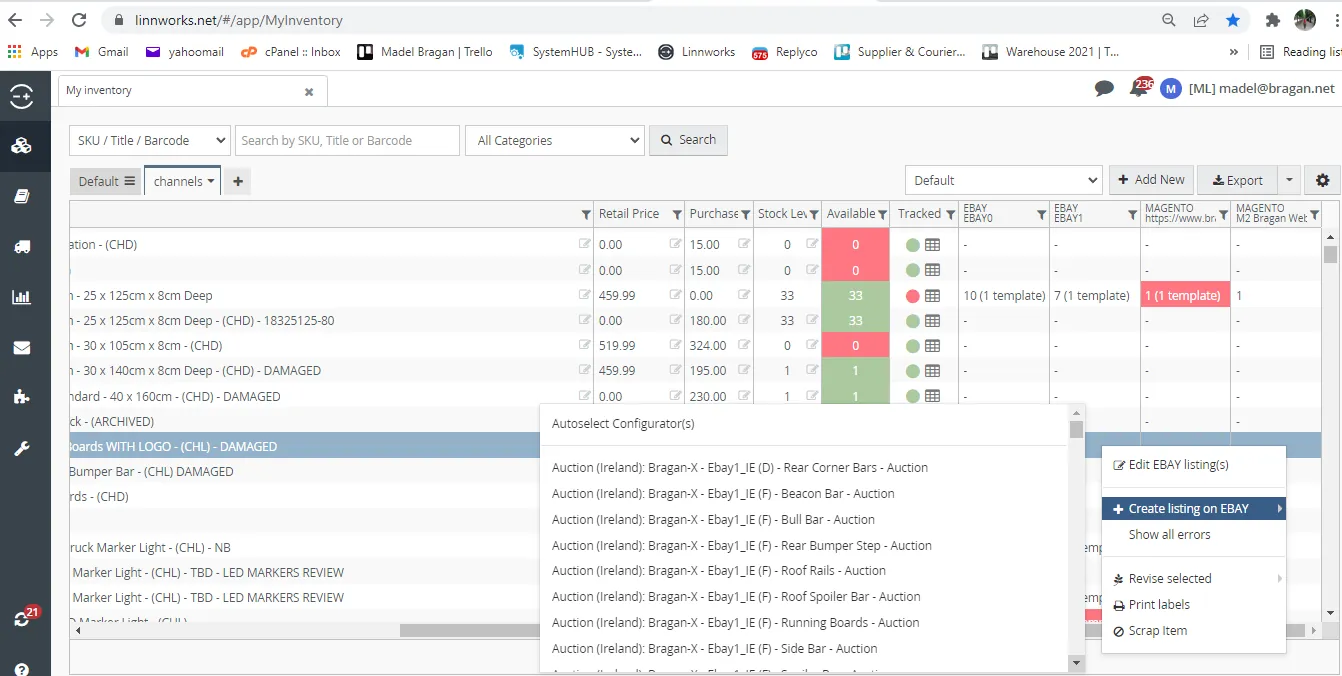
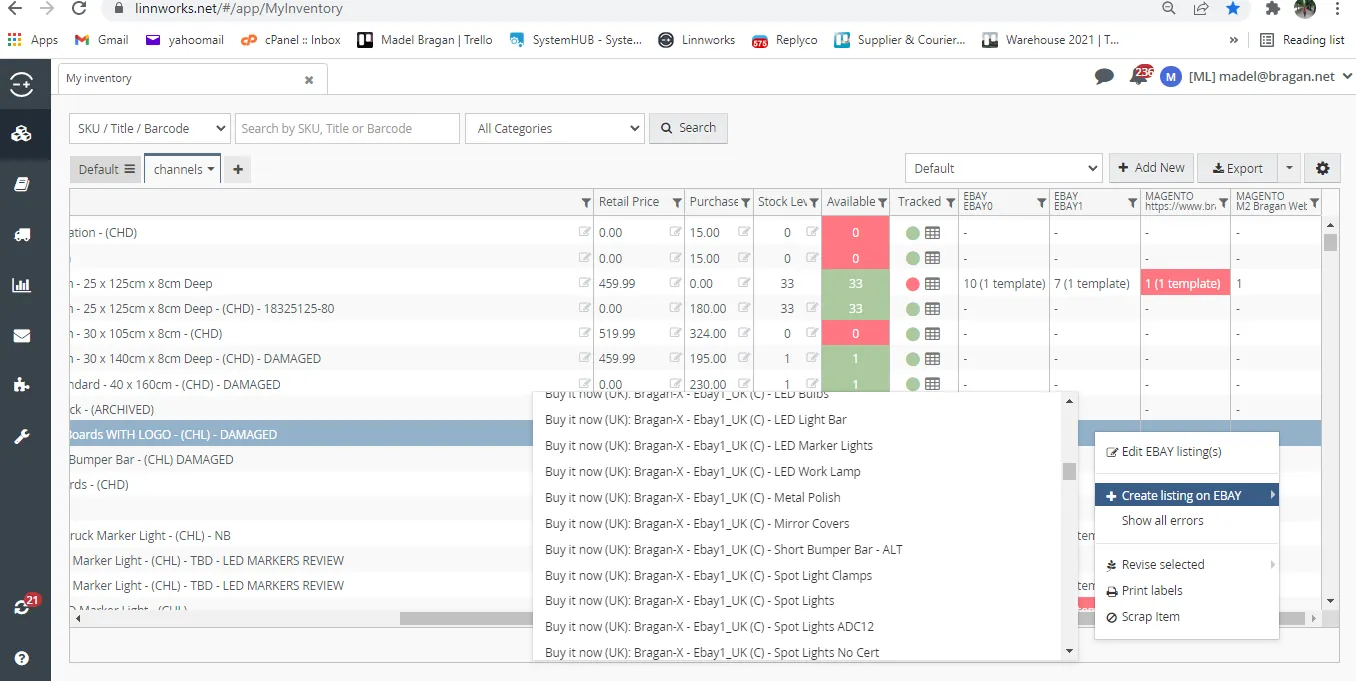
Same process to eBay0, but instead of eBay0 you have eBay1 in the name.
Checklist:
eBay → Correct Configurator applied per eBay channel - Applicable Configurator is per Category Name → e.g., SKU BRA38813 | 2016 - 2019 Peugeot Partner Rear Roof Spoiler- Barn Door | LW Category = Rear Roof Spoiler → eBay0 → Ebay0 (F) - Rear Roof Spoiler ||| → eBay1 → Bragan-X - Ebay1_UK (F) - Rear Roof Spoiler Magento2 → Correct Configurator applied per Magento channel - Applicable Configurator per Category
Note: Ensure to check the eBay configurators to use before creating the listing template in eBay0 and eBay1.
Below is for new configurators.
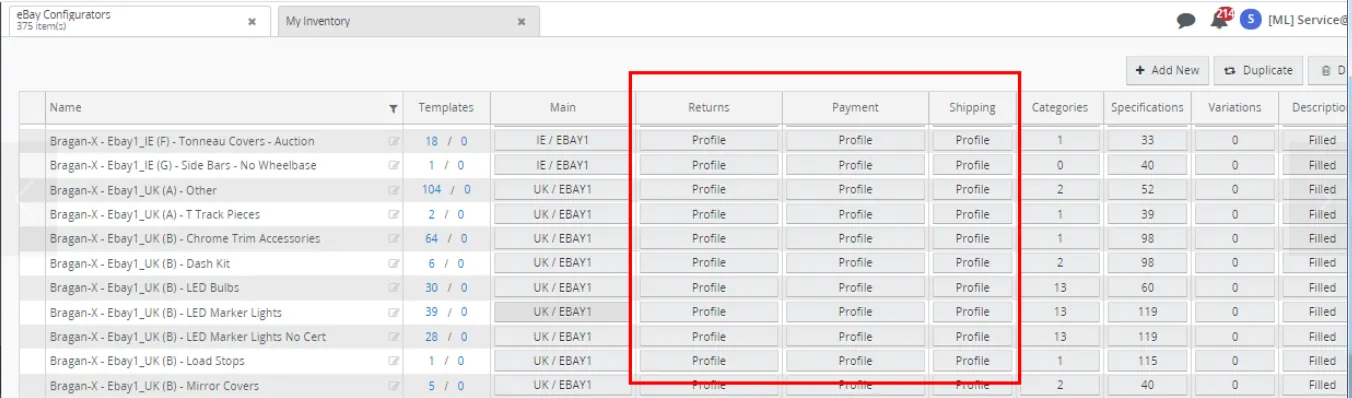
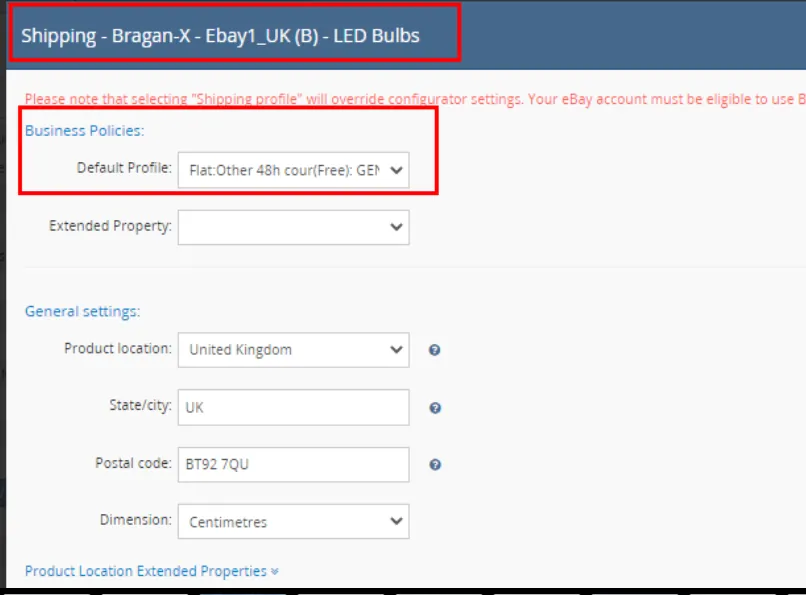
There are many configurators already created but if there is a new one double check it based on the following requirements in terms of Business Policy Profile.
Ebay1_UK Business Policy Profile
Shipping : Flat:Other 48th cour(Free):GENERAL Payments : Paypal:Immediate Returns : STD > Returns Accepted
for Auctions Ebay1_IE Shipping : AUC > Domestic General Payment : Payment > Auction Returns : Returns Accepted,Buyer,30 days#0
Ebay0_UK Business Policy Profile
Shipping : Flat:Other 48th cour(Free):GENERAL Payments : Paypal:Immediate Returns : Returns Accepted,Buyer,30 days#0 for Auctions Payment : Payment > Auction
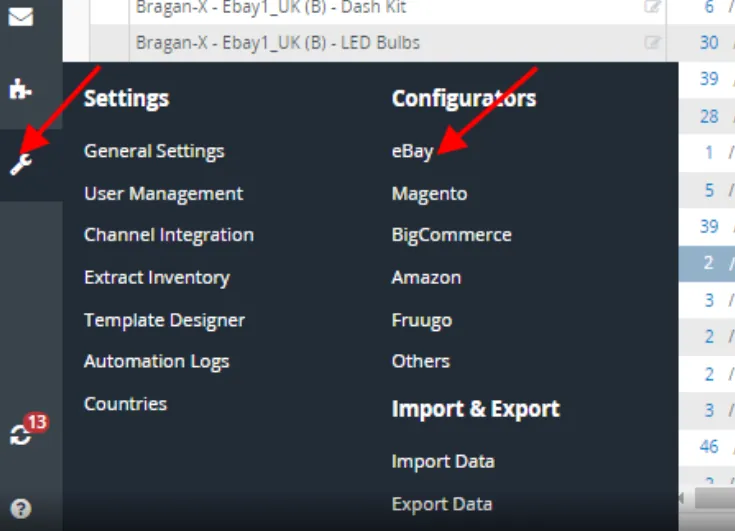
Go to Settings in Linnworks > Configurators > Click eBay, then check details of configurators same as above details before listing.
13.) Listing Live to Channels → Channel Templates Screen
Once you have selected the correct Configurator, you will be directed to the Channel Template Screen In the channel templates screen, check all the details (blue boxes) to make sure that the correct data was picked up from the items - Product details screen that you've created / updated Click Create button to proceed with listing creation on the channel. Check the status and ensure it has changed to 'Listed'. → Any error, report to Management
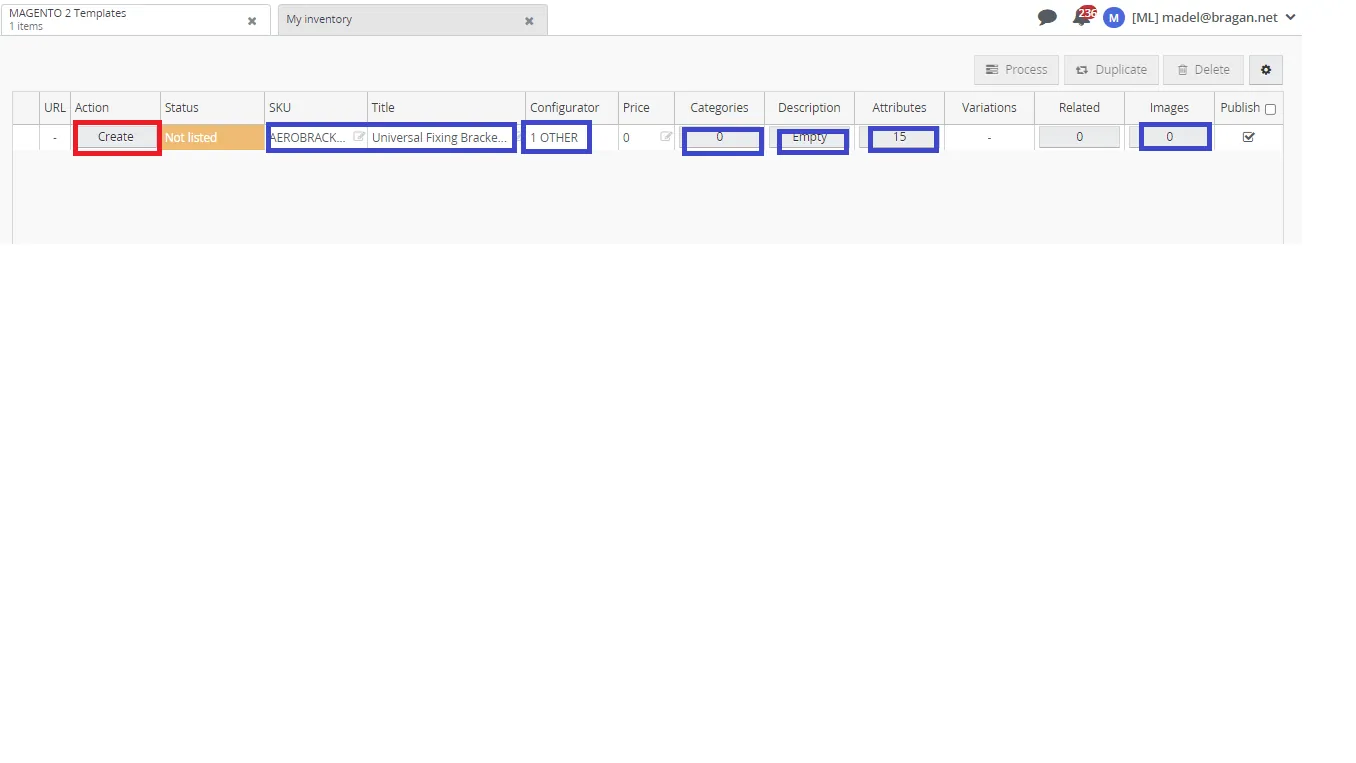
Note: Attributes refer to the number of extended properties you put this should match to the extended properties tab of your product details screen, same also with image, this is the number of images you uploaded in the image tab. Description should not be empy, in this example the description was not filled-out so do not create the listing, close this window, go back to the product detail screen in the product description tab and fill-out the description. Repeat the process of choosing the correct configurator to go back to this page. If everything is now correct you can click on Create.
14.) Checking of Live Listings
Checklist:
Title - should be the same as in the product details screen (listing description tab), reflecting correct make / model / year (if present) without any typo.
Price - Correct Price Confirmed by Management. Should be the same as in the product details screen (listing description tab).
Description - should be the same as in the product details screen (listing description tab), reflecting correct make / model / year (if present) without any typo. Listing Description Spell Check
Item Specifics (for eBay) - the arrangement is correct and values are reflecting accordingly. Check this SOP on how to arrange the item specifics for eBay.
Magento Short Description (for Magento) - ensure correct bullet points have been inserted. See this SOP on how to create Magento Short Description
Check for unusual notes in the live listing page such as COLLECTION: FREE COLLECTION IN PERSON FROM UK, UNITED KINGDOM. See snipe below. This should not appear in the listing and needs to be remove. This can happen when wrong configurator was used. Resolve by choosing correct configurator. Review Step 12 for the process in selecting correct configurator.
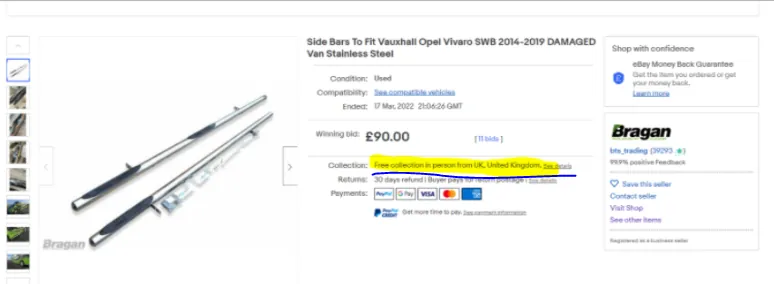
NOTE → Basically need to check ALL aspects of the listing and make sure there is no error in the live listing → Very IMPORTANT
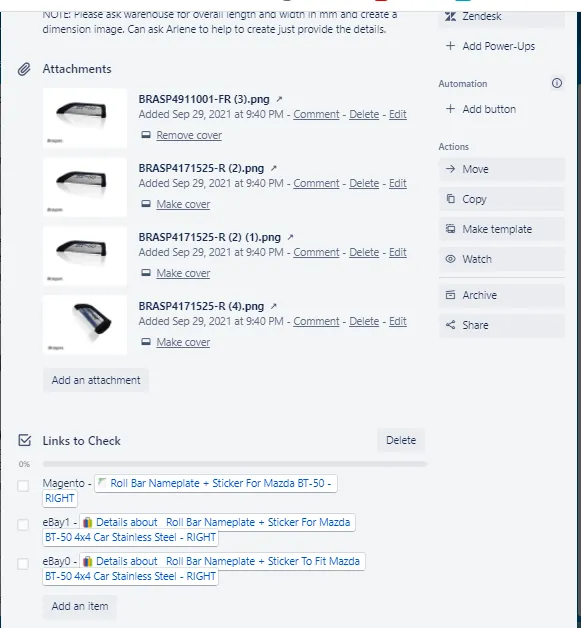
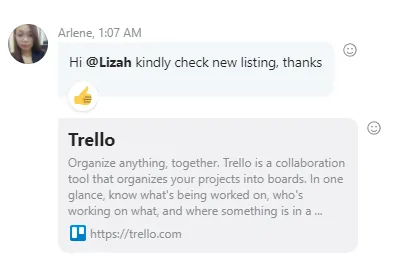
Once you finished listing, you need to have another lister (your partner or a senior lister) double check your listing. Each product lister has a partner which will do the double checking. To do this, tag your partner in the skype group Bragan New Listings/Listing Changes then request to check your listing and attach the trello card link of the listing request. The card should have a checklist title - Links to Check and add the links to be checked. See sample below.
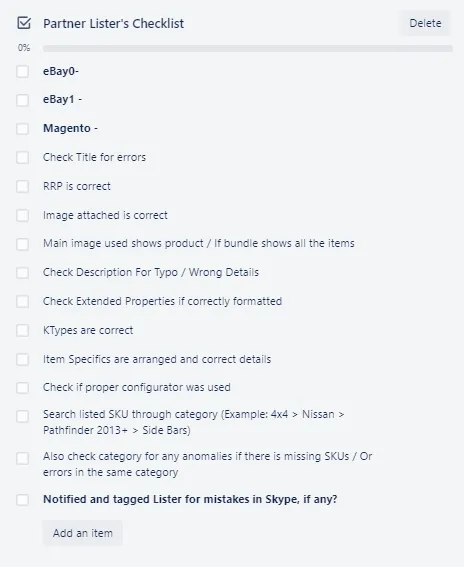
Checklist For Partner Lister:
Partner Lister tagged in the Skype System should finish the checklist provided in appropriate Trello card and tag the lister for any problems.
- Check Channel SKU Tab in Linnworks
Go back to Step 6 to know what to check.
- Picture Folder Renaming Once listed, you also need to rename the pictures used in the listing. Picture file location is indicated in the Trello card so go the Original and Edited Dropbox Folder. Go to the correct week folder and type the SKU in the search bar and find the pictures similar to the one in the trello card and rename it. Add LISTED before the SKU in the filename.
Original Folder is where the raw pictures where saved, not yet edited and cannot be used in listings. While the Edited folder, from the name itself are the pictures already edited by the picture editor and the one that we used for the listing.
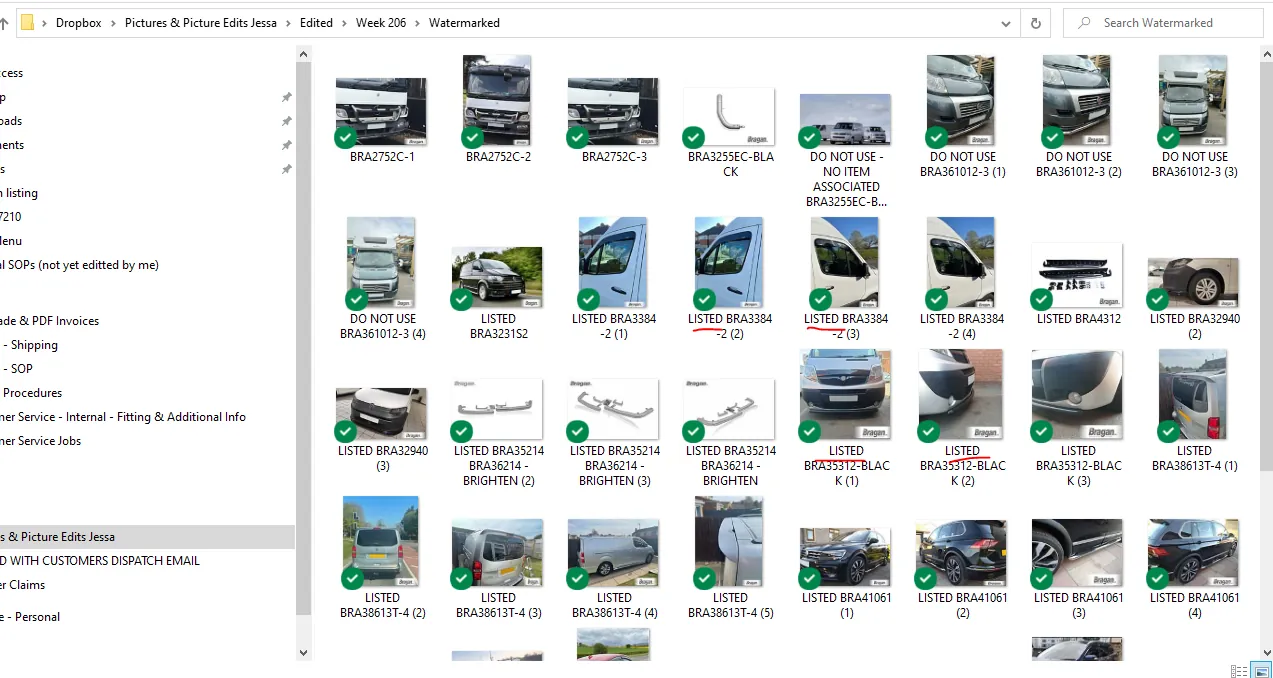
Edited Folder
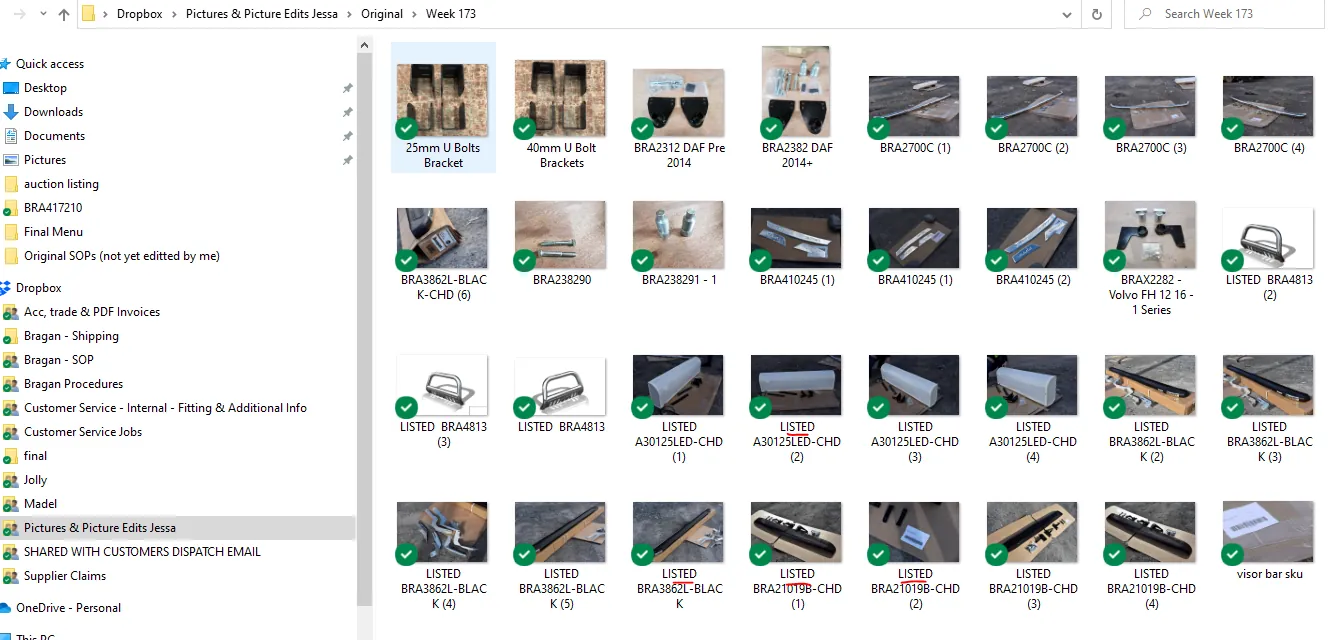
Original Folder
17.) Fitting Guide for New Item Checklist:
If you are duplicating an item, make sure you also duplicate the fitting guide into the appropriate folder.
Fitting guide folders are found in this dropbox link. You need to request management to give you access to this folder.
If this is a completely new item a fitting guide must be requested from IRL or from the supplier (you can request CS agent or procurement officer to contact the supplier for the fitting guide. Make sure the fitting guide names the correct SKU, and correct folder. Fitting guides for parent items for example from winbo supplier, add the guides to the child item and add the fitting link of child item to extended property of the parent sku.
18.) Adhoc Task Needed after Listing
This Adhoc task is very IMPORTANT to track new items. Will be added to Trade File for Trade Customers and Catalogue Also for Management to check the listing and add to your own Trello board for documentation and workflow tracking.
Checklist
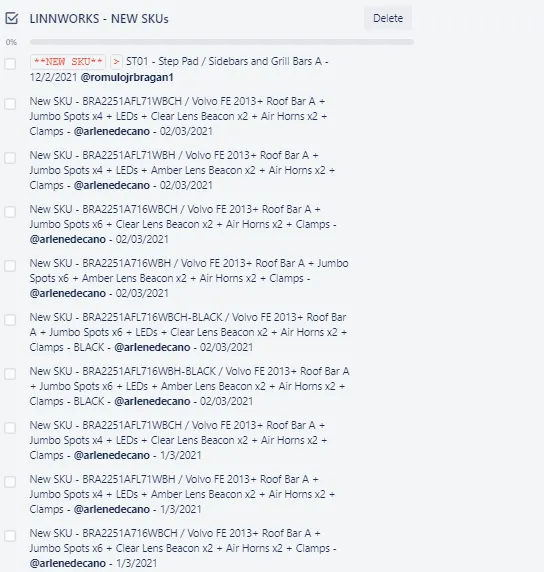
FOR NEW ITEMS LISTED – PLEASE ALWAYS ADD TO TRADE FILE CARD → Refer to Below
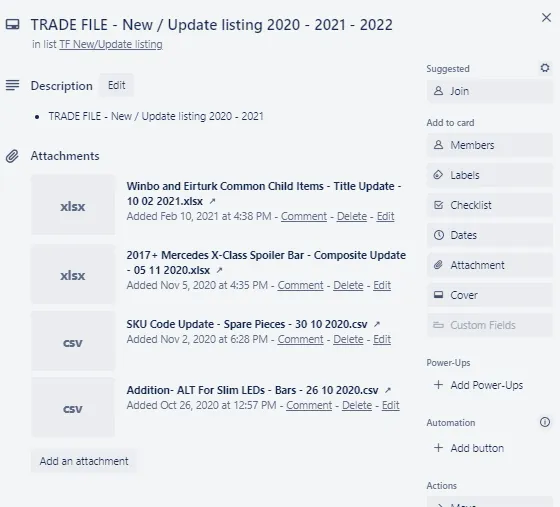
Trade File Card is updated when we have new listing, update on title, composites and prices. Other updates like description or images, we don't need to put in here.
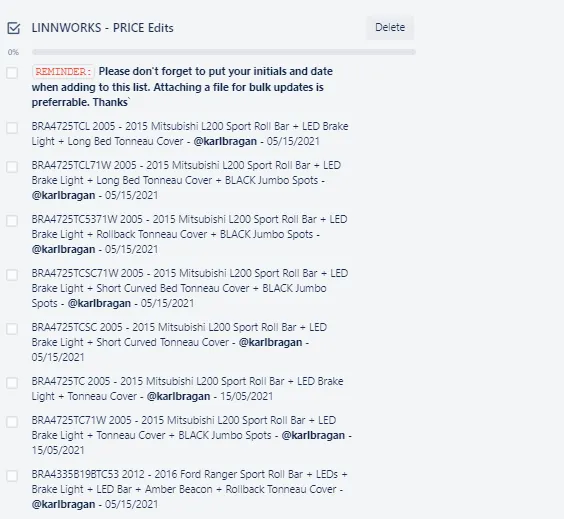
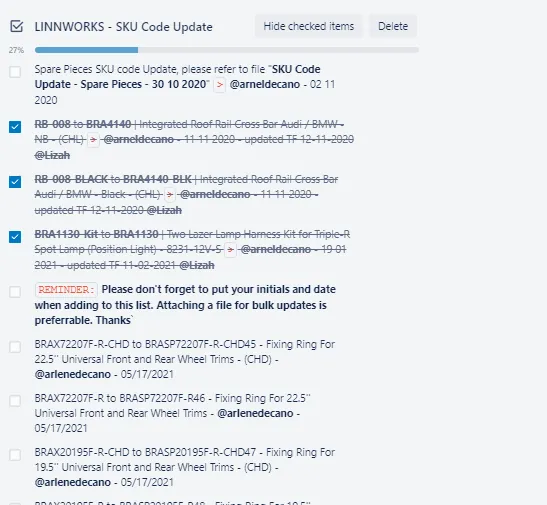
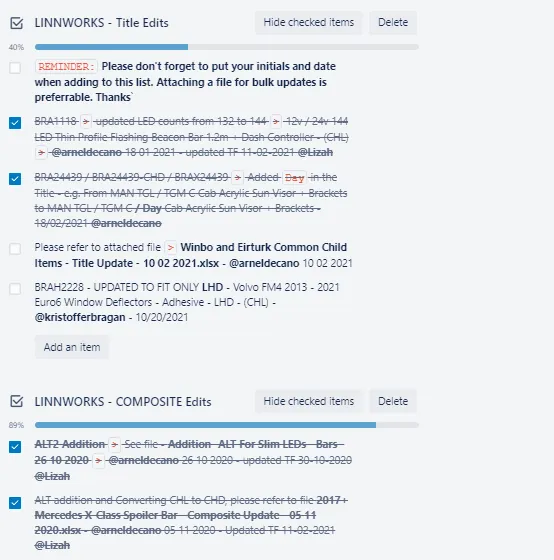
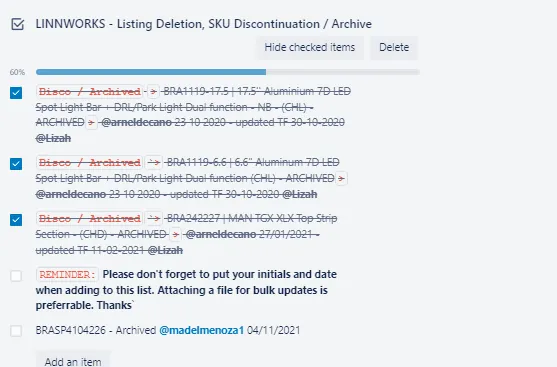
Trade File Card Sample - trello.com - If it's a new year then just add the year on the title.
Video & Media#
🎥 New listing Process September 29, 2021
Notes#
This section is important so Adhoc points and issues can be logged. Also, Q&A can be logged for suggestions for potential issues encountered. Also, log important notes needed for this system.
Additional Notes#
Videos are a bit old but still will give you an idea on how to properly create a Listing Template in Linworks. It is strongly advised to take note of all checklists above. Some spare pieces for roof rails, running board nameplates and brackets should be listed in Magento only (not in eBay0 and eBay1). These items are
Overview#
Purpose: ly removed from eBay channels. These items have SKUs that starts with BRASP and BRAX. But the popular spare pieces can be listed in eBay0 and eBay1. See this file to know what spare pieces are allowed in eBay and what are not. Items highlighted in yellow in the file are NOT allowed in eBay channels.
All Black bars are priced the same as their Chrome bar equivalents. Example, the SKU BRA371214FL-BLACK (2019+ Citroen Berlingo Rear Corner Bars + Flush LEDs - BLACK) has the same price of 279.99 with BRA371214FL (2019+ Citroen Berlingo Rear Corner Bars + Flush LEDs) Add Dimension image for new listings (like roof bar, side bar, roof rails, running boards, low bar. spoiler bar, step pads (some items do not require dimension image, confirm to management which does not need like very small brackets, nuts and bolts.) Send query to warehouse in mm and create dimension image using ms paint.
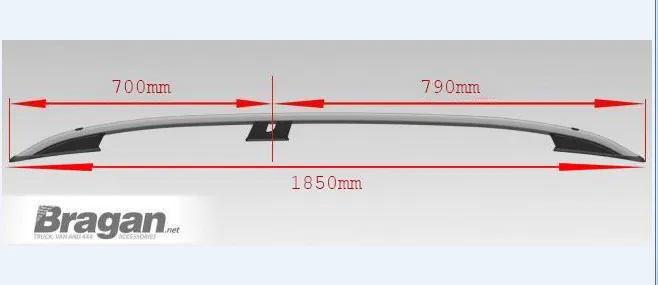
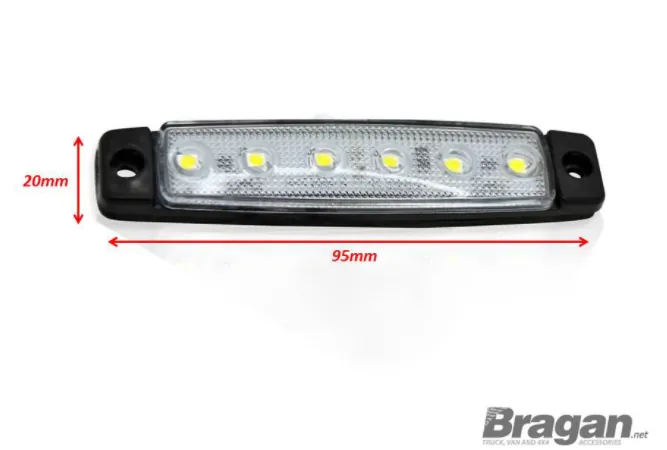
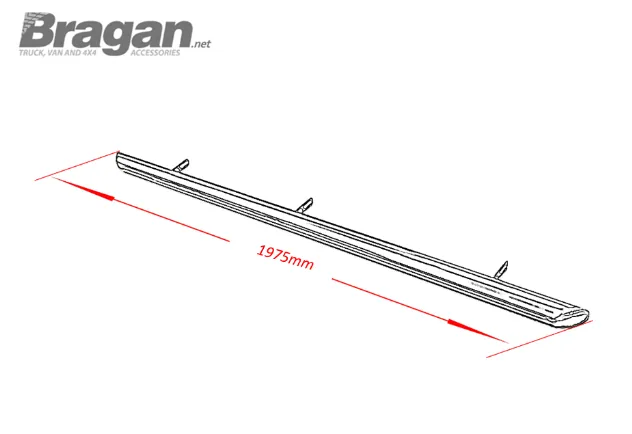
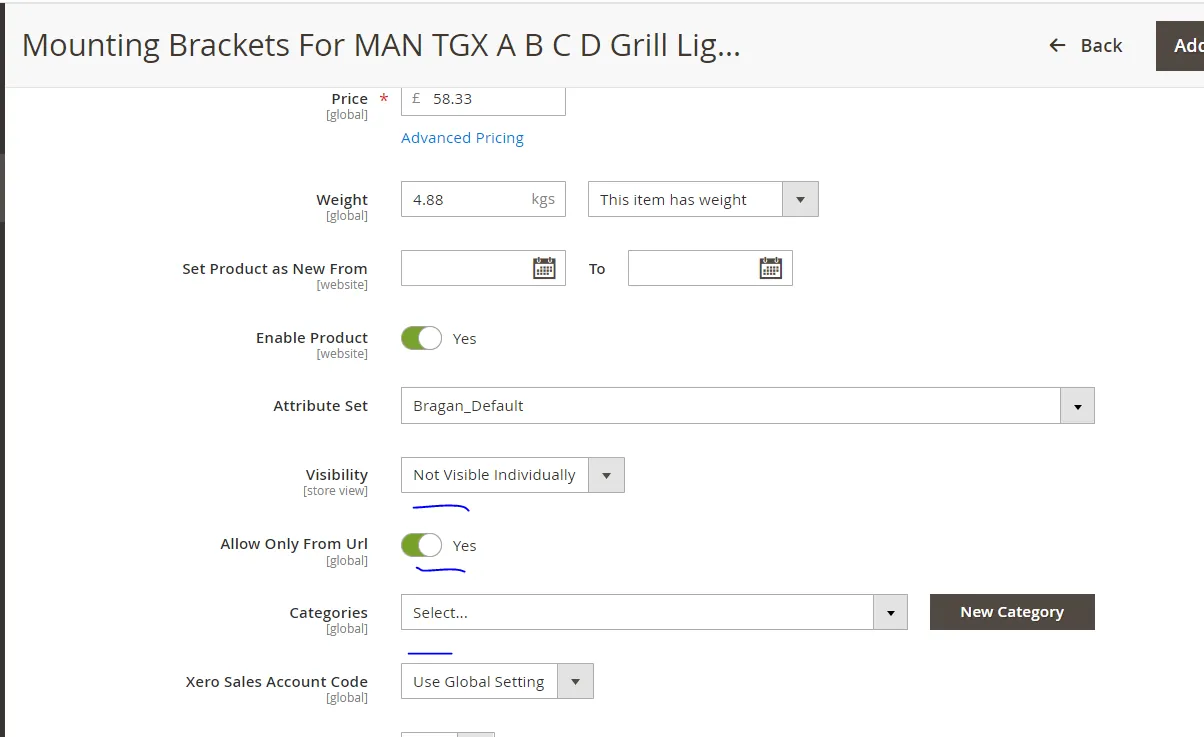
Brackets BRAX, Spareparts BRASP and Bolts BRAB are listed only Magento website, needs to remove m2 category and set the listing in private (please see sop how to set listing in m2 to private in which the listing is not visible in Magento website and you can only search it via URL. Apply to all view in magento (All store view, UK view and Main view)
In updating Magento listings, both old and new listings, you need to update both in linnworks and in Magento backend and tick Magento (All store view, UK view
and Main view) and click save and check live listings if updates has been made in 3 views of Magento website. Duplicated new listings should be the same price from the original listings and no need to send for RRP for approval to Sir James. For brackets and spareparts new listings -add the internal note why it was requested to list and who request it and confirm to management if it will be listed in magento as private 0r needs to list in ebay0 ebay1 and magento as searchable listing. Add the approved RRP to magento and eBay price is Magento rrp * 1.03 to give a 3% increase to eBay price then round it to .99 No need to add trade price for new listings in magento back end for magento listings.
Potential Issues:
1 - ISSUE ENCOUNTERED: Stuck on Loading RESOLUTION: Refresh Browser
2 - ISSUE ENCOUNTERED: Broken Links RESOLUTION: Get the external link as this will allow other people to access the SOP without the need for login credentials and avoid broken links.
3 - ISSUE ENCOUNTERED: Typo or wrong spelling in the description. RESOLUTION: Need to check live listing in website to check everything is correct.
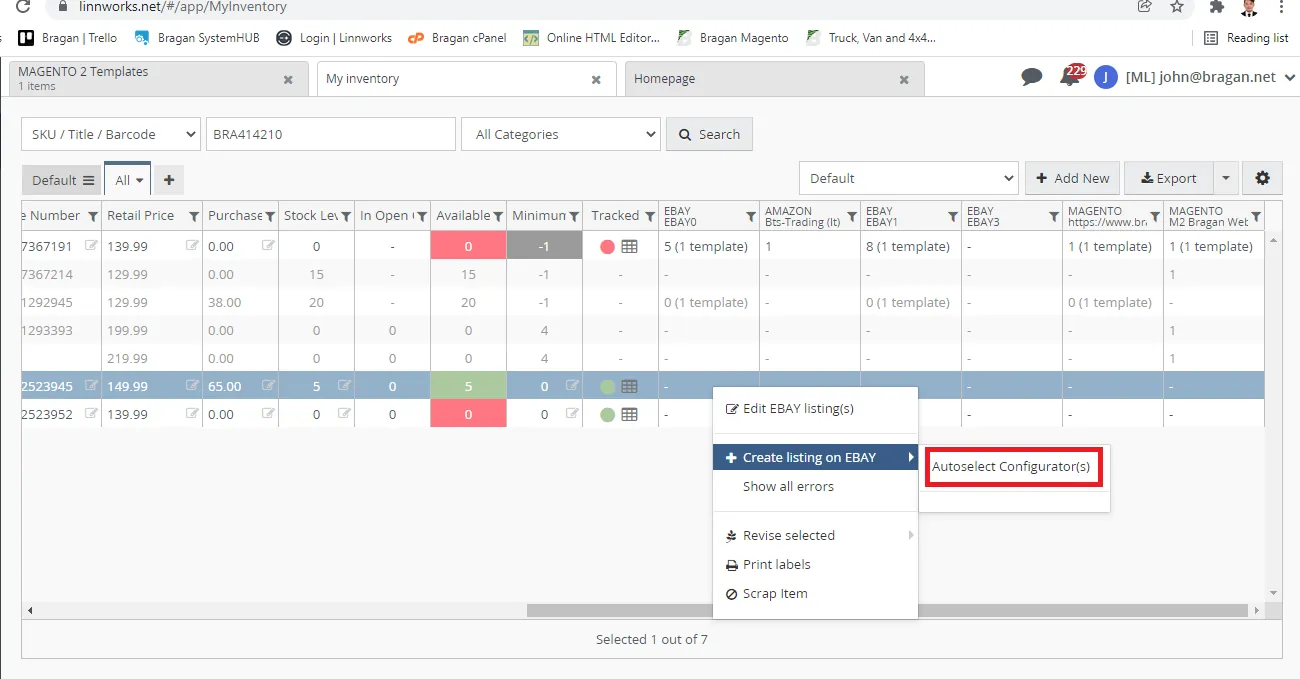
4 - ISSUE ENCOUNTERED: "Autoselect Configurator(s)" appear when creating the listing - RESOLUTION: Poor internet connection, try again later and make sure to choose correct configurator.
5 - ISSUE ENCOUNTERED: "COLLECTION: FREE COLLECTION IN PERSON FROM UK, UNITED KINGDOM" appeared in the live listing - RESOLUTION: This is due to incorrect configurator. Make sure to choose correct configurator.
We don't relist Metris and Sterling listings in channels.
Attachments#
How_to_Create_Listings_in_Li… 09/03/2026
Magento_Shipping_Group_Gui… 09/03/2026