How to Create New Listings in Bulk
This process describes how to create new listings in bulk (preferably all parent items
Overview#
Purpose: This process describes how to create new listings in bulk (preferably all parent items or bundle items for different models). This bulk listing process will include listing to at least these 3 channels: Magento, Ebay0, and Ebay1.
Scope: This procedure applies to all listing teams.
Responsibility: It is the responsibility of each employee to ensure the process set out in this procedure is followed.
Objective: The objective of this procedure is to guide the listing team on using the correct procedure for creating listings in bulk.
Procedure#
Creating new listings in bulk requires all details found in the Product Details Screen in Linnworks, the difference is that instead of doing it individually in the product details screen for each new listing, you will be doing it in Excel or Google Sheet.
- Know What SKU to Duplicate
Usually this is given on your Trello task card but if not choose the same way with doing a normal singular listing. To know more about choosing the SKU to duplicate see this SOP on How to Create Listings in Linnworks. Make sure also that the new items to be listed already have an SKU, if the item still do not have SKU codes then create it first please refer to sop sku code creation guide. see this SOP
- Prepare First CSV File
You need to create five different CSV files which you will import to Linnworks later.
Ensure to add all new listings with cross over year note for van and 4x4.
Sample of CROSSOVER NOTE→ e.g., Newer Model 2015+ and has a 2008 - 2015 Older Model → Please Note: If your vehicle is 2015 year, you need to ensure it is the 2015 newer model (same as 2016) and not the older shape (same as 2012) before purchasing.
CSV is ready before duplication, start from scratch without any details. Do not duplicate other sku details.
1st CSV file - contains the details found in the General Tab, Listing Description Tab and Extended Properties. (NOTE: eBay extended properties (item specifics) must match the extended properties included in the configurator use for listing the material item.)
2nd CSV file -contains the details found in the Postage Definition Tab and Inventory Tab 3rd CSV file - contains the details found in the Composition Tab
4th CSV file - contains the details found in the Image Tab 5th CSV file - contains the details found in the Ktypes Tab
For example, the task is to create new listings for the following SKUs:
| BRA3821L | 2008 - 2016 Peugeot Partner LWB Side Bars - 2" |
|---|---|
| BRA3881L | 2016 - 2019 Peugeot Partner LWB Side Bars - 2" |
| BRA38101L | 2019+ Peugeot Partner LWB Side Bars - 2" |
| BRA3721L | 2008 - 2016 Citroen Berlingo LWB Side Bars - 2" |
| BRA3791L | 2016 - 2019 Citroen Berlingo LWB Side Bars - 2" |
| BRA37121L | 2019+ Citroen Berlingo LWB Side Bars - 2" |
| SKU to Duplicate | BRA3291M 2015+ Volkswagen Caddy Maxi LWB Side Bars - 2" |
If you can see from this example, this is ideal for bulk listing because it is the same item for different models of vehicle. Therefore you only need to edit the make, model and year. some pictures and some other minor aspects from the SKU that you are duplicating. It would save time since you won't have to create a new one for each and the important features for the item we are selling are already provided.
Your first CSV files therefore should have the following column titles and corresponding value. The first item should be the SKU you are duplicating since this is the one you are duplicating. Just remove this later after you finish creating the others, so it will not be included when you upload to Linnworks. See attachment for a sample CSV1 file. Make sure to save the file as CSV and do not forget to add a Filter Attribute. For a thorough explanation about filter attribute see this SOP on How To Update Listings In Bulk Step 6.
| Column Title | Value |
|---|---|
| Category | Product category found in General Tab |
| SKU | Item number found in General Tab |
| ItemTitle | Item title found in General Tab |
| Retail Price | Retail price in General Tab |
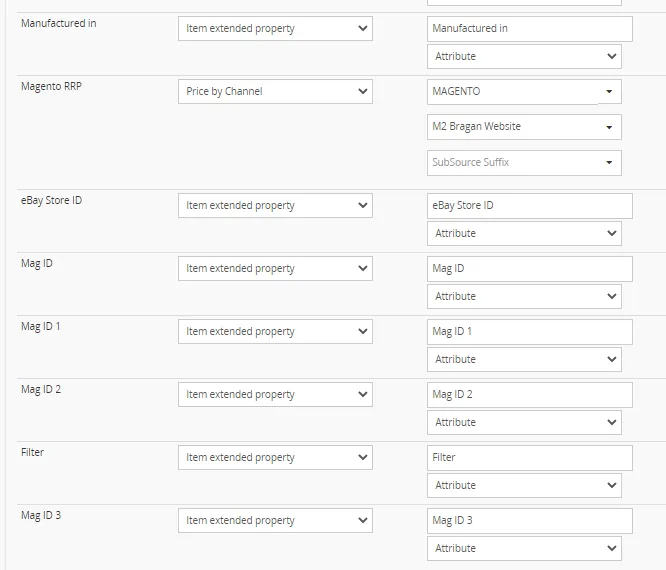
| Magento RRP | Magento channel price in Listing Descriptions Tab |
| Ebay0 RRP | Ebay0 channel price in Listing Descriptions Tab |
| Ebay1 RRP | Eba channel price in Listing Descriptions Tab |
|---|---|
| Magento Title | Magento channel title in Listing Descriptions Tab |
| Ebay0 Title | Ebay0 channel title in Listing Descriptions Tab |
| Ebay1 Title | Ebay1 channel title in Listing Descriptions Tab |
| Magento Desc | Magento channel description in Listing Descriptions Tab |
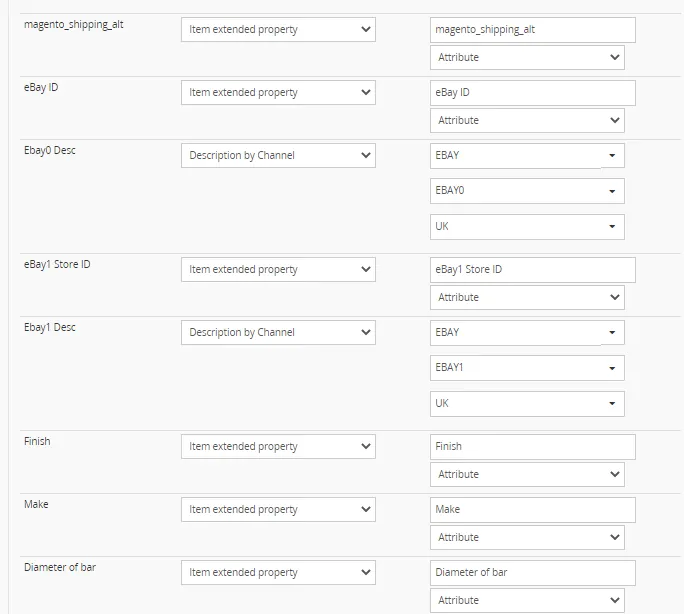
| Ebay0 Desc | Ebay0 channel description in Listing Descriptions Tab |
| Ebay1 Desc | Ebay1 channel description in Listing Descriptions Tab |
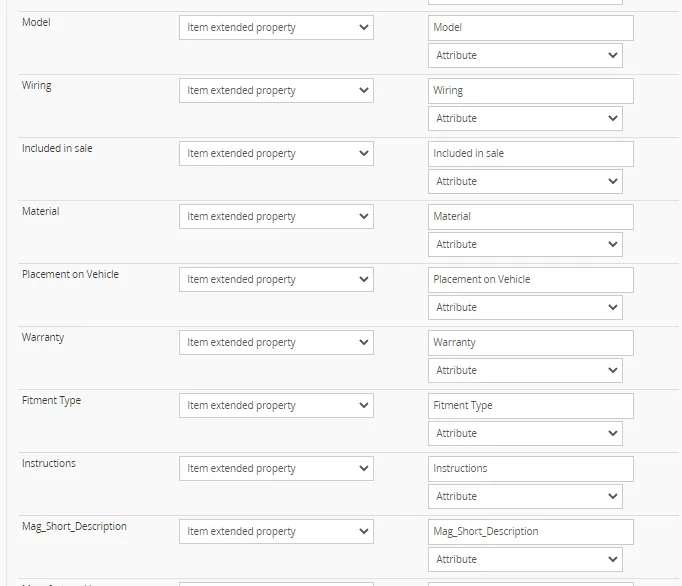
| Make | Make in Extended Properties Tab |
| Model | Model in Extended Properties Tab |
| Instructions | Instructions Extended Properties Tab |
| Included in sale | Included in sale in Extended Properties Tab |
| Material | Material in Extended Properties Tab |
| Finish | Finish in Extended Properties Tab |
| Warranty | Warranty in Extended Properties Tab |
| Manufactured in | Manufactures in in Extended Properties Tab |
| Placement on Vehicle | Placement on Vehicle in Extended Properties Tab |
| Fitment Type | Fitment Type in Extended Properties Tab |
| eBay ID | eBay ID in Extended Properties Tab |
| eBay Store ID | eBay Store ID in Extended Properties Tab |
| eBay1 Store ID | eBay1 Store ID in Extended Properties Tab |
|---|---|
| Mag_Short_Description | Mag_Short_Description in Extended Properties Tab |
| google_product_category | google_product_category in Extended Properties Tab |
| magento_shipping_alt | magento_shipping_alt in Extended Properties Tab |
| magento_shipping | magento_shipping in Extended Properties Tab |
| Mag ID | Mag ID in Extended Properties Tab |
| Mag ID 1 | Mag ID 1 in Extended Properties Tab |
| Mag ID 2 | Mag ID 2 in Extended Properties Tab |
| Mag ID 3 | Mag ID 3 in Extended Properties Tab |
| Filter Attribute |



Add cross over year note to all van and 4x4 listings.
Ensure that all listings with items and components (LED) colour is clearly stated in the description and item specifics.
For new items for new listings that don't have stock, it should be listed by adding 1 stock and removing it again when listed.
Duplicated new listings should be the same price from the original listings and no need to send for RRP for approval to Sir James.
For Roof Bar listing, there should be a difference of 50 pounds for all roof light bars with / without LED lights.
Sample format for requesting RRP for approval in bulk
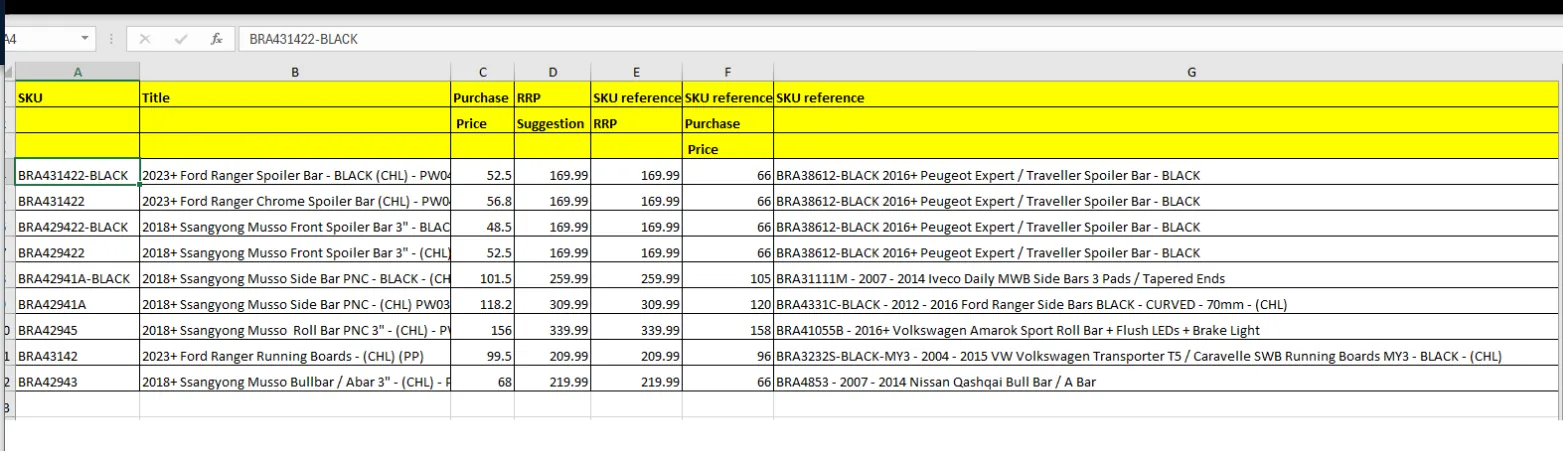
If the item is new in Linnworks, search if there is same item listed by other seller in eBay uk as RRP reference and if you cant find any, you ca use the following format Hi Sir James, kindly check please for RRP for approval, thanks.
BRA26395758-NB | Iveco Eurocargo 2003+ Standard Roof Sun Visor NO BRACKETS + Top Lamps without bulb x2 RRP Suggestion: 199.99 (No same item in Linnworks) Total Cost: 98.57 (1pc Sunvisor cost: 82.58 and 2 pcs lamps cost: 15.99)
- Prepare Second CSV File
This second file contains details for Postage Definition Tab and Inventory Tab. Add again a filter attribute column and make sure to save the file as CSV. The filter attribute for this second file should be the same to the first file.
| Column Title | Value |
|---|---|
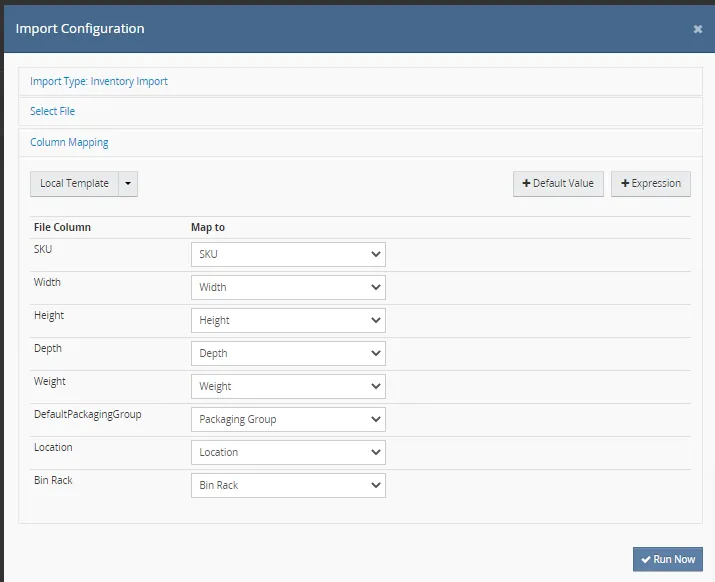
| SKU | Item number in General Tab |
| Width | Width (cm) in Postage Definition Tab |
| Height | Height (cm) in Postage Definition Tab |
| Depth | Depth (cm) in Postage Definition Tab |
| Weight | Weight (kg) in Postage Definition Tab |
|---|---|
| DefaultPackagingGroup | Packaging Group in Postage Definition Tab |
| Bin Rack | Bin/Rack in Inventory Tab |
| Location | Needs to be added when Bin Rack is present (value is Default) |
| Filter Attribute |

For Postage definition: When creating listing with compositions ensure that you set the postage definition dimensions of the parent item to the dimensions of the largest item in the composition.
- Prepare Third CSV File
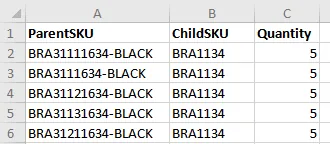
This third file contains details for Composition Tab. Add again a filter attribute column and make sure to save the file as CSV. The filter attribute value for this second file should be different to the first two files since you will import this with a different import configuration.
| Column Title | Value |
|---|---|
| ParentSKU | Item number in General Tab |
| ChildSKU | Child SKU Composition Tab |
| Quantity | Quantity in Composition Tab |
| Filter Attribute |
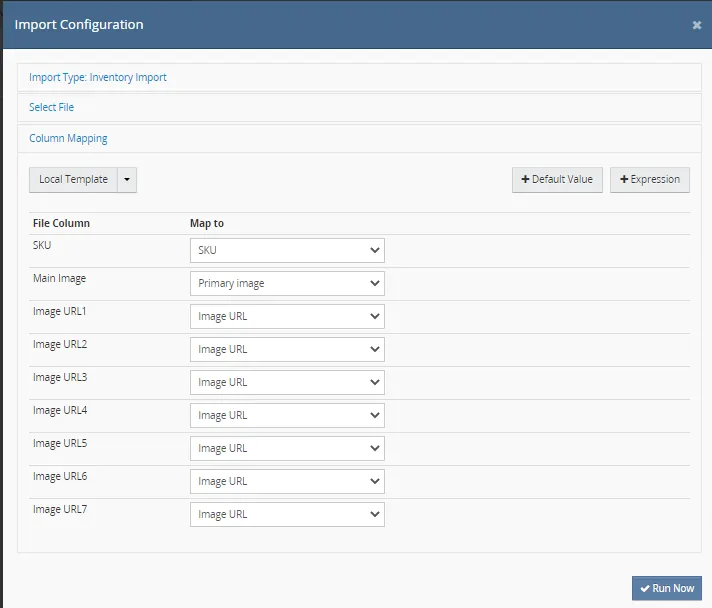
- Prepare Fourth CSV File
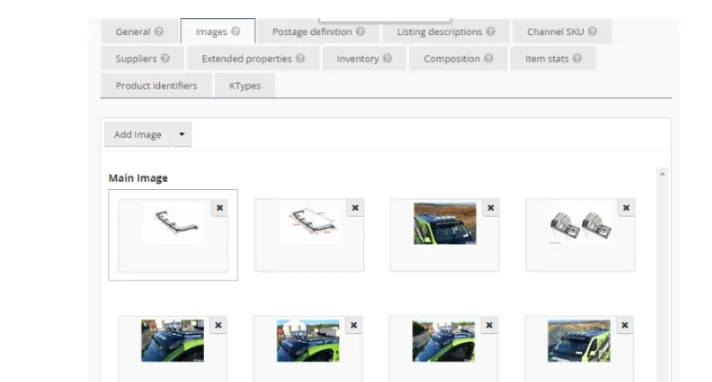
This fourth file contains details for Images Tab. Add again a filter attribute column and make sure to save the file as CSV. Filter attribute for this fourth file should be the same to the first and second files. Your trello task card for this bulk listing should contain the picture folder location as part of the SOP for creating Trello Card for new listing. Go to that dropbox folder location and copy the link of each picture and paste it. But you need to edit the link since Linnworks won't accept this. The rule is:
replace www.dropbox.com with dl.dropboxusercontent.com
For example, would become
| Column Title | Value |
|---|---|
| SKU | Item number in General Tab |
| Main Image | Dropbox link of the main image to use (must start with https://dl.dropbox.com/…) |
| Image URL1 | Dropbox link of additional image to use (must start with https://dl.dropbox.com/…) |
| NOTE: For additional images use the following fields Image URL2, Image URL3, and so on. | |
| Filter Attribute |

However, if the picture folder location is not found in your trello card, you can confirm this with the card creator or try searching the Pictures & Picture Edits Jessa Dropbox folder by using the search bar. Just type the SKU of the item you are duplicating. Copy the link of the images similar to one one in the listing. Make sure to double check.
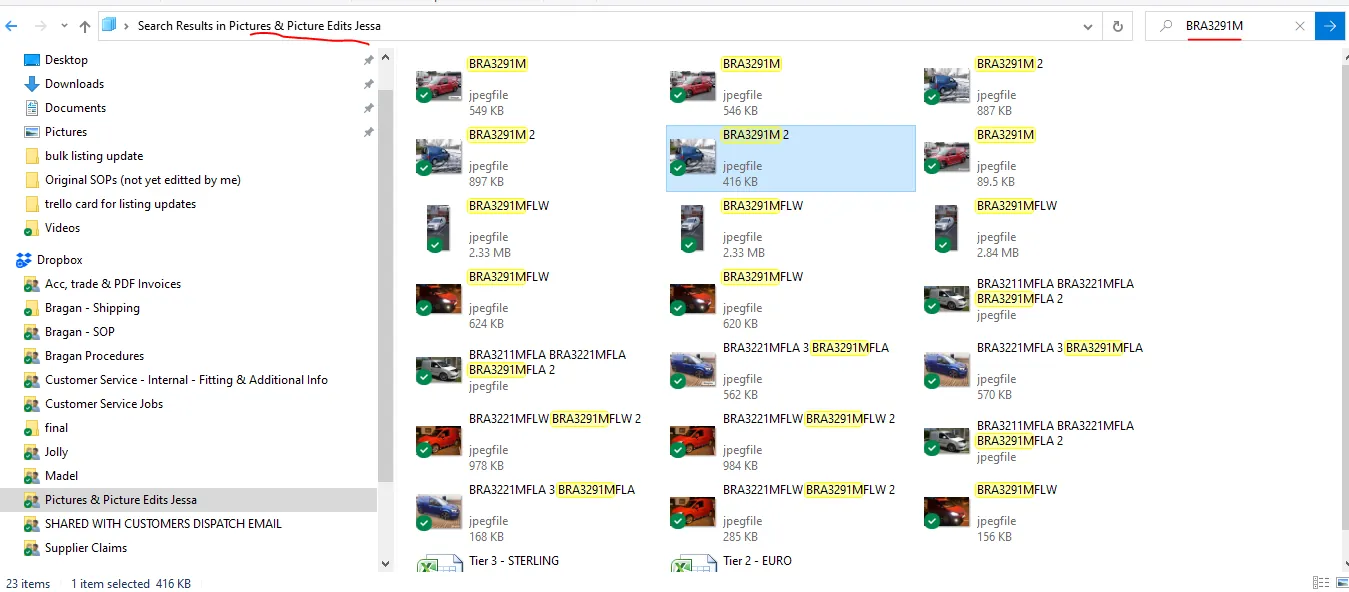
Main images should have no logo and should be a white background.
- Prepare Fifth CSV File
This fifth file contains details for Ktypes Tab. Add again a filter attribute column and make sure to save the file as CSV. Filter attribute value should be different since it uses different import configuration.
For the list of KType IDs, please see the MVL download link from eBay (note that the MVL list is updated quarterly). Download this file and find Ktype for the vehicles you are listing. You can use filter feature and vlookup formula for faster searching. For one SKU you can have multiple Ktypes.
You can download the CSV template from Linnworks in this link. Or see sample below.
| Column Title | Value |
|---|---|
| SKU | Item number in General Tab |
| KTypes | The eBay motors Ktype number to be added to the Linnworks inventory item. From the MVL file from eBay, use filter feature to filter the make and model of the vehicle so you will know the Ktypes. For example the SKU is for a Peugeot Partner 2008-2016 then filter it that it would only show Peugeot Partner. See Figure 8 below. |
| Culture | Add a country code in this column to import country-specific kTypes: use UK always |
| Include Years | A specific range of years that are compatible and will be included when listing on eBay Motors in the form 1998|1999|2000. From the applicable Ktypes that you filtered, choose the years that is applicable to your vehicle. |
| Exclude Years | A specific range of years that are NOT compatible and will be excluded when listing on eBay Motors in the form 1995|1996|1997. From the applicable Ktypes that you filtered, choose the years that will be excluded to your vehicle. |
| Notes | Notes can be added to each k-Type to provide more detailed information to the buyer. (You can leave this blank in your CSV File) |
| Delete | Include and map Delete column in the file to delete certain K-Types from certain SKUs. Add YES for a given SKU and K-Type value to trigger it to be removed. For example, if you have SKU: 123, kType: 2, Culture: UK and same SKU: 123, kType: 2, Culture: FR and you set SKU: 123, kType: 2, Culture: UK to delete, the French one will still be on the stock item. |
| Filter Attribute |
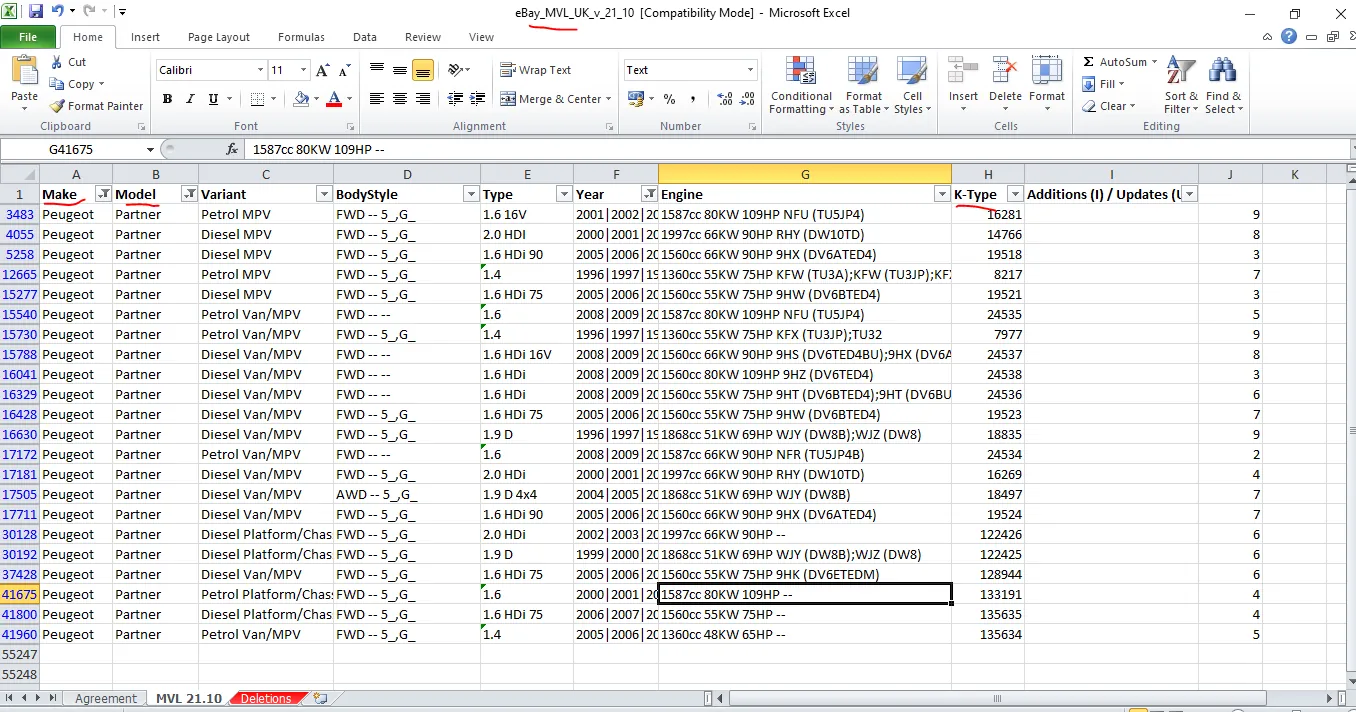

Ktypes are applicable for Van and 4x4, no need to add ktypes for Trucks and Lights.
- Upload the CSV Files in Linnworks
But take note that you need to do it one by one. You cannot upload all five files at once. You need to upload first the First CSV file, map it and then do the next file. So first let us upload
7.1 Upload First CSV to fill General Tab, Listing Description Tab, and Extended Properties
Go to Linnworks then select Settings > Import Data
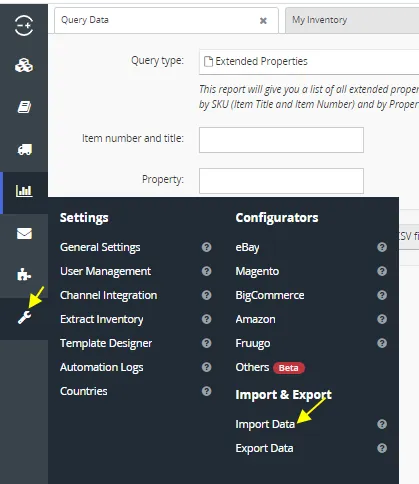
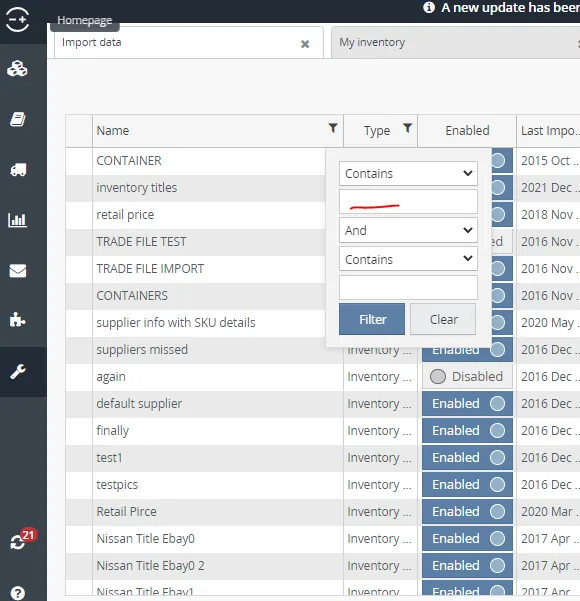
You can select from the existing Import Configurations, you can try using the filter icon in the Name to search for configurations that is similar to your task like bulk listing description. If you cannot find one then just create one.
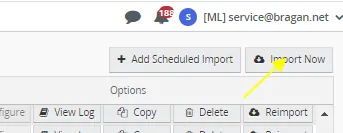
To create, just click on Import Now.
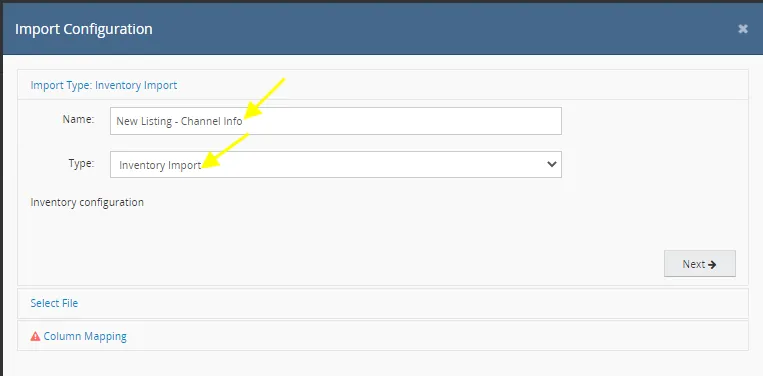
Type any name and select Inventory Import for the Type field. Click Next.
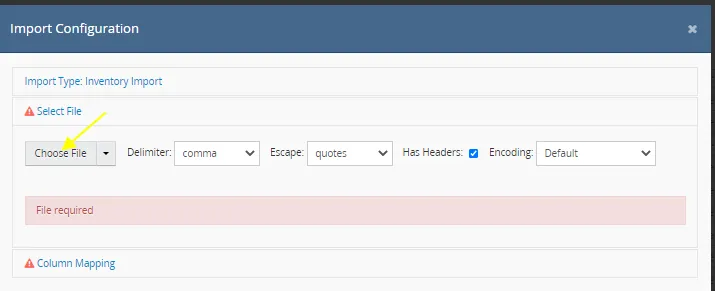
Click Choose File and select the First CSV file you have created.
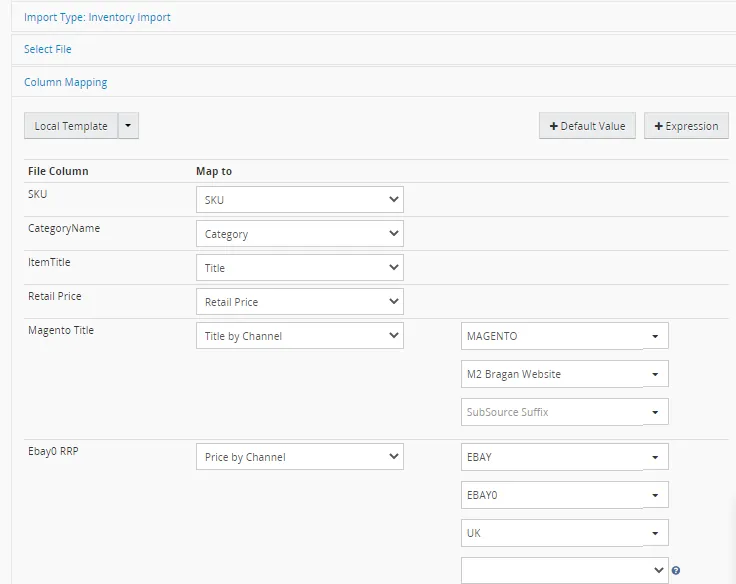
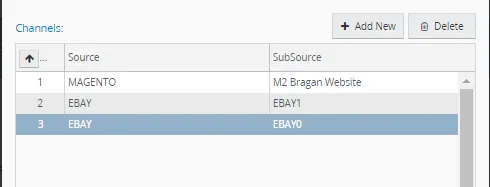
Map each column in the file. Ensure to map Description and Title to Description / Title by Channel with the correct Source and Subsource cited above. Other properties like Magento Short Description, Make, Model, etc. are mapped to Item Extended Property. Once done, click Run Now.
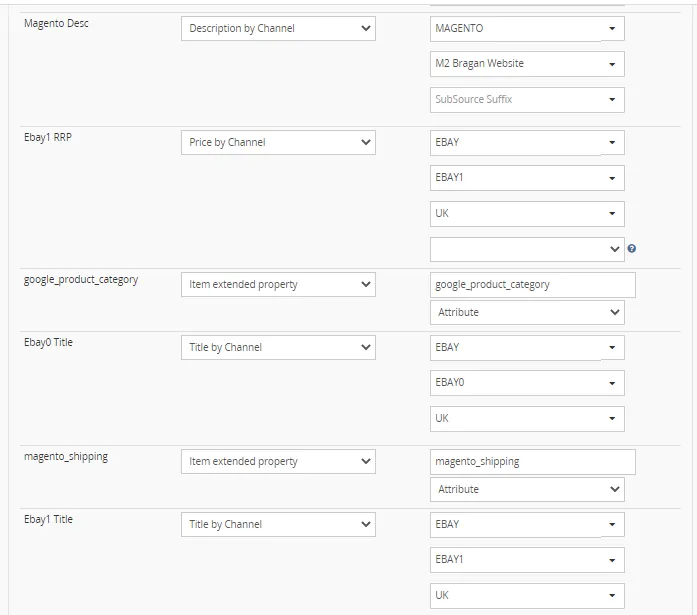
Wait until import status says success.
7.2 Upload Second CSV File to fill Postage Definition Tab and Inventory Tab (Bin/Rack)
Follow the same steps in 7.1 Use Inventory Import for the Import Type.
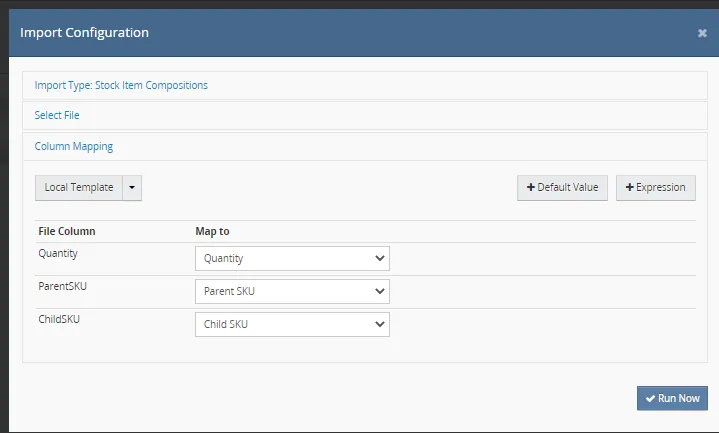
7.3 Upload Third CSV File to fill Composition Tab
Follow the same steps in 7.1 but use Stock Item Compositions for the Import Type.
7.4 Upload Fourth CSV to fill Images Tab
Follow the same steps in 7.1. Use Inventory Import for the Import Type.
7.5 Upload Fifth CSV File to fill KTypes Tab
Follow the same steps in 7.1 but use eBay Motors Listing - KTypes with Culture for the Import Type.

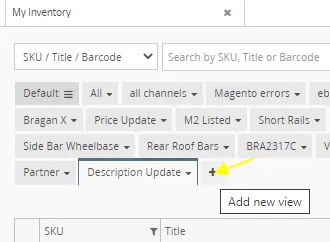
- Create a View in Linnworks Using the Filter Attribute Proceed to the Inventory screen and create a new View to filter the SKUs you need to create in the channels.
Create a View by clicking +
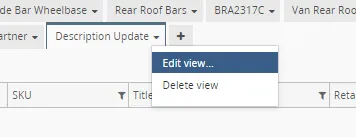
Or you can edit an existing View
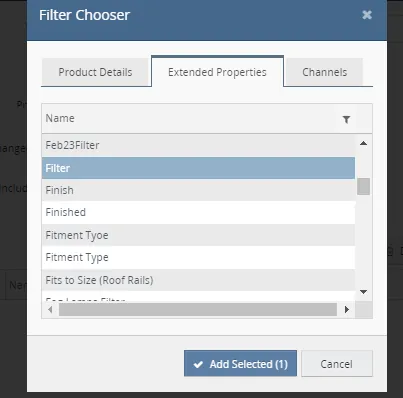
Add the Filter attribute you have added in the CSV file. (Note: You need to refresh LW to show new attributes)
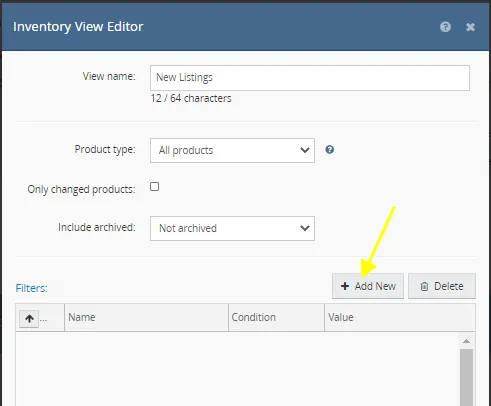
Find and add the filter attribute used in the CSV file.
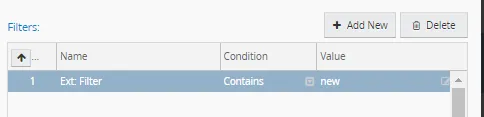
Fill -in the value used in the CSV file.
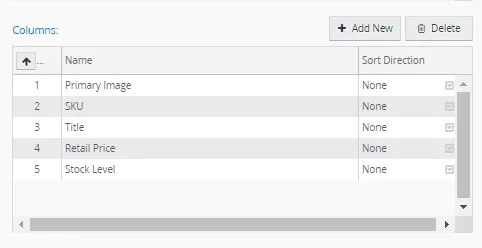
Add columns you wanted to appear.
Add all channels to where you are going to create listings.
Random check the SKUs to see if correct data are added.
- Create the Listings to Channels
9.1 Select all rows
9.2 Right-click in the channel column you want to list. If you want to list it in Magento then right click on the Magento column.
9.3 Select Create Listing
9.4 Select the right configurator (Note: Each channel has different configurators). To know what configurator to use refer to the SOP on How to Create Listings in Linnworks Step 12.
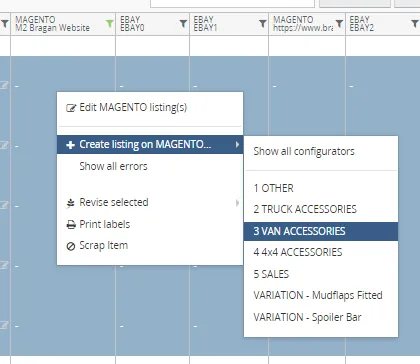
9.5 Double-check content especially prices, categories, and descriptions.
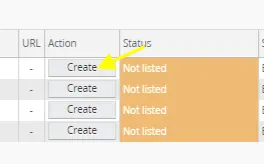
9.6 Click Create button to list the items in the channel
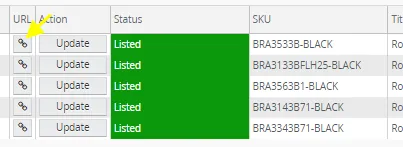
Once listed successfully, you will see the status as Listed. Check live listings for each channel and collect links by clicking the URL link button. Copy this links and put it in your trello task card for checking by your listing partner. To know what are trello task card check this SOP for Trello Card Creation for New Listing.
Repeat above steps to create listings for other channels.
Notes#
This section is important so Adhoc points and issues can be logged. Also, Q&A can be logged for suggestions for potential issues encountered. Also, log important notes needed for this system.
Additional Notes:
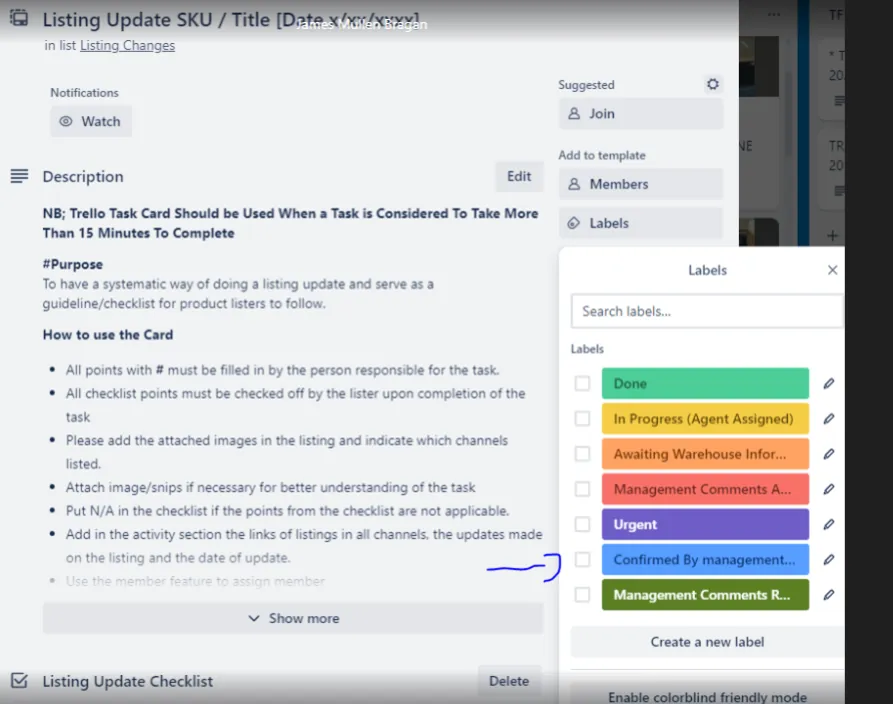
Please ensure to map Description and Title to Description / Title by Channel with the correct Source and Subsource cited above. Other properties like Magento Short Description, Make, Model, etc. are mapped to Item Extended Property, before Clicking the Run Now button. To create bulk listings usually bundles of the same item. Trello task card for update listings / new listings should be in blue color (confirmed by management) before starting the task.
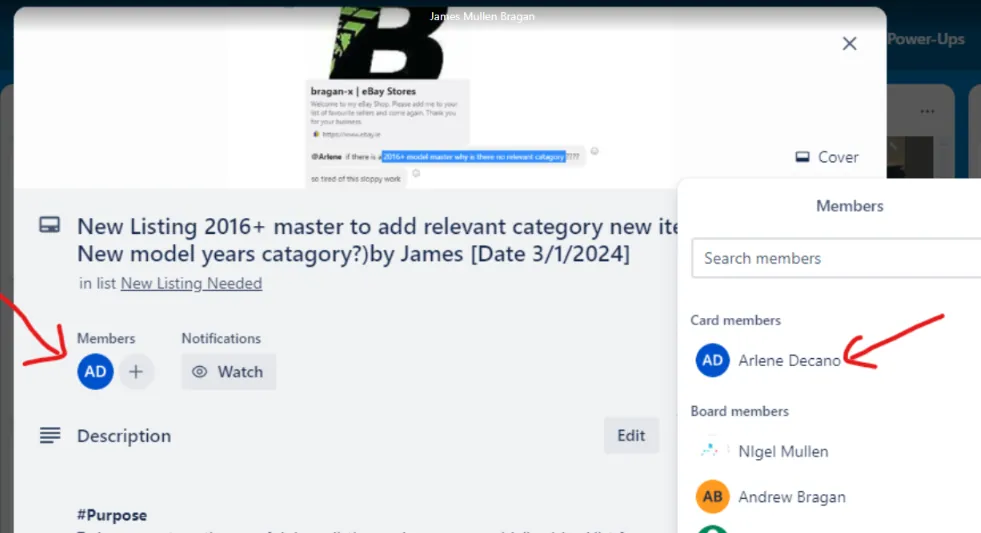
Agent should join the card for new listing / update listing he/she is currently working.
Duplicated new listings should be the same price from the original listings and no need to send for RRP for approval to Sir James.
We don't relist Metris and Sterling listings in channels.
Please take note that most Bragan items (Universal Items)are supplied by Winbo (these are designed by Bragan) such as: Most truck bars: Roof Grill Visor Under Side Perimeter Rear Roof Chassis Side Skirt Trim Van: Roof Racks Rear Roof bars vans and 4x4 2" Side Bars Stainless Roof Bars
Potential Issues:
1 - ISSUE ENCOUNTERED: Stuck on Loading
RESOLUTION: Refresh Browser
2 - ISSUE ENCOUNTERED: Broken Links
RESOLUTION: Get the external link as this will allow other people to access the SOP without the need for login credentials and avoid broken links.
3 - ISSUE ENCOUNTERED: Wrong spell - typo in titles, description
RESOLUTION: Carefully check all aspects of listings and live listing on the website and ensure all are correct.
Attachments#
RRP_suggestion_format_in_ex… 06/02/2026

Sample_CSV_-_Composite_Tab… 06/02/2026
Sample_CSV_-_General_Tab__C… 06/02/2026
Sample_CSV_-_Images_Tab.xlsx 06/02/2026
Sample_CSV_-_KTYPES.xlsx 06/02/2026
Sample_CSV_-_Postage_Defini… 06/02/2026
Sample_FIle_kTypes.csv 06/02/2026