How to Create Views in Linnworks
The purpose of this SOP is to give an idea about how to create a view in Linnworks.
Overview#
Purpose: The purpose of this SOP is to give an idea about how to create a view in Linnworks.
Scope: This applies to product lister staff and all staff personnel who is in charge of this process.
Responsibility: It is the responsibility of all staff to follow the standard operating procedure on how to create views in Linnworks
Objective: The objective of this procedure is to guide employees on how to create views in Linnworks.

Procedure#
The My Inventory screen in Linnworks allows you to create various views to simplify your working process and reduce the risk of making mistakes. Creating a view means grouping your items with the use of different filters and sorting. You can create as many views as you like and save them as a separate tab in the inventory grid.
Below you will find several examples that should give you an idea of what sort of views you might want to make:
Filter items for a specific supplier and sort them by price.
Filter items that would only show all archived items.
Filter items that would only show items listed in eBay or Magento.
Filter items that would only show all channels we have and the stock level
And more you can create and edit as much as you want.
The mostly used view for product listers is an All Channel View, where you can see easily which channels the item is listed. It is also easier when you are creating or updating listings. See below for an All Channel View sample:
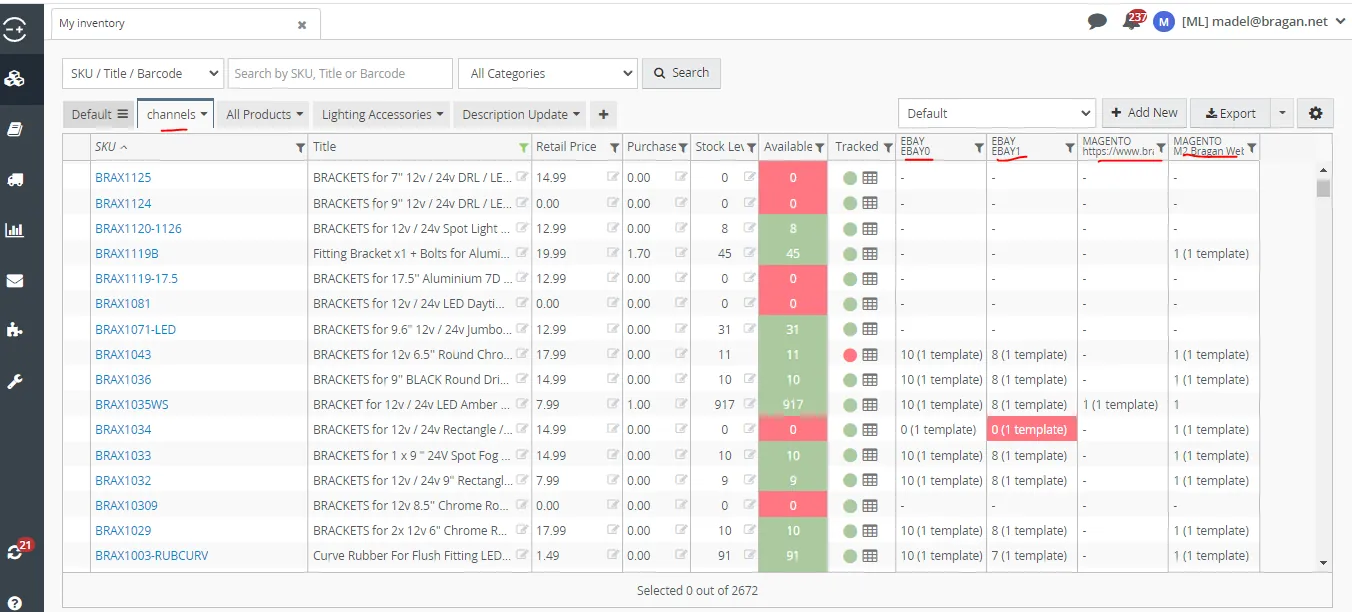
You can easily see the four channels we used eBay0, eBay1, old and new magento. You can also add Amazon if you want. You can also see which item is listed to what channel. If there is a template then it means that item is listed to that particular channel.
How to Create/Edit All Channels View
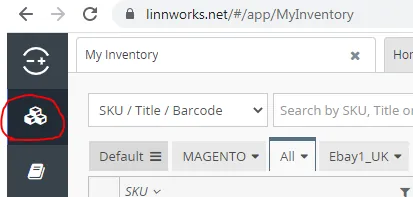
- Go to Linnworks, My Inventory
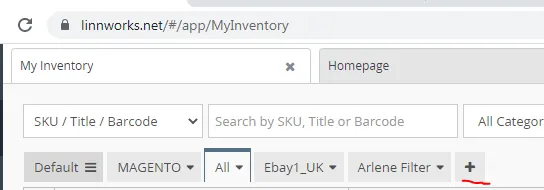
- Click Add
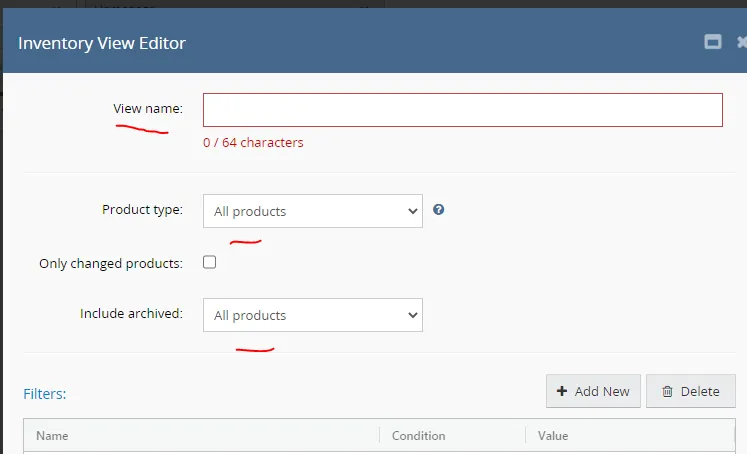
- Enter View Name - you can choose any, just use one that is relevant to the view so you have a refence. Select All Products for Product Type and for Include Archived you can choose All products if you want to see all including archived ones. But if you do not want to see archived products you can select Not Archived.
- Under Columns, you can choose what you want to appear. If you only want to see SKU and the Title then just choose this and Delete the others. If you want to add more then click on Add new.
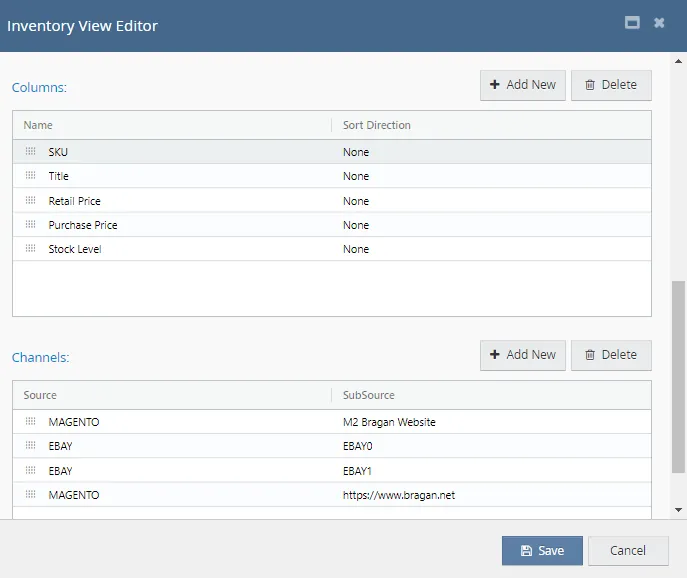
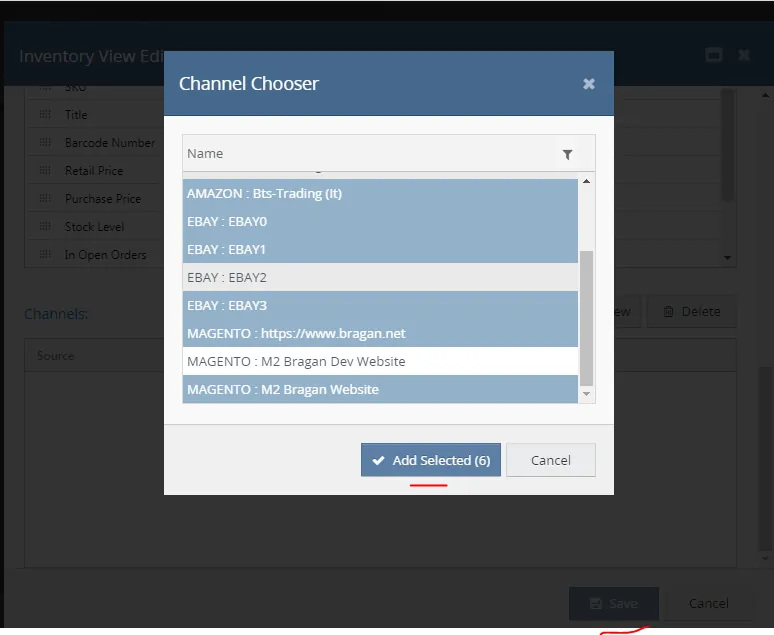
- Under Channels, add channels you want to see. It is better to select all the active ones we used then click on Save. Your My Inventory Screen would now look to the sample above.
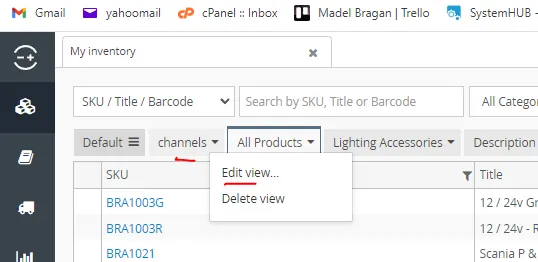
- If you want to edit this view, example you want to see the Supplier column then just click on the dropdown arrow beside the view name and select Edit (if you want to delete the view then select Delete). Then proceed to doing the edit. Add and Delete properties you want to appear in the screen.
Other useful views for listers is using the Filter Attribute, this is done every time you do bulk listings either creating new listings in bulk to updating listings in bulk. See SOP on How To Update Listings In Bulk to see a sample view using created Filter Attribute.
If you are a lister assigned in auction listings, you can also create a view where you can see all auction items in LW.
Make use of this feature to increase productivity and avoid errors.
Notes#
This section is important so Adhoc points and issues can be logged. Also, Q&A can be logged for suggestions for potential issues encountered. Also, log important notes needed for this system. Additional Notes:
Be able to see SKUs that are listed in all channels. This is important so that you can be able to add channel view in your Linnworks Inventory View to see skus listed in each websites.
Potential Issues:
1 - ISSUE ENCOUNTERED: Stuck on Loading
RESOLUTION: Refresh Browser
2 - ISSUE ENCOUNTERED: Broken Links
RESOLUTION: Get the external link as this will allow other people to access the SOP without the need for login credentials and avoid broken links.
3 - ISSUE ENCOUNTERED: Can't see items listed in Amazon, eBay0, eBay1, Magento1 and Magento2.
RESOLUTION: Add view for all channels to see what skus are listed in each of the websites.
How To Create A All Channel View In Linnworks For Beginners SOP View
Create View Creating View Views Edit View
Delete View