How to Request for Listing Pictures
Standard Operating Procedures are the clear and concise documents that will serve
Overview#
Purpose: Standard Operating Procedures are the clear and concise documents that will serve as the guiding principle in every task in this business. The purpose of this document is to outline the process on how to make a picture request for your listings.
Scope: This procedure applies to all product listers.
Responsibility: It is the responsibility of each employee to ensure the process set out in this procedure is followed.
Objective: The objective of this document is to guide employees on how to make a picture request.
When to create Picture Request#
There might be a couple of reasons why we need to make a picture request.
If a certain SKU does not have an image but was confirmed in stock. If you need to ask the warehouse to retake pictures of an item. If you need stand-alone or separate images of a certain SKU especially for composite.
Information Needed in Picture Request#
Item SKU Code for the requested image. Item SKU Title for the requested image. Item Category Name for the requested image. Item Stocks and Item Location for the requested image. The reason why you are requesting the image as Remarks.
These information will be needed in filling-out the Picture Request Common File.
Process Flow#
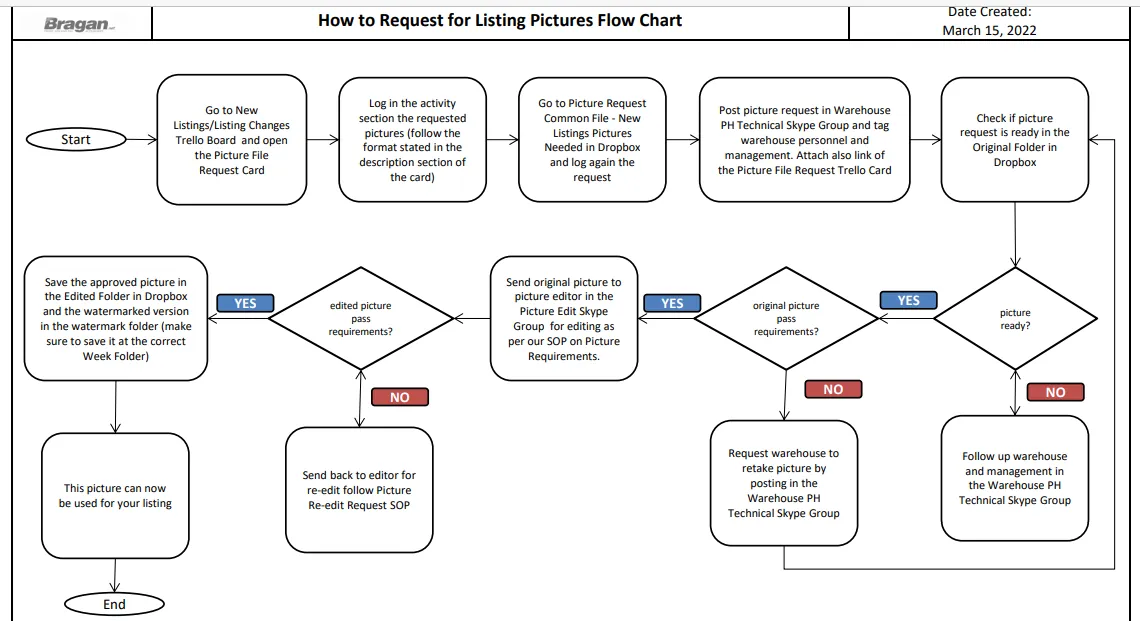
Procedure#
Picture Request in Trello#
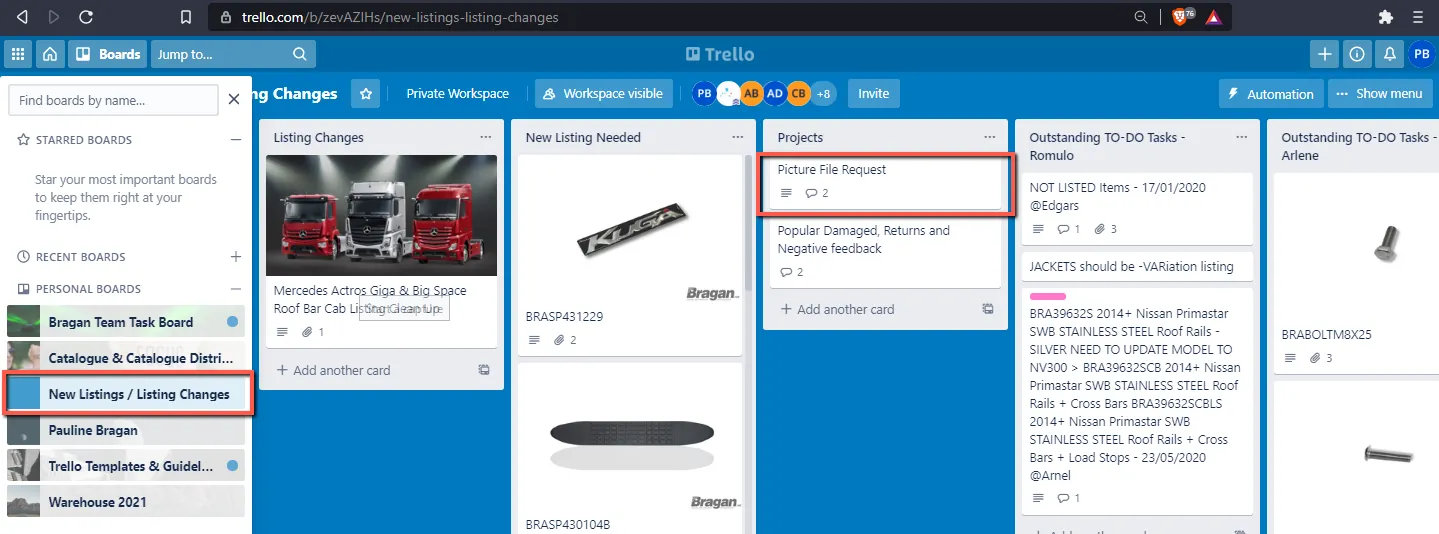
- The first thing to do is to log the picture request information in Trello Card. To do this, go in New Listings / Listing Changes Trello Board then look for Picture File Request Card under Projects. Please see Figure 1.
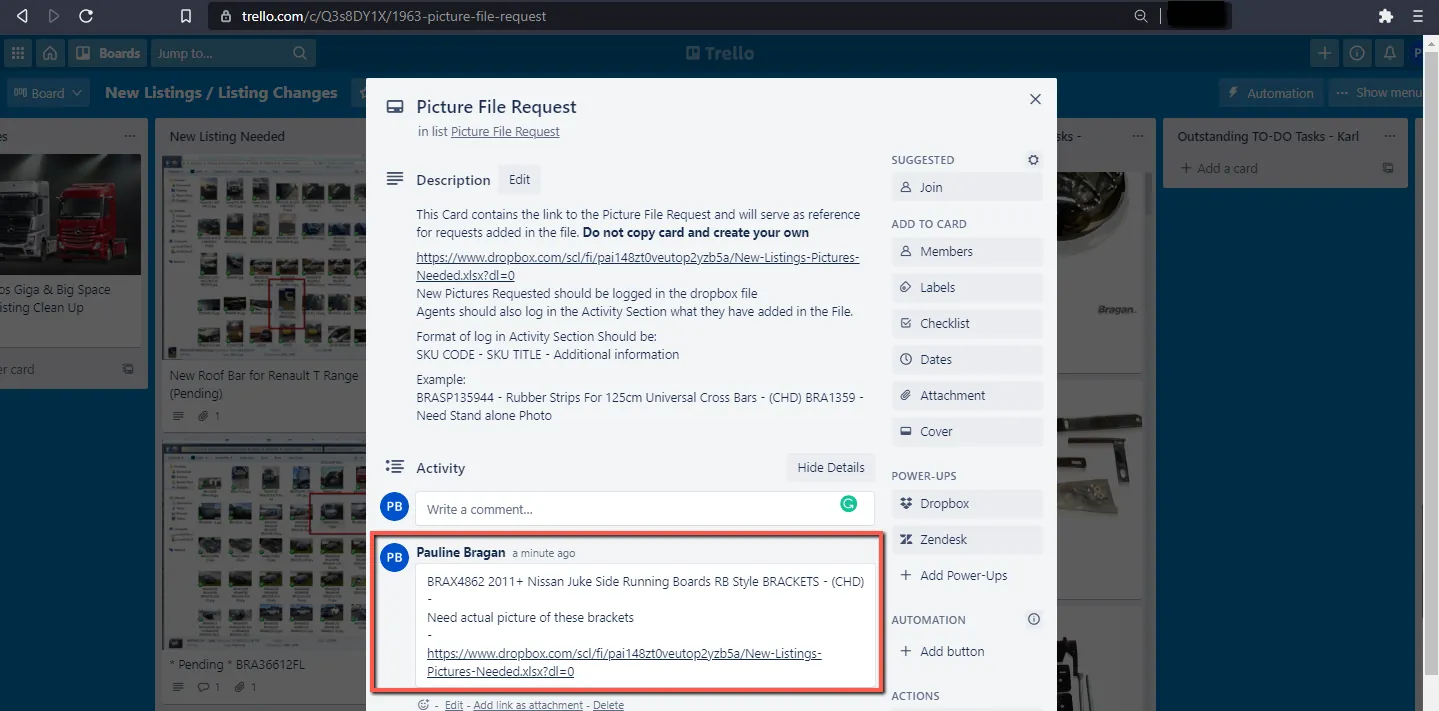
- Add the information needed in the “Activity Section”. The card already has an Instruction on how to input the data needed.
Picture Request in ONE DRIVE#
- After putting the information in the Activity Section of the Trello card, add the picture request in New Listing Pictures Needed file in dropbox
New Listing Pictures Needed file one drive link:
login.srf wa=wsignin1%2E0&rpsnv=153&ct=1717858369&rver=7%2E5%2E2146%2E0&wp= MBI%5FSSL&wreply=https%3A%2F%2Fonedrive%2Elive%2Ecom%2F%5Fforms% 2Fdefault%2Easpx%3Fapr%3D1&lc=2057&id=250206&guests=1&wsucxt=1&cobr andid=11bd8083%2D87e0%2D41b5%2Dbb78%2D0bc43c8a8e8a&aadredir=1
Please watch the attached video for the process to add SKU in picture request.
Each Bragan personnel will need to have access to edit the common file, if you cannot access this file, the file is saved in One drive in remote pc and use [email protected] to access the file.
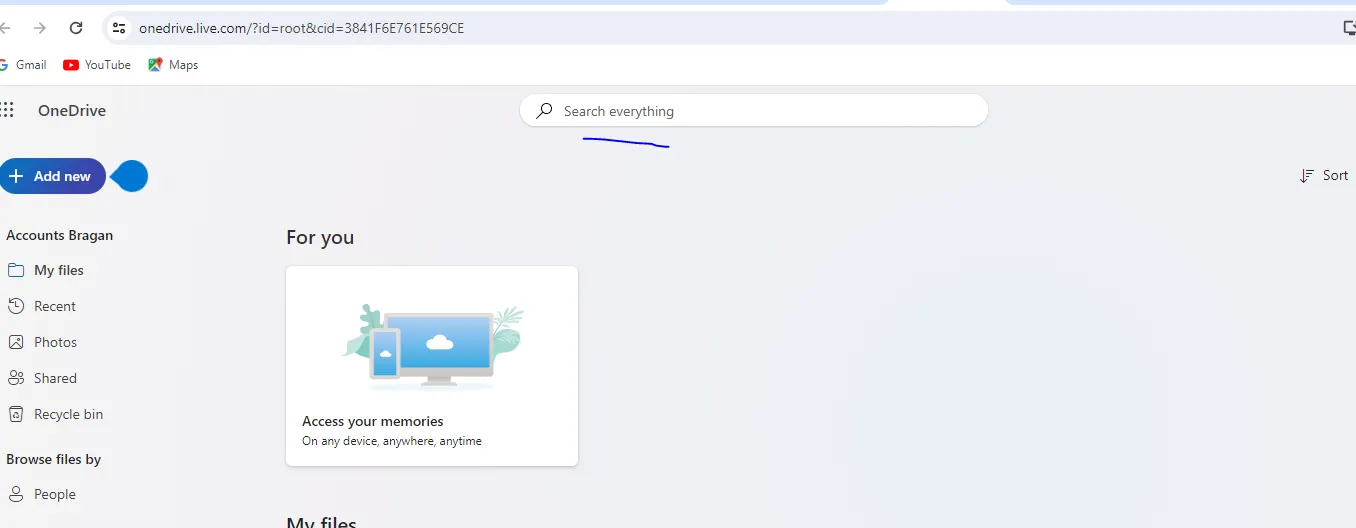
Search the Name of file: Product Creation and Picture Request File
- Once you have an access to edit the file you can now open and add the information needed. Please see below snipe image as a sample interface of the file.
Please Note: You can open the file using one drive and use [email protected]
Do not edit the main tab of picture request main#
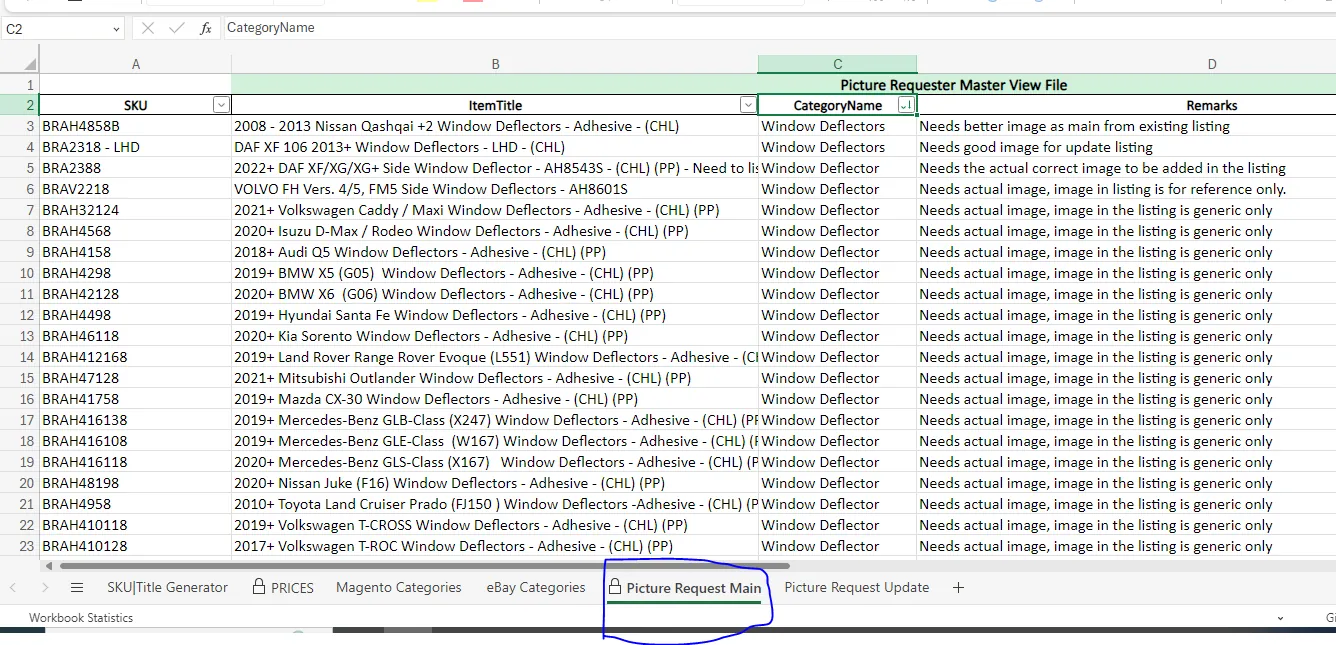
Edit the Picture Request Update tab by selecting the correct category and click + at the top of each category. Add the SKU to this tab and it will automatically appear in
Picture request Main. (No need to edit Picture request main tab.) Please see attached video recording below.
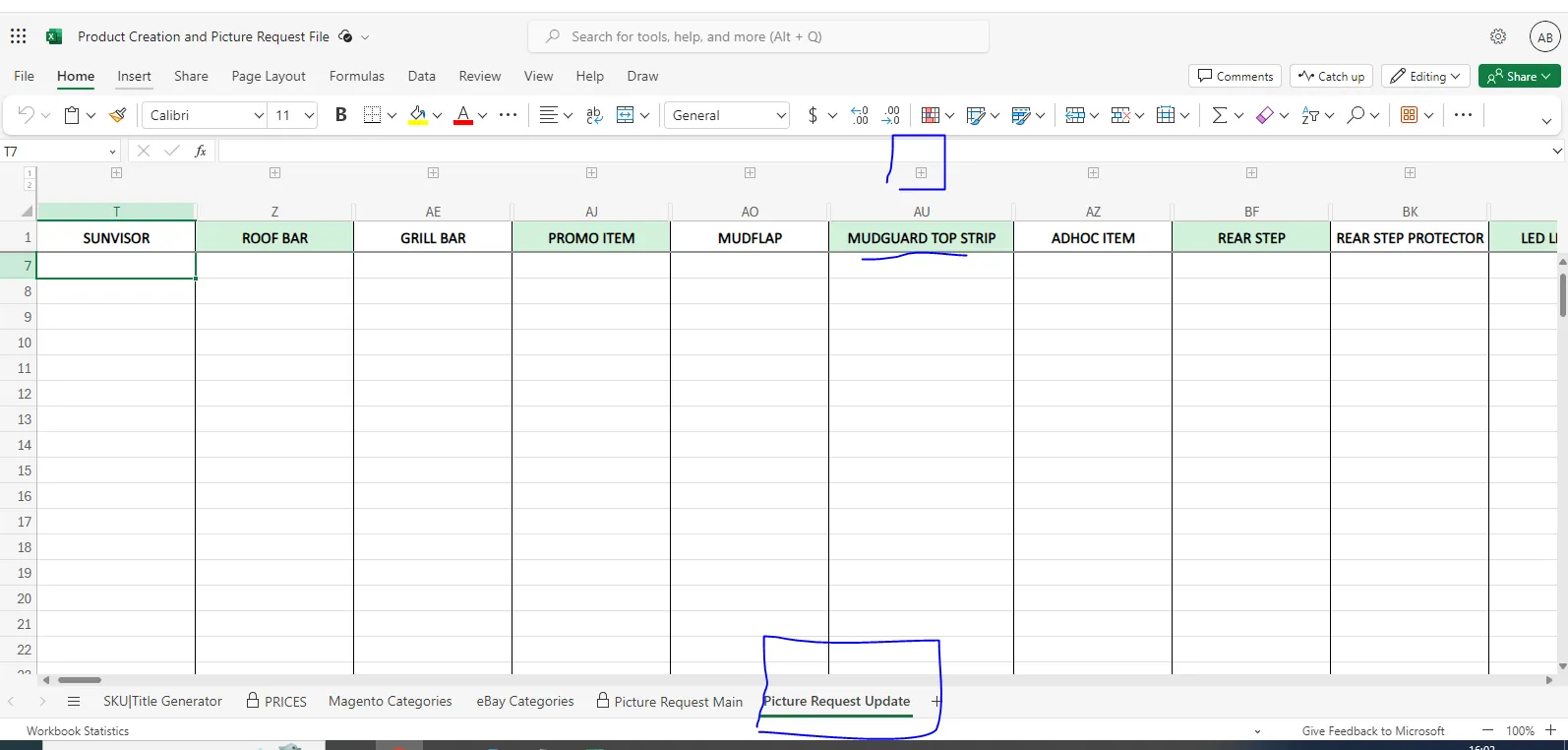
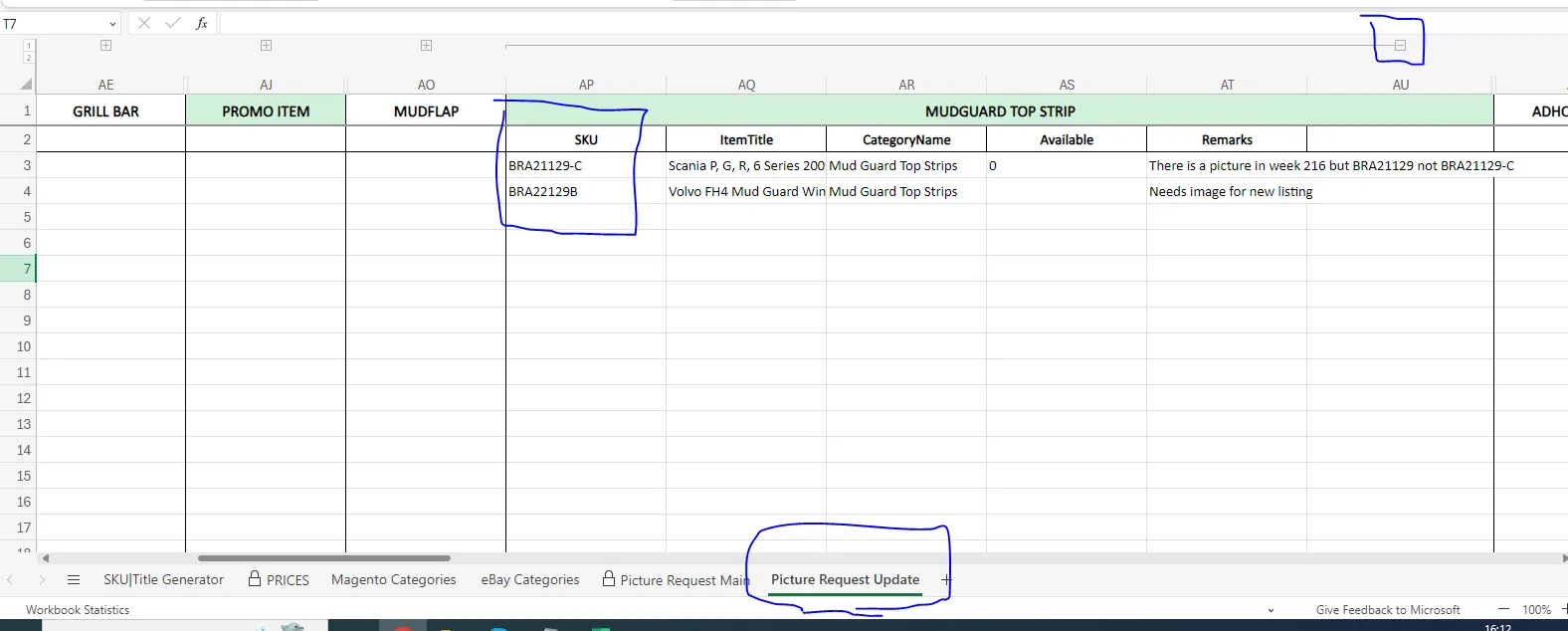
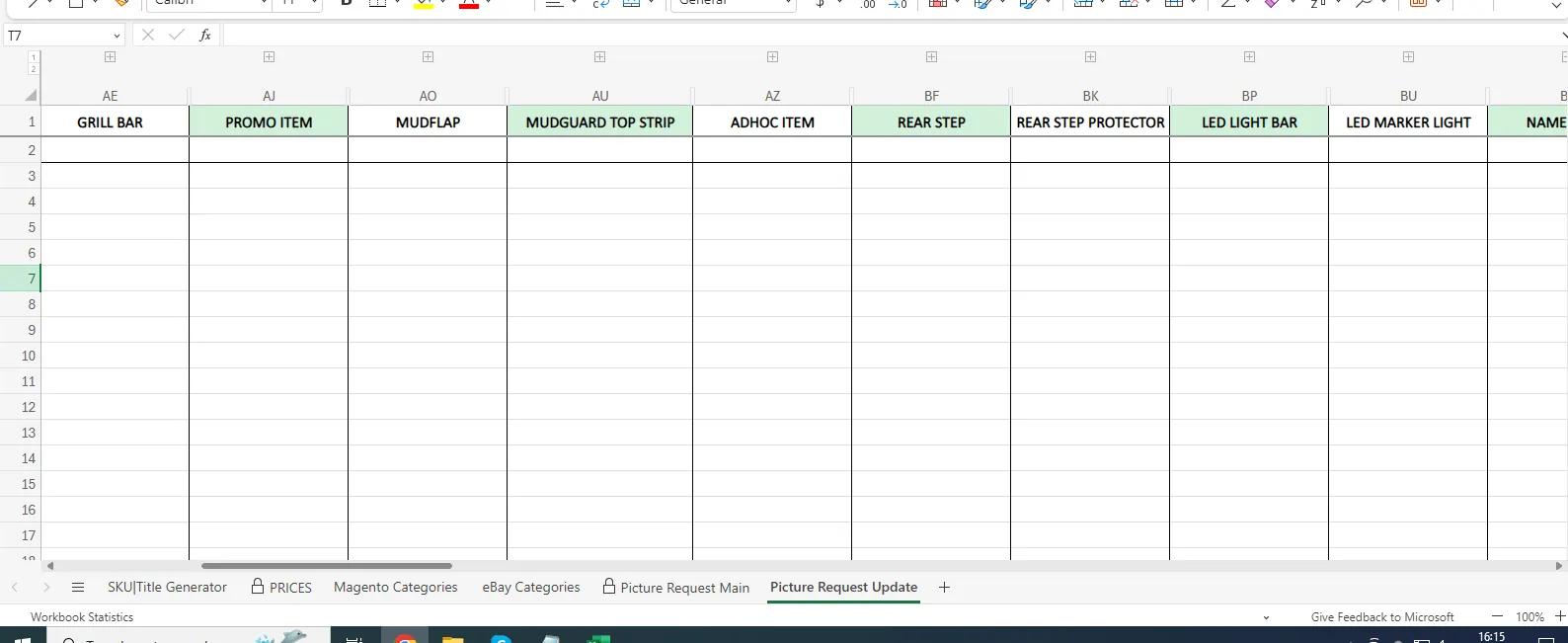
If the SKU and remarks is already added, click - at the top of category.
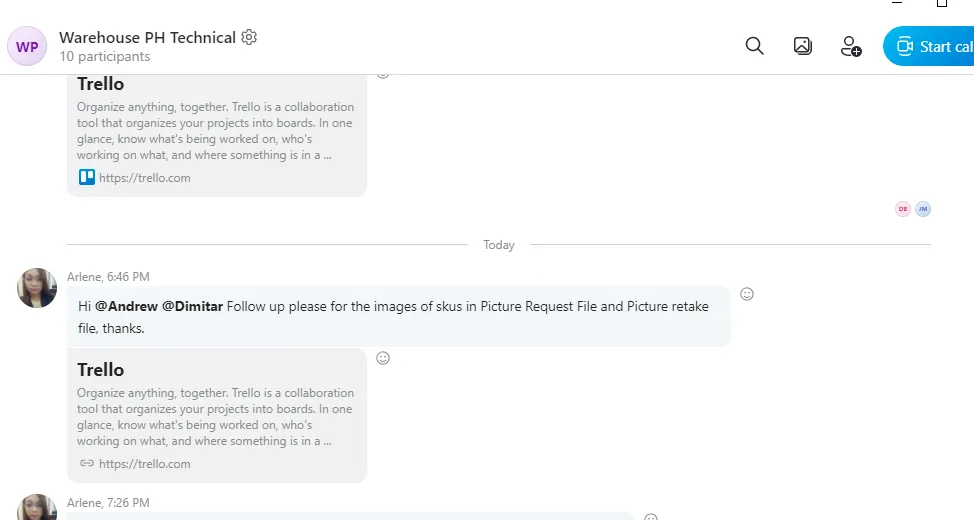
- Once you logged to both Trello Card and Excel File, tag warehouse personnel and management about your request in Warehouse PH Technical Skype Group. You can also do follow-up in this group. Make sure to attach the link of the Trello Card.
- To check if your picture request is ready, go to the Original Folder found inside Pictures & Picture Edits Jessa Dropbox folder. Type the SKU in the search bar, and if they are now available you can request it to the Picture Editor by tagging him in the Picture Edit Skype Group. Please also provide the Picture Folder Location.
Note:
Pictures found in Original Folder can't be used in the listing. It needs to be edited according to our SOP on Picture Requirement
Picture Requirement link bragan-net.systemhub.com net.systemhub.com/company/share/system/id/271958/shareCode/ZmEyNDgyNW E1N2U5Y2M0NzM2NTk2ZWExMjFlN2RmZTA
The skype group for picture edit would differ. It usually starts with the name of the picture editor. For example, the skype group would be Paul Picture Edit and then this would change if we will have another picture editor.

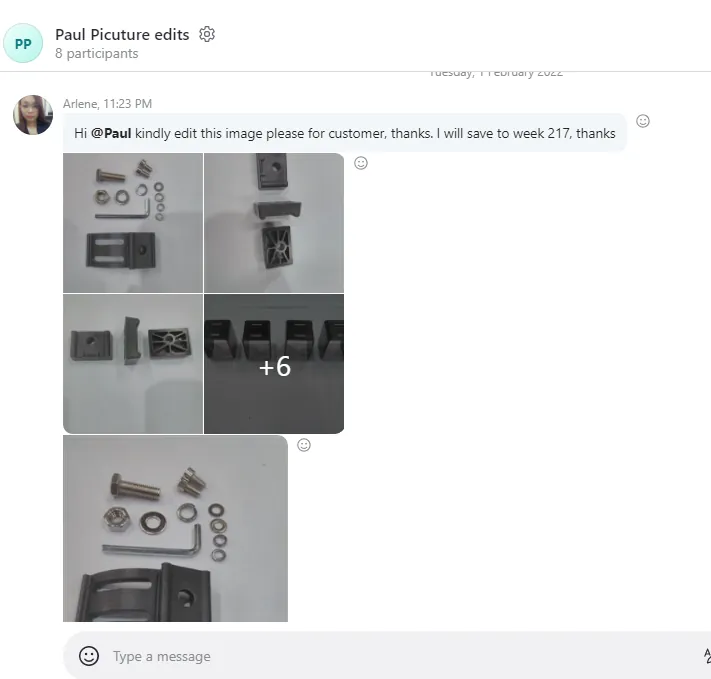
- Picture Editor will send in the Picture Edit Skype Group the edited pictures and the lister in charge for approving the edits will confirm if it passed our picture edit requirements. Once it is approved, it will now be saved in the Edited Folder found inside Pictures & Picture Edits Jessa Dropbox folder. Editor will save it if he has access to the folder but if not then the lister will save it.
Edited pictures are to be saved without watermark in the corresponding week “Edited Folder”. Watermarked pictures will be saved in the watermarked folder inside the edited week folder. So there will be two kinds of images in week folder, images without Bragan Logo inside the week folder and watermarked image inside Watermarked folder
Don't change the filename from original folder.
Save it to the latest Week Folder. Please take note that folder must contain only 60 images. If the folder has 60 images already, create a new folder.
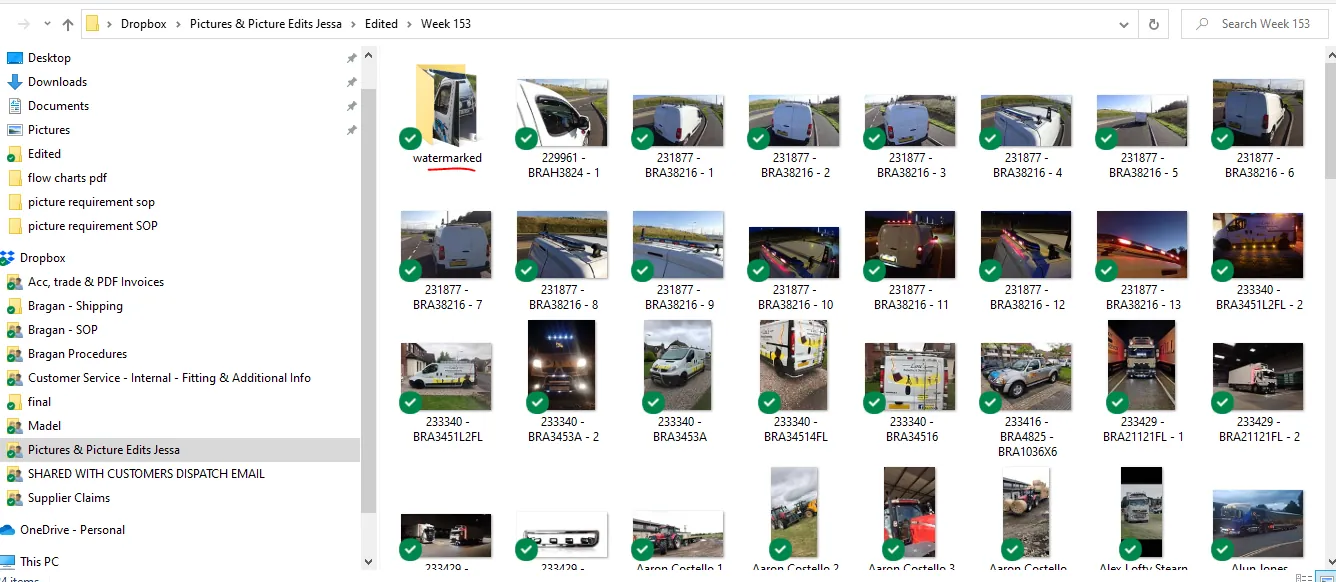
Edited Folder - Save Edited Pictures Here
- These edited pictures in the watermarked folder can now be used in your listing. But remember that there are items that should not contain the watermark. Non- approved EC bull bars should be without a watermark (Refer to the SKU Code if it has “EC” in it). Therefore if the SKU has EC in it it should have a watermark. Example: BRA48123EC19-6-BLACK - it has EC on it, thus the edited picture should have the watermark.
- If your picture request is taking too long and your listing is pending for a while then you can do follow-up in the picture edit skype group and tag person in charge for picture requests.
Picture Retake#
- Sometimes, the raw pictures given by warehouse do not pass the criterial for raw pictures, please see Picture Requirement SOP to know what are acceptable or not. If the raw picture already fails the criteria then do not forward this to the picture editor. Instead request for the picture to be retaken.
- Log your request for picture retake in the Picture Retake File Trello Card. Follow the example shown in the description part on how to log your request. Request should be put in the Activity section of the card.
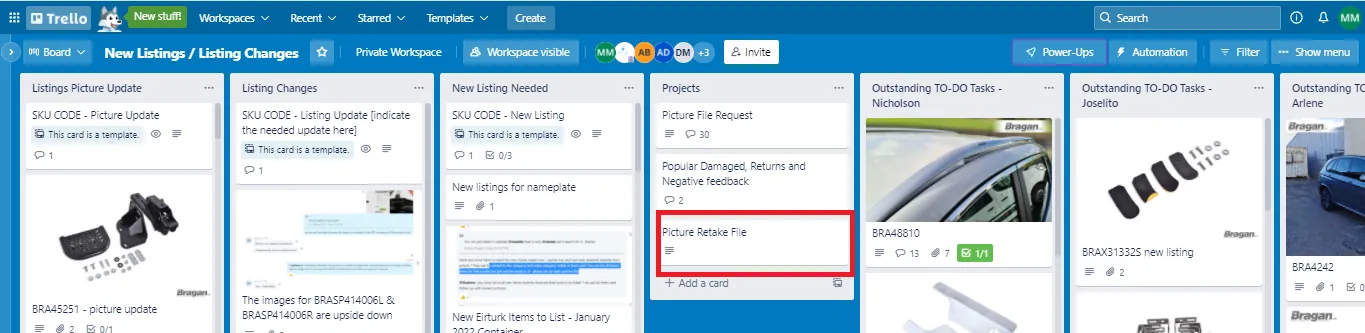
- After you log your request in the Picture Retake File Trello Card, log this again the Picture Request Common File - Needs Retake January 2022 Dropbox File
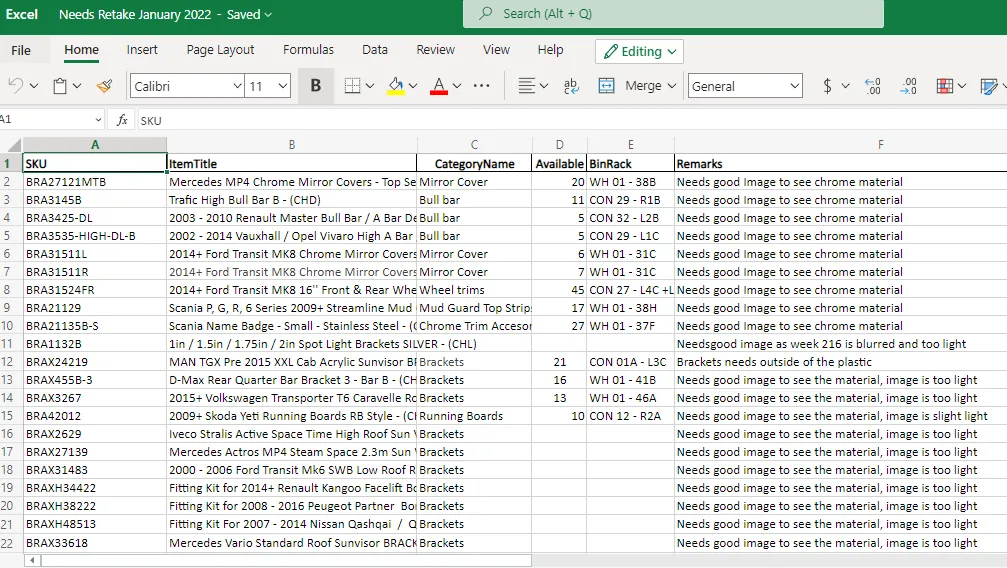
- Once finish logging to both Trello Card and Excel File, tag warehouse personnel and management about your request in Warehouse PH Technical Skype Group. You can also do follow-up in this group. Make sure to attach the link of the Trello Card.
- Follow Step 5 if you want to check if your request for the picture is now available.
The one who creates new SKUs for new listings in Linnworks with NEED TO LIST LIVE in title or (PP), should add the new SKUs in the picture file request and inform listers for these new skus so that they can create Trello cards for new listings in new listings/update listings Trello board.
Video & Media#
🎥 New-Picture-Request-File-Process 🎥 Creating Picture Request SOP video
Notes#
This section is important so Adhoc points and issues can be logged. Also, Q&A can be logged for suggestions for potential issues encountered. Also, log important notes needed for this system. Additional Notes:
Log in the Activity Section of the Picture File Request Trello card the images you need. Follow proper format. Log to picture file request in Dropbox for any images needed in the listing. Follow proper format. Add note which kind of image you need in remarks in picture file request. Please note of the Information Needed in Picture Request:
Item SKU Code for the requested image. Item SKU Title for the requested image. Item Category Name for the requested image. Item Stocks and Item Location for the requested image. The reason why you are requesting the image as Remarks.
Use only Edited pictures for your listing and not one found in the Original Folder.
Potential Issues:
1 - ISSUE ENCOUNTERED: Stuck on Loading
RESOLUTION: Refresh Browser
2 - ISSUE ENCOUNTERED: Broken Links
RESOLUTION: Get the external link as this will allow other people to access the SOP without the need for login credentials and avoid broken links.
Attachments#
How_to_Request_for_Listing_… 16/12/2025