How to Search eBay and Magento ID Categories
The purpose of this SOP is to give an idea about how to search eBay and Magento ID
Overview#
Purpose: The purpose of this SOP is to give an idea about how to search eBay and Magento ID categories before listing.
Scope: This applies to product lister staff and all staff personnel who is in charge of this process.
Responsibility: It is the responsibility of all staff to follow the standard operating procedure on how to search eBay and Magento ID categories before listing.
Objective: The objective of this procedure is:
- to guide employees on how to search eBay and Magento ID categories before listing.
How to search eBay and Magento ID categories before listing
- Overview
1.1 Magento ID Categories
An extended property for Magento. These are the category structure to be added for the Bragan Website. These are a set of root categories for the item to organize the products in a way for visitors to find products easily. This will be added in the extended properties by (MAG ID, MAG ID 1, MAG ID 2, and MAG ID 3) as the extended property name and add the corresponding values for the category.
Note: There are instances that the category structure for the item has more root categories. Additional Mag IDs should be created.
1.2 eBay ID Categories
An extended property for eBay that is used to map the specific item in the eBay Store under a specific category. This is to organize the products in a way for visitors to find products easily. This will be added in the extended properties by (eBay ID, eBay Store ID, eBay1 Store ID) as the extended property name and add the corresponding values for the category.
- How to Search for an eBay ID Value
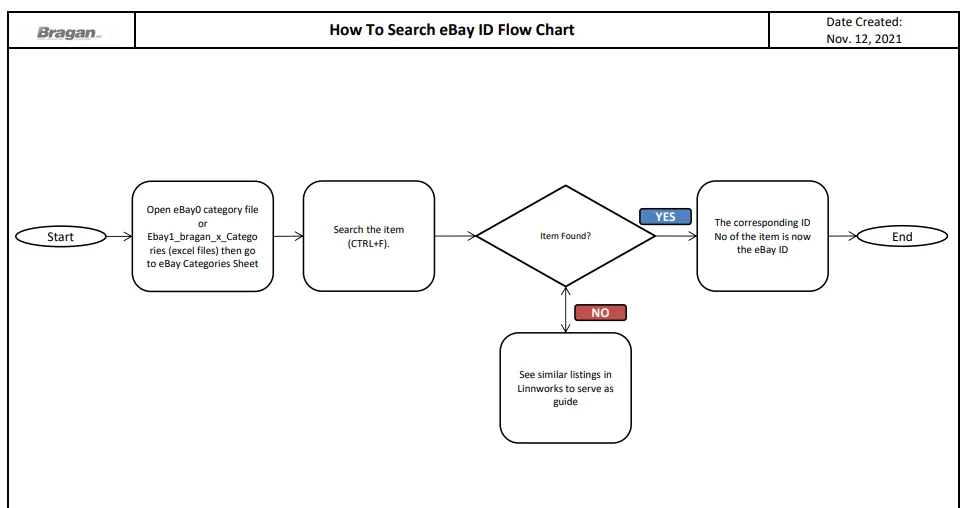
Step 1. Open eBay0 category file or Ebay1_bragan_x_Categories (excel files) then go to eBay Categories Sheet. Then search (CTRL + F) the item.
Example: for searching roof racks/roof rails ID. From this the eBay ID is therefore 33651.
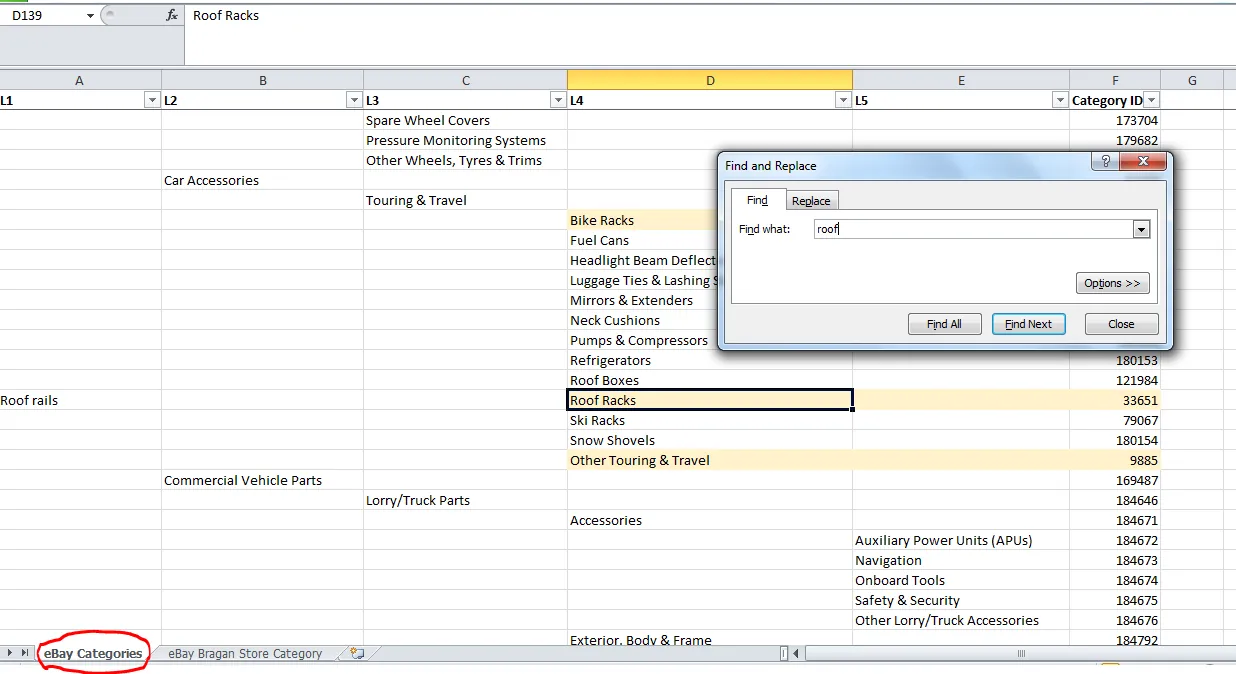
Step 2.
Copy the eBay ID number and add this as the value for eBay ID in the extended property tab of Linnworks.
- How to Search for an eBay Store ID Value
Step 1.
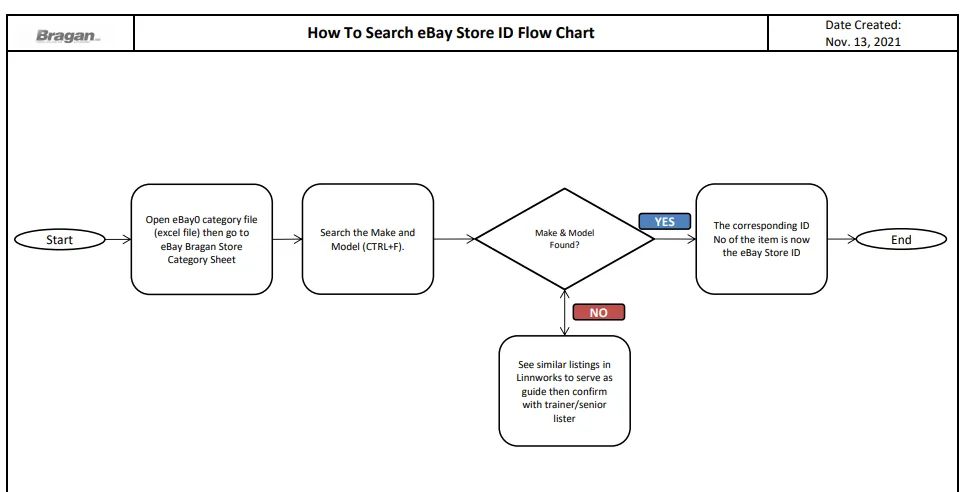
Open eBay0 category file (excel file) then go to eBay Bragan Store Category Sheet, then search (CTRL + F) the Make, then look for the model and year.
Example: To get the eBay Store ID for Ford Ranger 2016+
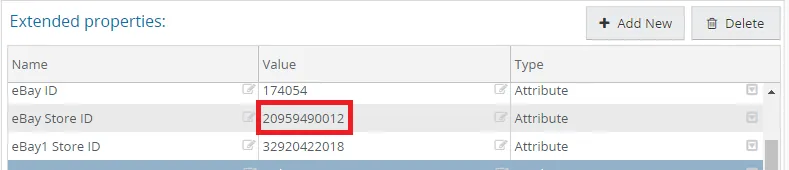
Search Ford then look for the model and year which is Ranger 2016+. From this the eBay Store ID is therefore 20959490012.
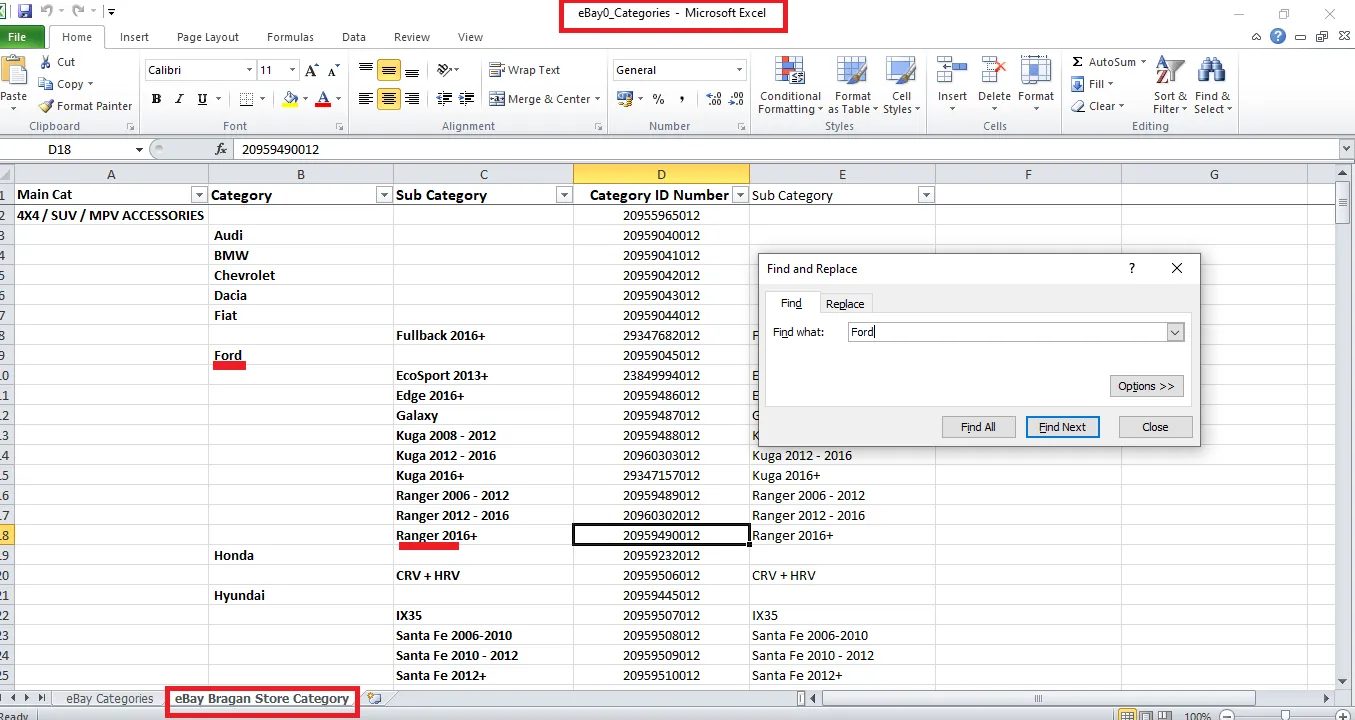
Step 2.
Copy the eBay Store ID number and add this as the value for eBay Store ID in the extended property tab of Linnworks.
- How to Search for an eBay1 Store ID Value
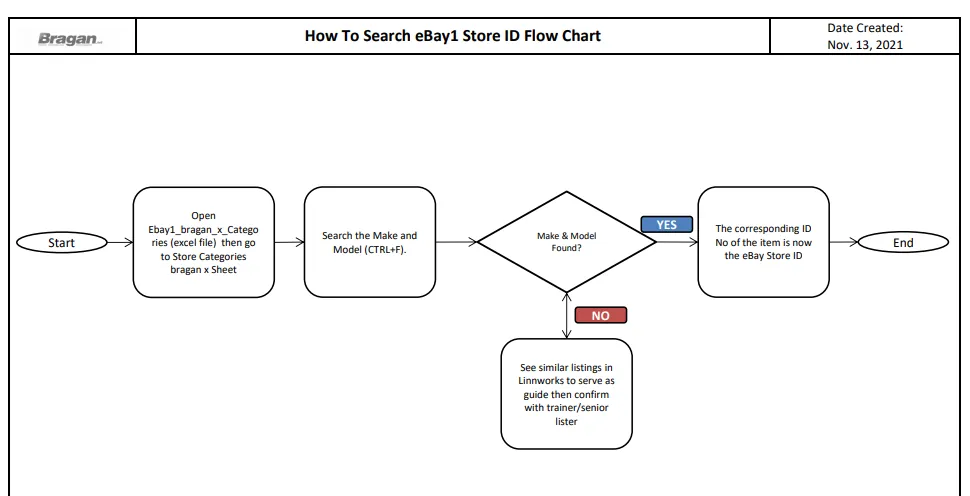
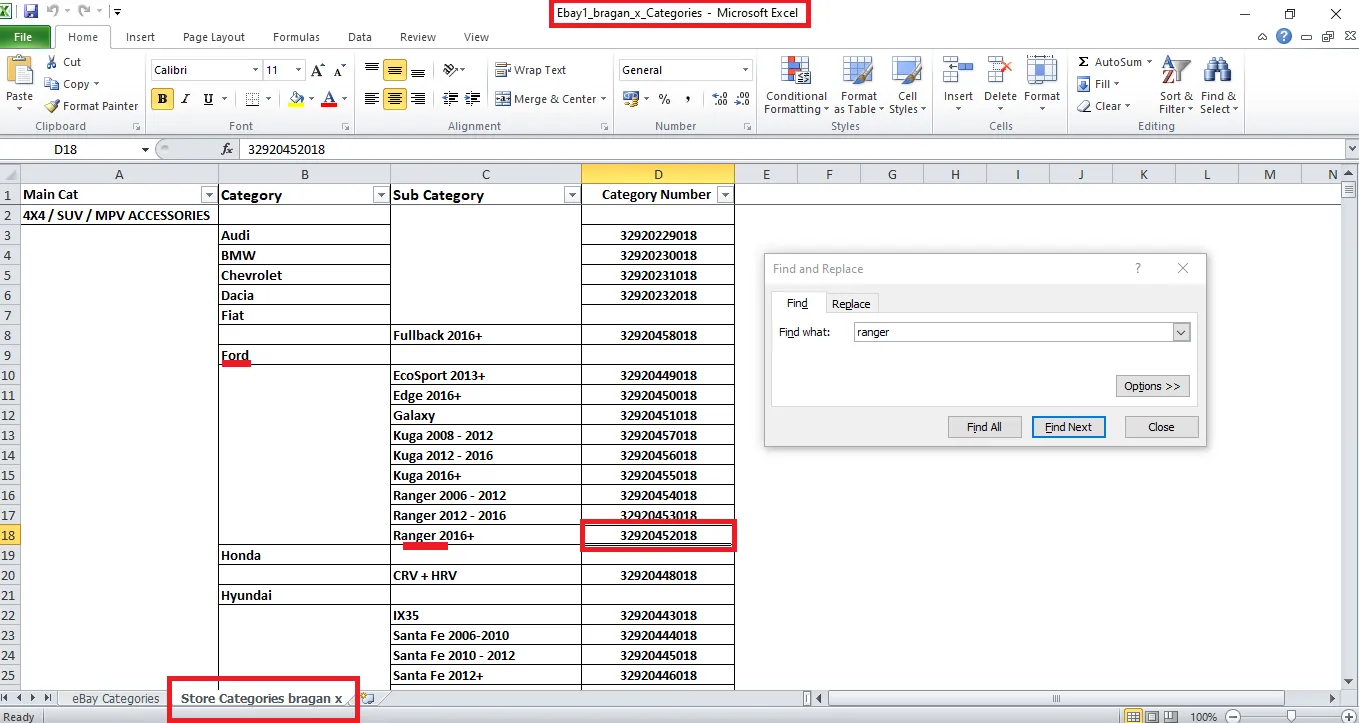
Step 1. Open Ebay1_bragan_x_Categories (excel file) then go to Store Categories bragan x Sheet, then search (CTRL + F) the Make, then look for the model and year.
Example: To get the eBay1 Store ID for Ford Ranger 2016+
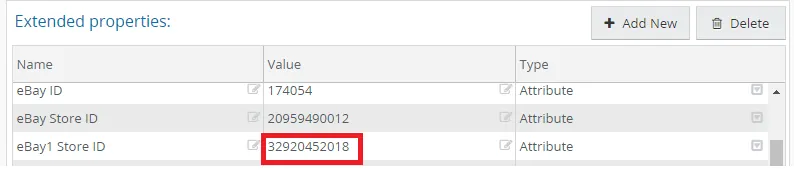
Search Ford then look for the model and year which is Ranger 2016+ or search the model then look for the make. From this the eBay1 Store ID is therefore 32920452018.
Step 2.
Copy the eBay1 Store ID number and add this as the value for eBay1 Store ID in the extended property tab of Linnworks.
Note: There are instances that the category structure for the item has more categories. Additional eBay Store IDs should be created. Add it in this format:
For eBay Store ID - eBay Store ID_1; eBay Store ID_2
For eBay1 Store ID - eBay1 Store ID_1; eBay1 Store ID_2
- How to Search for Mag ID Values
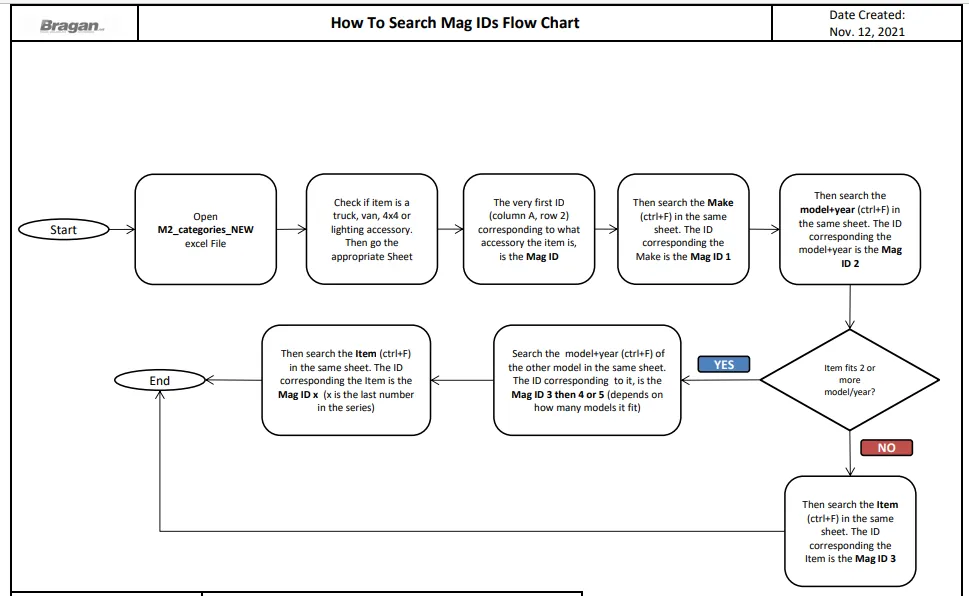
Step 1. Open M2_categories_NEW excel File. Check if item is a truck, van, 4x4 or lighting accessory. Then go the appropriate Sheet. Here is a guide for Mag ID value.
| Item is an accessory for | Mag ID Value |
|---|---|
| Truck | 915 |
| Van | 916 |
| 4x4 | 917 |
| Light | 3243 |
Example: Get the Mag ID value for window deflector for Ford Ranger 2016+. Since the item is a 4x4 accessory the Mag ID is therefore 917.
Step 2. Search for the Mag ID 1 value. Since the example is a 4x4 accessory, go to the 4x4 sheet and search (CTRL + F) for the Make. In this case it is Ford. From the file, Mag ID 1 is therefore 2363.
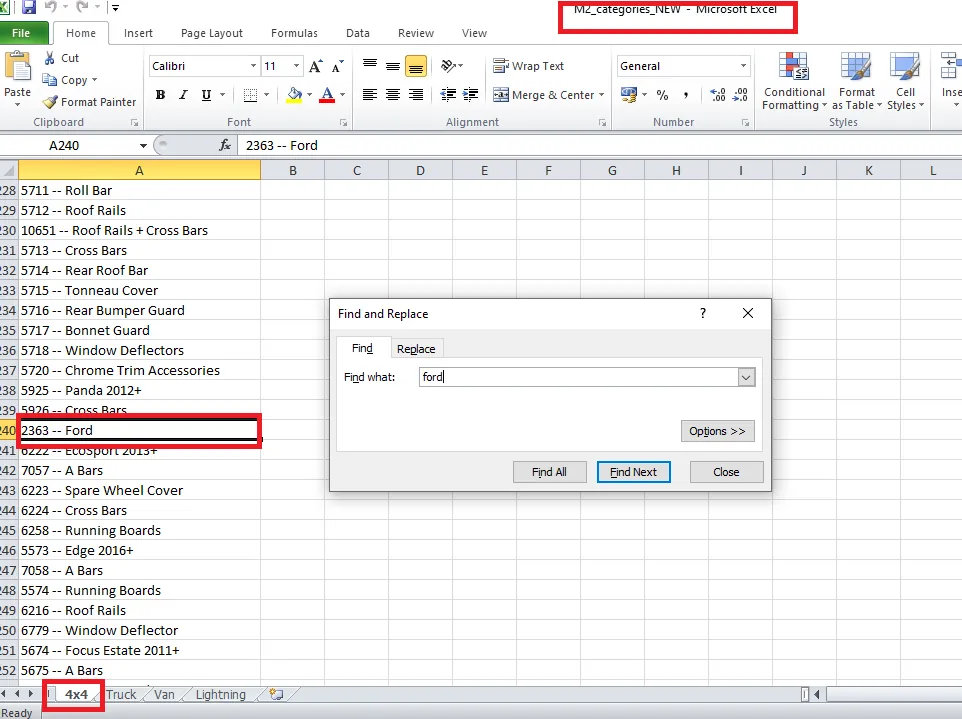
Step 3.
Search for the Mag ID 2 value. On the same sheet, search (CTRL + F) for the Model and Year. In this case it is Ranger 2016+. From the file, Mag ID 2 is therefore 4863.
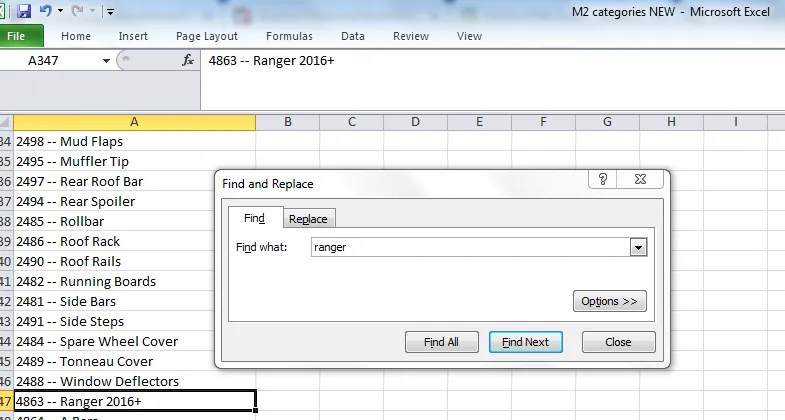
Step 4.
Search for the Mag ID 3 value. On the same sheet, search (CTRL + F) for the Item. In this case it is window deflector. From the file, Mag ID 3 is therefore 4884.
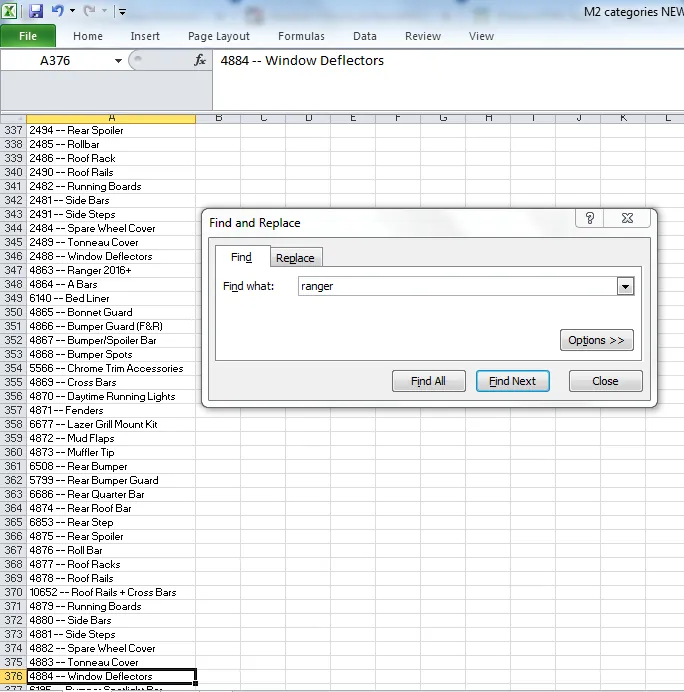
These are now the IDs for Magento to be added in extended property for the item window deflector for Ford Ranger 2016+.
Mag ID - 917 Mag ID 1 - 2363 Mag ID 2 - 4863 Mag ID 3 - 4884
Note: There are instances that the category structure for the item has more root categories. Additional Mag IDs should be created.
Notes#
This section is important so Adhoc points and issues can be logged. Also, Q&A can be logged for suggestions for potential issues encountered. Also, log important notes needed for this system.
Additional Notes:
This shows how to search eBay and Magento ID categories before listing. Please download the 3 category files added in this document to search IDs / Category. Add eBay0 ID / Store Categories and eBay1 Store Categories Add Magento Categories
Potential Issues:
1 - ISSUE ENCOUNTERED: Stuck on Loading
RESOLUTION: Refresh Browser
2 - ISSUE ENCOUNTERED: Broken Links
RESOLUTION: Get the external link as this will allow other people to access the SOP without the need for login credentials and avoid broken links.
3 - ISSUE ENCOUNTERED: Item not showing in correct category in website
RESOLUTION: Add categories in eBay0 and Magento
4 - ISSUE ENCOUNTERED: Cannot find the particular item when searching the excel files
RESOLUTION: Check similar listings so you will have a guide then confirm with trainer/senior lister
Attachments#
eBay0_Categories_New.xlsx 02/02/2026
Ebay1_Categories_New.xlsx 02/02/2026
How_to_Search_eBay_ID_Flow_… 02/02/2026
How_to_Search_eBay_Store_ID… 02/02/2026
How_to_Search_eBay1_Store_I… 02/02/2026
How_to_Search_Mag_IDS_Flow… 02/02/2026
M2_Categories_NEW.xlsx 02/02/2026