How To Update Listings In Bulk in Linnworks
This process describes how to edit listings in bulk.
Overview#
Purpose: This process describes how to edit listings in bulk. This is better used when updating listings of the same item but with different models or you have the same bundled items for different models. Especially if you need to update to all three channels and there are more than 5 SKUs to update.
Scope: This procedure covers only the process on how to update listings in bulk and not creating listings in bulk. We have a different SOP for creating new listings in bulk.
This only covers also updating live listings in eBay and new Magento listing.
This SOP can still be used for old Magento listing but only until Step 9. After Step 9, lister will need to check separate SOP on How to Update Old Magento Listings in Bulk
Responsibility: It is the responsibility of each product listers to ensure the process set out in this procedure is followed.
Objective: The objective of this procedure is to guide the listing team on using the correct procedure for editing listings in bulk.
Process Flow#
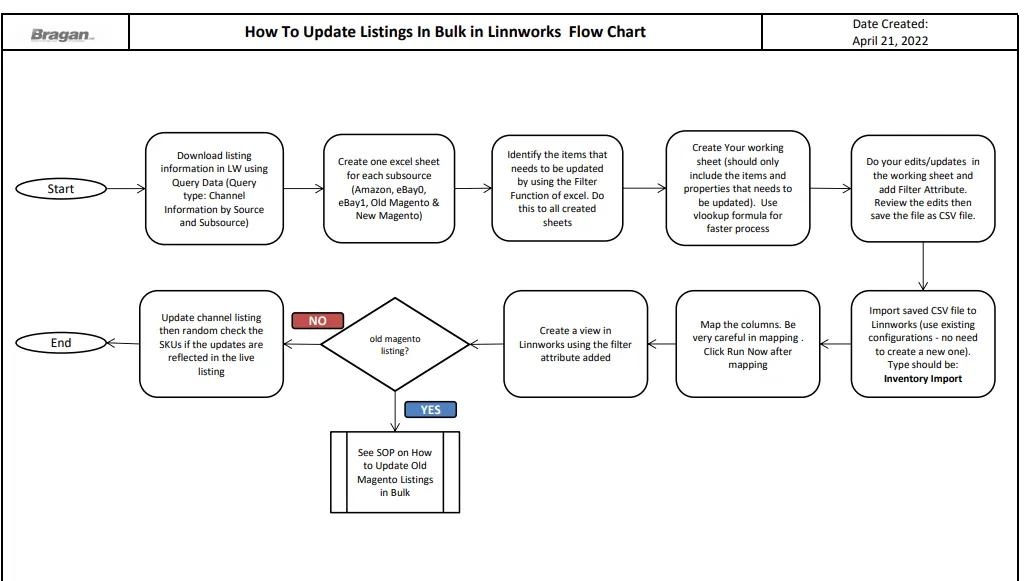
Procedure#
- Download Listing Information in Linnworks You need first to download a CSV file containing listing details such as channel titles, descriptions and prices of all listed items in Linnworks, this is a very big file so it would take a while for it to download.
Always use and download the newest query data file of the day upon updating your assigned task listing update, don't use old query data file from yesterday or from the morning if you have the task in afternoon, because someone might had an update and it will be gone if you will upload data from old query data, this can cause double work and problem.
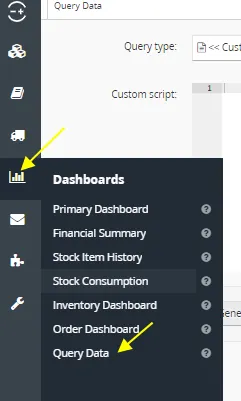
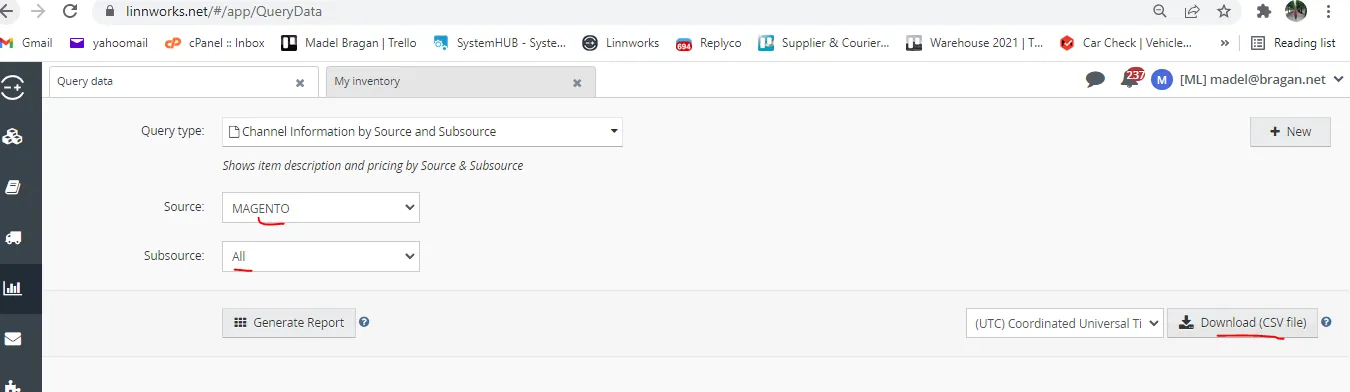
To do this, go to Linnworks > Dashboards > Query Data
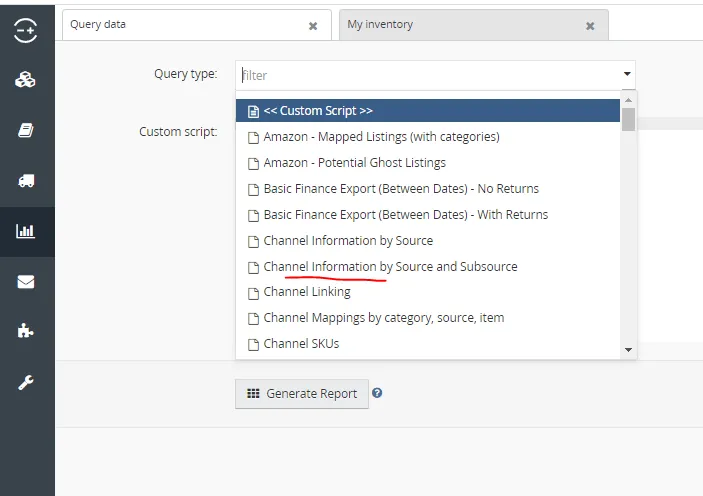
For the Query type, choose Channel Information by Source and Subsource
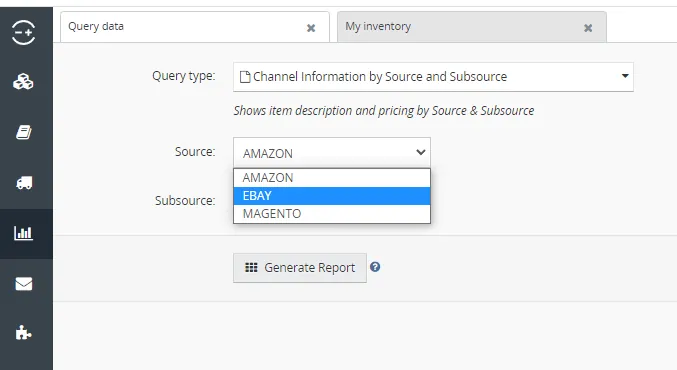
Then for the Source, choose first eBay. Subsource is All. Then click on download CSV file. Do it again for Magento. There would be two CSV files, one for eBay and one for Magento. We usually do not update in bulk in Amazon, but if needed then download another one for Amazon.
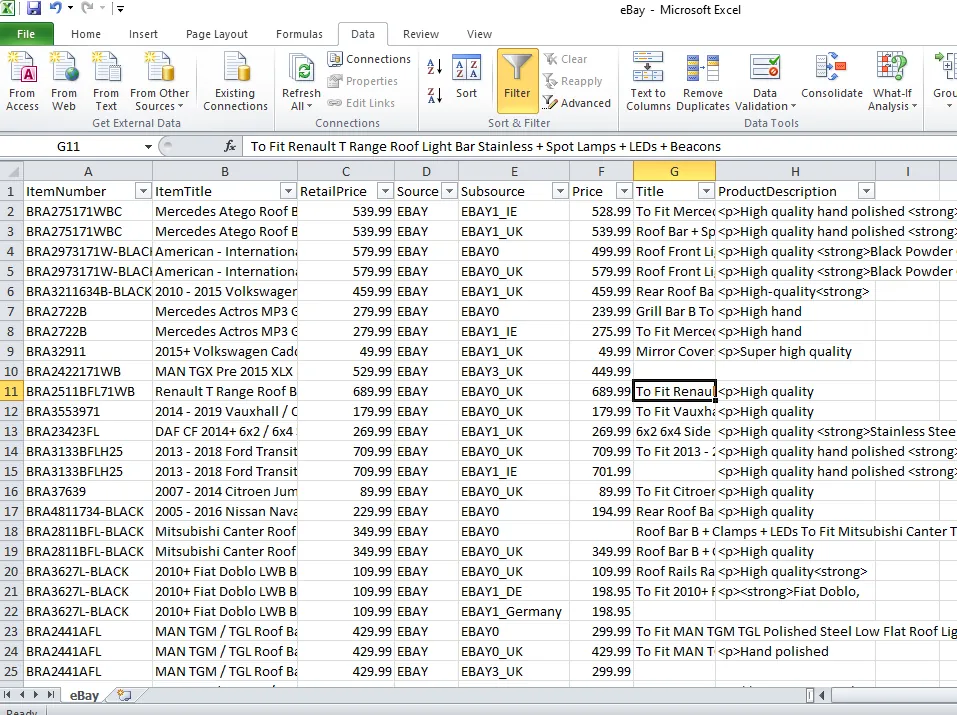
Below is what the eBay CSV file looks like, it contains information such as SKU, Item title, prices, source and subsource, title and description. These are all the items listed in eBay.
- Create One Sheet for Each Subsource You need to have one sheet containing only the items listed in eBay0, another sheet for eBay1, another for M2 (new) and last for M1 (old magento). Please refer to the table below for guide on the souce and subsource we use.
| SOURCE | SUBSOURCE |
|---|---|
| MAGENTO | M2 Bragan Website (new) |
| MAGENTO | www.bragan.net (old) |
| EBAY | EBAY0_UK (eBay0) |
| EBAY | EBAY1_UK (eBay1) |
| AMAZON | Bts-Trading |
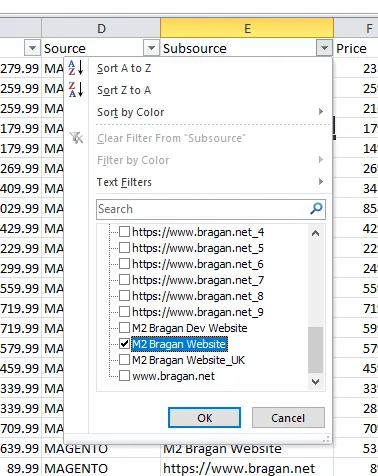
To do this, make use of the Filter feature of excel. For example, we need to get all items listed in Magento 2 (M2 Bragan Website). Highlight all columns, click on Data and click on Filter. A dropdown arrow will appear per column title.
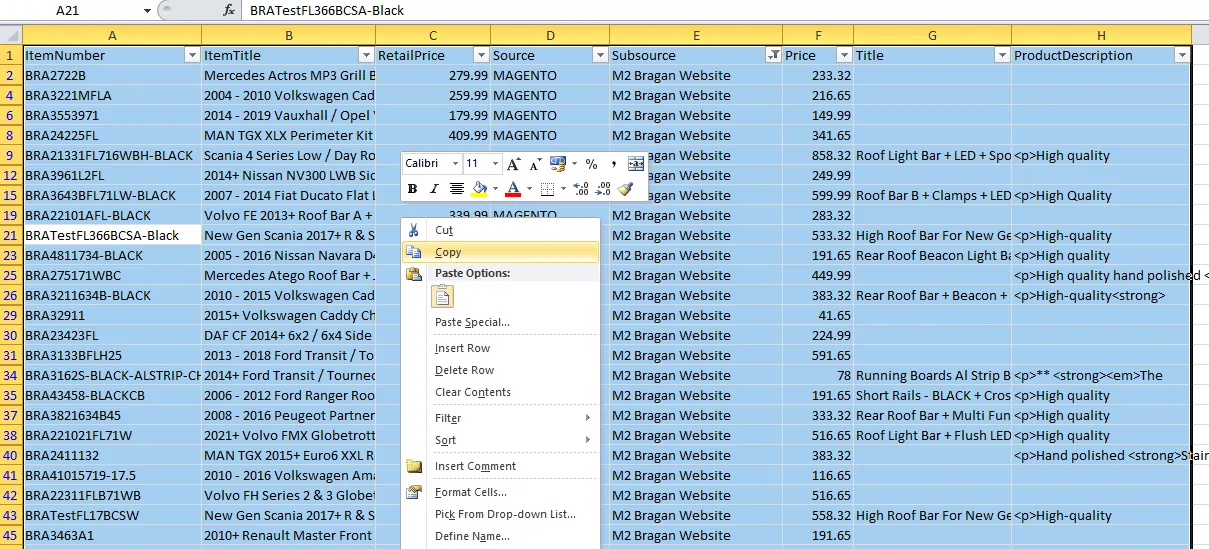
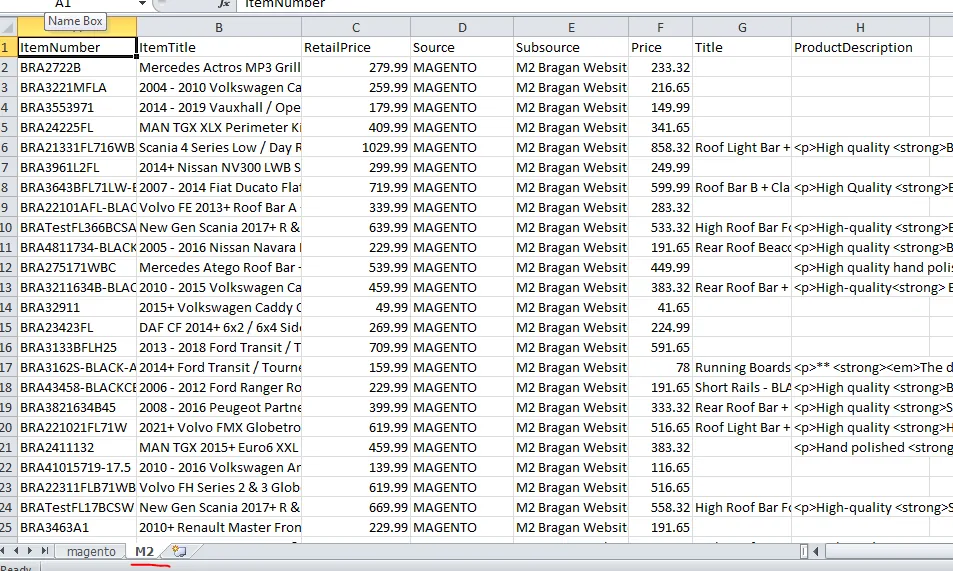
Click dropdown for subsource and check only M2 Bragan Website then click OK so that only items listed in this subsource will show. Copy all this (Figure 8) and paste it to a new sheet and name it as M2 (Figure 9).
Once you finished with M2, do it again but for M1. Go back to magento sheet and click the dropdown for subsource and select only https://www.bragan.net.
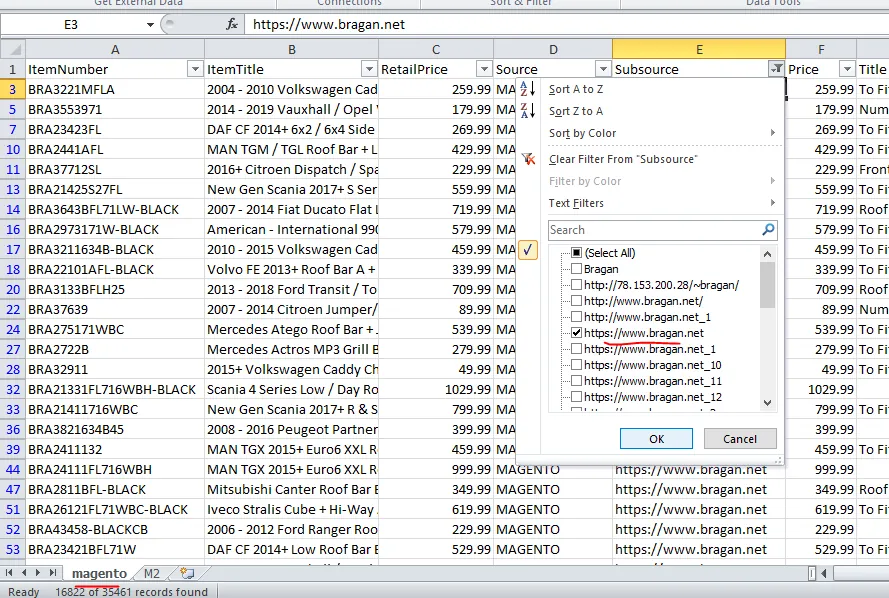
Always update the magento old listings in Linnworks (https://www.bragan.net) to correct one because it will be automatically synced to magento backend and also in magento website esp in MAIN view. If you will choose main view and it is not updated by the way you want it but was already correct to UK view, then check details in Linnworks for that sku in magento old and update it to correct one. Send one sample of each channel where the skus are listed live including (NOT ACTIVE LISTINGS with zero stock) of updated listing to know it is the correct format to management before doing the bulk update.
Always use updated query data on time of update task, don't use from yesterday or morning.
Copy all again and paste it to a new sheet titled M1.
All live listing titles should be updated to new format from title guide sop for each channel.
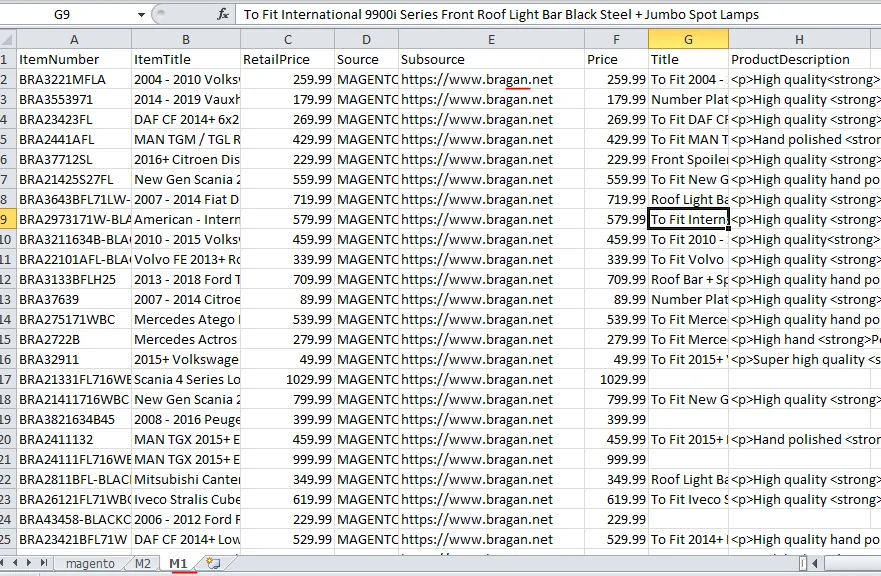
Do it again for eBay1 subsource should be EBAY1_UK. Once filtered, copy all and paste it to another sheet titled eBay0. create this sheet where you put M1 and M2. This way you will only have one file reference for later steps.
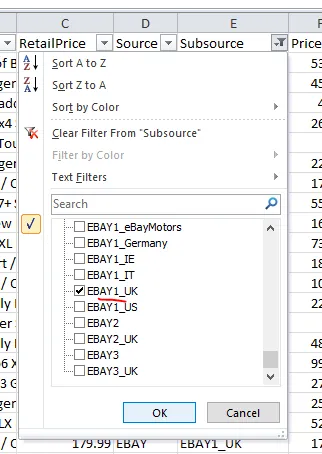
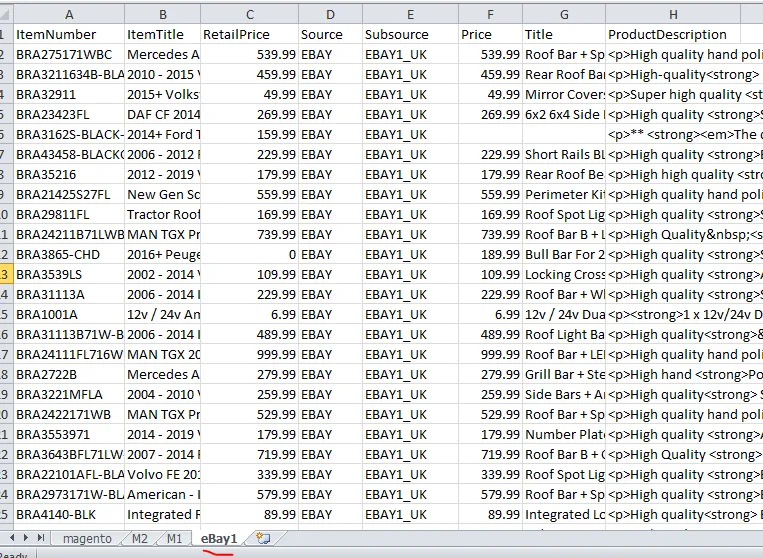
And last for eBay0.
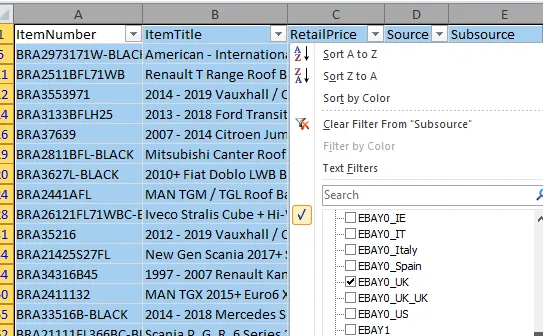
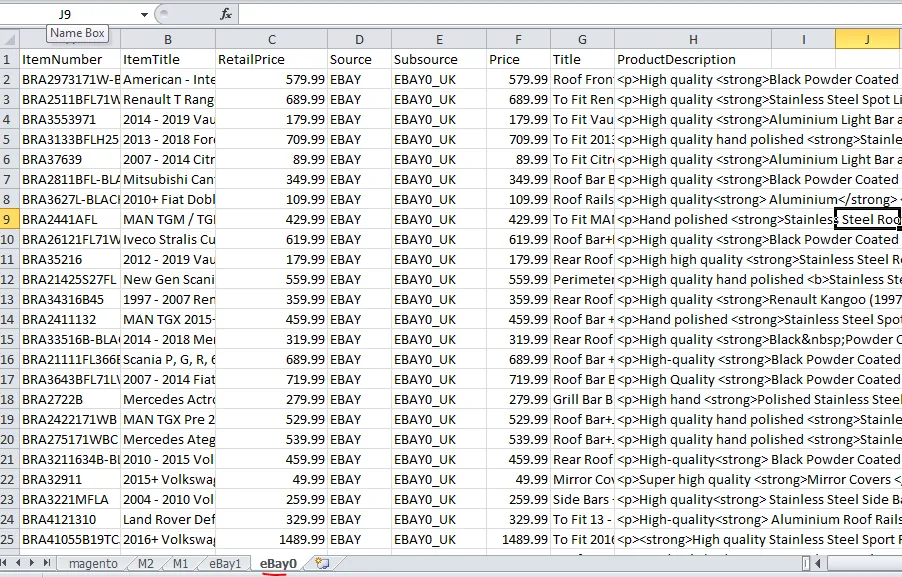
You can just ignore the magento sheet since for the next steps, you will be using only M2, M1, eBay1 and eBay0 sheets.
- Determine the Items to be Updated
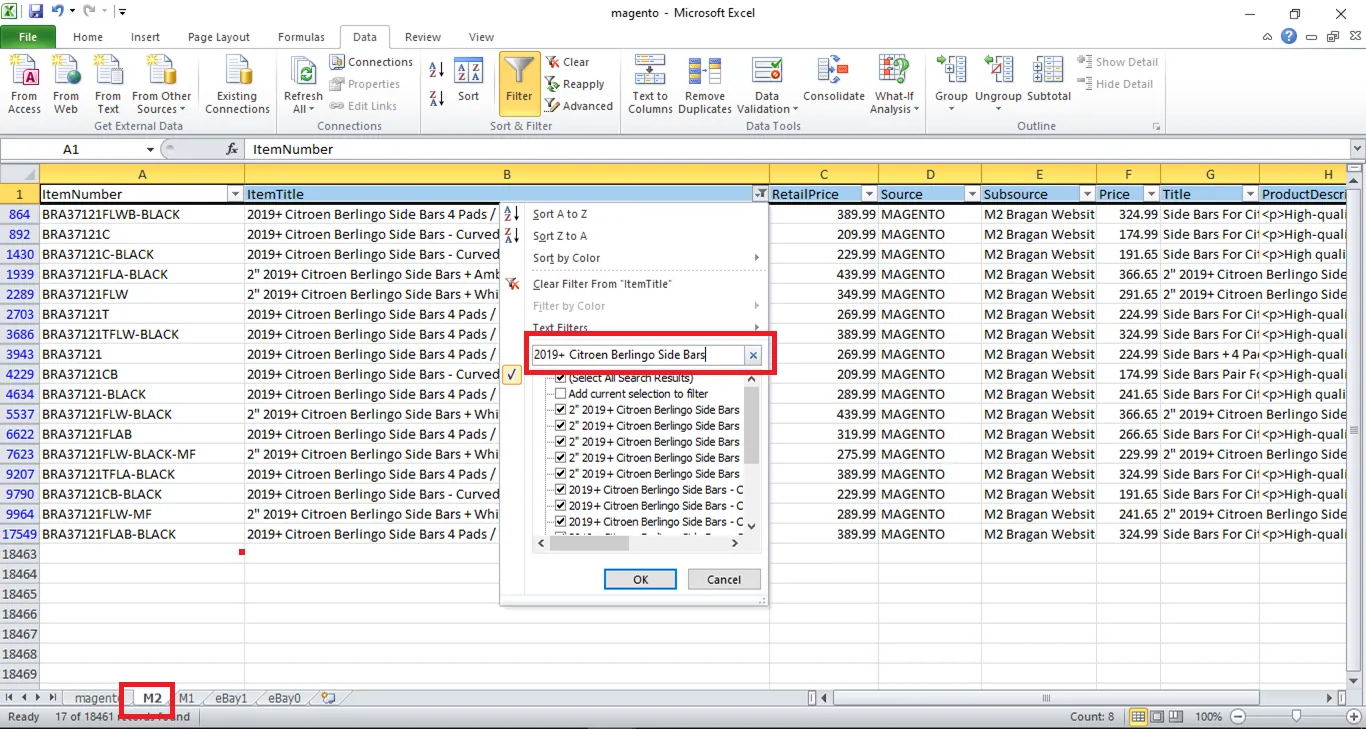
Next step is to know what are the listings that need to be updated. To do this, Use still the Filter feature. Assuming, task is to update listing description for all Citroen Berlingo 2019+ side bar. Either use the SKU or the item title for filtering, depends on you which you choose. For this sample, let us filter using the item title. Just choose any subsource sheet for this. For this example, M2 was used. Click dropdown arrow for Item Title then under text filter, type the item title then click ok. It will now show all listings that needs to be updated.
Be very careful in doing the filter since other items might still appear depending on how you do the filtering, so make sure to double check everything especially the item title. Make sure the correct Make, Model and Year and item (side bar for this example) appears.
Note: If you want to bulk update prices for the Channels, a separate SOP is created since personnel maintaining the Master Trade File will also be looking at it. It needs to be detailed. Please see this SOP on How to Bulk Update Prices.
- Create Working Sheet
Copy again this filtered items (Figure 17) and paste it to another sheet. This sheet now will be your working sheet, where you will do all the edits.
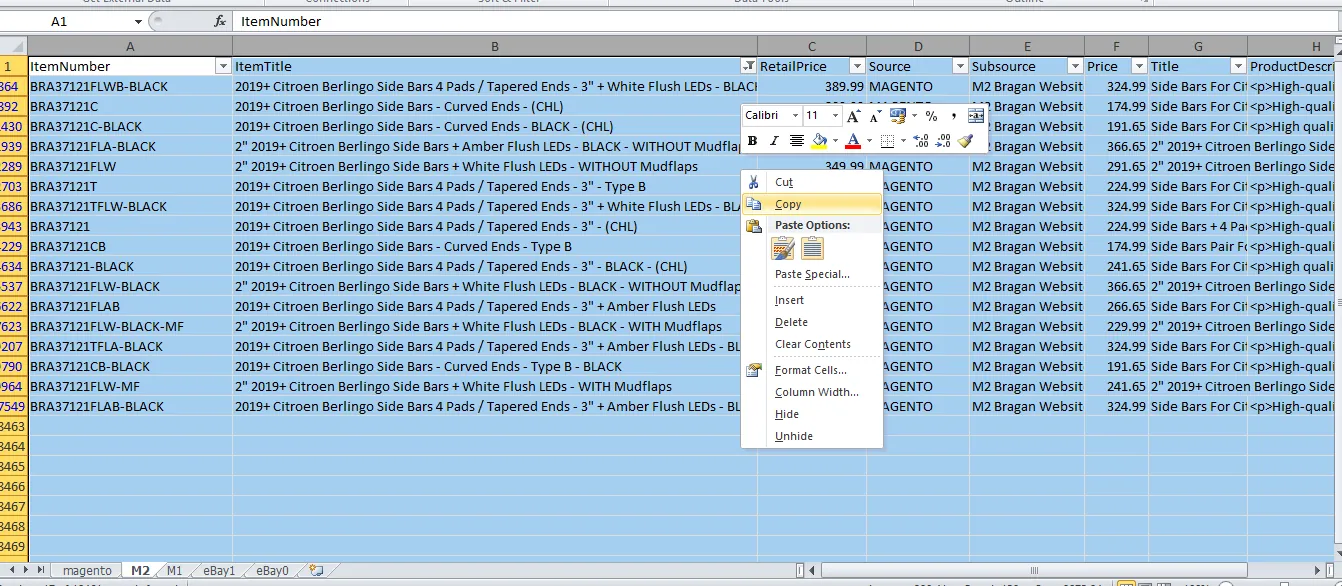
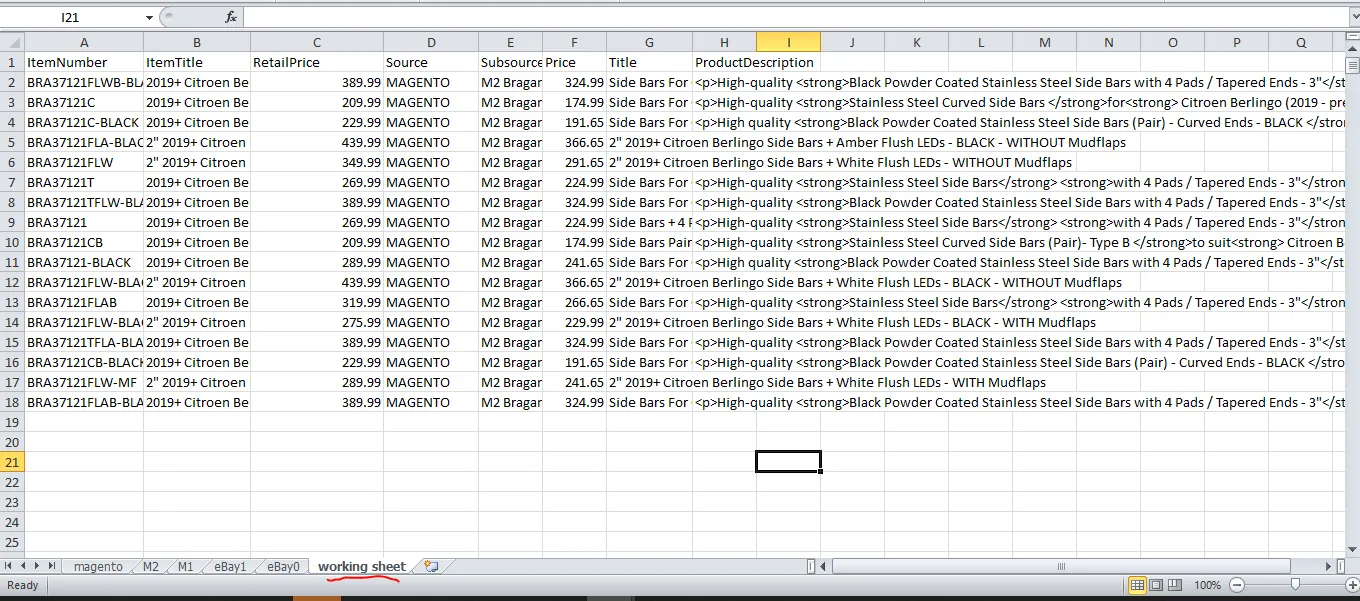
Since you will only be updating the description, you can delete columns that you won't need. Just leave the SKU column and the description since these are the only one you need. If the task is to update both title and description, then delete everything except for the SKU, Title and Description Columns.
If you notice there is Item Title and there is Title Column. Title is the channel tittle while item title is the title from Linnworks. So when updating channel title please update the Title Column and not the Item title.
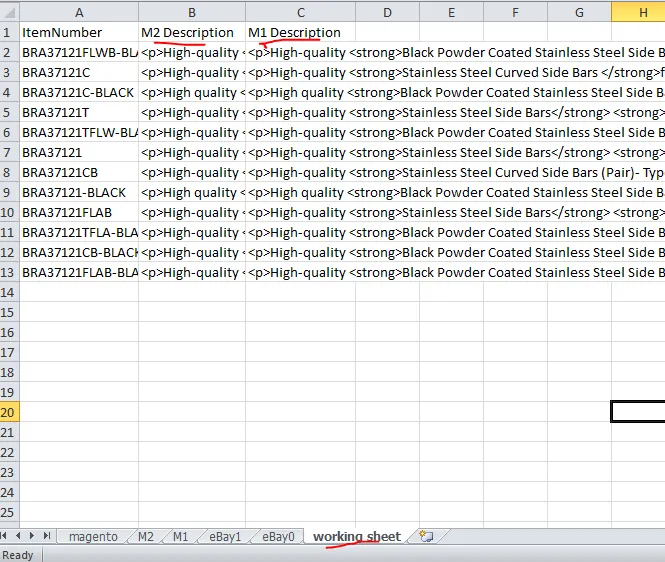
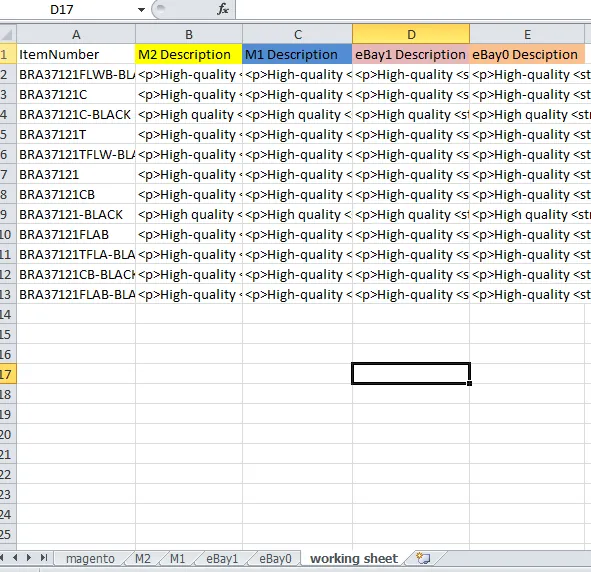
Since this description is from M2, rename the column title as M2 Description for reference. Add another column and title it as M1 description. M2 and M1 description has the same description format so you can just copy the descriptions of M2 and paste it to M1 Description column.
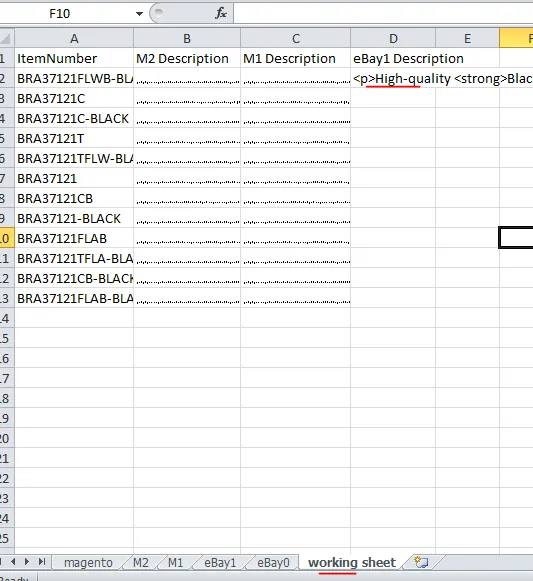
Next is to create another column for eBay1 or eBay0 Description. Both have the same format, so when you get the eBay1 description you can just copy it and paste it to eBay0 Description.
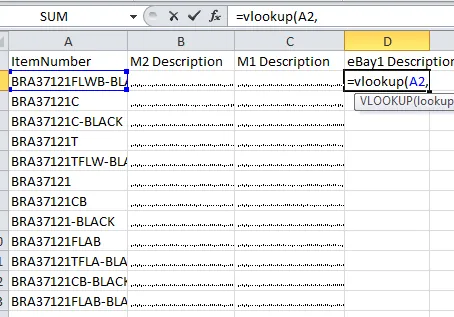
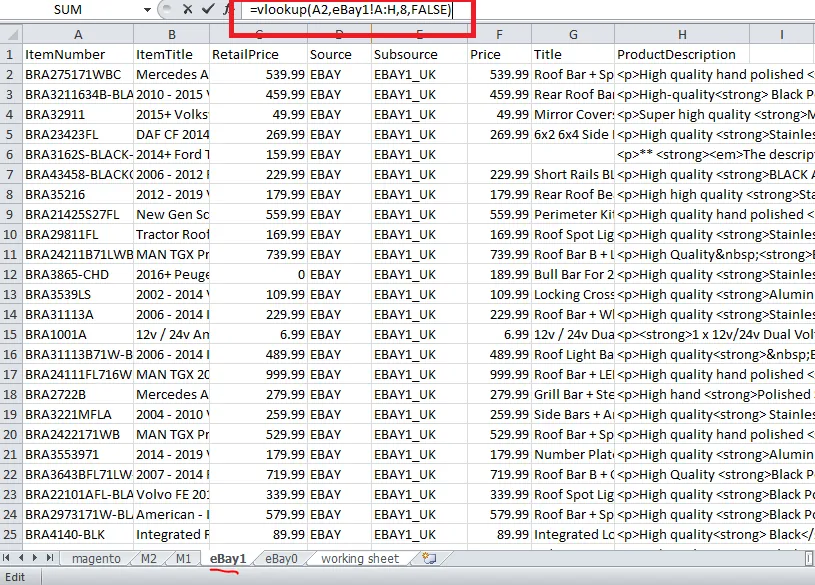
To find the eBay description for each SKU, use the vlookup formula this way you won't have to search it one by one in LW and pasting it in your worksheet.
=vlookup(item number cell, subsource sheet!columnA:last column,column number for description since you are updating description,FALSE)
See formula below. Column number is 8 because Product Description is on the 8th column, Item Number is column 1. Then press enter. Go back to your working sheet and you will find now the description for that SKU in eBay1. See Figure 22.
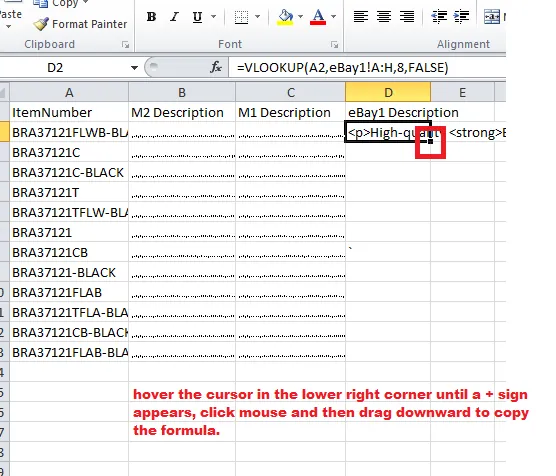
To do this for the next SKU, you can just copy and then paste it to the next row. Or click on the cell and drag it down
Once the formula is copied, you need to highlight everything then right click to copy or CTRL C.
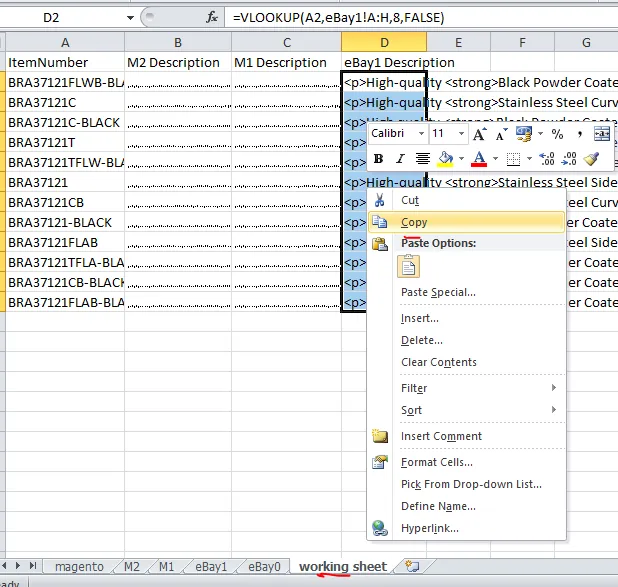
Then paste it to the same location but do not just paste it like a regular paste. Right click on the cell where you will paste it, select Paste Special and select Values. This way the values in the cell will now be the description text and not the vloopup formula.
figure
You now have the eBay1 Description, create another column for eBay0 Description and simply copy the descriptions you have in eBay1 and paste it to eBay0.
- Do the Edits
Do now the required edits for the description. You can use Find and Replace function of excel if possible but if not do it manually. Tip is you just need to update the title for M2 then just copy it to M1 since the two have the same format. And then do edit for eBay0 then copy it to eBay1 since both have the same format.
Always do one listing edit and confirm it is correct per channel with management before doing bulk listings.
- Add a Filter Attribute
Add a filter attribute in the last column. Filter attribute can be any value but for standardization purposes, the title of the attribute should always be FILTER and the value is the [Update Date + Item + Make]. Update date format should be (ddmmyy). The only thing to watch out is that the value was never used before. So for this
example, the value for our filter attribute would be 230222sidebarscitroen. Once you have added the filter attribute, save now the file as CSV.
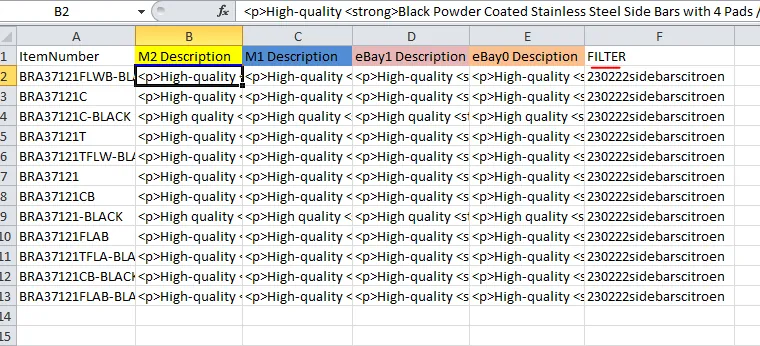
Note: For the filter attribute title, we cannot use our existing extended property titles like Make, Model, Color, etc. That is why it was set to FILTER to avoid future errors.
Check the video attachment at 33:32 for more detailed explanation about Filter Attribute
Filter used and added to extended property for bulk update listings should be deleted after every task completed.
Please see sop how to delete filters in extended property: bragan-net.systemhub.com net.systemhub.com/company/share/system/id/419857/shareCode/YmJmZmU3YjZlZD c0ODJlYTUxZGM5MzYwNzI2NjcwNDg
- Import CSV File to Linnworks Go to Linnworks > Settings > Import Data
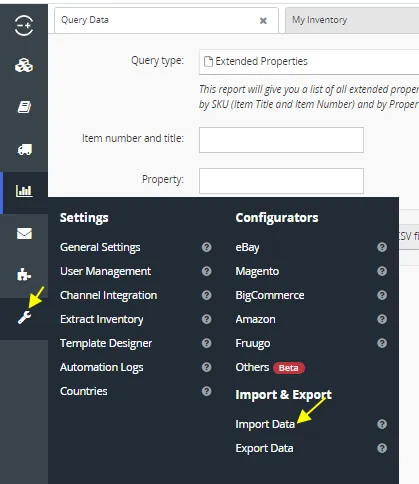
You can create a new import configuration by clicking Import Now, but it is better to use any of the existing ones since there are many already.. Filter the name and since we are updating description, type "Description" then click on Filter.
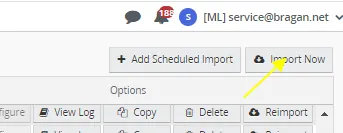
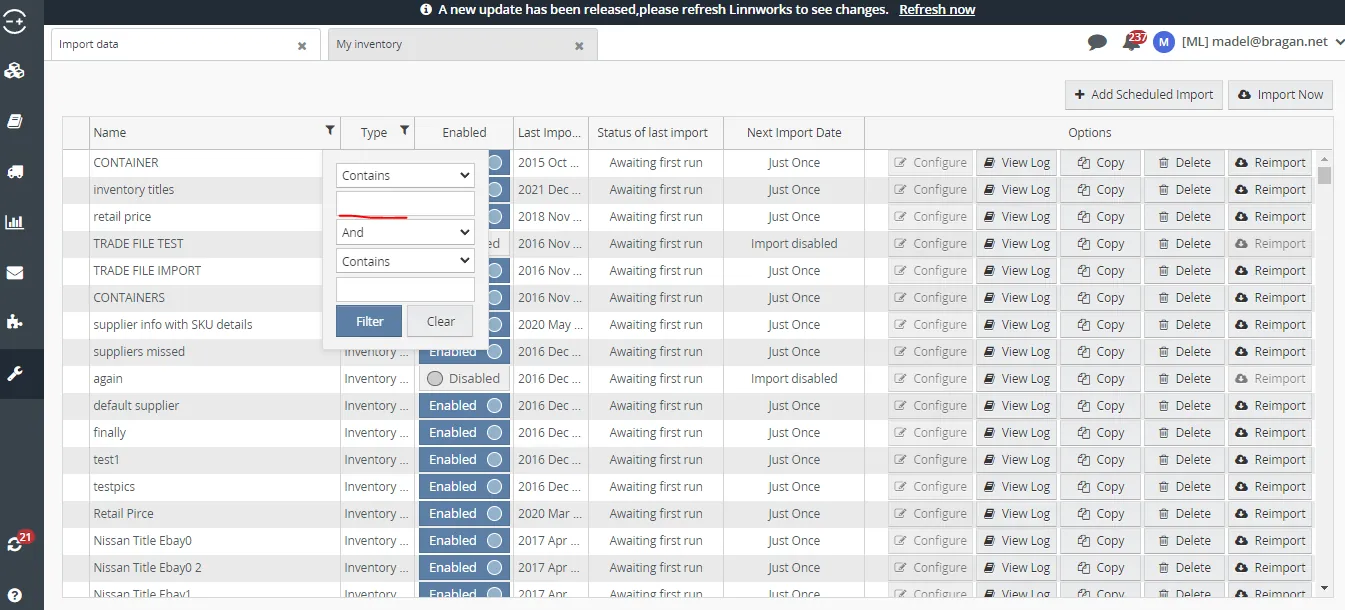
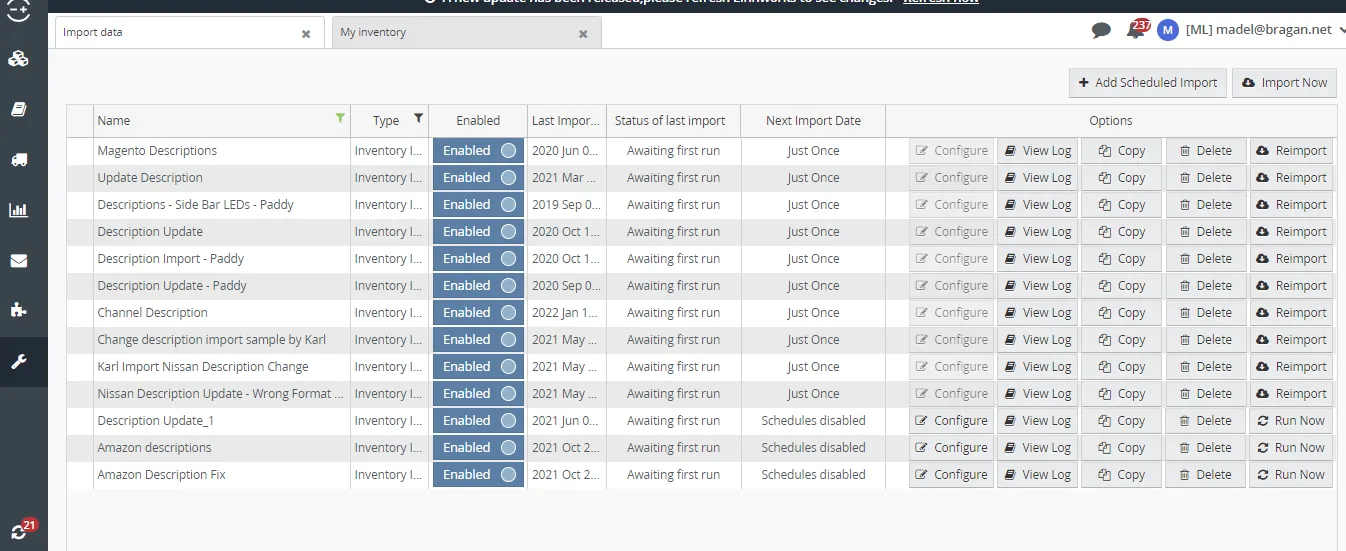
All import configuration with description in the name will appear, you can choose any or choose the one most appropriate. Then click Reimport of the chosen configuration.
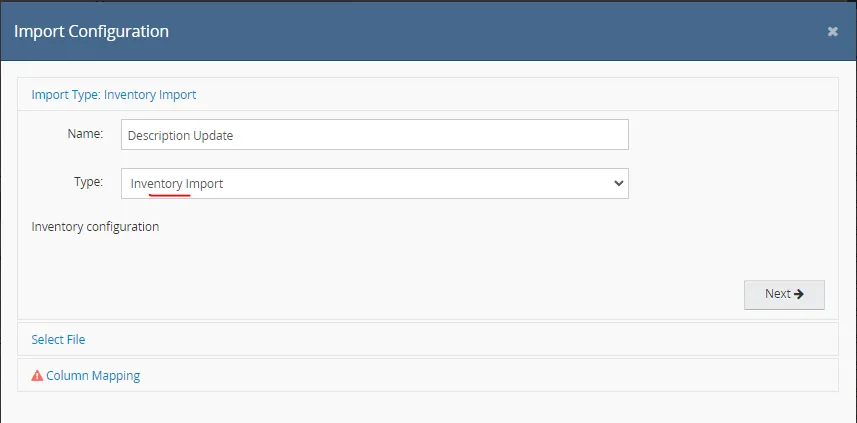
Since we are updating description the Import Type is Inventory Import. If we are updating listing description, title. listing price, extended properties always choose Inventory Import. Then click Next.
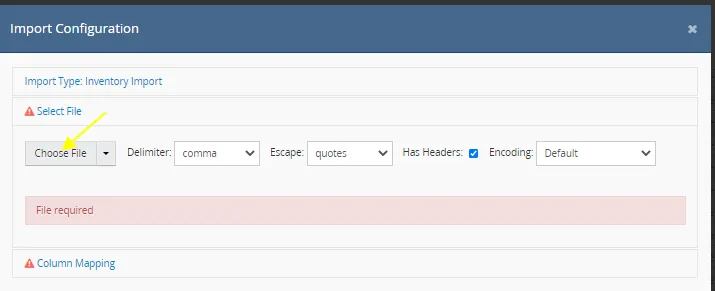
Click Choose File and select the CSV file you have created.
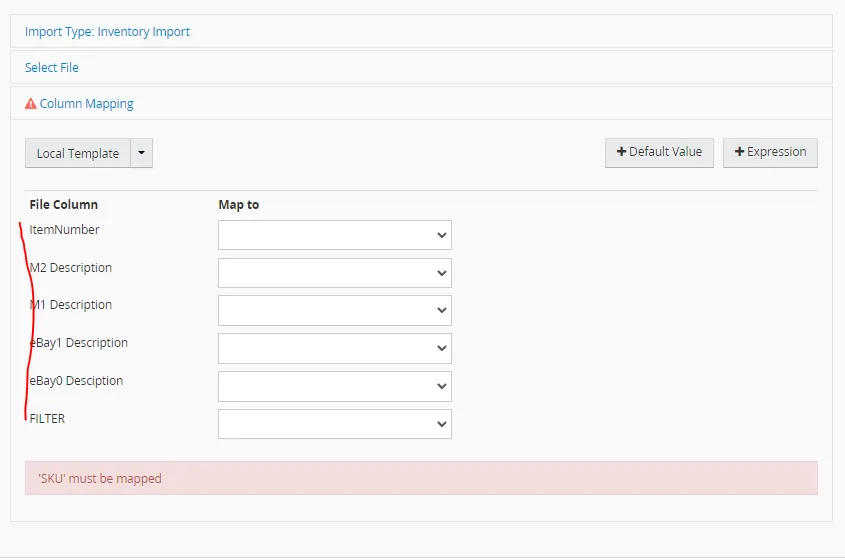
- Map the Columns Once your file is imported, start mapping the columns. Notice that the items under File Column is the title of your columns in your CSV file. Be very careful in doing the mapping. Make sure to map it to the correct source and subsource.
Map each column in the file. Ensure to map Description to Description by Channel with the correct Source and Subsource. Same also if you are mapping title, make sure to map it to Title by Channel and not just Title. Other properties like Magento Short Description, Make, Model, etc. are mapped to Item Extended Property. The
FILTER attribute is mapped to Item Extended Property also. The Item Number or the SKU is mapped to SKU. Once done, click Run Now.
This is what it looks like after you map.
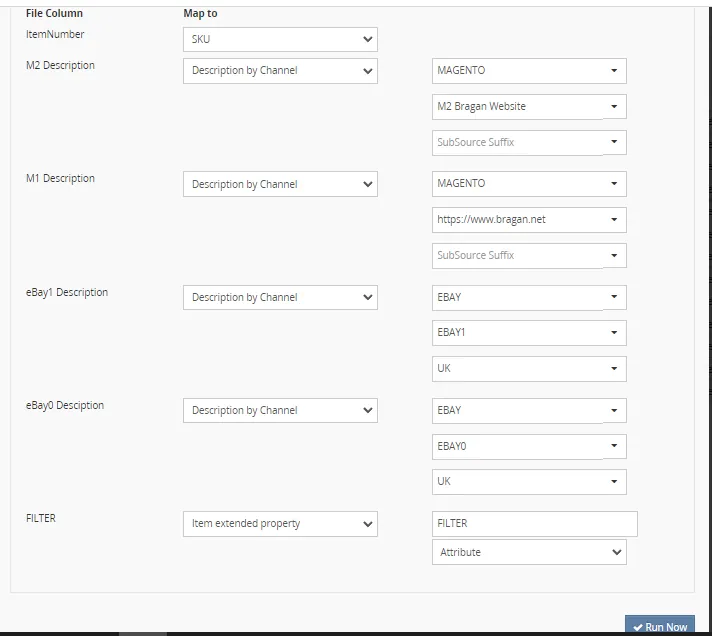
Here is another example:
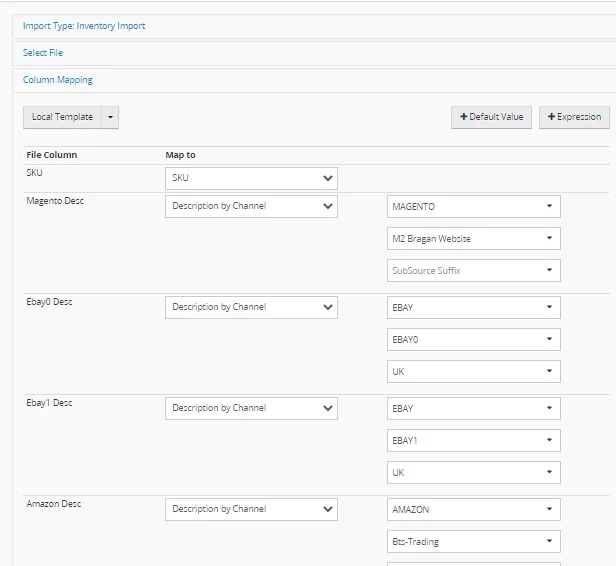
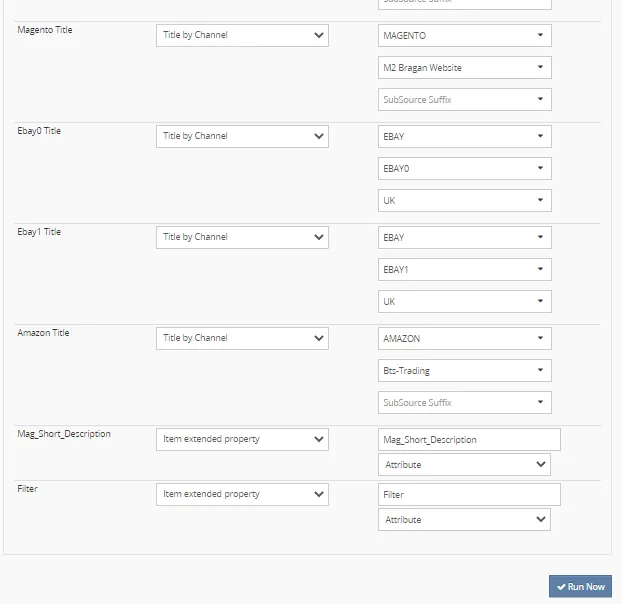
Wait until Status of Import says Success.
- Create View in Linnworks
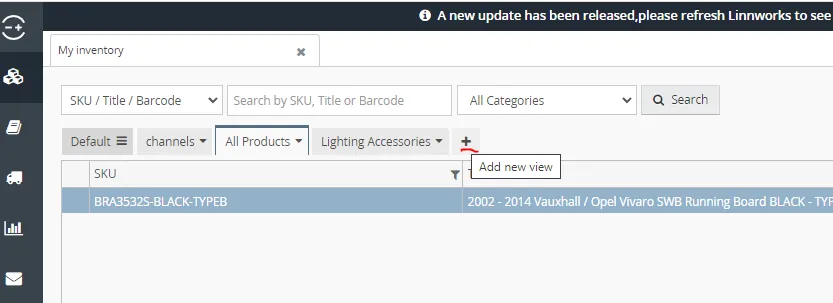
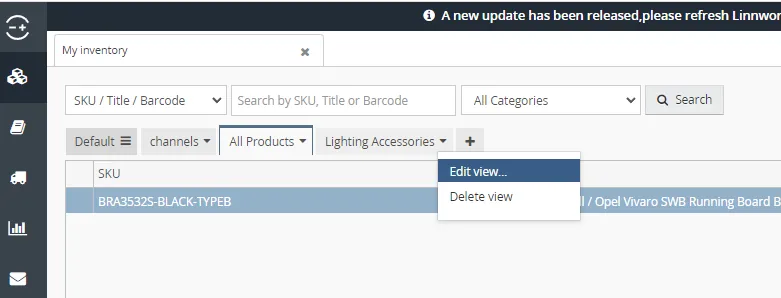
Create a view in Linnworks using the Filter Attribute that you used. To create a view you can click on the "+" sign (Figure 39). Or if you have already several views in Linnworks, you can edit existing view by clicking the dropdown menu of the existing view and selecting Edit View (Figure 40).
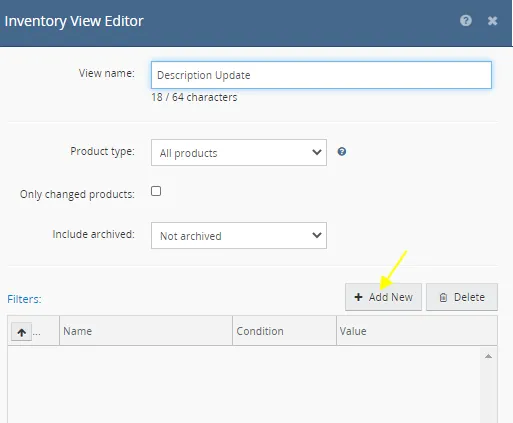
Add view name, you can choose anything but it is better if it is relevant to what you are doing. So you will have reference what this view is for. For the Product type choose ALL PRODUCTS and the for the Include archived choose NOT ARCHIVED. Refresh Linnworks in order for your filter attribute to show. (Note: You need to refresh LW to show new attributes)
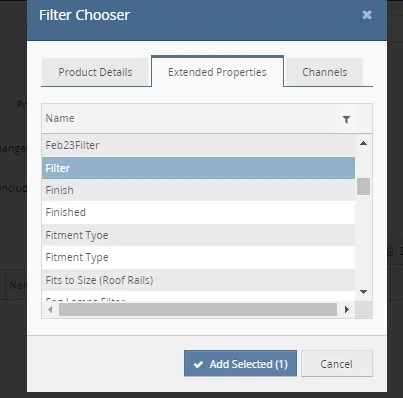
Click Extended Properties Tab and find and add the filter attribute used in the CSV file.
Fill-in the value used in the CSV file. In the example we used, our value should be 230222sidebarscitroen.
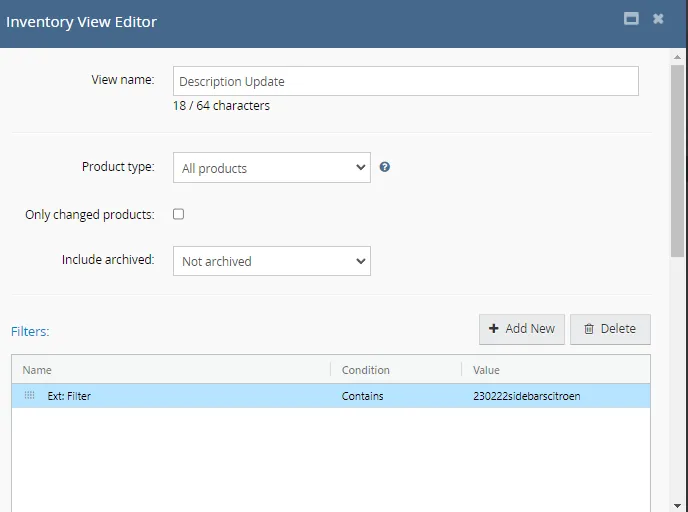
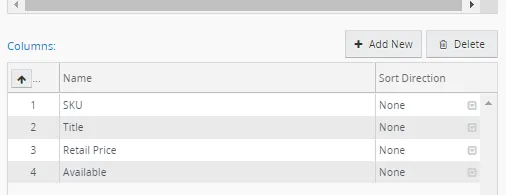
Scroll down then add columns you wanted to appear. Click on Add New if you want to see more columns or highlight the column and click on Delete if you want to delete it.
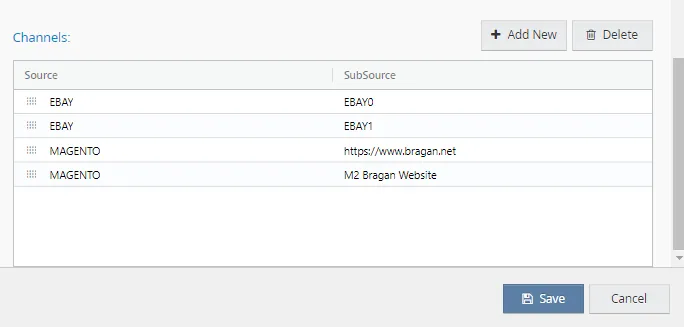
Scroll down again and add all four channels. Then click save.
All the SKUs we updated should be the only one you see in this view. Random check the SKUs to see if updated data are reflected. This is why a view is created so it would be easier to random check the SKUs. If you will not create a view you will have to search individually for all the SKUs you updated which is time consuming.
Note: For this next step this is not applicable to old Magento listings. After doing Steps 1-9 for old Magento listings, proceed to this SOP and follow it in order for the update to appear live on website.
- Update Channel Listings After randomly checking if your updates are reflected, follow these steps:
- select all rows
- right-click in the channel column (ex. right click on eBay0 if you want to update the listing in this channel)
- select Revise Selected
- select Descriptions (since this is the one we update)
- repeat steps 1 to 3 if you revised other properties like Titles, Prices, and/or Attributes (needed when updating extended properties)
- Repeat steps 1 to 5 to update other channels
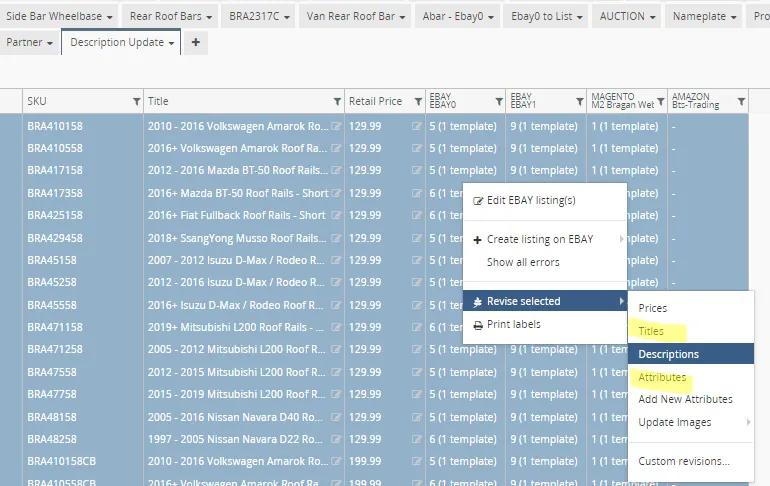
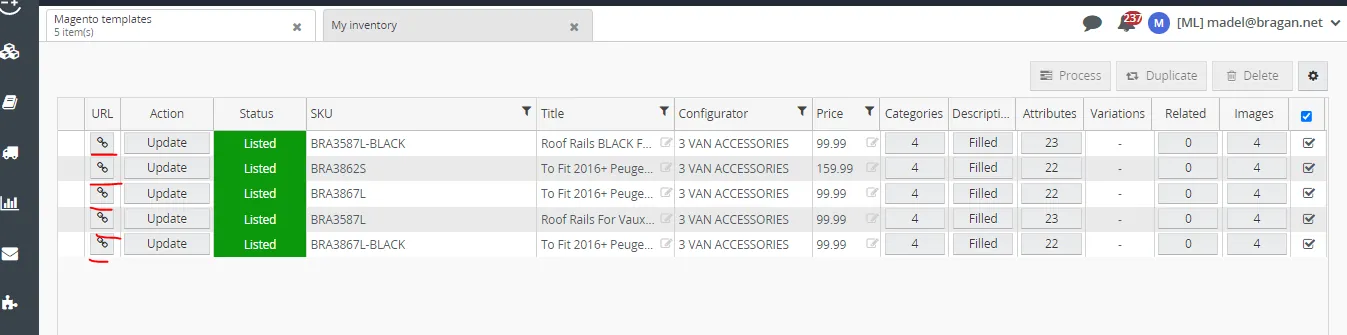
Then right click again on eBay column and click on Edit EBAY listings if you want to check if the update is done and also to get the link of the listing. Collect this link (one underlined in red Figure 47) as reference and put it in your listing trello task card for checking with your partner. To know what are trello task card check this SOP for trello task card for listing updates.
Important Note:
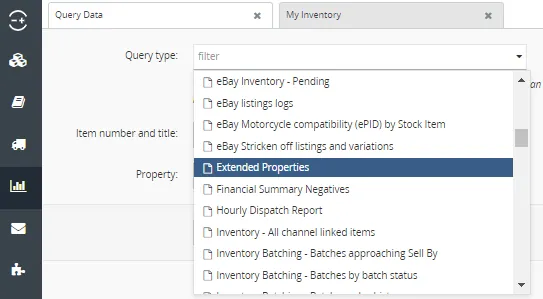
If you need to update other listing details such as eBay item specifics, Magento short description, Amazon bullets - this information is available by downloading Extended Properties in Query Data. Use only the Channel Information by Source and
Subsource if you want to update description, title and prices. But follow the same process after.
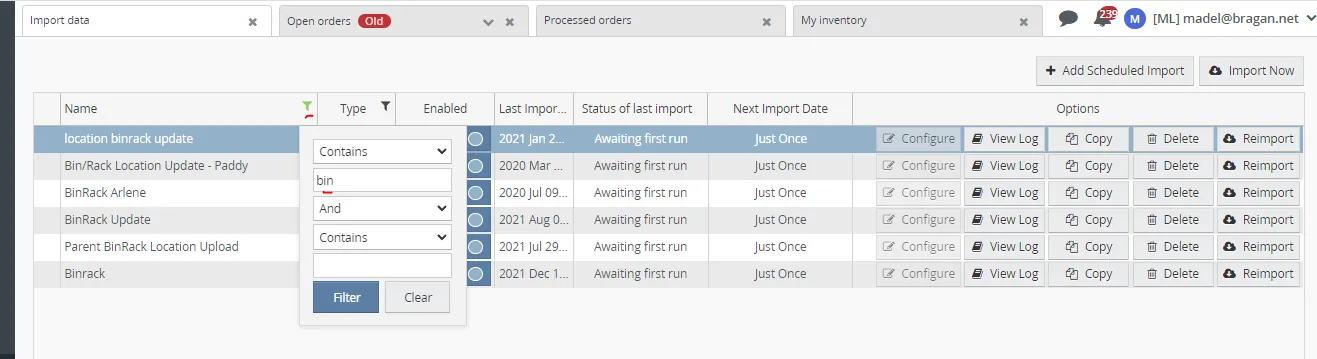
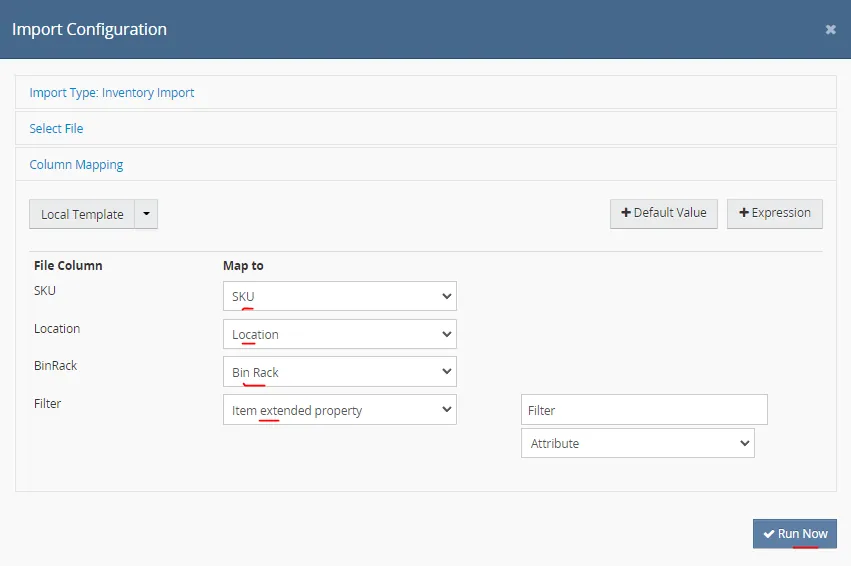
If you need to update Bin/Rack Location in bulk, refer to the attached CSV file as sample for your working sheet. Then follow the same steps where you import the file to Linnworks, you can select from the already created import configuration for Bin Rack. Just filter name and type bin and all available configuration will appear. Just select one then reimport. Import type is still Inventory Import and then map it. See
the ones mentioned above.
Video & Media#
Notes#
This section is important so Adhoc points and issues can be logged. Also, Q&A can be logged for suggestions for potential issues encountered. Also, log important notes needed for this system.
Additional Notes:
For bulk updates of skus quantity of 10, need to remove bragan logo to all images and need to update format of description to bold and unbold and arrange item specifics and check all aspects
but if the quantity is 10 or more skus, No need to remove all bragan logo of images of skus you are updating, remove only main images bragan logo and no need to update format of description to bold and unbold and no need to arrange item specifics. Ensure to check live listings to check if update is successful and add 3 link in trello task card for partner quality checking.
Be very careful in doing your filter, make sure you filter the correct items you need to update.
Be very careful in mapping.
Do not forget to add filter attribute
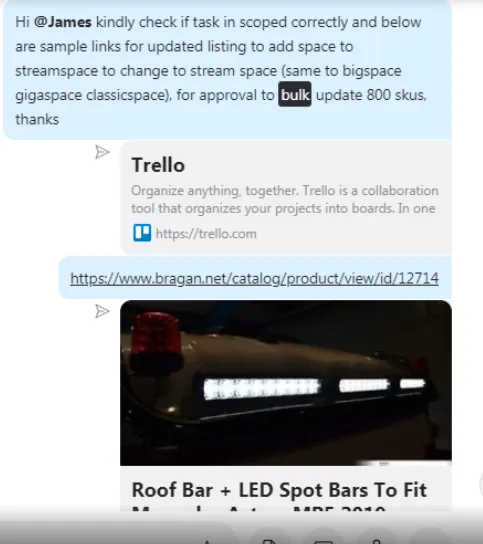
Ask management if the task is scoped correctly and tag James with the Trello link in the Bragan New listing skype group before starting any task that is more than 15 minutes.
Send 1 sample to the management of the updated listing in each channel before doing a bulk update.
Need to check all skus in csv file even if it is 100 or more, needs to check all skus. Listers are also responsible to check their own listing - needs to check all live listings and all skus details in each tab in Linnworks to ensure checklist are followed correctly.
Potential Issues:
1 - ISSUE ENCOUNTERED: Stuck on Loading
RESOLUTION: Refresh Browser
2 - ISSUE ENCOUNTERED: Broken Links
RESOLUTION: Get the external link as this will allow other people to access the SOP without the need for login credentials and avoid broken links.
3 - ISSUE ENCOUNTERED: Incorrect listing.
RESOLUTION: Ensure to check all aspects of listing and website live listings. Follow listing SOP as guide.
Attachments#
How_to_Update_Listings_in_B… 16/12/2025
Sample_CSV_-_Bin_Rack.csv 16/12/2025
stock_level_csv.csv 16/12/2025