How to Update Old Magento Listings in Bulk
This process describes how to edit old Magento listings in bulk.
Overview#
Purpose: This process describes how to edit old Magento listings in bulk. This is better used when updating listings of the same item but with different models or you have the same bundled items for different models.
Scope: This procedure covers only the process on how to update old Magento listings in bulk. We have a separate SOP on how to update listing in bulk for eBay and new Magento.
Responsibility: It is the responsibility of each product listers to ensure the process set out in this procedure is followed.
Objective: The objective of this procedure is to guide the listing team on using the correct procedure for editing old Magento listings in bulk.
Update
Procedure#
Important Note:
Before doing process you still need to bulk update the templates in Linnworks. Follow Steps 1-9 on this SOP then after doing those steps proceed to this SOP.
This step is still important. You still need to update the Product Details Screen because this is crucial when doing bulk extraction in Linnworks. New information will not reflect in extraction if this step is skipped. So do this first.
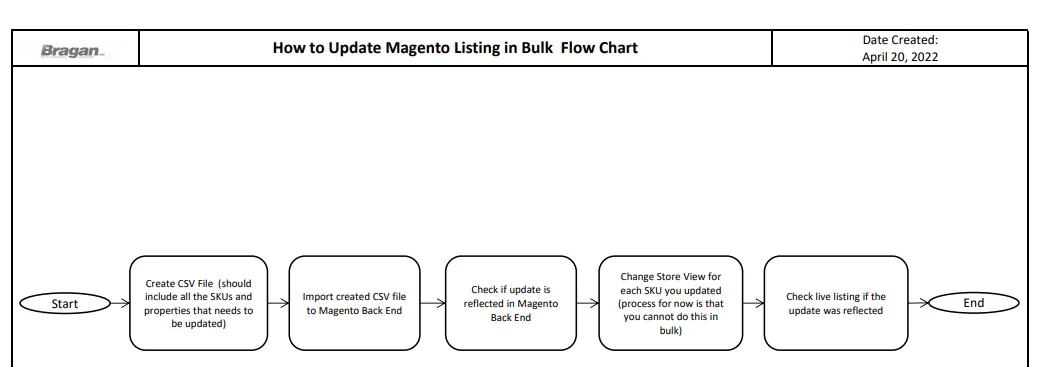
- Create CSV File If you already have the list of the SKUs of the old Magento listing you need to update, create a CSV file. Make sure also that you know what update is to be done whether to update the title, description, mag short description or all. Follow this format for the CSV file. See also attachment for the sample file.
Note: If you only need to update description then you can delete the columns for name (which is the title) and the short description. The columns should only be the SKU and then the property you want to update
For the value for each column you can use the query data you downloaded in Step 1 of this SOP How To Update Listings In Bulk in Linnworks. Just use filter fucntion so that only old Magento listings will show.
For the column title (red box of Figure 1), you cannot just put anything you want because it is fixed. If you use the wrong title for each property your update won't reflect. For example, the column title for the channel title should always be Name. For the mag short description it should also be short_description. Refer to the attached file, Column Title Guide so you will know what column title you will use for each property.
Do all edits needed in this file and once ready, save it as CSV.
Please note: Max number of SKUs per CSV is 100. For bulk updates of more than 100 SKUs, please divide the SKUs into as many CSVs as necessary to avoid errors. (e.g., for 1759 SKUs to be imported successfully, you should have a total of 18 CSV files containing 100 SKUs each except the last one)
Bulk add images in magento backend
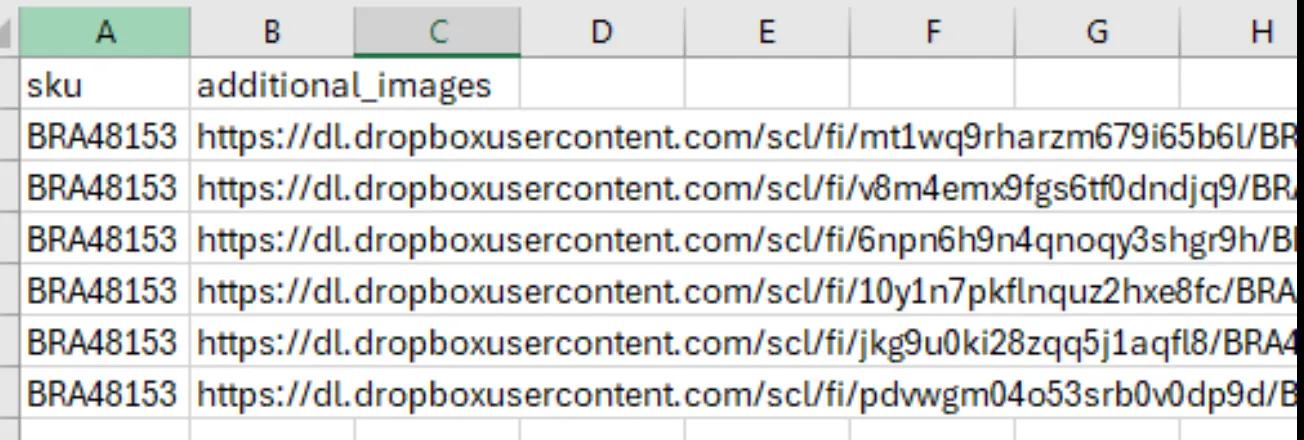
Column is 'additional_images' to bulk add images in magento backend.

Sample file to upload for adding multiple images for certain SKU#
- Import CSV File to Magento Back End
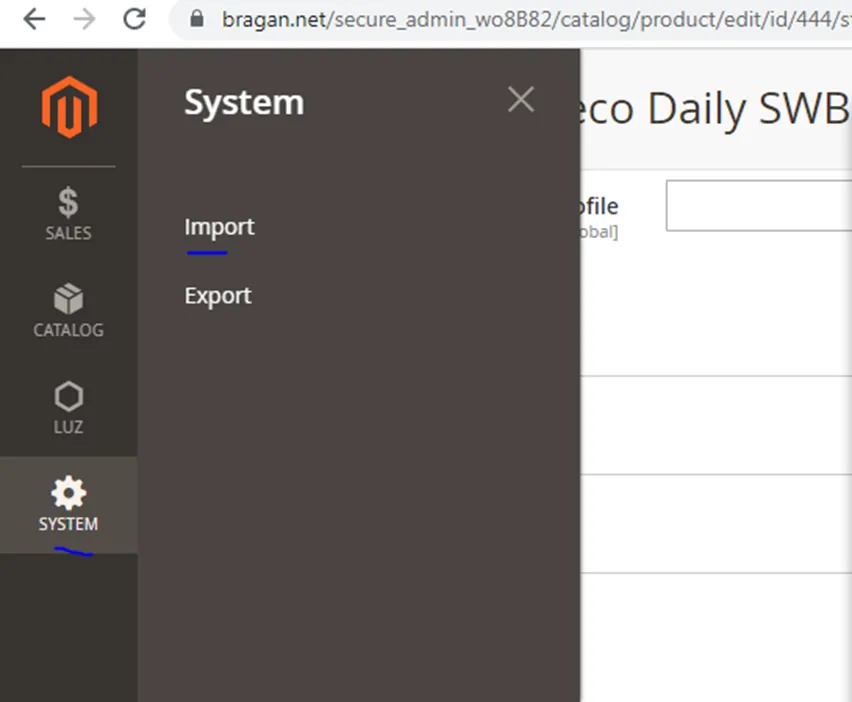
Once your CSV file is ready, log-in to Magento Back End, request for credentials to management. Then go to System > Import
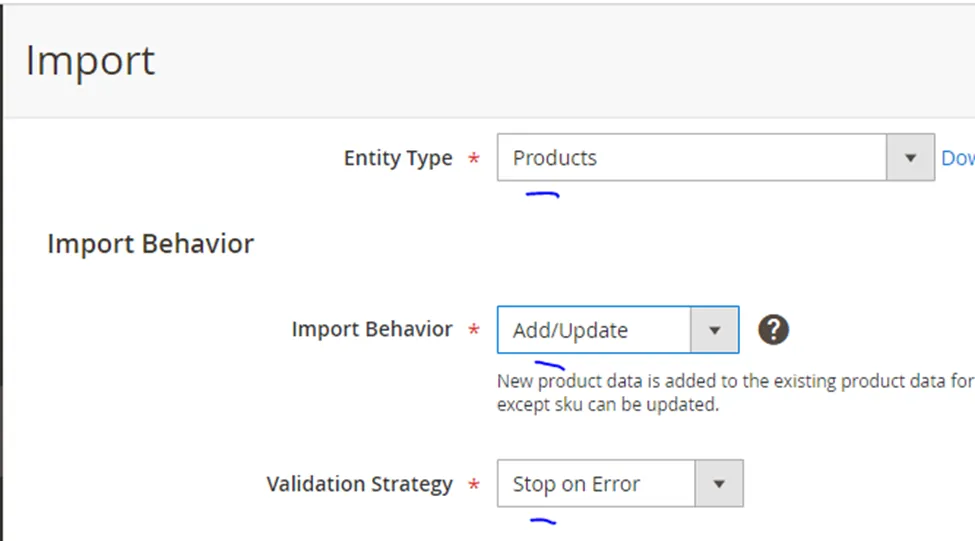
Select the following:
Entity Type - Products
Import Behavior - Add/Update
Validation Strategy - Stop on Error
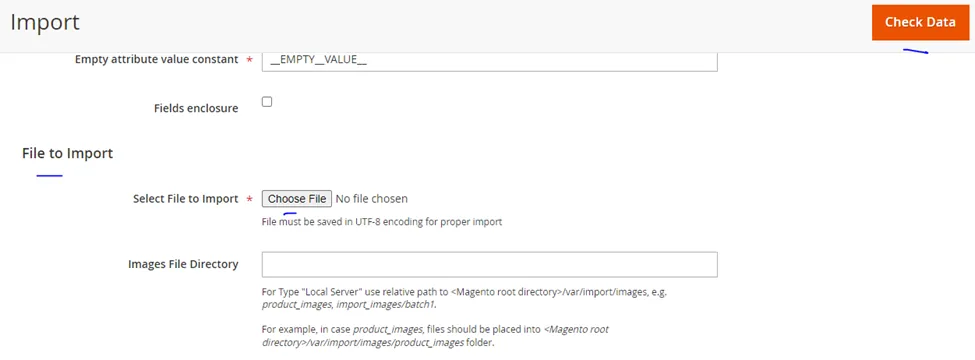
Click on Choose File and select the CSV file you created then click on Check Data
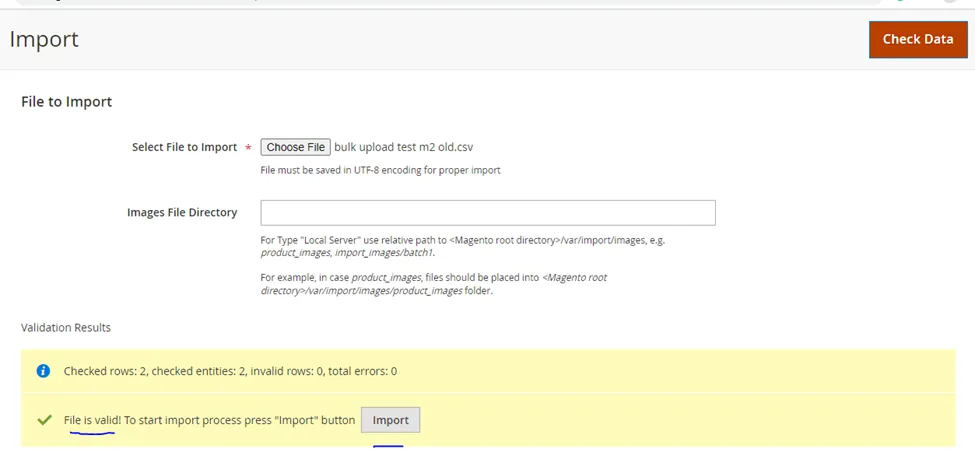
Once you have the confirmation File is valid, click on Import.
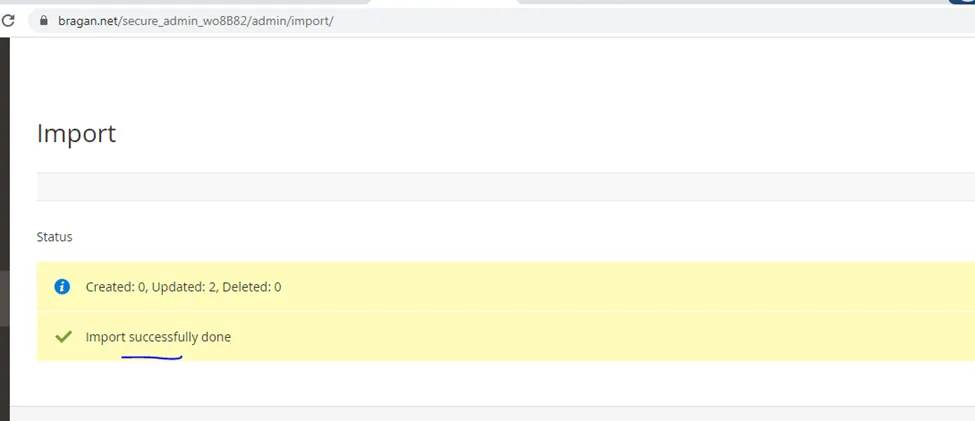
When upload is done, it will appear Import successfully done.
Note: If updating more than 100 SKUs, do these steps with the other CSV files as well.
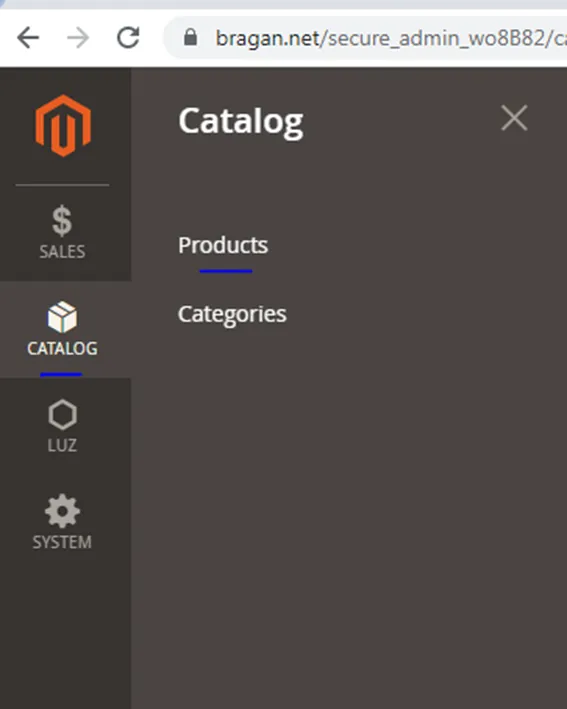
- Check if Update is Reflected in Magento Back End You can random check the SKUs if the update was already reflected in Magento back end. To do this, click on Catalog > Products.
Search the SKU then double click on the SKU and click Edit.
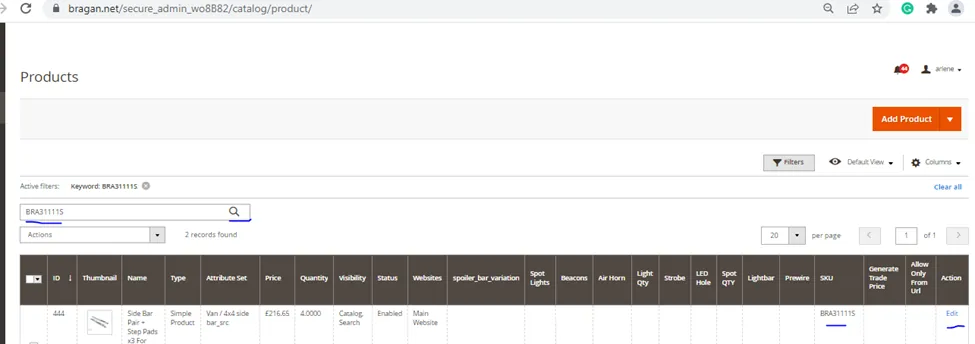
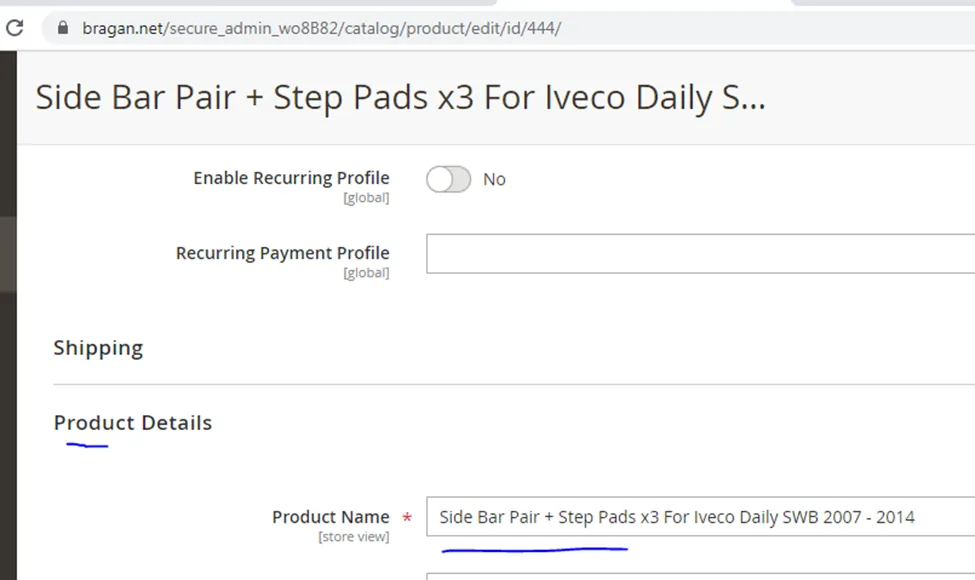
Then check if the updates are there. If you want to check on the title check this part:
All live listing titles should be updated to new format from title guide sop for each channel.
New format title dont have quantity like LEDs x3 - it is not allowed.
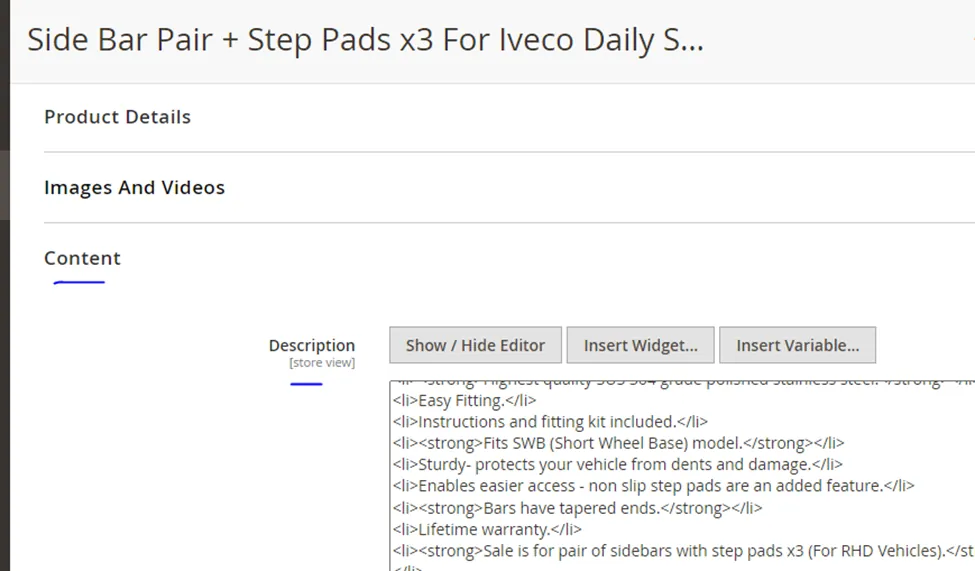
If you want to check for the description, check this part:
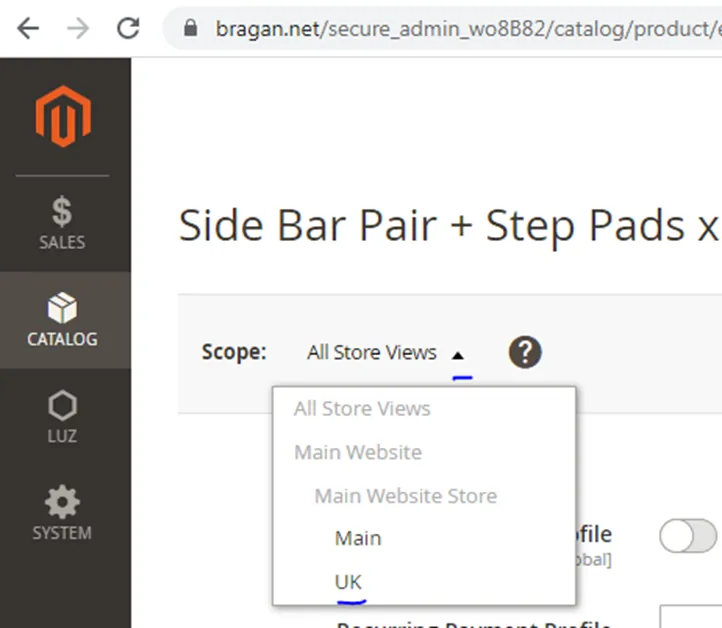
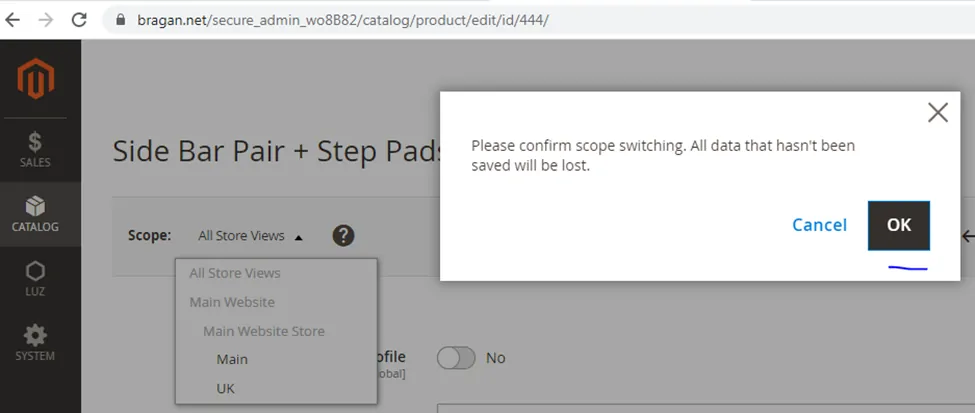
- Change Store View Click dropdown arrow on Scope and select UK then confirm.
Note: For now this step cannot be done in bulk, meaning you have to do this steps for all SKUs you have updated one by one. Web developer is still checking if it is possible to do this in bulk.
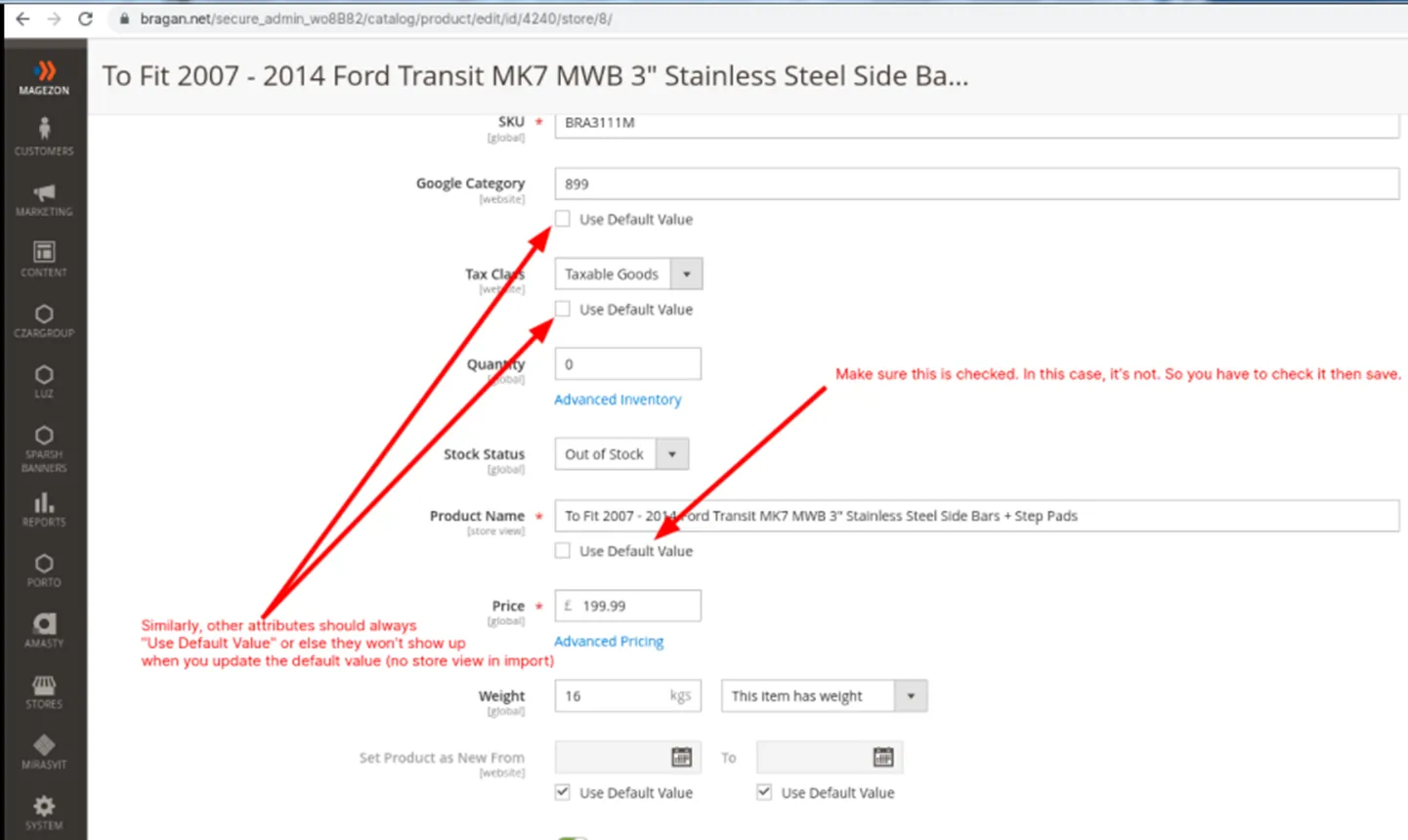
Then tick the box for Use Default Value in order for the update to reflect on the website. If you are updating the Title then tick the Use Default Value box under Product Name.
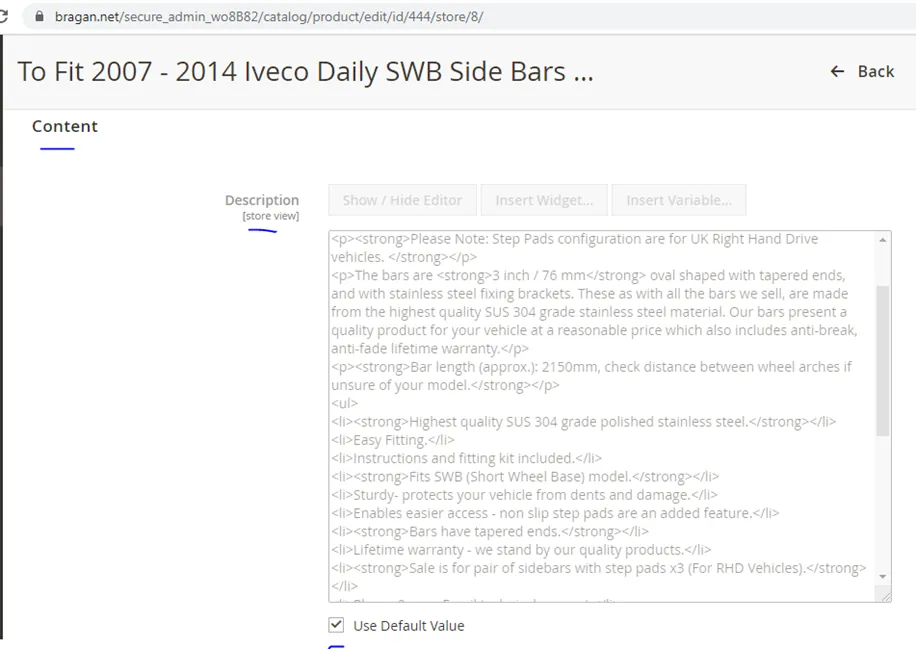
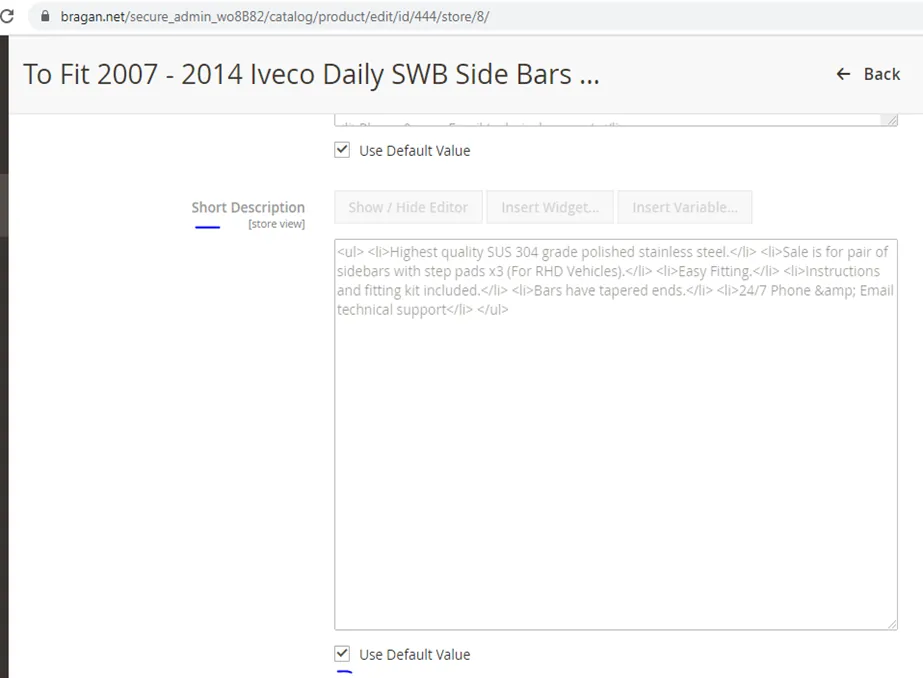
- Check live listing on website
Check website if your update was reflected. Collect links of listings after checking and add in Trello task card.
Note:
For bulk update on images you need web developers help as they will be the one to upload the images in bulk to the server first then lister will import the file location of each product using CSV. Send first the images to web developer. Then ask for guidance as this process is not yet tried.
Notes#
This section is important so Adhoc points and issues can be logged. Also, Q&A can be logged for suggestions for potential issues encountered. Also, log important notes needed for this system.
Additional Notes:
For bulk updates of skus quantity of 10, need to remove bragan logo to all images and need to update format of description to bold and unbold and arrange item specifics and check all aspects
but if the quantity is 10 or more skus, No need to remove all bragan logo of images of skus you are updating, remove only main images bragan logo and no need to update format of description to bold and unbold and no need to arrange item specifics. Ensure to check live listings to check if update is successful and add 3 link in trello task card for partner quality checking.
Be sure to update first Product Detail Screen in Linnworks before doing updates in the back end. This step is crucial when doing bulk extraction in Linnworks. New information will not reflect in extraction if this step is skipped.
Make sure change store view to UK and tick Use Default Value for each property you updated in order for the update to reflect in the website.
For bulk update on images you need web developers help as they will be the one to upload the images in bulk to the server first then lister will import the file location of each product using CSV. Send first the images to web developer. Then ask for guidance as this process is not yet tried.
Ask management if the task is scoped correctly and tag James with the Trello link in the Bragan New listing skype group before starting any task that is more than 15 minutes. Send 1 sample to the management of the updated listing in each channel before doing a bulk update.
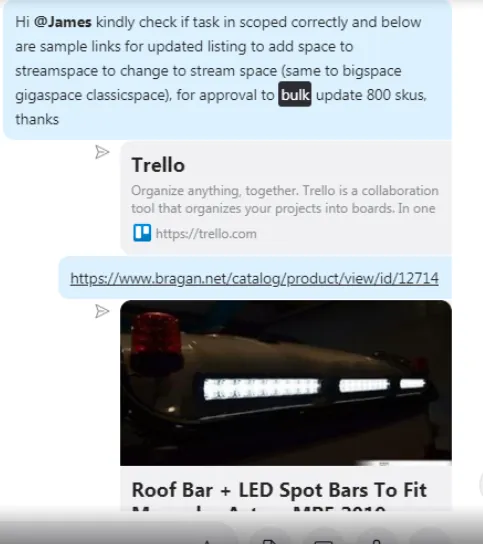
Trello task card for update listings / new listings should be in blue color (confirmed by management) before starting the task.

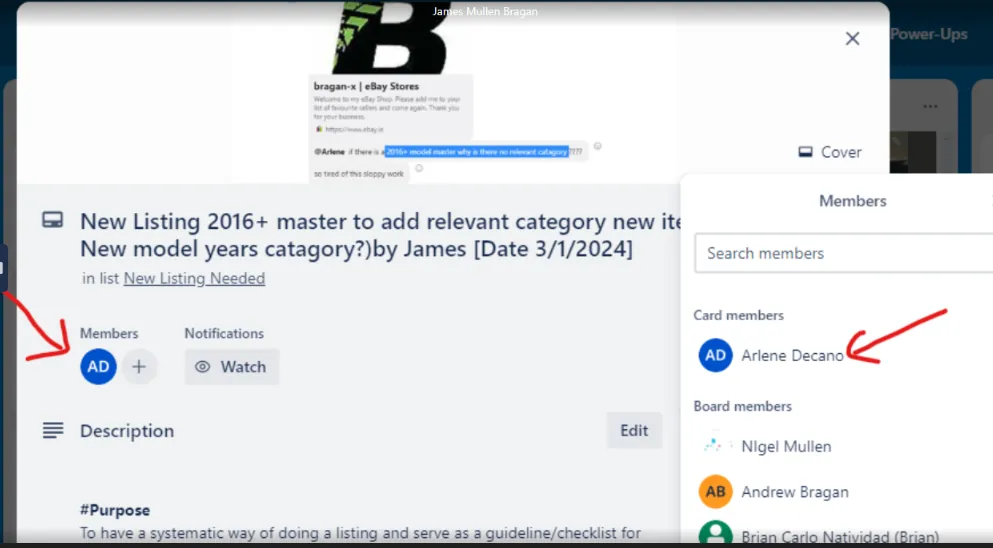
Agent should join the card for new listing / update listing he/she is currently working
Potential Issues:
1 - ISSUE ENCOUNTERED: Stuck on Loading
RESOLUTION: Refresh Browser
2 - ISSUE ENCOUNTERED: Broken Links
RESOLUTION: Get the external link as this will allow other people to access the SOP without the need for login credentials and avoid broken links.
Attachments#
Column_Title_Guide.csv 16/12/2025
How_to_Update_Magento_List… 16/12/2025
Sample_CSV_File.csv 16/12/2025