How to Update Website Listing in Linnworks
The purpose of this SOP is to give an idea about how to update the website listing in
Overview#
Purpose: The purpose of this SOP is to give an idea about how to update the website listing in Linnworks.
Scope: This applies to product lister staff and all staff personnel who is in charge of this process.
Responsibility: It is the responsibility of all staff to follow the standard operating procedure on how to update website listing in Linnworks - Product Lister.
Objective: The objective of this procedure is:
- how to update website listing in Linnworks SOP - Product Lister.
How to update website listing in Linnworks SOP
Process Flow#
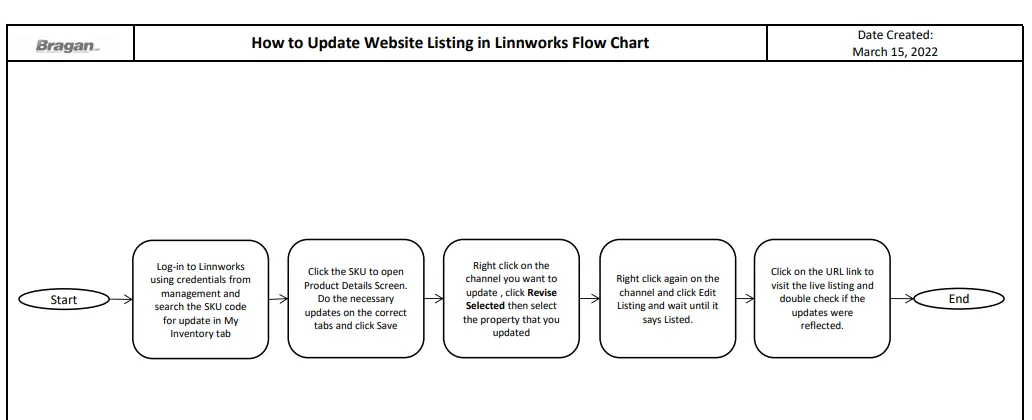
Procedure#
For any listing updates there should be a Listing Update Trello Card, this is assigned to lister if there's a request for update. It contains instructions on what SKU to update, what are the properties to update and which channels to update. Check the SOP on Trello Card Creation for Listing Updates to know how this is created and what is its content.
Search the SKU for Update#
- Log-in to Linnworks using the credentials provided by management.
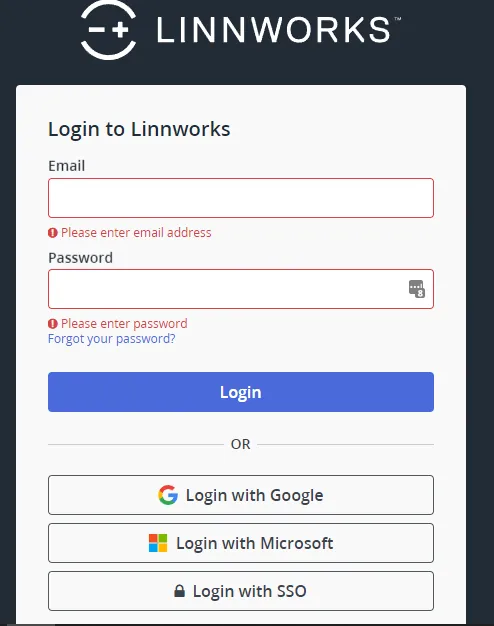
- Search the SKU that you want to update in the My Inventory tab. The SKU you want to update can be found in the Listing Update Trello card assigned to you.

Identify Properties to Update#
- Identify the properties that you want to update, these can also be found in the Listing Update Trello Card assigned to you.
3.1. Price Update
For updating price go to the General Tab and update retail price
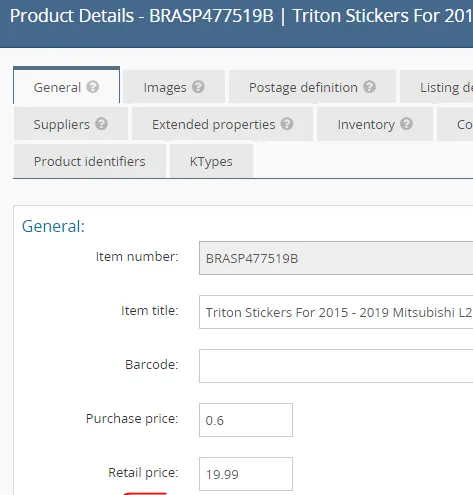
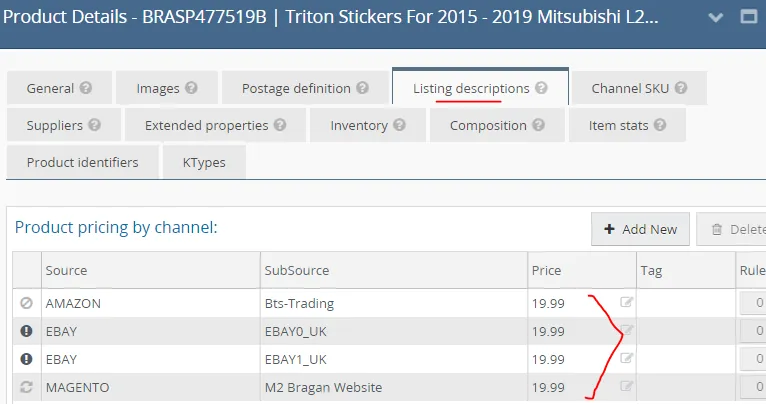
Then go to Listing Description Tab and edit price in Product pricing by channel and click save.
Note:
The prices for eBay and Amazon channels should be the same to the retail price found in the General Tab (Figure 3) For Magento channel the price should be RRP/1.2 (RRP less 20% VAT)
3.2 Image Update
For updating images, go to the Images tab add the correct image (click Add Image) or delete incorrect ones (just click the x in the image to delete). Make sure to follow what is the instruction on your Trello card. Then click Save.
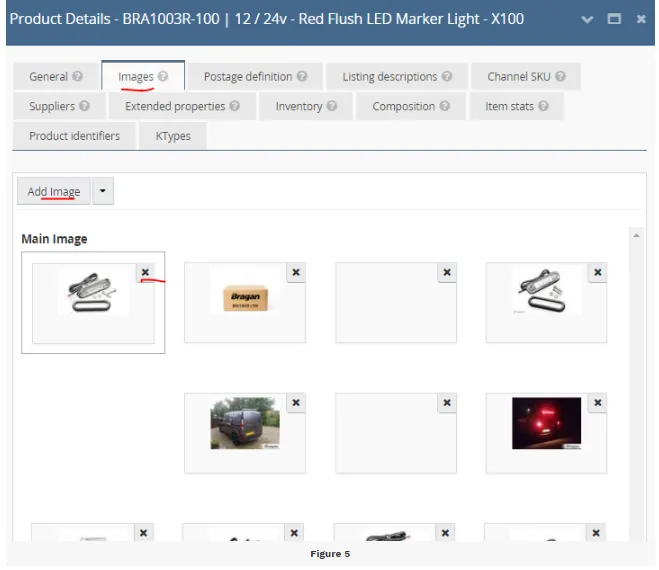
Main images should have no logo and should be white background.
Note:
If there is a trello task card to add image to a listing and upon checking there are already 12 images on it in Linnworks, you can delete the lowest quality image or not following the SOP for Picture Requirement image and replace it with the new ones. If
all are good quality image, check if there are duplicates or almost the same image, you can suggest for these images to be replaced by the new ones. But make sure to ask permission from management first before deleting the image. Ask permission in the Bragan New Listings/Listing Changes Skype Group and state your reason why you want to delete it. If approve then proceed to updating the listing.
Better also if you save a copy of the deleted image for future reference or use.
3.3 Channel Title Update
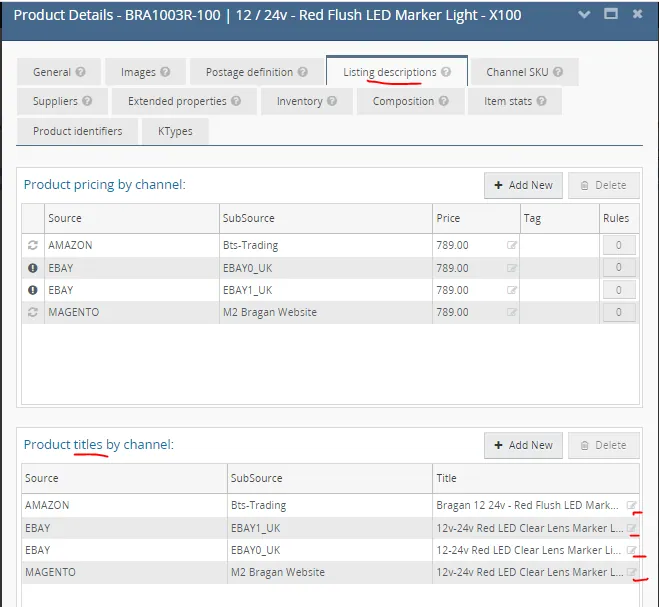
For updating the listing title, go to the Listing Description Tab, scroll down to Product titles by channel and click on the Edit button to start editing the title then scroll down and click Save. Make sure to follow the SOP on How to Create Listing Title for Each Channel
3.4 Listing Description Update
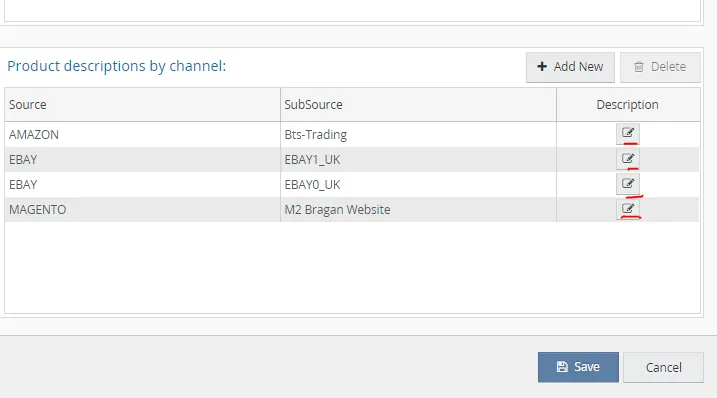
For the listing description, it is still in the Listing Description Tab, just scroll down to Product descriptions by channel and click on the edit button then click Save
3.5 Extended Properties Update
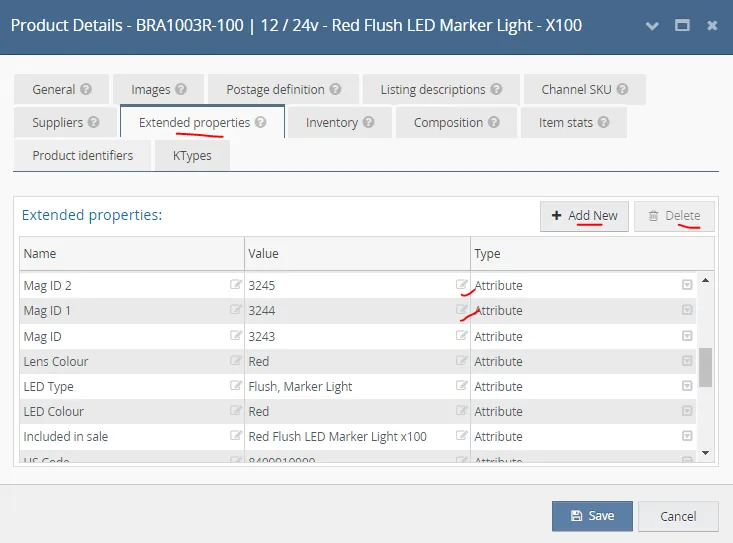
To update the extended properties, go to Extended Properties Tab and click the edit button to update the value of the extended property. You can also click +Add New if you want to add more extended property. If you want to delete, click the extended property to highlight it then click Delete. Click save.
3.6 K-types Update
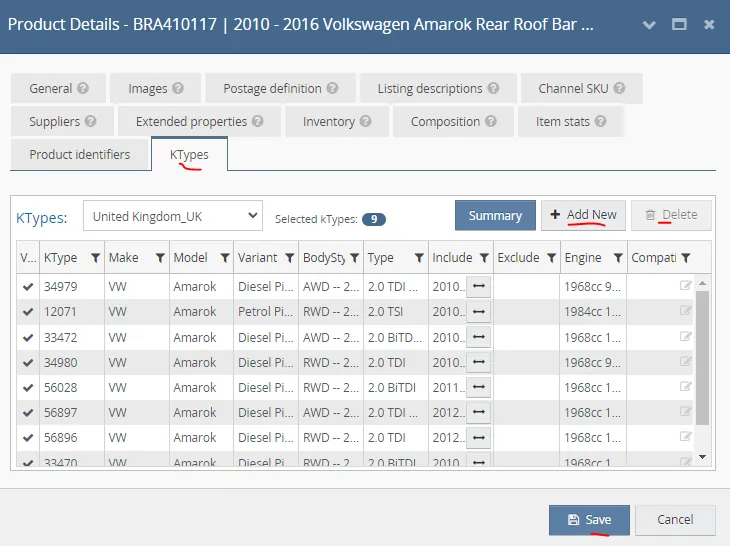
To update K-types, go to KTypes Tab then click on Add New or Delete then click Save.
3.7 SKU Code Update
This is a difference process, and there is a separate SOP for this. Click this link to check the SOP on How to Update SKU Codes in Linnworks.
3.8 Bulk Updates
If there are many SKUs to update then check the following SOPs:
How To Update Listings In Bulk in Linnworks
How to Bulk Update Prices in Linnworks
How to Bulk Update Supplier Details in Linnworks
Update Channel Listing#
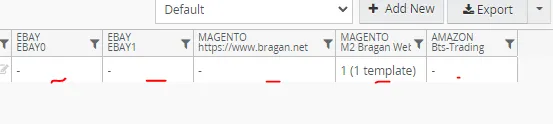
- After you finish updating the needed details. Identify which channels the SKU was listed so you will know what channel to update. You will know that it is listed to a channel if you can find a template under the channel column. See Figure 10 below, under eBay0 column there is template, this means that this SKU is listed in eBay0 channel, same also with the other channels since there is also a template under it.
only in Magento 2.
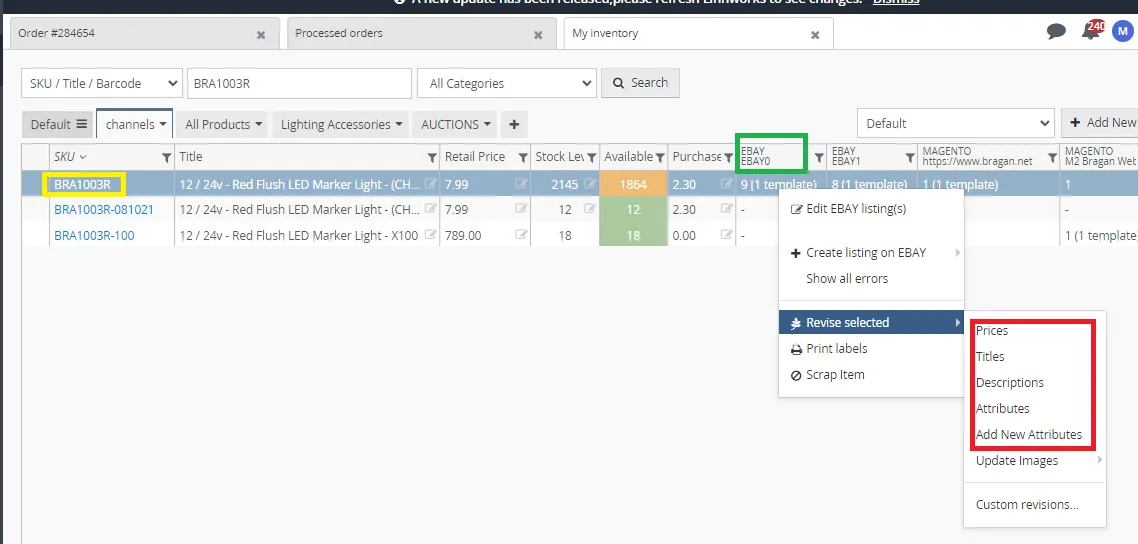
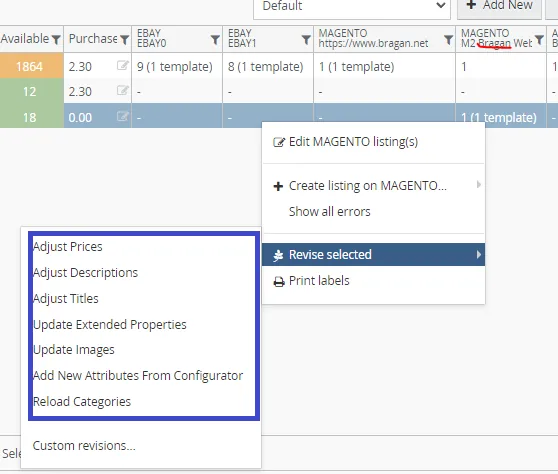
- For the updates to be reflected in the channel listing, right click on the channel to update > Revise Selected then select Prices if you updated the prices. If you updated the title then select title.
See Figure 12, right click on the eBay0 channel if you want to update the listing in this channel, then select Revise selected and choose from the properties listed (depends on what you update).
If you update both prices and title then select prices and then right click again on the channel select revise selected then this time choose title.
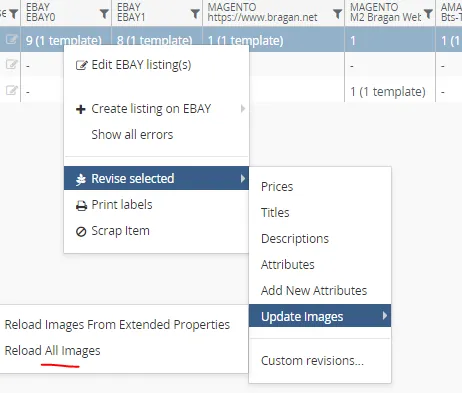
If you update the image, select updates images and the select Reload All Images.
If you only update the values of the extended properties then choose Attributes. However, if you added a new extended property then select Add New Attributes.
If you updated Ktypes also select Attributes. But if you added a new Ktype then select Add New Attributes.
For Magento channel it has a slightly different option after you click revise selected but the concept is still the same.
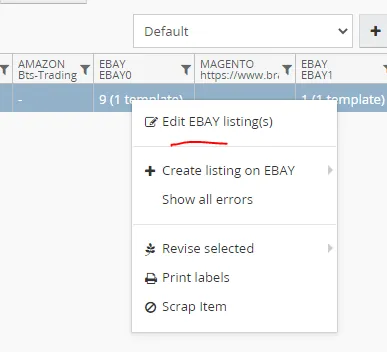
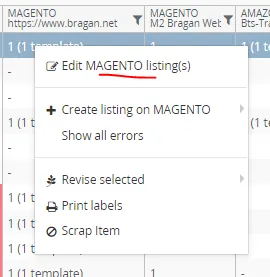
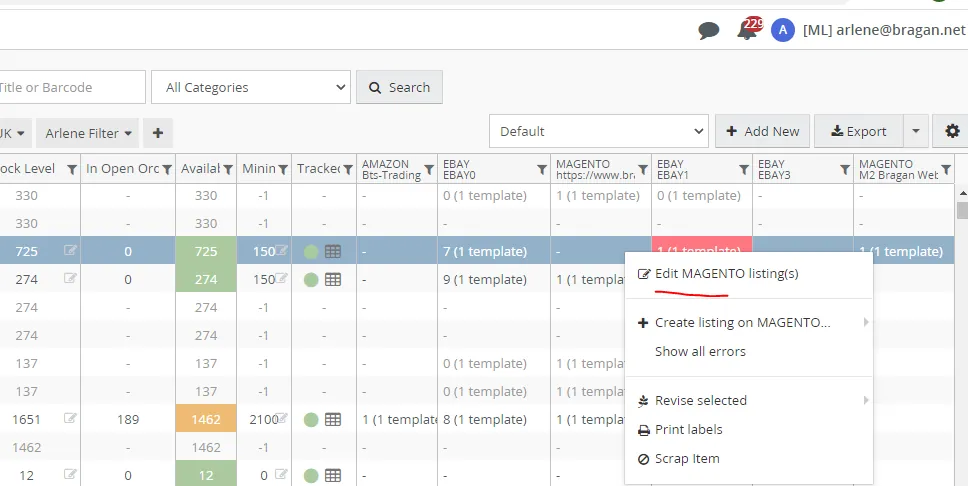
- Right-click again on the channel then click Edit EBAY listings/Edit MAGENTO listings and it will direct you to a new view or tab.
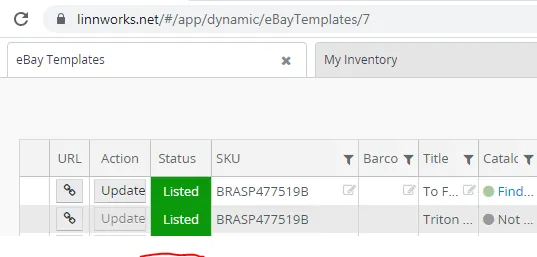
- Wait until it becomes green this means that it is already finished updating.
Check Live Listing#
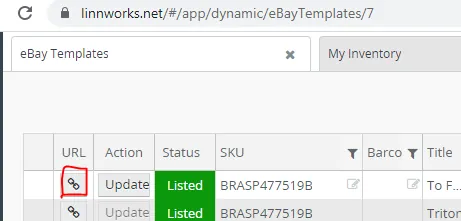
- Click the button under the URL and it will direct you to the website listing.
- Check the live listing, then check if the update was reflected. Do this process to all channels that need to update.
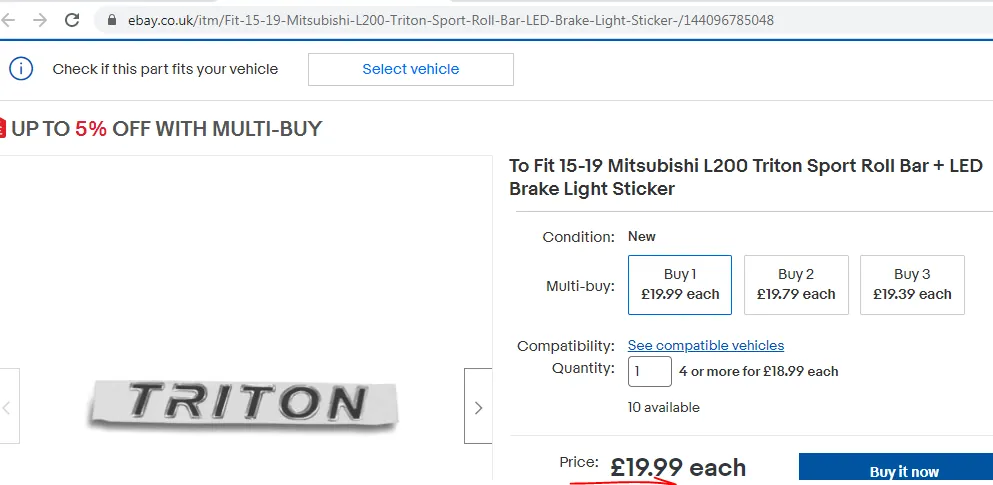
Image Not Showing in Magento Website#
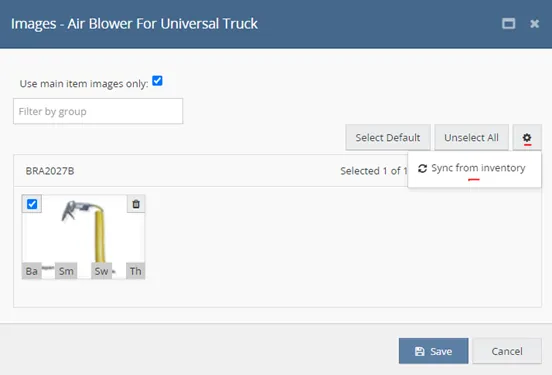
If the image does not appear on the Magento website, follow the steps below: need to click 'sync from inventory', and tick 'use main item images only', and then update. And check the live listing if an image appeared.
- Go to Linnworks and right click on Magento Channel then select Edit Magento listings and it will direct you to the Magento Template Tab.
- click the number in the images.

- An Image Screen will open. Click the main image, the one with base (Ba), thumb (Th), small (Sm), and swatch (Sw).
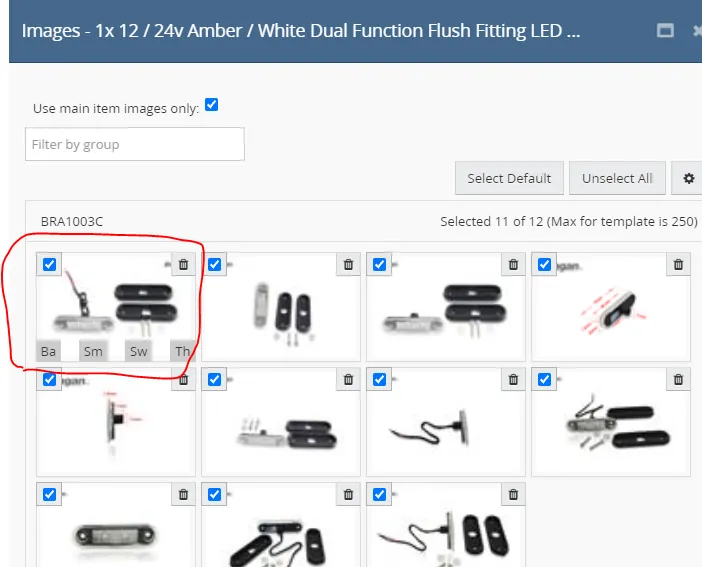
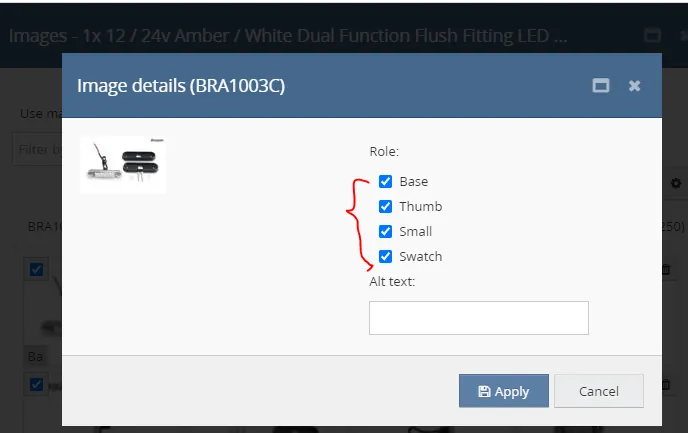
- Another window will open, tick these 4 boxes - Base, Thumb, Small, Swatch, and click 'Apply'.
5.Tick the box for Use main item images only. Then click Save.
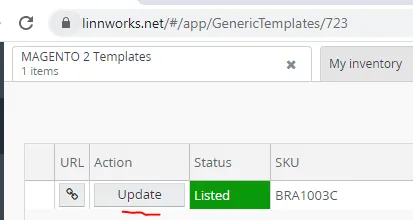
- After saving, click Update. After it finished updating, click the URL button to check live listing if the image appeared already.
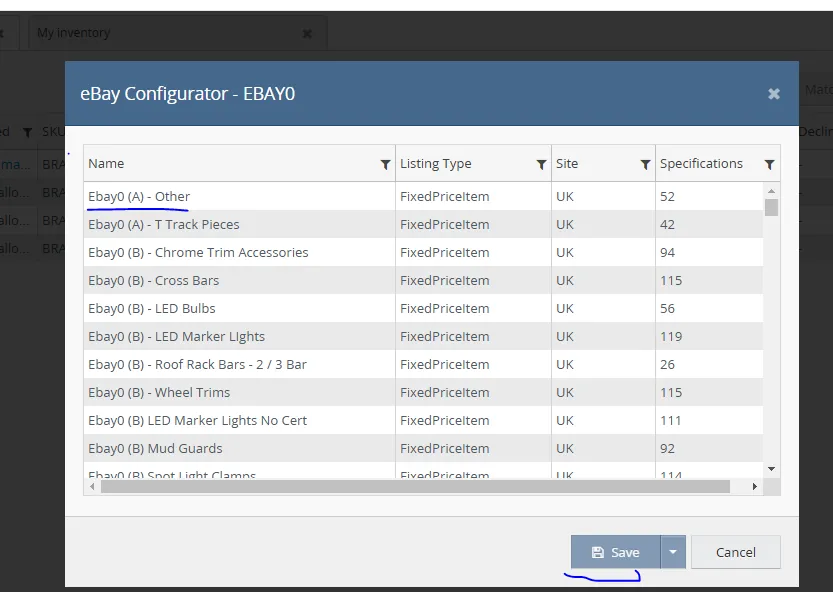
How to update listing configurator
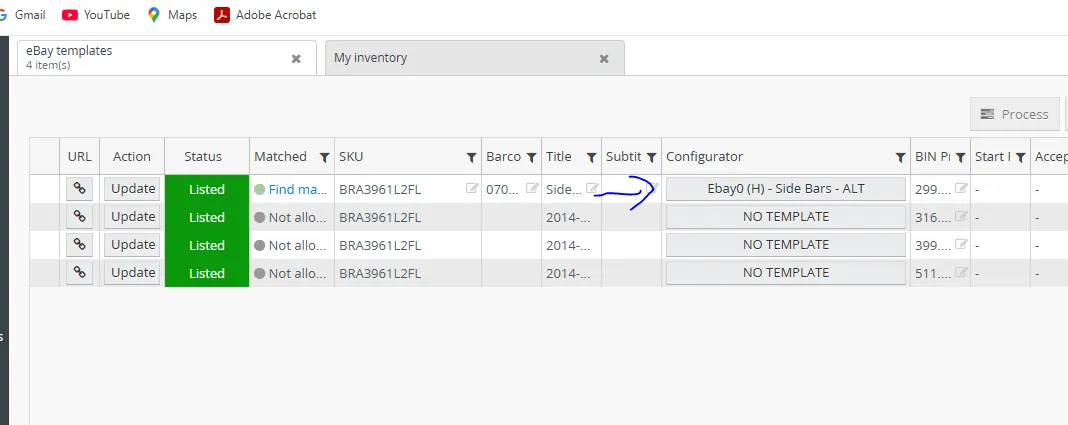
Got o Linnworks > edit > double click the configurator > choose then save and update.
Notes#
This section is important so Adhoc points and issues can be logged. Also, Q&A can be logged for suggestions for potential issues encountered. Also,
log important notes needed for this system. Additional Notes:
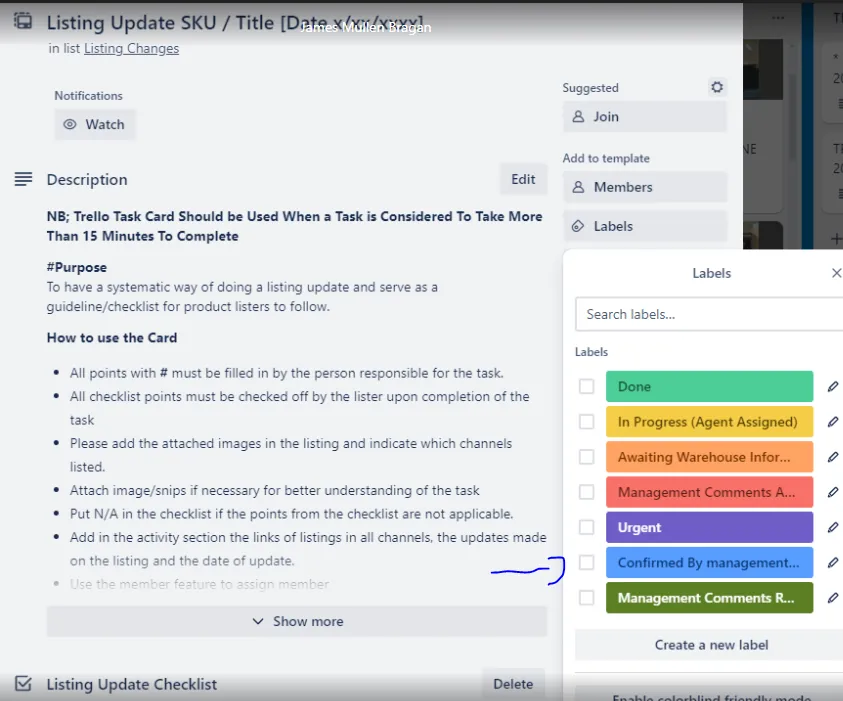
All images should be no Bragan logo. In Updating listings, you need also to check all aspects of listings such as images without logo except for bull bars not EC approve - we are not using images with Bragan logo if the bull bar is not EC approved. you will know it is EC approved if there EC in the sku code and EC approved in the LW title, also needs to check titles, descriptions, ktypes, items specifics if these are properly arranged and follow the sop. And check the correct format and ensure to remove multi-purchase price reductions, 'Not prewired' in item specifics should be 'NOT pre-wired / Pre-wired service available', ensure to remove all email and contact numbers provided in the listings. It is not allowed to delete any image without management approval or without any request and not allowed to change main image without a request / approval by management. All images to remove are the lowest quality image and should ask approval by the management and should be saved for future reference. Needs to be extra careful when adding new images to the listings. Check if the item fitted in the vehicle is similar to the stand-alone picture of the item or all pictures are showing the same item on sale. Always update the magento old listing (https://www.bragan.net) in Linnworks if it has to correct one because it will be automatically synced to magento backend and also in magento website esp in MAIN view. If you will choose main view and it is not updated by the way you want it but was already correct to UK view, then check details in Linnworks for that sku in magento old and update it to correct one Trello task card for update listings / new listings should be in blue color (confirmed by management) before starting the task.
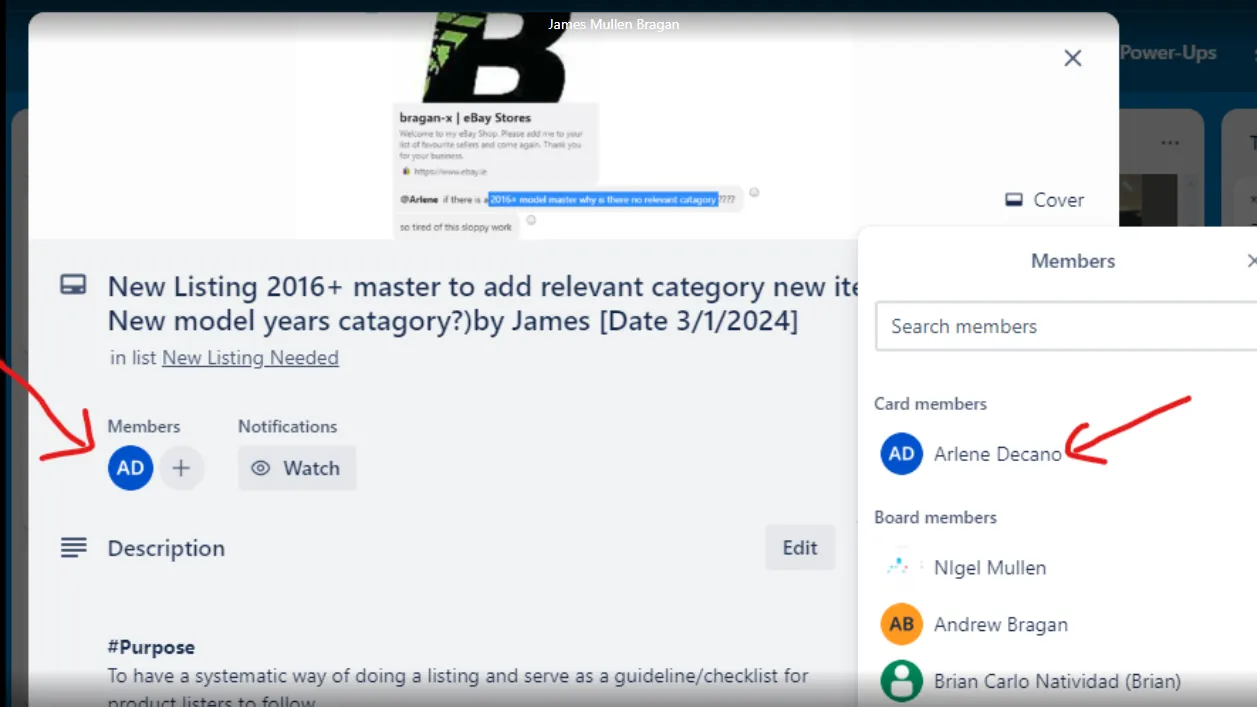
Agent should join the card for new listing / update listing he/she is currently working.
Potential Issues:
1 - ISSUE ENCOUNTERED: Stuck on Loading
RESOLUTION: Refresh Browser
2 - ISSUE ENCOUNTERED: Broken Links
RESOLUTION: Get the external link as this will allow other people to access the SOP without the need for login credentials and avoid broken links.
3 - ISSUE ENCOUNTERED: Update does not reflect in the website.
RESOLUTION: Needs to revise the listing so that the update will reflect in the website.
4 - ISSUE ENCOUNTERED: After updating, status is Listed but with Error Message: "Item compatibilities cannot be revised" error message.png
RESOLUTION: Leave it then try updating again the next day.
Attachments#
How_to_Update_Website_Listi… 13/01/2026
How To Update Website Listing In Linnworks SOP Update Listing
Update Update Listing In LW Listing Update