Model Subcategory on eBay Store Top Category SOP
After creating a new category in eBay stores, the new category must be added to
Overview#
Purpose: After creating a new category in eBay stores, the new category must be added to our eBay stores’ front end (Top Category) so that our customers could see it when browsing. The purpose of this document is to outline to new and existing staff how to add, edit, and remove model sub-categories to our eBay Store Top Category.
Scope: This procedure applies to the team lead/staff in charge of listing to channels.
Responsibility: It is the responsibility of each employee to ensure the process set out in this procedure is followed.
Objective: To guide employees on how to add model sub-categories to our eBay Store Top Category
To guide employees on how to edit model sub-categories to our eBay Store Top Category
To guide employees on how to remove model sub-categories to our eBay Store Top Category
Procedure#
Adding Model Sub-Category on eBay Store Top Category#
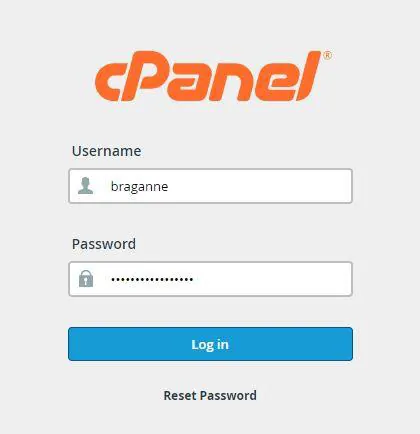
- Log in to cPanel and go to File Manager.
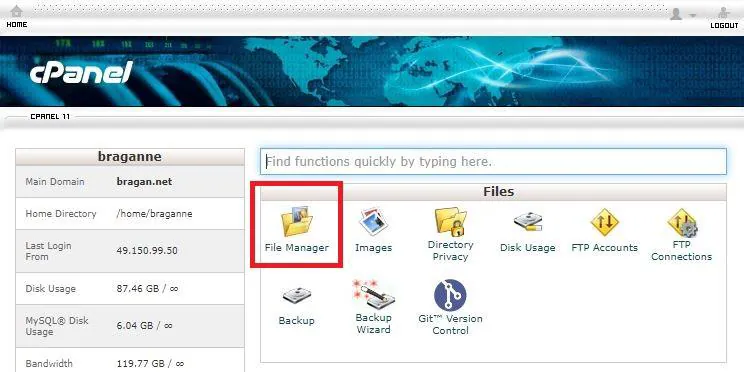
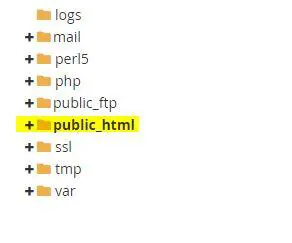
- Navigate through folders /home/braganne/public_html then, - For bts_trading, look for menu-bts.js - For bragan-x, look for menu_braganx.js
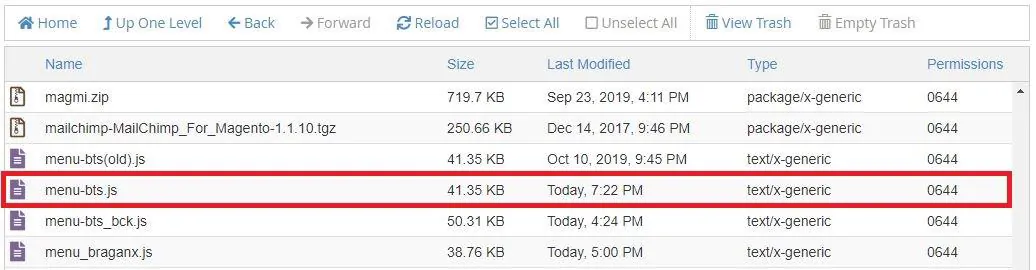
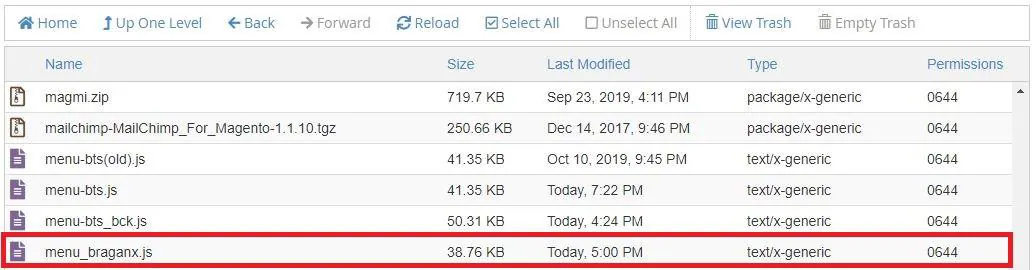
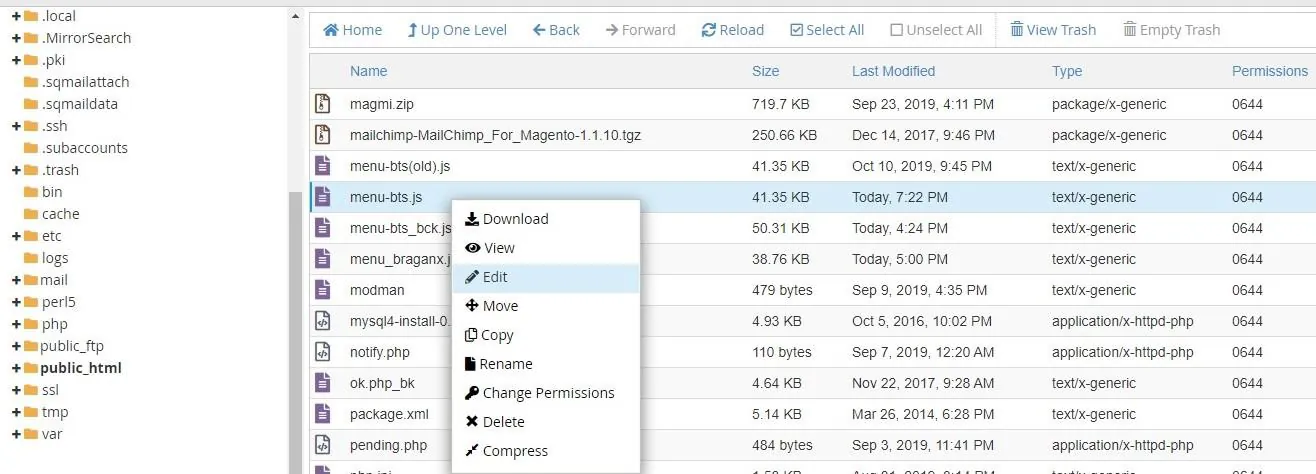
- Right-click on the file and choose Edit.
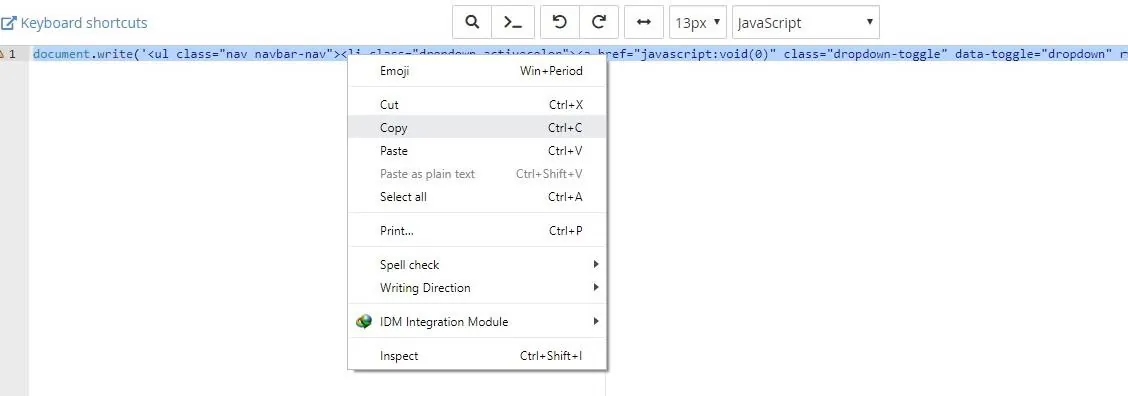
- Copy the line of code and paste it to a text editor for better view (Notepad / Sublime).
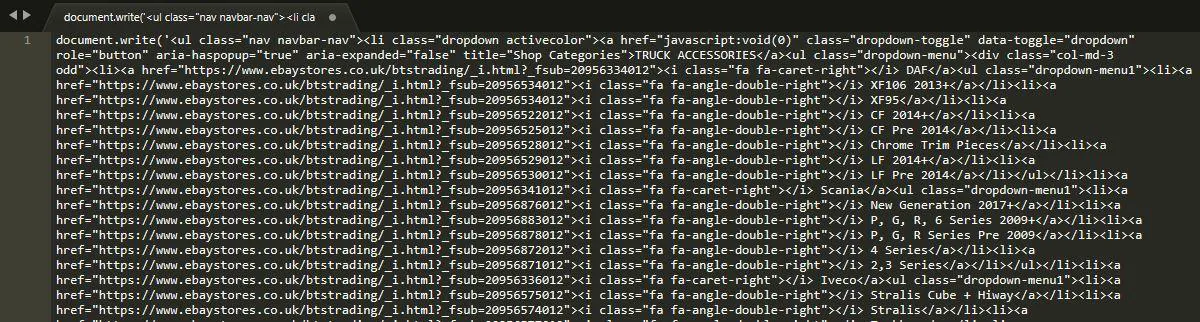
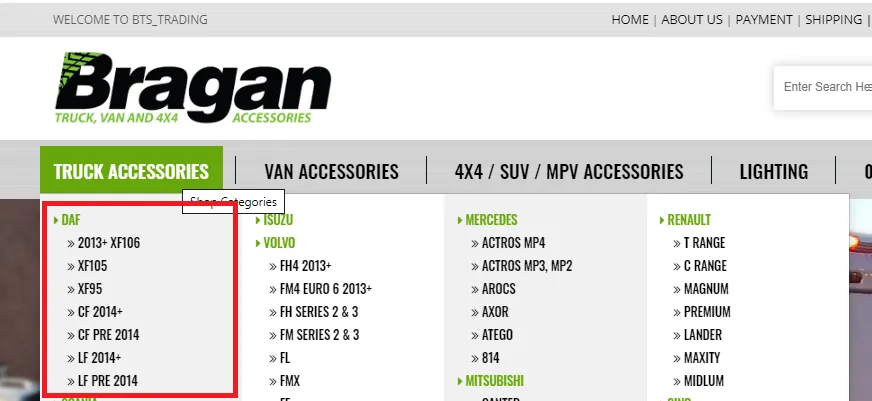
- To add, Model sub-category, use the EBay store top categories as basis, then navigate through the file on text editor and Find the ideal position of the category you want to add. (Example: Under ‘Truck Accessories’, Under ‘DAF’, Between ‘XF106 2013+’ and ‘XF95’)
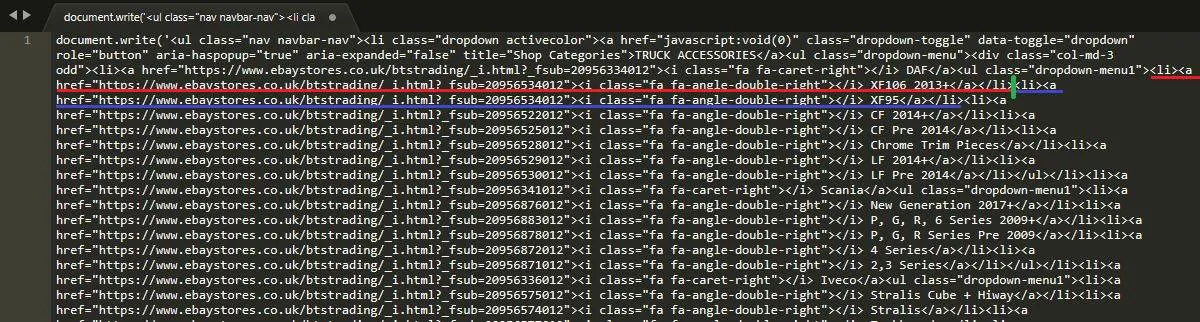
- Add this line of code to ideal position:
Example:
(for this example I used the DAF XF105 and its eBay Store ID):

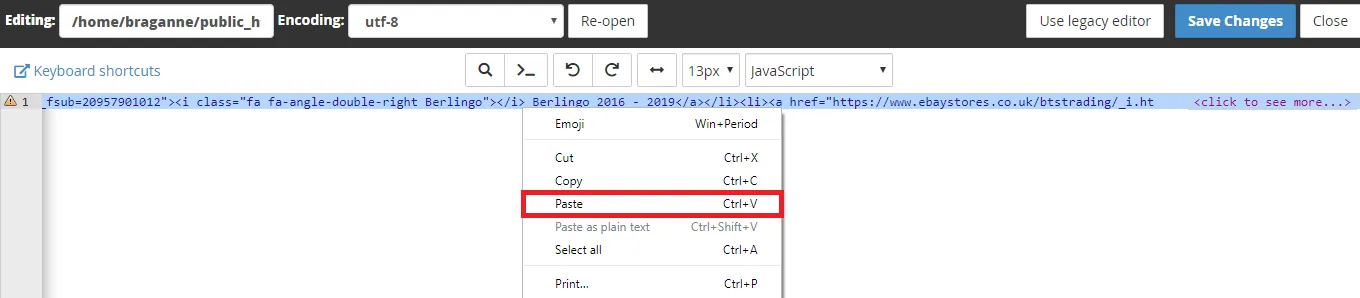
- After edits, Select All and Copy from the text editor, Select All and Paste, then Save Changes.
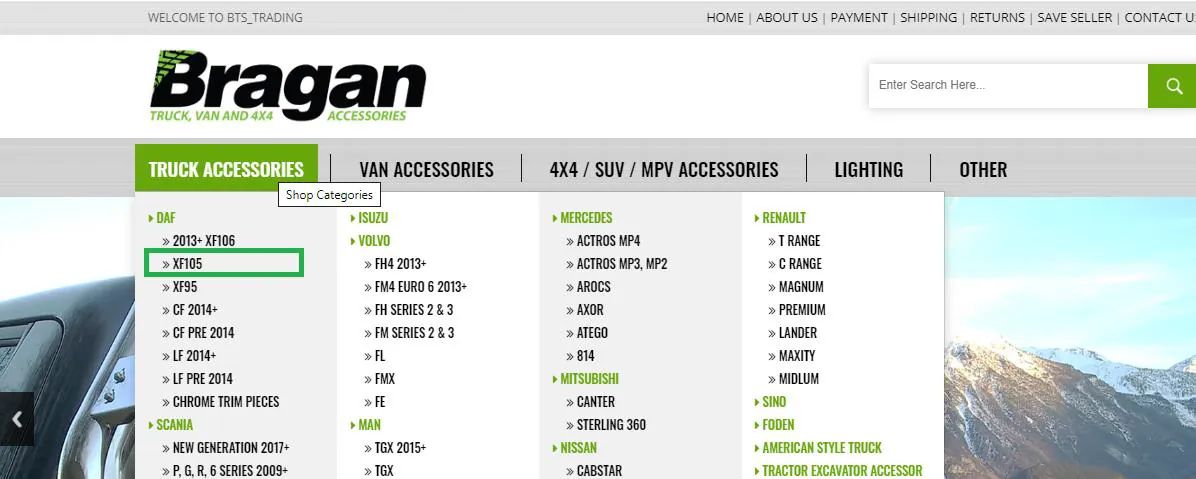
- Go to the eBay Store homepage (bts_trading in this Example), and press Crtl+F5, and you should be able to see your update.
Editing Model Sub-Category on eBay Store Top Category#
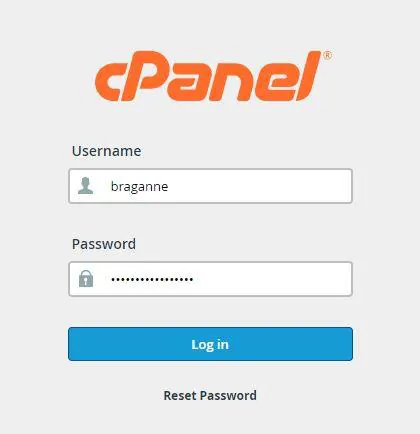
- Log in to cPanel and go to File Manager.
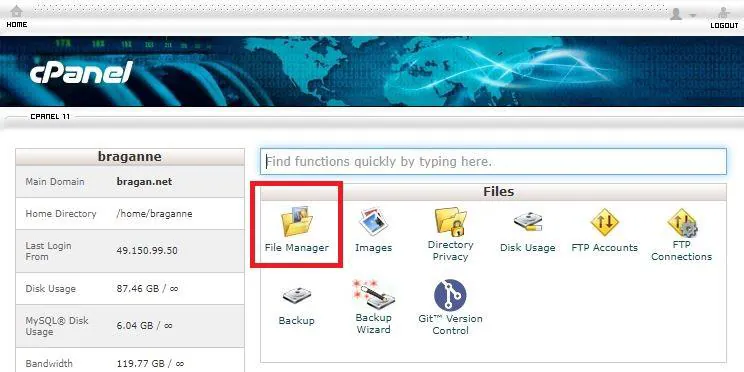
- Navigate through folders /home/braganne/public_html then, - For bts_trading, look for menu-bts.js - For bragan-x, look for menu_braganx.js
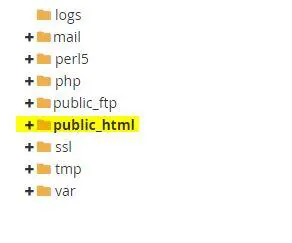
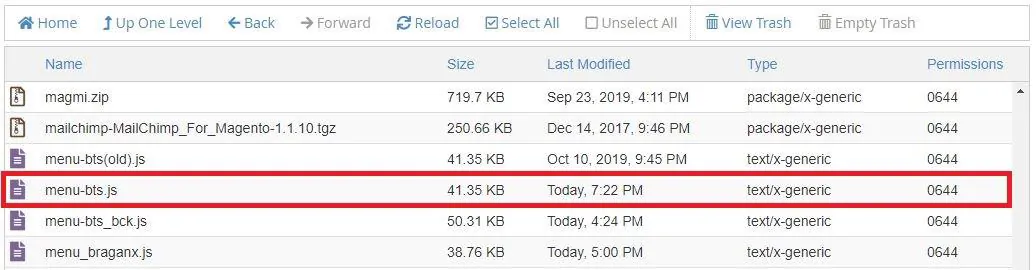
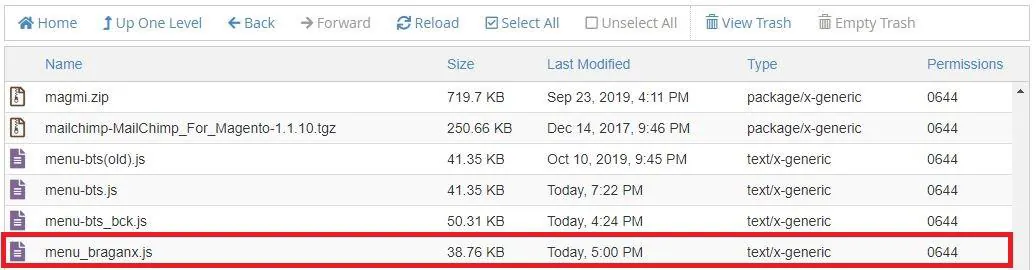
- Right-click on the file and choose Edit.
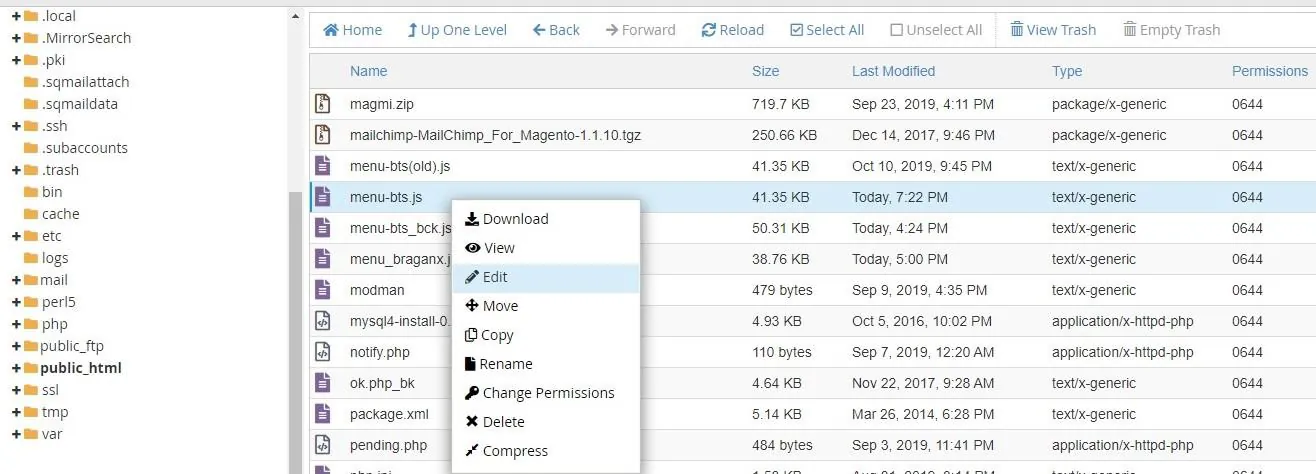
- Copy the line of code and paste it to a text editor for a better view (Notepad / Sublime).
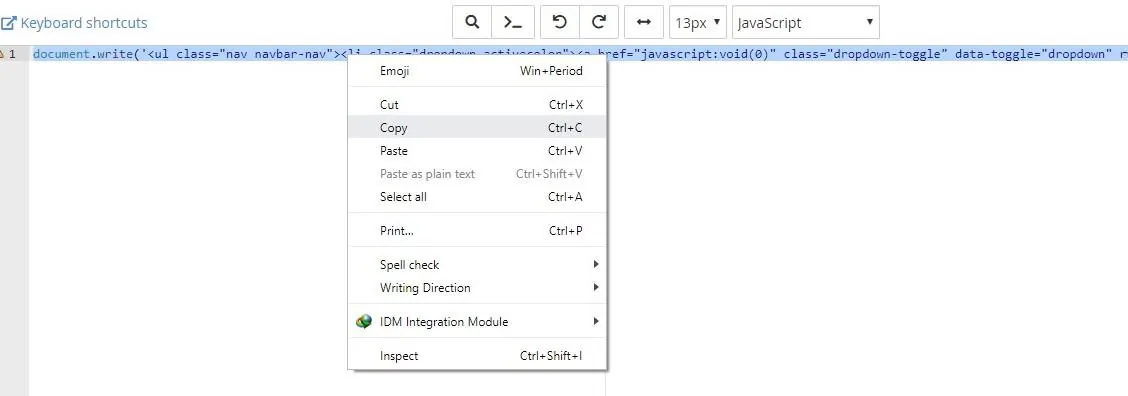
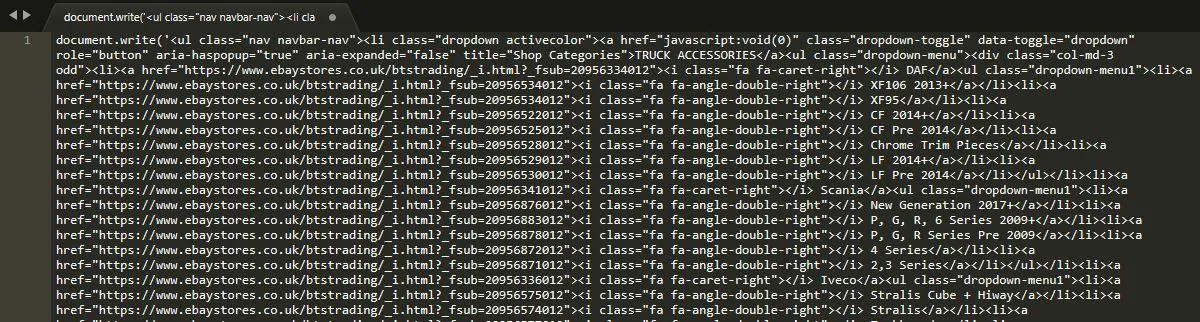
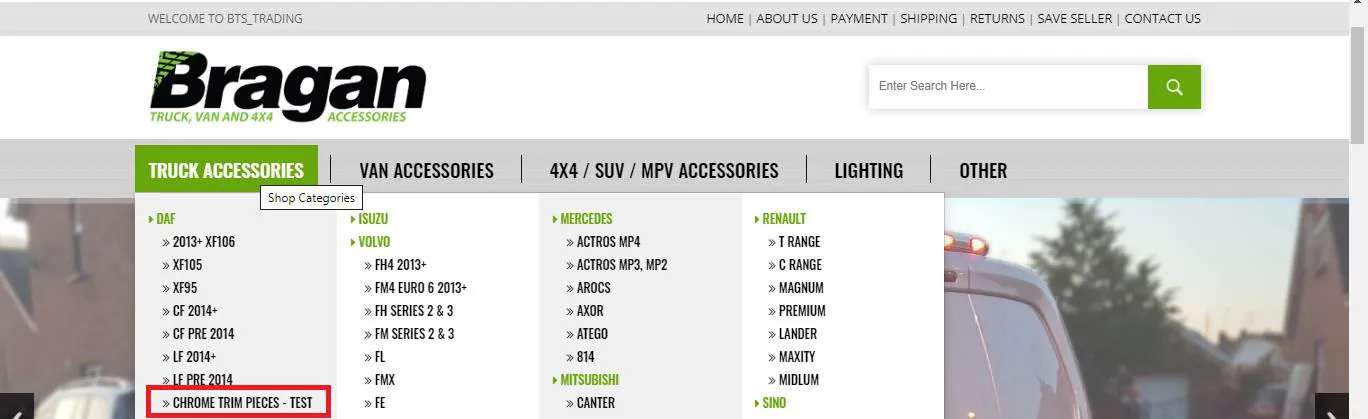
- To edit, Model sub-category, use the EBay store top categories as basis, then navigate through the file on text editor and Find (you may use the Find Function) the category you want to update. (Example: Chrome Trim Pieces)

- Edit the Model category string/text into your desired text. (for this is example I changed Chrome Trim Pieces to Chrome Trim Pieces - TEST)

- After edits, Select All and Copy from the text editor, Select All and Paste, then Save Changes.

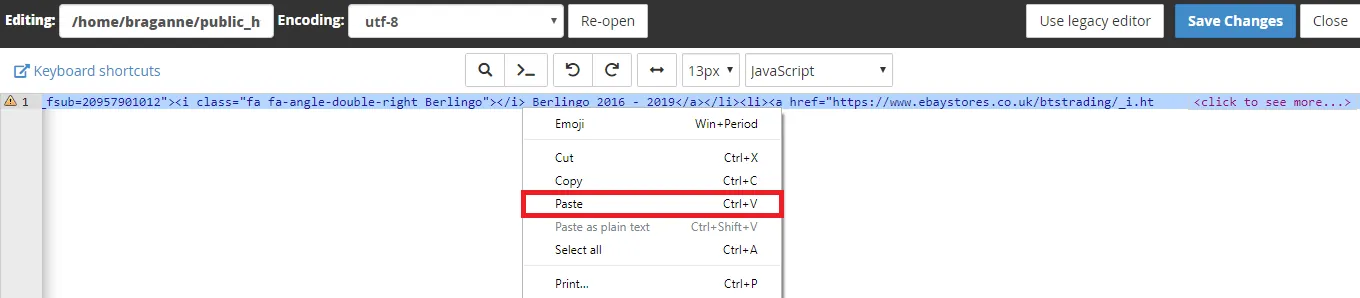
- Go to the eBay Store homepage (bts_trading in this Example), and press Crtl+F5, and you should be able to see your update.
Removing Model Sub-Category on eBay Store Top Category#
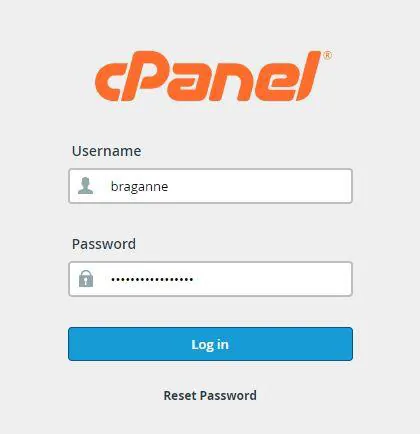
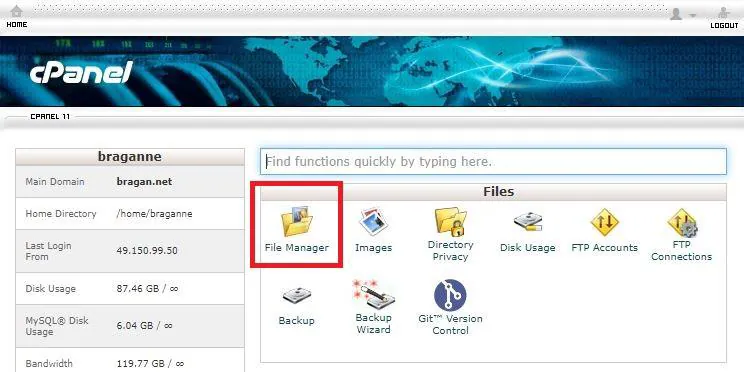
- Log in to cPanel and go to File Manager.
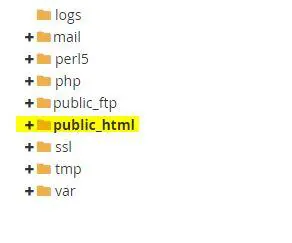
- Navigate through folders /home/braganne/public_html then, - For bts_trading, look for menu-bts.js - For bragan-x, look for menu_braganx.js
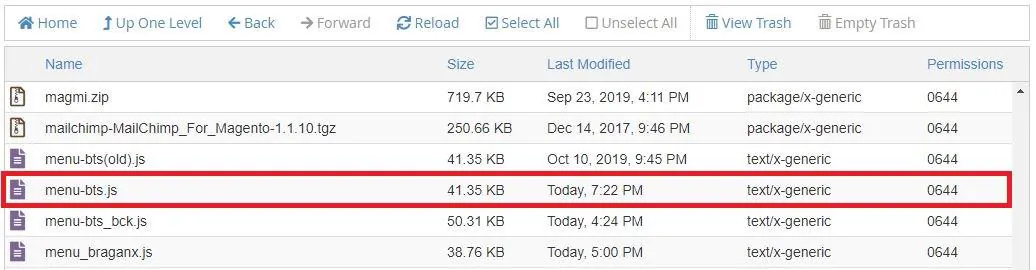
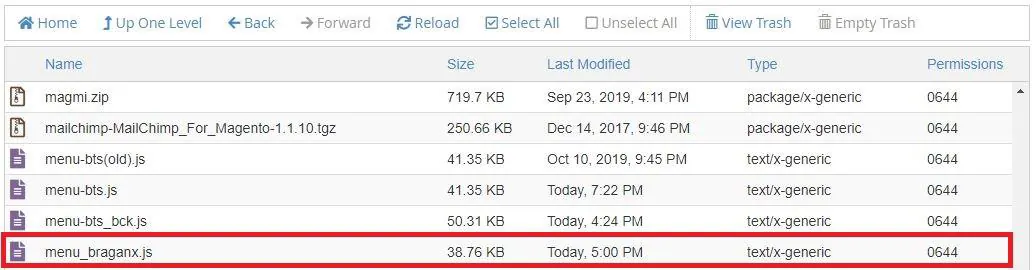
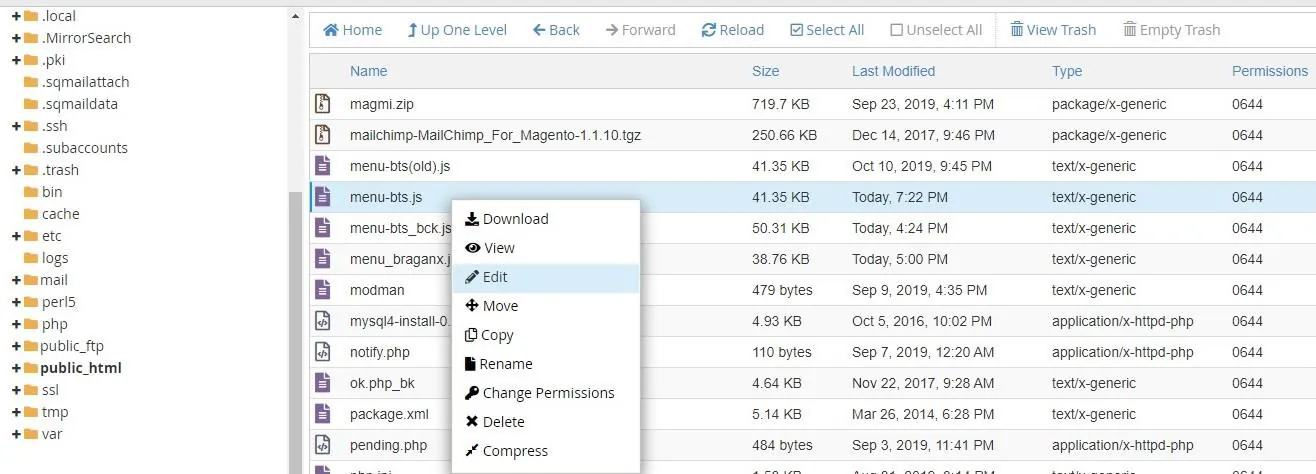
- Right-click on the file and choose Edit.
- Copy the line of code and paste it to a text editor for better view (Notepad / Sublime).
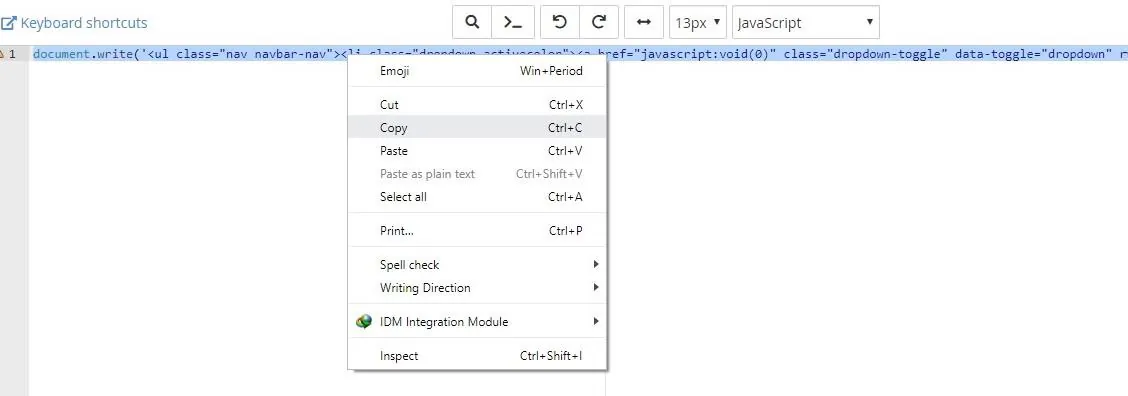
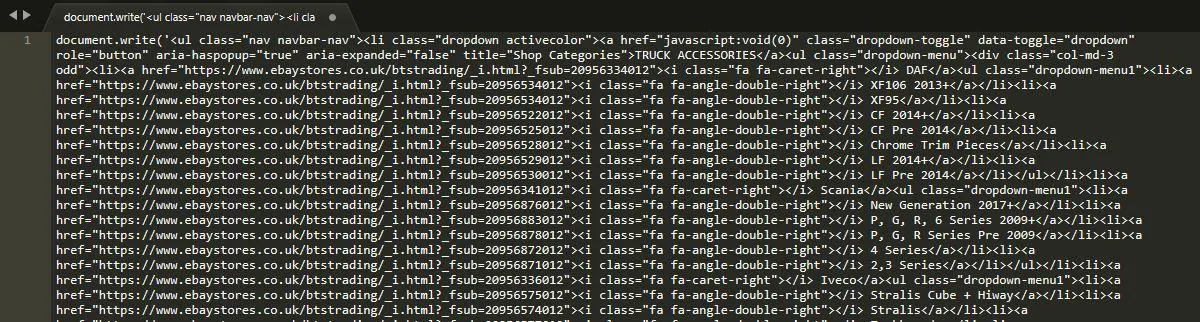
- To remove, Model sub-category, use the EBay store top categories as basis, then navigate through the file on text editor and Find (you may use the Find Function) the category you want to remove. (Example: Chrome Trim Pieces)

- Remove the line of code:
Example:
(for this example I removed the Chrome Trim Pieces):
- After edits, Select All and Copy from the text editor, Select All and Paste, then Save Changes.

- Go to the eBay Store homepage (bts_trading in this Example), and press Crtl+F5, and you should be able to see your update.
Notes#
This section is important so Adhoc points and issues can be logged. Also, Q&A can be logged for suggestions for potential issues encountered. Also, log important notes needed for this system. Additional Notes:
The purpose of this document is to outline to new and existing staff how to add, edit, and remove model sub-categories to our eBay Store Top Category. After creating a new category in eBay stores, the new category must be added to our eBay stores’ front end (Top Category) so that our customers could see it when browsing. "Add important notes here"
Potential Issues:
1 - ISSUE ENCOUNTERED: Stuck on Loading
RESOLUTION: Refresh Browser
2 - ISSUE ENCOUNTERED: Broken Links
RESOLUTION: Get the external link as this will allow other people to access the SOP without the need for login credentials and avoid broken links.
3 - ISSUE ENCOUNTERED: "Type Text Here"
RESOLUTION: "Type Text Here"