Procurement (General) Standard Operating Procedures
Procurement is a vital process on the supply chain because it is where the process
Overview#
Purpose: Procurement is a vital process on the supply chain because it is where the process of maintaining stock inventory begins. The purpose of this document is to outline to new and existing procurement members the procurement process.
Scope: This procedure applies to Procurement Team.
Responsibility: It is the responsibility of each employee to ensure the process set out in this procedure is followed.
Objective: The objective of this procedure is:
to standardize the procurement process
Important Note#
The procurement process starts on the 1st day of the month or next working day (LW data does not update until the 1st of the month)
All orders must be signed and be in production 2 days after the order has been sent.
Procedure – Supplier Order#
- Linnworks - Open www.linnworks.net 1.1 Navigation For each supplier, navigate to – Dashboard – Query Data (FIG1)
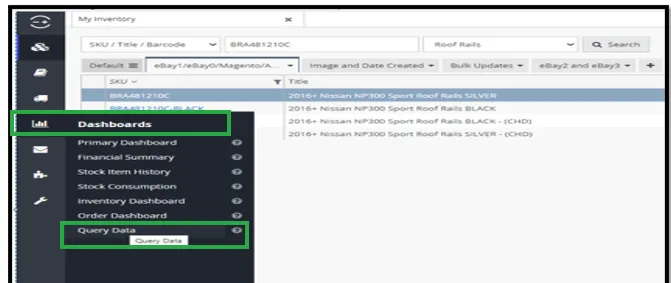
1.2 Query Data
Within the query data tab, do the following (FIG 2)
- Query type: <
>
Copy and Paste Orders Script –
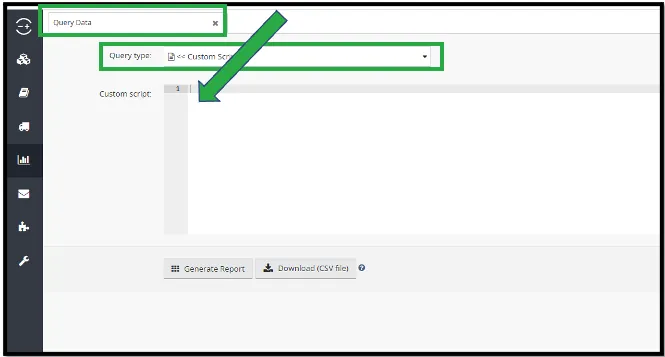
- Replace Default Supplier with Supplier’s name (exact name of the supplier in Linnworks). e.g. Winbo (FIG3)
You can check the supplier’s name in LW, navigate to Inventory > Inventory Settings > Suppliers.
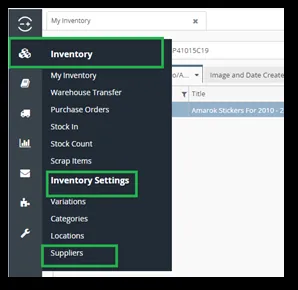
See link for active Suppliers as of January 2021 (this list needs to be updated accordingly) –
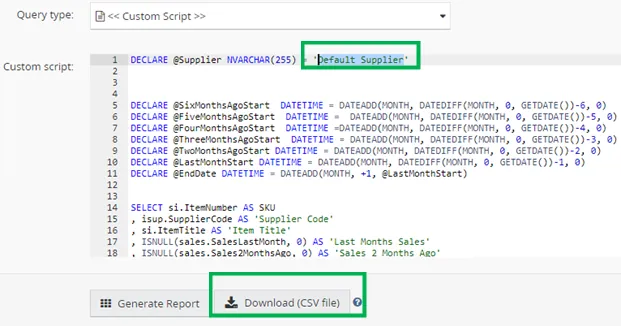
- Download CSV File. (FIG 3)
- Save CSV in the following location path.
->Dropbox
->Supplier Region
->Individual Supplier folder
->Year
-> Procurement
->Estimated Order.
->Month
[Text Wrapping Break]Dropbox link for Suppliers[Text Wrapping Break]Asia / China -
Europe / Turkey -
- Consumption Report
Create a Trello card to track your progress per supplier. Use Monthly Consumption Report template and copy to your Doing list – trello.com
2.1 Preparing Files
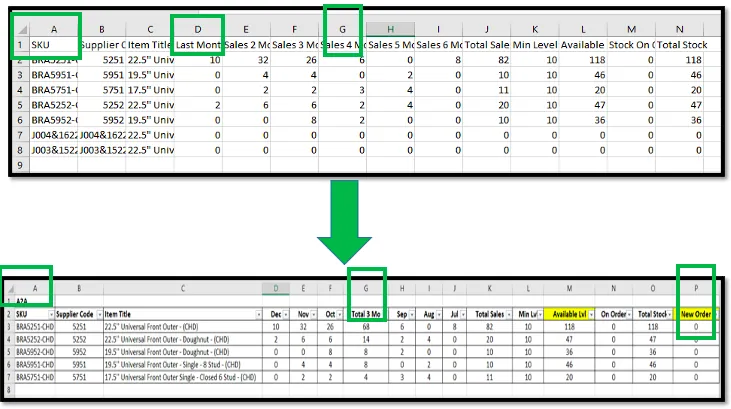
Once your files are saved as above open the files and (FIG4)
Insert a new row at row 1 and enter supplier’s name. Make Row 1&2 Bold Insert new column Called Total 3 Mo months (Sum of sales for last three months) in column G. Insert new column called New Order as the last column on orders file. Rename Column D (last month’s sales) to previous months name (Dec for example if starting on 1st of Jan) and follow the same process for sales 2 months etc. Hide Sales 4 months, Sales 5 months, Sales 6 months, and Total Sales.
2.2 Forecast
You then judge how many items have been sold compared to how many are in stock and how many are coming on the next order (forecast). ALWAYS TAKE INTO ACCOUNT THE ORDER YOU ARE DOING MAY TAKE 3 MONTHS TO ARRIVE.
You must also take minimum levels into account.
We use the Quantitative Forecast Method to estimate orders. This means you need to compare the total quantity sold in the last 3 months + min level against the total stock (current available stock + stock on order). If total stock is below the last 3 months sales + min level then we need to order the difference in quantity. Input the new order quantity in the New Order column.
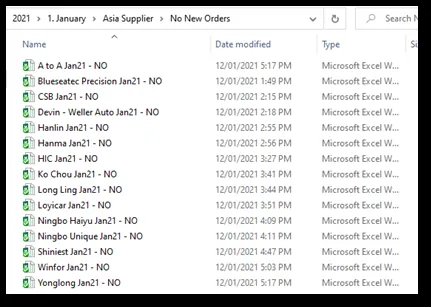
Save the excel file as – Supplier Name, MonthYear and YES (if have ordered), NO (without order). e.g. (FIG 5)
With Order → Winbo Jan21 – YES No Order → Winfor Jan21 – NO
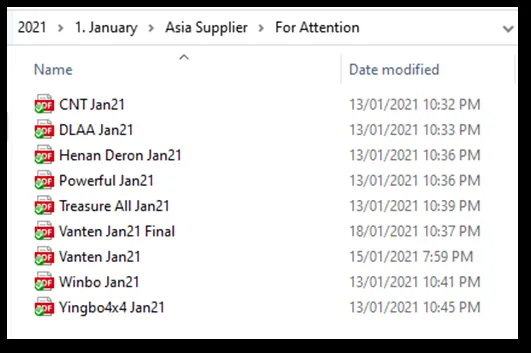
Save the excel file as PDF printable version for the suppliers that have orders for the month. This PDF is used to print in IRL and/or for Nigel’s easy checking.
For items with order → To Print Folder - Path: Year / Month / Supplier Region / For Attention Remove YES in the filename for the PDF (from the excel file) (FIG 6)
No New Orders supplier does not need to have PDF version. Save the estimated order copy to the correct location in the supplier folder.(FIG 7)
For items without order → No New Orders - Path: Year / Month / Supplier Region / No New Orders.
(FIG 7)
2.3 Order Checking
After these steps have been completed you need to look at what you are going to order and whether or not it matches the agreed minimum stock levels for each product. If you notice a stock item is going out of stock quicker than expected YOU MUST ADJUST THE MINIMUM STOCK LEVEL at that time equal to the total quantity sold in the last 3 months.
2.4 Products requested file/Products requested groups
You must check the Products Requested file under the Customer Service folder in dropbox and see if there are any suggested products in it that the current supplier may be fit to provide/send samples of and consult Nigel – he will provide final qty, supplier, remarks and approve for items if needed. You also need to add Products Requested via Skype to this list before sending it to Nigel.
You must also check for any request of Miscellaneous items / Replacement Parts / Fitting Kits etc. via Skype request / Zendesk and input to file.
Once approved, add the requested products and miscellaneous/ replacement requested items to the respective orders to suppliers that are approved by Nigel.
2.5 Completed Files
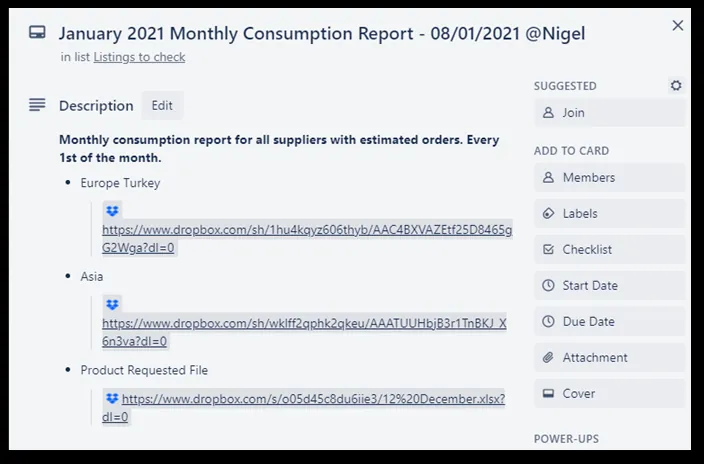
Once all files are ready, save the link to your Trello Card and also send these links to Nigel via PM. (FIG 8)
PDF with Estimated Order – Europe Turkey
PDF with Estimated Order – Asia Suppliers
Product Requested File
- Contact with supplier – Procurement and Accounts
Create a Trello card to track your progress with the list of suppliers needed. Use Procurement Order to Supplier template and copy to your Doing list - trello.com
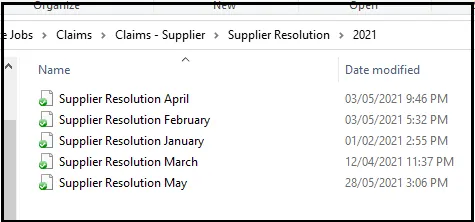
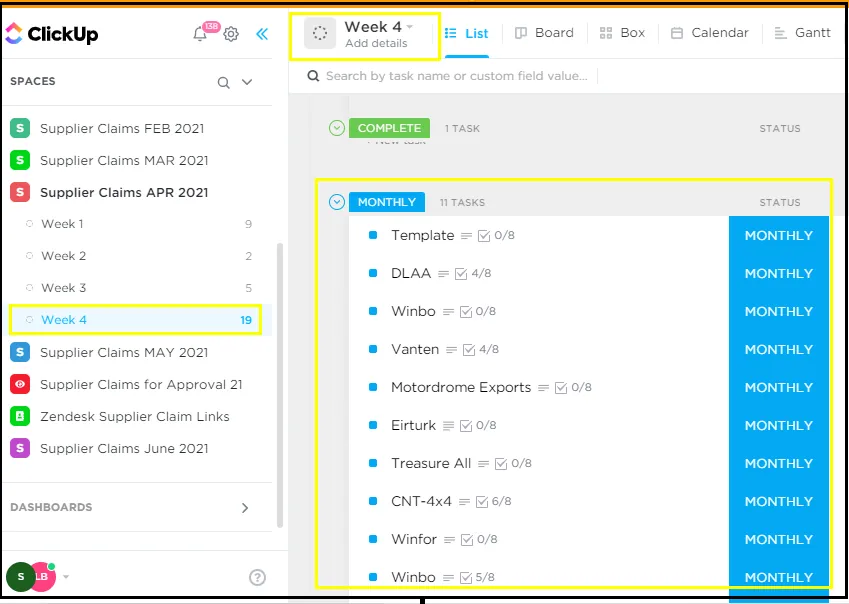
While waiting for Nigel’s response, check the Monthly Claims Summary of the previous month in ClickUp to get the list of claim items for some suppliers or you can also check in the Supplier Resolution file in the previous month to see what items are for replacement stock or refund. Add these items in the new order with remarks if for replacement (include quantity) or refund (include cost).
ClickUp Monthly Claims Summary
3.1 Confirmed Order
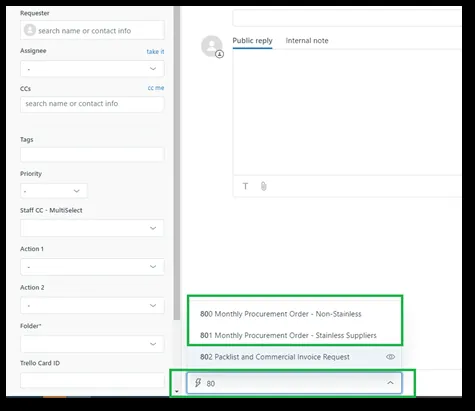
Once Nigel has confirmed estimated order, email your order to supplier- check the supplier list for relevant contact emails. Use appropriate Macro when sending orders.
[Text Wrapping Break]
801 Monthly Procurement Order - Stainless Suppliers – For items e.g. Roof Bars, A Bars, Side Bars etc.)
800 Monthly Procurement Order - Non-Stainless – For items e.g. Lights, Running Boards, Roof Rails etc.)
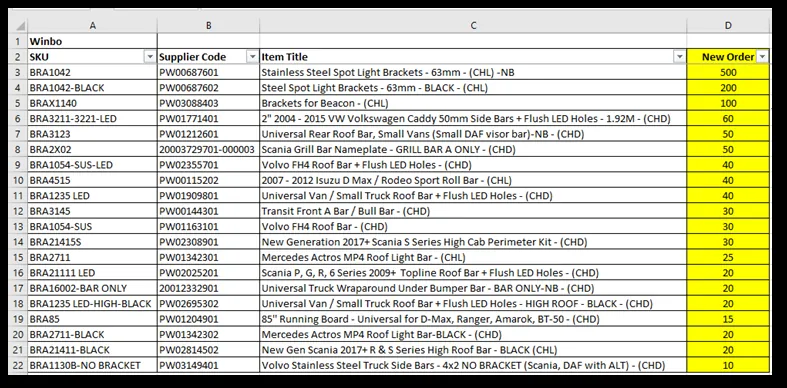
Remove all unnecessary columns and rows from the excel file approved by Nigel, you will only need to send these fields: (FIG 9)
Columns → SKU / Supplier Code / Item Title / New Order
Row → Delete all items without New Order quantity.
Remove YES in the filename and Save the file in the confirmed order folder of each supplier.
→ Winbo Jan21 – YES to Winbo Jan21
- e.g \China Taiwan Thailand\1. Winbo (Stainless)\2021\Procurement\Confirmed Order
-
3.2 Supplier Communication
Supplier will provide PI or Order confirmation. Procurement officer will check the items and communicate the queries/needs of supplier to the Management.
Skype (where available) the supplier and ask them to have either a confirmed full order for you the next day or else for them to send an email detailing why the full order cannot be confirmed. If clarification of one product is needed remove it from the PI and tell the supplier to continue with order. This is to avoid any delay for the order. When clarification has been received, send supplier the answers and push the order.
After meeting both ends of supplier and Bragan, supplier will send revised PI and procurement officer will check the items accordingly.
After all is has been checked (all details in the PI should be correct), procurement officer will send the signed PI (Nigel’s Signature) to supplier (Arrange payments/Deposit when neccessary)
Edit the PO in Linnworks and set the PO to Open.
Then place into the relevant suppliers Confirmed Orders folder (the same folder where the initial confirmed order excel file has been saved).
Example: \China Taiwan Thailand\1. Winbo(Stainless)\2021\Procurement\Confirmed Order
Once PI has been confirmed, Assign the email in Replyco to Accounts to make a deposit/full payment where necessary.
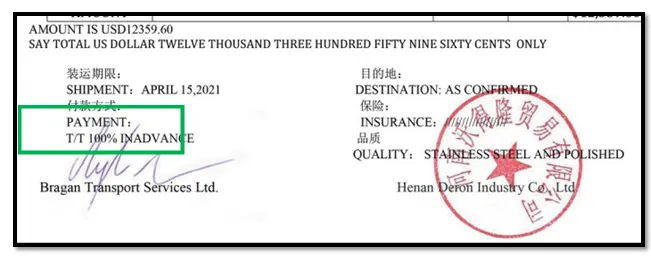
Note: Include in the message via Internal note if the PI is for 100% TT (telex transfer) Payment or Deposit only. (FIG 10)
100% TT Payment Sample
You can see this details in the PI (if for deposit or advance payment)
3.3 Deposits
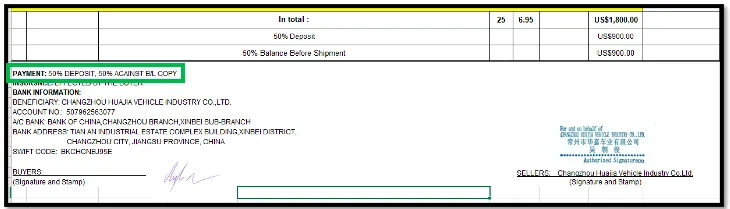
Deposit Payment Example – they are usually 30% or 50%
Winbo and Eirturk do not require a deposit. (FIG 11)
If there is no update from Accounts after 24hrs of tagging the email, you will need to chase and ask for an update via Zendesk and in Skype Procurement Group until you get a response regarding the payment or deposit.
The Purchase Invoice must be stamped and placed in the purchase invoice folder by Accounts.
3.4 CBM
Accounts must ensure that CBM (Volume of space each product takes up in container) is quoted on each final Purchase Invoice (40f container = 68CBM & 20f container = 28CBM). This is particularly important for any orders coming from North China.
3.5 Confirmed PI
The confirmed Proforma Invoice must then be created in Linnworks and set to Open Orders.
Creating PO in Linnworks - SOP - See SOP
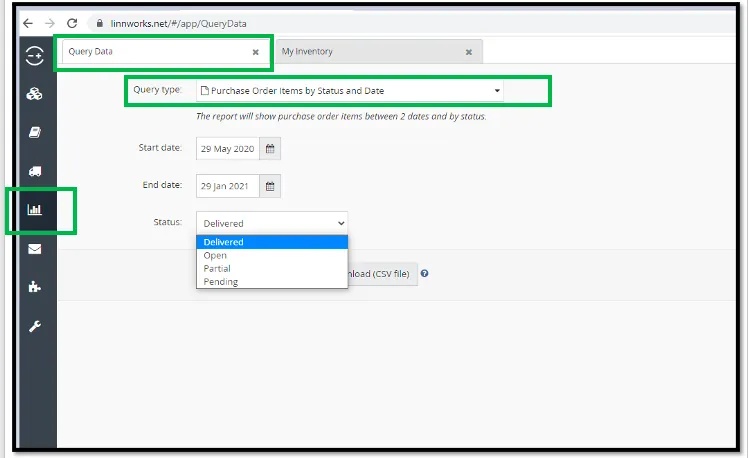
Once PO has been created in Linnworks, extract the report ‘Purchase Order Items by Status and Date’ from Query Data. Set date range - Start date is 8 months prior and End is today’s date to capture possible old orders – 3 months old orders should be followed up to supplier and ask to expedite. For Status, download to CSV both Partial and Open, and consolidate data – this file is for ALL other suppliers. (FIG 12)
For Winbo and Eirturk – they have their own tracking file. Winbo = Pending file and Eirturk = Order Tracking. See Winbo and Eirturk Loading List SOP: [Text Wrapping Break]Save these 3 files to Procurement folder - Europe Turkey\Confirmed Order Items/[Year]/[Month]
- Once items have been loaded in the container, collect PL and CI from each supplier. You will know items have been loaded when suppliers send an email or notify thru wechat. PL and CI will be sent through email or wechat as well.
Save these in the correct Dropbox folder
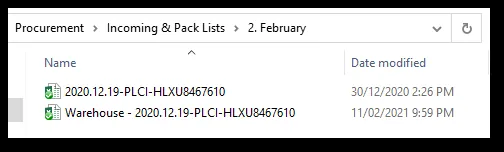
Choose Year and Month → e.g. Winbo February 2021 Order → China Taiwan Thailand\1. Winbo (Stainless)\2021\Procurement\Incoming & Pack Lists\2. February Edit PL to include BinRack Location extracted from Stock Items Query Data in LinnWorks and save as different file. Add Warehouse at the start of the file name (FIG 13)
→ China Taiwan Thailand\1. Winbo (Stainless)\2021\Procurement\Incoming & Pack Lists\2. February.
Note – for files to be shared with Warehouse, remove any Purchase Price (Cost) details.
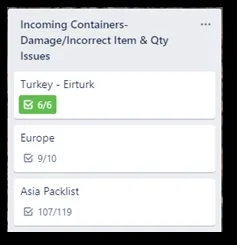
- Save PL in the Warehouse Trello Board as well.
Turkey – Eirturk → trello.com Europe → trello.com Asia Packlist → trello.com
- Send PL (picklist), CI (commercial invoice), and Telex copy of BL (Bale of Lading) to shipping agent (Transglobal)
The PL, CI, and Telex copy of BL documents must be requested from the supplier when loading has been confirmed. These documents must be submitted immediately through email in Zendesk to the shipping agent (Transglobal) to comply with the customs requirements.
Email address (Saji): [email protected]
Macro: 806 Submit PL, CI, and BL TLX
Notes#
This section is important so Adhoc points and issues can be logged. Also, Q&A can be logged for suggestions for potential issues encountered. Also, log important notes needed for this system. Additional Notes:
The procurement process starts on the 1st day of the month or next working day (LW data does not update until 1st of month)
All orders must be signed and be in production 2 days after the order has been sent.
Potential Issues:
1 - ISSUE ENCOUNTERED: Stuck on Loading
RESOLUTION: Refresh Browser
2 - ISSUE ENCOUNTERED: Broken Links
RESOLUTION: Get the external link as this will allow other people to access the SOP without the need for login credentials and avoid broken links.