SKU Template Creation Checklist
This system aims to guide new and existing Product Listers on how to create a Listing
Overview#
Purpose: This system aims to guide new and existing Product Listers on how to create a Listing Template. The purpose of this document is to show all the checklists and procedures of Template Creation.
Scope: This procedure applies to all assigned Bragan Listing Personnel.
Responsibility: It is the responsibility of all Product Listers to ensure the process set out in this procedure is followed.
Objective: The objective of this procedure is:
To guide Product Listers the correct way in creating listing templates in Linnworks.
Procedure#
1.) Format SKU. Ensure to follow SKU Creation SOP.
Checklist:
Determine SKU from Formatting File Make sure SKU is not in use already by searching this on Linnworks Take note of new SKU when formatted
2.) Create a New Product on Linnworks
It is ideal to use duplication during New Product (SKU) creation to copy most of the details except - Supplier Code, KTypes, {Channel SKU, Item Stats, and Product Identifiers Tabs (not needed during listing creation)}.
ALL other tabs including Image, Price, Title, and Description will be copied using this method.
Checklist:
Use creation via Duplicate to copy important aspects of the template e.g. Category, Price, Source, SubSource. Rather than adding each element manually → Search for the closest item to copy (usually same item/category, e.g., you need to list Parent item 2014+ Renault Trafic Rear Roof Spoiler - Barn Door, you can duplicate from Child item 2016+ Fiat Talento Rear Roof Spoiler - Barn Door, since they are the same product, you will only need to update few aspects - Make Model Year, etc and follow listing rules) Confirm with Management for Listing to duplicate from, provide needed details (SKU of original listing and reason why you choose this as listing to duplicate) → Snipe Description content for Management checking. Step in doing this → Navigate to 'My Inventory' Screen → Search for the Main Child Item and highlight product → Select settings (setting icon on the upper right side) and Click Duplicate Item → Input SKU code, Item Title and can also copy Images from the selected item.
3.) Prepare Listing Template on Product Details Screen - General Tab
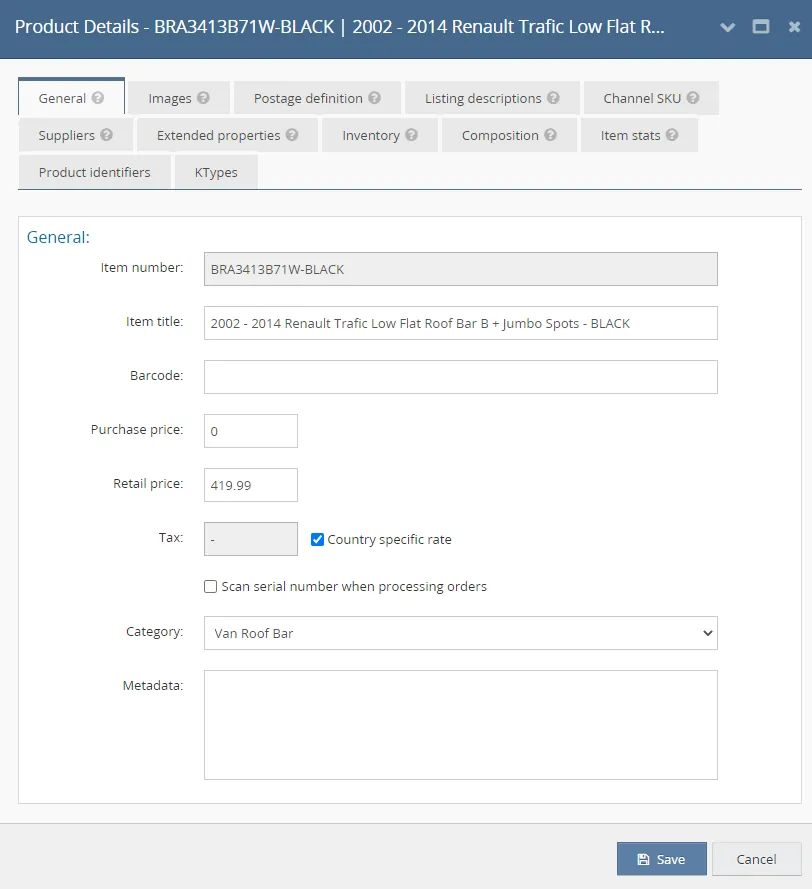
The General tab shows basic item details and allows you to change them. The exception to this is the Item Number - Linnworks SKU which cannot be changed. SKU code can be changed via CSV Import.
Checklist:
Item Number - Ensure item number is correct, double-check the format that you have created Item Title - Although this item title is used internally → For Child item, this Title will appear in the Sales Invoice. Make sure it is applicable to the item. Correct Price Confirmed → For BOTH Purchase Price and Retail Price - Confirmed by management → RRP and Purchase Price (Cost) Purchase Price (Cost) - the default purchase price of the product (important for Child items)
Retail Price (RRP) - The default retail price of the item. Is retail price the same in price in product pricing section under listing descriptions tab. Bundle listings - This is only applicable to bundles we are discontinuing or mass over stocked we are looking to clear Bundle price computation = 50% of what it would be if bought currently (Normal RRP x qty / 2)
For example BRA1060A 12v / 24v Amber Corner Chrome LED Light(TBD) 39.95, Bundle price for 10 pcs BRA1060Ax10 10x 12v / 24v Amber Corner Chrome LED Light(TBD) is 39.95 x 10pcs divided by 2. 399.5 /2= 199.75
Bundle price of this item for 10 pcs is 199.99
Category - The item category can be selected from the list of existing categories. Ask management if unsure. Tax Rate - Tick 'Country specific rate' box.
4.) Adding Images to Item - Images Tab
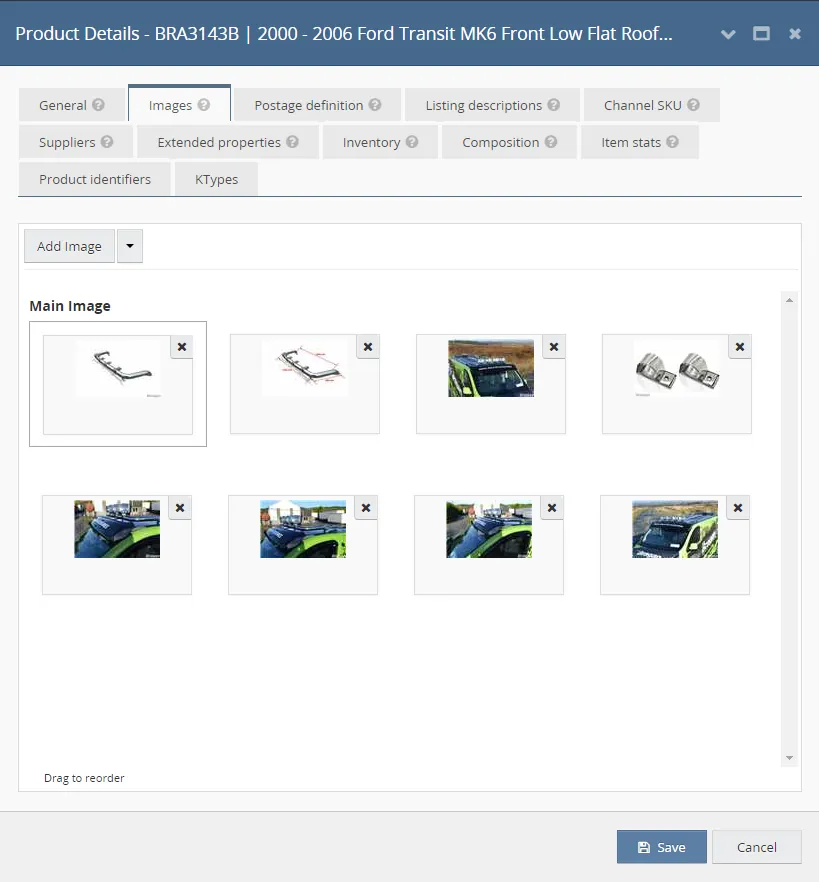
The Images tab serves as a gallery of uploaded images for the stock item. Images can be added to stock items either individually via this screen or in bulk via an import. The first photo you add here is automatically set as the main image, however, you can change the main image sequence using drag and drop.
All images should be no Bragan logo and main image should be in white background.
If you are listing to amazon, all images should be no Bragan logo and main image is in white background.
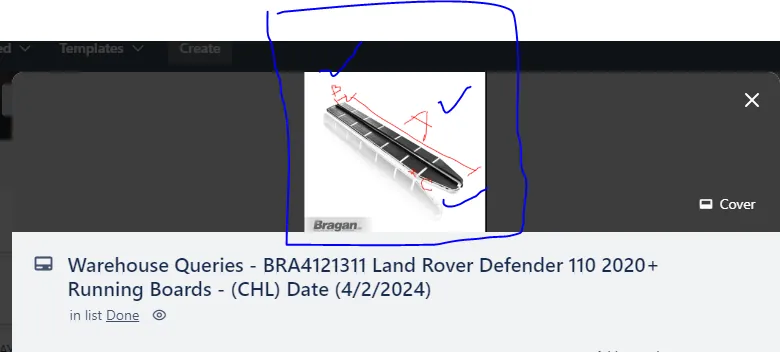
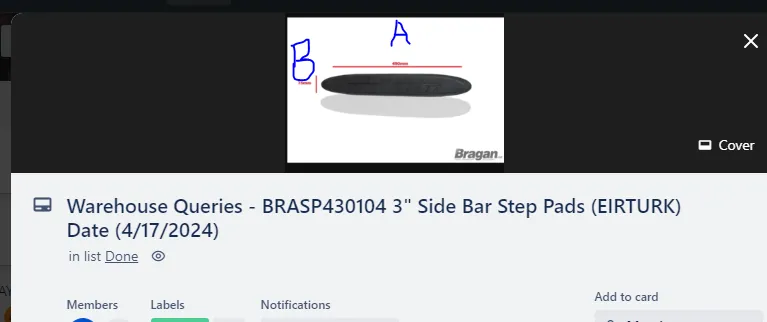
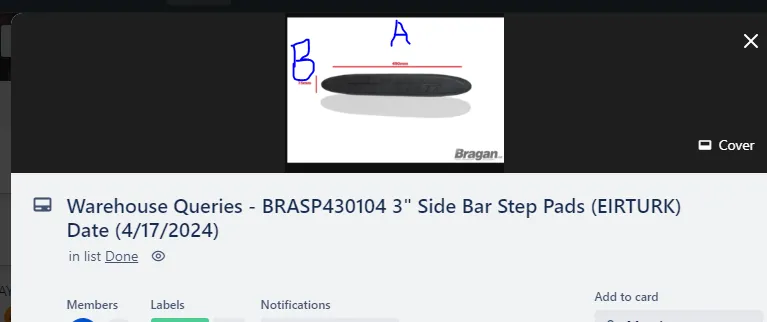
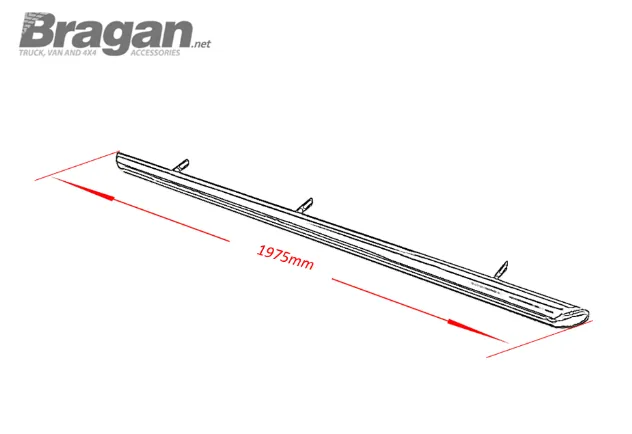
Add dimension Image
Sample query to warehouse:
Checklist:
Have the images been converted to .jpeg? Is the image size below 1800x1800 px? If the image is above 1800x1800px, has it been resized? Maximum number of images is 12 for eBay channels? Maximum number of images is 8 for Amazon channel? For Magento channel there is no limit on the number of images. Main picture showing only item being sold? Cluster pictures in the correct order? Main image is HD? If unsure, or need clarity, please ask management. Bundle Item - Does the main image have all composite items in the image (e.g., Roof Bar + Spots + Beacons) Bundle Item - Cluster pictures should have individual items from composite If you are missing any pictures, have you requested from IRL? Have you added the requested images to the item once received from IRL? Edit/request edited images accordingly to show watermark etc. Upload images to the item.
Watermark NOT APPLICABLE TO BULL BAR WITHOUT EC CERTIFICATE. You will know that it is EC approved if there is EC in the SKU code and EC approved in the title. Listers can edit and create basic item photo dimensions (confirmed by the warehouse in mm) for example using ms paint. Items to add dimension image for new listing are the following:
Sidebars, Running Boards, Rear Corner Bars, Roof Rails, Roof Bars, Front /Rear Spoiler bar
5.) Assigning Postage Definition - Postage Definition Tab
In the Postage Definition tab, you can find the dimensions and weights of the stock item. These are required by integrated shipping couriers and can be used for selecting the right packaging method.
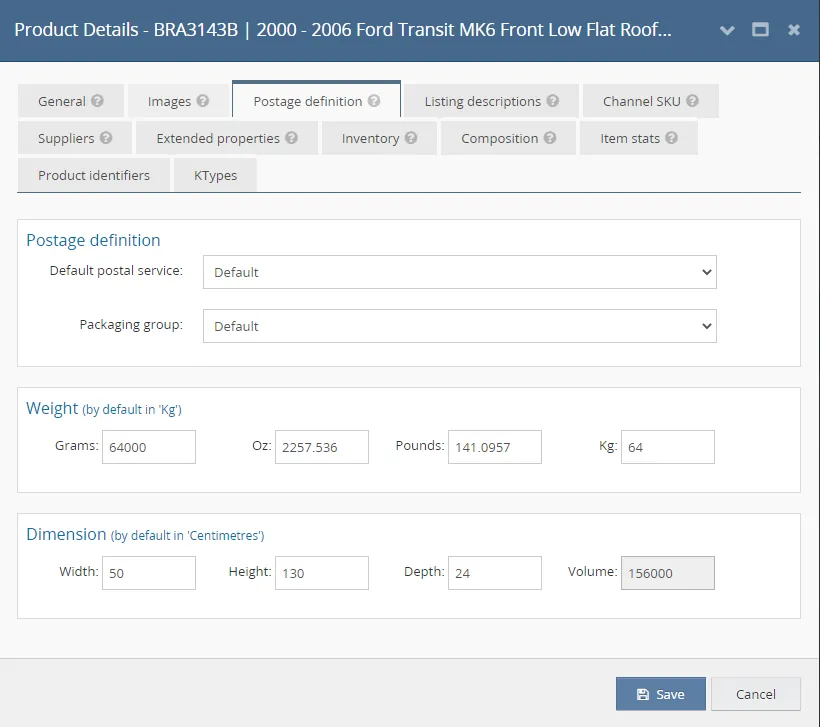
Checklist:
Height Confirmed by Warehouse Width Confirmed by Warehouse
Depth Confirmed by Warehouse Height, Width & Depth inputted on Linnworks Confirm weight with Warehouse / IRL You can also check same item in Linnworks to see postage definition details.
6.) Add Price / Source / Sub Source / Title for each listing - Listing Description Tab
Linnworks allows you to store various titles, prices, and descriptions that can be used on different channels and listings. This information is stored in the Listing Descriptions tab. As an example, a single SKU can have different prices on different Amazon and eBay sites/marketplaces.
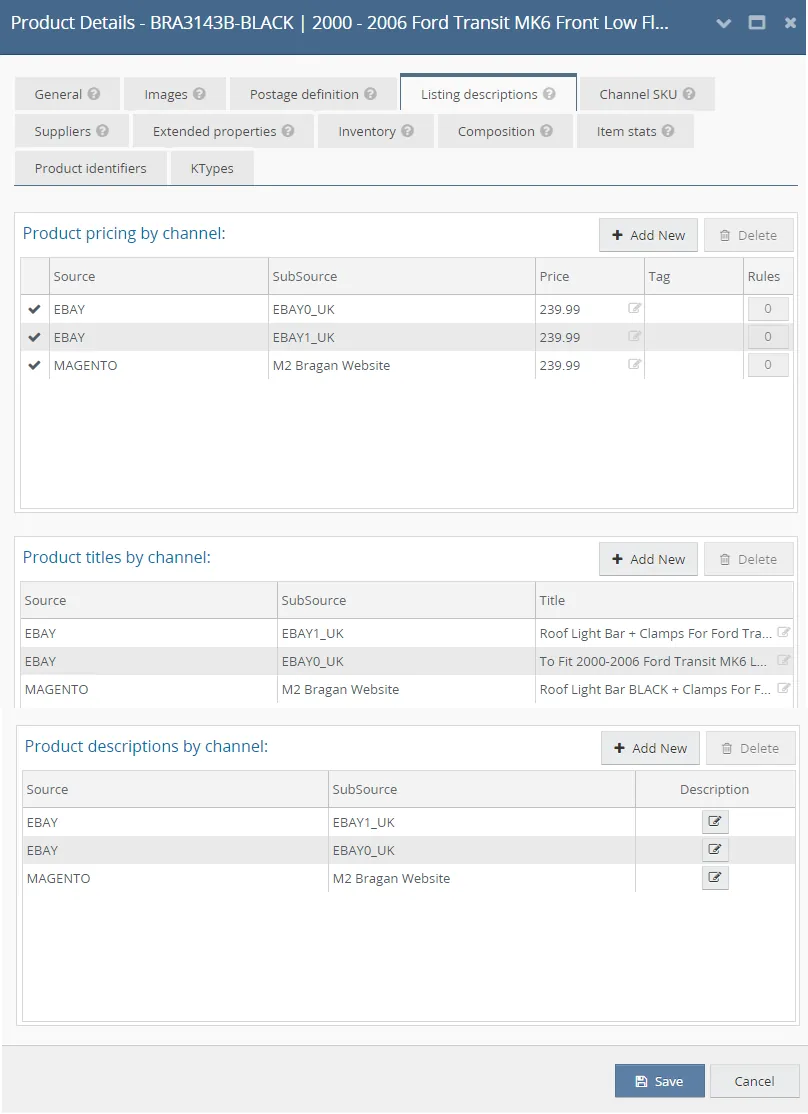
Checklist:
Magento
Product pricing by channel enabled Price confirmed by management? Set price to RRP/1.2 (RRP less 20% VAT) Set source as MAGENTO. Sub Source is M2 Bragan Website Product title starts with Item -> ‘For’ -> Model .E.G. Side bars For Vauxhall Opel Vivaro C (See Listing Title SOP)
eBay0
Product pricing by channel enabled Price confirmed by management? Set price to RRP → Same as Retail Price in General Tab Set source as EBAY Sub source is EBAY0_UK → This is for bts trading account Product Title maximum character count is below 80 characters? → Use as many as possible Product title starts with 'To Fit' -> Model -> Item -> Keyword. E.G. To Fit 2019+ Vauxhall Opel Vivaro C SWB Side Bars Van Stainless Steel Step Pads (See listing title SOP)
eBay1
Product pricing by channel enabled Price confirmed by management? Set price to RRP → Same as Retail Price in General Tab Set source as EBAY Sub source is EBAY1_UK → This is for BraganX account Product Title maximum character count is below 80 characters? → Use as many as possible Product title starts with Item -> ‘For’ -> Model -> Keyword. E.G. Side Bars For 2019+ Vauxhall Opel Vivaro C SWB Van Stainless Steel Step Pads (See listing title SOP) Amazon price are the same with ebay Black and chrome bars are the same price. RRP for approval request format
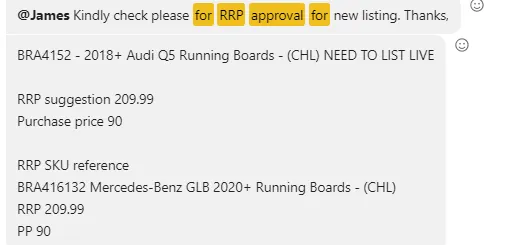
7.) Add Product Description by Channel - Listing Description Tab
Product descriptions by channel are used as part of the listing via My Inventory functionality. The HTML editor for product descriptions is the same as the one for configurators which allows for rich content to be generated - however, it is not recommended. Adding content beyond a basic description can lead to a significant amount of maintenance should you decide to alter the description in the future.
All listings of van and 4x4 should have the cross over year note. (Please check format in cross over year sop).
Ensure that all listings with items and components (LED) colour is clearly stated in the description and item specifics.
For new items for new listings that don't have stock, it should be listed by adding 1 stock and removing it again when listed.
Standard format of description, Bold font are the item for sale in 1st paragraph, please note and in bullet points like the certifications.
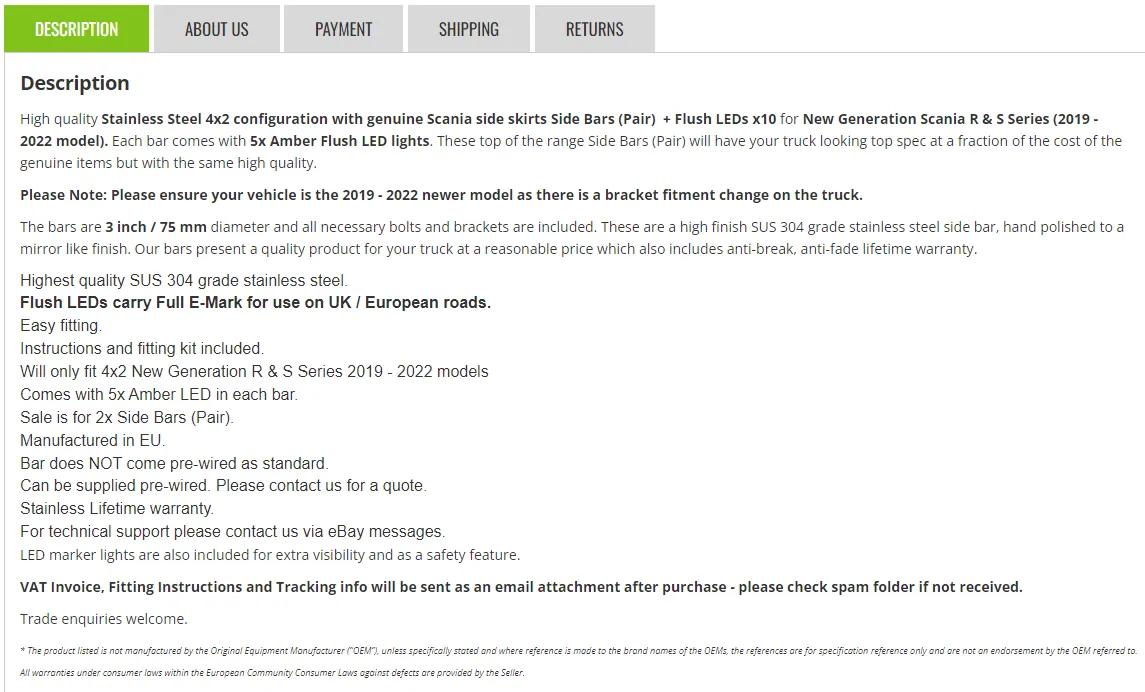
Checklist:
For New Items (without current listing reference) → Confirm to Management for correct content, description, material and specifications available NOTE → You can use this online HTML editor to have a preview of what you are editing → html-online.com Is make the same as the image / title? Is model the same as the image / title?
Is year the same as the image / title? Is colour (Black/Chrome) the same as the image / title? Is wheelbase / cab type the same as the image / title? Is material (i.e., plastic / steel etc.) the same as the image / title? Ensure there is no mention on multi-purchase discount. Is the correct number of LED's referenced for the item? (Check with management if unsure) Dimensions should be added to the listing description and images. Double-check dimensions with IRL / Warehouse where needed. Side Bars - If three-step pads, make sure it is referenced as RHD, Right Hand Drive. VAT template should be written in bold. eBay should have no reference to the company's contact details (email address and phone number) Ensure to add all listings with cross over year note for van and 4x4. Sample of CROSSOVER NOTE→ e.g., Newer Model 2015+ and has a 2008 - 2015 Older Model → Please Note: If your vehicle is 2015 year, you need to ensure it is the 2015 newer model (same as 2016) and not the older shape (same as 2012) before purchasing. Packaging Details → Ensure (included in sale) is correct in the description → For a description that says something other than the item itself is included, this would need to be checked with Warehouse. This kind of checking is NOT needed to be checked if, for example, the listing is just for the same item but in black, or duplicating items that are the exact same but with our new components → For example Roof Bar + Jumbo Spots but the new listings are for the same Roof Bar + the new style LED jumbo Spot Lamps Have you checked the overall content of description (all aspects relevant to the product being sold and conditions, no typo and grammar errors)? → Very IMPORTANT Amazon Channel should only have a maximum of 2000 characters for the description Magento and eBay channels no maximum characters for the description
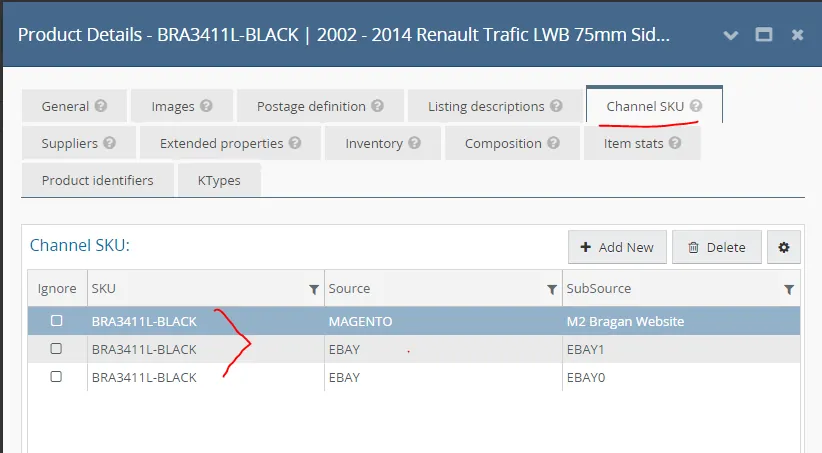
8.) Channel SKU - check this tab once it is already listed in the website to check if all sku linked are the same as the one listed.
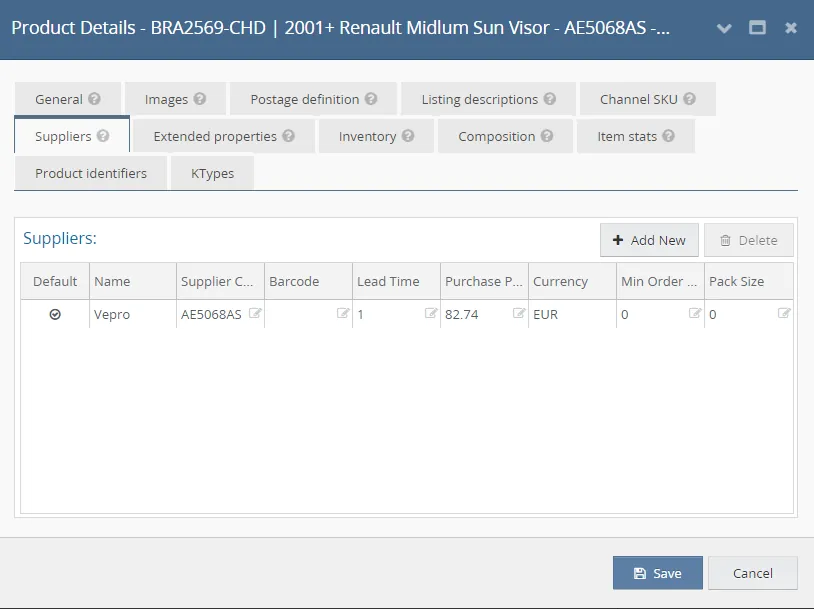
9.) Add Supplier details - Suppliers Tab (For Child Items only)
The Suppliers tab shows all suppliers that have been configured for this SKU. In this tab, you can assign suppliers to the SKU that already exist inside Linnworks and select a default supplier for this item.
Checklist:
Is Supplier Name added? (To be confirmed by Management or Purchasing Team if supplier name is not added in Linnworks) Is Supplier Code added? (To be confirmed by Management or Purchasing Team if supplier code is not added in Linnworks) Is Purchase Price added? (To be confirmed by Management or Purchasing Team if purchase price is not added in Linnworks) Delete Any Details in this Tab if the item is a Parent SKU → Very IMPORTANT If the name of supplier, code and cost are already in Linnworks, no need to send inquiry to procurement.
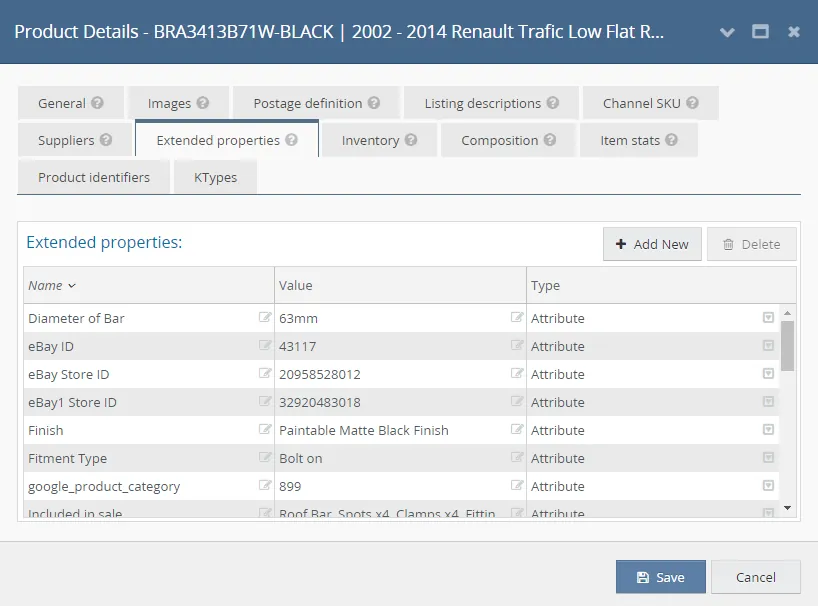
10.) Add Extended Properties - Extended Properties Tab
Item extended properties contain additional information about the product, most commonly used as the basis for variations. The best way to add them in bulk is via an inventory import, but they can also be added or edited individually on this screen.
Remove filters for new listings like BTS not sold - Yes. No need to copy these filters for new listings.
Checklist:
Magento
Mag_Short_Description (Bullet points in Bold from the main description but convert to normal font - HTML format) should be 5 points and unbold font. magento_shipping (Group E, etc - Group specified for shipping rates → The same letter used in eBay Configurators) magento_shipping_alt (if parent item has ALT composite value = Yes, otherwise value = NO) Mag ID (Magento Category IDs applied to relevant model/categories based on Make / Model / Year or for Lights application) google_product_category (value is always 899)
eBay
Item Specifics should be complete depending on the category of product listed (arrangement for items with Make, Model and Year should be as follows 1. Make > 2. Model (and Year) > 3. Cab Type or Wheel Base if applicable > 4. Included in Sale > 5. Material > 6. Brand. Other item specifics are Manufactured in, Fitment Type, Finish/Colour, Instructions, Overall length if applicable, etc.) eBay ID Category (eBay0 and eBay1 Channel Categories → Select 1 relevant category, exact or closest to the item for sale.) eBay Store ID (eBay0 Store Categories - bts trading shop) → Select correct Shop Category (Model or Light application)
eBay1 Store ID (eBay1 Store Categories - bragan x shop) → Select correct Shop Category (Model or Light application)
Amazon
Bullet 1, Bullet 2, Bullet 3, Bullet 4, Bullet 5 Search_1, Search_2, Search_3, Search_4 VehicleFitmentCode Fitting guide - Bragan designed items don't have fitting information. These are most truck bars that own design of Bragan and 2" side bars mostly Winbo
Example
No Fitting guide for BRA2212 LED Volvo FH4 2013+ Grill Bar with Flush LED Holes - (CHD) PW02764101
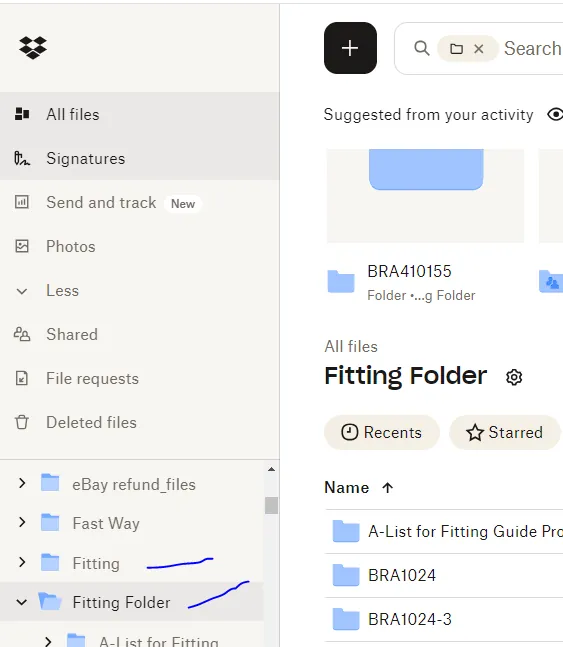
Needs to create a fitting folder if there is no folder present in Fitting folder and Fitting in Dropbox folder upon searching and request to supplier, so that the link will be added in the folder if it gets available from supplier.
0:00
11.) Add Location and Stock Level - Inventory Tab
The Inventory tab shows a list of physical locations for the SKU with the ability to define a bin/rack location for each warehouse that is added to Linnworks. Effectively this is the position on the shelf where the item is located and would be used when picking items for orders or booking stock in (Bin/Rack).
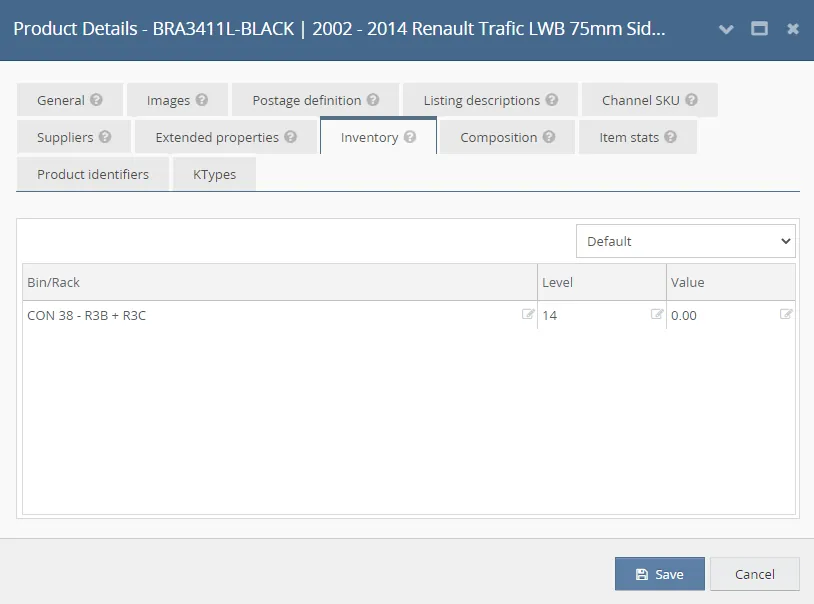
Checklist:
Warehouse is the one who add these details in Linnworks. If there are details already in Linnworks, no need to send query to warehouse.
Add Level (This is the Stock Level for an item - only applicable to Child main items → Ask Warehouse, for New Items received → ask Procurement Team if no details of stock level in Linnworks). If SKU has a stock level in Linnworks, no need to confirm with the warehouse. Add Bin/Rack (This is the Item Location - Confirm with the Warehouse for the correct location only if the location is not added in Linnworks) Add ‘& ALT’ in Bin/Rack for parent items that have ALT as composite. For ex. CON 01 - L1A & ALT For Parent Items - Add 'See Child Location' and 'ALT' if applicable → This can be done via LW Desktop or CSV file Upload Use Attached CSV Template → BinRack_Title_Date - Parent Location Template Import file once data has been added → Navigate to Settings → Import & Export → Import Data → Select Import Now → Add Name e.g., Parent BinRack Location Upload (this will be saved and can be used on your next import as long as you have the same header column → Import Type = Inventory Import → Select Next → Choose File - select the correct file edited to upload → Run now
Refer to this Linnworks Documentation for more details → assets.linnworks.com data/import-data/import-types/inventory-import/
Before you can list the item on website:
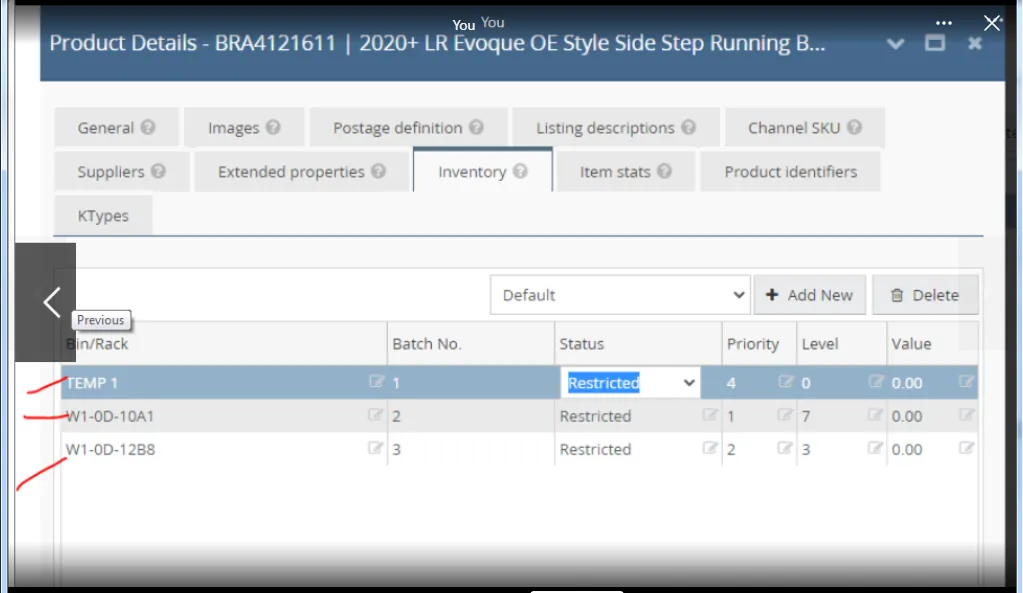
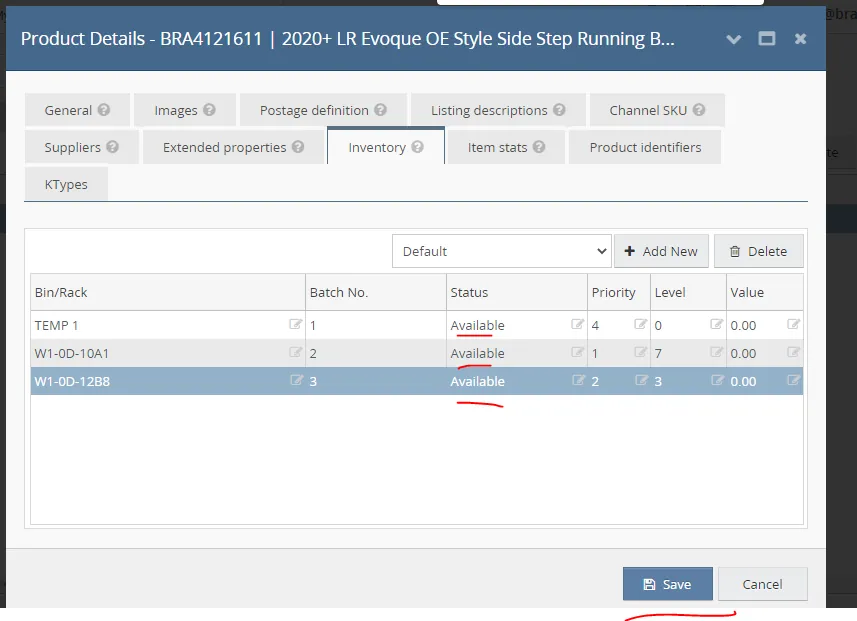
For SKUs that have prohibited in location, you need to choose available so that you can list the product on the website.
See below example: you need to choose available for these 3 restricted items in Inventory tab and save so that you can list it.
12.) Add Composites (for Parent items only) - Composition Tab
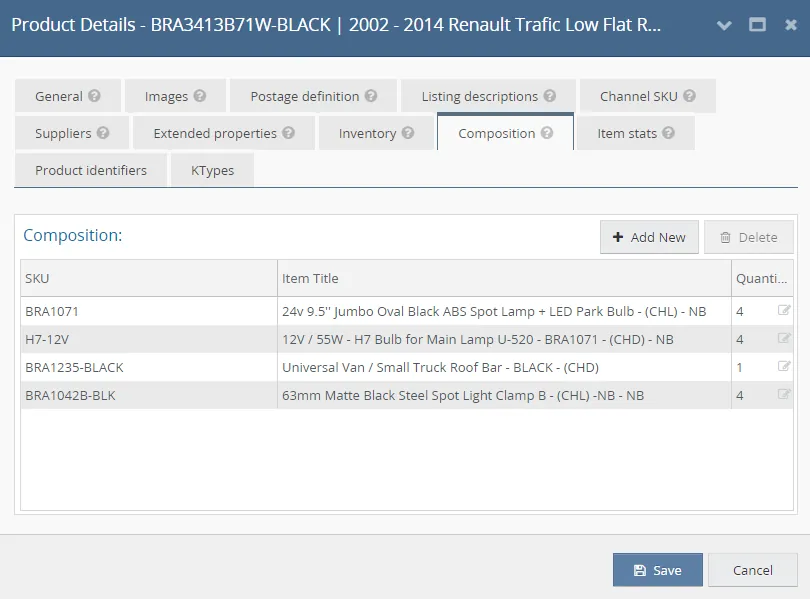
The Composition tab shows the details of the composite item and allows you to create such items manually. Composite items are "virtual" items that can be created in Linnworks. Rather than being a physical product, they are a collection of multiple SKUs, much like a set of items. Compositions can be created on this screen or in bulk with the 'Stock Item Compositions' import.
Checklist:
SKU → This is use for composition items / parent (the SKU / Item number of the Linnworks inventory item that is to be included as a child item in this composite). Quantity → QUANTITY NEEDED FOR COMPOSITION / BUNDLE (the amount of this child item to be included in the composition). Input correct quantity Checking → Ensure to select the correct Child SKU code and Quantity Double check composition with management.
13.) Add KTypes - KTypes Tab
Shows all eBay KTypes for the Inventory item. All KTypes that have previously been added either manually or via Data Import using the eBay Motors Listing (K-Types) Import will be displayed. You can add, edit or delete eBay KTypes directly on this page
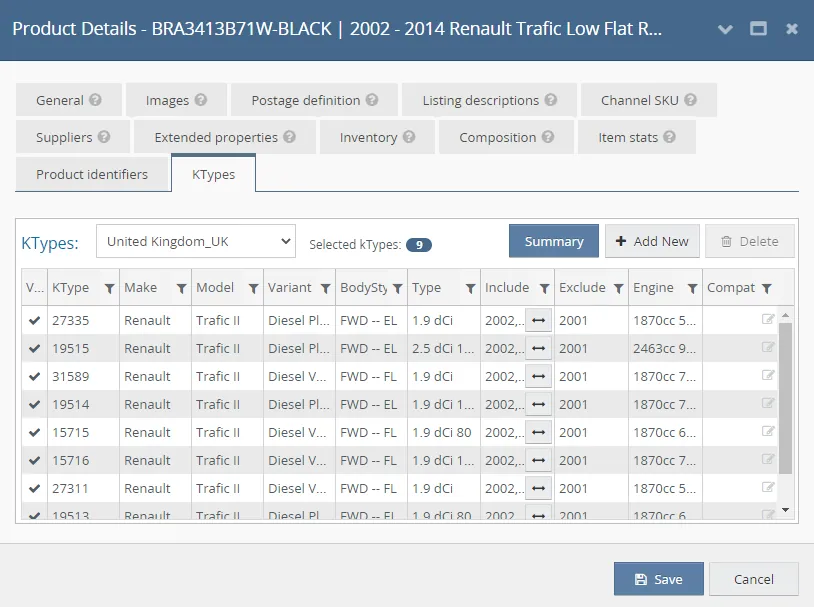
14.) Select Correct Configurator → Once Template is ready
Checklist:
eBay → Correct Configurator applied per eBay channel - Applicable Configurator is per Category Name → e.g., SKU BRA38813 | 2016 - 2019 Peugeot Partner Rear Roof Spoiler- Barn Door | LW Category = Rear Roof Spoiler → eBay0 → Ebay0 (F) - Rear Roof Spoiler ||| → eBay1 → Bragan-X - Ebay1_UK (F) - Rear Roof Spoiler Magento2 → Correct Configurator applied per Magento channel - Applicable Configurator per Category
Note Ensure to check the eBay configurators to use before creating the listing template in eBay0 and eBay1.
These configurators are already updated but you need to double-check if these use the following requirements in terms of Business Policy Profile:
Ebay1_UK Business Policy Profile
Shipping : Flat:Other 48th cour(Free):GENERAL Payments : Paypal:Immediate Returns : STD > Returns Accepted
for Auctions Ebay1_IE Shipping : AUC > Domestic General Payment : Payment > Auction Returns : Returns Accepted,Buyer,30 days#0
Ebay0_UK Business Policy Profile
Shipping : Flat:Other 48th cour(Free):GENERAL Payments : Paypal:Immediate Returns : Returns Accepted,Buyer,30 days#0 for Auctions Payment : Payment > Auction
Go to Settings in Linnworks > Configurators > Click eBay, then check details of configurators same as above details before listing.
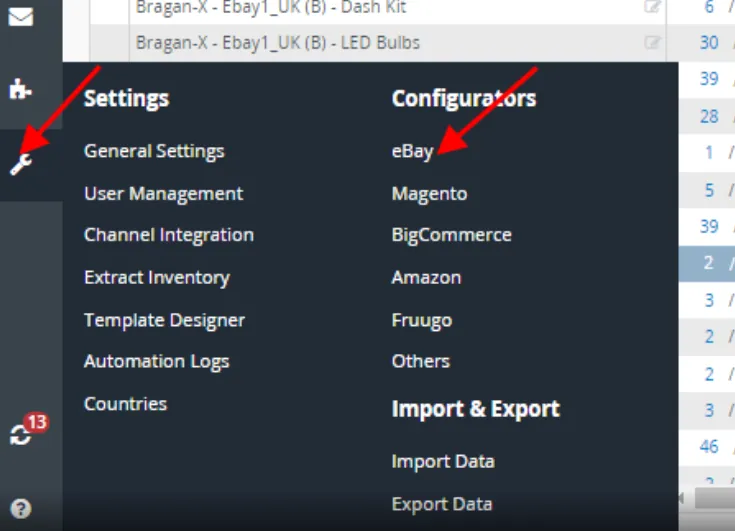
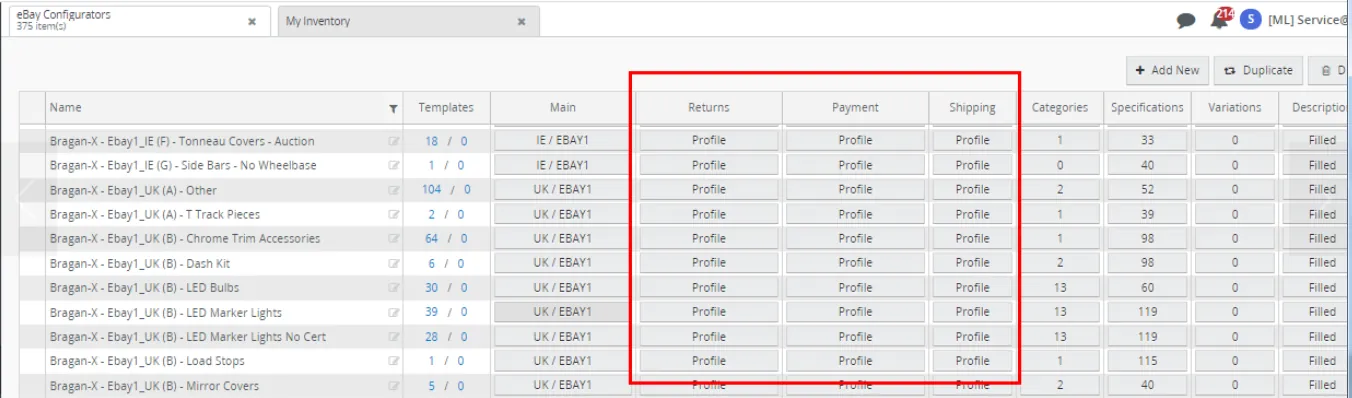
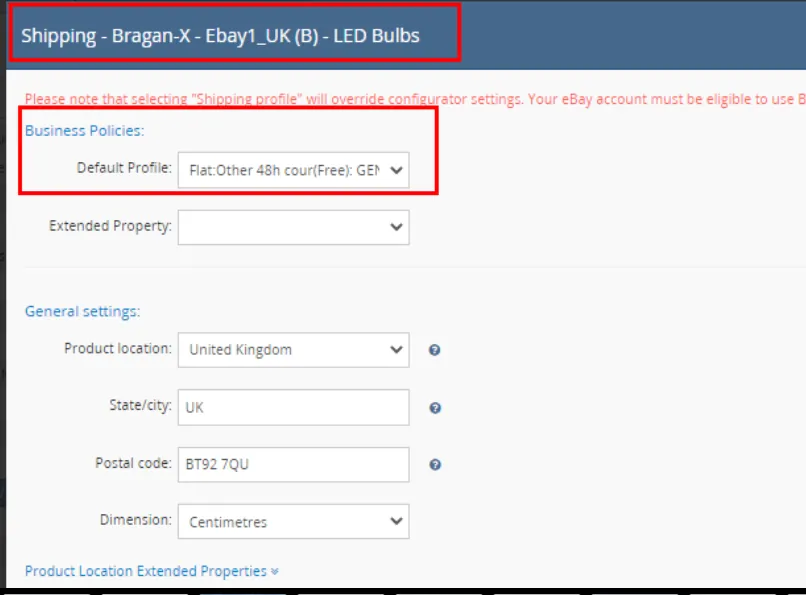
15.) Listing Live to Channels → Channel Templates Screen
Checklist:
Once you have selected the correct Configurator, you will be directed to the Channel Template Screen In the channel templates screen, check all the details to make sure that the correct data was picked up from the items - Product details screen that you've created / updated Click Create button to proceed with listing creation on the channel. Check the status and ensure it has changed to 'Listed'. → Any error, report to Management
16.) Checking of Live Listings
Checklist:
Title - should be the same as in the product details screen (listing description tab), reflecting correct make / model / year (if present) without any typo. Price - Correct Price Confirmed by Management. Should be the same as in the product details screen (listing description tab). Description - should be the same as in the product details screen (listing description tab), reflecting correct make / model / year (if present) without any typo. Listing Description Spell Check
Item Specifics (for eBay) - the arrangement is correct and values are reflecting accordingly. Check the 'How to arrange item-specific in eBay' system. Magento Short Description (for Magento) - ensure correct bullet points have been inserted NOTE → Basically need to check ALL aspects of the listing and make sure there is no error in the live listing → Very IMPORTANT
17.) Fitting Guide for New Item
Checklist:
If you are duplicating an item, make sure you also duplicate the fitting guide into the appropriate folder. If this is a completely new item a fitting guide must be requested from IRL Make sure the fitting guide names the correct SKU, and correct folder.
18.) Adhoc Task Needed after Listing
This Adhoc task is very IMPORTANT to track new items. Will be added to Trade File for Trade Customers and Catalogue Also for Management to check the listing and add to your own Trello board for documentation and workflow tracking.
Checklist:
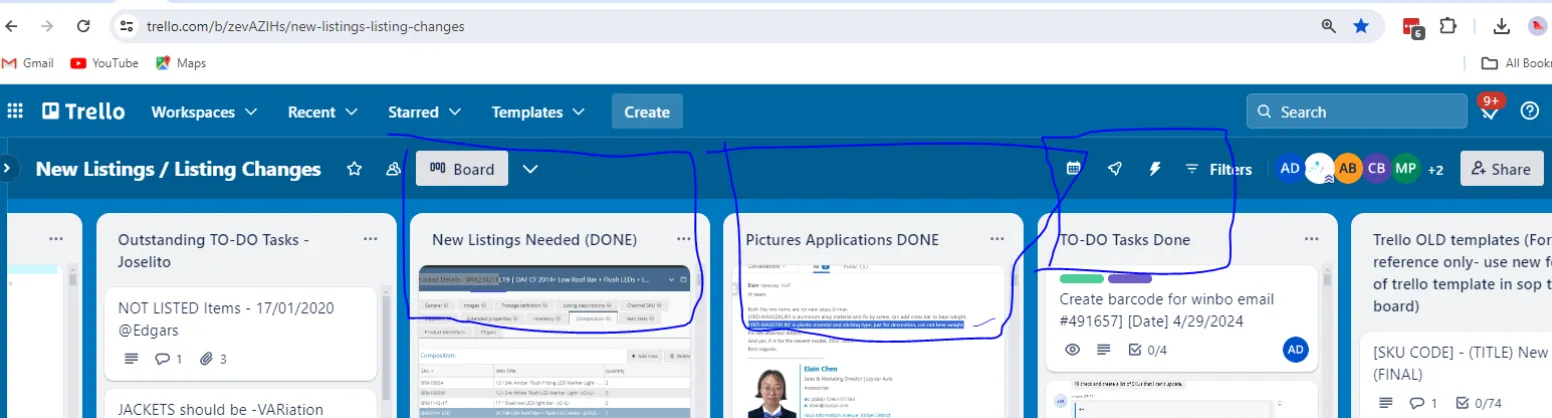
COLLECT URL AND LIST IN YOUR TRELLO BOARD → Sample Checklist of Listing URL > trello.com Magento Listing SHOULD COLLECT WITH THE COMPLETE CATEGORY PATH - SEE ABOVE SAMPLE LISTING CARD CHECKLIST → WORK IN PROGRESS FOR MAGENTO 2 POST SAMPLE LISTINGS IN PH GROUP FOR CHECKING → Daily Listing Sample is very important. FOR NEW ITEMS LISTED – PLEASE ALWAYS ADD TO TF AND CATALOGUE CARD → Refer to Below
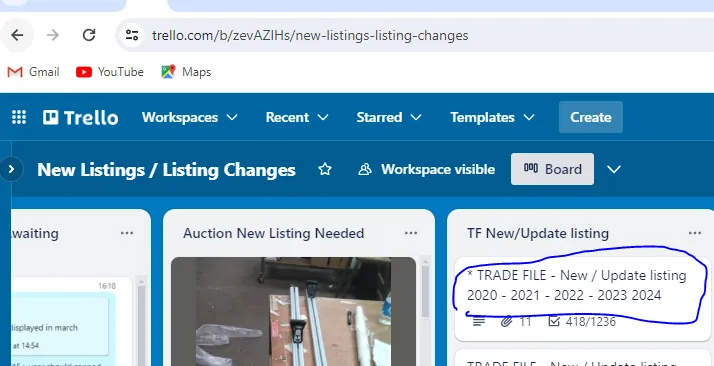
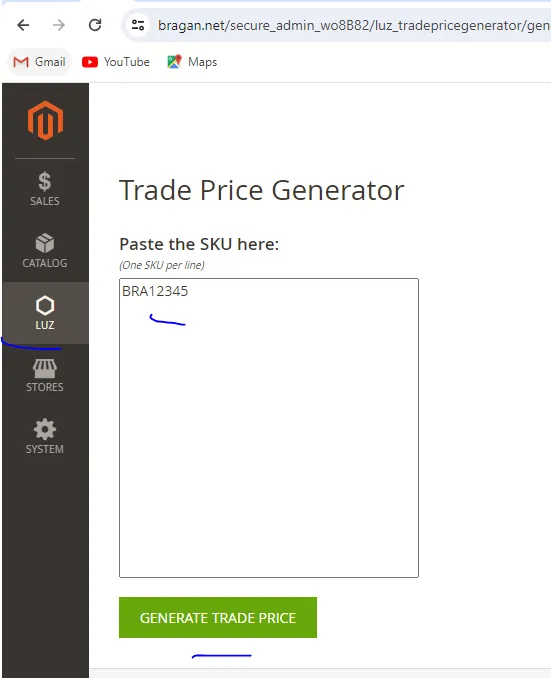
Also there a section in Trade file to add updates listings skus like composite edit, Price edit, Sku code update, Title Edit, Composite edit Listing deletion, Sku discontinuation, Archived skus New listings add Trade price in Magento backend
TF CARD → Under ‘Catalogue Update’ List > trello.com → Use the latest card e.g., 2021 CATALOGUE CARD → Under ‘TF New/Update listing’ List > trello.com → Use the latest card e.g., 2021
Trello Board link:
trello.com listings-listing-changes aaa
Listers can take daily output in this board of
5 new listings / 5 update listings / assigned tasks
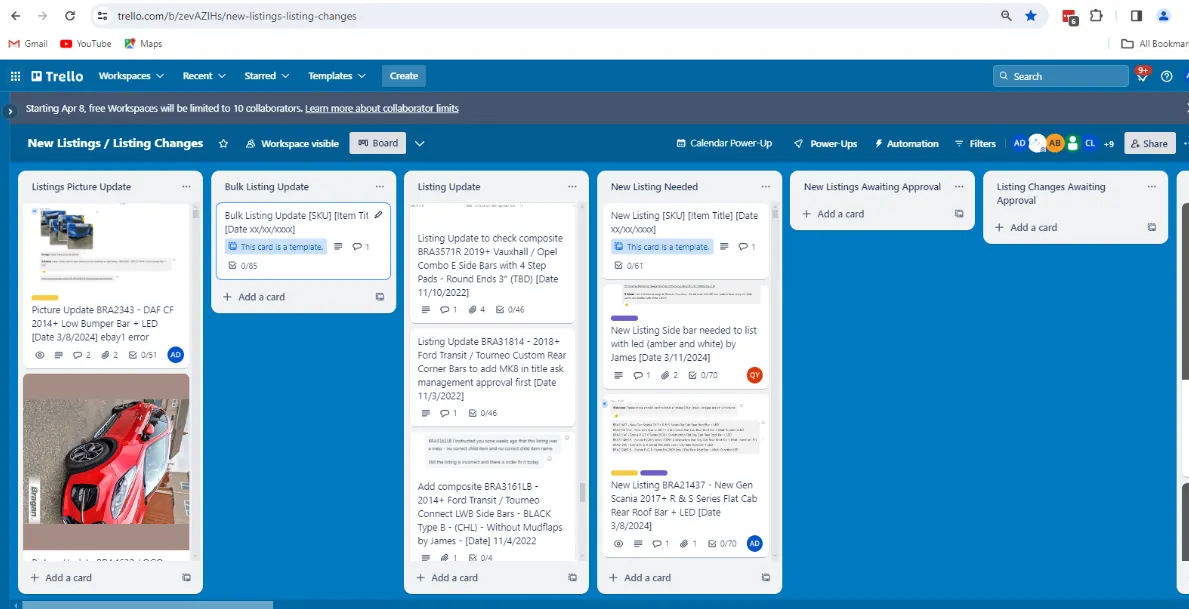
Steps:
Join the card as member and add Label
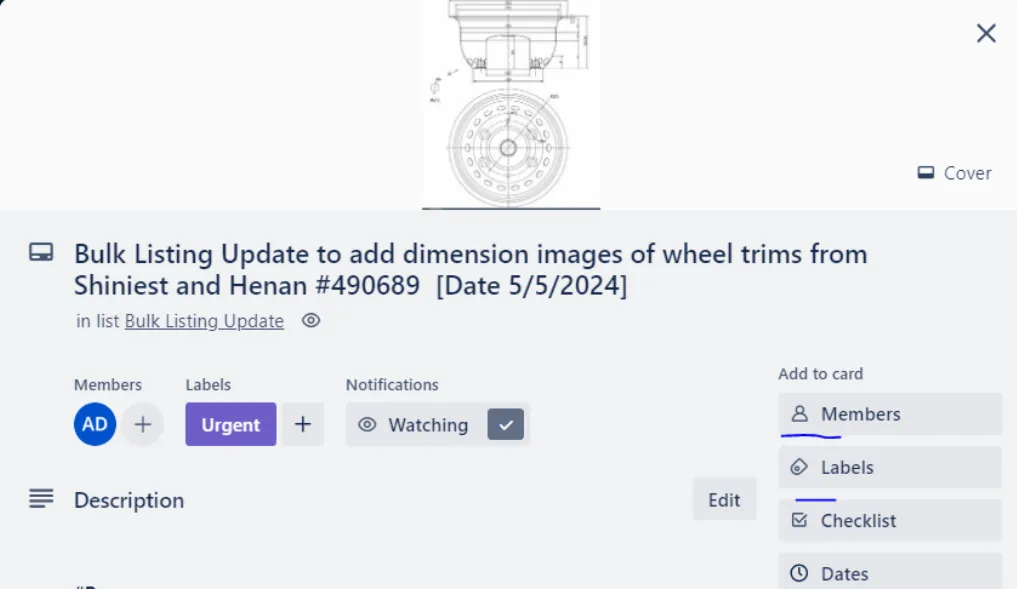
Update the one with # like Purpose, and Instruction and ask management approval if task is scoped correctly. Then send to Brangan new listing for management approval (Sir James or Sir Andrew if he is the one who request the task - Label as Urgent for any request from Ireland)
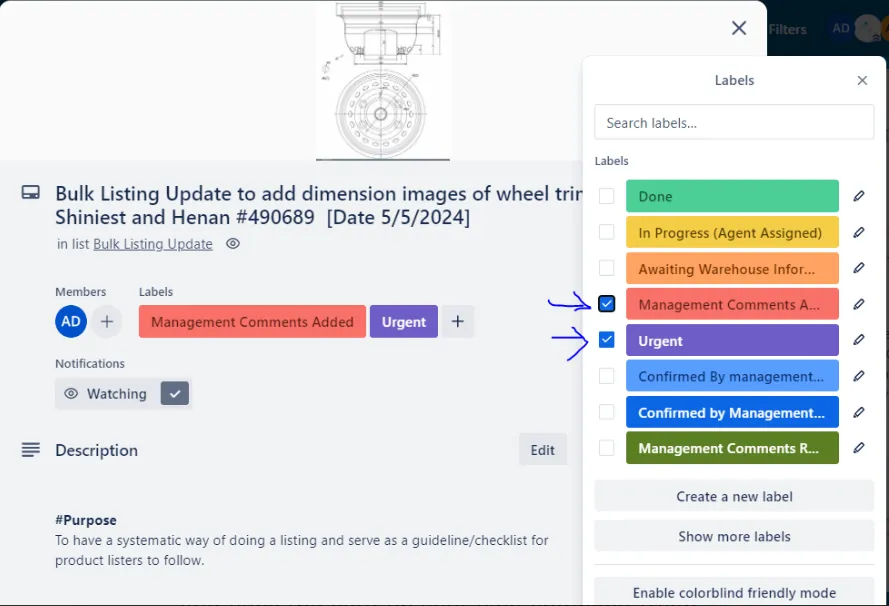
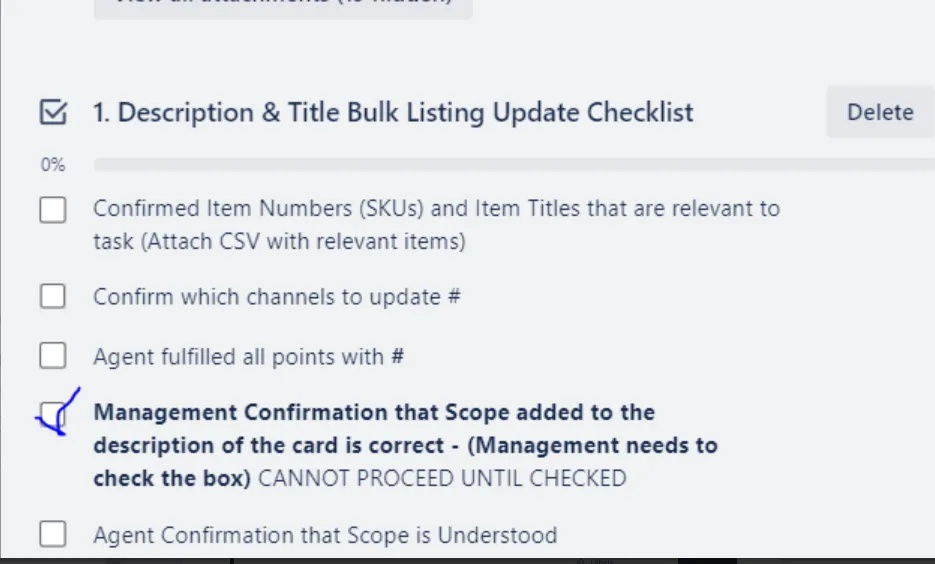
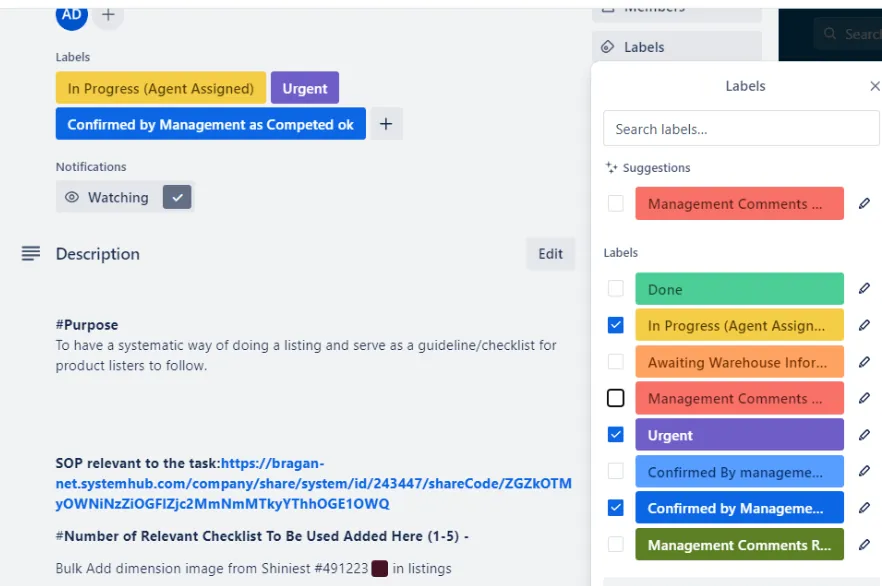
Once management already approved and tick the checklist, you can now label it in blue - Management Confirmed and Label in progress and copy the card on your own company Trello and in your DOING. And start the task. Tick every step of checking in checklist like Price, Image and Typo checking and etc.
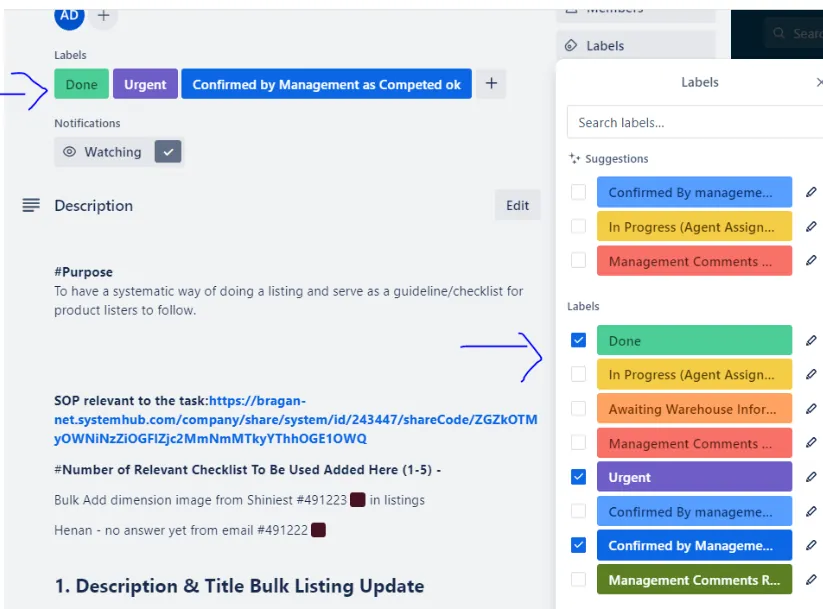
Once Done you can move both card change label to green - Done and move to DONE.
Video & Media#
🎥 New-listing-part5 🎥 New-listing-part-2 🎥 New-listing-part4 🎥 New-listing-part-3 🎥 New-listing-part1 🎥 Using-Trello-in-New-lisitng-trello-board 🎥 New listing Process September 29, 2021
Notes#
This section is important so Adhoc points and issues can be logged. Also, Q&A can be logged for suggestions for potential issues encountered. Also, log important notes needed for this system.
Additional Notes#
Videos are a bit old but still will give you an idea on how to properly create a Listing Template in Linworks. It is strongly advised to take note of all checklists above. Some brackets and spare pieces like for roof rails, running board, nameplates - skus which sku codes starts with BRAX and BRASP should be listed in Magento only (not in ebay0 and ebay1). These items are purposely removed from eBay channels. Popular ones are listed, please check attached file for items that are allowed to list in ebayo and ebay 1 approved by Nigel and highlighted in yellow in the file are those not allowed to list in ebay0 and ebay1 and should be listed only in magento.
Below is the link of file of items that can be listed and cannot be listed in ebay0 and ebay1 by Nigel
Black bars and Chrome prices are the same. Add Dimension image for new listings (like roof bar, side bar, roof rails, running boards, low bar. spoiler bar, step pads (some items do not require dimension image, confirm to management which does not need like very small brackets, nuts and bolts.) Send query to warehouse in mm and create dimension image using ms paint.
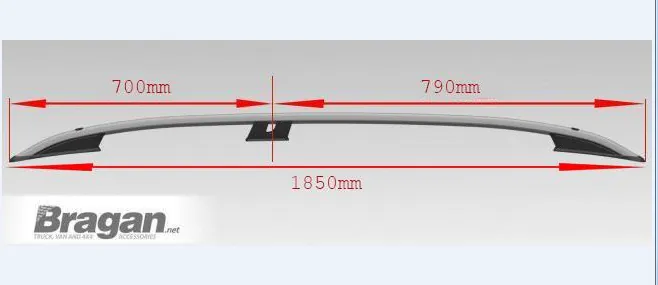
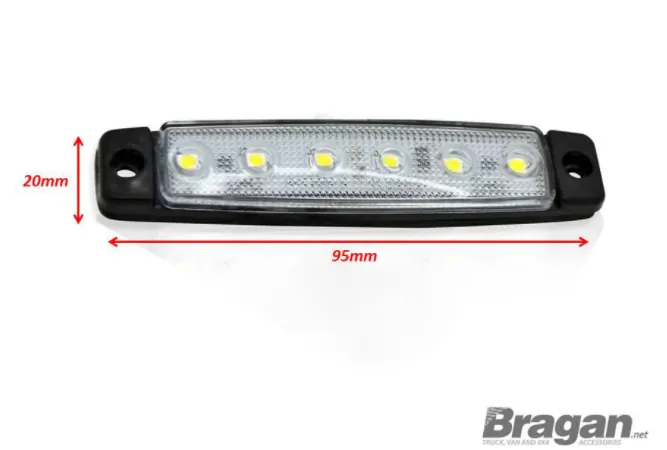
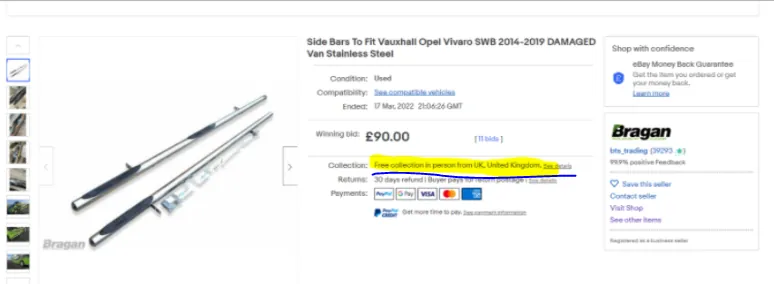
Check live listings unusual notes like below snipe with wrong configurator used to the item.
'COLLECTION: FREE COLLECTION IN PERSON FROM UK, UNITED KINGDOM'
Use the pricing file attached here to compute prices.
Potential Issues:
1 - ISSUE ENCOUNTERED: Stuck on Loading RESOLUTION: Refresh Browser
2 - ISSUE ENCOUNTERED: Broken Links RESOLUTION: Get the external link as this will allow other people to access the
SOP without the need for login credentials and avoid broken links.
3 - ISSUE ENCOUNTERED: Typo or wrong spelling in the description. RESOLUTION: Need to check live listing in website to check everything is correct.
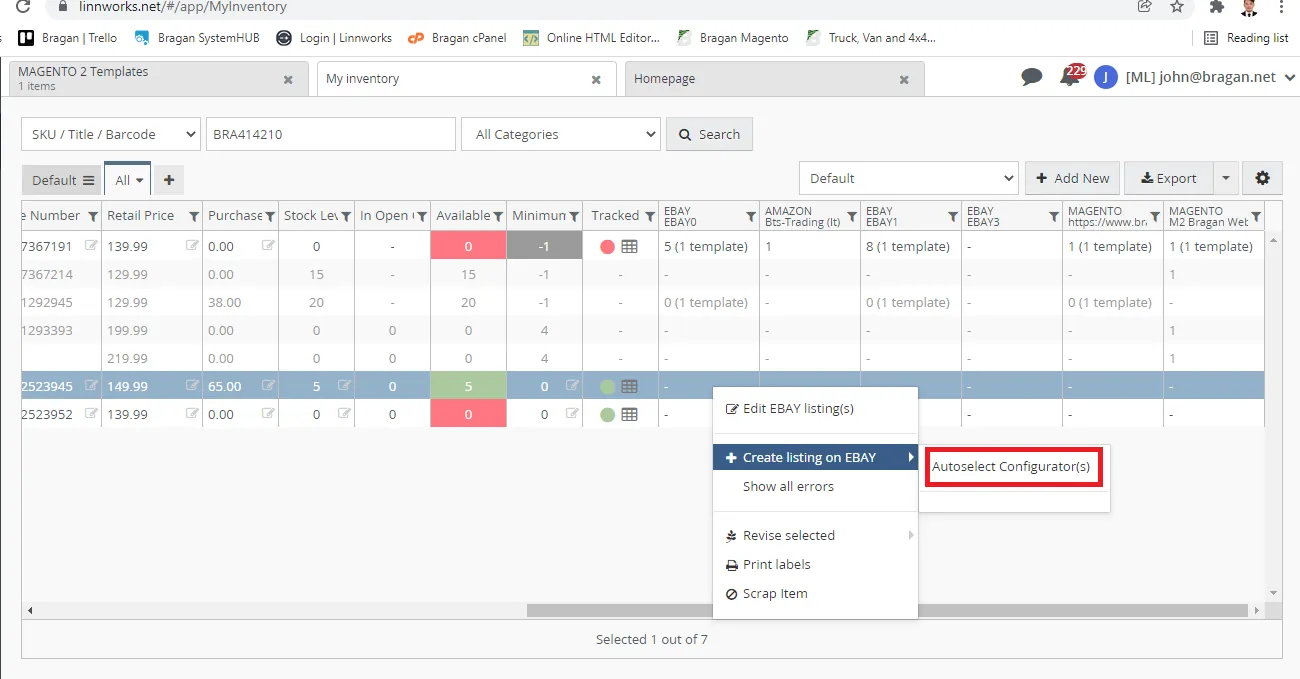
4 - ISSUE ENCOUNTERED: "Autoselect Configurator(s)" appear when creating the listing - RESOLUTION: Poor internet connection, try again later and make sure to choose correct configurator.
Error in listing to Magento - this means that there is same listing title to the one you are listing, change it to make a unique title.
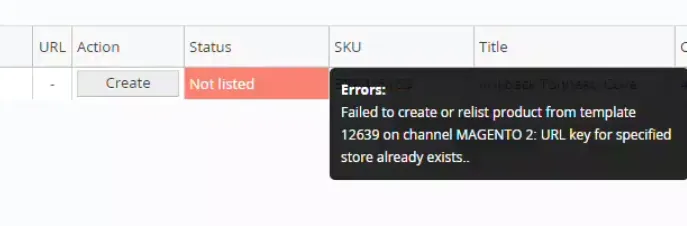
Steps to solve:
Check if there is same item listed live.
If no exactly the same item listed, add additional keyword to title to make it unique.
Example
Roof Bar + LEDs For Ford Transit
Try to change it to:
Roof Bar + LEDs For Ford Transit Van
Attachments#
BRAX_and_BRASP_that_can_b… 10/02/2026
eBay0_Categories_New.xlsx 10/02/2026
Ebay1_Categories_New.xlsx 10/02/2026
Pricing_File_Updated_April_20… 10/02/2026
Warranty_Guide.xlsx 10/02/2026